Linked Lines#
Estimated time to read: 8 minutes
Overview#
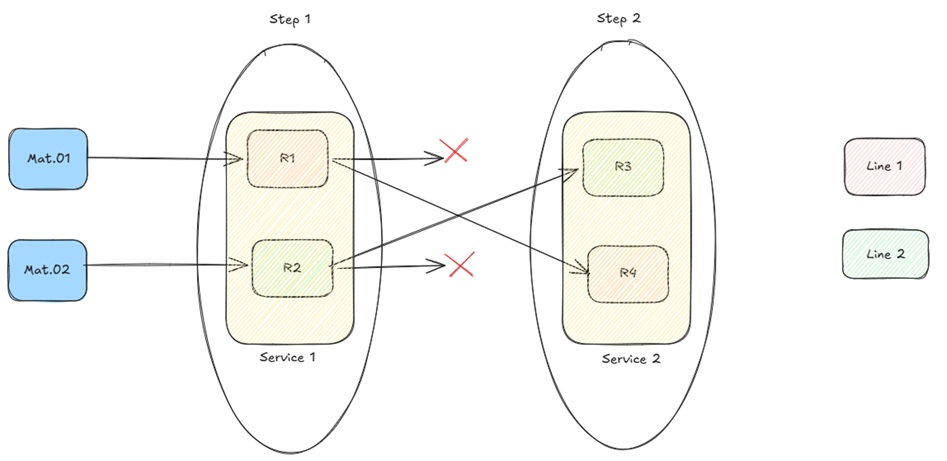
The Linked Lines feature provides a logical way to associate Resources that belong to the same production line, and to prevent Materials from being dispatched to Resources on a different line once processing has begun.
Without this feature, when multiple lines share the same service at a given Step, the system allows dispatch to any eligible Resource regardless of which line the Material started on. The Linked Lines feature enforces line continuity by:
- Storing the line the Material was last processed on.
- Validating the target Resource line at Dispatch & Track-In.
- Filtering the Resource selection list to show only Resources that belong to the Material's current line.
- Handling line assignment when Materials enter or return from Rework and Off-Flow.
- Allowing operators with the appropriate permission to manually change a Material's current line.
Topics#
- Concept
- Line Assignment
- Dispatch Validation
- Track-Out Behavior
- Rework and Off-Flow Handling
- GUI Resource Filtering
- Change Material Line
- Scenario
- Configuration
- Lookup Tables
- Executing Linked Lines
Concept#
The feature introduces a line-tracking concept based on the following attributes:
- MedDevResourceLine – defined on a Resource, identifies which line the Resource belongs to.
- MedDevCurrentLine – defined on the Material, stores the line the Material was last processed on.
- MedDevOriginalLine – defined on the Material, temporarily stores the current line when the Material enters a Rework or Off-Flow, and is cleared when the Material returns.
- MedDevReturnToOriginalLineOnReworkExit – defined on a Flow, it will determine if the value of the Material's MedDevCurrentLine attribute is saved in its MedDevOriginalLine once it enters the Flow in the context of a Rework or Off-Flow action.
- MedDevClearCurrentLineOnReworkEnter – defined on a Flow, it will determine if the Material's MedDevCurrentLine attribute is cleared once it enters the Flow in the context of a Rework or Off-Flow action.
Line Assignment#
A Material's line is established at Track-Out. When the Material completes processing at a Resource:
- If the Resource has a
MedDevResourceLinevalue, it is stored in the Material'sMedDevCurrentLineattribute. - If the Resource has no
MedDevResourceLinevalue, the Material'sMedDevCurrentLineattribute is cleared.
Materials created via Partial Track-Out inherit the same line assignment logic, ensuring split Materials follow the same line as their source Resource.
Dispatch Validation#
When a Dispatch or Dispatch & Track-In operation is performed, the system validates the Material's current line against the target Resource's line:
| Material MedDevCurrentLine | Resource MedDevResourceLine | Result |
|---|---|---|
| Empty | Any | No error |
| Any | Empty | No error |
| Line 1 | Line 1 | No error |
| Line 1 | Line 2 | Validation error |
Track-Out Behavior#
At Track-Out :
- If
MedDevResourceLineis not empty, thenMedDevCurrentLineis updated to that value. - If
MedDevResourceLineis empty andMedDevCurrentLineis not empty, thenMedDevCurrentLineis cleared. - Materials created via Partial Track-Out follow the same rules and have their
MedDevCurrentLineset accordingly.
Rework and Off-Flow Handling#
When a Material is sent to a Rework or Off-Flow, the behavior is controlled by the two Flow-level attributes:
| Flow Attribute | Effect when true |
|---|---|
MedDevClearCurrentLineOnReworkEnter | Clears MedDevCurrentLine on entry |
MedDevReturnToOriginalLineOnReworkExit | Stores MedDevCurrentLine into MedDevOriginalLine before any clearing |
When the Material returns from Rework or Off-Flow:
- If
MedDevOriginalLineis not empty, thenMedDevCurrentLineis restored fromMedDevOriginalLine, andMedDevOriginalLineis cleared. - If
MedDevOriginalLineis empty, thenMedDevCurrentLineis cleared.
GUI Resource Filtering#
When the user opens the Dispatch or Dispatch & Track-In Resource selection list:
- If the Material's
MedDevCurrentLineis empty, no filtering takes place. - If the Material's
MedDevCurrentLineis not empty, only Resources with a matchingMedDevResourceLinevalue and/or noMedDevResourceLinevalue at all are shown.
This filtering is implemented via the MedDevDispatchLinkedLineResourceFilter DEE.
Change Material Line#
Operators with the appropriate permission can manually update a Material's current line directly from the Material Details, Step View, or Resource View pages.
The Change Line button is visible only to users who have been granted the MedDev.ChangeLine feature permission. When clicked, a single-Step wizard is displayed that shows the Material's current line and allows the operator to select a new line from a drop-down list populated from the MedDevProcessLines Lookup table.
Note
Confirming the wizard without selecting a new line is not permitted. A validation message is displayed and the operation is blocked until a valid selection is made.
Assumptions#
To use the Linked Lines feature, the process should follow these assumptions:
- Resources that belong to the same line are assigned the same
MedDevResourceLinevalue. - Resources that are shared across lines, or not part of any line, should have
MedDevResourceLineleft empty. - A Material with an empty
MedDevCurrentLineis not subject to any line restriction at dispatch.
Scenario#
Configuration#
To assess how this feature is addressed, consider a simplified two-line assembly model:
Basic entities like Step, Resource, Flow, Product, and Material can be configured as detailed below:
- Steps:
- Step1
- Step2
- Step3
- Step4
- Resource:
- Resource001
- Resource002
- Resource003
- Flow – Flow 1
- Product – Product 1
- Material – Material001
Two parallel lines are defined:
- Line 1 – Resources:
Resource001 - Line 2 – Resources:
Resource002
Lookup Tables#
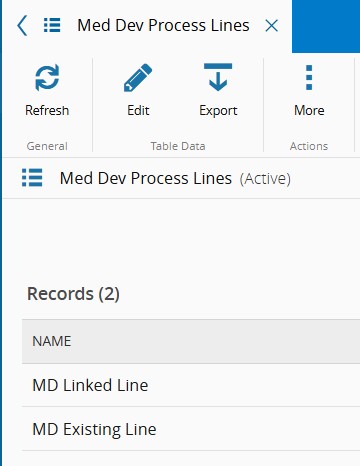
-
Create a Lookup Table
MedDevProcessLinesand add the line entries:
-
Assign the Resource Attribute
MedDevResourceLineto each Resource using values from the Lookup table:

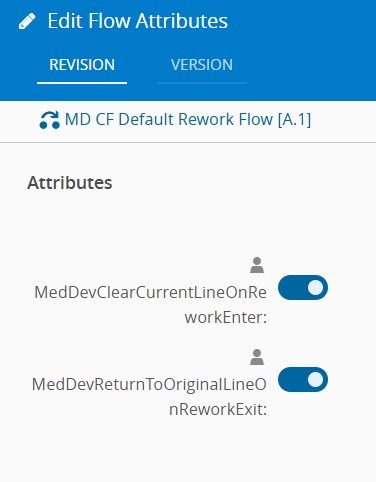
-
Assign the Flow Attributes to the Rework/Off-Flow Flows as required:
MedDevClearCurrentLineOnReworkEnterMedDevReturnToOriginalLineOnReworkExit
Executing Linked Lines#
This section explores the Linked Lines operations. To test and execute this functionality, follow the use case outlined in a Step-by-Step scenario.
-
In Step
Step1, perform a Dispatch & Track-In of MaterialMaterial001to ResourceResource001
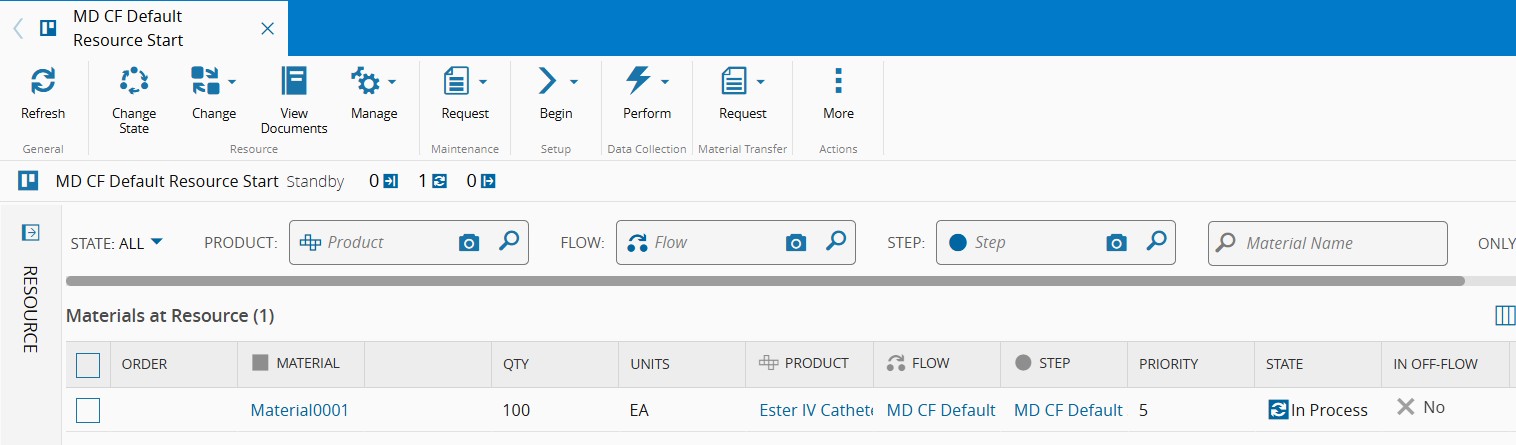
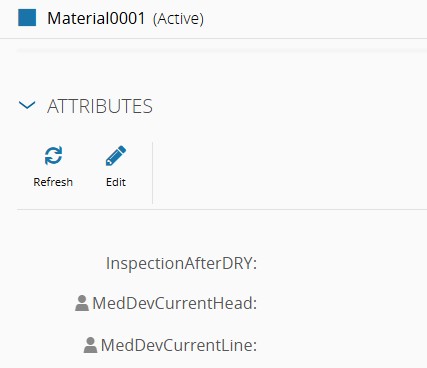
- No validation error is raised because the Material's
MedDevCurrentLineattribute is empty at this point.
- No validation error is raised because the Material's
-
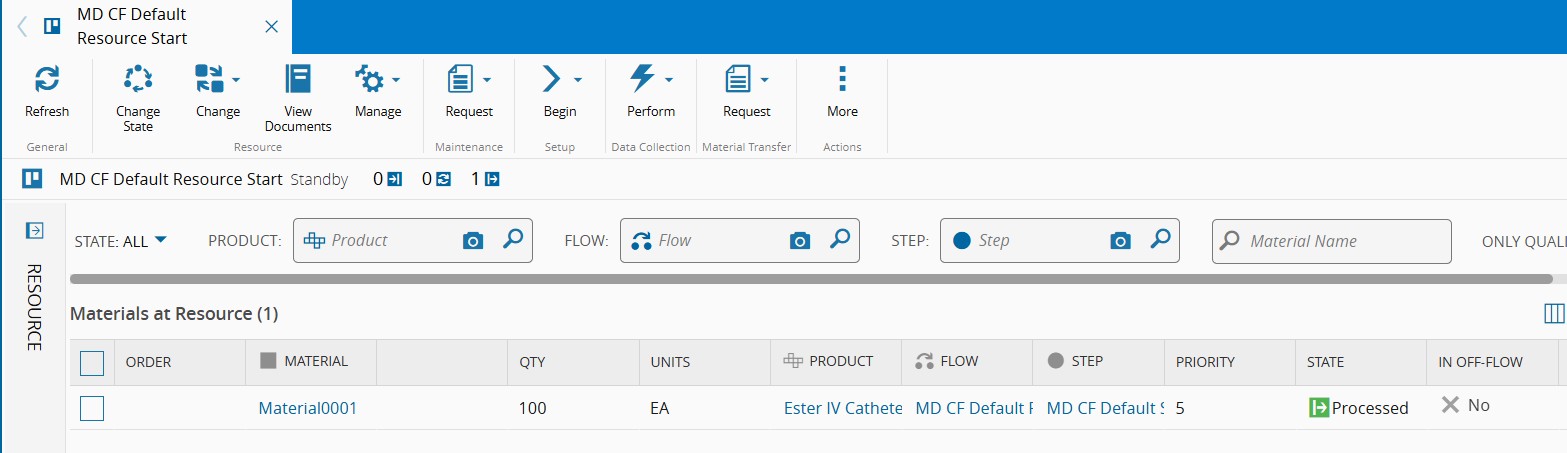
Perform a Track-Out of Material
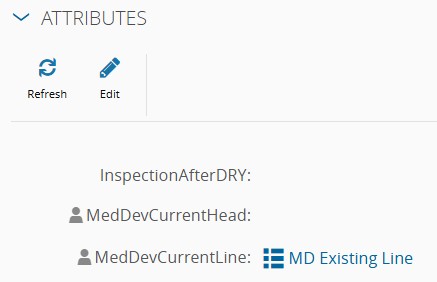
Material001from ResourceResource001- Material
Material001is updated with: MedDevCurrentLine=Line 1
- Material
-
Move the Material to the next Step
Step2, try perform Dispatch & Track-In of MaterialMaterial001to ResourceResource002(Line 2)- If all eligible Resources are assigned to lines different than the Material's from their
MedDevResourceLineattribute value, an error message is displayed

- Otherwise, the action will be able to proceed.
- If all eligible Resources are assigned to lines different than the Material's from their
-
Perform a Dispatch & Track-In of Material
Material001to the correct ResourceResource002(Line 1)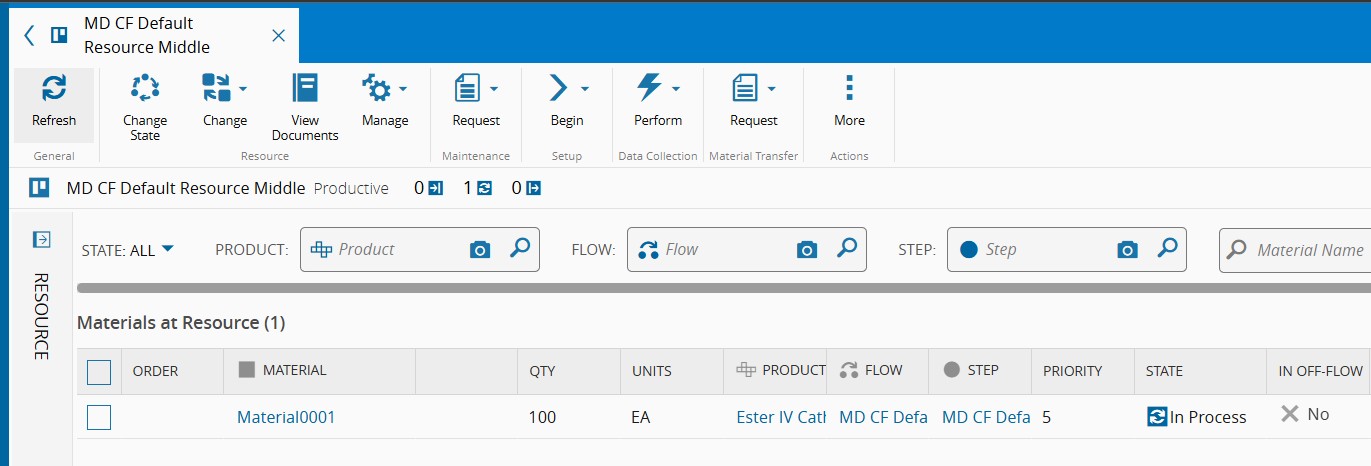
- No validation error is raised because both line values match. - MaterialMaterial001remains with: -MedDevCurrentLine=Line 1 -
Track-out Material
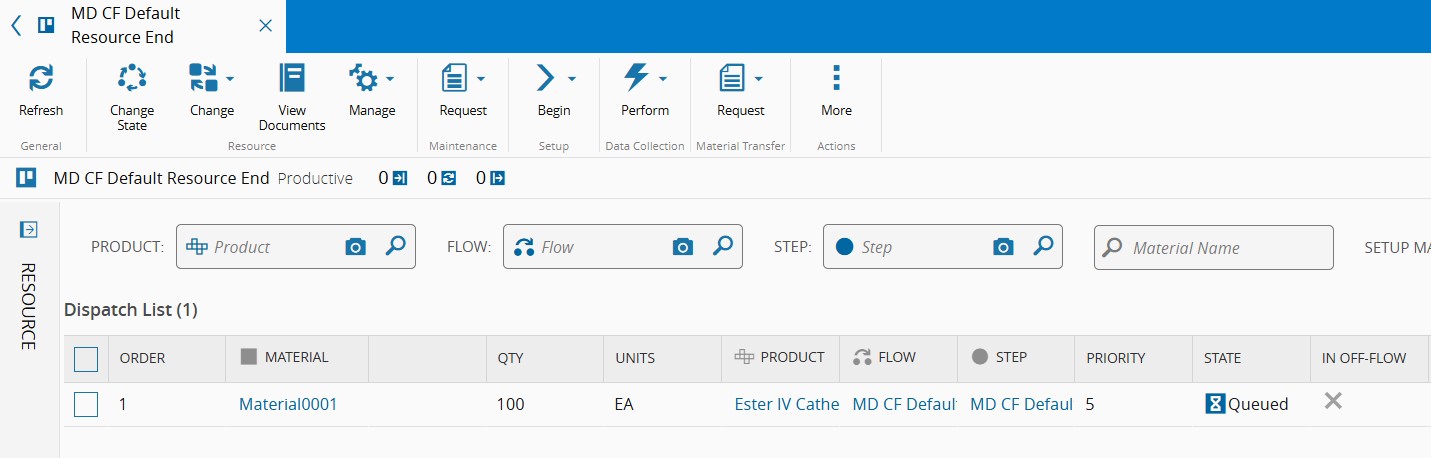
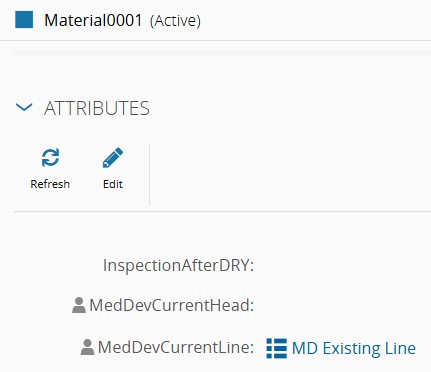
Material001from StepStep2and continue to StepStep3- At Track-Out,
MedDevCurrentLineremainsLine 1.
- At Track-Out,
-
In Step
Step3, process the Material into ResourceResource003until track-out MaterialMaterial001-
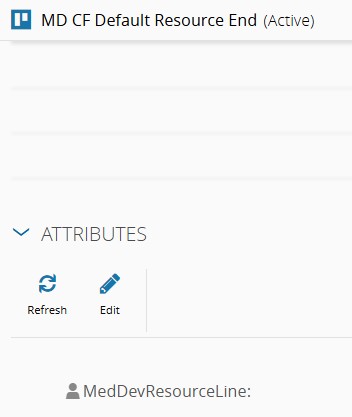
Resource
Resource003has noMedDevResourceLineassigned.
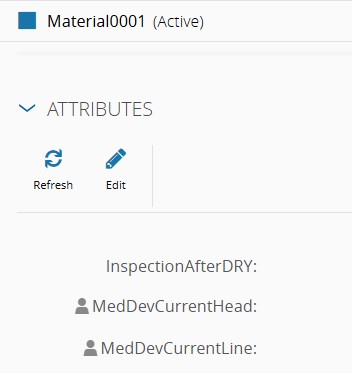
-
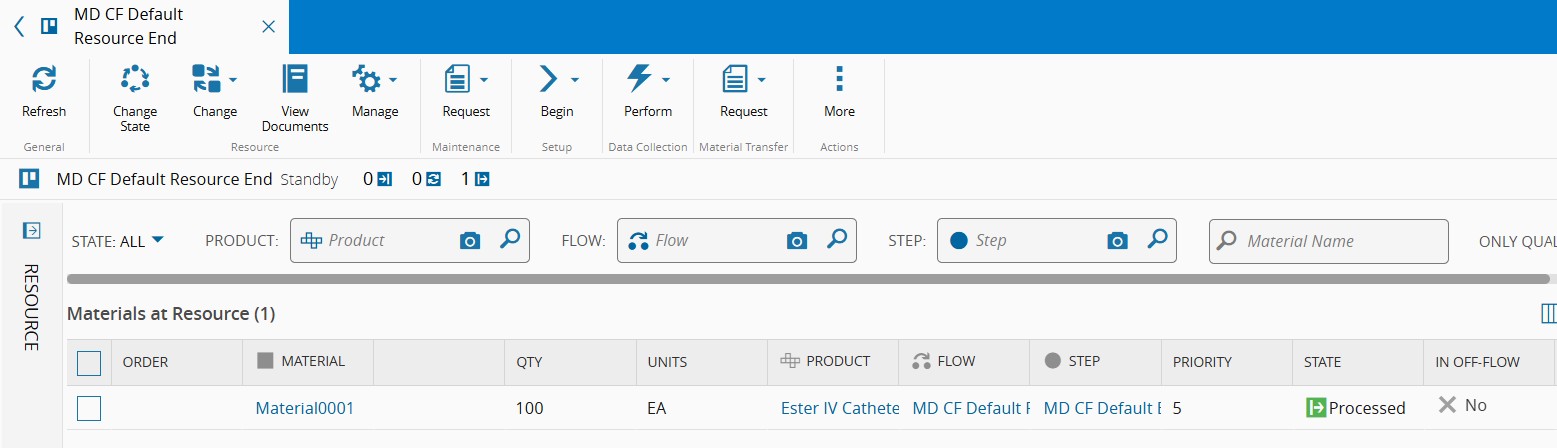
At Track-Out, because the Resource line is empty,
MedDevCurrentLineis cleared.
-
-
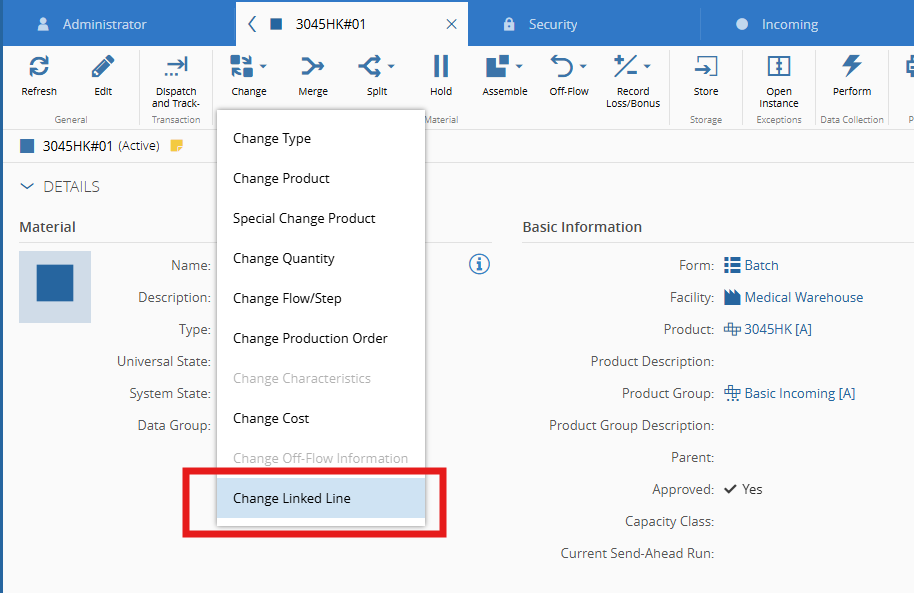
Manually update the line for Material
Material001using the Change Line button- From Material Details, click the Change Line button.
Note
The Change Line button is only visible to users who have been granted the
MedDev.ChangeLinefeature permission.
For more information on feature access, refer to Linked Lines Feature Security section in the User Guide.
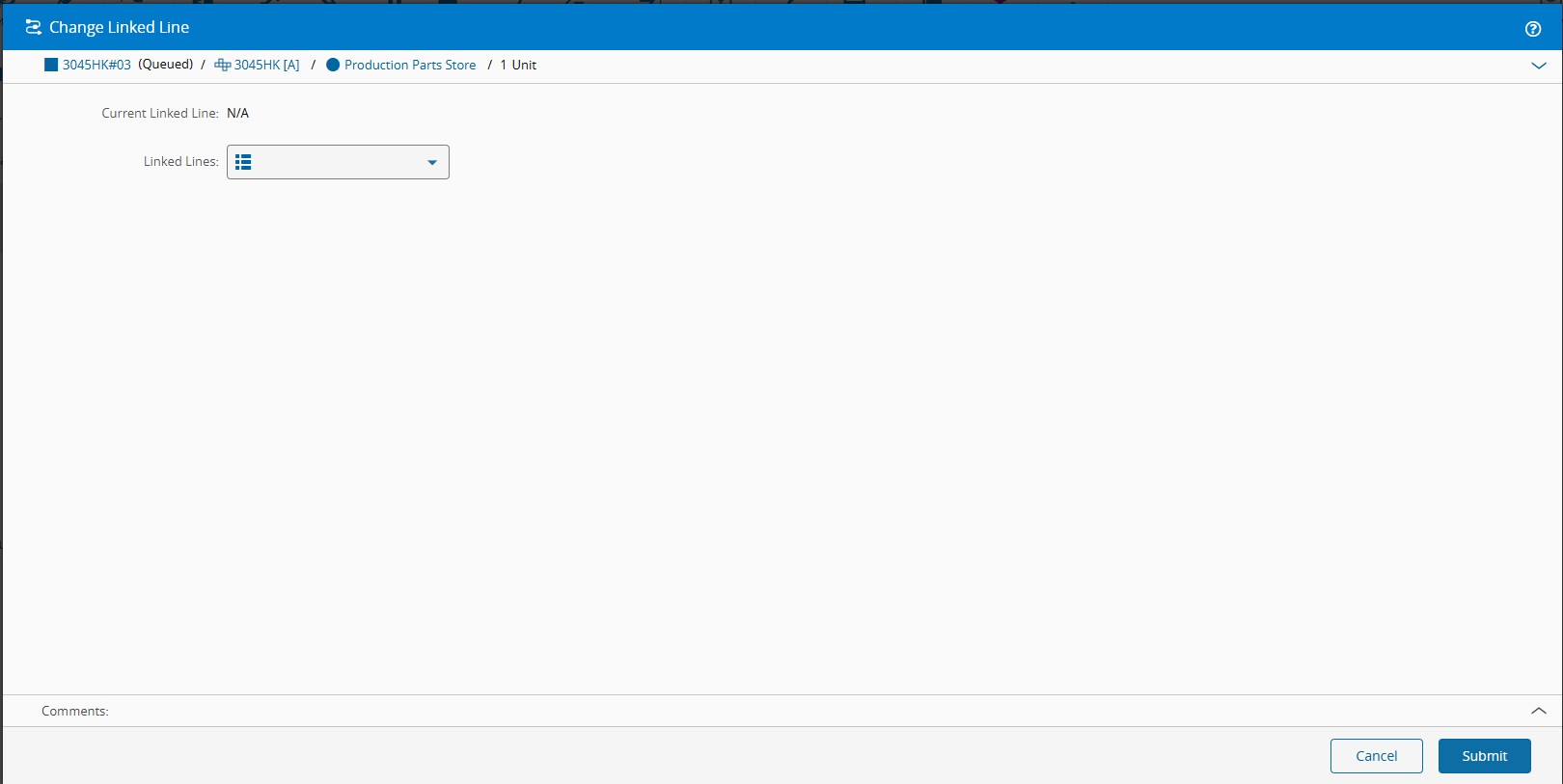
 - The Change Line wizard opens, showing the Material's current line (displayed as empty since it was cleared in the previous Step).
-
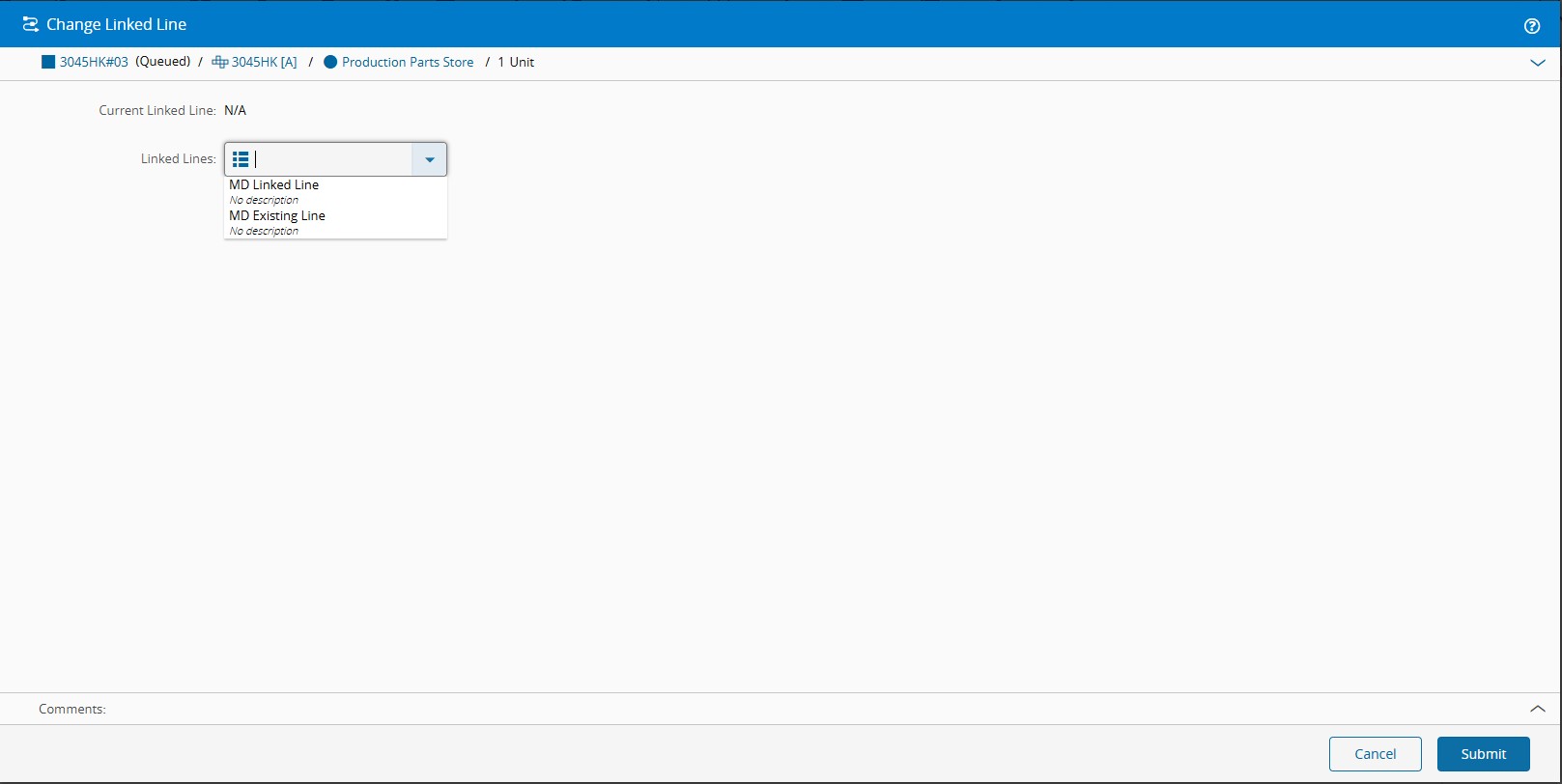
Select
Line 1from the dropdown list and confirm.
-
Material
Material001is updated with: MedDevCurrentLine=Line 1
-
Send Material
Material001to the Rework FlowReworkThe Rework Flow is configured with: -
MedDevReturnToOriginalLineOnReworkExit=true-MedDevClearCurrentLineOnReworkEnter=true
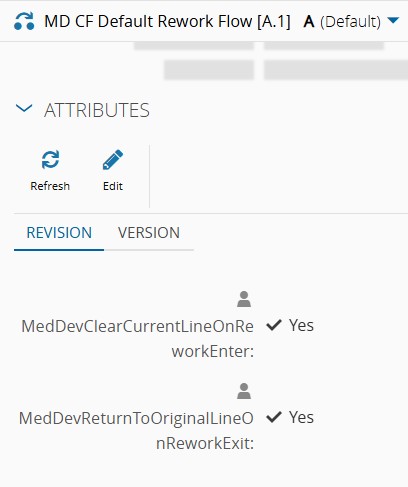
Note
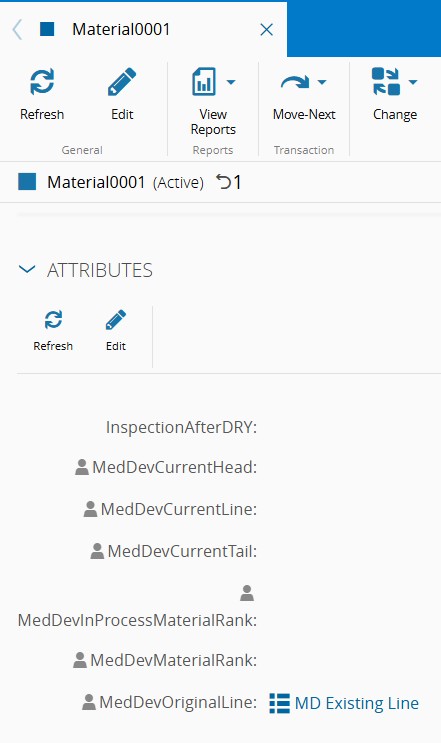
The store-original Step executes before the clear Step.
MedDevOriginalLinecaptures the current line value prior to any clearing. - MaterialMaterial001is updated with: -MedDevOriginalLine=Line 1-MedDevCurrentLine= Cleared
-
Complete the rework process and return Material
Material001to the main Flow- Material
Material001is updated with: MedDevCurrentLine=Line 1MedDevOriginalLine= Cleared
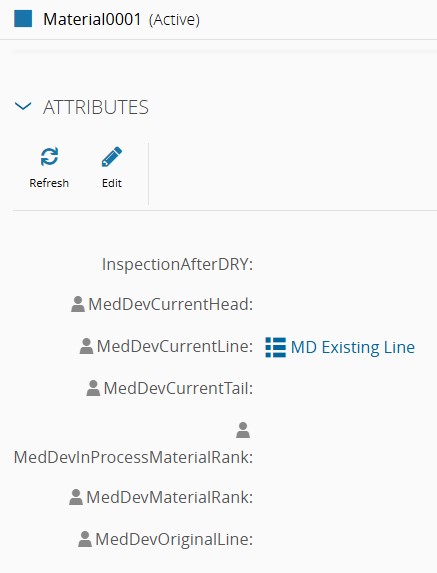
- The Material resumes with its original line enforced, and dispatch validation will apply again from this point.
- Material
Info
For more information on Linked Lines, see Linked Lines in the User Guide.