Tutorial: Material Serialization#
Estimated time to read: 3 minutes
Objective#
Learn how to configure and execute material serialization to generate hierarchical materials (e.g., Lot, then Panel, then Board) and ensure full traceability throughout the process.
Step 0: Validate Preconditions#
Before configuring serialization, ensure:
-
Feature is enabled:
/SMT/MaterialSerialization/IsEnabled = True
-
The following Smart Tables are configured:
SMTMaterialExpandContextSMTMaterialNameGenerationContextSMTMaterialPrintableDocumentContext(optional)
Step 1: Configure Expansion Rules#
-
Navigate to Administration > Tables > Smart Tables and Open
SMTMaterialExpandContext. -
Configure:
- Step where serialization occurs
- Parent Form (e.g., Lot)
- Child Form (e.g., Panel)
- Sub Child Form (e.g., Board)
- Expand Operation (Track-In or Track-Out)
- Expansion Factor(s)
- External/Internal naming
- Special Mode (True/False)
This configuration defines when and how materials expand.
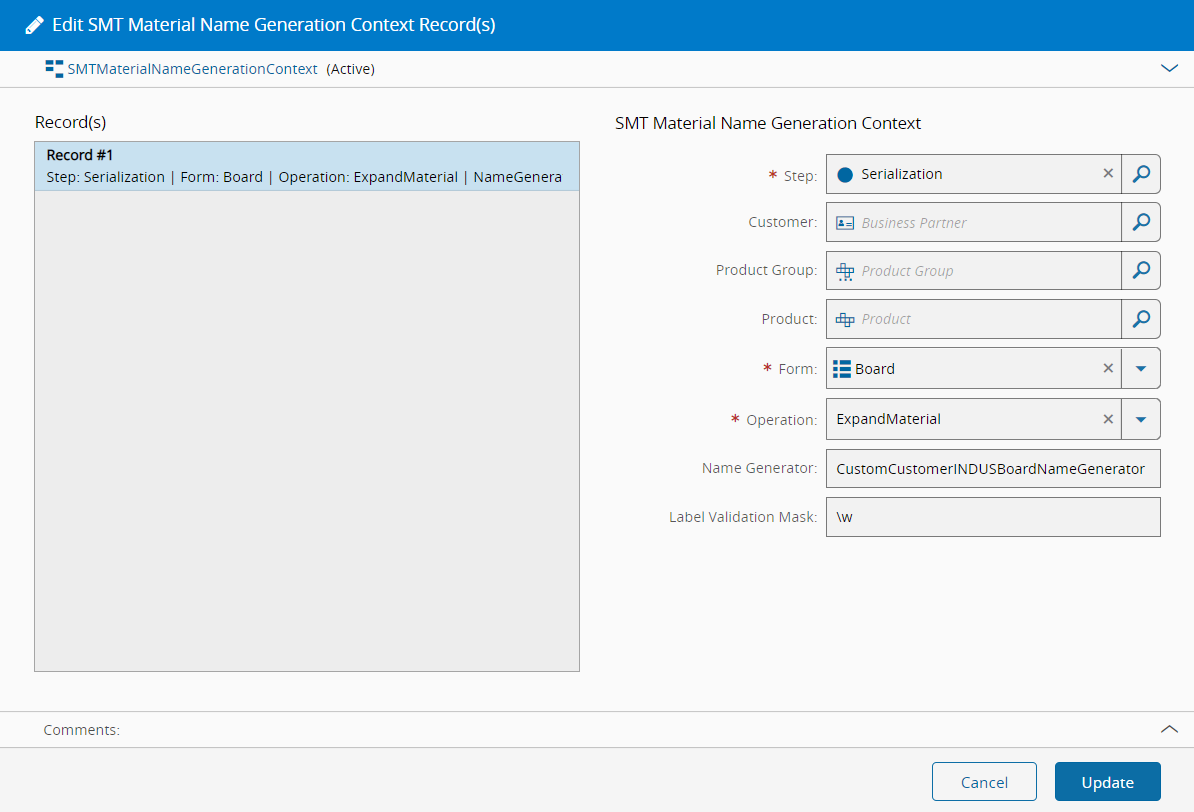
Step 2: Configure Naming Rules#
-
Open:
SMTMaterialNameGenerationContext
-
Configure:
- Step
- Material Form
- Operation = ExpandMaterial
- Name Generator
- Optional validation mask (for scanning/format enforcement)
Step 3: Configure Label Printing (Optional)#
-
Open:
SMTMaterialPrintableDocumentContext
-
Configure:
- Step
- Material Form
- Operation
- Label template
- Synchronous printing option

Step 4: Choose Serialization Mode#
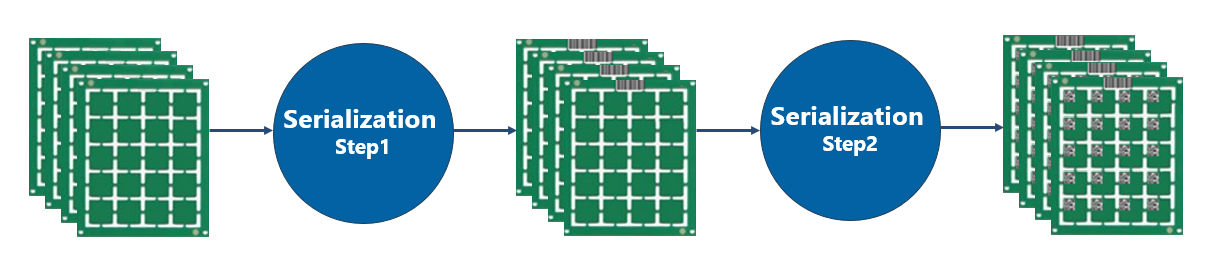
Option A: Without Special Mode#
Is Special Mode = False
Behavior:
- Expansion occurs across multiple steps
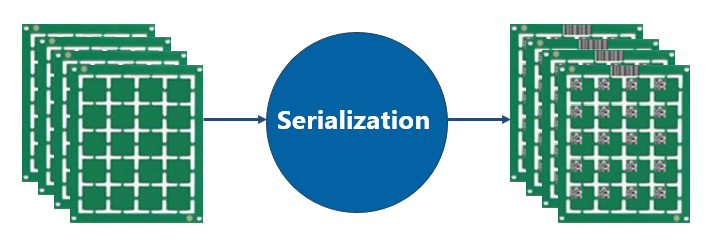
Option B: With Special Mode#
Is Special Mode = True
Behavior:
- Multiple levels (e.g., Panel + Board) are created in a single step
Step 5: Execute Serialization#
-
Start with a parent material (e.g., Lot)
-
Move the material through the configured step
-
Perform the configured operation:
- Track-In or Track-Out
-
The system automatically generates child materials
Example:
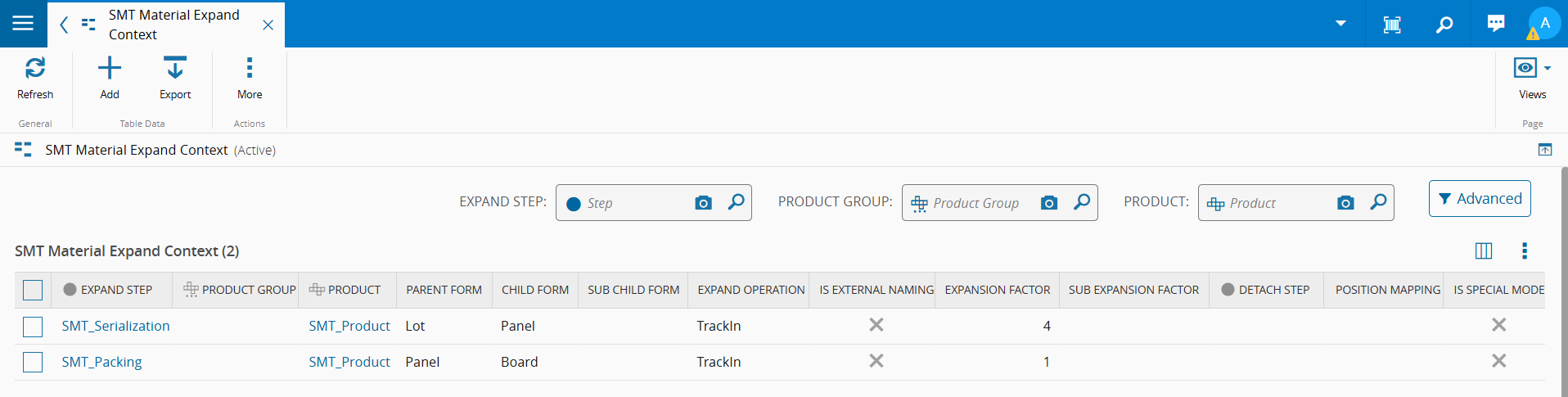
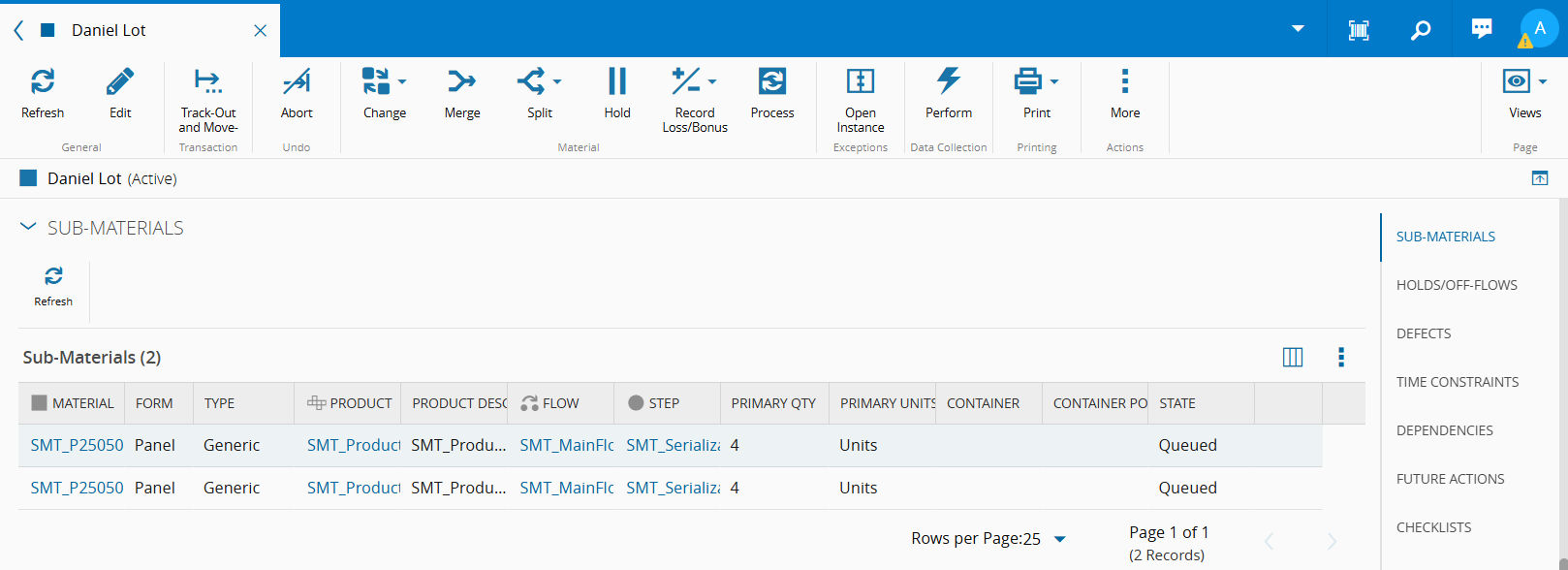
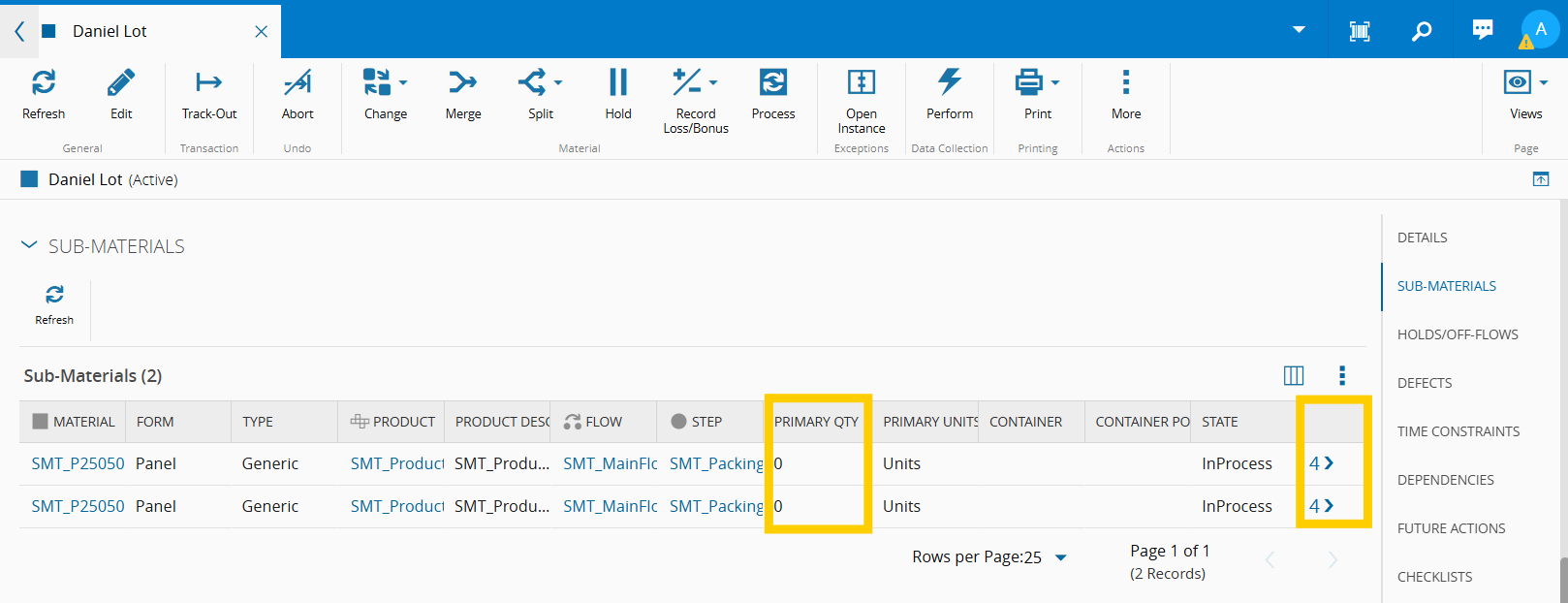
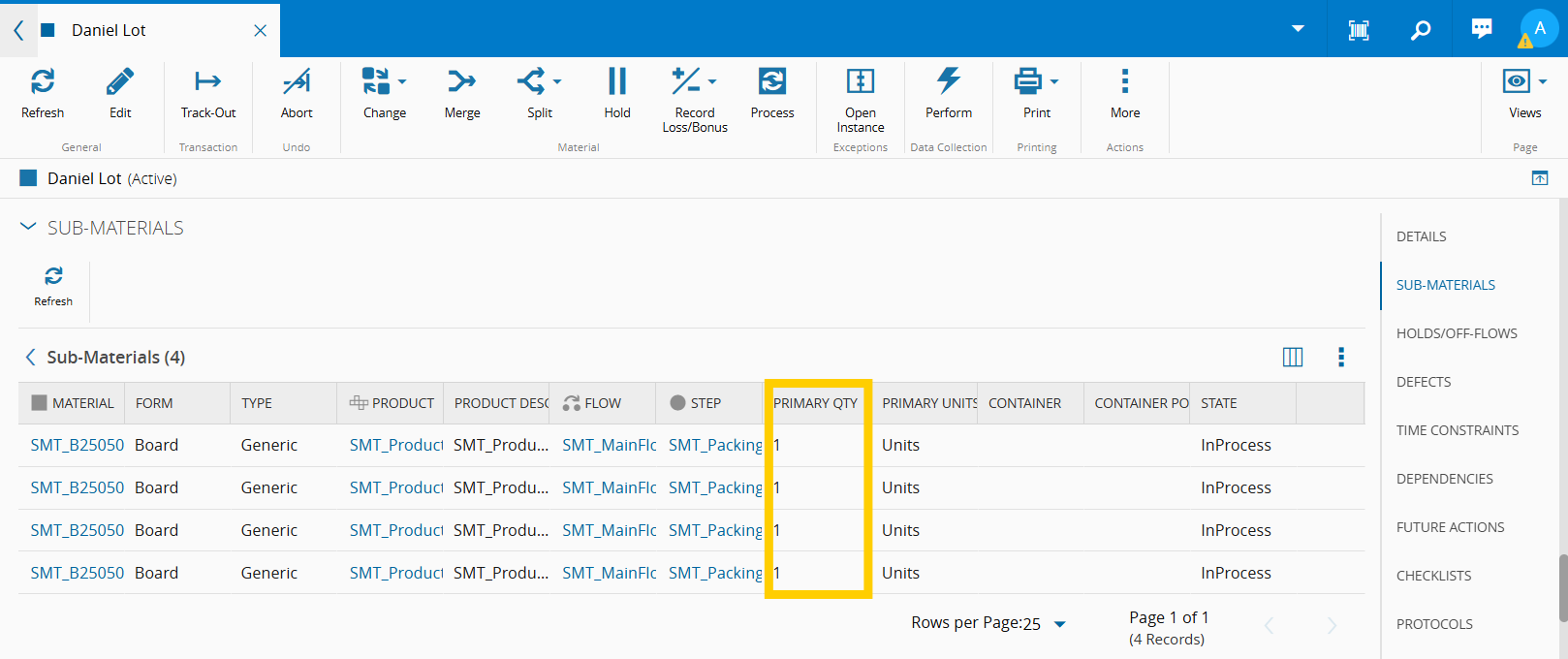
Expected structure:
- Lot, then Panel, then Board
Expected Result#
- Materials are expanded based on configured rules
- Material hierarchy is created automatically
- Each level (Lot, Panel, Board) is uniquely identified
- Full traceability is established
Frequent Configuration Questions#
Why are no materials being created?#
Check that the SMTMaterialExpandContext configuration is correctly defined and enabled.
Why are the generated quantities incorrect?#
Validate the following configuration values:
- Expansion Factor
- Sub Expansion Factor
Why are there issues with material naming?#
Verify that the Name Generator configuration is correctly set up and associated with the process.
Why is the expansion process not being triggered?#
Verify that the operation is configured to execute at the correct step and event:
- Track-In
- Track-Out
Why are labels not being generated?#
Validate that the SMTMaterialPrintableDocumentContext configuration is properly set up.
Why is the generated material hierarchy incorrect?#
Confirm that the Special Mode configuration is correctly defined for the intended expansion scenario.