Shift Logbook Configuration#
Before running the scenarios, configure the master data and system setup in the order shown below. You can download the master data file used to create the model here.
For additional reference:
1. Configure Calendar and Shift Definition#
To create Shift Logbooks automatically, the system requires:
- A Calendar associated with the Area.
- A Shift Definition with at least one Shift Definition Shift.
- Calendar Days generated for the relevant period with Shift Definition assigned.
Without Calendar Days and Shift Definition Shift for the current date, the system does not create a Shift Logbook for that period.
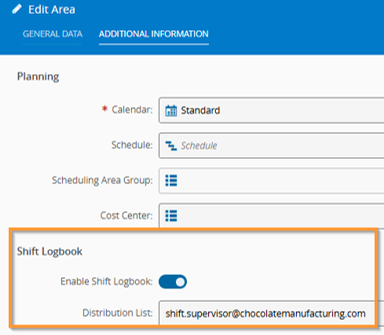
2. Enable Shift Logbook on Area#
- Navigate to Business Data > Area > [Area Name].
- Select Edit.
- In Additional Information, locate Shift Logbook.
- Set Enable Shift Logbook to Yes.
You can also configure Shift Logbook Distribution List, which sends a signed-off logbook by email to configured recipients.
3. Configure Lookup Table: ShiftLogbookEntryCategory#
- Navigate to Administration > Tables > Lookup Tables.
- Open ShiftLogbookEntryCategory.
- Add categories used by your operation.
| Lookup Table | Example Values |
|---|---|
| ShiftLogbookEntryCategory | Equipment, Manufacturing, Safety, Facilities, Process, Quality |
Table: Shift logbook entry categories
4. Configure Lookup Table: ShiftLogbookEntrySeverity#
- Navigate to Administration > Tables > Lookup Tables.
- Open ShiftLogbookEntrySeverity.
- Add severity values.
| Lookup Table | Example Values |
|---|---|
| ShiftLogbookEntrySeverity | Low, Normal, Critical |
Table: Shift logbook entry severities
5. Configure Generic Table: ShiftLogbookEntrySeverity#
- Navigate to Administration > Tables > Generic Tables.
- Open ShiftLogbookEntrySeverity.
- Add one row per severity value.
| Field | Required | Description |
|---|---|---|
| Severity | Yes | Value from ShiftLogbookEntrySeverity lookup table. |
| Icon | No | Multimedia object used for severity icon. |
| Rank | Yes | Integer above 0. Higher rank means higher criticality. |
Table: Generic table configuration for entry severity
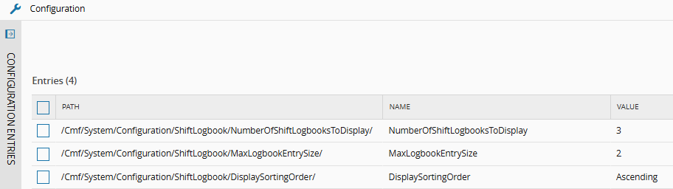
6. Review System Configuration Entries#
Review configuration entries under /Cmf/System/Configuration/ShiftLogbook/ to control Shift Logbook behavior in fabExplorer.
After configuration is complete, continue with Scenarios.