Assembly Operator Cockpit (Preview)#
Overview#
The Assembly Operator Cockpit page simplifies explicit long-running assembly processes. It supports material assembly through barcode scanning and background equipment integration.
Integrated barcode scanning, prominent action controls, and minimal input requirements make operations simple, intuitive, and efficient.
The interface updates in real time. Assembled material information refreshes automatically based on events, without the need to refresh the page manually.
These capabilities help operators track and control assembly operations quickly and accurately at anypoint during the process.
Note
This feature is provided as a Beta Preview version, which is not fully complete but is made available so that users can get access, provide feedback, or reuse some of the components in other custom user cockpits.
Business Context#
In fast-paced manufacturing operations, speed and accuracy are essential to maintain productivity. A streamlined interface that reduces manual effort and provides real-time feedback helps operations teams complete tasks with fewer mistakes.
Often, the consumable part scanning is done at a different time than the actual assembly, where users scan/pick all consumables in the beginning of the process, so that they can then do the manual assembly uninterrupted.
Concept#
Assembly Operator Cockpit provides a unified interface with these capabilities:
- Checklist execution - Execute checklist items directly in the interface, including manual tasks and required parameter entry.
- Assembly operations - Perform assemble operations by scanning a barcode or QR code with a camera, or by entering a barcode manually.
- Real-time consumable tracking - Monitor assembled and disassembled materials, including events captured from internal operations and external equipment integrations.

The Assembly process is decoupled from the checklist execution, allowing items to be scanned/consumed whenever is more convenient for the user, without being enforced to a specific checklist item.
Setting Up Assembly Process#
To be used in the Assembly Operator Cockpit, a Checklist and a BOM Context with type Explicit Long Running need to be configured for the Step context.

Executing Assembly#
Access Assembly Operator Cockpit Through Barcode Identification#
- Go to Barcode Identification. This page is under Manufacturing in the navigation pane.
-
Scan or enter the barcode or name of the main process material.
Note
The Material should be In Process at the Step, and only one material can be scanned at a time.
-
After the material is identified, select Perform to open Assembly Operator Cockpit for that material.

Perform Checklist in Assembly Operator Cockpit#
To perform a long-running checklist in Assembly Operator Cockpit, complete each checklist item in sequence.

Perform Material Assembly in Assembly Operator Cockpit#
-
Scan the consumable material barcode with a physical barcode-scanner, or alternatively use the camera icon, or enter the material name manually in the input field.


-
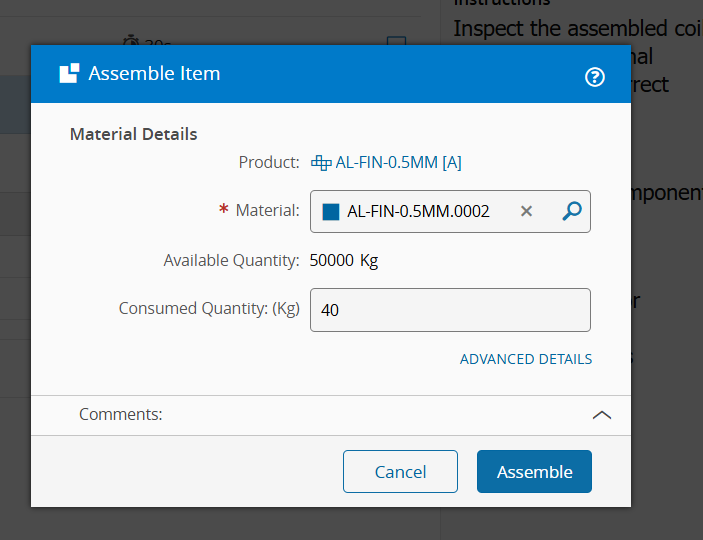
In some conditions, additional information or quantity is required to be input manually after scanning a Material or Product name. In these cases, the Assemble Item prompt opens in order to:
- Select/Reselect the appropriate material.
- Enter the exact consumed quantity.
- Fill out additional information field (if configured in the BOM item).
- Select Advanced Details to input additional info when needed (e.g. to record consumable Material losses or specify locations).
-
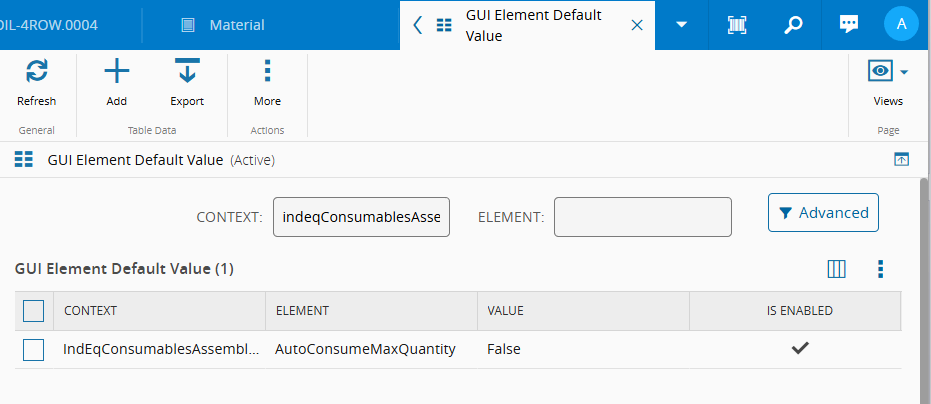
If Auto Consume Max Quantity is enabled, the system consumes the maximum possible quantity and skips the quantity input popup.

Note
If a material name is scanned directly and material quantity is 1 or Auto Consume Max Quantity is enabled, step 2 is not required.
-
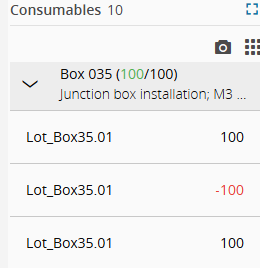
The Consumable Assembly panel gives real-time visibility into material status for assembled and disassembled materials.
Administration#
Configure Auto-Refresh for Assemble or Disassemble#
When assemble or disassemble operations run outside Assembly Operator Cockpit (for example, through IoT integrations, out-of-the-box operations, DEE actions, or services), the automatic refresh can be enabled so that page reflects those updates in real time.
This feature is disabled by default, to enable it:
- Go to Administration > Entity Types.
- Select Material.
-
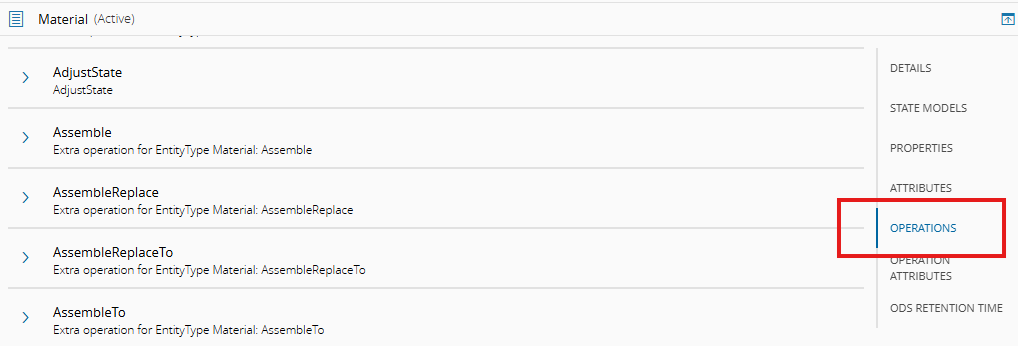
Select Operations and click Manage in the subsection.
-
Select Assemble or Disassemble, and enable Publish Event On Completion.

Assembly Operator Cockpit listens for these events. When an assemble or disassemble event is related to the consumable material on the page, the displayed quantity updates automatically.
UI Defaults configuration#
The default value for the Auto Consume Max Quantity can be configured in the GUI Element Default Values Smart Table.
Access points and Extensibility#
Currently, the only way provided for the end-user to reach the Assembly Cockpit page is via the Manufacturing > Barcode Identification UI. However, this can be extended by adding button links to the IndEqOperatorCockpit UI Page in custom or native dispatch list (like the Step View or Resource View), or in other pages like the Material Details. The only input required for the page is the main Material ID.
The Consumables Assembly control is also available as a UI Page Widget, so that in can be used integrated in other UI Pages for process-specific user cockpits.
Assumptions and Restrictions#
The Checklist portion of the Preview version of the Cockpit has some limitations, namely it does NOT support:
- Signature Items
- integrated Data Collection - Data Collection needs to be separately, or included as Checklist Parameters instead.
- integrated BOM Items - BOM assembly would be covered by the Assembly widget instead, decoupled from the Checklist items.
- Checklist actions after assembly - even though the assembly component is updated automatically, in order to perform a checklist action after assembly, a manual refresh of the page is required.
These restrictions should be solved in the final version of the workspace, planned for MES v12.0. In the mean time, the Checklist Definition setup should take into account the restrictions above, in order to be used in this UI.
The Assembly widget portion currently also has some known limitations:
- Scanning Materials of substitute BOM Products not supported.
- Additional mapped barcodes (via Barcodes section of a Material/Product) are not considered: only barcodes based directly to the Material or Product Name are supported.