On Equipment Event#
The On Equipment Event task activates when the configured event(s) are received from the equipment, and emits the values of the properties received.

Details#
| Fields | Details |
|---|---|
| Scope | Connect IoT |
| Workflow | Data flow Control flow |
IsProtocol flag |
Inputs#
| Name | Data Type | Description |
|---|---|---|
| Enable/Disable | Boolean | Enables or disables the event listening and triggering |
Note
Although the drawn Task box indicates that the Activate input is of type any, it acts based on the value converted to Boolean. The visual information will be fixed in a future version.
Outputs#
| Name | Data Type | Description |
|---|---|---|
| event | AutomationEvent | The automation event object |
| timestamp | DateTime | The timestamp for when the event is triggered |
| eventRawData | Object | The raw automation event object |
| occurrenceId | String | Identifier of the event occurrence, used to correlate the event with a later command |
<EquipmentProperty> | <EquipmentProperty> value | Properties associated with the event |
| Success | Boolean | Emits true after the other outputs of the event occurrence are emitted |
| Error | Error | Error that occurred during the processing of this task |
Settings#
On the General Tab, you have the usual settings and the following settings:
| Name | Data Type | Values | Default | Description |
|---|---|---|---|---|
| Auto Enable | Boolean | true | If the event is activated by the register of an event of that type or if it is only activated by the Activate input | |
| All Events | Boolean | false | The task event triggers whenever there is an event | |
| Equipment Event | Automation Event | Specific event to listen | ||
| Working Mode | enum | AlwaysActiveOneEvent | AlwaysActive | Specifies the behavior of the task |
| Timeout | Long | Only with OneEvent: time in milliseconds to wait for the event. When it expires, the task stops listening and emits Timeout occurred on Error. With no value or 0, the task waits without a time limit. |
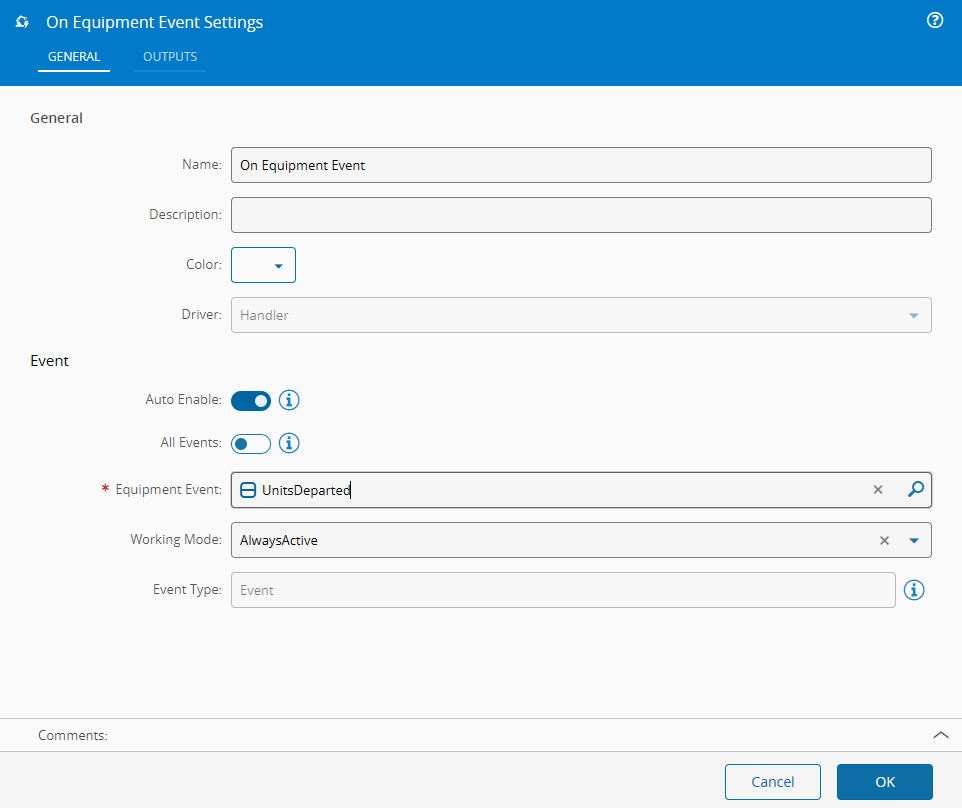
Extended Data
This task shows extended data in the Settings and Outputs tabs when an Automation Event is selected. The extended data shown depends on the driver in use.
The extended data fields of the selected Automation Event are filled from the Automation Driver Definition the event belongs to, so what the task shows is what the driver uses at runtime. Each field takes the value set for the event in the Automation Driver Definition and, when none is set there, the default value declared for the field by the Automation Protocol.
A value of false, 0, or an empty string set in the Automation Driver Definition is a value like any other. It takes precedence over the protocol default.
The task settings only capture these values when the event is selected; they are not kept in sync with the Automation Driver Definition afterward. Always change extended data values on the event in the Automation Driver Definition, not on the task, then reselect the event so the task settings pick up the new value.
On the Output Tab, you have the following settings:
| Name | Data Type | Values | Default | Description |
|---|---|---|---|---|
| OutputType | enum | ValueRawValue | Value | Specifies if the property returns a converted value or the original driver read value |
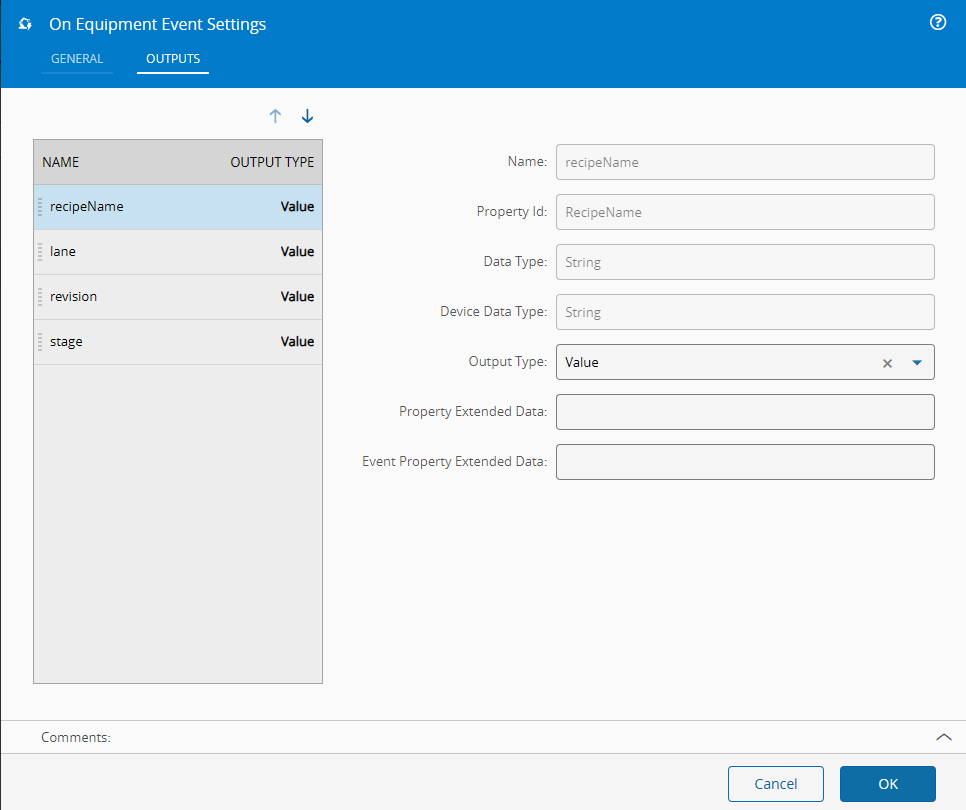
Behavior#
In this task you choose a driver when dropping it into the workflow (if you have more than one driver associated with the controller).
The task becomes available (listening to the events) when one of the following conditions is met:
-
Auto Activatesetting is set totrue. -
Activateinput is fed with atrueBoolean value (or compatible, like1,true,t,yes,y).
When the selected event occurs (or any event if the All events flag is enabled), every property associated with it emits its value.
Each event occurrence carries a unique occurrenceId. When the driver does not supply one, the system generates it automatically, so the output is always filled. Emit this identifier into the Correlation Id input of an Execute Equipment Command task to correlate a command with the event that triggered it, which supports a request and reply pattern.
If the working mode is OneEvent, the event triggers only once. If it is AlwaysActive, it triggers repeatedly until disabled.
Sending a false Boolean value into the Activate input disables the task.
Remarks#
This task uses a context-based data structure called a zone. For more information, see Zones page.