Starting The Application Services#
In order to start Critical Manufacturing Services, the user must perform the following steps:
-
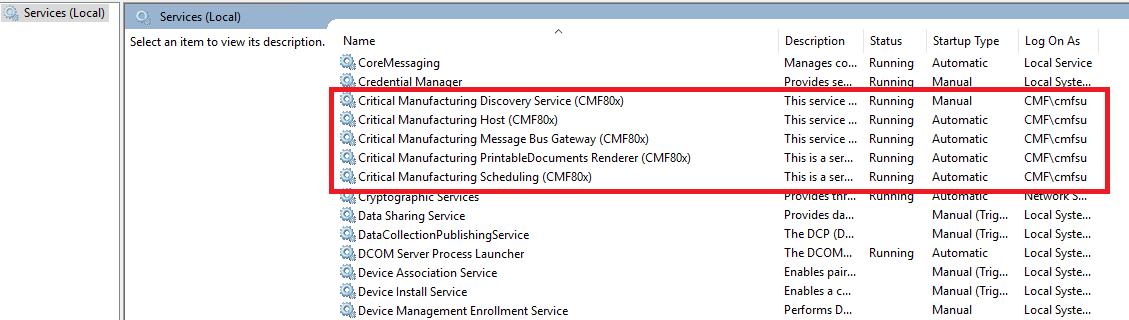
Click Start, Run, type Services.msc, and then click OK. Then right-click on the name of the service - Critical Manufacturing Host - and choose Properties.
-
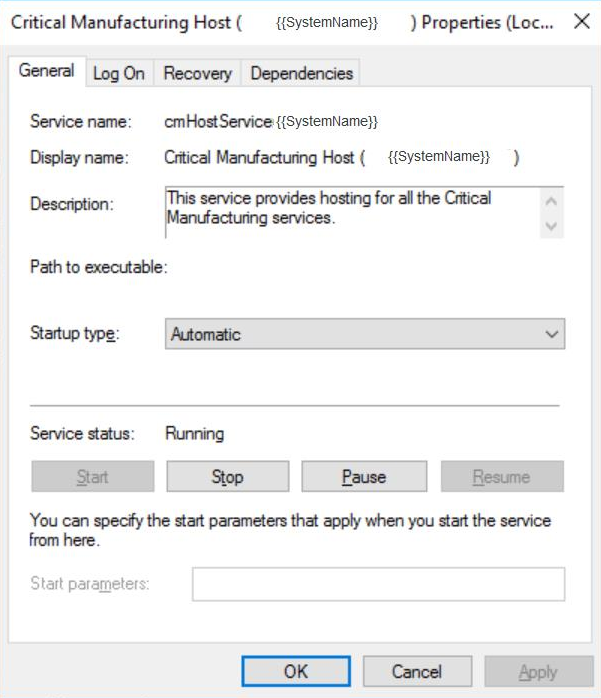
Check that the Startup type is Automatic, then press Start.
-
Finally, verify that the service has started.
Note
Repeat this step in all application servers for this service and for the Critical Manufacturing Remote Import Export Gateway service as well.
Windows Services Time-out#
The default Windows Services time-out of 30 seconds is not always enough for startup. For example, this duration, for the cold-start boot, will lead to problems if an Application Server is restarted (due to maintenance or disaster recovery). This being the case, the Critical Manufacturing Host Windows Service will not be able to start if the Windows Services are set with the mentioned default time-out.
To overcome this, the time of the Windows Services time-out can be increased by configuring the following steps:
- Launch Windows Registry Editor.
- Find the following registry sub-key:
HKEY_LOCAL_MACHINE\SYSTEM\CurrentControlSet\Control - Right-click on this key and select New > DWORD (32-bit) Value.
- A new value named New Value #1 appears on the right.
- Change the name of this new value to
ServicesPipeTimeout. - Right-click the
ServicesPipeTimeoutvalue you created, and select Modify. The Edit DWORD Value window opens. - Change Base to
Decimal. - In the Value data field, type the value (in milliseconds) of time allowed for the service to start, and select OK.
Note
This configuration provides an example for the time-out to be set as 5 minutes (30 000 milliseconds), and it can be modified at a later date without any impact on performance.