Critical Manufacturing Upgrade Procedure#
The Critical Manufacturing Upgrade procedure is heavily dependent on the level of customization of the system and must always be validated and rehearsed in a staging system. When upgrading between major versions, it's expected that some downtime is required. When upgrading between minor versions of the system it might be possible to upgrade without downtime depending on the customer requirements. While the database is being upgraded incoming requests might block waiting for the upgrade to complete and this might have impact on the system normal operation. When applying an update, it's not expected any downtime.
To run the installation wizard, you must either load the saved configuration data from file or you must manually enter the settings that were used in the first installation.
Note
If you change the settings during the upgrade those settings will override the ones that exist in the current installation.
Warning
Due to a limitation in the deployment software on systems using Always On on Availability Groups it is necessary to ensure that the ODS database is hosted on an Availability Group that is located on server and the ONLINE database is hosted on an Availability Group that is hosted on another.
Step 1 - Backup the system#
Before proceeding with the upgrade it is necessary to manually create backups for all the product databases and to backup the binaries folder from one of the application servers.
Step 2 - Upgrading the Database#
The database needs to be upgraded one time. Run the installation wizard in a computer that can connect to all the databases selecting the Database Server option and wait until it completes. In this step incoming requests might experience some delays due to the transactional nature of the upgrade. In the event of a long delay incoming requests might fail with timeout errors and users should be instructed to retry the operation.
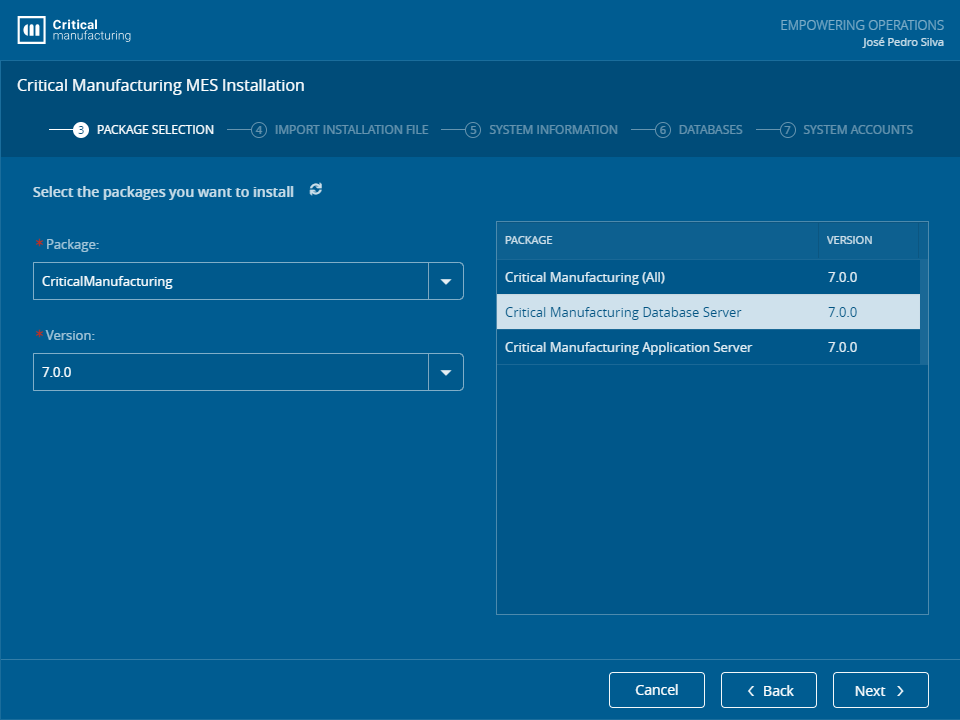
Step 3 - Upgrading the Application Servers#
- Take one of the application servers out of the application server cluster and make sure all MES Services are not running on the Target Server to be upgraded. To avoid downtime, you should open the Host Manager in the Administration menu and disable the host of the server you wish to upgrade.
Warning
Very Important When disabling an application server, the requests being currently handled will continue to execute. Only new requests will be diverted to one of the remaining active application servers. You should wait, at least 2 minutes, for the application server to drain, before shutting down Critical Manufacturing MES service on the machine.
-
Run the installation wizard under an account that has system administration rights and choose the application tier option. The setup needs to replace files on protected directories and must be executed with elevated permissions.
-
If your system has custom Entity Types, for that application server it's necessary to run the LBO generation procedure documented in the LightBusinessObjects ⧉ section of the Developer Guide.
-
Add the application server back to the application server cluster and move to the next application server.
-
Repeat the procedure until all the application servers have been upgraded.
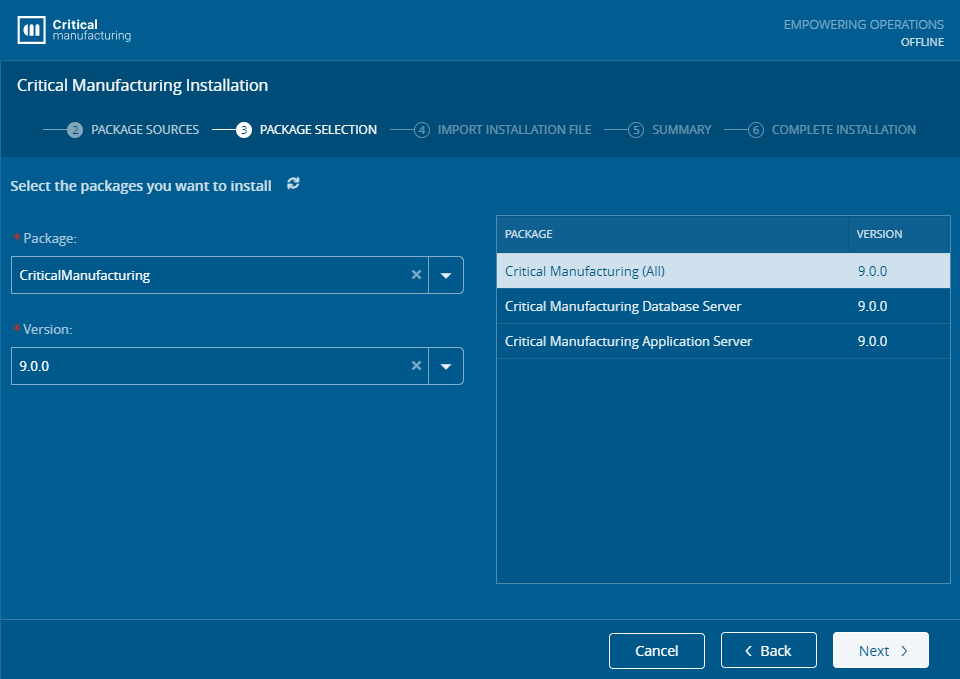
Info
After any server upgrade you should reconfigure and run the latest customization package. This procedure will enable all the HTML customization packages again.