Master Data Loader File#
File Structure#
- Normal Excel workbook with structured data.
- One tab for every entity where the user can input the same data structure that is shown in the GUI.
- The tabs are loaded by the order they are placed in the Excel file, starting on the left and moving rightward. In these tabs there are several specific features:
- Each column represents an entity property or relation.
- Each line represents a new entry.
- The objects are loaded with the order they occupy in the sheet, starting from the top row and moving downward.
- The template doesn’t have all the objects and fields that are available in the UI. However, the user can add more entities (sheets) and fields (columns), provided they are available in the UI and match exactly the name of the entity and respective fields.
- There are dependencies between several of the entities in the sheets (e.g. an Area can't exist without a Facility already existing) that will require precise editing and positioning of the values to be loaded.
Help Sheets#
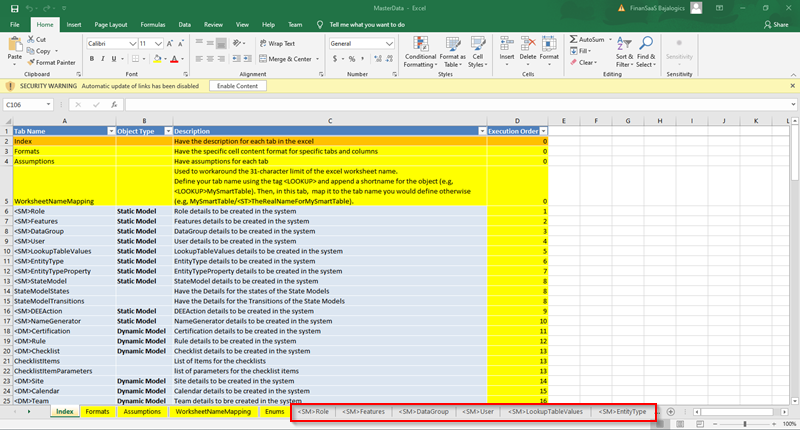
The first sheets have generic and helpful information:
- Index - description for each tab in the Excel file. There is a
ExecutionOrdercolumn where you can specify which sheets to be loaded in sequence, so that you can ensure that the proper entity dependencies are kept. Rows marked withExecutionOrder=0will not be loaded. - Config - defines the configuration options for revisions that will be created when the package is loaded into the Critical Manufacturing MES.
- Formats - specific cell content format for specific tabs and columns.
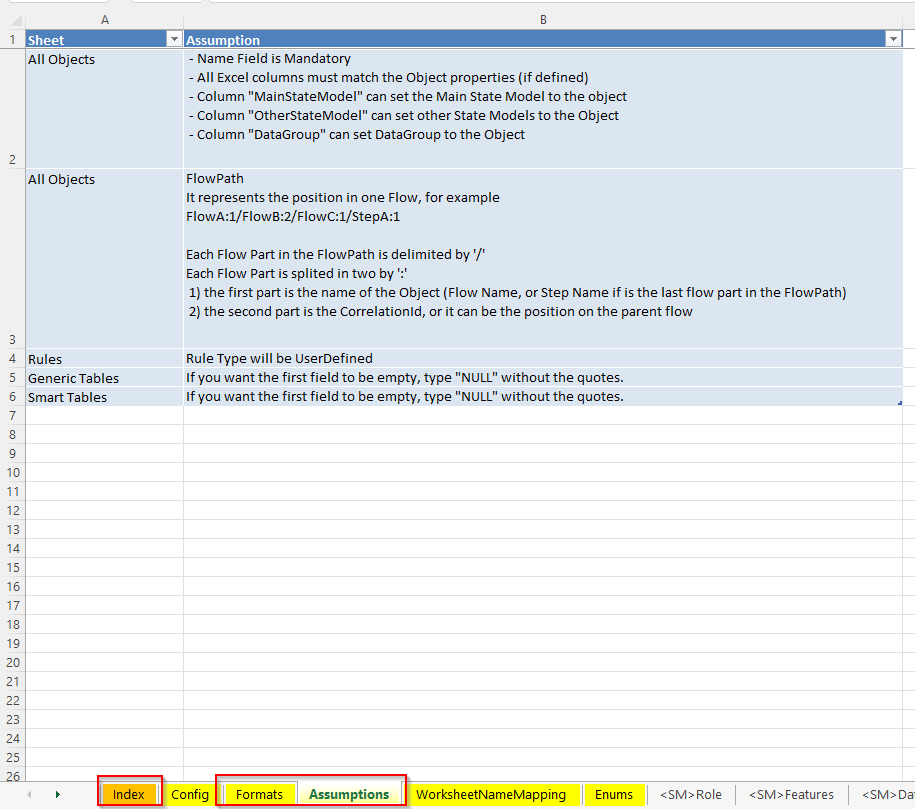
- Assumptions - quick tips and hints for easier data input to the proper sheets.
- WorksheetNameMapping - Due to limitations in the Excel format, the names of the objects in MES are sometimes longer than the allowed values for the tab names. To avoid this issue and maintain compatibility with multiple versions of Excel, this sheet serves as a shortening cheat-sheet for the tab names. The first column, with
WorksheetNamein the header, has the names of the tabs in the Excel files that correspond to each of the values in the second column,Value, representing the names of the system objects that are referenced. Define your tab name using the tag<LOOKUP>and append a short name for the object (e.g,<LOOKUP>MySmartTable). Then, in this tab, map it to the tab name you would define otherwise, so thatMySmartTablebecomes the shortened version of<ST>TheRealNameForMySmartTable. - Enums - values for enumerations that are used for cell validation throughout the template file.
The available Help Sheets are the highlighted tabs in the image below:
Object Types#
The highlighted tabs are only a few of the object types available in the Excel template.
Info
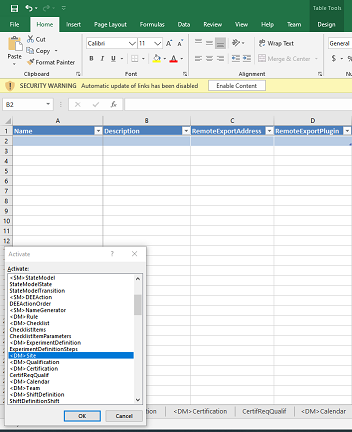
For an easier, faster and more comfortable way of switching between the tabs, a shortcut can be used by right-clicking on the left/right arrows used to select the tabs and activating the tab you wish to see.
Quick Example#
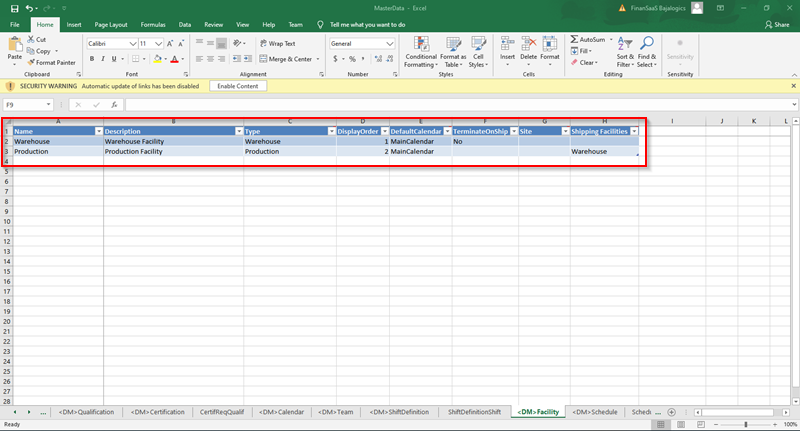
Here is an example of two different Facilities and how to fill the appropriate data in the Excel file.
Note that there are some optional fields that have been left blank and also some additional fields visible in the GUI that we can add as extra columns in the sheet.
Revision configuration#
The Config sheet has specific configuration regarding the format of the revisions that will be created in the system from the versioned entities that are described in the package. Three fields are vital for compliance with the object naming scheme and you can find details on each of them below:
Revision format#
This configuration defines the way of append a revision to a name.
The default value is for this field is [RevisionName], which means that the [ and ] are delimiters of the revision name. A versioned entity will be created in the system like this:
| Entity name | Revision name | Revision format field | Entity revision name |
|---|---|---|---|
| Chocolate Chip Cookies | A | [A] | Chocolate Chip Cookies [A] |
| Chocolate Chip Cookies | One | {One} | Chocolate Chip Cookies |
Table: Entity revision name format
Note
RevisionName is mandatory field in the config sheet and it must exist at least one non-empty character on each side of RevisionName.
Use Revisions#
This configuration defines whether the Master Data Packages will use revisions. The three possible values are:
Yes- the Master Data Packages loader will attempt to parse the revision value from the name field of every row of a versioned entity sheet. If the revision is not found, it will throw an error.No- the Master Data Packages loader will not parse any revision. If a cell declaresProductName [A]as name for a versioned entity, the loader will assume that the name of the object is explicitlyProductName [A]and not that the entity is calledProductNamewith revisionA.Optional(default) - the loader will try to parse the revision but no error will be thrown if the revision is not found.
Default create#
This configuration defines the default operation when creating an object which already exists. The two possible values are:
Create Version(default) - if the entity already exists, create a new version of that object.Create Revision- if the entity already exists, create a new revision of that object.
Note
If the name of the entity is ProductName[A] and an entity ProductName with revision A exists, the system will create a new version for that revision. In this case, the create operation is independent of this config.