DEE Actions#
 Administration.DynamicBusinessRules
Dynamic Execution Engine (DEE) Actions provides access to the available DEE Actions. DEE Actions are soft-rules defined in C# which are loaded and compiled into memory and executed during runtime. The most common use for DEE Actions is to implement pre and post transaction logic.
An Action Group represents a context where the rule is executed automatically by the system.
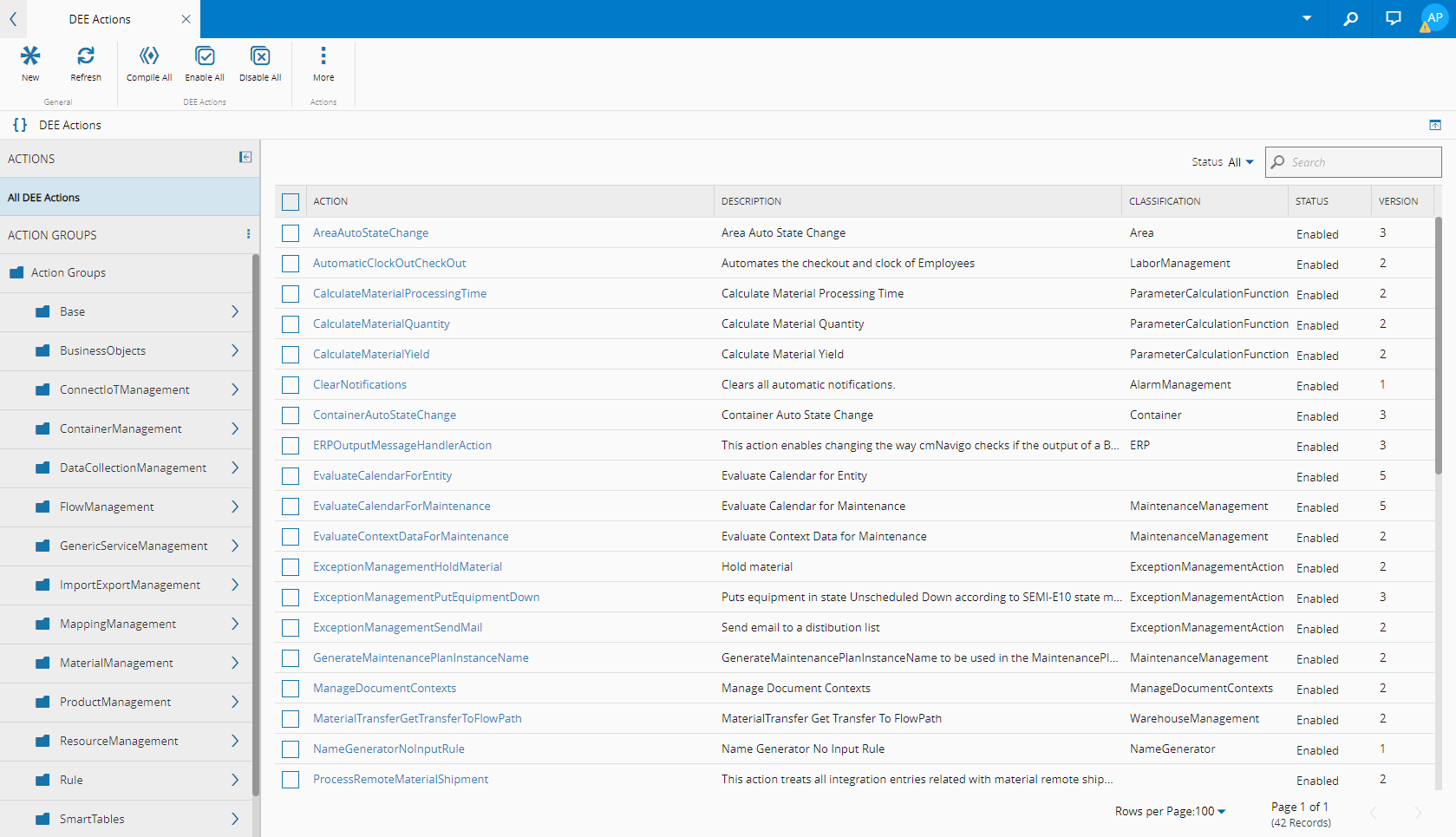
Browsing DEE Actions#
By clicking in the DEE Actions entry in the Administrators Page Group all available DEE Action Groups and DEE Actions are shown. From this tree it is possible to:
- Create a new Action - by clicking on New in the DEE Action button
- Compile all DEE Actions - validates the code structure and integrity for all the actions
- Disable all DEE Actions - renders all DEE Actions disabled in the system
You can filter the DEE Actions that are displayed on the grid by choosing the appropriate status of the DEE Actions to display:
- All - shows all DEE Actions
- Enabled - only displays enabled DEE Actions
- Disabled - only displays disabled DEE Actions
Info
If a DEE Action has an Effective version, the versions displayed on the grid follow this sequence graph:
graph LR
A{Status filter} --> All[All]
A --> Enabled[Enabled]
A --> Disabled[Disabled]

All --> EffectiveAll{Is there an Effective version?}
Enabled --> EffectiveEnabled{Is there an Effective version?}
Disabled --> EffectiveDisabled{Is there an Effective version?}

EffectiveAll -->|Yes| E[Shows the Effective Version]
EffectiveEnabled -->|Yes| F[Shows the Effective Version if it is Enabled, otherwise don't show anything]
EffectiveDisabled -->|Yes| G[Shows the Effective Version if it is Disabled, otherwise don't show anything]

EffectiveAll -->|No, all versions are Active| H[Shows the most recent Version]
EffectiveEnabled -->|No, all versions are Active| I[Shows the most recent Version if it is Enabled, otherwise don't show anything]
EffectiveDisabled -->|No, all versions are Active| J[Shows the most recent Version if it is Enabled, otherwise don't show anything] DynamicBusinessRules.Create
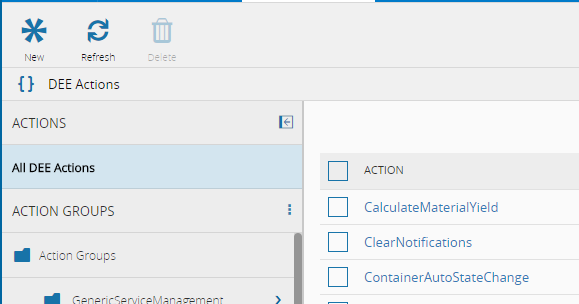
- Create a new Action Group - by clicking on New in the DEE Action Group chunk
ActionGroup.Create
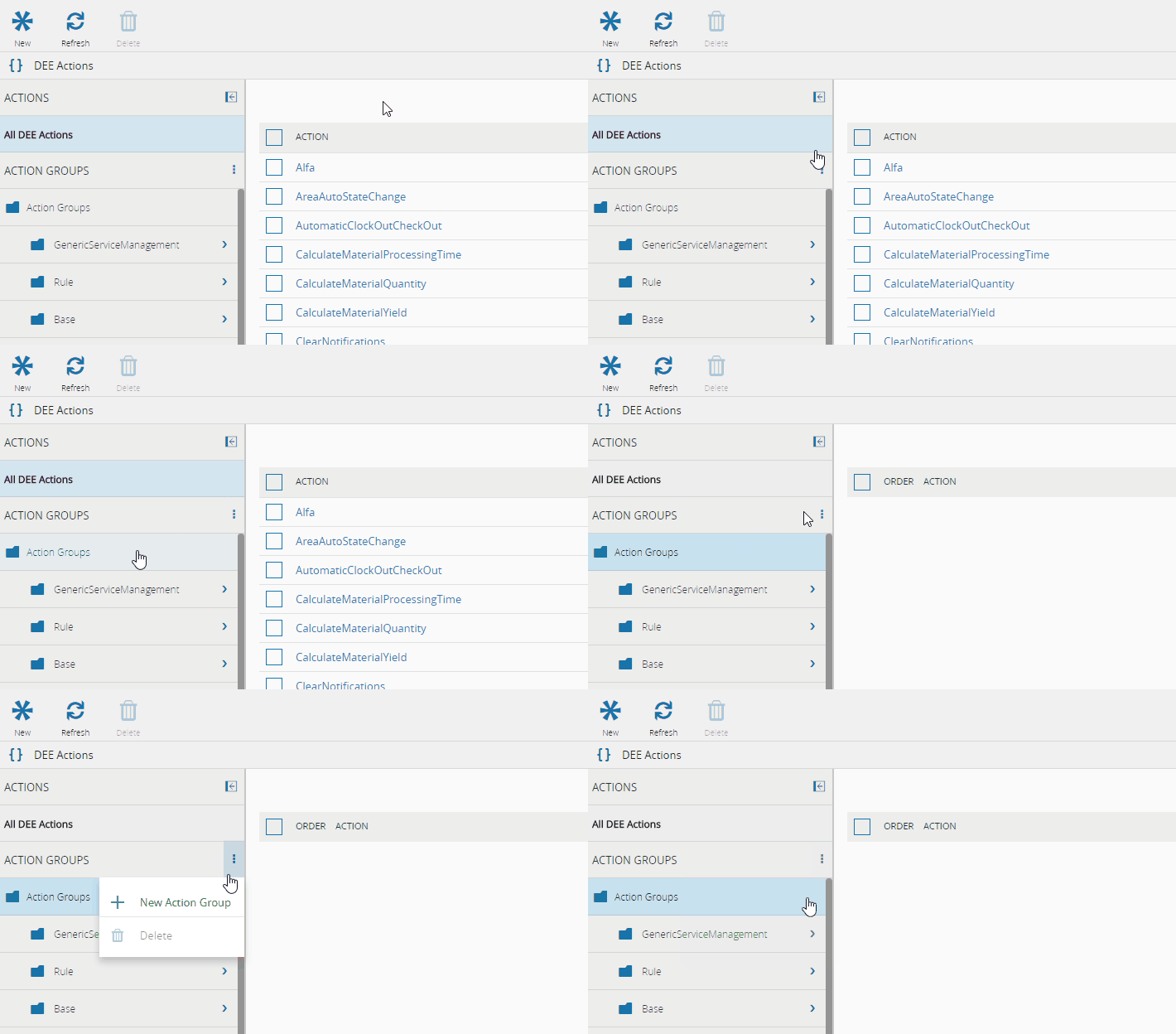
Info
To create a Sub Action Group, add a dot (.) in the name. For instance, the folder "Main.Sub1.Sub2" will create a Sub Folder "Sub1" under Main and a Sub Folder "Sub2" under "Sub1".
When drilling down to a particular Action Group leaf of the tree, it is possible to change the order (be sure to press Save), add and remove DEE Rules from the Action Group. Note that removing a DEE Rule from an Action Group does not delete the DEE Rule.

DEE Action Details#
Clicking on a DEE Action Name opens the details of the selected DEE Action.
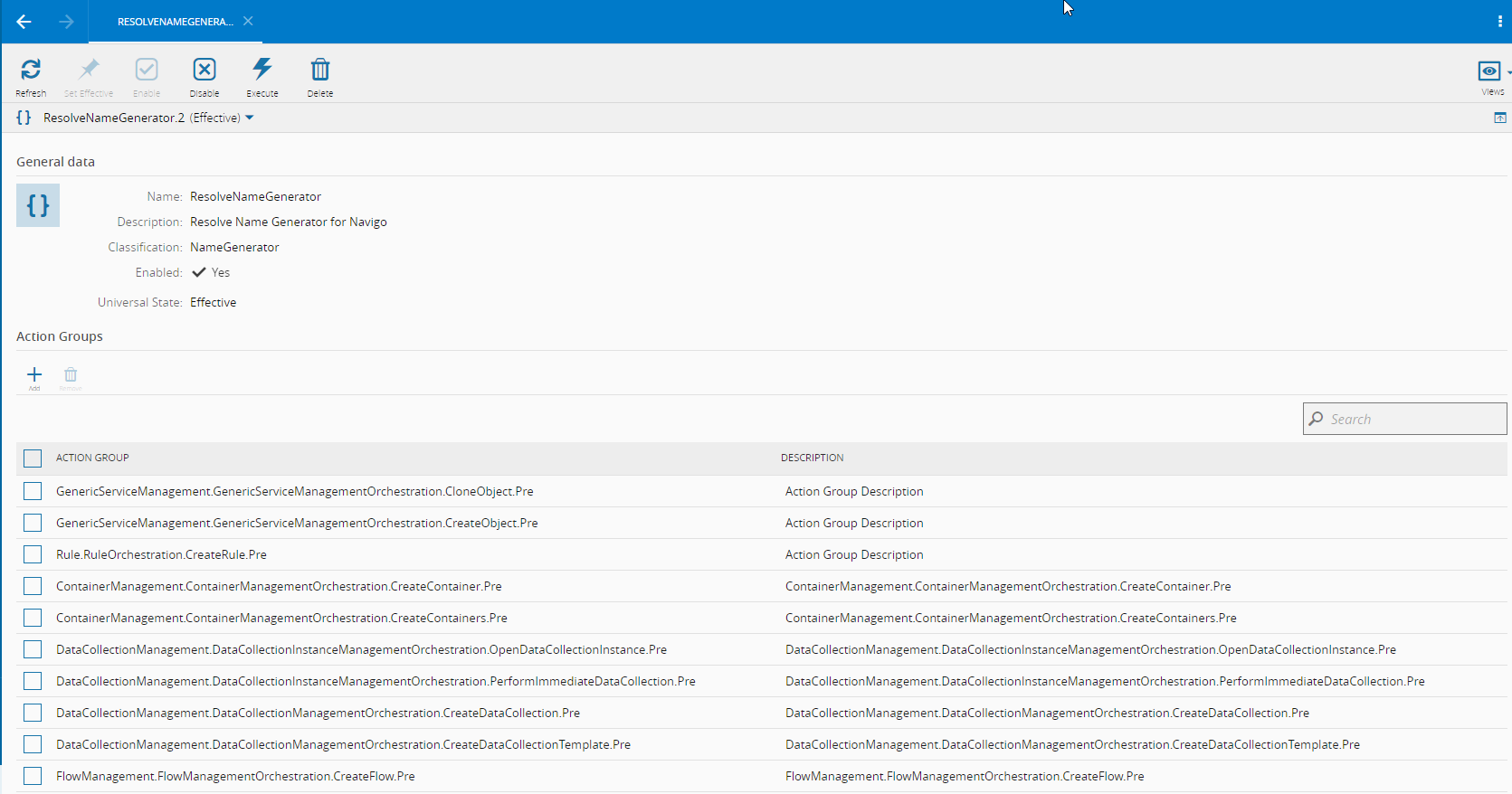
The Action Groups determine where and when the DEE Action is executed.
Editing a DEE Action#
DynamicBusinessRules.Edit
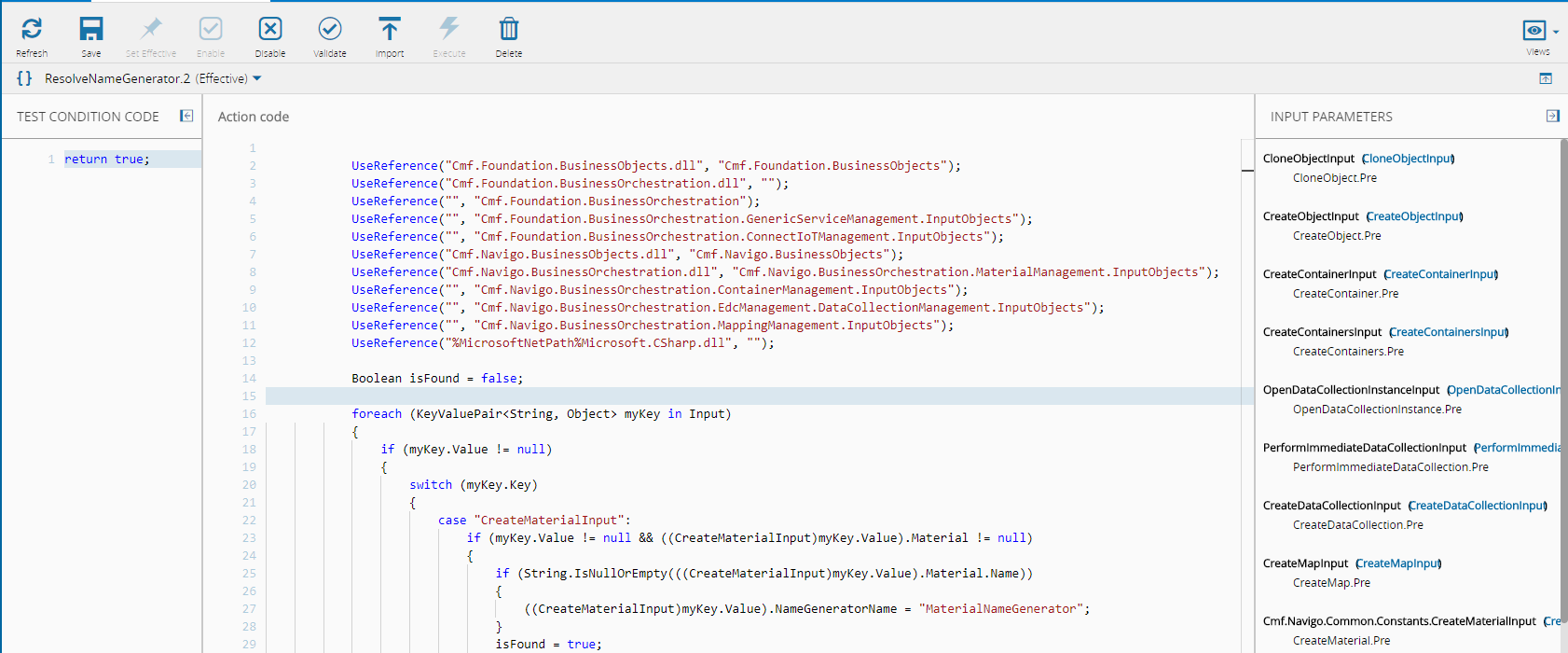
To edit a DEE Action it is necessary to change the View Mode by pressing the View button and then selecting Code.

A DEE Action is logic represented in C# code and consists of a test condition and the action itself. The action is only executed during runtime if the test evaluates to true. The DEE Action editor contains additional utilities as described in the image that follows.
Warning
The configuration of Actions should be performed only by expert personnel and be tested first in a development environment. A misconfigured DEE Action can cause the system to behave erratically.
To save a DEE Action it is necessary to open it and then press the Enable button in the ribbon.

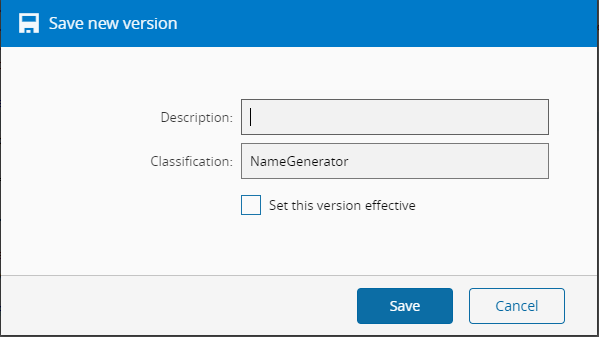
The Save operation creates a new version of the DEE Rule. This new version can have a Description and Classification. Optionally, you can set this newly created version as immediately effective.
Disabling a DEE Action#
DynamicBusinessRules.Edit
To disable a DEE Action it is necessary to open it and then press the Disable button in the ribbon.

Note
It is only possible to disable an already enabled DEE.
Enabling a DEE Action#
DynamicBusinessRules.Edit
To enable a DEE Action it is necessary to open it and then press the Enable button in the ribbon.

Note
It is only possible to enable an already disabled DEE.
Deleting a DEE Action#
DynamicBusinessRules.Delete
To delete a DEE Action is necessary to select it first and then press the Delete button in the ribbon.

Validating a DEE Action#
To validate a DEE Action press the Validate button in the DEE Actions ribbon. This will trigger a syntax check and assert the code of the Rule.

Executing a DEE Action#
To execute a DEE Action press the Execute button in the DEE Actions ribbon.

Importing a DEE Action#
To import a DEE Action Code press the Import button in the DEE Actions ribbon. The system will let you import a C# file you select.

Set a DEE Action as Effective#
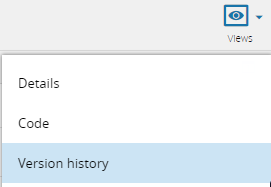
As any other version controlled object, it is possible to make effective a version that is different from the actual effective version. To do so, press the Set Effective button.

This option is only available once you select in Version History view.
System DEE Actions#
The following table lists the enabled DEE Actions provided by the system:
| Name | Description | Classification |
|---|---|---|
| AreaAutoStateChange | This action is used for the automatic state change of an Area. | Area |
| AutomaticClockOutCheckOut | This action automates the checkout and clock of Employees. | LaborManagement |
| CalculateMaterialProcessingTime | This action calculates the Material processing time. | ParameterCalculatingFunction |
| CalculateMaterialQuantity | This action calculates the Material quantity. | ParameterCalculatingFunction |
| CalculateMaterialYield | This action calculates the Material yield. | ParameterCalculatingFunction |
| ClearNotifications | This action clears (terminates) all automatic notifications. | AlarmManagement |
| ContainerAutoStageChange | This action is used for the automatic stage change of a Container. | Container |
| ERPOutputMessageHandlerAction | This action enables changing the way Critical Manufacturing MES checks if the output of a BAPI call was or not successful. | EPR |
| EvaluateCalendarForEntity | This action evaluates the Calendar that applies to a given entity instance. | |
| EvaluateCalendarForMaintenance | This action evaluates the Calendar that applies to a given Maintenance Context. | MaintenanceManagement |
| EvaluateContextDataForMaintenance | This action evaluates Contextual Data that applies to a given Maintenance Context. | MaintenanceManagement |
| ExceptionManagementHoldMaterial | In the context of Exception Management, this action is used to put a Material on hold. | ExceptionManagementAction |
| ExceptionManagementPutEquipmentDown | In the context of Exception Management, this action is used to put a Resource (equipment) in the Unscheduled Down state in accordance with the SEMI-E10 state model state attribute. | ExceptionManagementAction |
| ExceptionManagementSendMail | In the context of Exception Management, this action is used to send an email to the established support distribution list. | ExceptionManagementAction |
| GenerateMaintenancePlanInstanceName | This action is used as a default instance name generator for a Maintenance Plan Instance. | MaintenanceManagement |
| ManageDocumentContexts | This action is used to manage Document contexts. | ManageDocumentContexts |
| MaterialTransferGetTransferToFlowPath | In the context of a Material transfer, this action is used to evaluate the transfer Flow Path. | WarehouseManagement |
| NameGeneratorNoInputRule | This action is used as the default instance name generator when the instance name is absent and no other naming rule applies. | NameGenerator |
| ProcessRemoteMaterialShipment | This action is used to handle the Integration Entries that were generated as a result of a Material remote shipping. | |
| PurgeAttachmentsTemporaryFileShareAction | This action purges the outdated files from the attachments' temporary folder. | General |
| PurgeTemporaryFolderAction | This action purges the outdated files from the common temporary folder. | General |
| RemindTasks | This action is used to timely trigger User reminders using Notifications. | ExceptionManagement |
| ResolveMapDefinitionNameForNameGenerator | This action resolves the name for a Map Definition for a given Map. | Resource |
| ResolveNameGenerator | This action is used to resolve the Name Generator for a given entity instance. | NameGenerator |
| ResourceAutoStateChange | This action is used for the automatic state change of a Resource. | Resource |
| ResourcePropagateUp | This is a user-configurable behavior to propagate up (so as to synchronize) the parent resource state. Although this only works one level up, it may trigger a recursive call if the parent has the property PropagateUp defined. | |
| ResourceValidateDown | This is a user-configurable behavior to evaluate whether a certain Resource state change is possible depending on the state of its sub-resources (first level only). | |
| SetOrUnsetMaterialDispatchable | This action sets or unsets the Material as dispatchable. | Material |
| SetOrUnsetResourceDispatchable | This actions sets or unsets the Resource as dispatchable. | Resource |
| SPCHoldMaterial | In the context of SPC, this action is used to put a Material on hold. | SPCAction |
| SPCPutEquipmentDown | In the context of SPC, this action is used to put a Resource (equipment) in the Unscheduled Down state in accordance with the SEMI-E10 state model state attribute. | SPCAction |
| SPCSendMail | In the context of SPC, this action is used to send an email to the established support distribution list. | SPCAction |
| SynchronizeDataPlatformConsumers | This action calls, internally, the service SyncRuntimeHandlerSettings to make sure active IoT Consumers are running on their Data Platform Framework. If they are not, the system will automatically start them. | General |
| SynchronizeEmployeeQualificationsAndCertifications | This action synchronizes all Employee qualifications and certifications. | Certification Management |
| SynchronizePlanTimeFrames | This action is used to synchronize all active Plan Time Frame(s) according to the current date. | General |
| SynchronizeResourceMainStateWithSystemState | This action synchronizes the Resource state with the System state. | Resource |
| SystemCreateAndPerformMasterData | This action loads the master data into Critical Manufacturing MES by creating and performing a Master Data Package. | |
| SystemExecuteCode | This action is used for execute code dynamically. | |
| SystemImportObjects | This action is used to import objects into Critical Manufacturing MES. | |
| SystemPerformMasterData | This action performs a Master Data Package. | |
| AppFrameworkCreateAndPerformMasterData | This action creates and performs a Master Data Package in the App Framework host. Used for App installations that require custom objects. | |
| TerminateAutomationJobsInErrorAction | This action is used to terminate automation jobs when an error occurs. | |
| TestRule | This action executes a rule to throw exception as a test. |
Table: System DEE Actions