Create UI Page#
 UIPage.Create
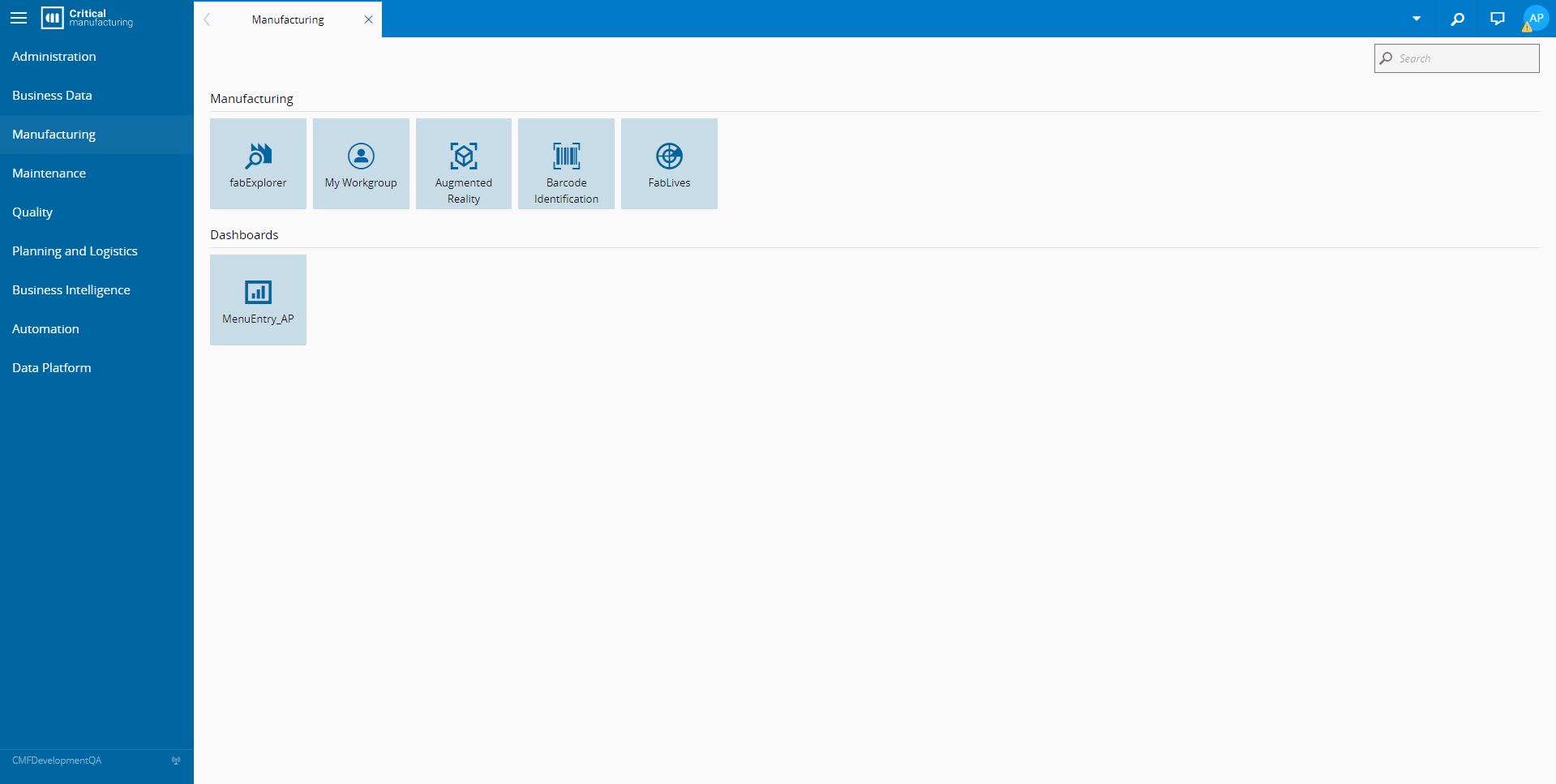
By accessing the UI Pages in Administration, the system displays the available UI Pages.
To create a UI Page you need to select New on the top ribbon and complete the information as described below.
Sequence of Steps#
There are several ways to create a new versioned object. Depending on the level, follow these steps to get started:
- Entity - In the landing page of this entity type in the Business Data menu or in the details page of an existing entity of the same type, select New on the top ribbon. For more information see Creating Entity Objects.
- Revision - If you want to create a new revision, go to the New dropdown button on the top ribbon and select Revision. For more information, see Revisions.
- Version - If you want to create a version associated to an existing revision, go to the New dropdown button on the top ribbon and select Version. For more information, see Versions.
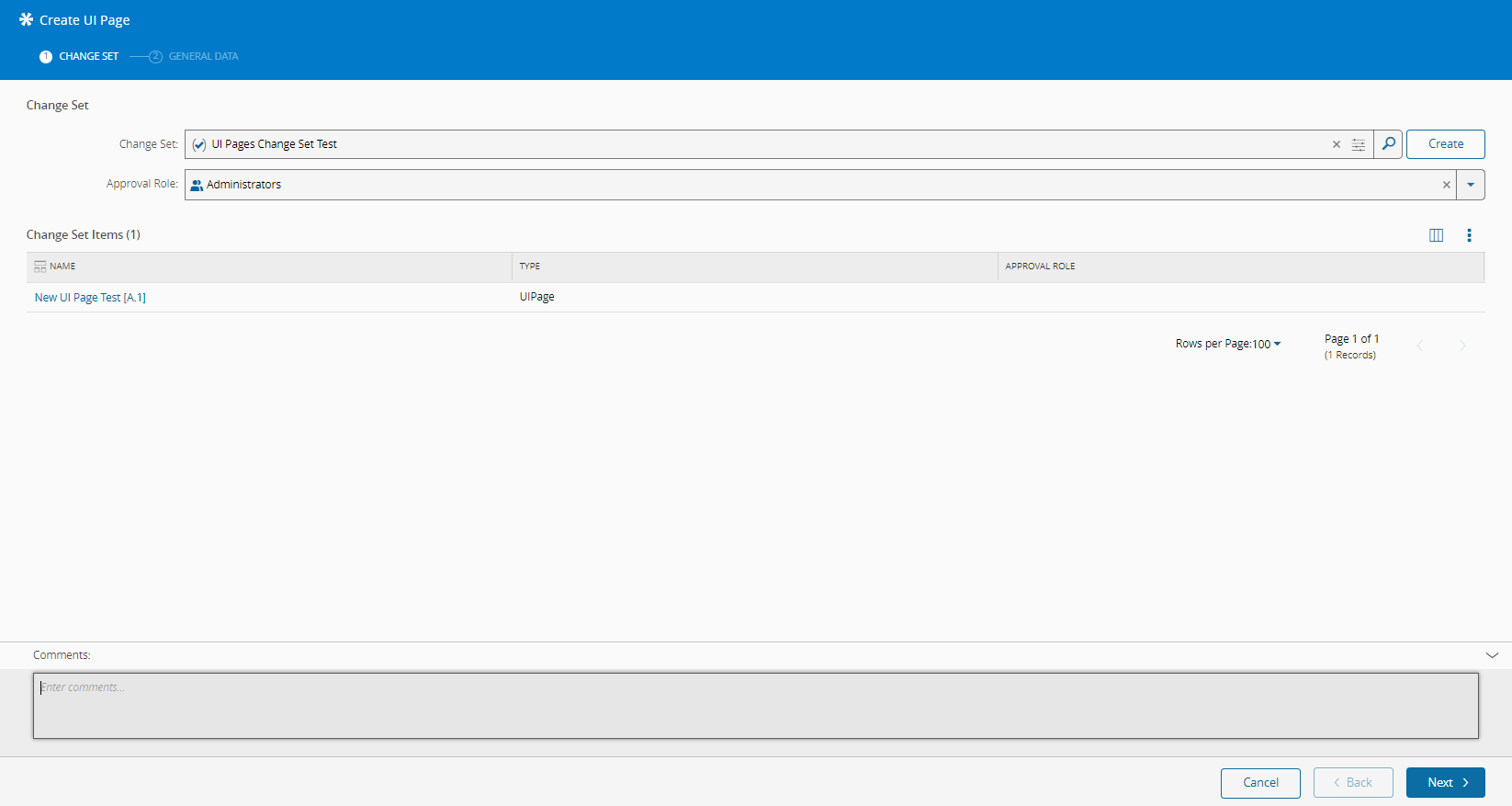
Step 1: Change Set#
- Optionally, Search or Create a Change Set.
- If you enter a Change Set, the Approval Role is available and it is also optional.
- Optionally, enter a comment.
- Select Next to continue.
Step 2: General Data#
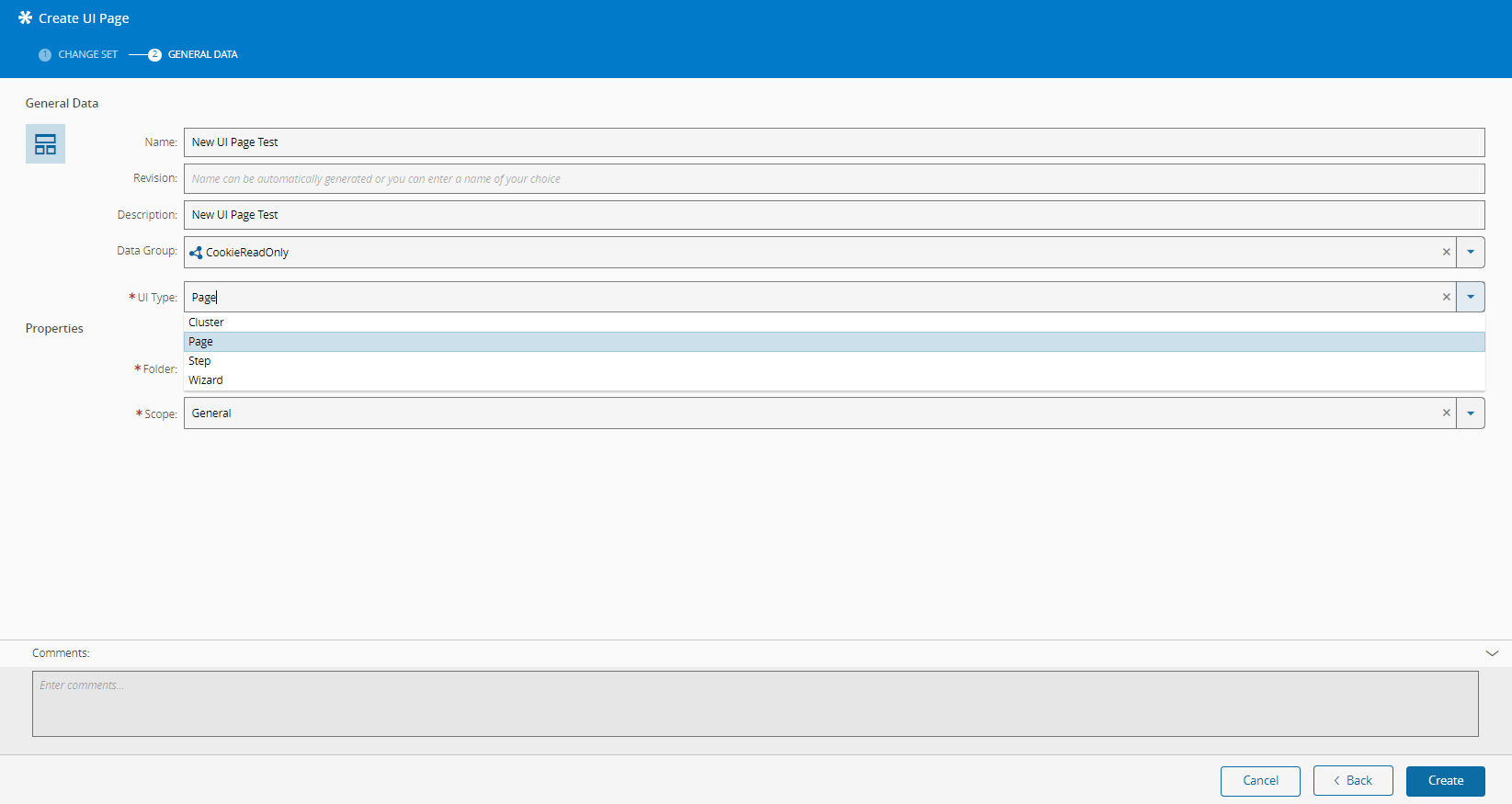
- Enter the UI Page name.
- Optionally, enter the Revision.
- Optionally, enter the Description.
- Optionally, enter the Data Group.
-
Select the UI Type:
- Cluster - a special type of page that organizes a navigation menu on the left and an information panel on the right, useful for elements with multiple layers of information.
- Page - an organized set of elements that allow you to interact with the system.
- Step - a specific step to be used in UI Pages of type Wizard.
- Wizard - a set of steps that prepares data to call a system action.
-
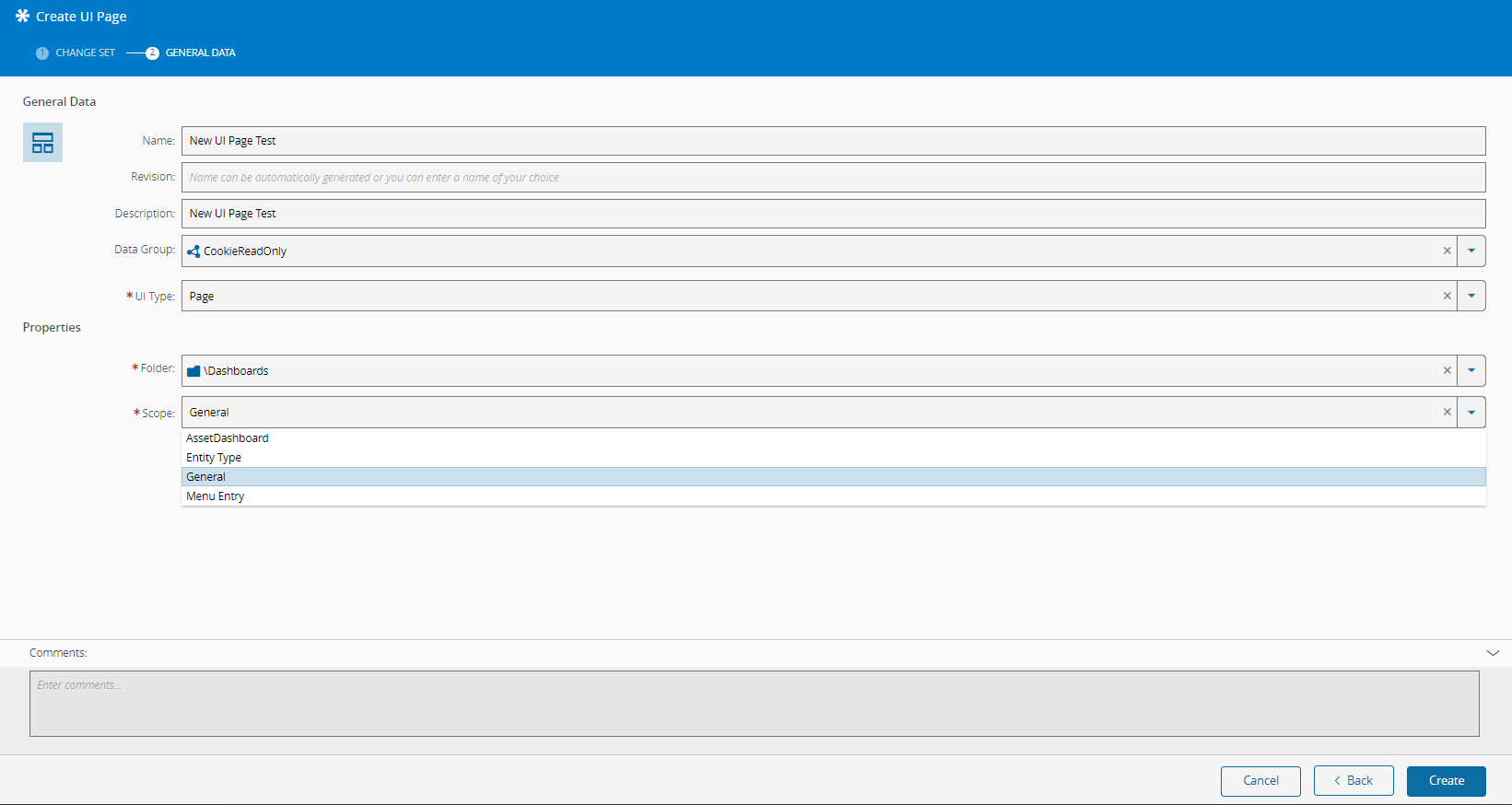
The Folder is set to
\Dashboardsby default. -
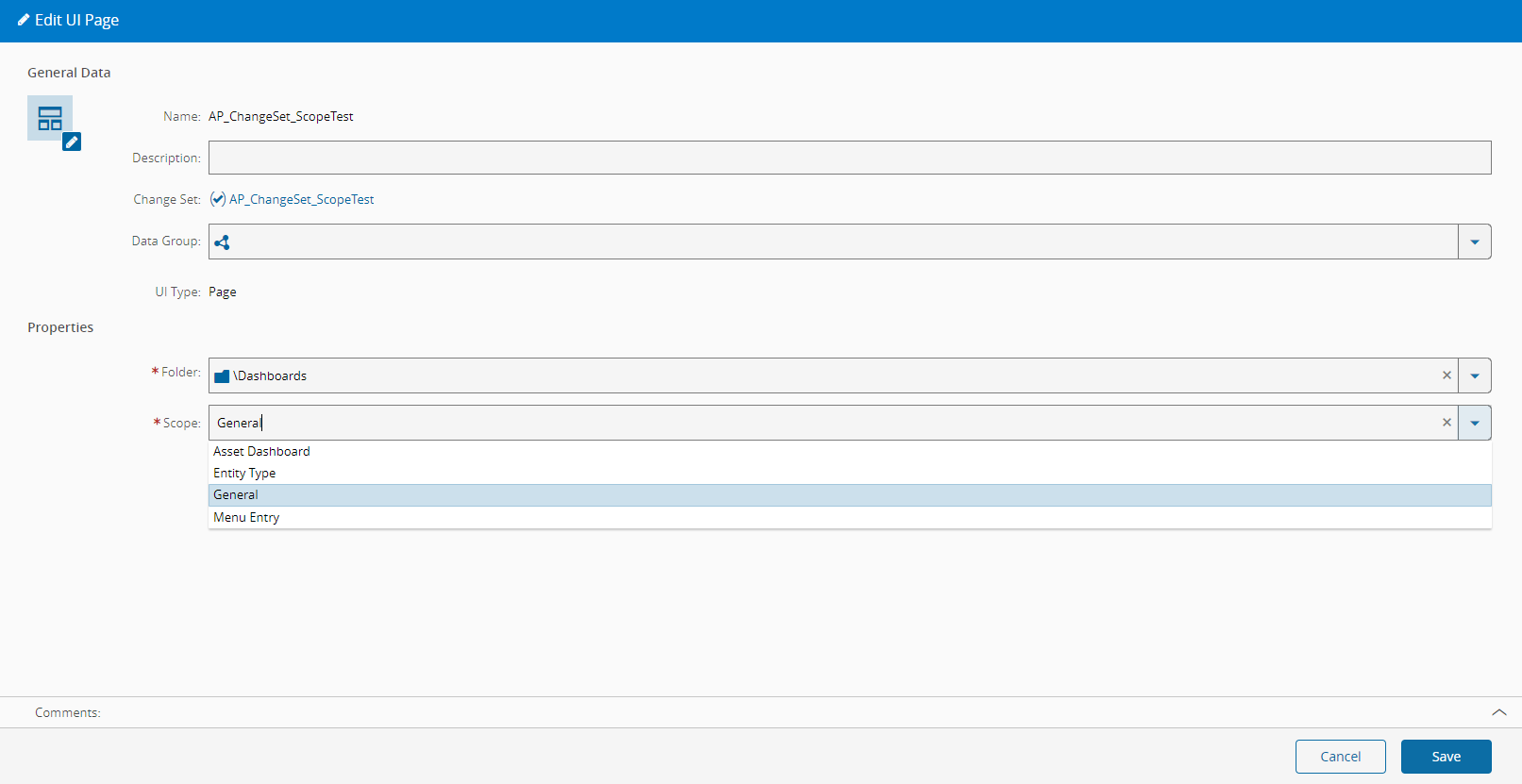
Select the Scope accordingly.
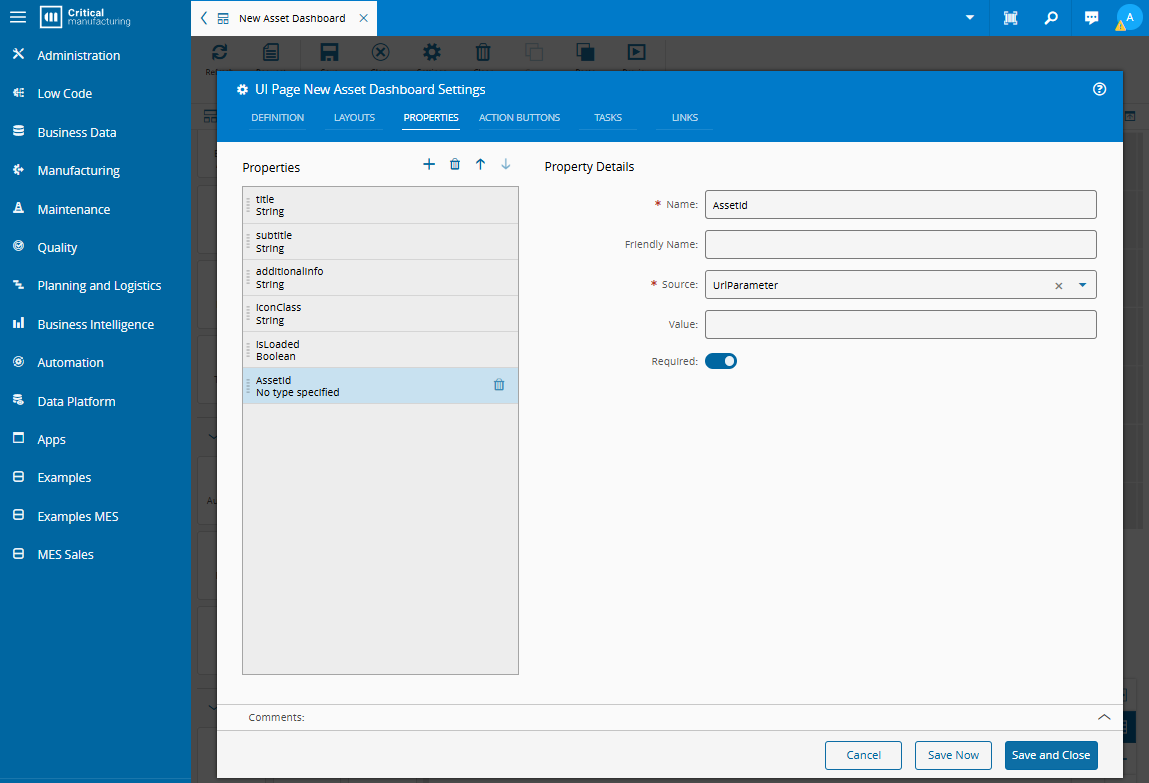
- Asset Dashboard - use this scope for pages that you want to associate with an asset. UI Pages with scope Asset Dashboard must have a property with the following settings:
- Name:
AssetId - Source:
UrlParameter - Required enabled.
- Name:
- Entity Type - use this scope for pages that you want to associate with an Entity Type. For example, an Area or a Resource. To add the page to the View menu of an entity, enable Pin To Quick Access.
- General - use this scope for general purpose pages. For example, use this type of scope in a UI Page to customize a user home page in MES.
- Menu Entry - use this scope for pages that you want to associate with a menu entry. For example, Business Data or Administration. To add the page to the Dashboard section of a menu entry, enable Pin To Quick Access.
Info
- To understand where you can access the created page according to the selected scope, see [[user-guide-uipages-create-uipage#scopes|Scopes]].
- Add properties to a UI Page in the Properties tab of the Page Builder settings wizard. For more information, see [[user-guide-uipages-design#properties]].
- Asset Dashboard - use this scope for pages that you want to associate with an asset. UI Pages with scope Asset Dashboard must have a property with the following settings:
-
Optionally, enter a comment.
- Select Create.
After Creation#
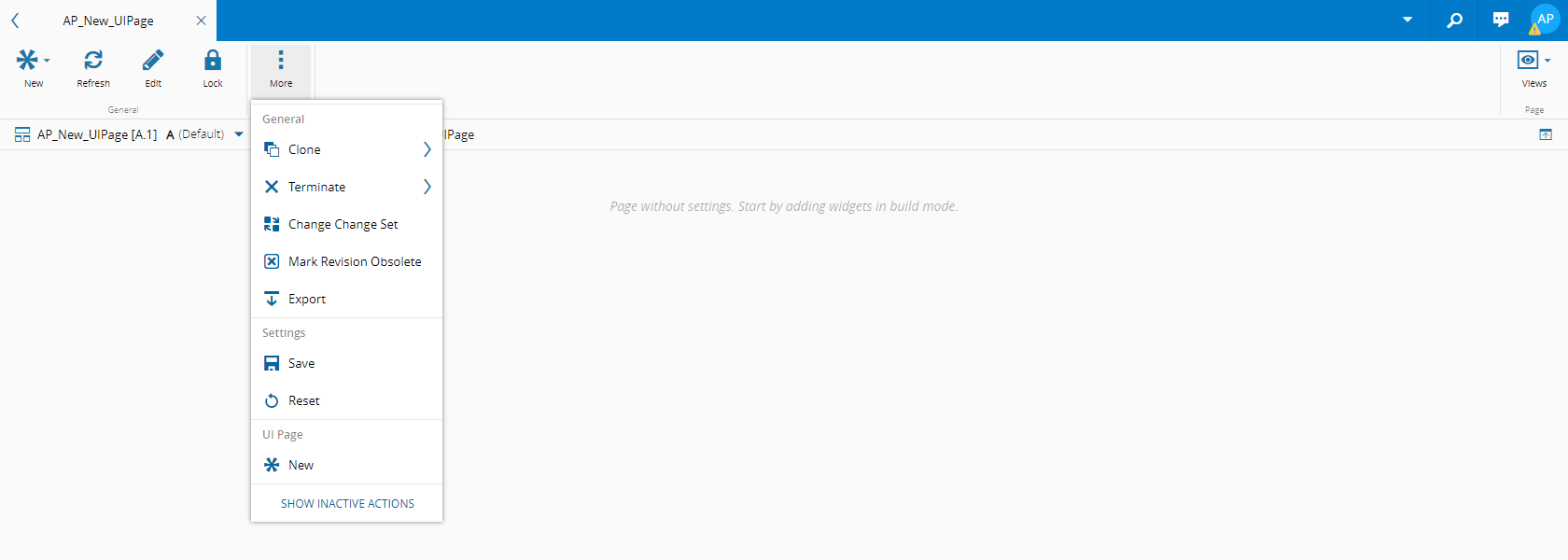
After successfully creating the UI Page, the system will display an empty page as the UI Page is not configured yet. To configure the newly created UI Page, you need to select Edit as seen in the image below:

The top ribbon displays the following buttons:
-
New: Revision, Version
-
Refresh
- Edit
- Lock
- More:
- General: Clone, Terminate, Change Change Set, Mark Revision Obsolete, Export
- Settings: Save, Reset
- UI Page: New
- Show Inactive Actions (show/hide action)
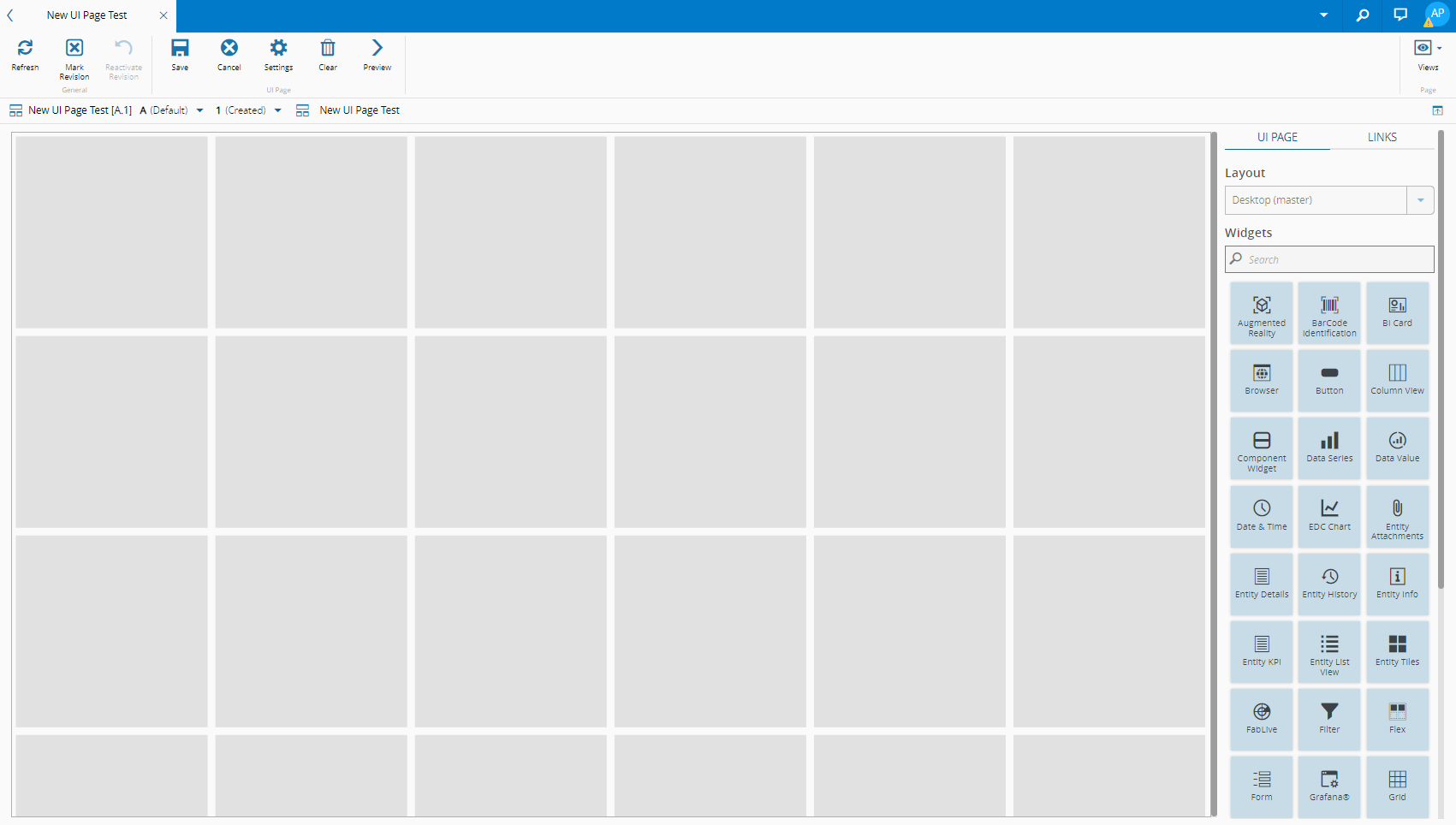
Now you can start designing your new UI Page by dragging and dropping the widgets on the right into the desired areas:
Optionally, you can select Settings on the top bar to access the Page Builder Settings and its tabs: Definition, Layouts, Properties, Action Buttons, Data Sources and Links. For more information, see Page Builder Settings.
Scope#
Scopes allow you to use UI Pages in the specific context that each scope defines.
Asset Dashboard#
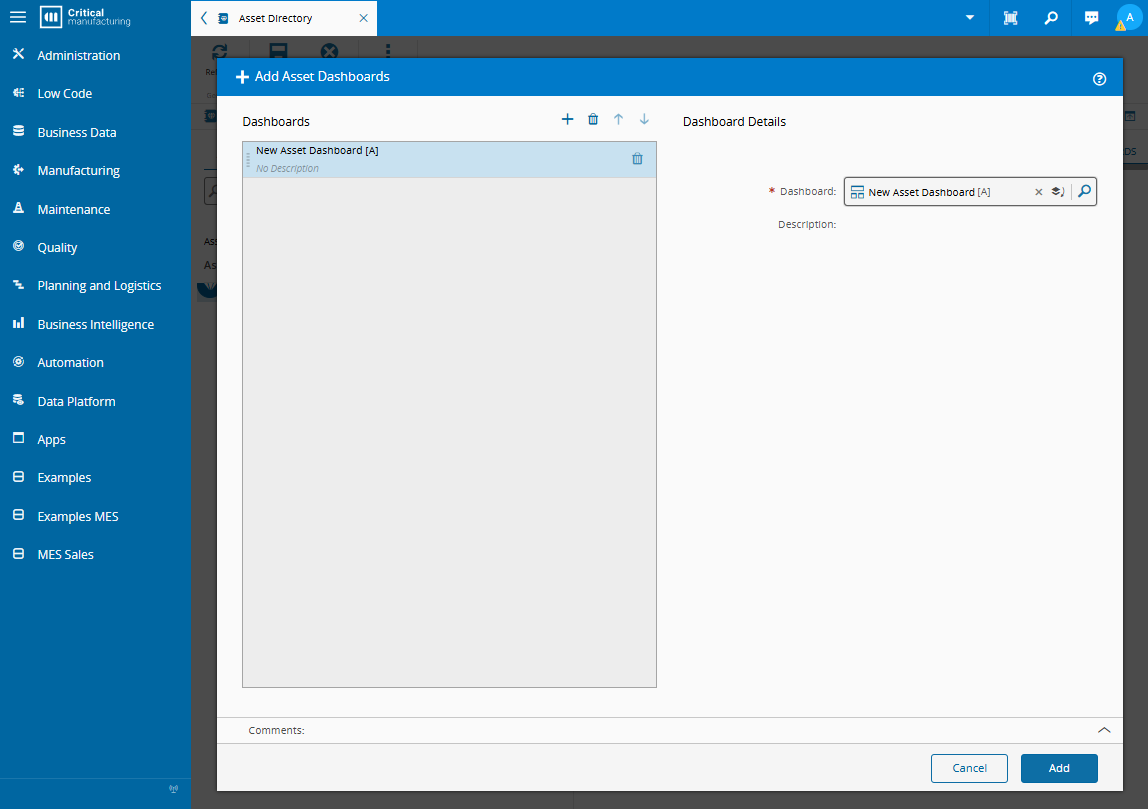
After creating a UI Page with scope Asset Dashboard and a property with the following settings:
- Name set to
AssetId - Source set to
UrlParameter - Required enabled.
Info
Add properties to a UI Page in the Properties tab of the Page Builder settings wizard. For more information, see [[user-guide-uipages-design#properties]].
You can use the UI Page you created as a dashboard in an asset.
Warning
If you don't create the property with name AssetId, the UI Page doesn't appear in the dashboard section of assets.
Entity Type#
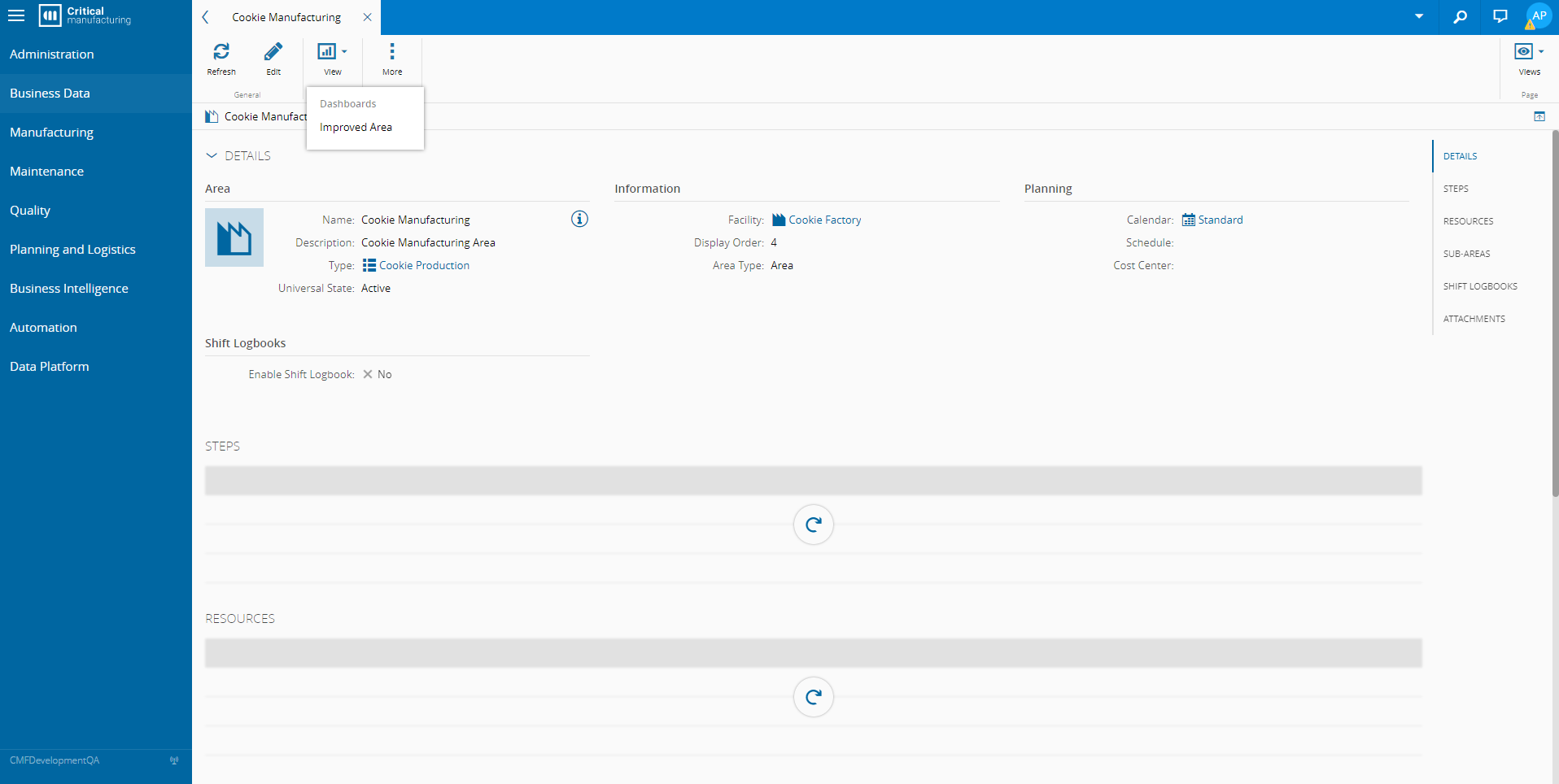
After creating a UI Page with scope Entity Type and enabling Pin To Quick Access, you can access the page in the view menu of the entity type.
General#
After creating a UI Page with scope General you can add the UI Page to the home of all the users in a role.
Menu Entry#
After creating a UI Page with scope Menu Entry and enabling Pin To Quick Access, you can access the page in the Dashboard section of the menu entry you selected.