BarCode Identification#

Overview#
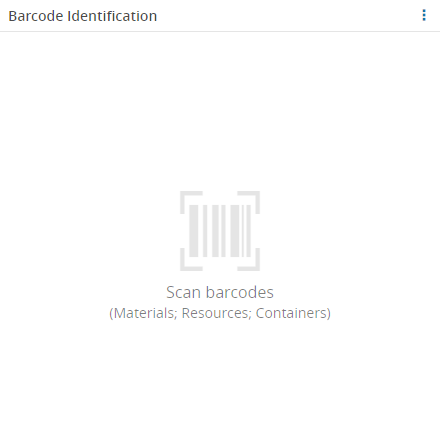
The Barcode Identification widget provides a simple way for a user to scan barcodes (line or QR codes) that match specific objects within the system. The available objects that can be matched are:
- Material
- Resource
- Container
For more information on how the system uses barcodes, see Barcode Identification.
To use the Barcode Identification Widget in a UIPage, follow the steps below:
-
In any UIPage in Build mode, select Barcode Identification from the Widgets list located on the right side of the page, and drag and drop to the correct place in the UIPage.
-
Enter the Settings section of the widget.
-
In the General Data tab, provide a name for the widget, a description, and specify whether it should display the header and also if the user can activate the full screen mode. Define whether to allow to open and export the widget as an image, by setting the respective buttons to true (default to
false).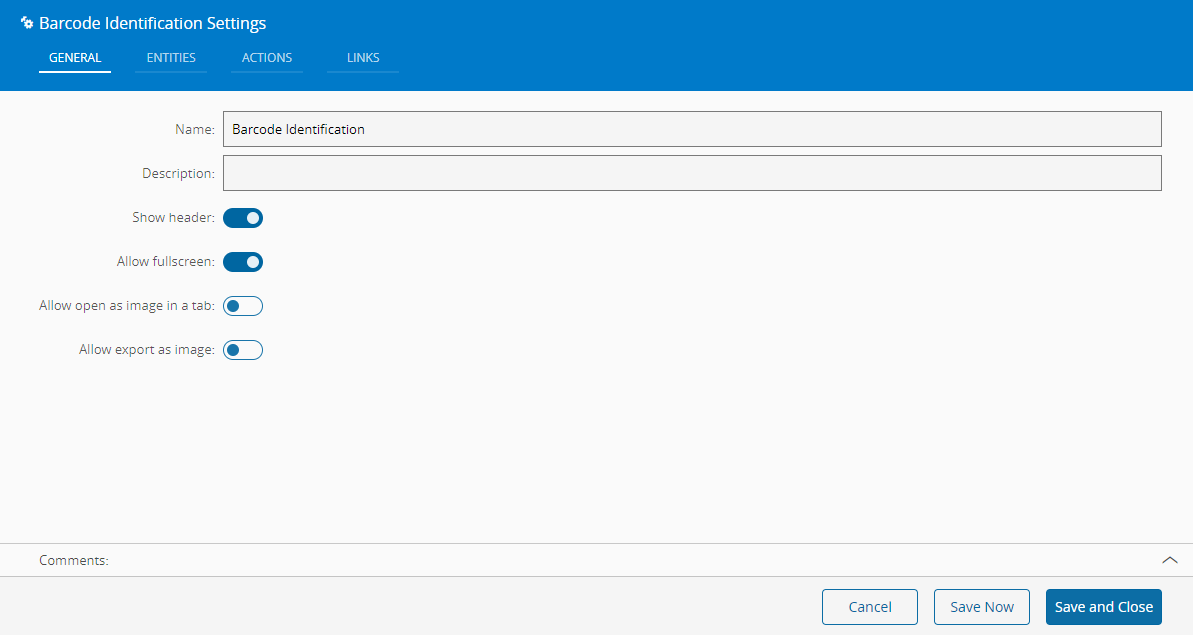
-
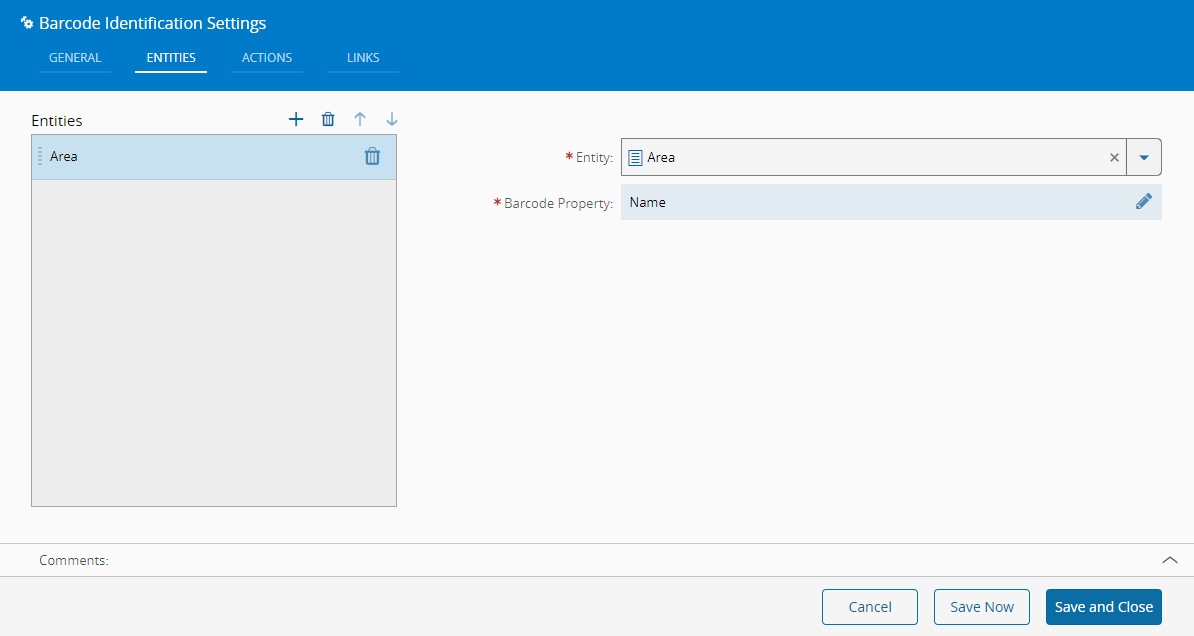
In the Entities tab, provide the Entity Type and the property that should be matched when the barcode is read.
-
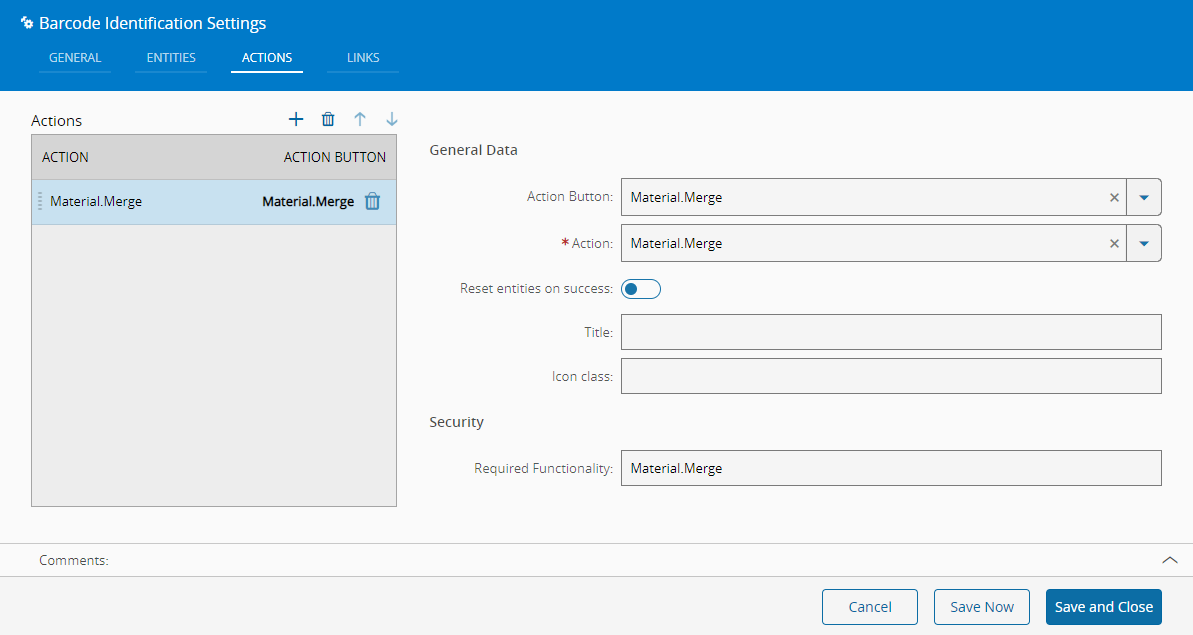
In the Actions page, add as many properties as desired, by selecting (properties can be removed by pressing the button). For each property, it is necessary to input:
-
Action Button;
- Action;
- Whether to reset the entities on success;
- Title to display on the action button;
- Icon class to use for the action button;
- Required Functionality (free text entry but must exist in the system. For more information, see Features).
- Optionally, define the links between this widget and other elements of the UIPage.
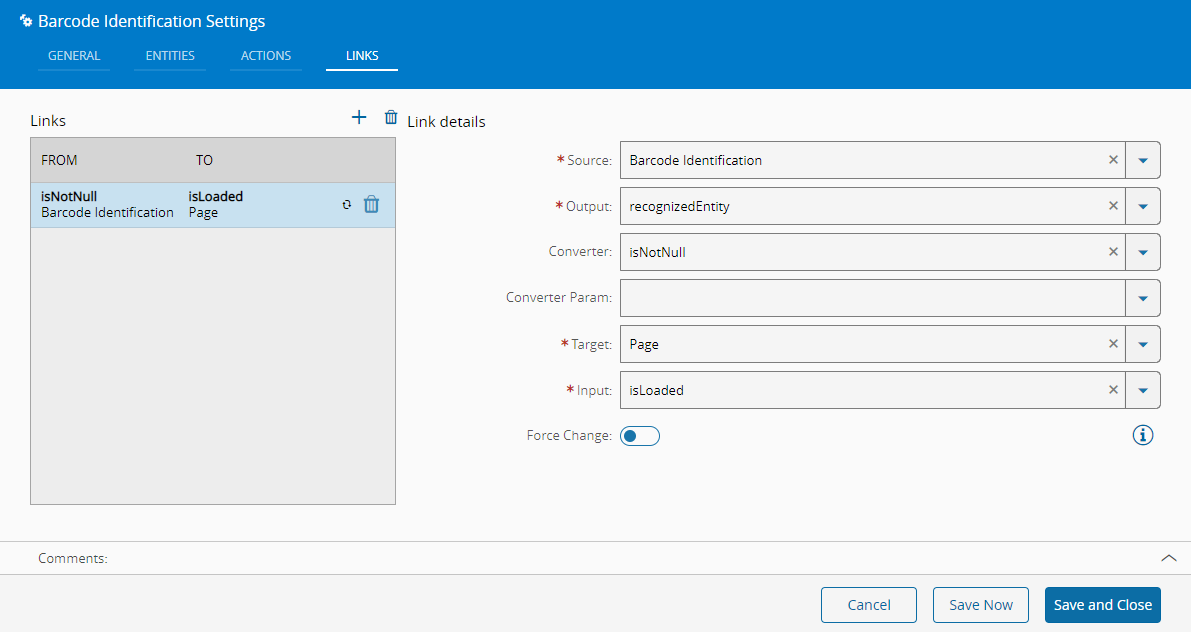
- Select Save and Close to complete the widget configuration.