BI Card#

Overview#
A BI Card is a graphic representations of Key Performance Indicators (KPIs), and are used as a mean to assess the performance of entities on the shop floor.
To use the BI Card widget in a UI Page, follow the steps below:
-
In any UI Page in Build mode, select the BI Card widget from the widgets list located on the right side of the page, and drag and drop to the correct place in the UI Page.
-
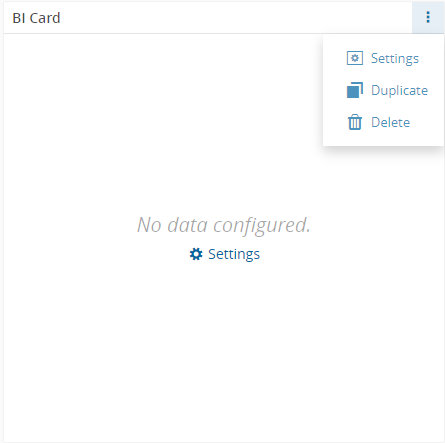
Enter the Settings section of the widget via the vertical ellipsis or the link:
-
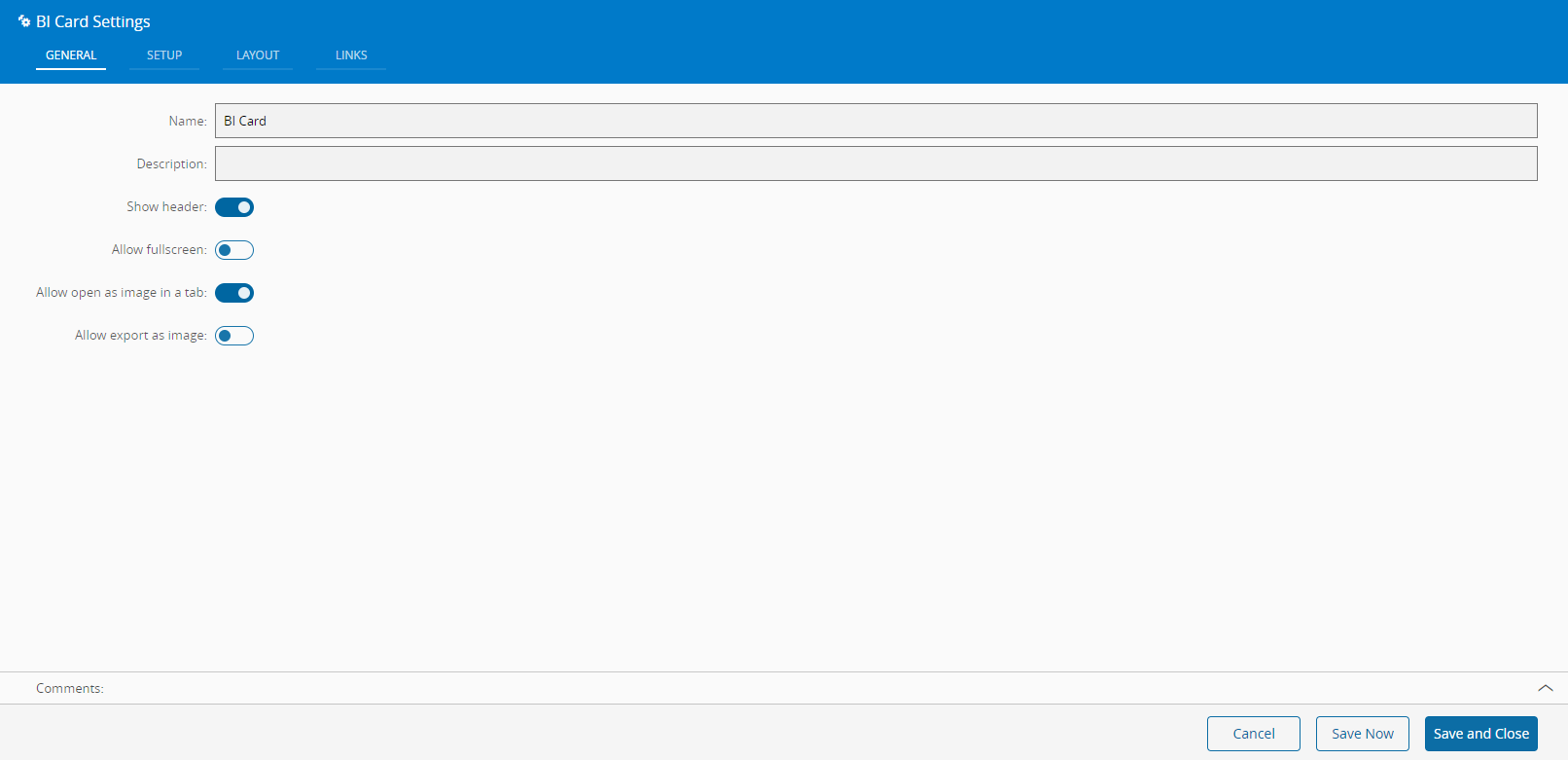
In the General Data tab, provide a name for the widget, a description, and specify whether it should display the header and also if the user can activate the full screen mode.
-
Define whether to allow to open and export the widget as an image, by setting the respective buttons to true (default to false).
-
In the Setup tab, provide the Entity Type for which you want to create the Card and in the next field, specify the precise equipment for which data will be shown in the Card.
Note
When a BI Card is configured with a KPI/Dimension that uses a variable such as
@EntityNameor@EntityId, you should fill out the field below the Entity Type. If this field is left empty, it is available as an input of the BI Card Widget, so that, for example, another Widget can be configured in the UI Page to have this variable populated dynamically. -
Select if you want to display the entity name in the widget header, by setting the button to
true(defaults tofalse).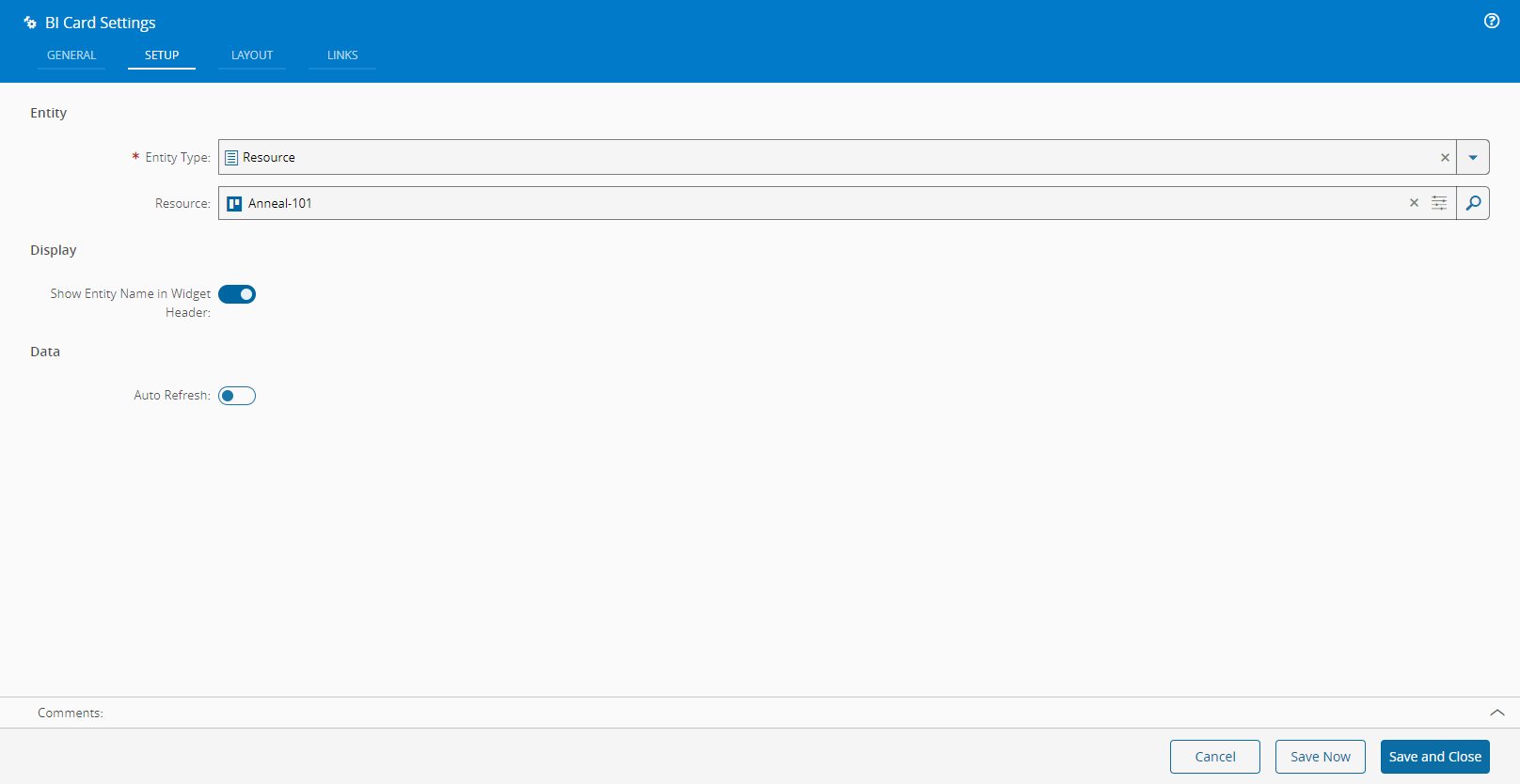
-
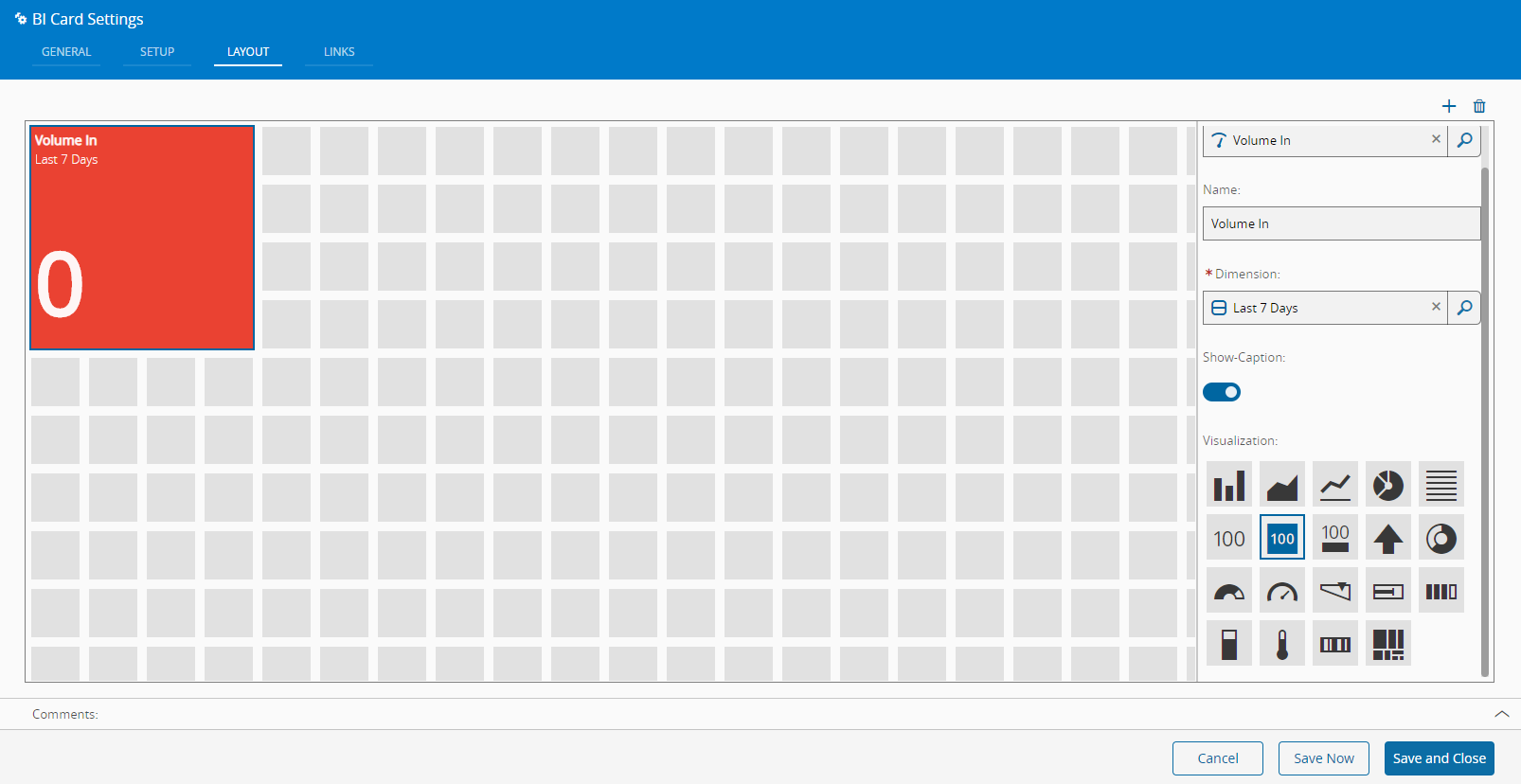
In the Layout page, select the KPI (and its specific dimension) to display, add a name to it and a time frame. Additionally, select the graphic representation of the BI Card from the available options.
Note
KPIs available for selection must match the Entity Type for which the BI Card Widget is setup.
-
Add as many KPIs as necessary, by clicking the "+" button on the top right-hand corner of the screen or remove them if necessary, by clicking the Delete button.
-
The Cards can present the desired proportion and can be resized, if necessary, by dragging them.
-
Optionally, define the links between this Widget and other elements of the UI Page.
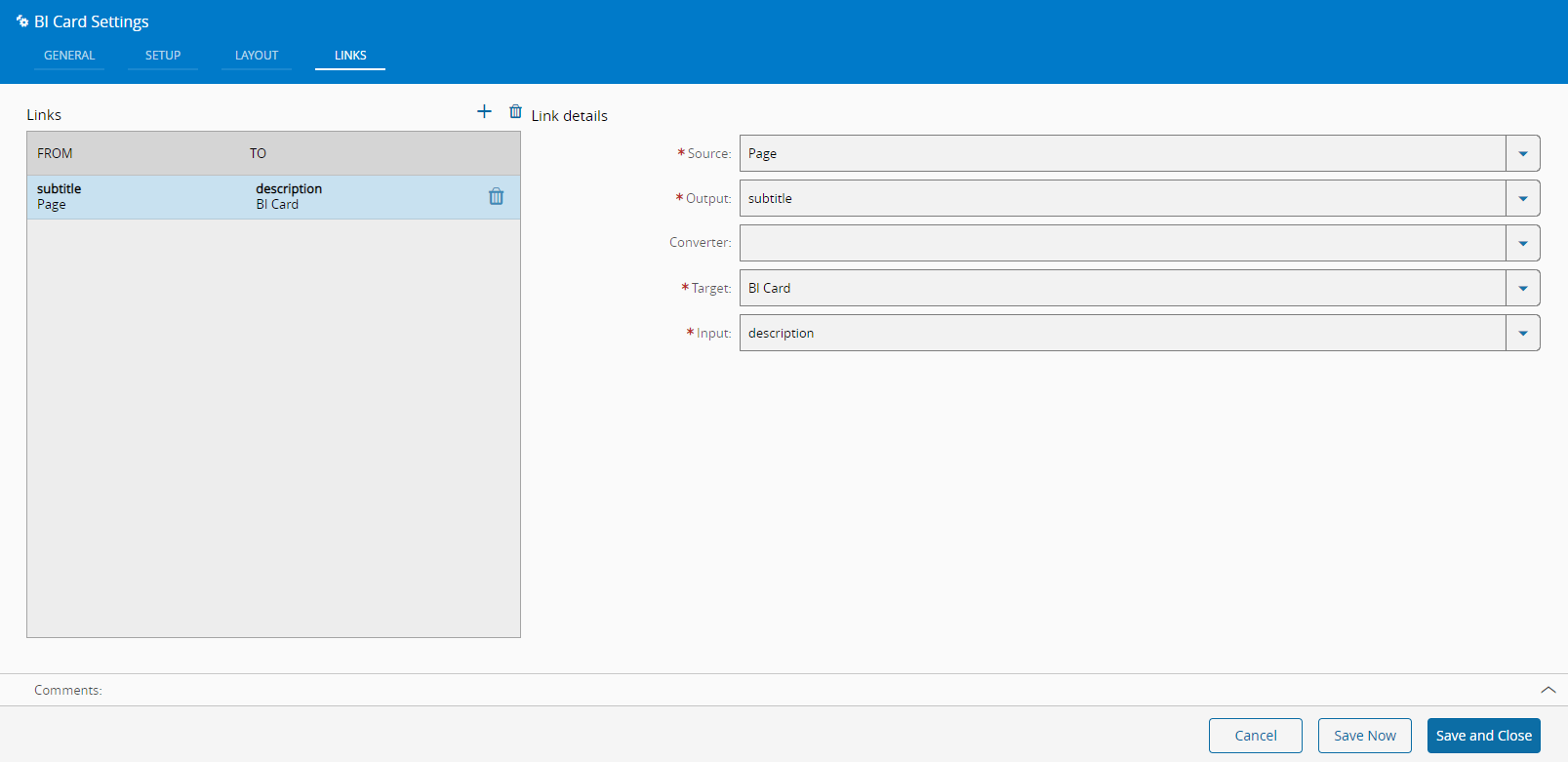
-
Once created, to optimize the creation of BI Cards, instead of creating new BI Cards, it is possible to duplicate the card you first created, by clicking on the three-dot icon and then on Duplicate.
Implementation example: Link BI Card to an entity input#
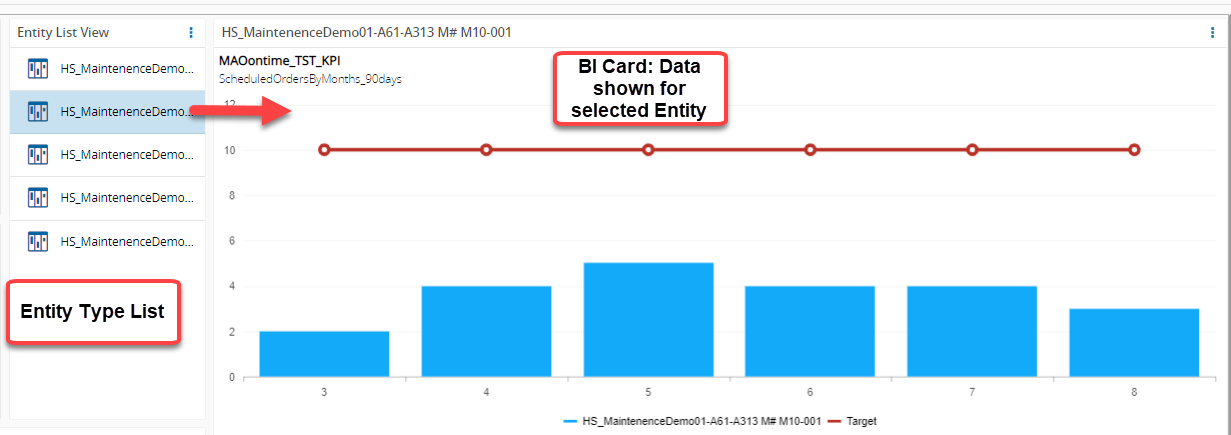
A BI Card can be linked to show data for a specific entity (e.g. provided as input from an Entity List widget).
Preconditions#
-
Entity Type List widget on same UI Page configured for matching Entity Type
-
KPI configured with a corresponding @EntityName parameter to make the data entity specific
Steps#
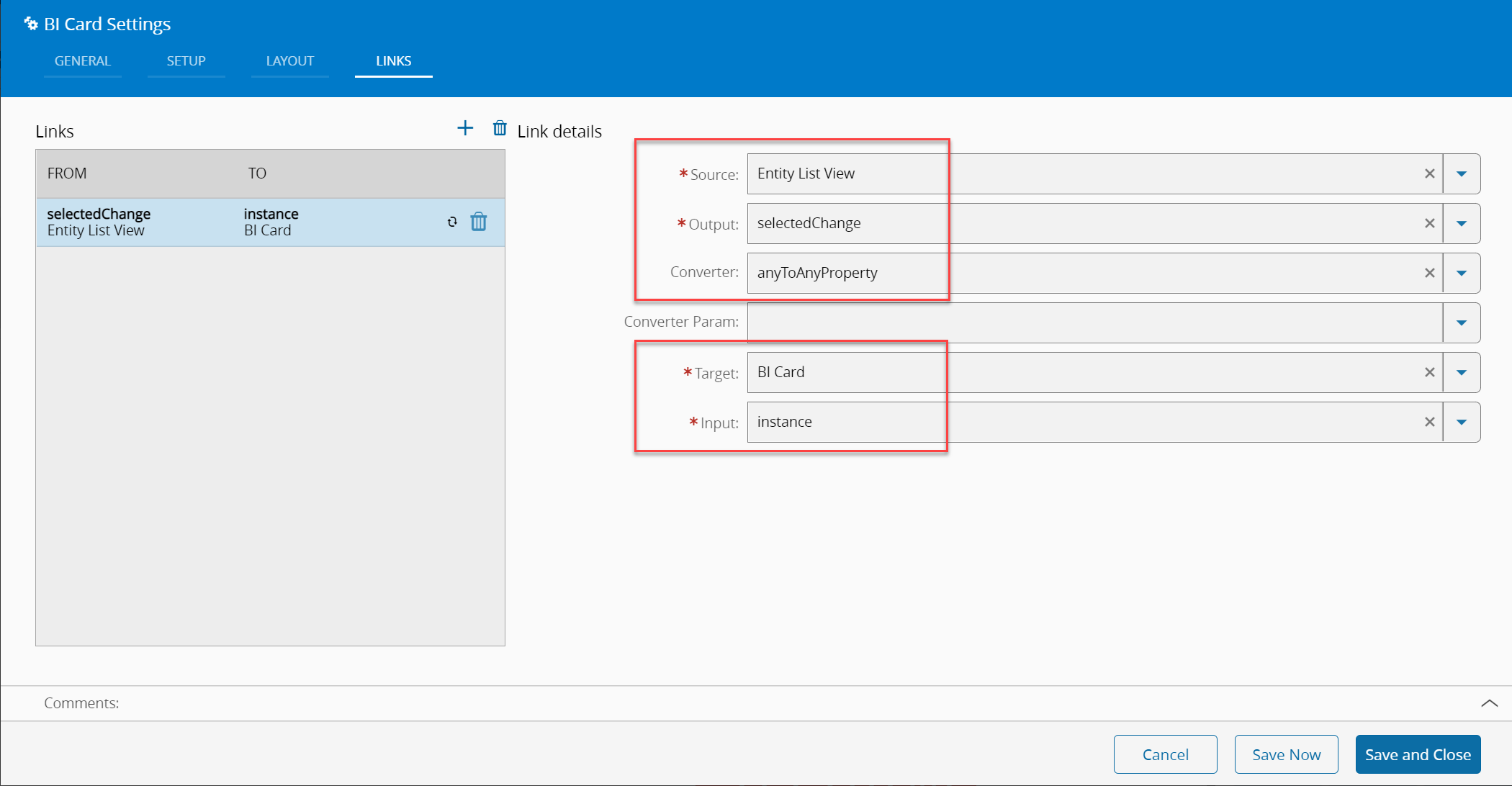
- Link setup for example is as following:
Available KPIs#
You can see a list of dynamic KPIs that are available in a fresh installation of Critical Manufacturing MES in this page: System KPIs.
Info
For more information, see the BI Cards tutorial.