Browser#

Overview#
The Browser Widget displays any URL content (PDF, HTML). An example is shown below, where a Browser Widget is created, showing the Critical Manufacturing Website.
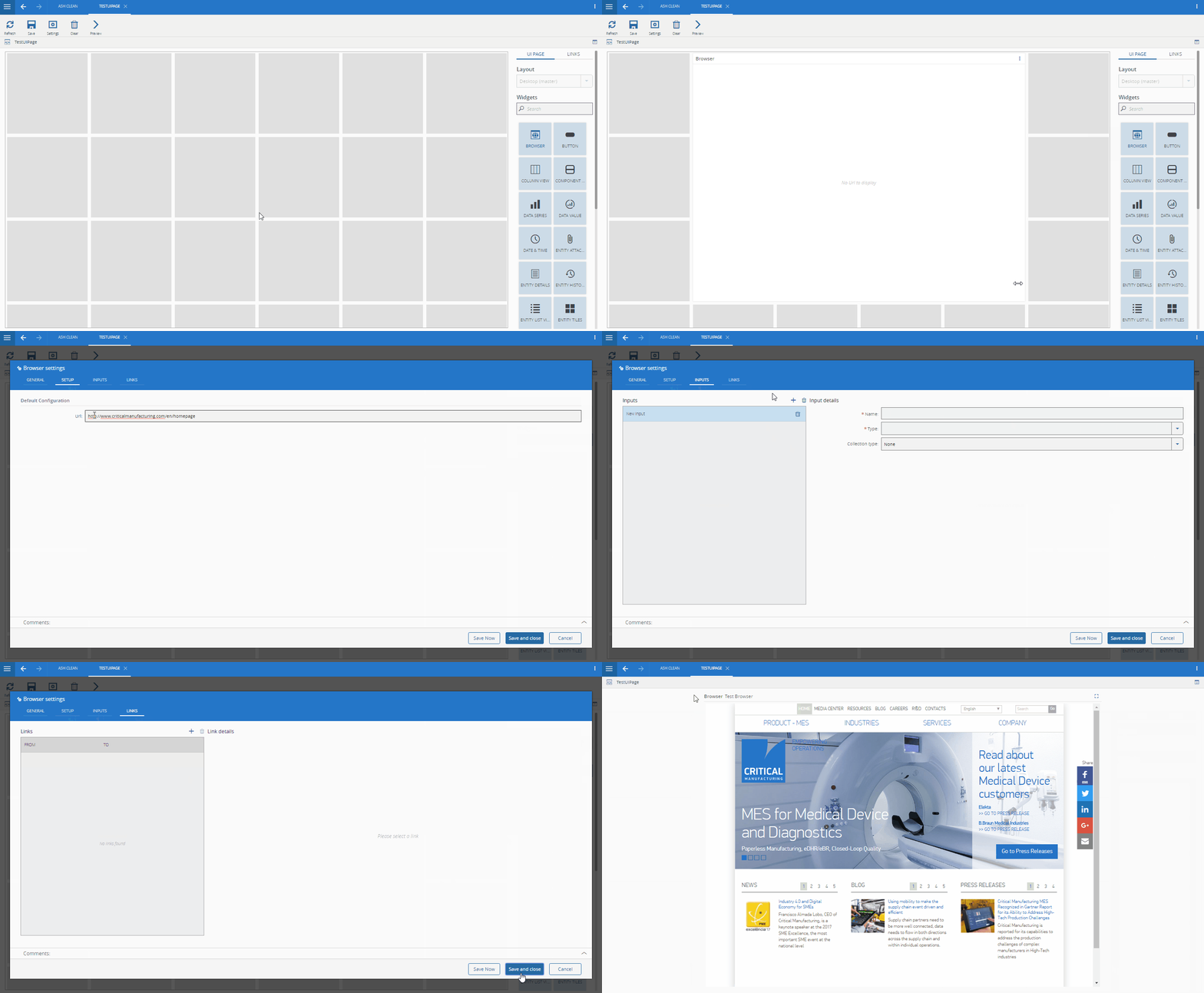
Info
The URL must be accessible from the client browser.
To use the Browser Widget in an UIPage, follow the steps below.
- In any UIPage in Build mode, select the Browser Widget from the Widgets list located in the right side of the page, and drag and drop to the correct place in the UIPage.
-
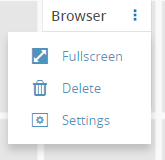
Enter the Settings section of the Widget.
-
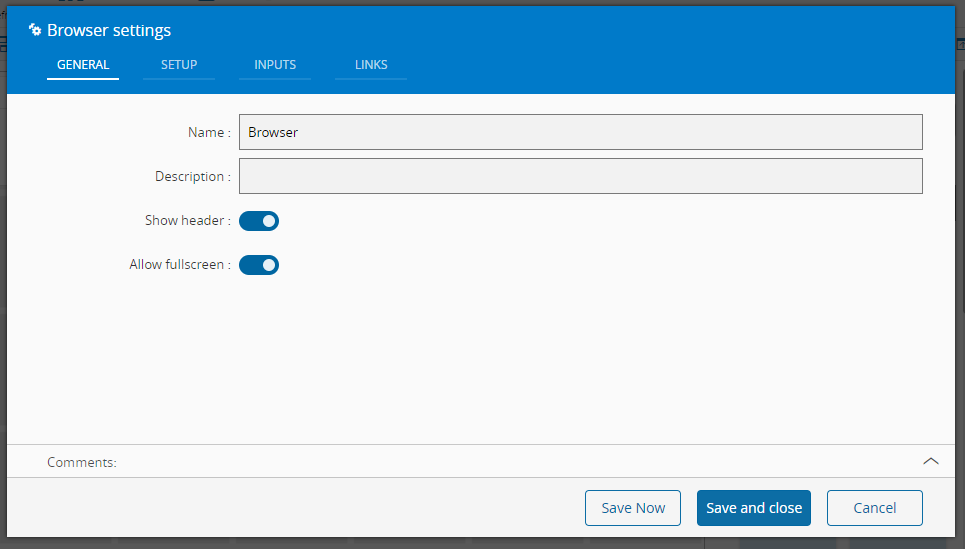
In the General tab, provide a name for the Widget, a description, and specify whether it should display the header and also if the user can activate the full screen mode.
-
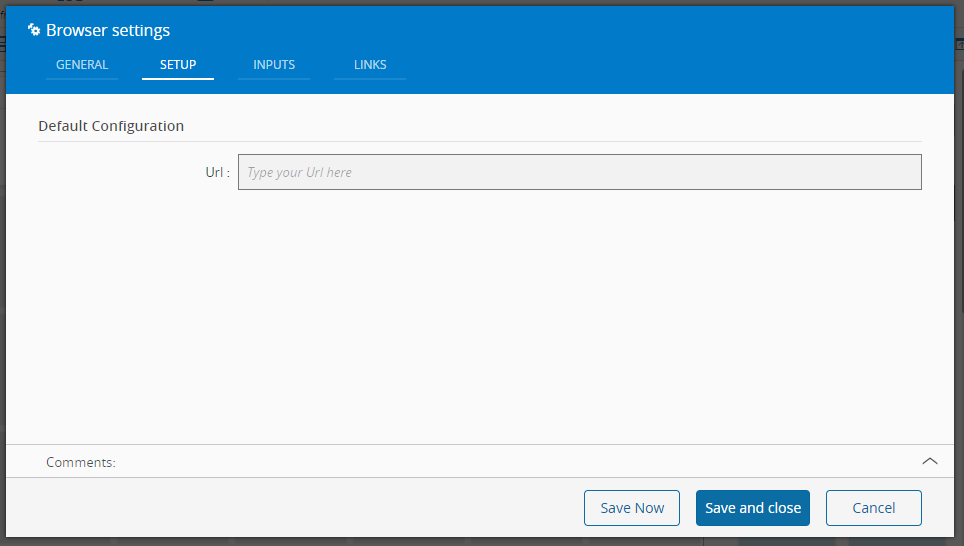
In the setup tab provide optionally the Url to be displayed.
-
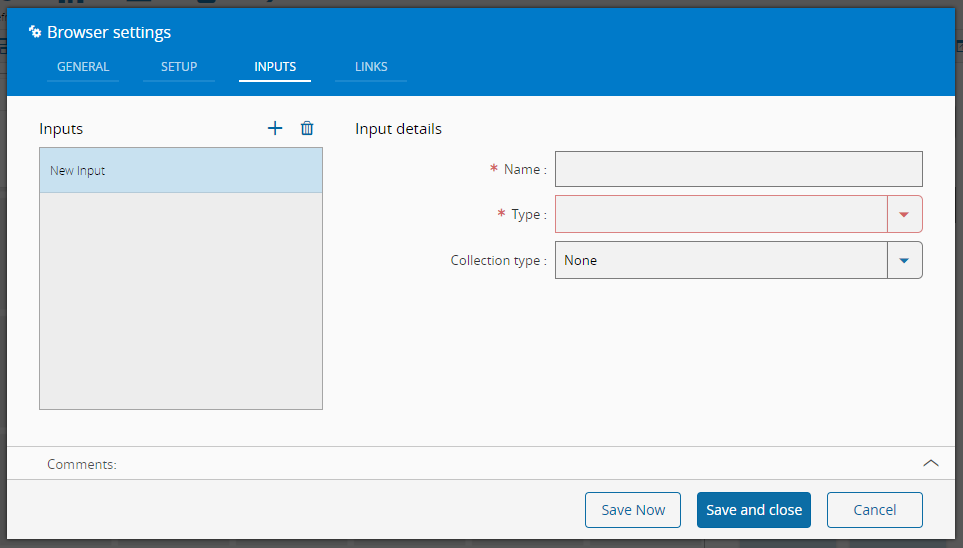
Optionally define the inputs.
-
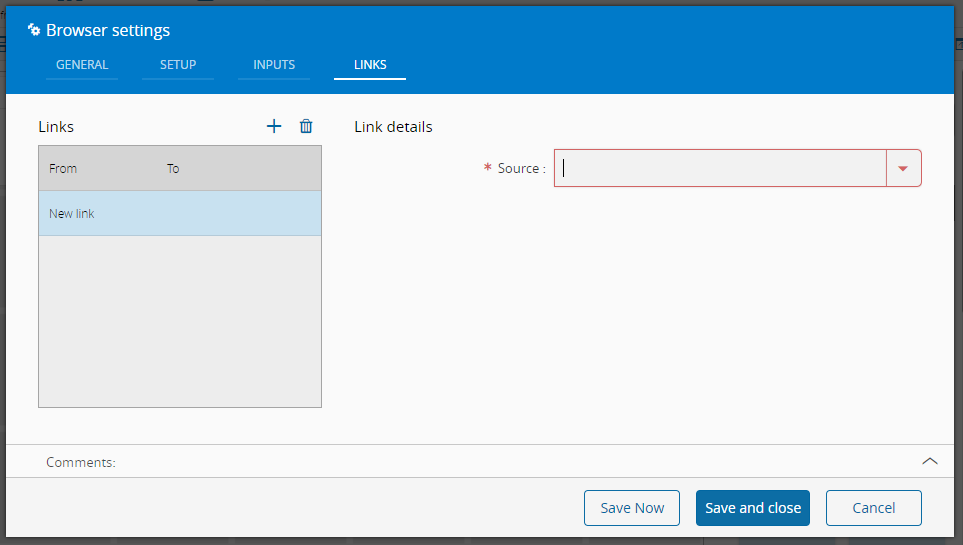
Optionally, define the links between this Widget and other elements of the UIPage. As this widget doesn't provide any output it can only be used as target. The URL property, for example, can be used as input.
-
By saving and closing the settings, the widget will be changed accordingly.