Entity Details#

Overview#
The Entity Details Widget displays a set of selected properties and attributes for a given entity instance. For example, it can be used to display the properties of a given Material or Resource. An example is shown below, where an Entity Details Widget is used to show the details of a Production Order.
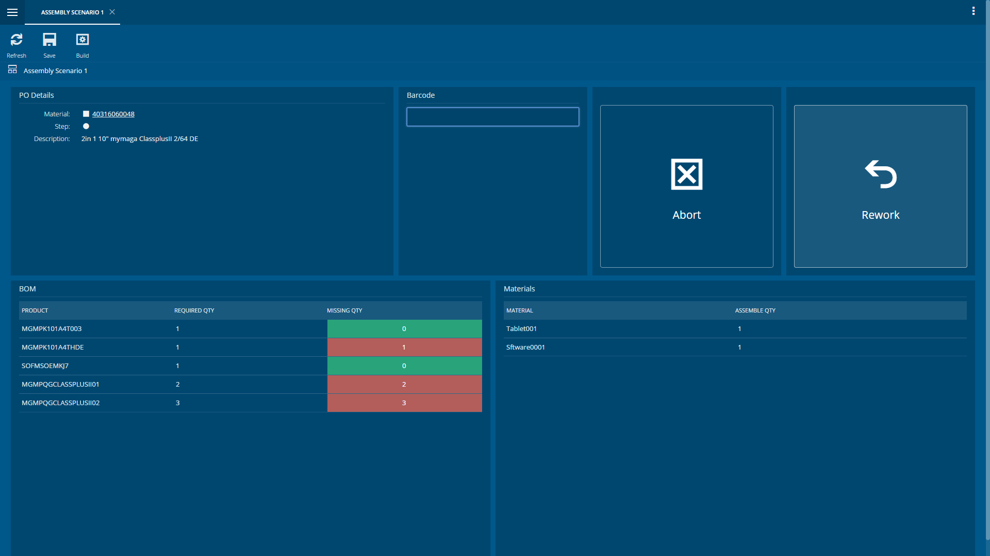
To use the Entity Details Widget in an UIPage, follow the steps below.
- In any UIPage in Build mode, select the Entity Details Widget from the Widgets list located in the right side of the page, and drag and drop to the correct place in the UIPage.
- Enter the Settings section of the Widget.
- In the General tab, provide a name for the Widget, a description, if it should display the header and if the user can activate the full screen mode.
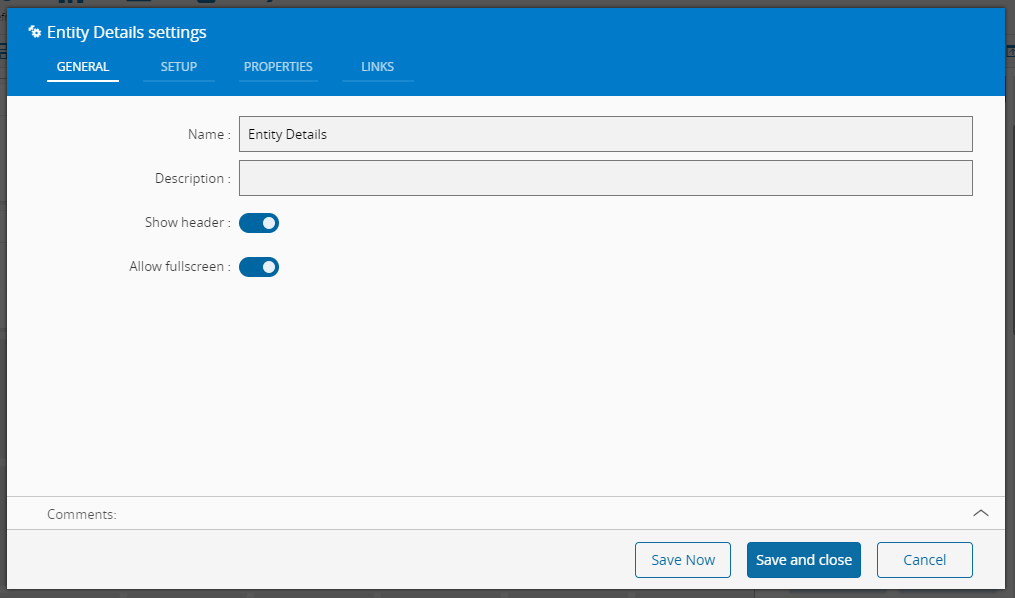
- In the setup tab provide visualization and data related properties.
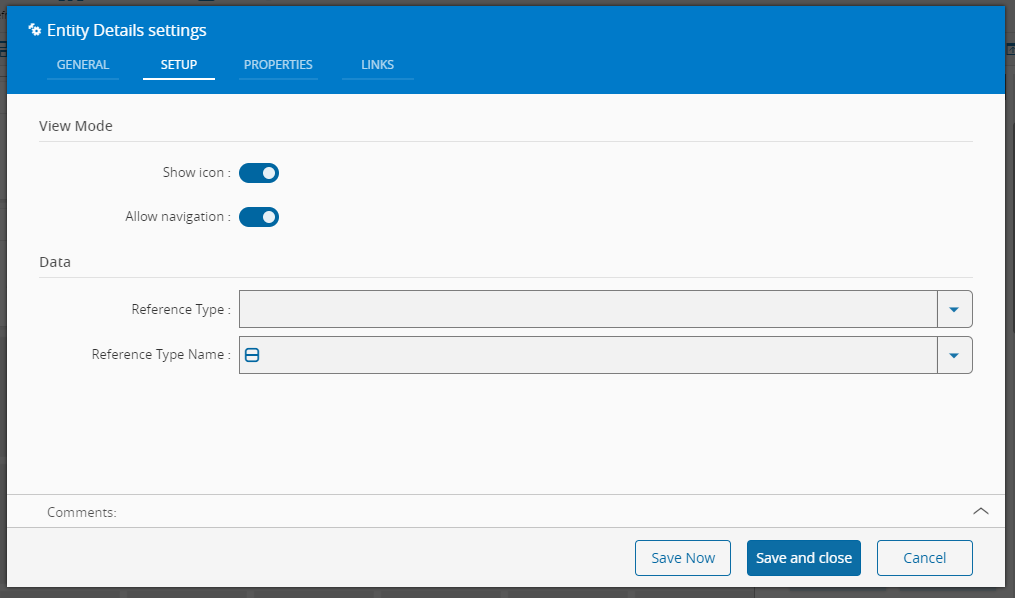 For visualization it's possible to choose if the widget displays the icon and if allows navigation to the instance of the entity. For data it can be configured the type of the reference:
 - Type for non-versioned entities
- Definition or Version for versioned entities and then the entity name, that will be used to filter the possible instances that will be displayed.
-
Optionally, define properties that will be displayed.
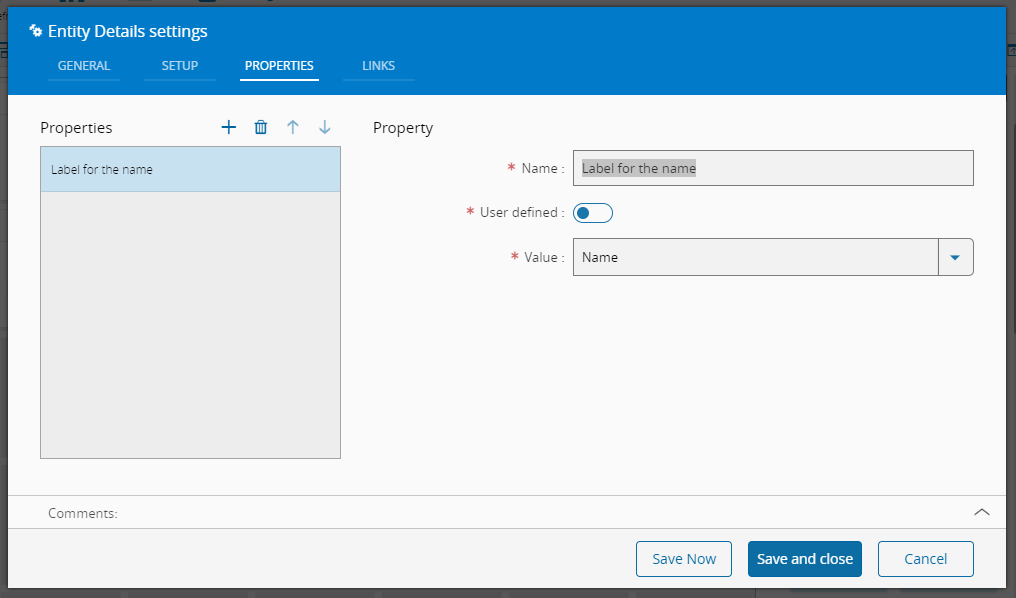
It is necessary to provide a name, that will be displayed to identify the property, if it's not user defined, select a value from the provided list of properties, if it is user defined, input a value.
-
Optionally, define the links between this Widget and other elements of the UIPage.
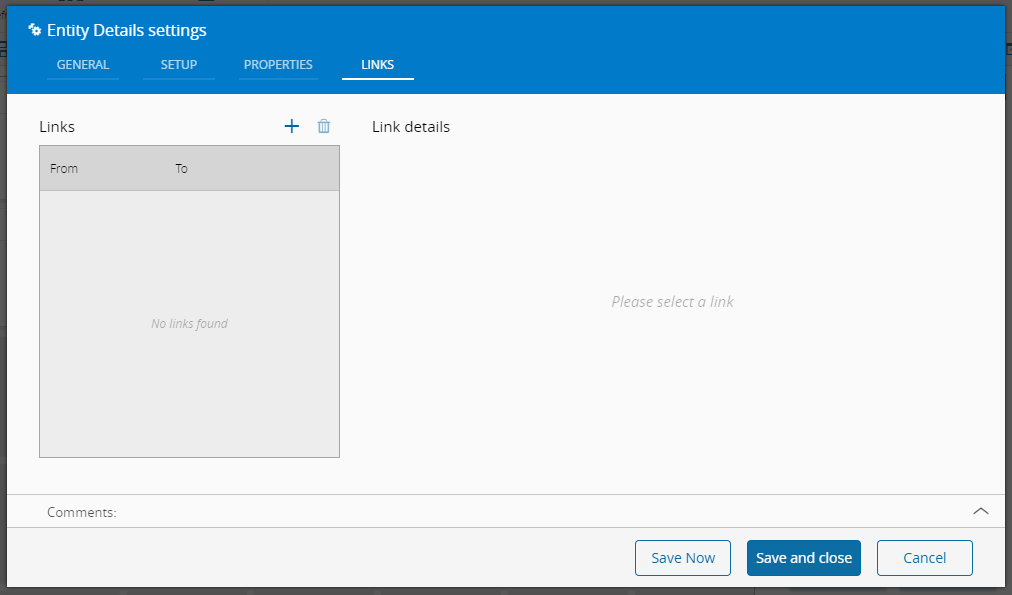 In this section it's necessary to define the input to the instance to be displayed by the widget.
 - By saving and closing the settings, the widget will be changed accordingly.
Implementation example: Display information for a selected entity#
It often makes sense to see selected entity details displayed on a UI Page to avoid having to open the entity itself. To accomplish this, the entity details widget can be linked to an entity list widget or a entity form field that provides the entity.
Depending on what properties should be displayed, a loadEntity converter has to be used that makes it possible to load (more) data of the selected entity.
Info
An example of the need for converters can be the access to the name of an area of a Resource. Since this information is not stored directly in the same database table as the Resource but linked to it as a foreign key in the same table. This means that in order for the information to be displayed in an entity details widget, the Resource entity has to be loaded for more levels. Each level in this context represents the distance of the desired property from the initial entity. I.e. Area name, since Area is directly linked to Resource, is 1 level away.
-
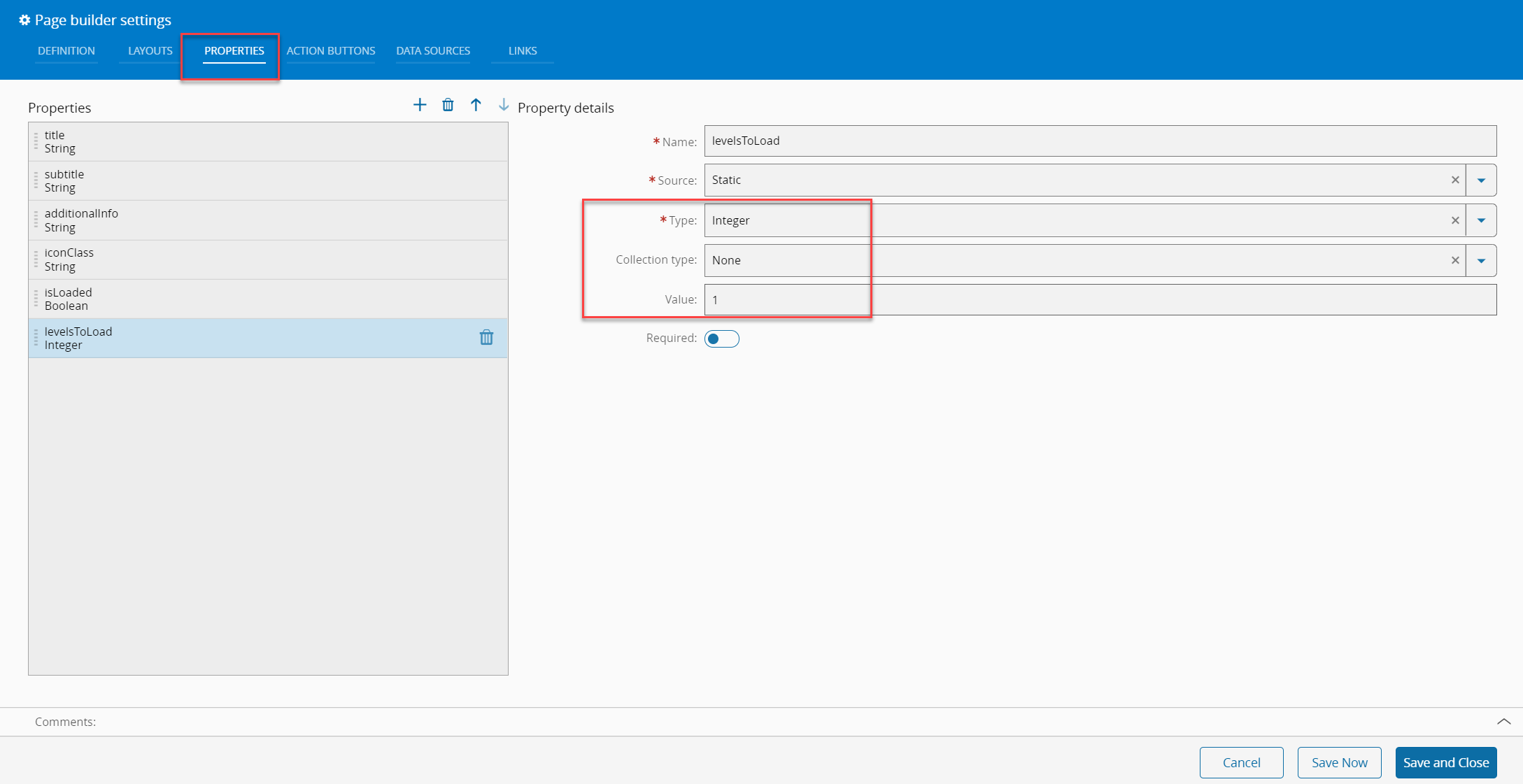
Add an integer property to the page (later required to define how many levels to load):
-
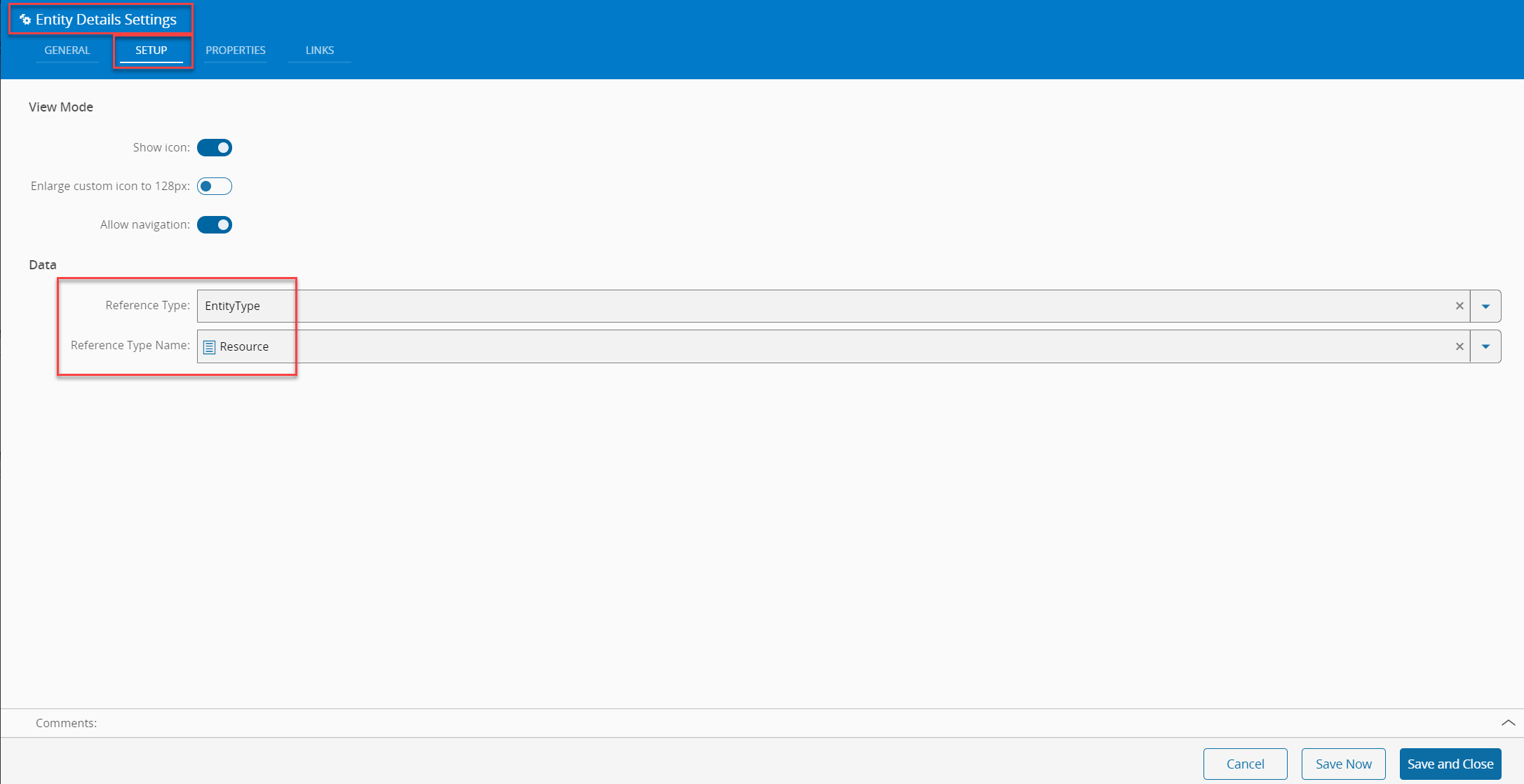
Configure entity details widget for entity:
-
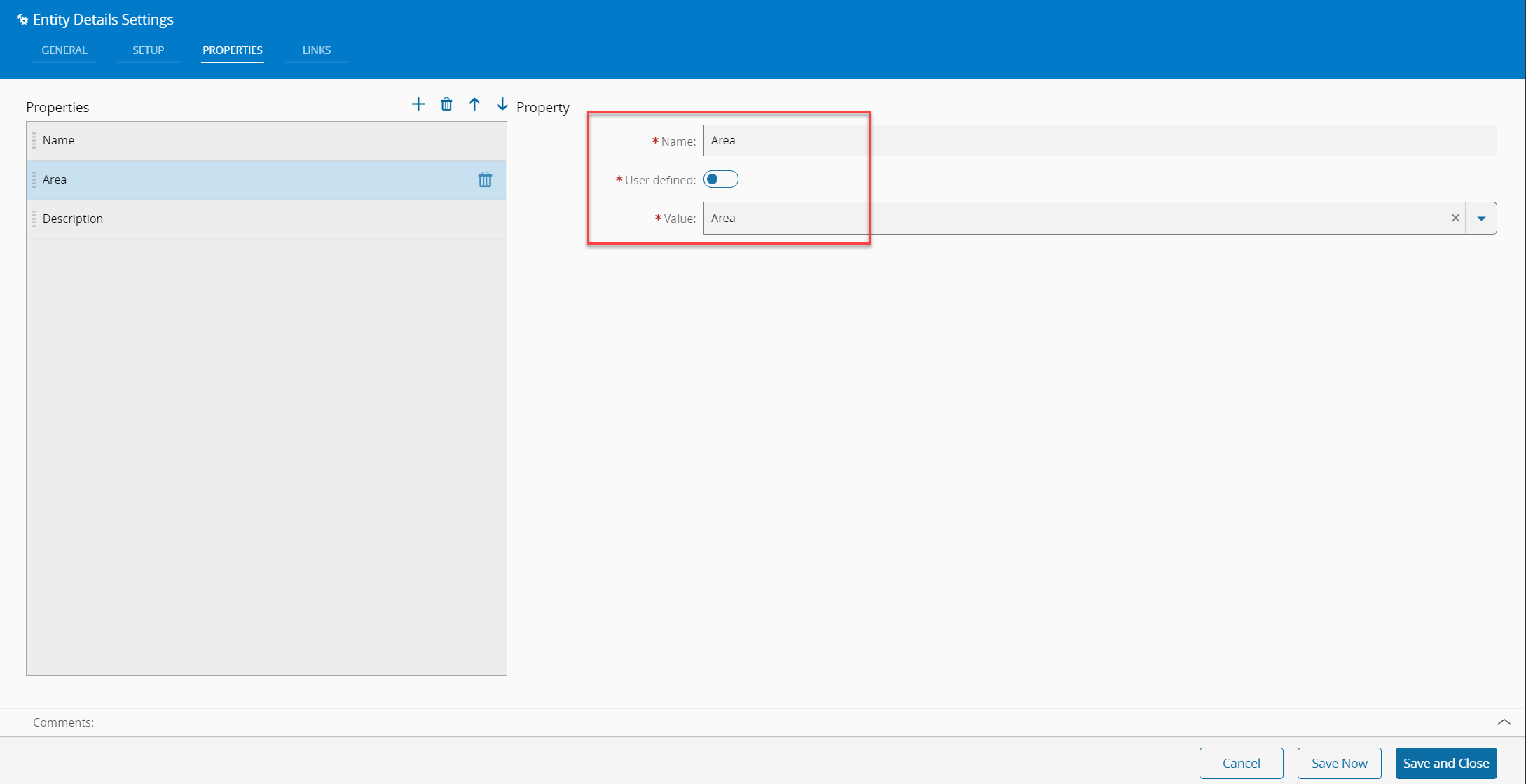
Add properties as required:
Note
Adding properties (i.e. Area Description) which are not in the provided list, select option User Defined and provide the path of the property in syntax as shown in the picture below:
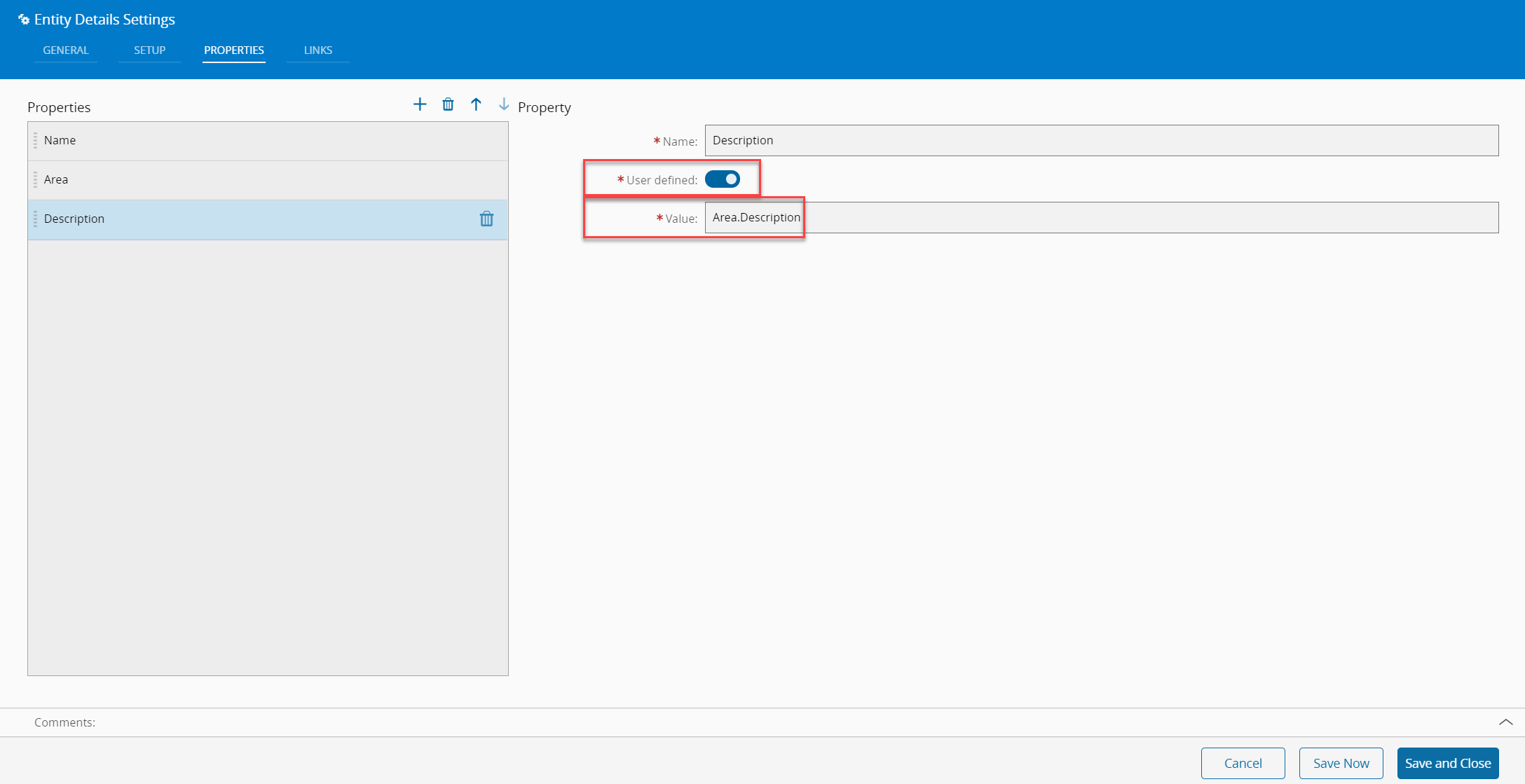
-
Link the resource entity form field to the entity details widget and use the converter loadEntity with the property as created above as the converter parameter:
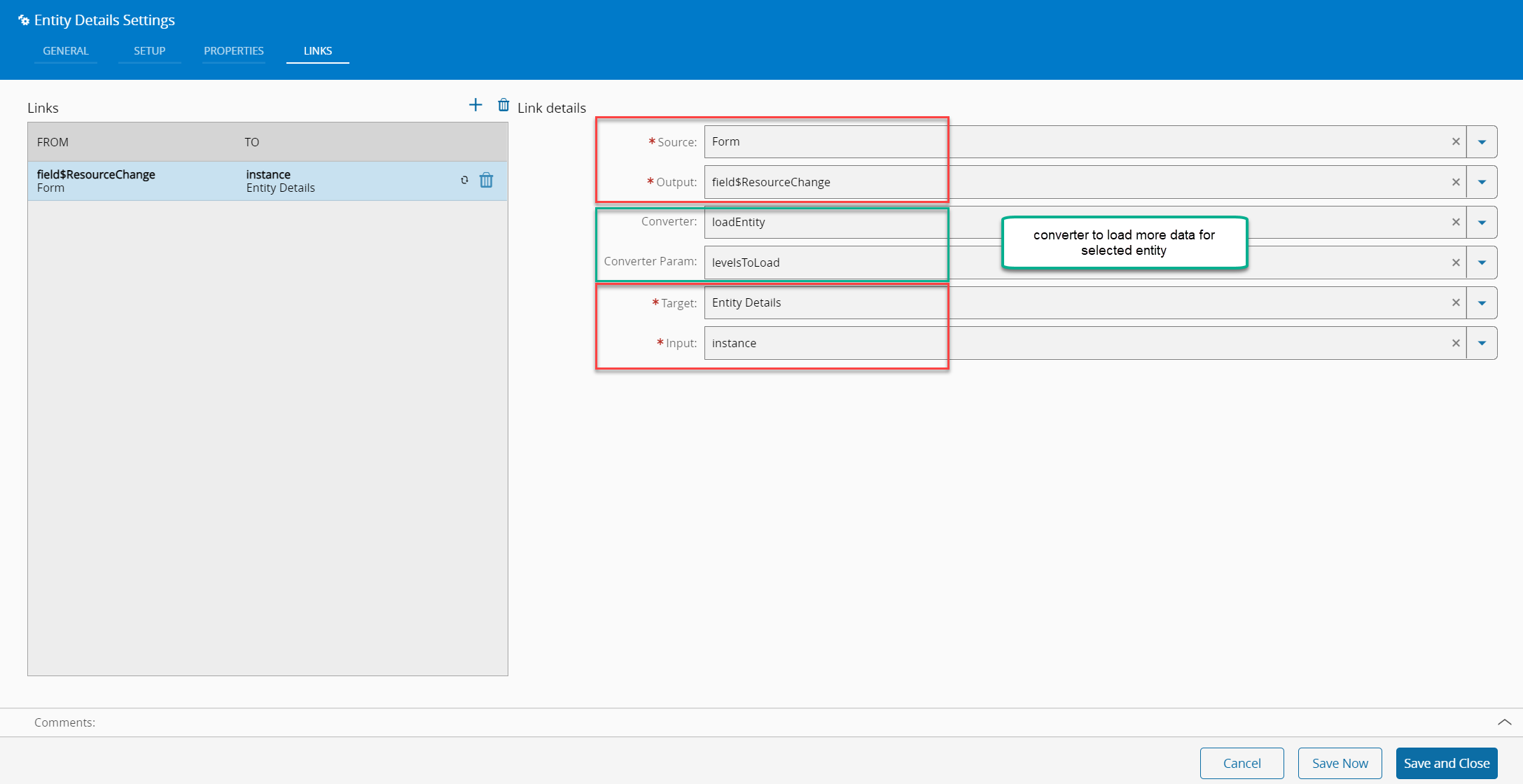
-
The final result should look like this:
