Entity Info#

Overview#
The Entity Info Widget displays quick information on a given entity instance, with a primary and a secondary property available to be displayed.
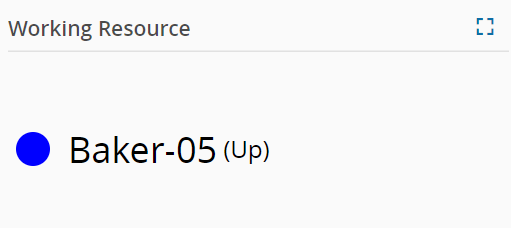
To use the Entity Info Widget in an UIPage, follow the steps below:
- In any UIPage in Build mode, select the Entity Info Widget from the Widgets list located in the right side of the page, and drag and drop to the correct place in the UIPage.
- Enter the Settings section of the Widget.
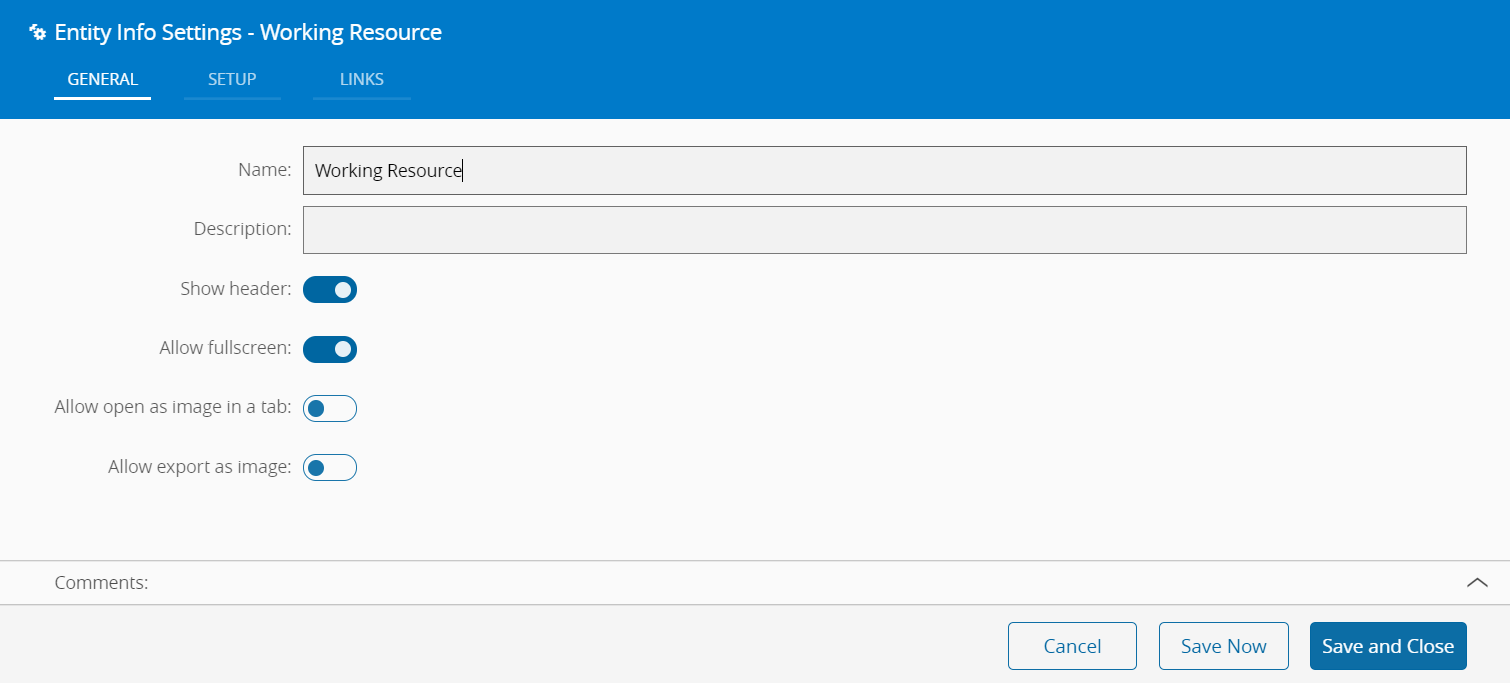
- In the General tab, provide a name for the Widget, a description, if it should display the header and if the user can activate the full screen mode.
- In the setup tab provide visualization and data related properties.
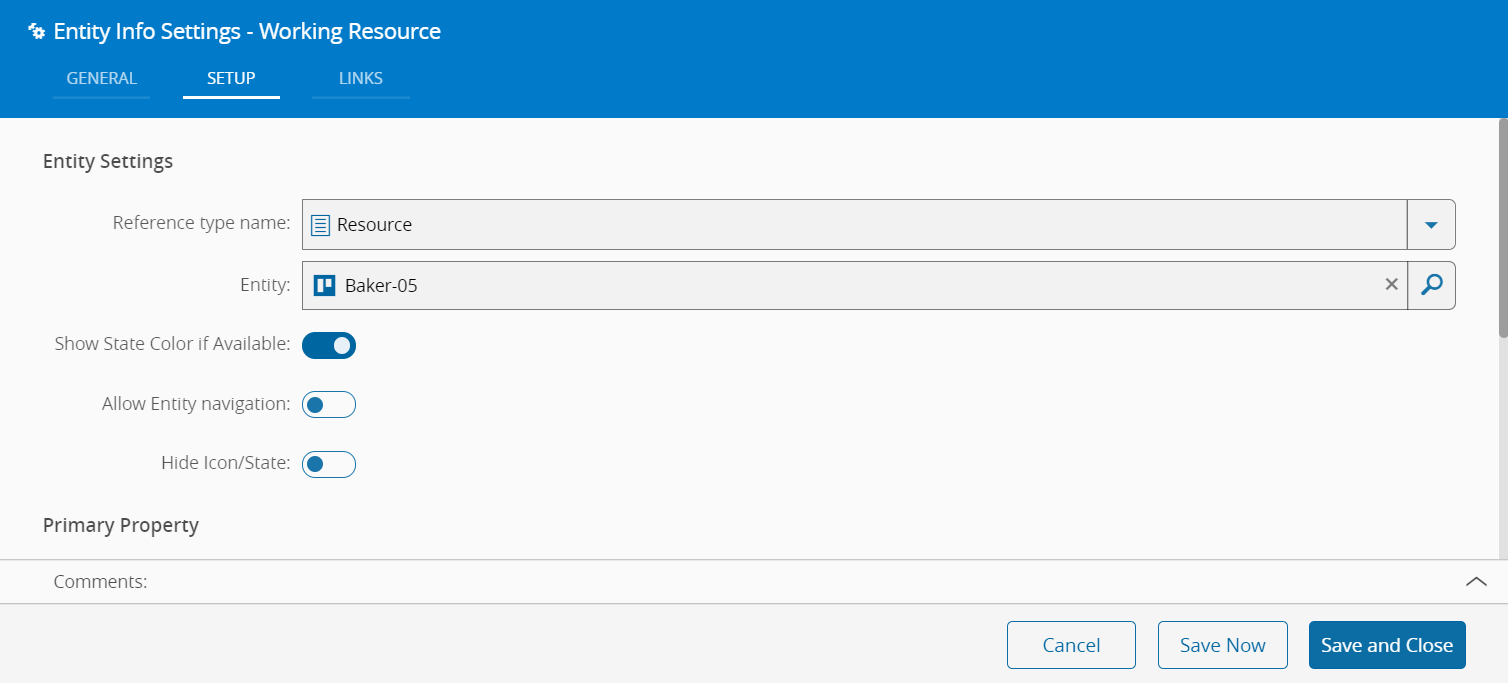
Several options are available for visualization:
- Select the Reference Type name to display.
- Select the Entity to be displayed.
- Choose if the widget should display the state color if available.
- Choose if the widget allows navigation to the instance of the entity.
-
Choose if the widget should display the entity icon and state.
-
Optionally, define a primary property and/or a secondary property to be displayed, along with the font size in which to render them.
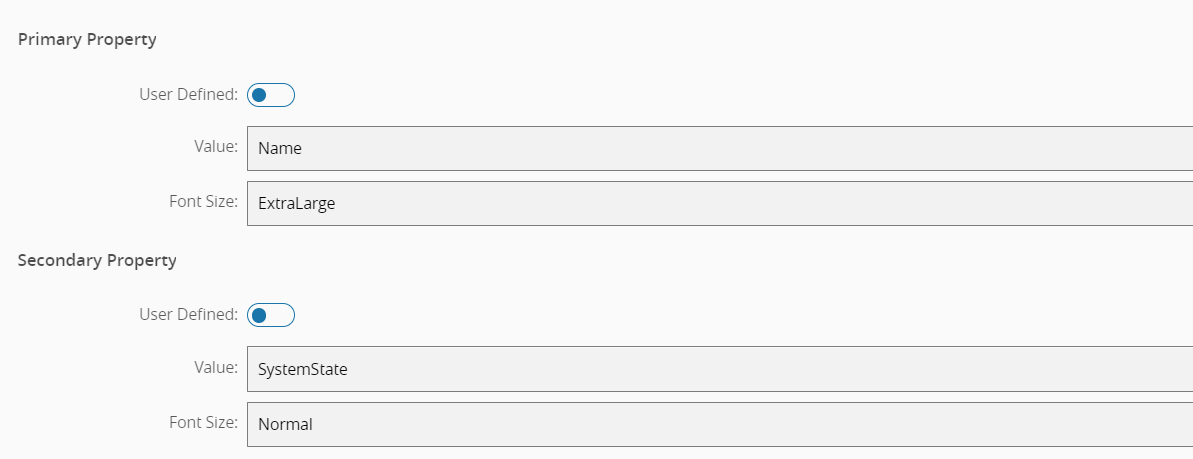
If the properties selected are not user defined, a dropdown control is available for the user to select the desired property. The secondary property will be surrounded by parentheses. If the user defined flag is set, the user can access contextual properties associated to a given Entity (e.g. if a Material entity is selected and the user wants to display the name of the Product, entering Product.Name will display the needed value.)
- Optionally, define the links between this Widget and other elements of the UIPage.
- By saving and closing the settings, the widget will be changed accordingly.