Entity List View#

Overview#
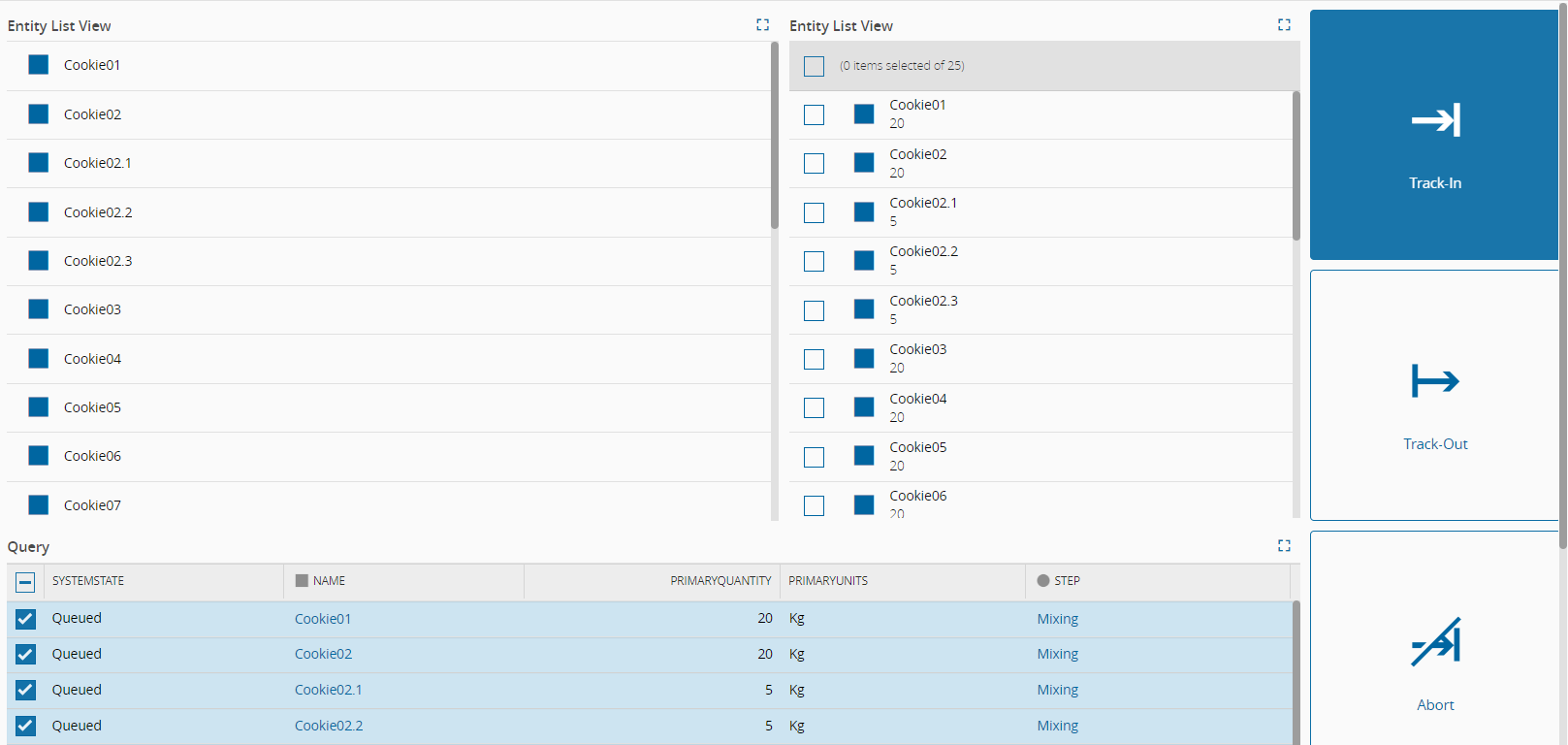
The Entity List View Widget displays a list of instances for a given property. In the example below, two entity list view widgets are connected to a query widget. The widget on the left-hand side shows the Names of the selected Materials, while the widget on the right-hand side displays both the Name and the corresponding Primary Quantity of each Material.
To use the Entity List View Widget in an UIPage, follow the steps below.
- In any UIPage in Build mode, select the Entity List View Widget from the Widgets list located in the right side of the page, and drag and drop to the correct place in the UIPage.
- Enter the Settings section of the Widget.
-
In the General tab, provide a name for the Widget, a description, and whether it should display the header. Additionally, you have the option to enable full screen mode for users and whether the widget allows users to open and export it as an image by toggling the respective buttons to
true.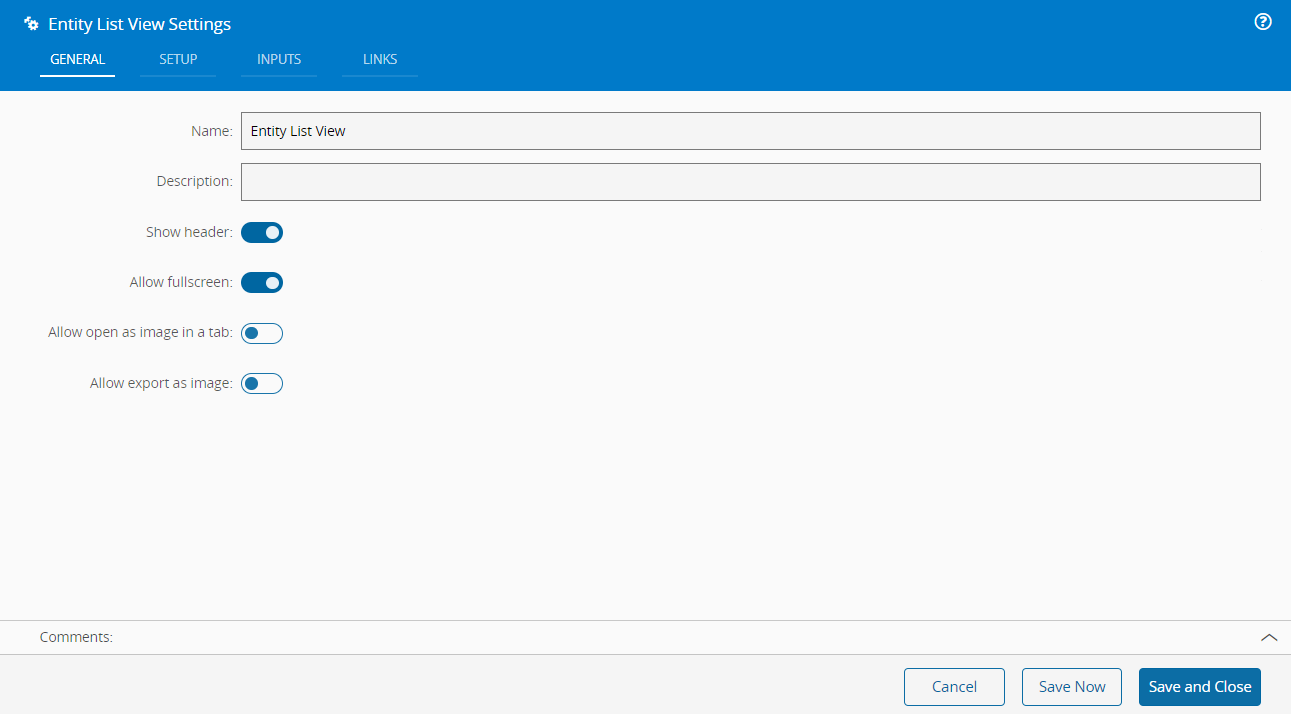
-
In the setup tab provide Selection and View Mode, and Data related properties.
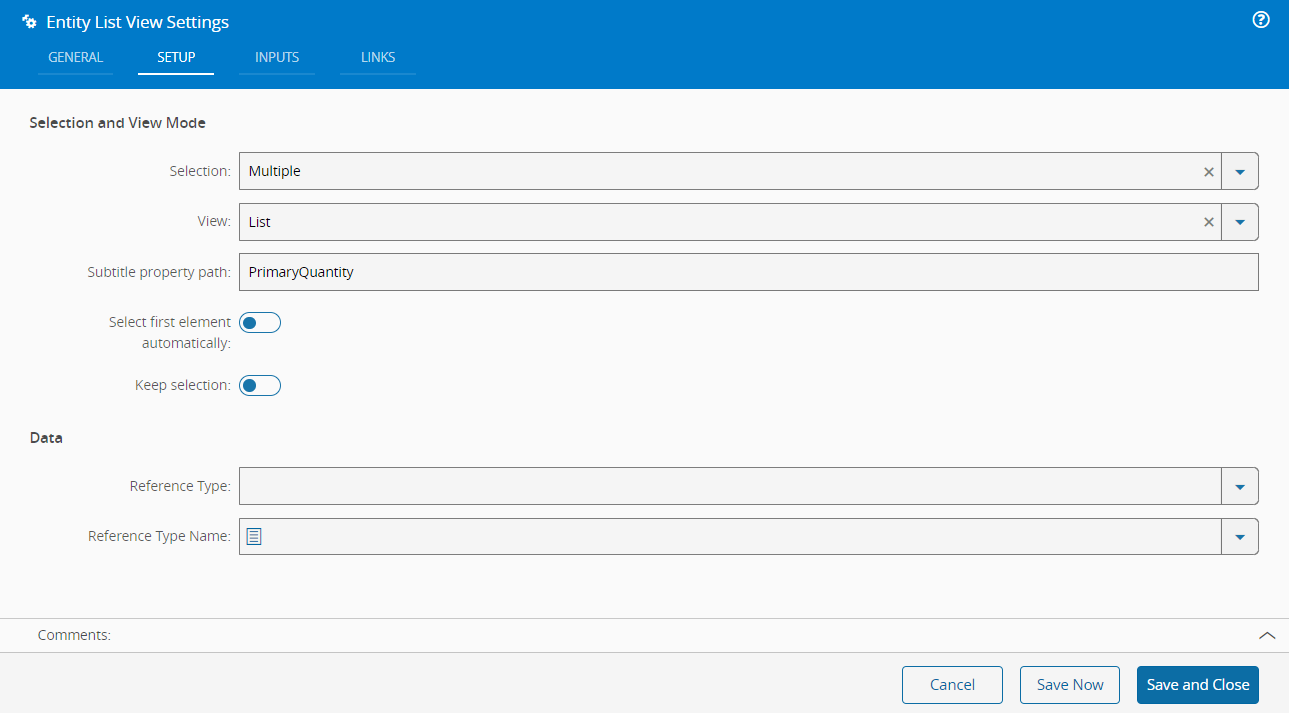
In the Selection and View Mode section, you can customize the selection type, opting for either multiple or single selection, and choose between box or list view types. Additionally, you can specify a subtitle property path and indicate whether you want to select the first element automatically or keep the selection by toggling the respective buttons to
true. In the Data section, you can configure the reference type and provide a reference type name. -
Optionally, define inputs.
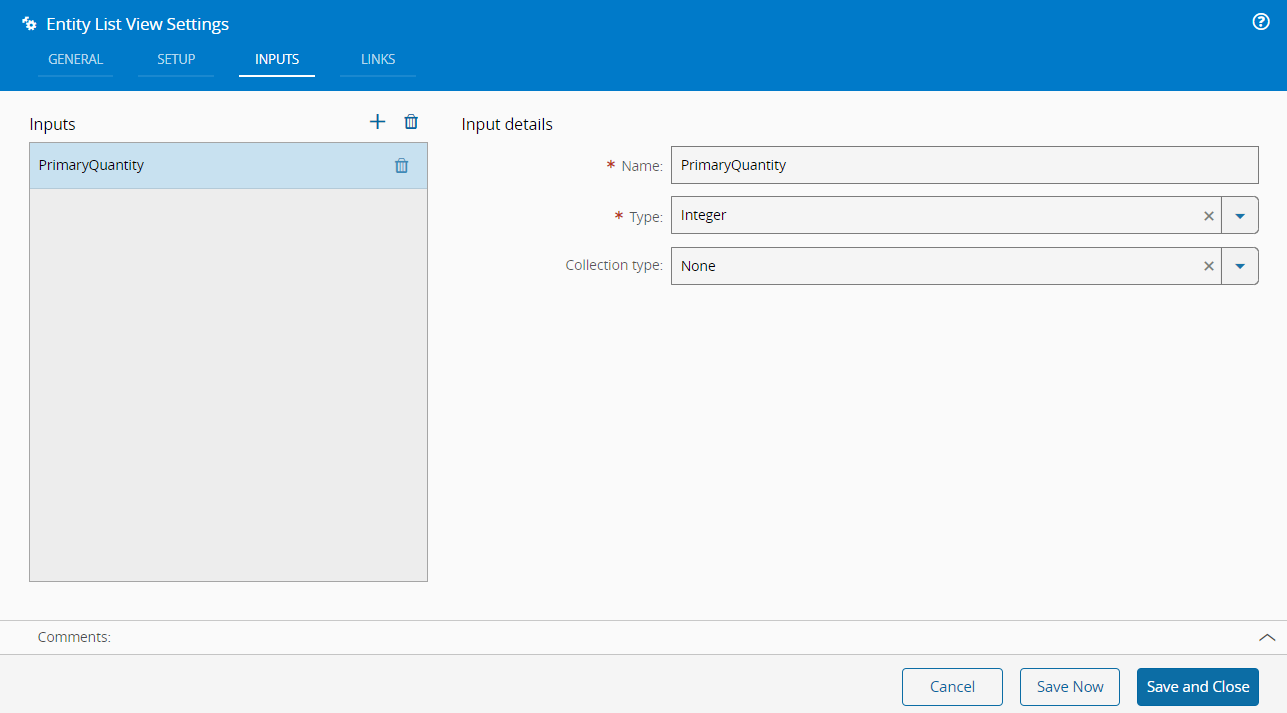
-
Optionally, define the links between this Widget and other elements of the UIPage.
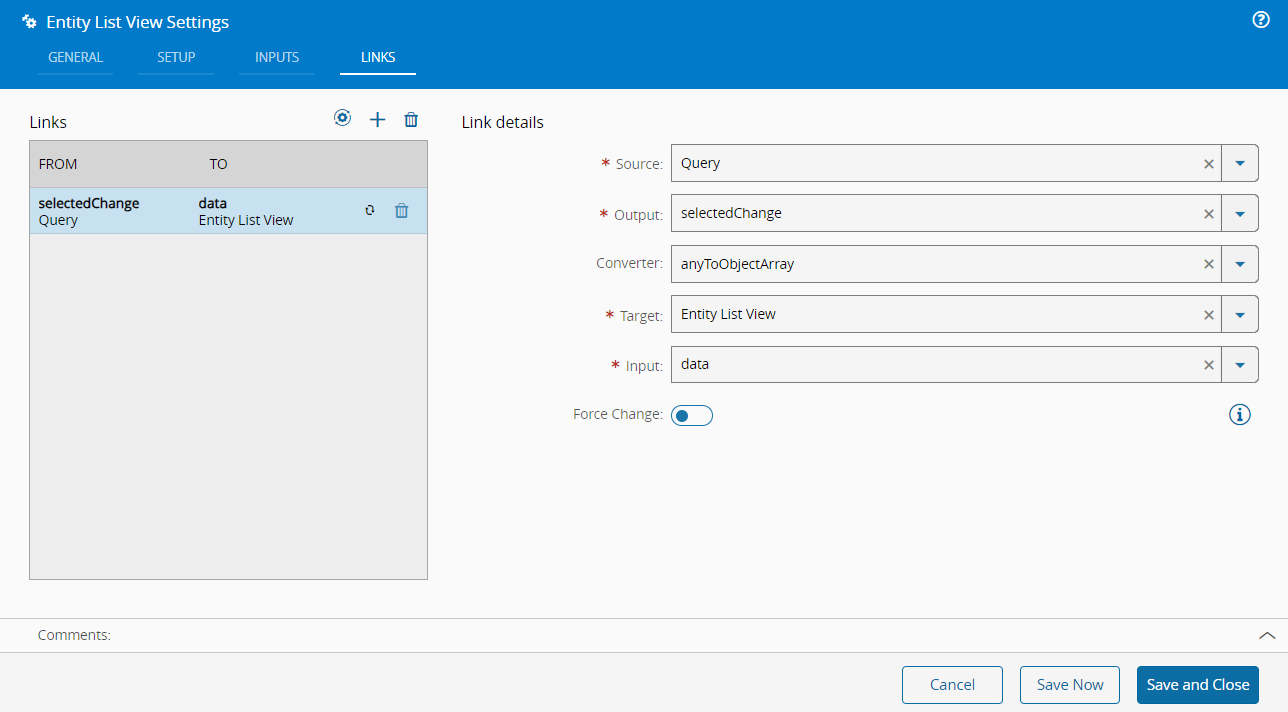
-
By saving and closing the settings, the widget will be changed accordingly.
How to Use an Entity List View Widget as Input for a Query Parameter#
An entity list widget can also be used to present the user with a list of selectable entities and then run a query that uses the user selected entity as parameter.
Steps#
-
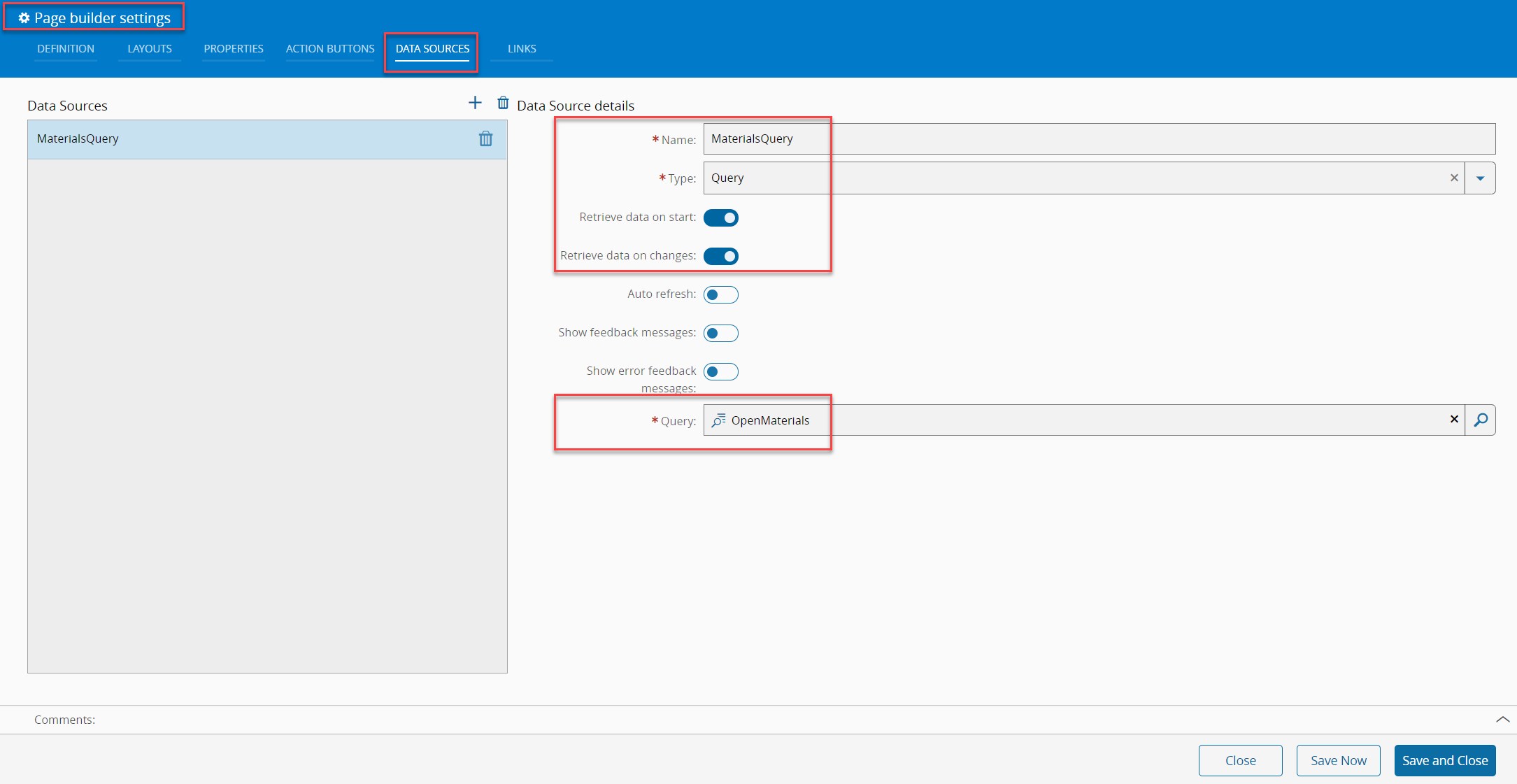
Add data source for the entity list to the page properties.
For the entity list to display a list such as the one below, it first needs to be made available on the page. The easiest way to do so is to add a query (in this case, displaying all non-terminated Materials) as data source.
-
Link data source to entity list widget:
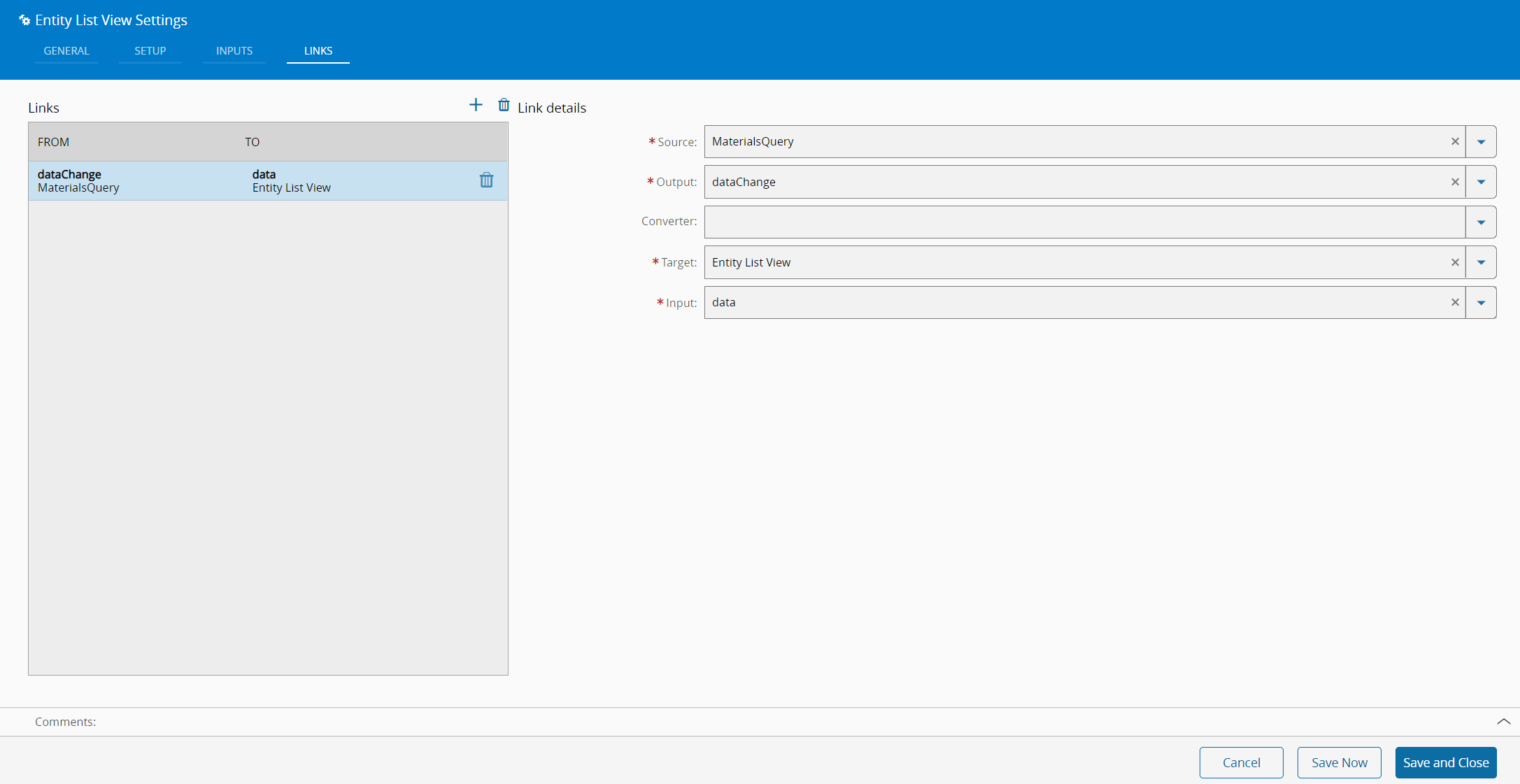
-
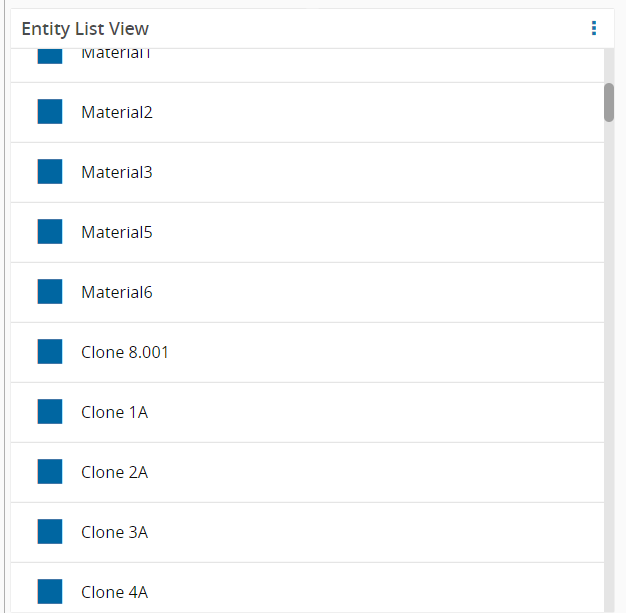
After saving the entity list widget will display a scrollable list of Materials:
-
Add any query (as widget of type query) to the UI Page that uses as parameter the material entity and link it to the entity list:
Note
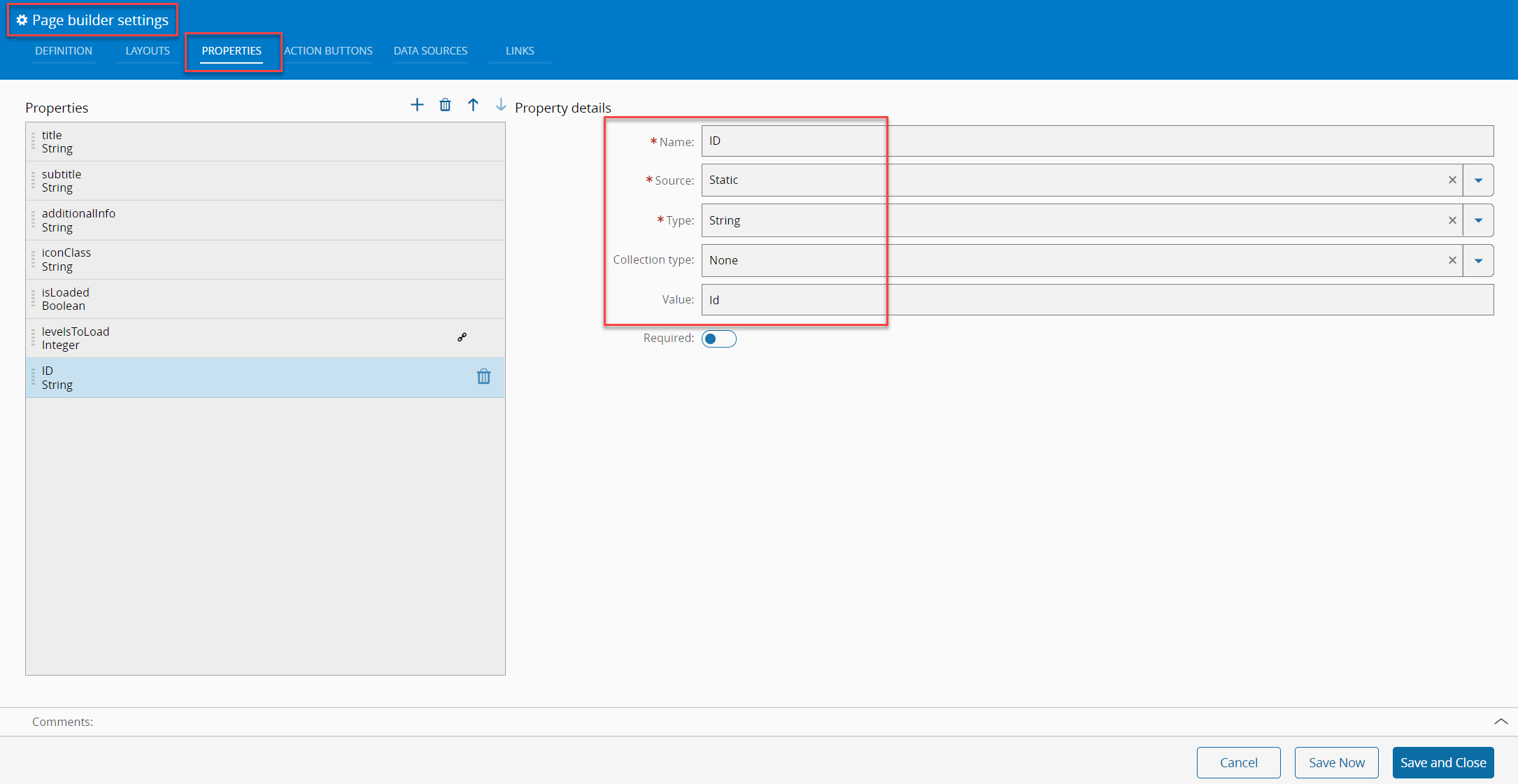
To use the an entity parameter in query requires the actual database ID to be provided via the link on the UI page. To accomplish this, a string property has to be added to the page:
-
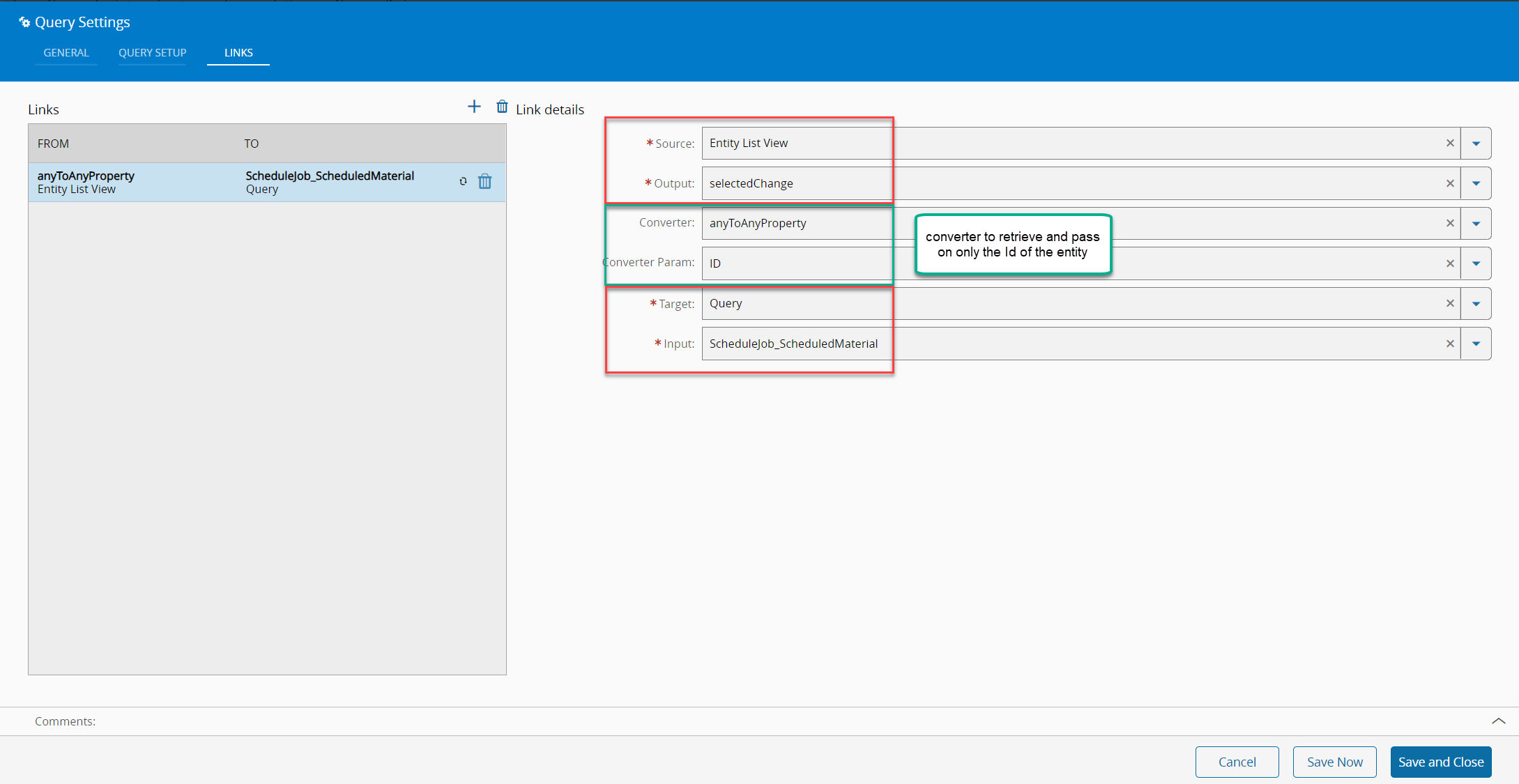
This string property can then be used in the link together with the anyToAnyProperty converter to transfer the ID of the selected entity to the query.
-
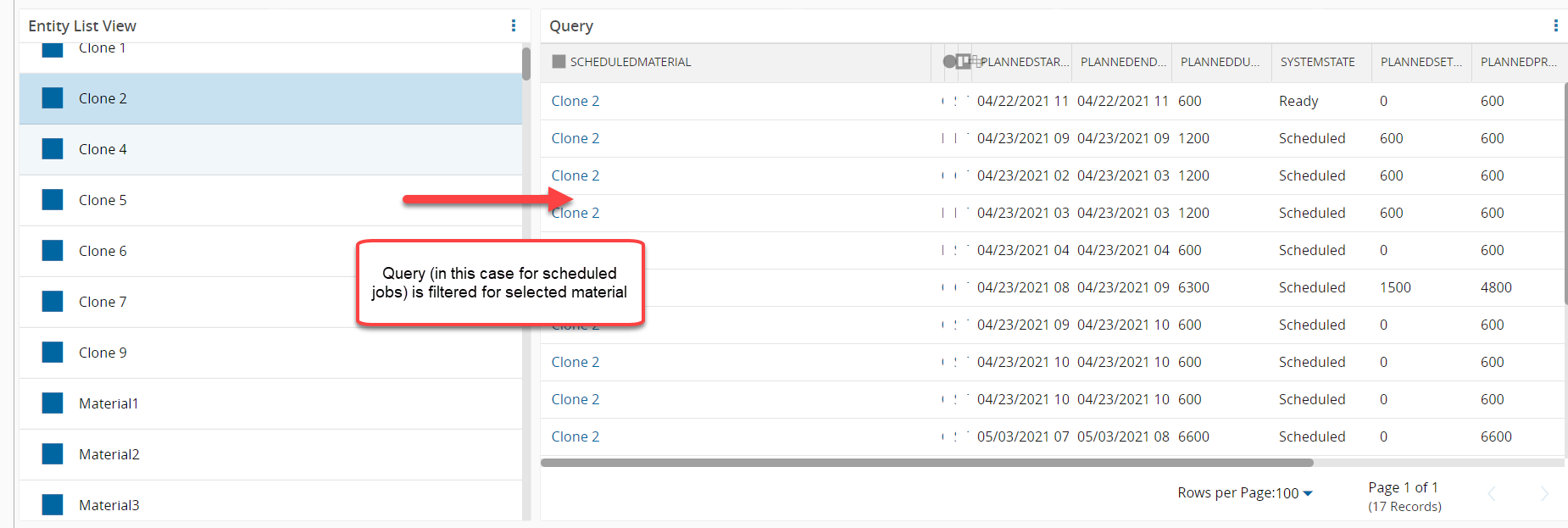
The final result on the UI Page should look like this: