Form#

Overview#
The Form Widget displays a set of fields that can be used to collect inputs or display data. An example of a UI Page is shown below, where a Form Widget is used to collect a Barcode.
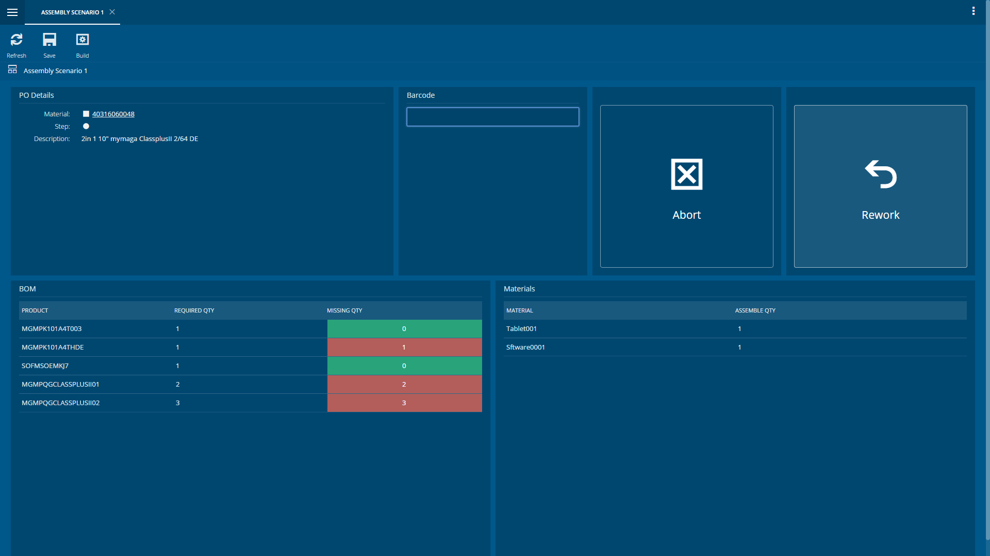
To use the Form Widget in an UIPage, follow the steps below.
- In any UIPage in Build mode, select the Form Widget from the Widgets list located in the right side of the page, and drag and drop to the correct place in the UIPage.
- Enter the Settings section of the Widget.
- In the General tab, provide a name for the Widget, a description, if it should display the header and if the user can activate the full screen mode.
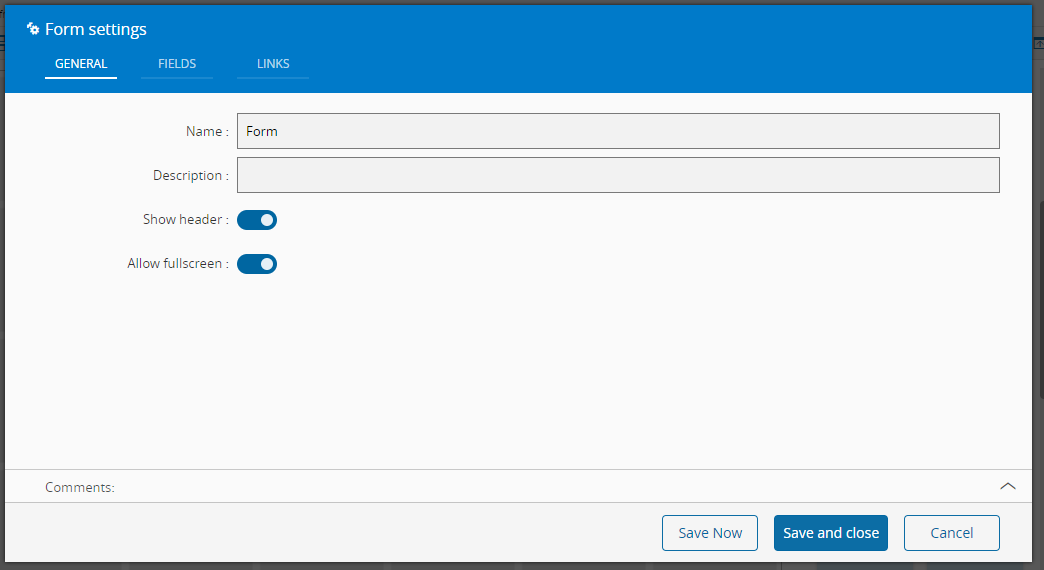
- In the fields tab configure the fields to be displayed in the Widget.
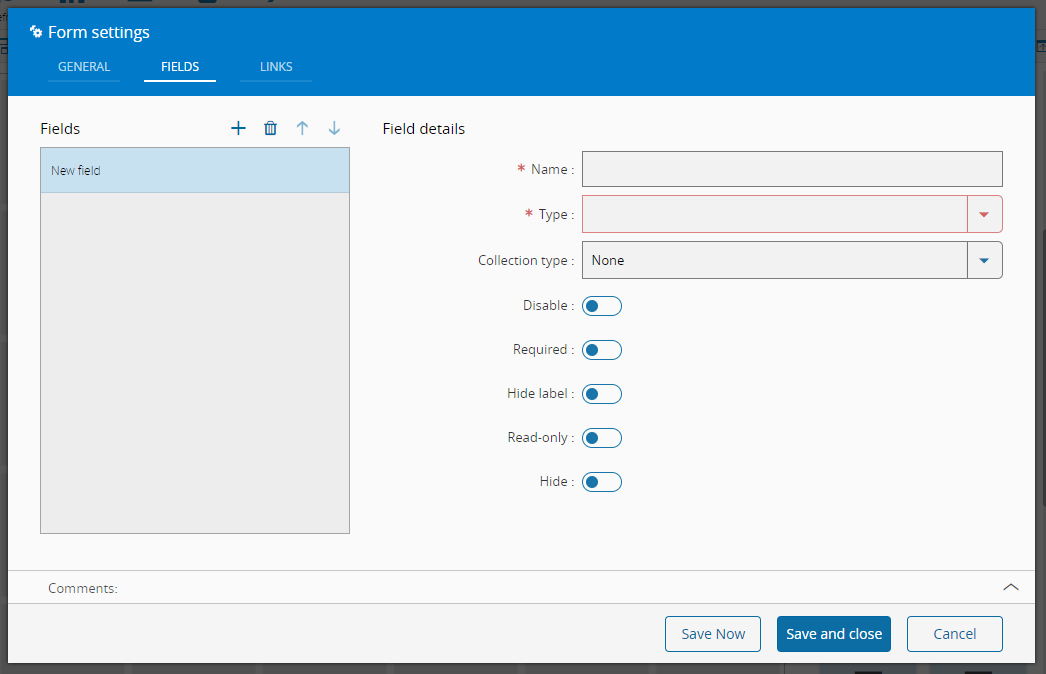 After adding a new field, it's necessary to define a name (that will be the identification of the field and the displayed text in the form) and a type (chosen from the displayed list). Optionally change the collection type from None to Array or Map. Then is necessary to choose the correct state for the following properties that will be applied to the field:
 - Disable
- Required
- Hide Label
- Read-only
- Hide
- Define the links between this Widget and other elements of the UIPage.
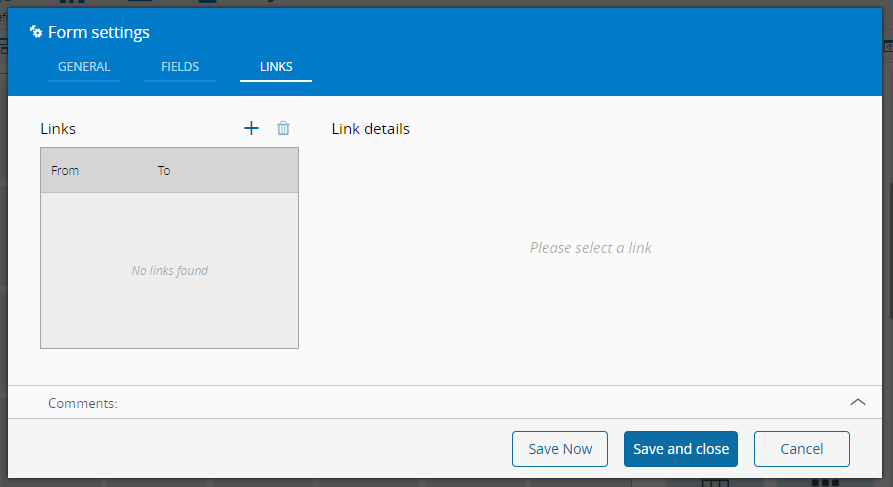
- By saving and closing the settings, the widget will be changed accordingly.
Implementation example: Configure a Form field as an entity lookup#
A Form field can be easily adapted to be used as an Entity lookup to help the user provide the correct entry.
Steps#
-
Setup type as ReferenceType
-
Choose
EntityTypeas ReferenceType, then choose the Entity in the ReferenceType name field -
Optionally a query can be used if the possible entities for selection need further filtering.
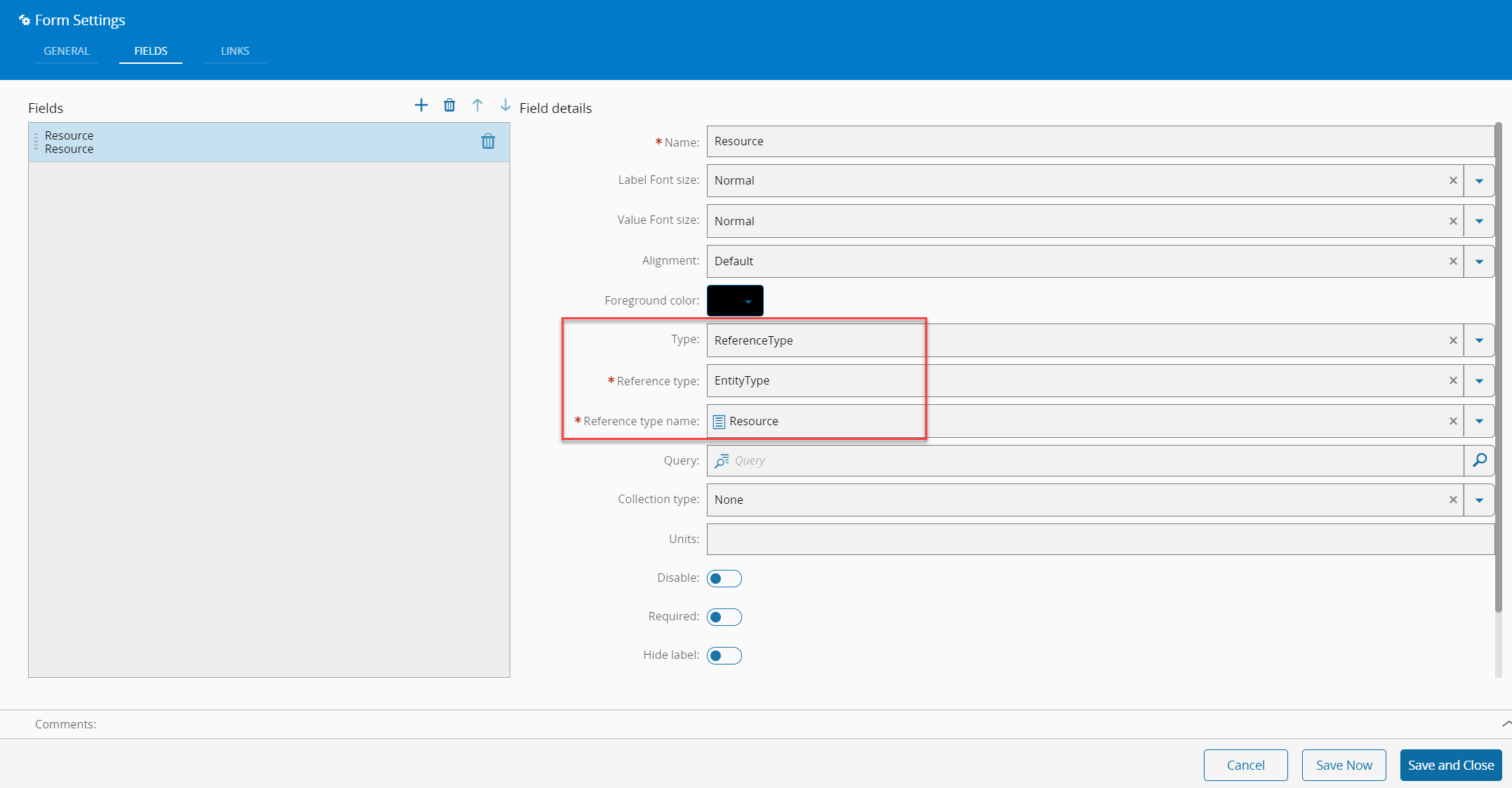
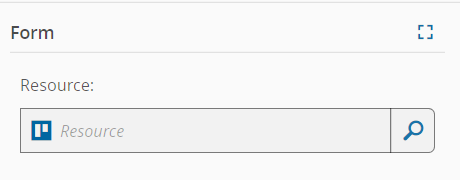
- On the UI page this kind of form field will then present itself as shown:
Implementation example: Use of Form widget as user input to a query parameter#
If a query was setup with parameters, these can be easily provided for example by a Form widget. Each parameter can be linked to a different Form field.
There are different possibilities depending on the parameter setup in the query. Here are some important examples:
Name#
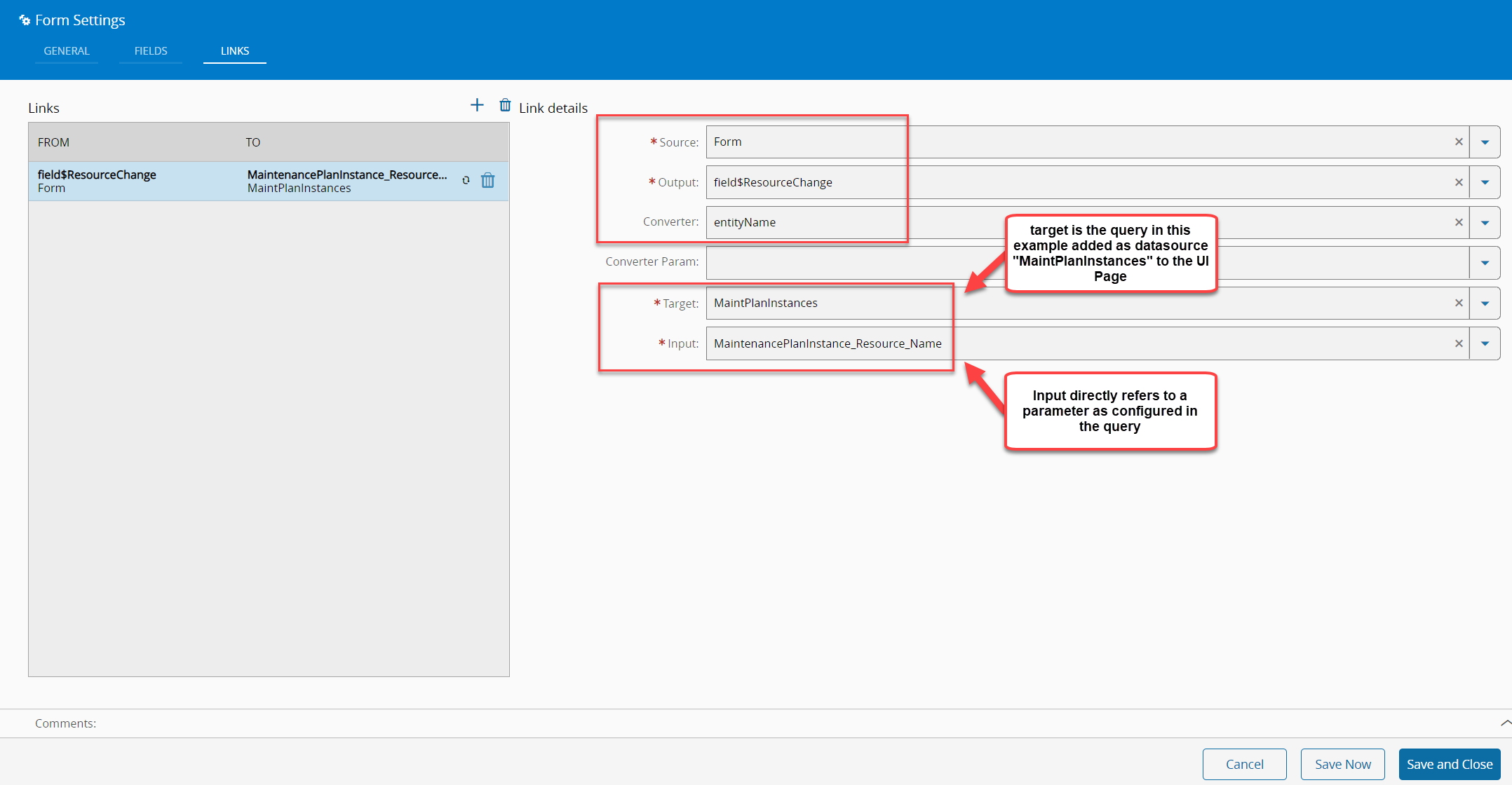
If a parameter in the query was configured for an entity name, a string value has to be passed to the query, through one of two ways:
- A string field (acting as "free text user entry") without the need for a converter
- A selected entity as shown in previous example.
In the latter case, using the converter entityName is required, which transforms the selected entity to retrieve the entity name which is then supplied as a string.
Entity#
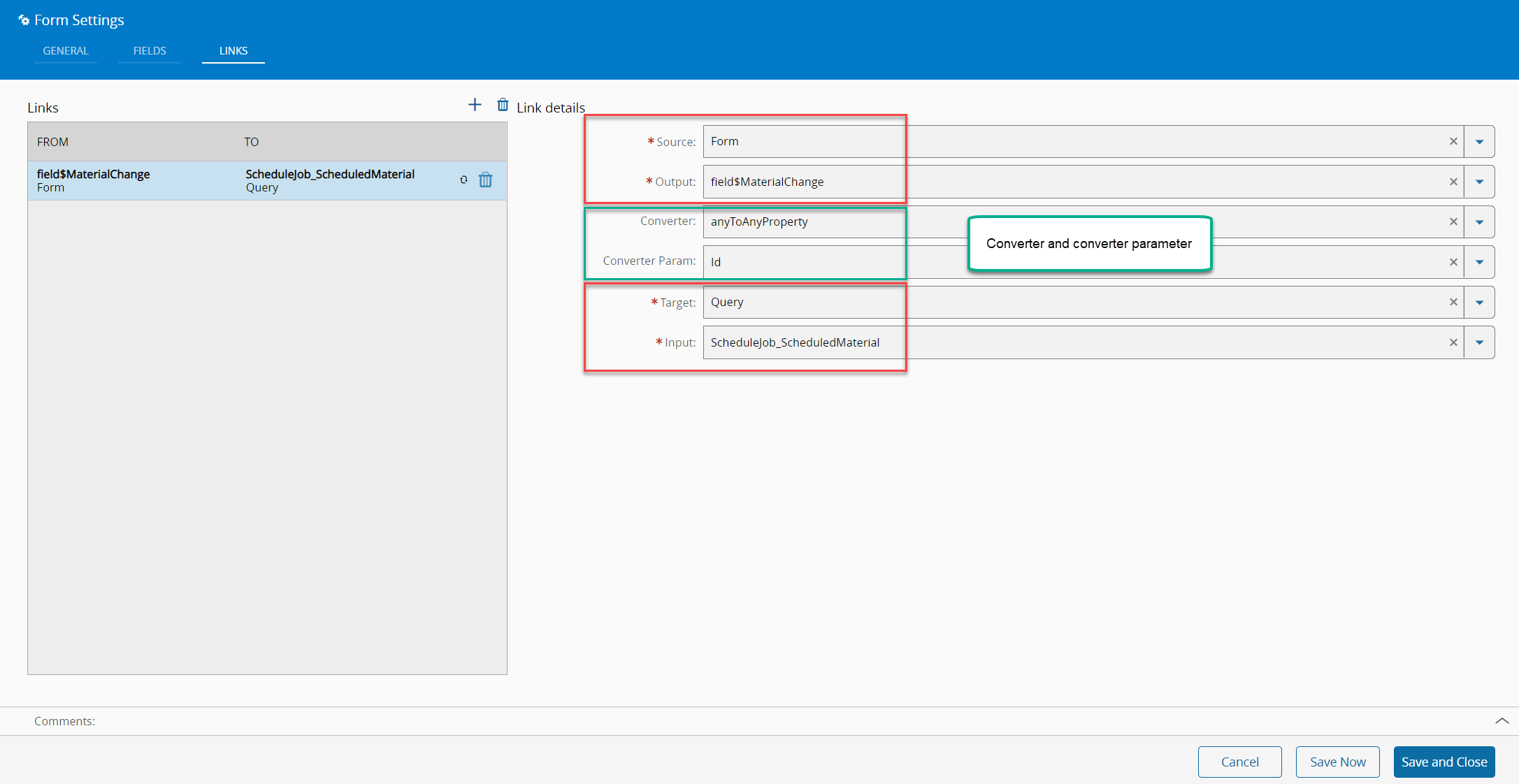
If a parameter is the entity itself, another converter has to be used. In this case the Query expects the database entity ID (normally not known to the user) rather than the familiar entity name. One has to use the anyToAnyProperty converter to recover the entity id from a selected entity object. This only works with a converter Parameter telling the converter which property to retrieve. (In this example we want to get the database entity Id and pass it on to the query).
- Add in the page properties an additional string property with value "ID":
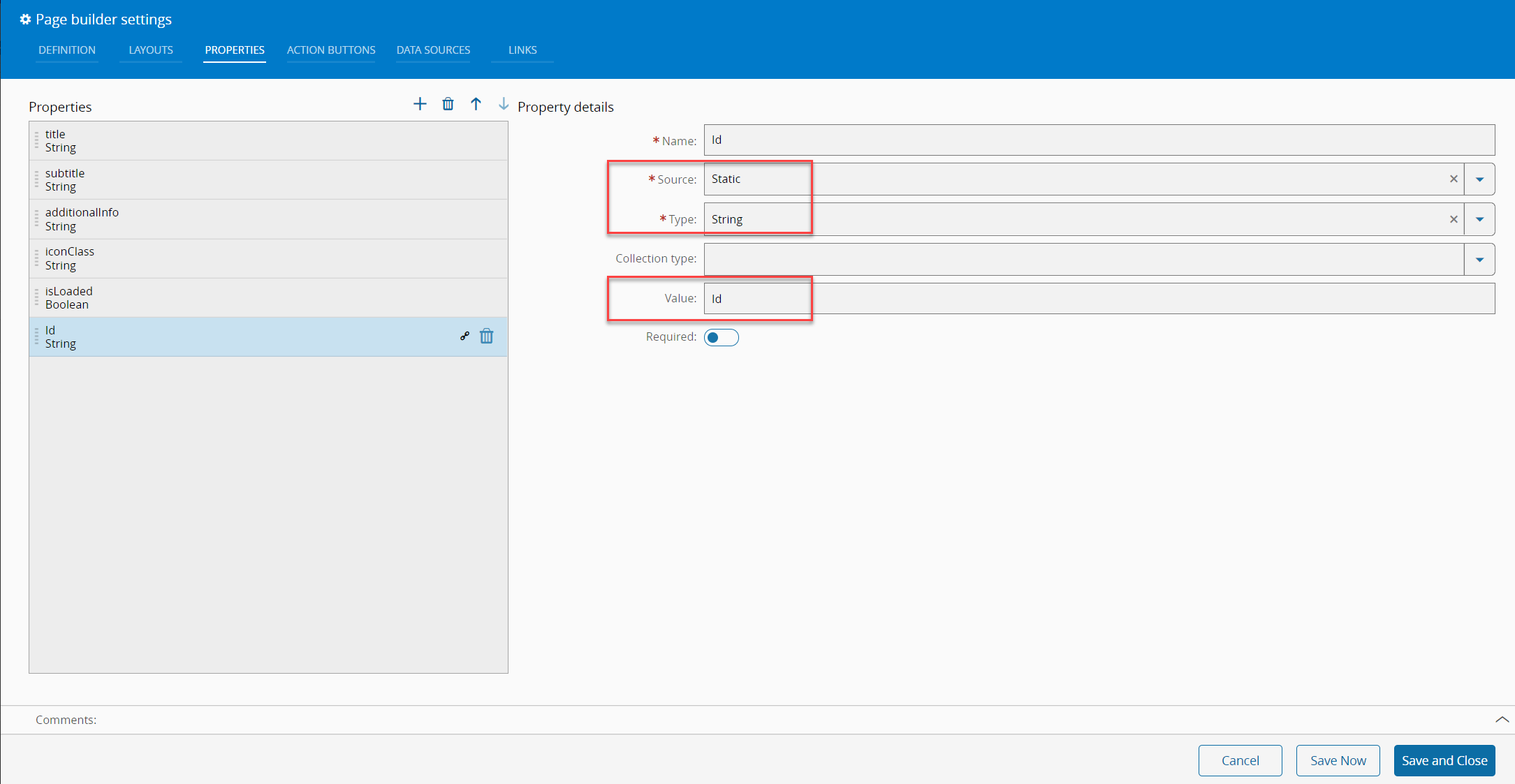
- Link the entity form field to the query by using the anyToAnyProperty converter, as well as the property just created: