Grid#

Overview#
The Grid Widget displays the results of the execution of a data source. Below there is an example with a Grid UI Page.
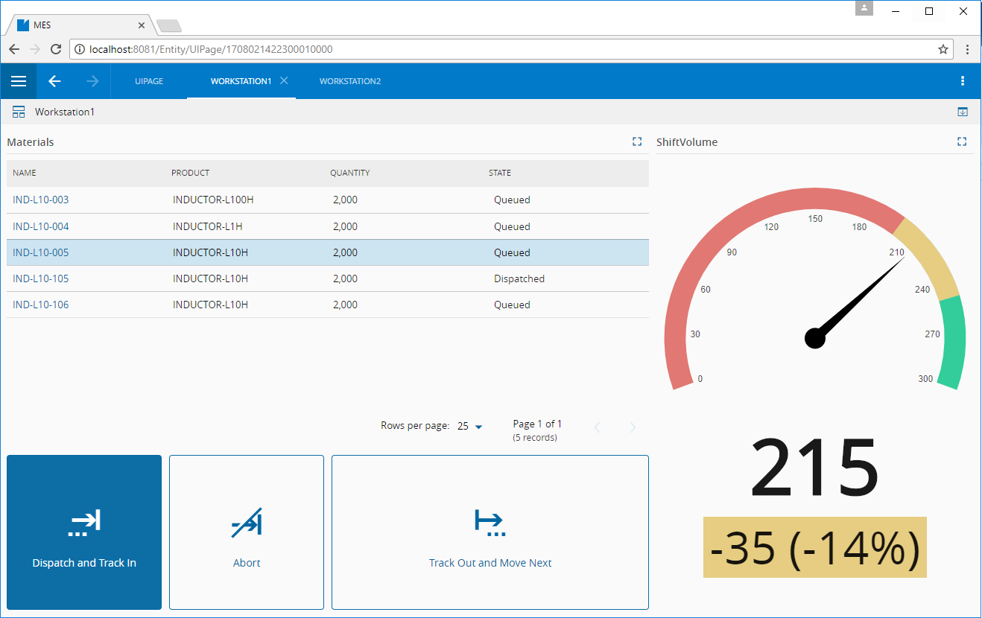
To use the Grid Widget in a UI Page, follow the steps below.
- In any UI Page in Build mode, select the Grid Widget from the Widgets list located in the right side of the page, and drag and drop to the correct place in the UI Page.
- Enter the Settings section of the Widget.
-
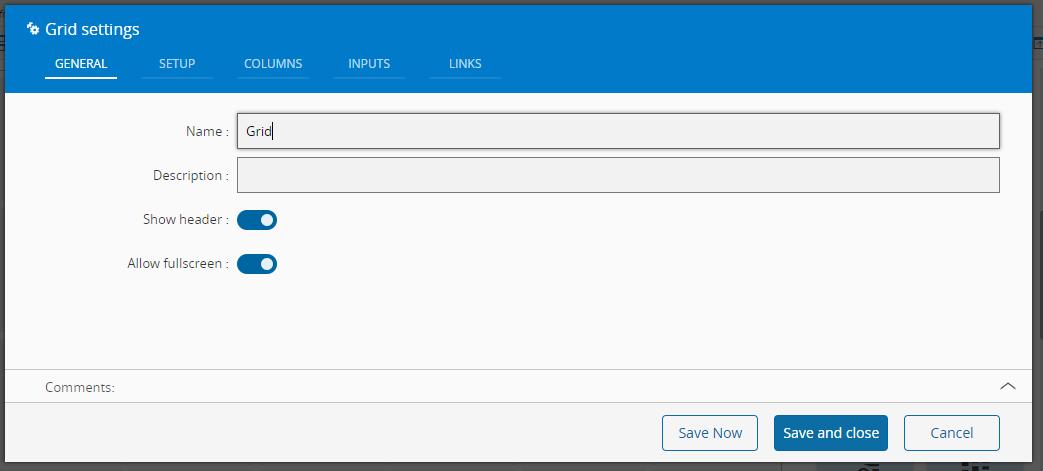
In the General tab, provide a name for the Widget, a description, and specify whether it should display the header and also if the user can activate the full screen mode.
-
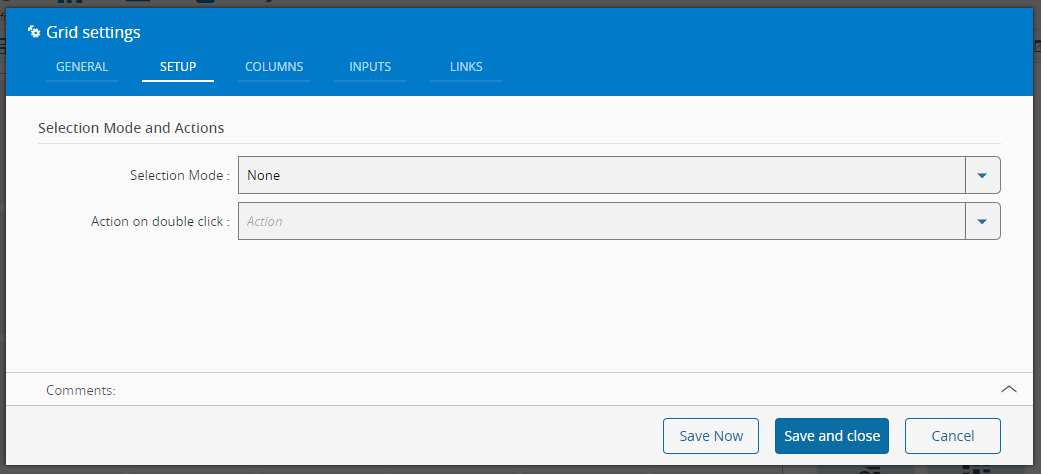
In the setup tab provide selection mode and actions.
-
Define the columns to display data. It is necessary to define the header for the column, a path (a string that represents a path to a property of an object, e.g.: Material.Product.Name) and, optionally the type.
-
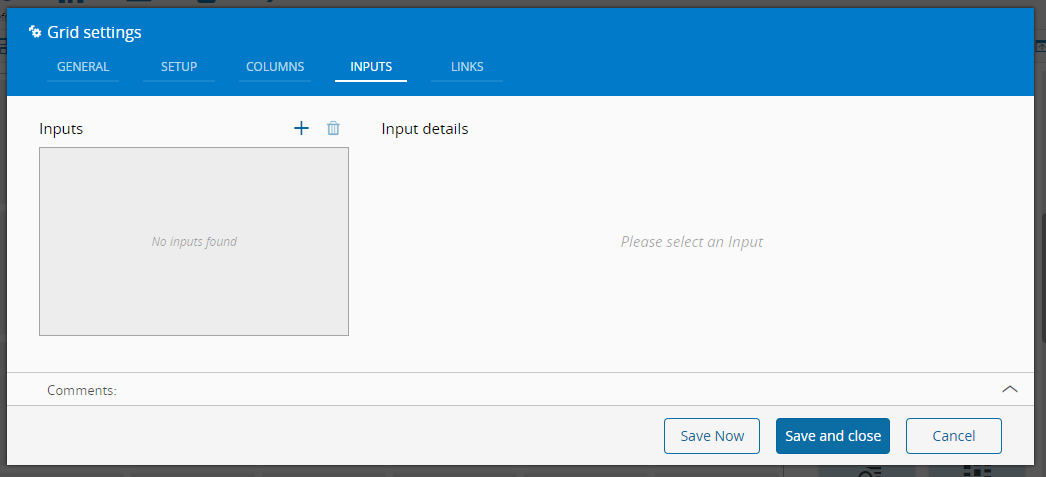
Optionally define the inputs.
-
Define the links between this Widget and other elements of the UI Page. As this widget requires a data source, it must be added as a link
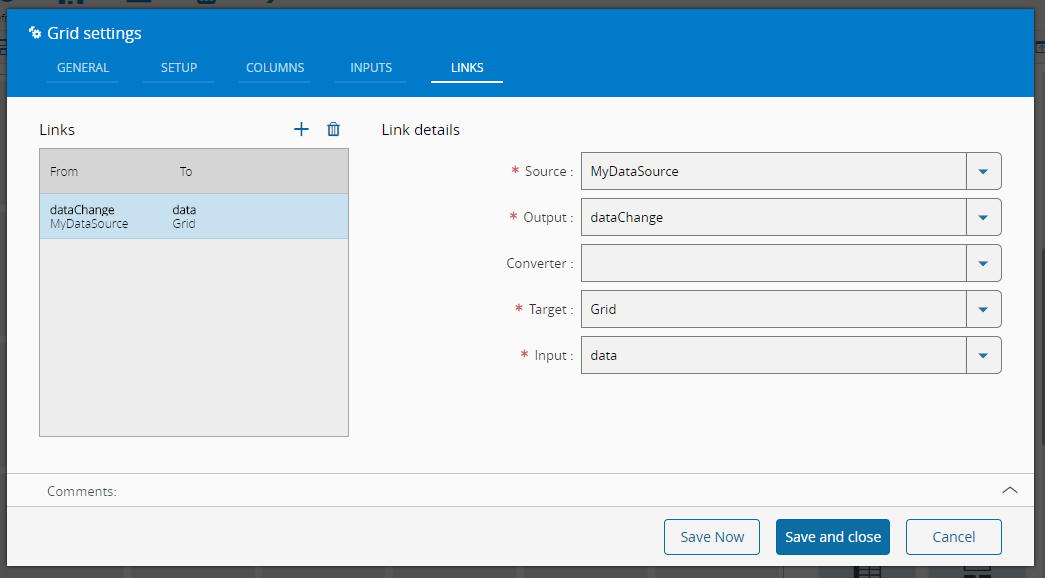
By saving and closing the settings, the widget will be changed accordingly.
Implementation example: configuring columns to be displayed on a Grid#
Once the grid is setup and linked to a data source (in this case a query for the ScheduleJob Entity), a number of columns can be added. Depending on how the columns are built, they can have different functions and appearances.
Note
The path property of each column is always relative to the entity of the query. If the property to display is a direct property of the same Entity Type, the property name needs to be input. If it is a property of a linked property, the path has to be build in fashion LinkedEntity.LinkedProperty. Examples can be seen below:

Hyperlink entity column#
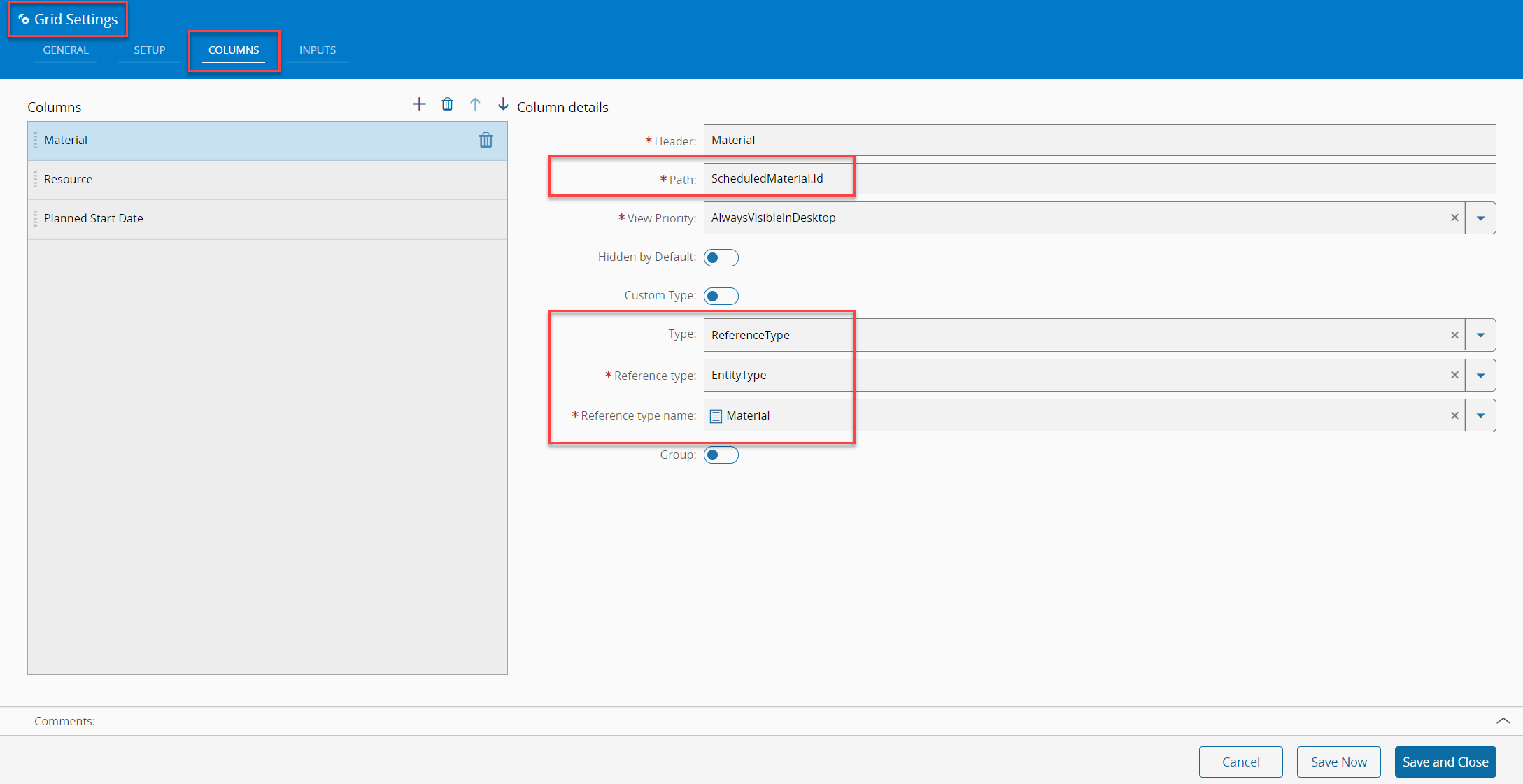
In order to show a column to show entity including hyperlink to that entity, the path has to refer to the Id of the entity and the column has to be setup as type ReferenceType for same entity the Id is referring to:
Entity name column#
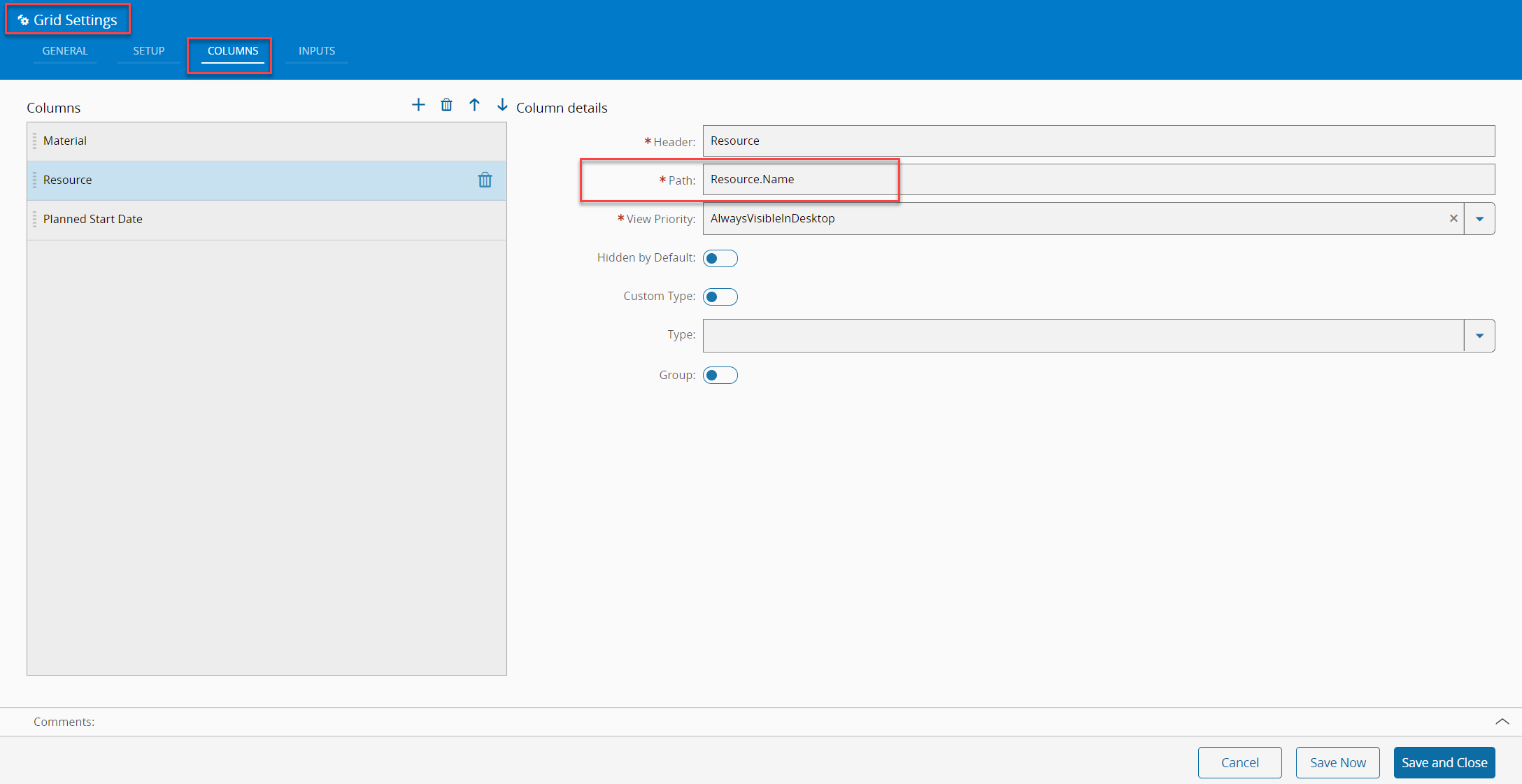
To accomplish this simply have the column setup for the Name property of the entity:
Date column#
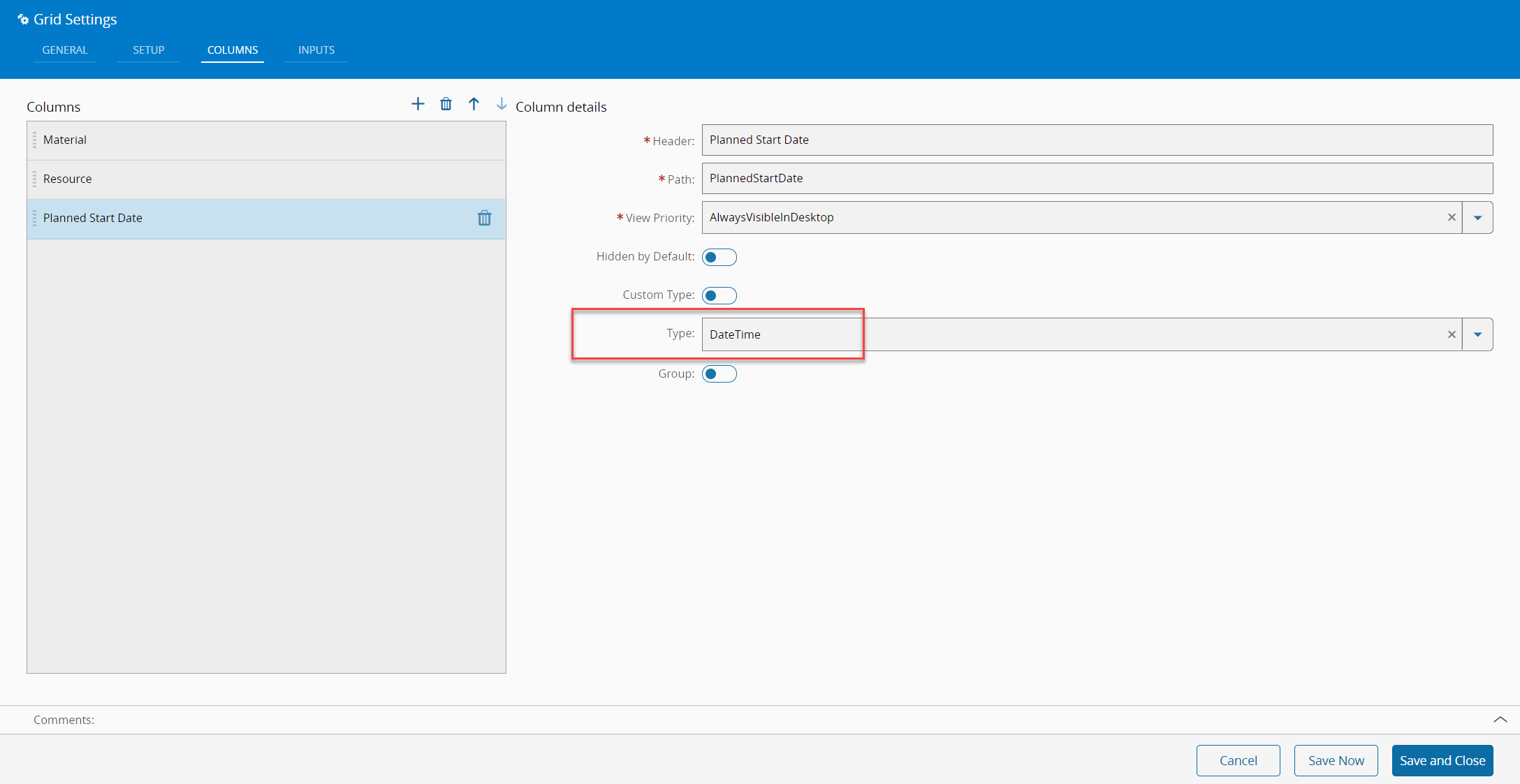
If the column is representing a date it has to be configured for type DateTime or Date to prevent simply representing the numeric representation of the date. In this case also the PlannedStartDate is a direct property of the ScheduleJobs entity and thus the path is the property itself.