Query#

Overview#
The Query Widget displays the results of any Query - including Queries with Parameters. An example is shown below, where a Query Widget is used in the bottom of the UI Page to show the results of a Query.
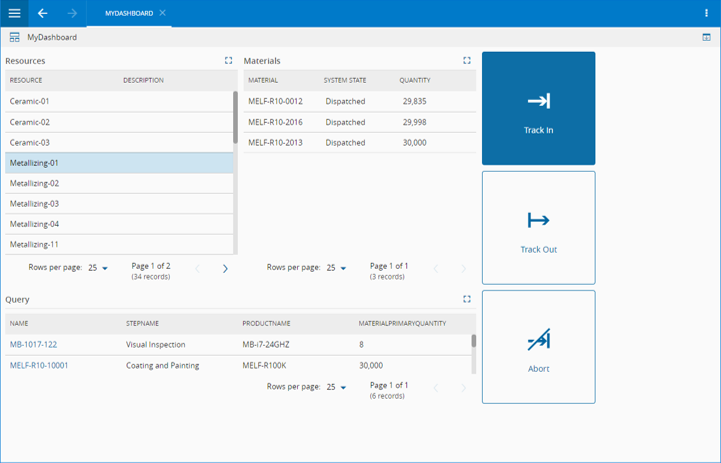
To use the Query Widget in an UIPage, follow the steps below.
- In any UIPage in Build mode, select the Query Widget from the Widgets list located in the right side of the page, and drag and drop to the correct place in the UIPage.
- Enter the Settings section of the Widget.
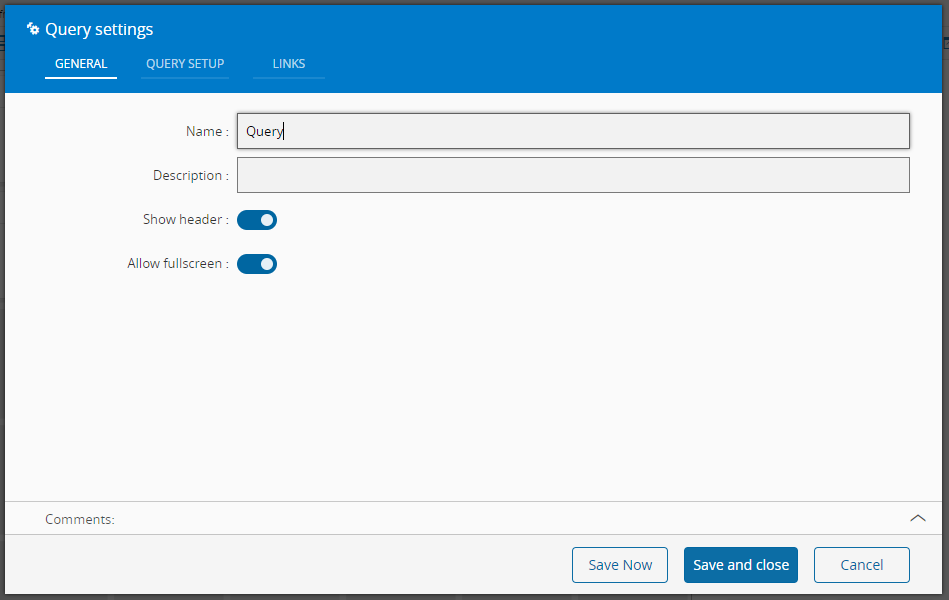
- In the General tab, provide a name for the Widget, a description, specify whether it should display the header and if the user can activate the full screen mode.
- In the query setup tab provide the query and a selection mode:
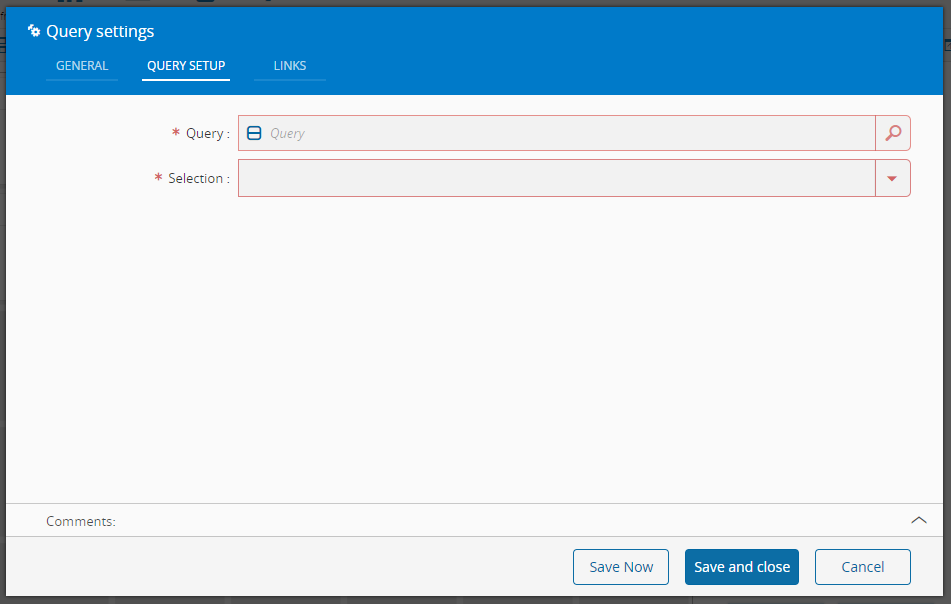
- Multiple - multiple lines can be selected
- None - no selection available when interacting with the displayed data
- Single - a single line can be selected
- Optionally, define the links between this Widget and other elements of the UIPage.
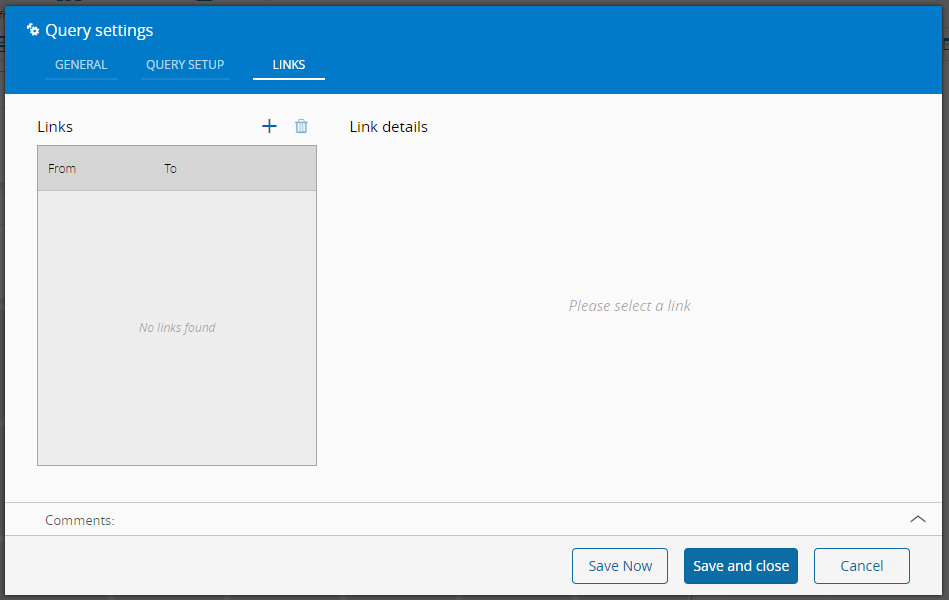
- By saving and closing the settings, the widget will be changed accordingly.
Implementation example: Parameterized Query#
For this example, let's add a query widget using a parameterized query and link it to a from widget that enables the user to provide the parameters.
Note
If the query has entity parameters configured with syntax IsEqual, these parameters are mandatory for the query to execute. If name parameters are used with syntax Contains, the parameters can be optional.
Note
If parameters are added or removed to a query after it has been added to the UI Page it needs to be removed and added again to make the changed parameters effective and available in linking. Columns to be viewed however can be changed at any time on the query and will take effect once page is refreshed.
How the link is built depends on how the query parameters are setup. Below are some common examples:
Entity parameter - Input from an single entity selection#
Setup an entity parameter on the query (in this example, a Material entity for a ScheduledJob query):

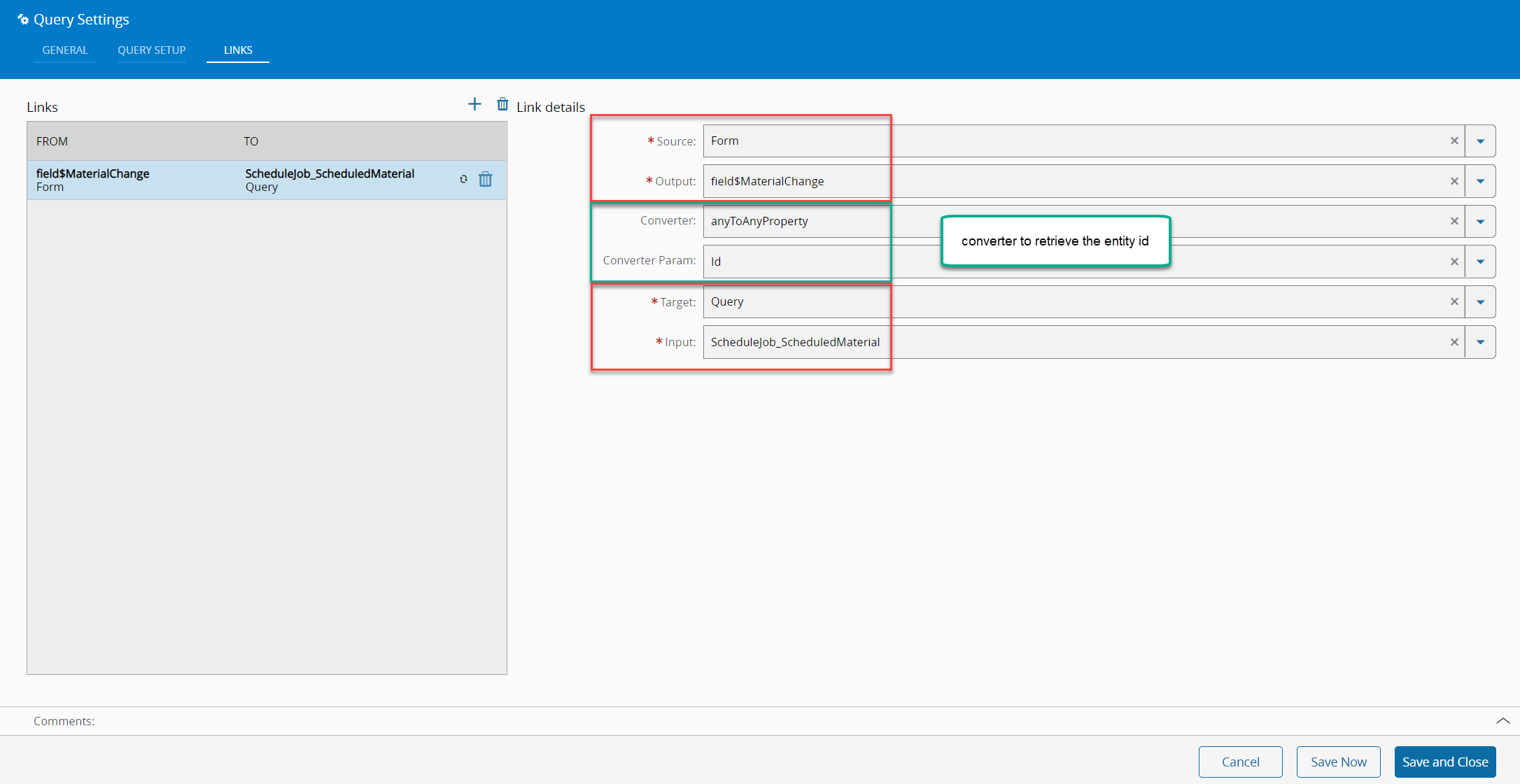
On a UI Page the query expects the entity ID, which can be based on an entity selection by using the anyToAnyProperty converter with the parameter set to Id.
Next, create the converter parameter as property in the page settings:
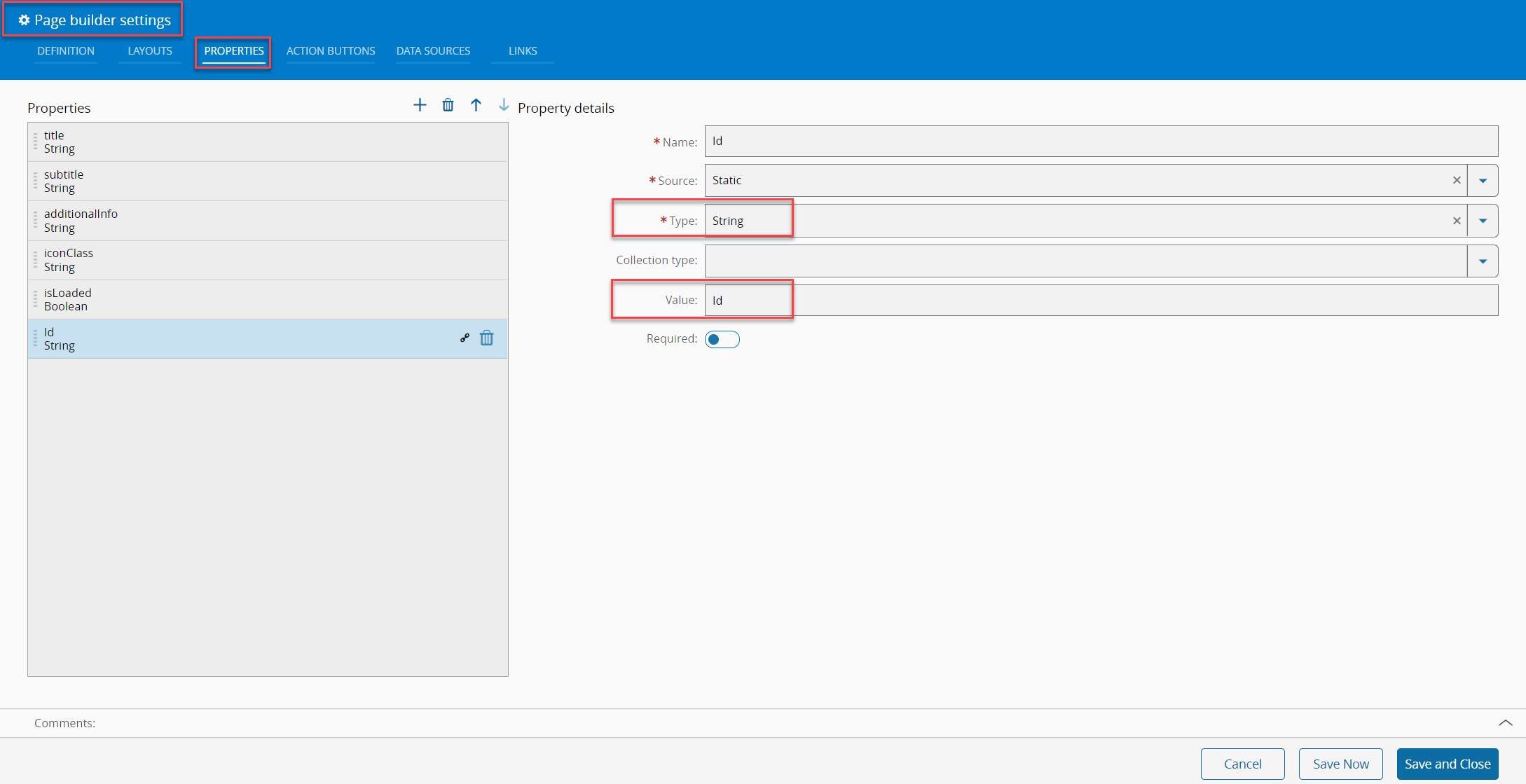
And then the form field can be linked to the query parameter like this:
Name Parameter - Input from an single entity selection#
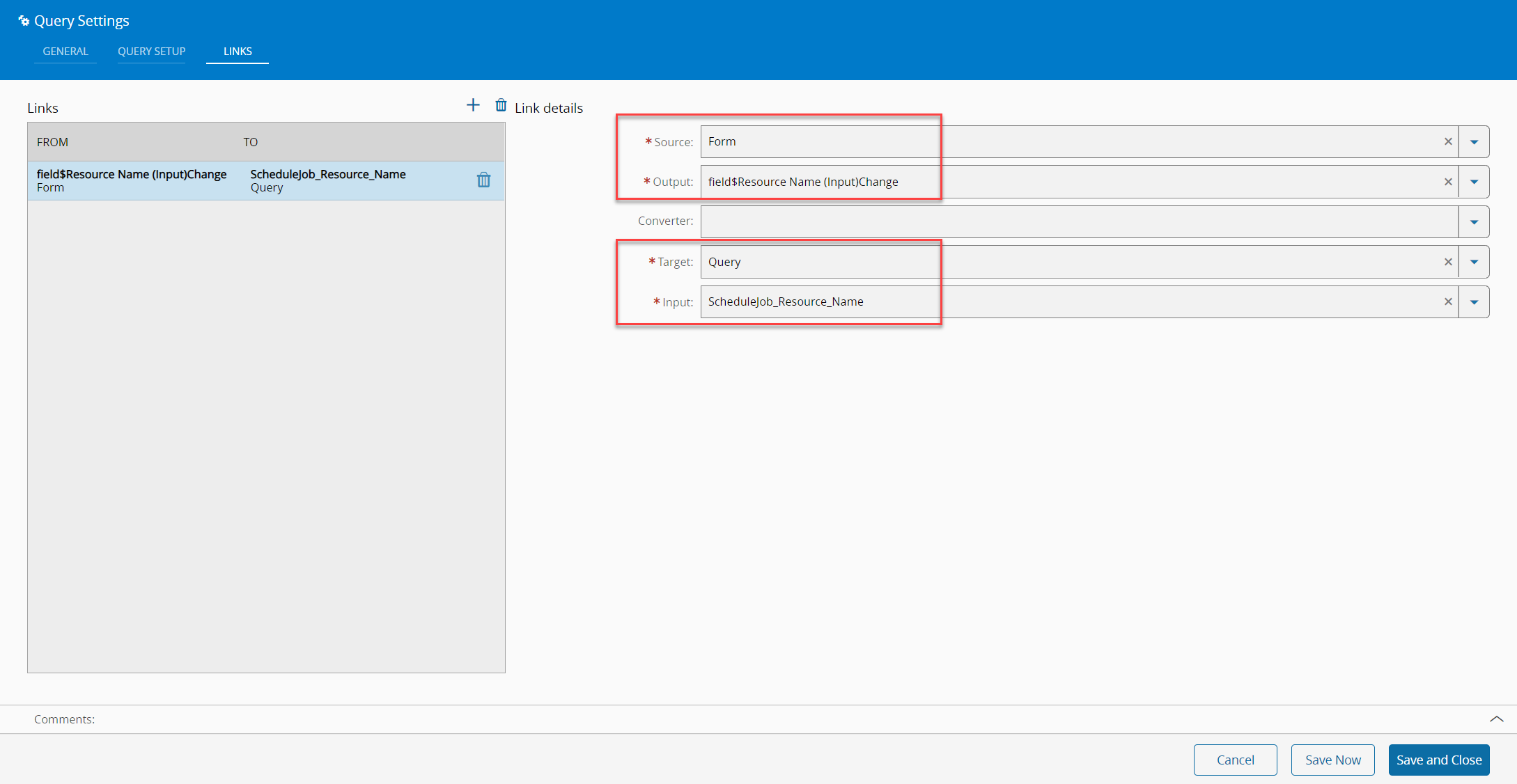
Setup an entity parameter on the query (in this example, a Resource name for a ScheduledJob query):

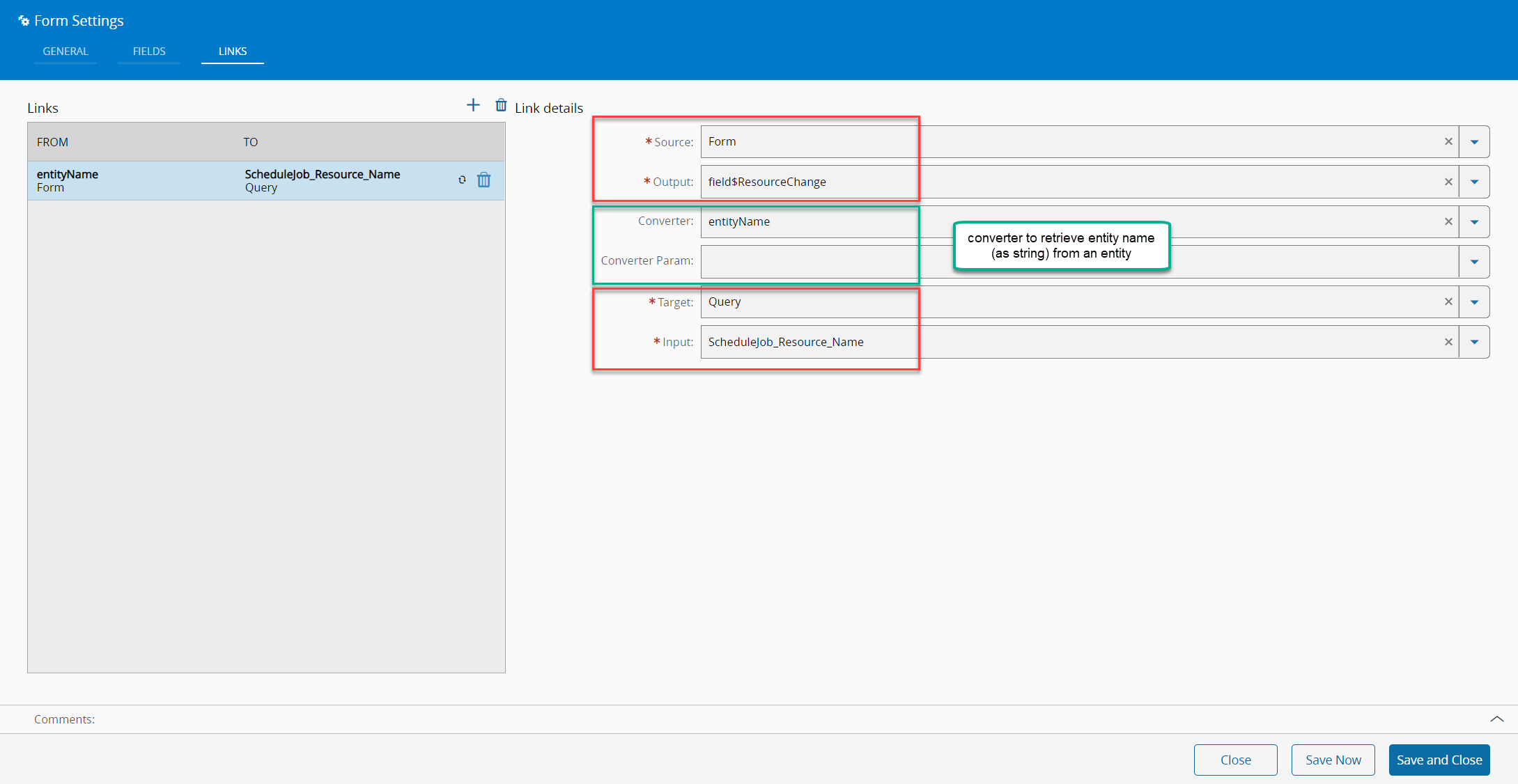
Similarly to what was done above, if an entity is provided from a form the link can be built like it is shown below. In this case, the standard converter entityName can be used that will pass on just the name of the entity as a string:
Name Parameter - Input from free text field#
A form field can also be used as free text input and that input can be passed to any name parameter without using a converter. Same as previous example but the form field is just configured as string:
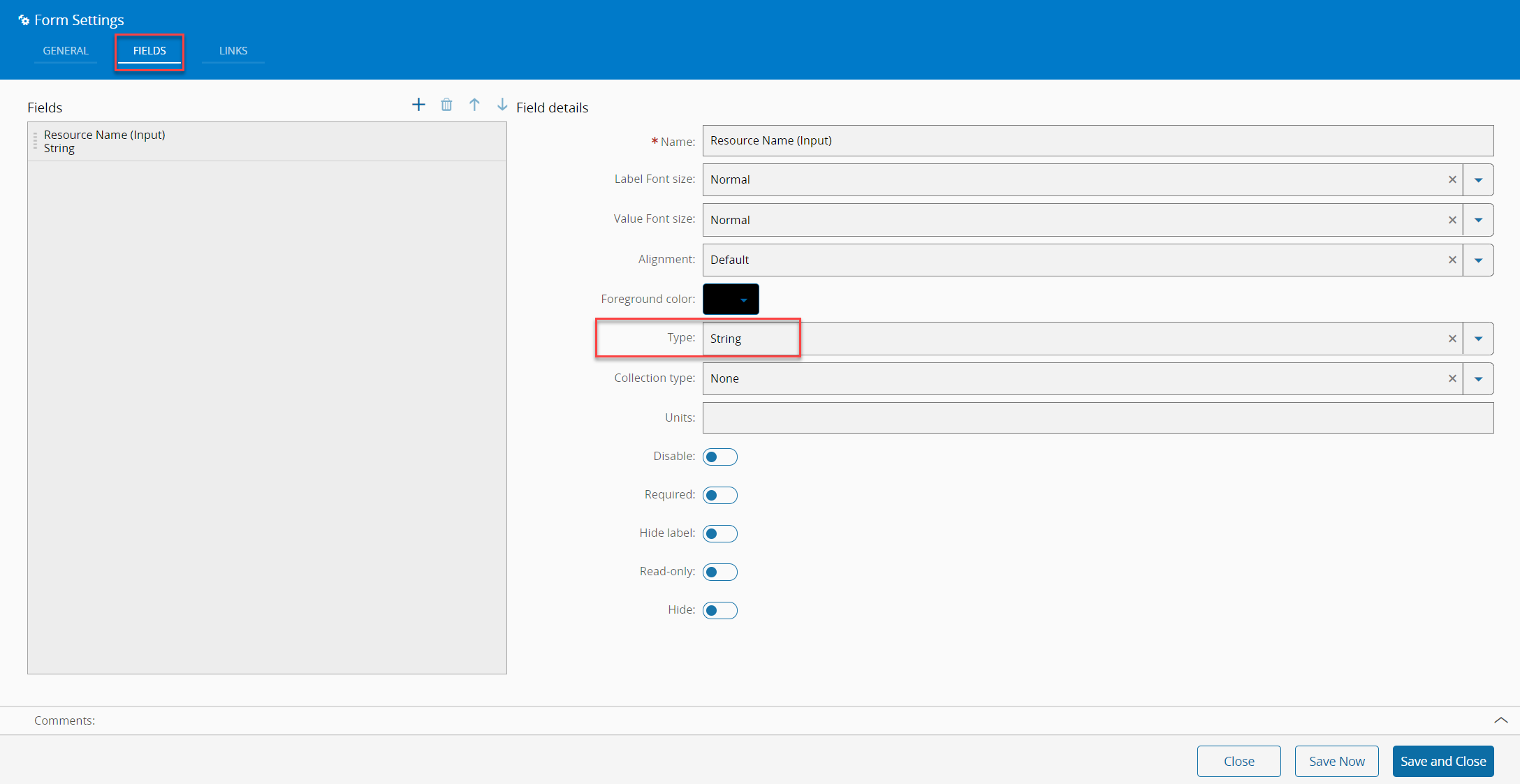
Such a field can be easily linked like this: