Sliding Grid#

Overview#
The Sliding Grid allows you to configure all the levels and columns in the Sliding Window via the widget settings. The widget allows for a fast representation of hierarchical data. The look and feel of a Sliding Grid is shown below.

Additionally, for the configuration of the Sliding Grid you will encounter some of the following:
- Back field path - corresponds to the value that will appear next to the arrow that goes back.
- Child path count - defines the number that appears next to the arrow to go to the level below.
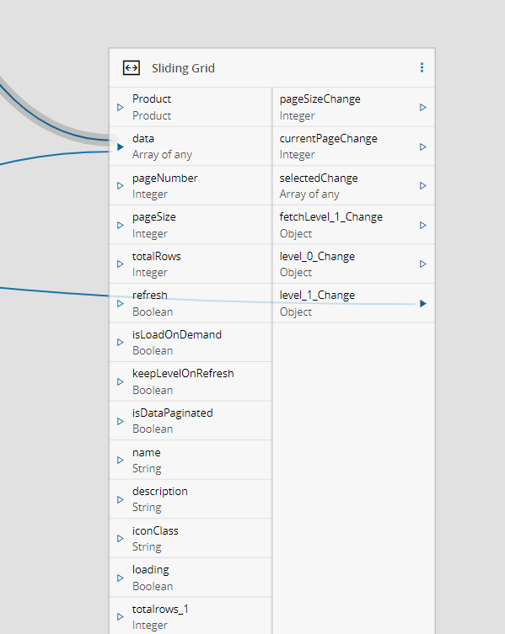
- Children path - defines whether to show the level change arrow or not. When you add a new level, it appears in the Sliding Grid outputs for the various levels. In this case, you have 2 levels (level_0_Change, level_1_Change) where you link the information you want to display:
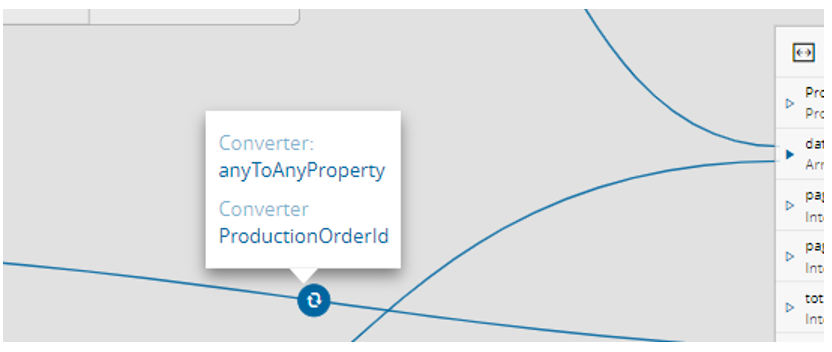
In the next example, the level_1_Change from above was connected to a query that was created. This query needs a parameter to filter the information, and the needed parameter is sent with the converter: