Manage BOM Items#
 BOM.Edit
Overview#
This operation is used to manage the items that compose a specific BOM.
Setup#
No specific setup is required other than to meet the precondition of the transaction.
Preconditions#
- The BOM exists and is in state Created.
Sequence of Steps#
Step 1: Manage BOM Items#
- Select an appropriate BOM, navigate to the BOM Items section and select Manage to display a wizard that allows you to add products to the BOM.
-
Add as many entries as you need (select in the top right of the grid to add and to remove). You need to specify at least one item and for each item provide the following information:
- Product. If not set, for BOM type:
- Parts: BOM Product quantity must be consumed entirely when performing the Maintenance Activity Order.
- Durables: must be present when tracking in Material.
- Bin Code (when the selected Product requires one).
- Quantity to make one unit of the target Product - can be Decimal.
- Units of the BOM Product.
- Location (optional, only for BOMs of Scope Materials and Packing).
- Position (optional, only for BOMs of Scope Materials, Durables, and Packing).
- Named Position (optional, only for BOMs of Scope Materials and Packing).
- The Step where the source Product must reside (optional if scope is Parts).
- Lower Tolerance.
- Upper Tolerance.
- Designator (delimited by a semi-colon (example:
Designator1;Designator2). - Assembly Step (example: the Step where the consumption must take place).
- Logical Flow Path.
- Reference (reference Products are not consumed, they are used for display purposes only).
- Product mix of the source Product and substitute Products in any combination. If this is not set, only one Product (source or substitute) can be used.
- Only if scope is Materials: define the Characteristic and Value of the Product from the respective Source Lookup Table value.
- Only if scope is Materials or Parts: whether the BOM Product must be consumed in a discrete manner or not.
- Quantity Calculation Rule (only for BOMs of Scope Weigh And Dispense): a Rule to be called when the BOM item requires calculation of the tolerance values to be used in the Weigh and Dispense operation.
-
Material Reservation Mode (for BOMs of Scope Durables, Materials, Packing, and Weigh And Dispense) to define whether the BOM Products include Material Reservations, and how Material Reservations are handled for the BOM Item. Select from:
- Material Dependency
- None (default)
- Production Order
Note
For more information, see the Material Reservation Mode tutorial.
- Product. If not set, for BOM type:
Info
If the scope is Weigh And Dispense and the Formula Type is Relative, the units of the BOM Products will always be set with the BOM Units.
Info
When you Edit BOM of scope Weigh And Dispense, you can add a Weigh and Dispense Label.
Info
The Lower Tolerance is defined as a percentage of quantity if the Formula Type is Relative or as an absolute value if the Formula Type is Absolute. The Upper Tolerance is defined as a percentage of quantity if the Formula Type is Relative or as an absolute value if the Formula Type is Absolute.
This table summarizes the input needs for each type of BOM:
| Durables | Materials | Packing | Parts | Weigh And Dispense | |
|---|---|---|---|---|---|
| Product | x | x | x | x | x |
| Source Step | x | x | x | x | x |
| Quantity | x | x | x | x | |
| Lower Tolerance | x | ||||
| Upper Tolerance | x | ||||
| Units | x | x | x | x | |
| Reference | x | x | |||
| Product Mix Allowed | x | ||||
| Assembly Step | x | x | x | x | |
| Note | x | ||||
| Optional | x | x | |||
| Position | x | x | x | ||
| Quantity Calculation Rule | x | ||||
| Location | x | x | |||
| Instrument Type | x | ||||
| Characteristic | x | ||||
| Value | x | ||||
| Material Reservation Mode | x | x | x | x |
Table: Input needs for each BOM
Note
If BOM scope is Durables, the Assembly Step property is set via the Usage Step field in the Manage BOM Items dialog. This field is only displayed when the BOM scope is Durables.
Note
If BOM scope is Materials and BOM defines a Product with Characteristics, you can only reference characteristics and values that match one of those Product Characteristics.
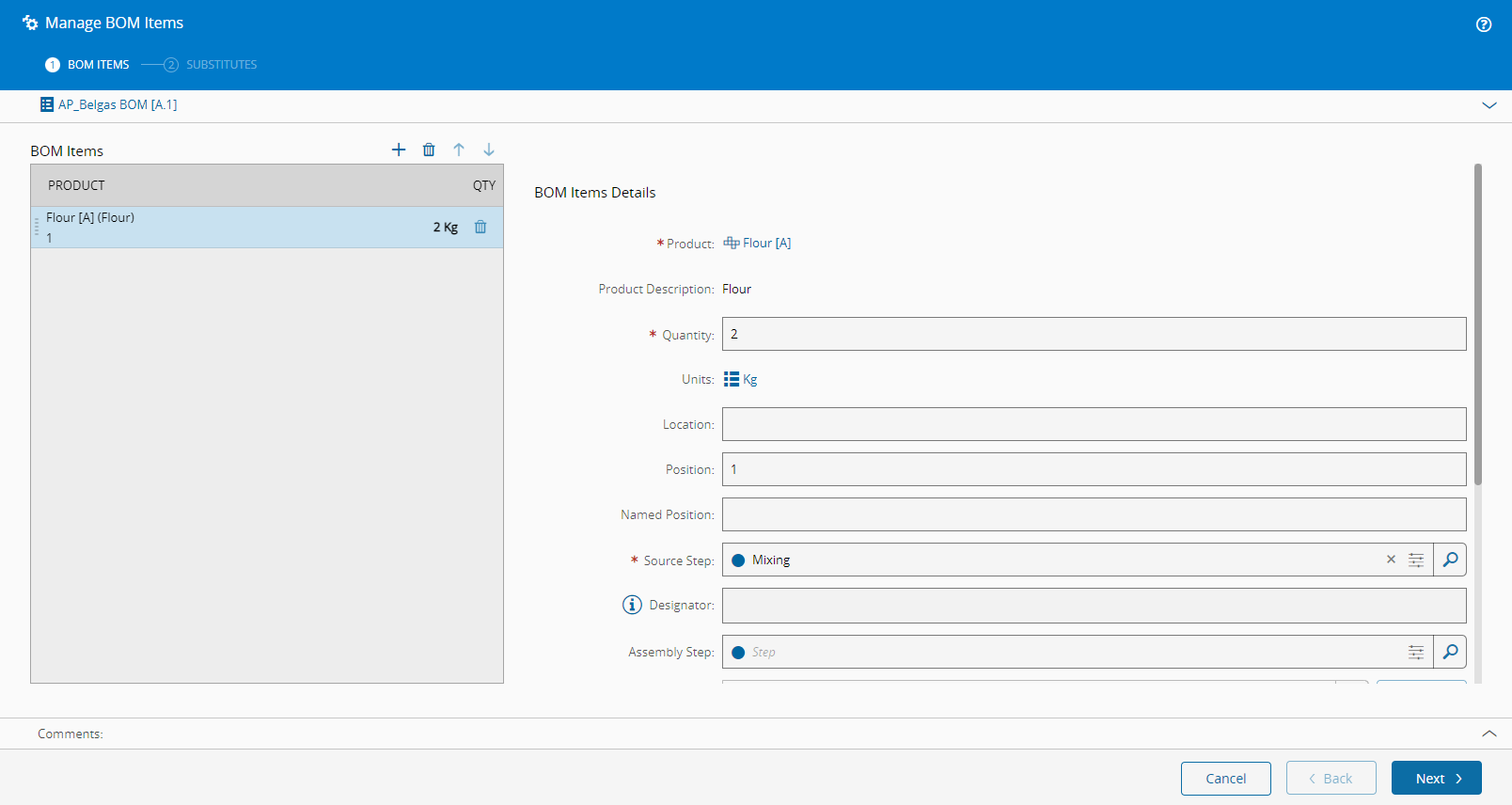
Select Next to continue.
Step 2: Substitutes#
-
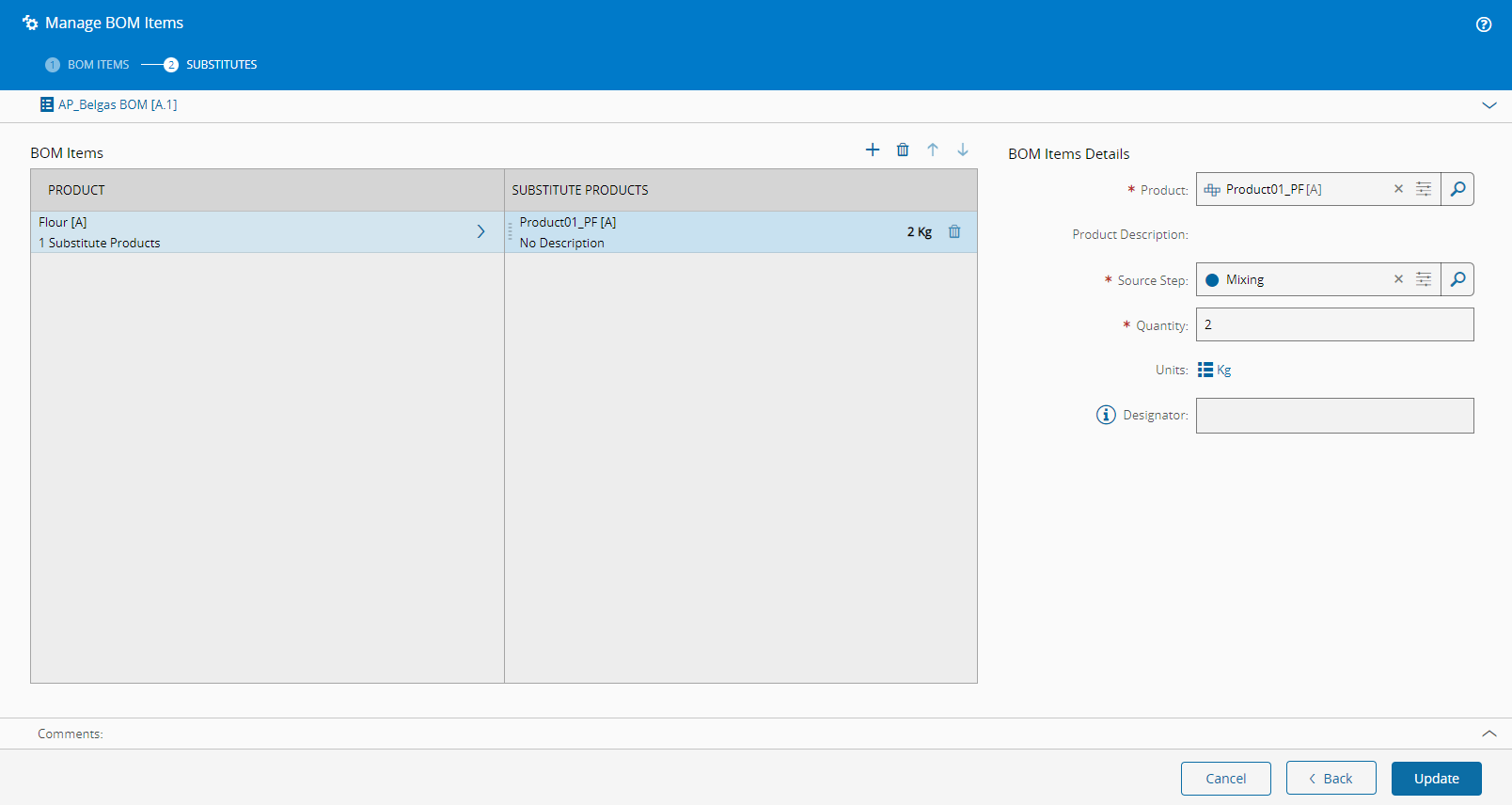
If the scope is Durables, Materials, Packing, or Parts, it is also possible to specify substitute products which can be used as alternatives for each source Product. Add as many substitutes as needed (select in the top right of the grid to add, and to remove. You can order the items with the and arrows, and provide the following information for each item:
- The substitute Product.
- The substitute Product Source Step.
- The substitute Product Quantity, which is necessary to make a unit of the target Product (can be Decimal).
- The substitute Product Units (if not already set).
- The substitute Product Designator (optional).
-
Select Update to complete the transaction and update the BOM.
Warning
It is not possible to add multiple substitute BOM products under the same main BOM Product using the same Product.