Perform Checklist Instance#
 ChecklistInstance.Perform
Overview#
Performs a Checklist either Immediate or Long Running. This is usually integrated into other functionality such as Maintenance Management and Exceptions Management.
- A Checklist performed in mode immediate needs to be completed in one snapshot and data is committed all at once.
- A Checklist performed in mode long running can be performed over a long period of time and data is committed after the completion of each Checklist item.
Setup#
No special setup is required other than to meet the preconditions of the transaction.
Preconditions#
- Checklist is Active or Checklist Version is Effective.
- Checklist is of scope General.
- If the Checklist is Long Running it must have been opened first.
- The Checklist Instance exists in the system and it is in the Active state.
Sequence of Steps#
To execute the Checklist Instance, it's necessary to:
- Find the desired Checklist Instance (for Long Running) or Checklist (for Immediate) and select Perform.
Info
You can also perform a Checklist when it is associated to a Material at any processing situation. If you choose to perform the Checklist from the Material, the button will be available on the ribbon in the Material details page.
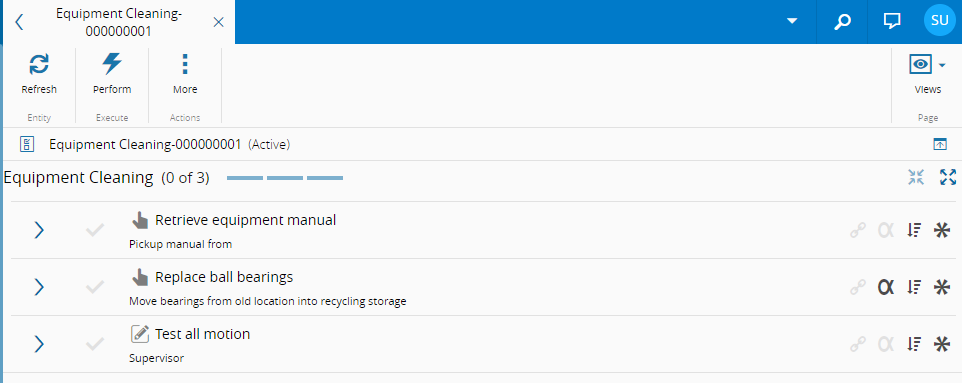
The item list is divided into mandatory and optional and can be switched by selecting the appropriate list on the top right-hand corner of the list.
Checklist Item Type#
Items are presented in the following manner:
| Icon | Type | Description |
|---|---|---|
 | Manual Task | If the tracking is Start-End it needs to be started first by clicking on the icon on the left of the Checklist item. All mandatory parameters must be filled in. The Checklist item needs to be completed by then clicking on the icon on the left of the Checklist item. |
 | Manual Action | These Checklist items are executed by pressing the start icon on the left of the Checklist item. |
 | Automatic Action | These Checklist items are only available in Long Running Checklists and they are executed automatically by the system |
 | Signature | All mandatory parameters must be filled in. The Checklist item needs to signed by pressing on the icon on the left of the Checklist item. |
Table: Checklist Item types
Info
The Checklist signature consists of the username and password. The person that signs the Checklist item must belong to the defined Checklist item signature role. The current user is only allowed to sign the Checklist item if the Checklist item has the property Allow Self set to true. In case that token based authentication is enabled, user is also able to sign-in by reading his token in the appropriate device.
Warning
If the Security Portal is enabled for the instance of the Critical Manufacturing MES where Signature type Checklist items are created, the User that will sign the Checklist item must have a PIN defined.
Checklist Item State#
The icon shown at the left of the Checklist item has the meaning as described in the table below.
| Icon | Execution State |
|---|---|
 | The Checklist item can be started - note that floating items can be started at any time. Clicking on it will begin the Checklist item, but the Checklist has been defined as requiring the tracking of the Start and End, so another action is necessary to complete the Checklist item. |
 | The Checklist item can not be started because the previous item has not been completed yet. |
 | The Checklist item has been started and clicking on it will mark the item as completed, provided that all the mandatory parameters are filled. |
 | The Checklist item has been completed. |
 | The Checklist item has been skipped. |
 | The Checklist item is optional so it can be started and performed or skipped. |
Table: Checklist Item states
Checklist Item Information#
Additional Checklist item information is presented on the right of each Checklist item:
| Icon | Information |
|---|---|
 | The Checklist item has a documentation link that should be followed and perused. |
 | The Checklist item has parameters that must be filled before being completed. |
 | The Checklist item is sequential - it needs to be performed in a certain sequence. |
 | The Checklist item is floating - it can be performed at any time. |
 | The Checklist item is mandatory - cannot be skipped. |
Table: Checklist Item information
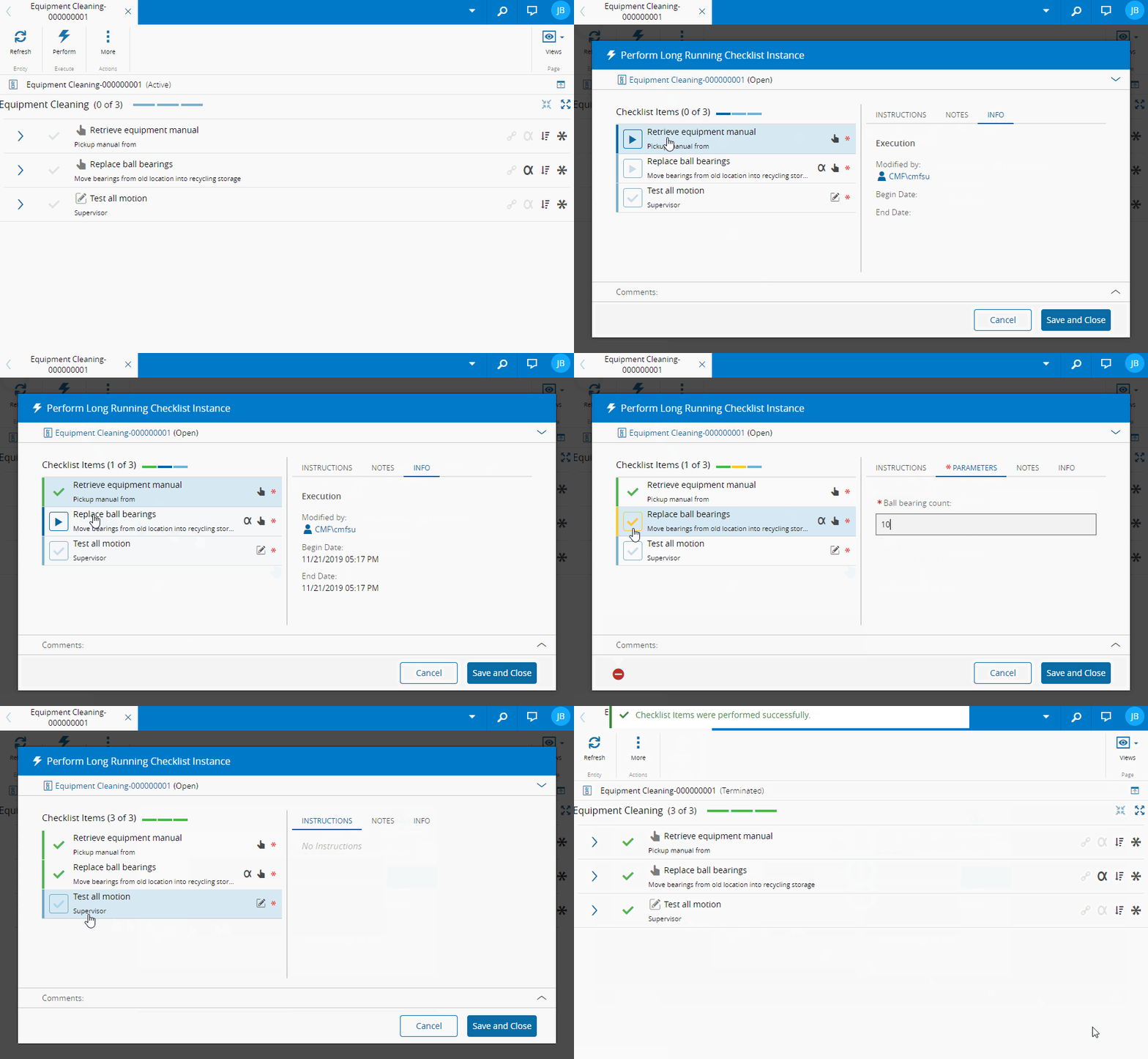
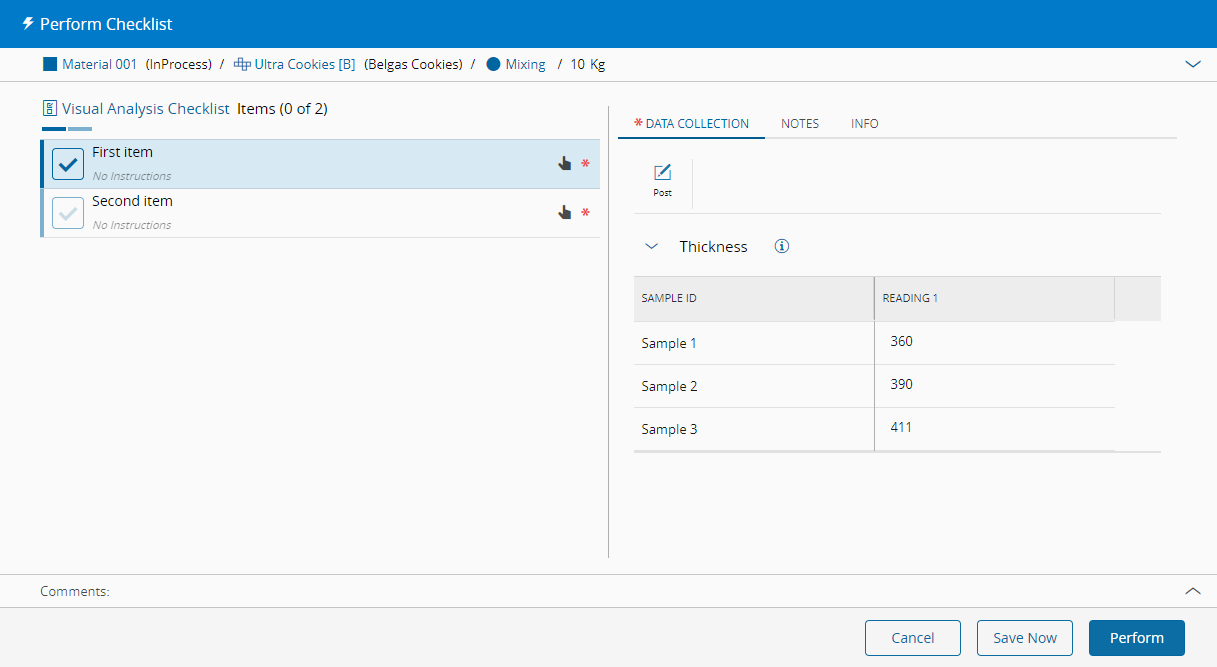
If the Checklist has an associated Data Collection, the parameters of the Data Collection must be completely filled in before the Checklist item can be marked as completed.
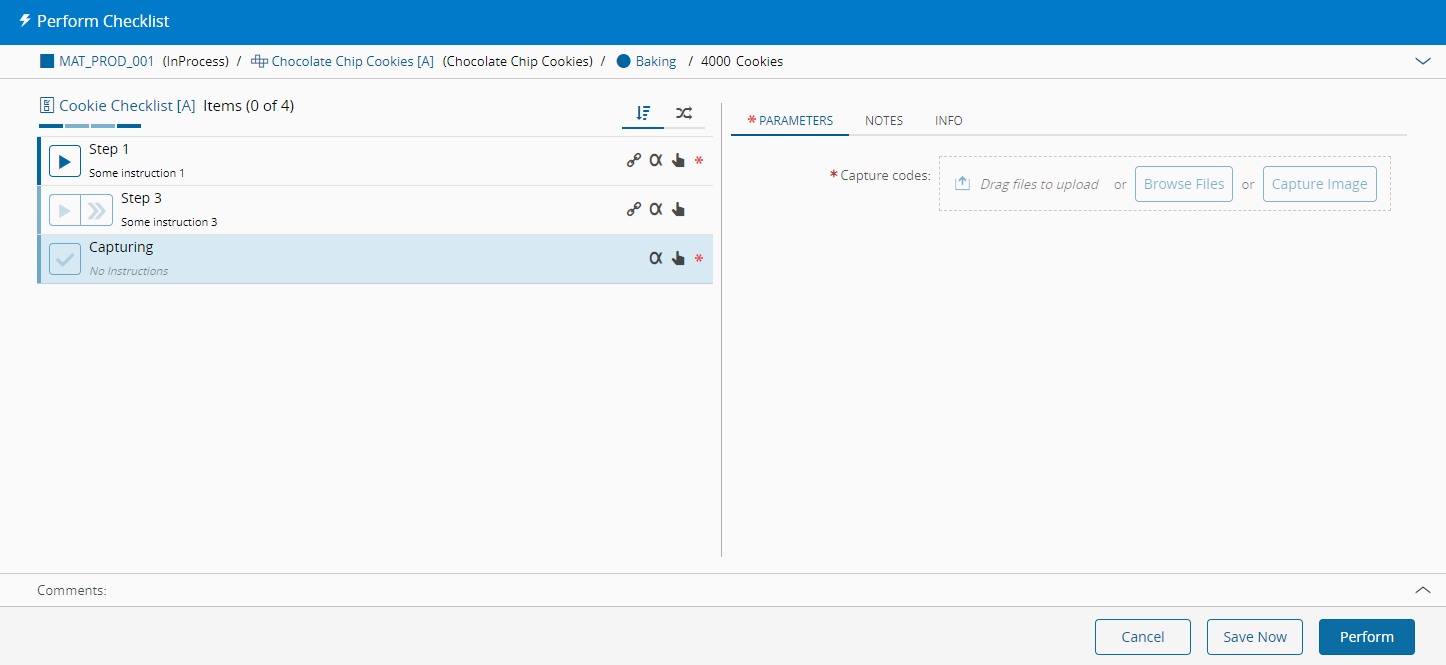
If a parameter is of type File, you can capture images or upload a file to complete filling in the parameter.
The following table describes the file types that are supported for this parameter:
| File Type | Description |
|---|---|
| CSV | Document |
| DOC | Document |
| DOCX | Document |
| JPEG | Picture |
| JPG | Picture |
| Document | |
| PNG | Picture |
| PPT | Document |
| PPTX | Document |
| TIF | Picture |
| TXT | Document |
| WMF | Picture |
| XLS | Document |
| XLSX | Document |
Table: Supported file types
Correct Checklist Instance#
If the user has access to the ChecklistInstance.Correct feature, when there is no Checklist item in progress and the Checklist instance is not yet closed, the user can go back to a Checklist item that has been completed and edit (correct) the value of a parameter of that Checklist Item:
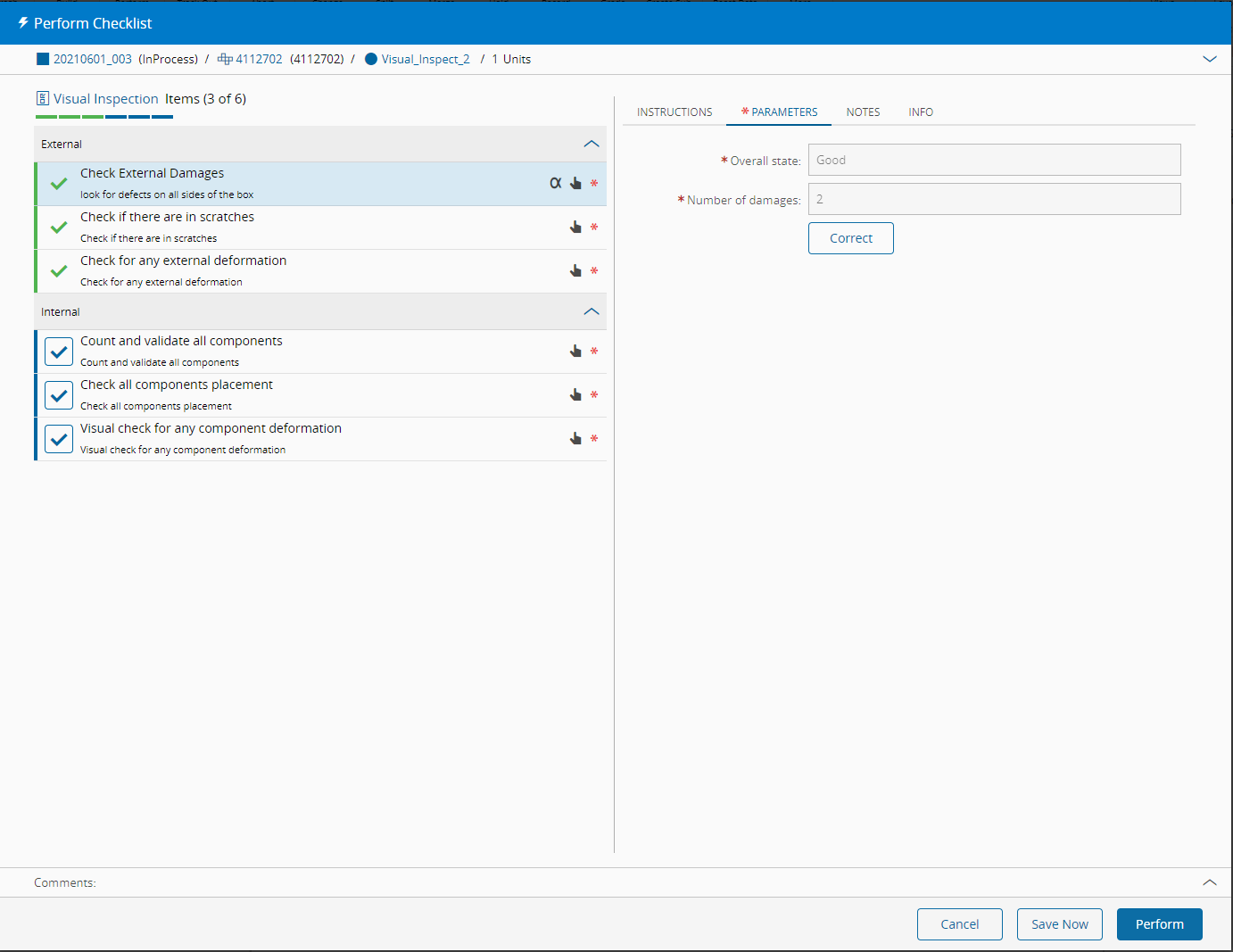
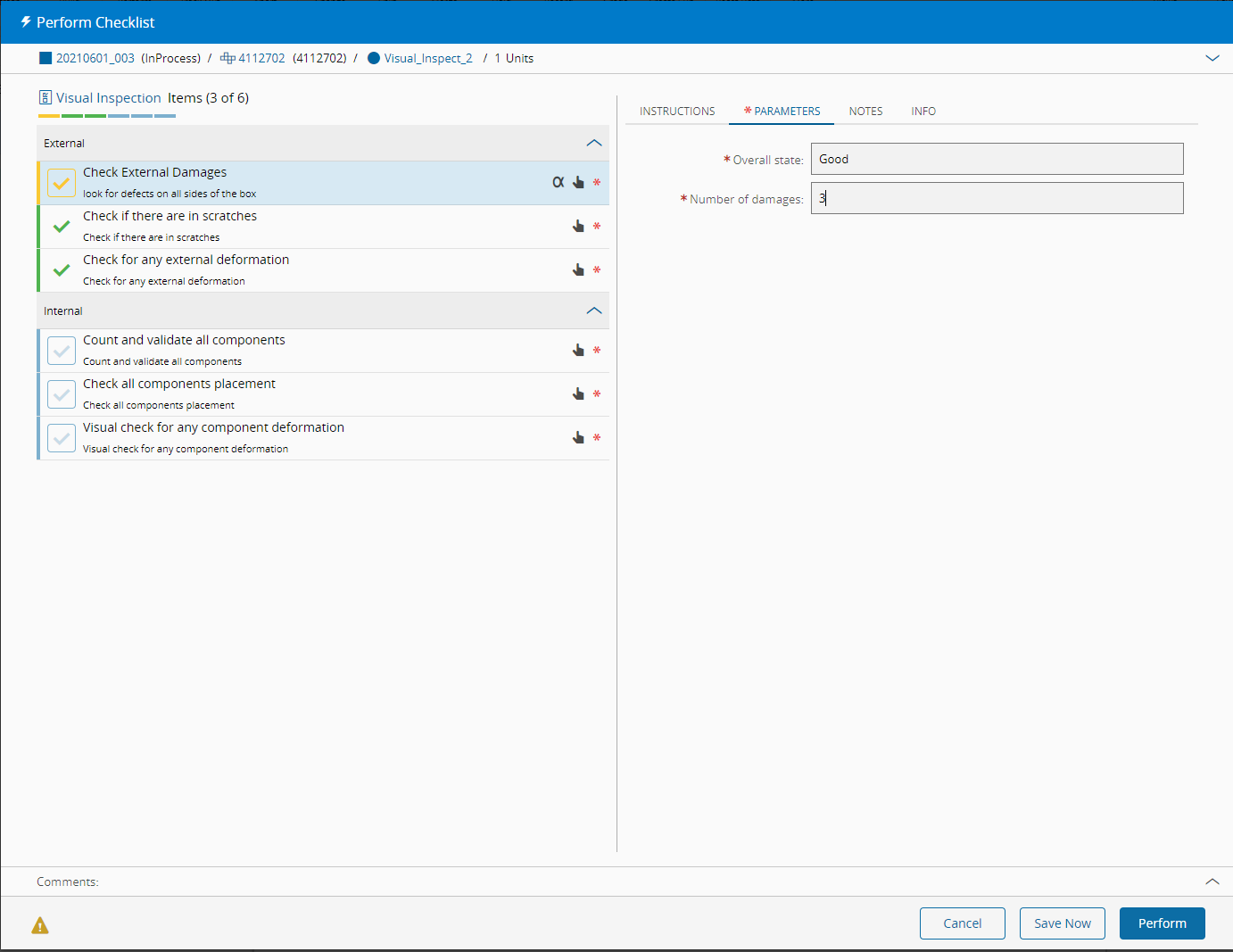
When editing the value of a parameter of a previously completed Checklist Item, the Checklist Item status automatically changes to Edit mode:
Info
The Checklist item must have been previously performed for any correction to be applied. If it hasn't been performed, a warning will be displayed on the bottom-left of the screen:
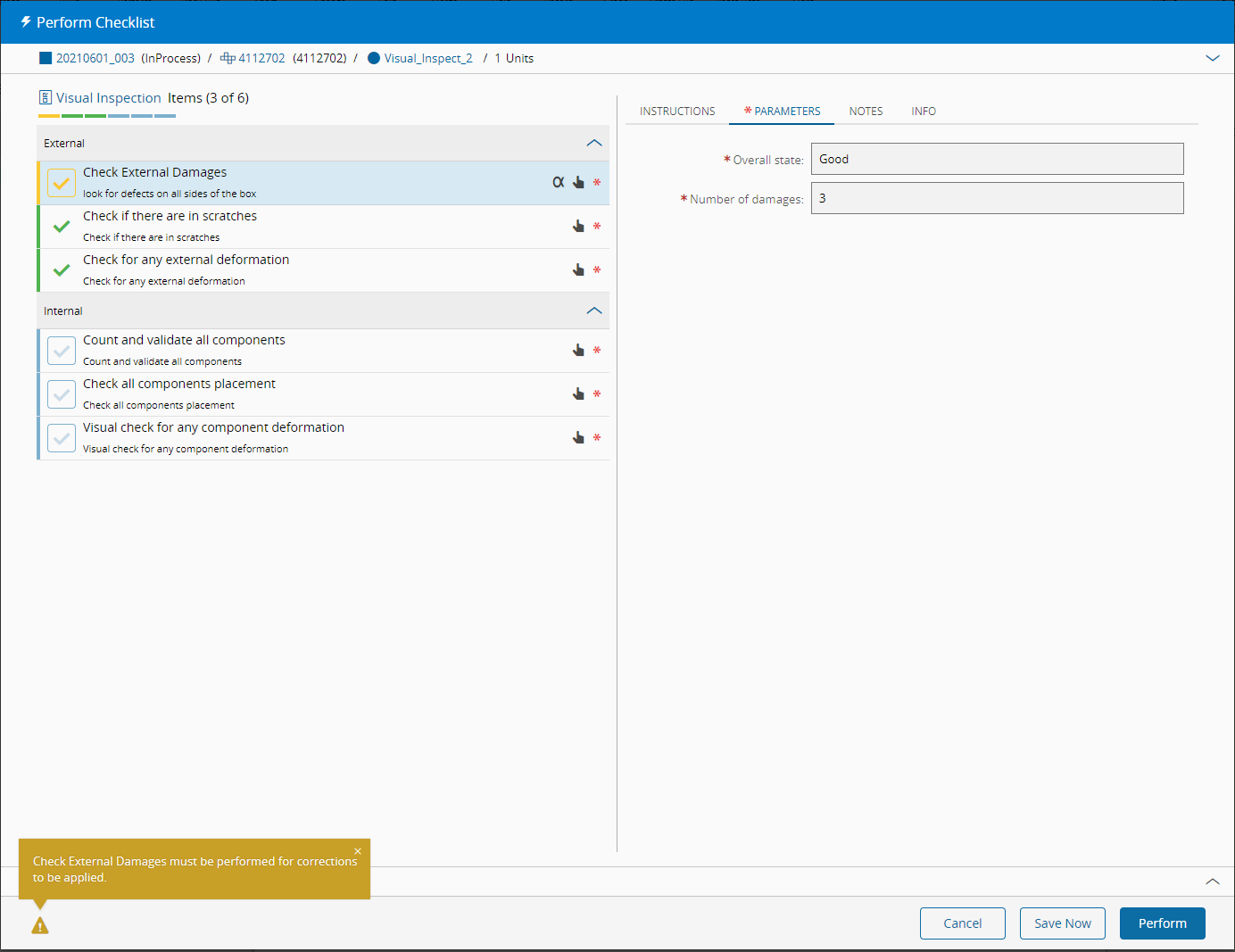
To make the changes effective and to proceed with the Checklist, the user must click on the icon at the left of the Checklist Item.
Complete and Close the Checklist#
For Checklists performed in immediate mode, the perform can be concluded by completing all items and pressing Perform Immediate. For Checklists performed in long running mode, the state of the Checklist will be committed to the database after each Checklist item is completed, or after you choose Save and Close. When all Checklist items are completed for a Checklist performed in long running mode, you can only select Close.