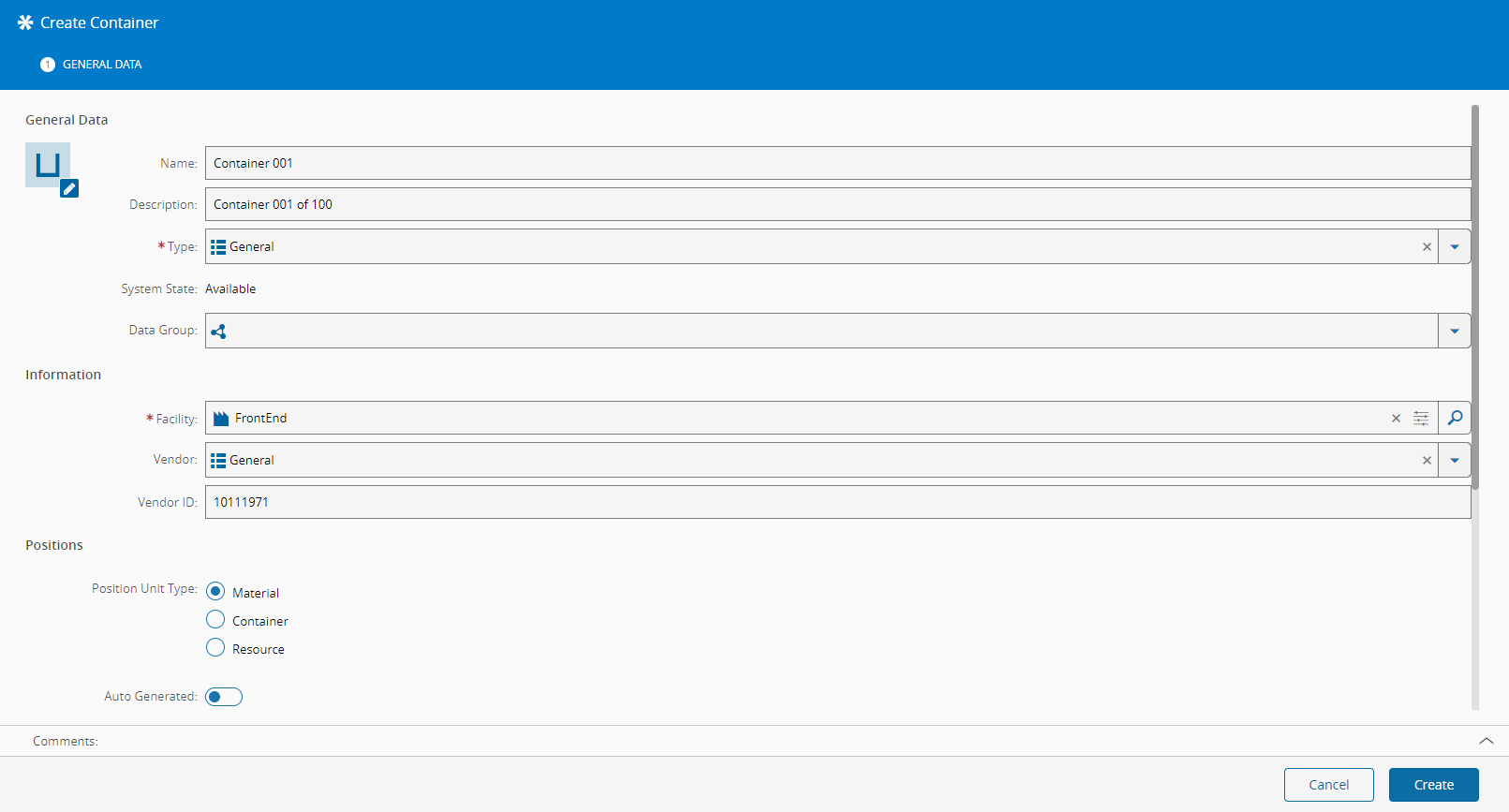
Create Container#
 Container.Create
Container.CreateTemplate
Container.CreateFromTemplate
Overview#
This operation is used to create a Container. A template can also be created using a similar procedure and there is also the possibility of using a template to create the new object as well. This selection can be done in the main entity menu.
Setup#
No specific setup is required other than to meet the preconditions of the transaction.
Preconditions#
- The name of the Container must be unique.
- The Container cannot be created for a remote Facility.
- If the Container is contained by another Container, the type cannot be changed.
- If the Container is associated with a Resource with the Position Unit Type equal to Container, and the Container Type defined, the Container Type cannot be changed.
- When changing the properties Position Unit Type or Allow Mixed Types, the Used Positions must be zero, that is, the Container must be empty (without Materials or Containers).
Step 1: General Data#
- Provide a Name.
- Optionally, provide a Description.
- Select the Type. The list of possible values is taken from the lookup table
ContainerType. - The System State defaults to Available.
-
Optionally, select the Data Group.
Note
For more information, see Data Groups.
-
Select the Facility in which the Container will be created.
- Optionally, select the Vendor. The list of possible values is taken from the lookup table
ContainerVendor. - Optionally, enter the Vendor ID.
- Select the Position Unit Type:
- Material - the Container contains Materials.
- Container - the Container contains Containers.
- Resource - the Container contains Resources.
- Specify whether the Positions are Auto Generated or not (auto generated positions are managed automatically by the system).
- Specify the Total Positions or use Unlimited to specify that the Container has infinite positions. In this case the Container must have the Auto Generated option set to
True. - If the Position Unit Type is Material:
- Select the Capacity Validation Mode from the three available options:
- Form - you will also need to specify the Capacity Form (from the lookup table
MaterialForm). - Units - you will also need to specify the Capacity Unit (from the lookup table
Units) and the Capacity per Position. - None.
- Form - you will also need to specify the Capacity Form (from the lookup table
- Select the Capacity Validation Mode from the three available options:
- If the Position Unit Type is Container or Resource:
- Specify the Allow Mixed Types option (defaults to
True) - this allows different entity types to be placed in the same Container.
- Specify the Allow Mixed Types option (defaults to
- Specify the Orientation of the Container:
- Bottom To Top
- Left To Right
- None
- Right To Left
- Top To Bottom
-
Specify Position Sorting:
- Ascending
- Descending
Note
When associating an entity to a new Container, if the positions are automatically managed by the system, the Position Sorting value will determine the position of the entities in the Container.
-
Select Create to complete the operation.
Info
If a Name Generator is defined, it is not necessary to supply a name for the Container.