Flow Page#
 Flow.Show
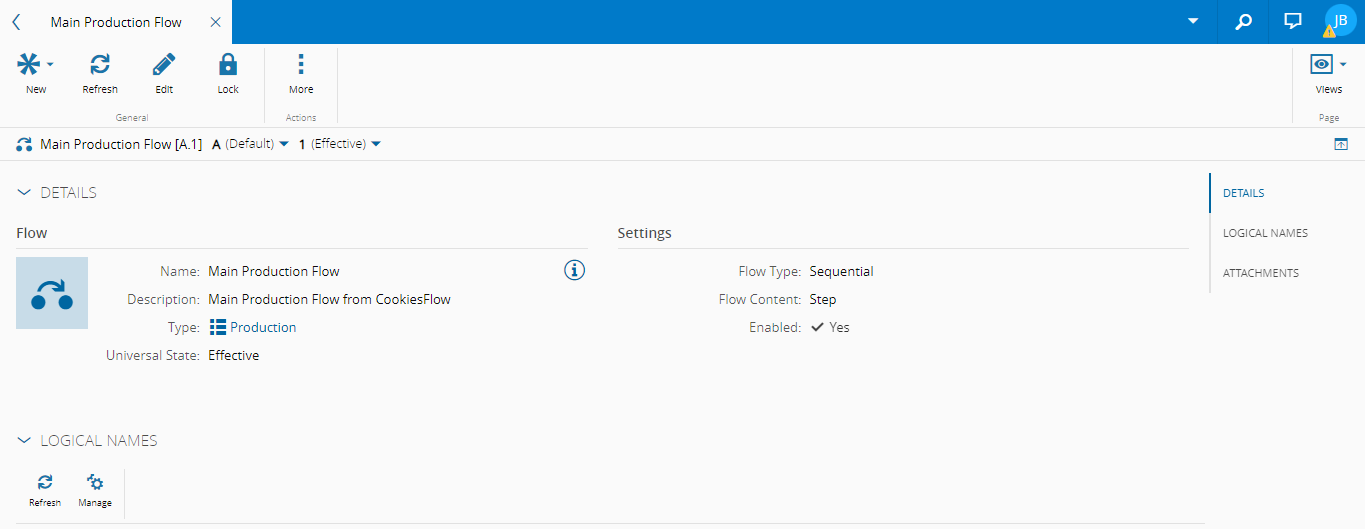
The Flow page displays general information on the specific Flow. In addition it enables the user to perform all the operations that can be performed on a specific Flow.
Details View#
Depending on the optional modules that are licensed in the system, the Details view will display some or all of the following page sections:
- Details - displays general information on the Flow.
- Logical Names - displays the logical names to allow easy identification and reusability for the Flow.
- Attributes - enables the visualization of existing Attributes and the possibility to create new ones. For more information on Attributes, visit the section Attributes.
- Attachments - shows the documents that are attached to the Flow and enables the user to attach additional documentation to the Flow.
Flow Structure View#
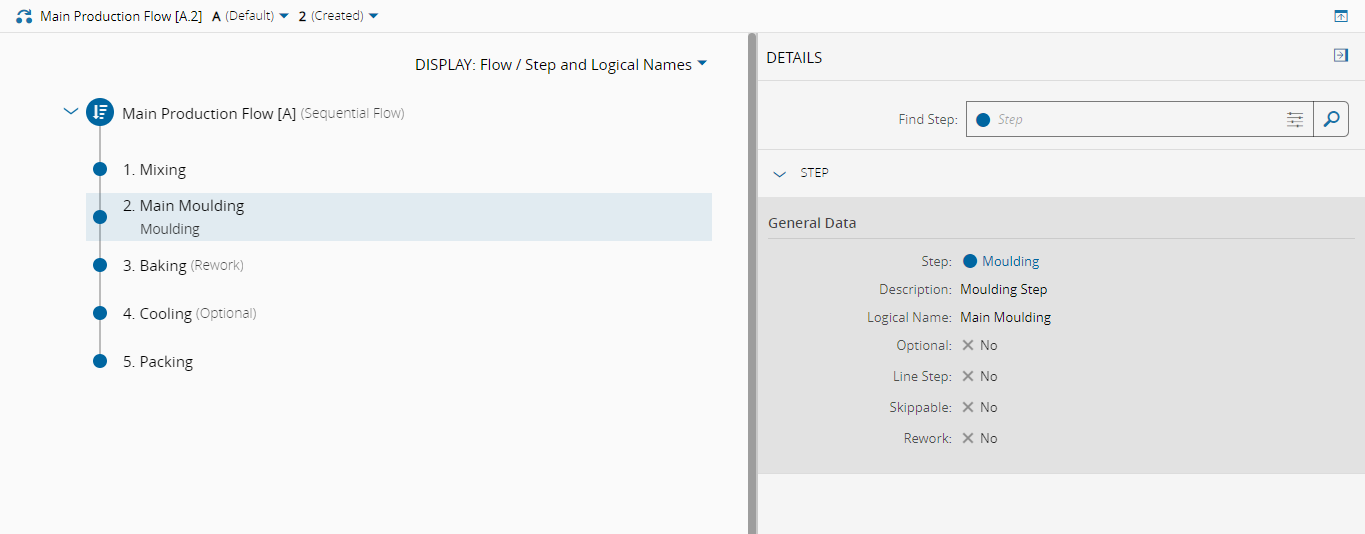
This view displays information on the structure of Flows or Steps that are part of the Flow. The user can decide the type of context information to see in the main structure flow:
- Flow/Step and Logical Names - displaying both the formal name and the logical name given in relation to the current Flow
- Flow/Step Names - displaying the formal name of the object
- Logical Names - displaying only the logical name of the object instead of the formal name
Context Structure View#
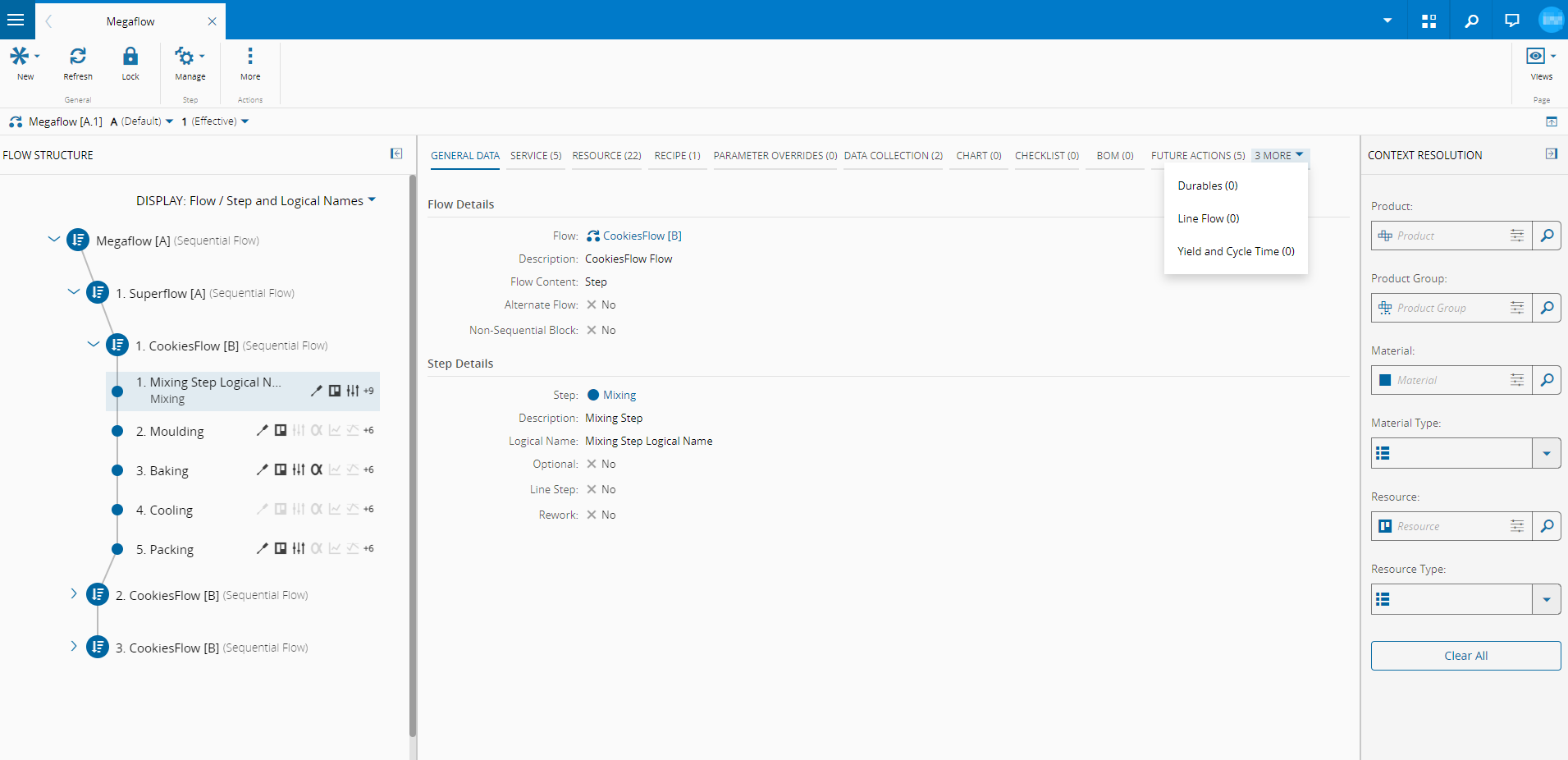
This view displays information on the contexts that are associated with Flows or Steps that are part of the Flow.
Info
The filter on the right sidebar allows you to limit the entities that exist within the displayed contexts.
Note
If there is limited display space in the center panel, the remaining contexts will be available in the More dropdown.
Selecting any of the rows in the context structure that display lists of contexts on grids (either by selecting any point of the row or by marking the selection box on the left side of the row) will enable the action buttons above the grid and allow you to perform operations on the selected row, namely Add, Edit and Remove.
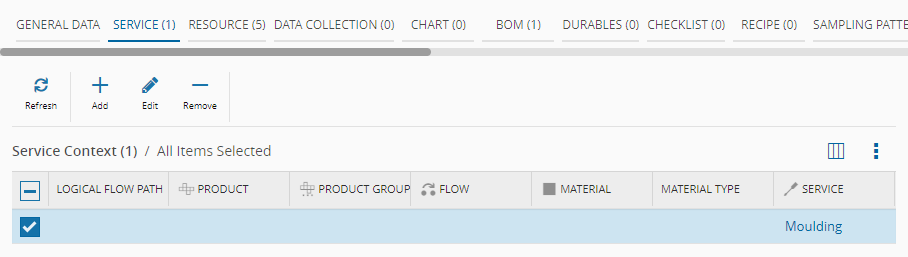
The order of these contexts can be determined through a configuration entry present in /Cmf/Guis/Configuration/FlowStepContexts/Contexts, where you can define the sequence of the contexts that will be displayed. For more information, see System Configuration Entries.
Info
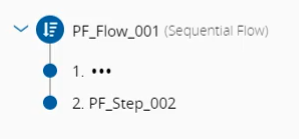
If you do not have access to a Data Group Role defined for the Step, the name of the Step will be shown as three consecutive dots. For more information, see Data Groups.
Context Matrix View#
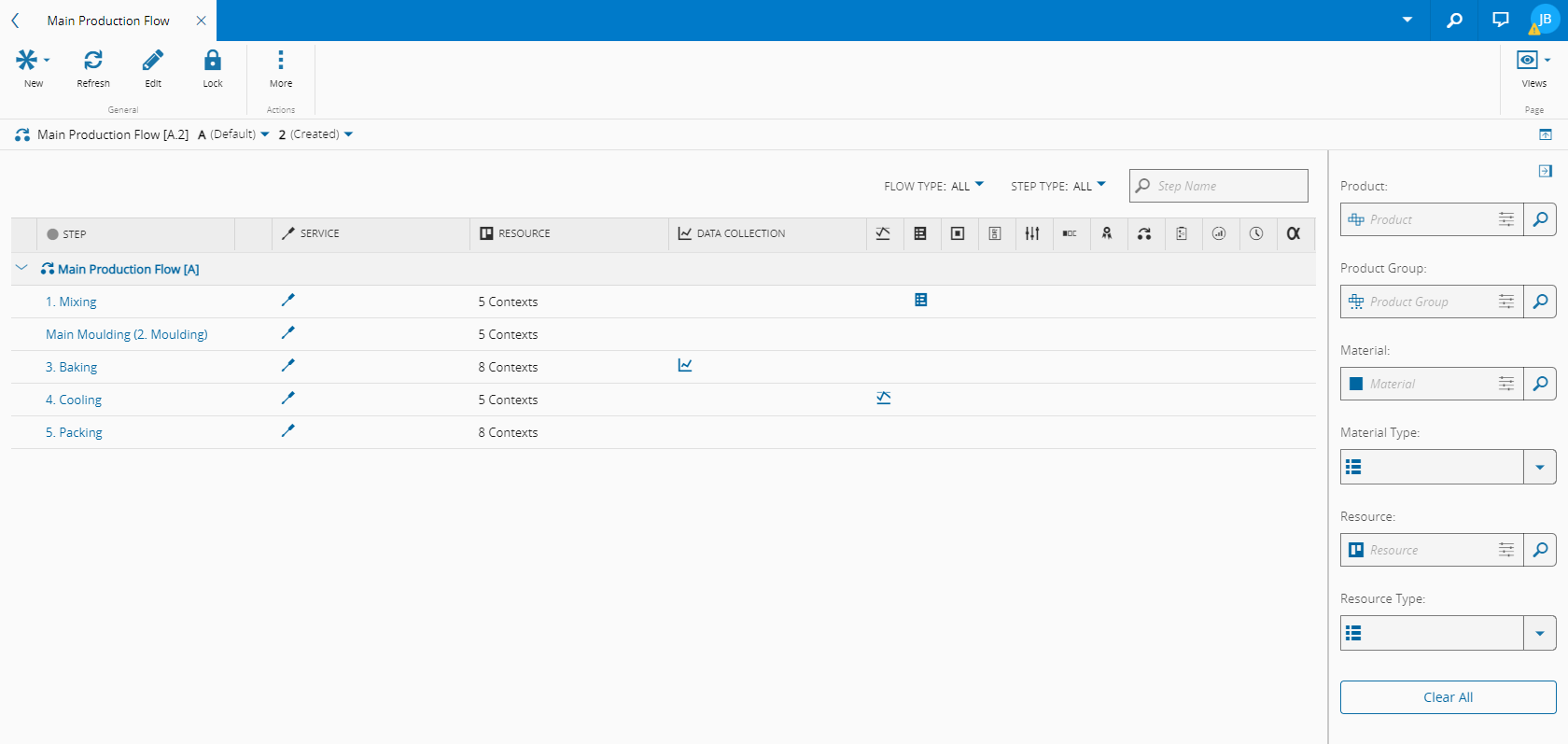
This view displays the same information of the Context Structure page displayed in a matrix form to provide an easier bird's eye view of the entire set of entities that are contextually associated with Flows or Steps that are part of the Flow.
Info
The parent Flow of the Step is always be used as the resolution context. Also, when editing the context or future actions for the Step, the selected Flow context is passed as the default context to the transactions.
Info
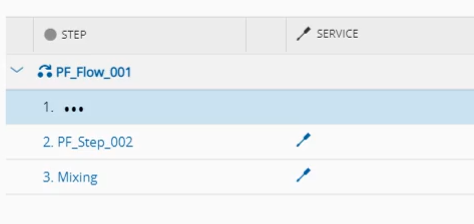
Similarly to what happens on the Context Structure view above, if you do not have access to a Data Group Role defined for the Step, the name of the Step will be shown as three consecutive dots. For more information, see Data Groups.
Compare View#
Flow.Compare
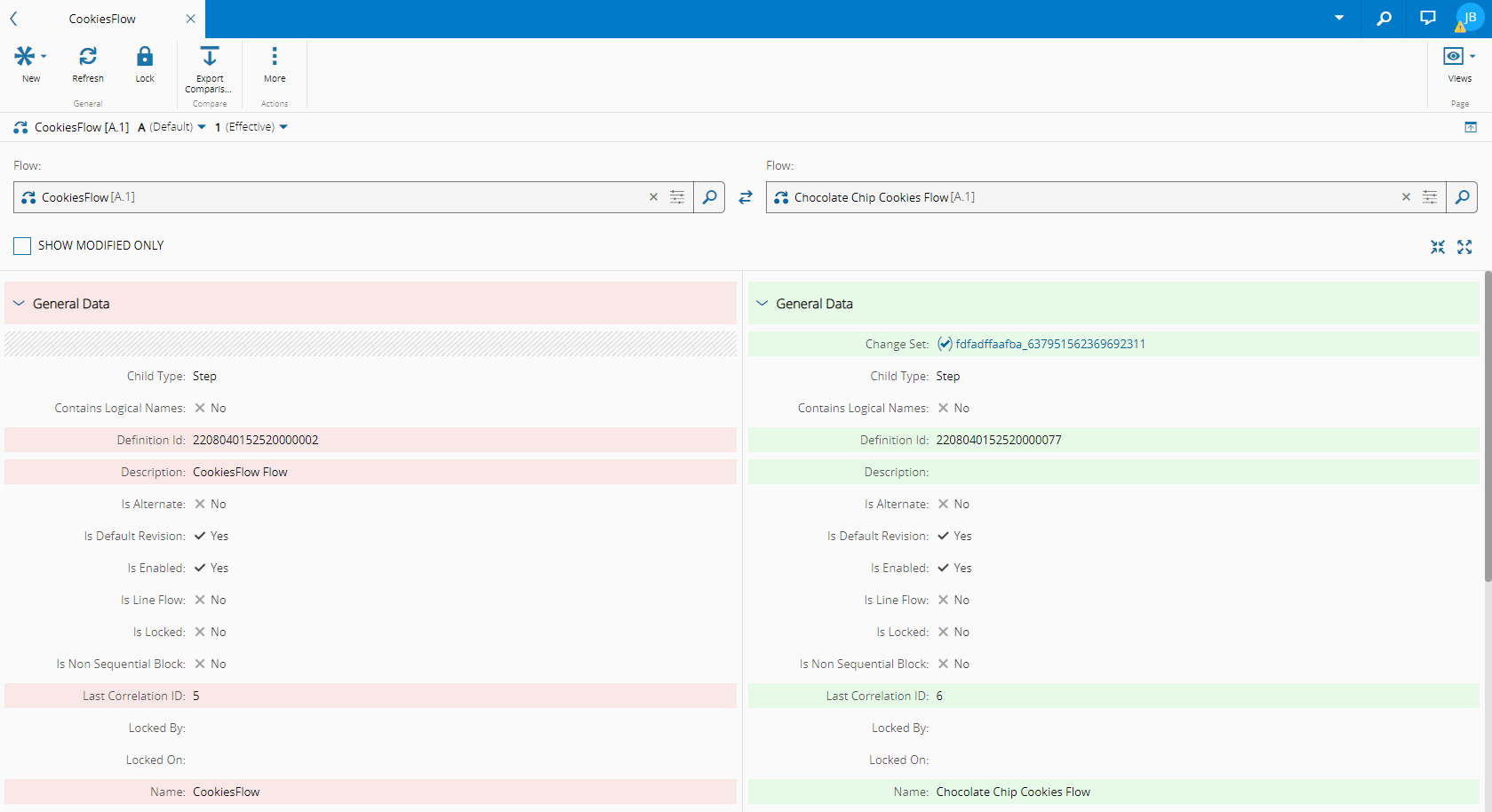
This view provides a quick visual comparison between the selected entity version and any other version that can be selected through it. You can also export the comparison results to a PDF file through the Export Comparison button on the top ribbon. For more information, see Compare Entity Versions.
References View#
This view combines information concerning other objects that have references to the current object:
- Relations - displays the existing Relations between the Flow and other entities and enables the user to edit them. For more information on Relations, visit the section Relations.
- Where Used - displays the set of relationships between the Flow and the other objects used throughout the system.
History View#
This view combines information concerning other objects that have references to the current Flow object:
- Change Set History - displays the history of the change sets associated to the object. For more information on Change Set history, visit the Change Set History page.
- History - displays the history of the operations, associated information, user(s) performing the changes and date and time of the changes.