Pack Material Packages#
 Material.PackPackages
Material.PackPackagesManual
Overview#
This operation is used to pack Packages into Packages - multiple level packages. This is the Level 2 and above packing operation.
Setup#
No specific setup is required other than to meet the preconditions of the transaction.
Preconditions#
- The Material Logistics module is properly licensed in the system.
- The Material must be Active, and Non-Template.
- The Material must be In Process.
- The Material must not be On Hold.
- The property Packing Step of the Step associated to the Material is set to
True. - The property Package Count of the Material is greater than zero.
Sequence of Steps#
Step 1: General Data#
-
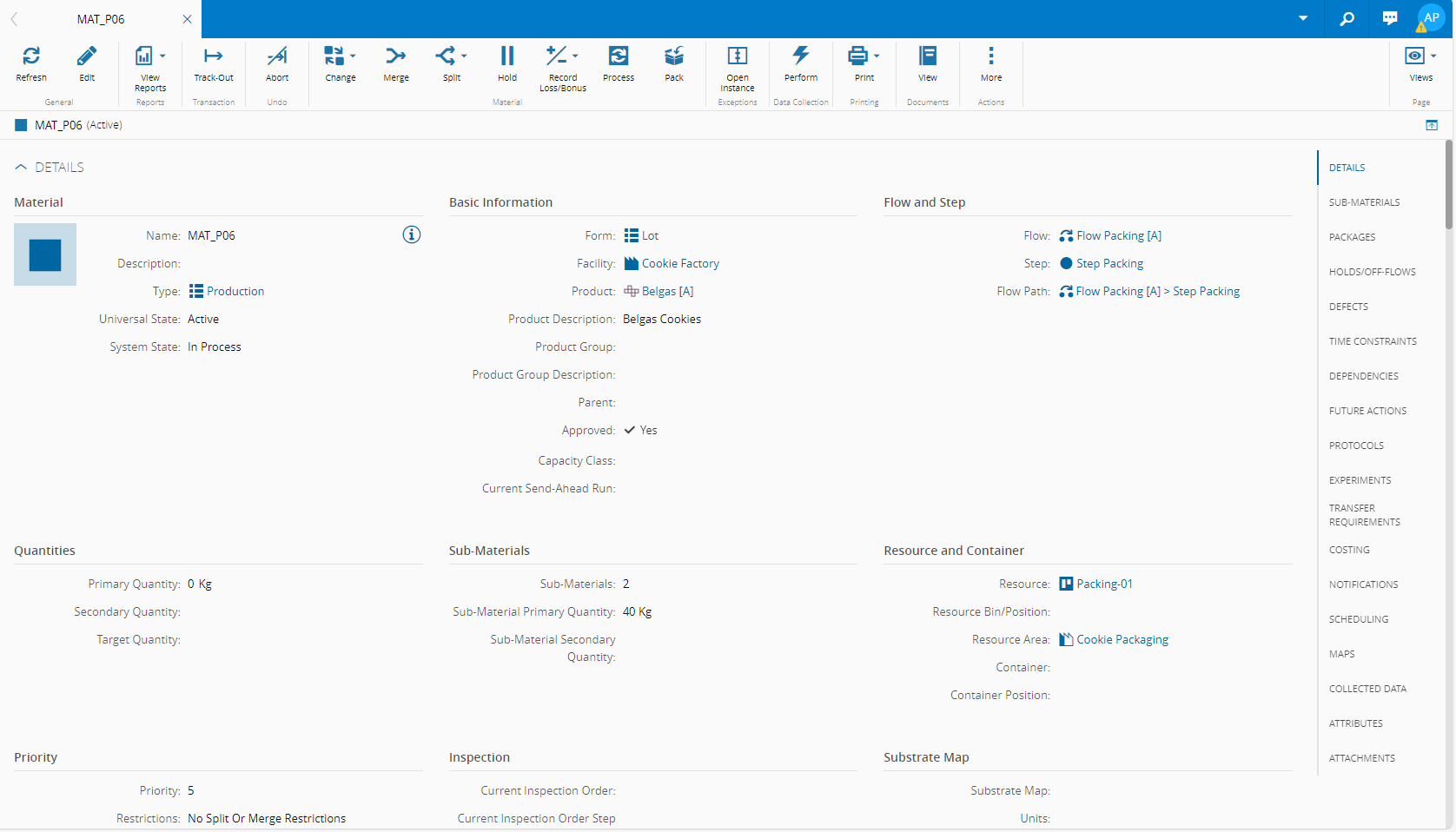
Begin with a fully packed Material and track it in to a packing Step.
-
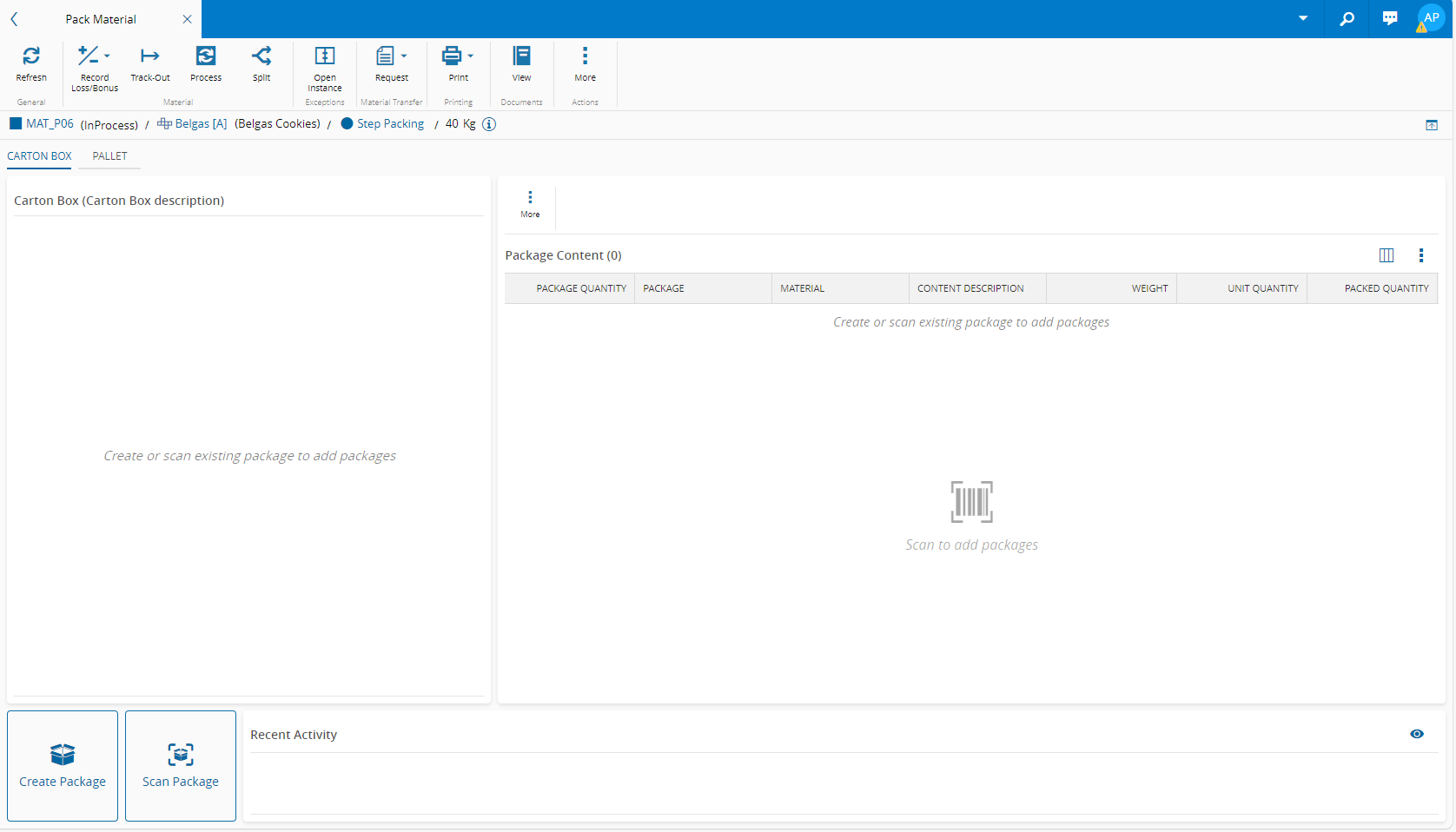
Access the multiple level page by selecting Pack on the top ribbon.
-
The available packing level tabs are configured in the
MaterialPackingContextsmart table.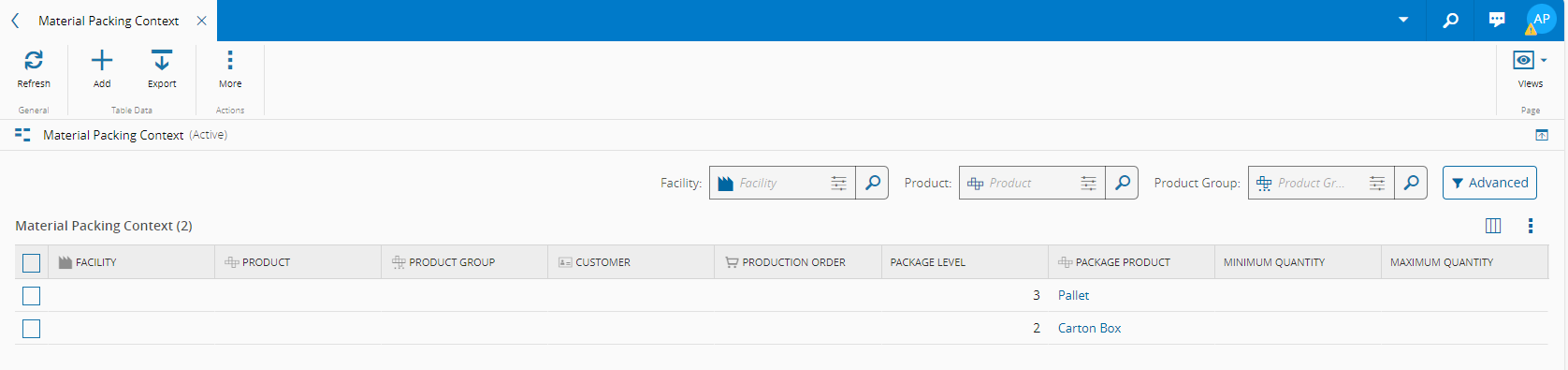
-
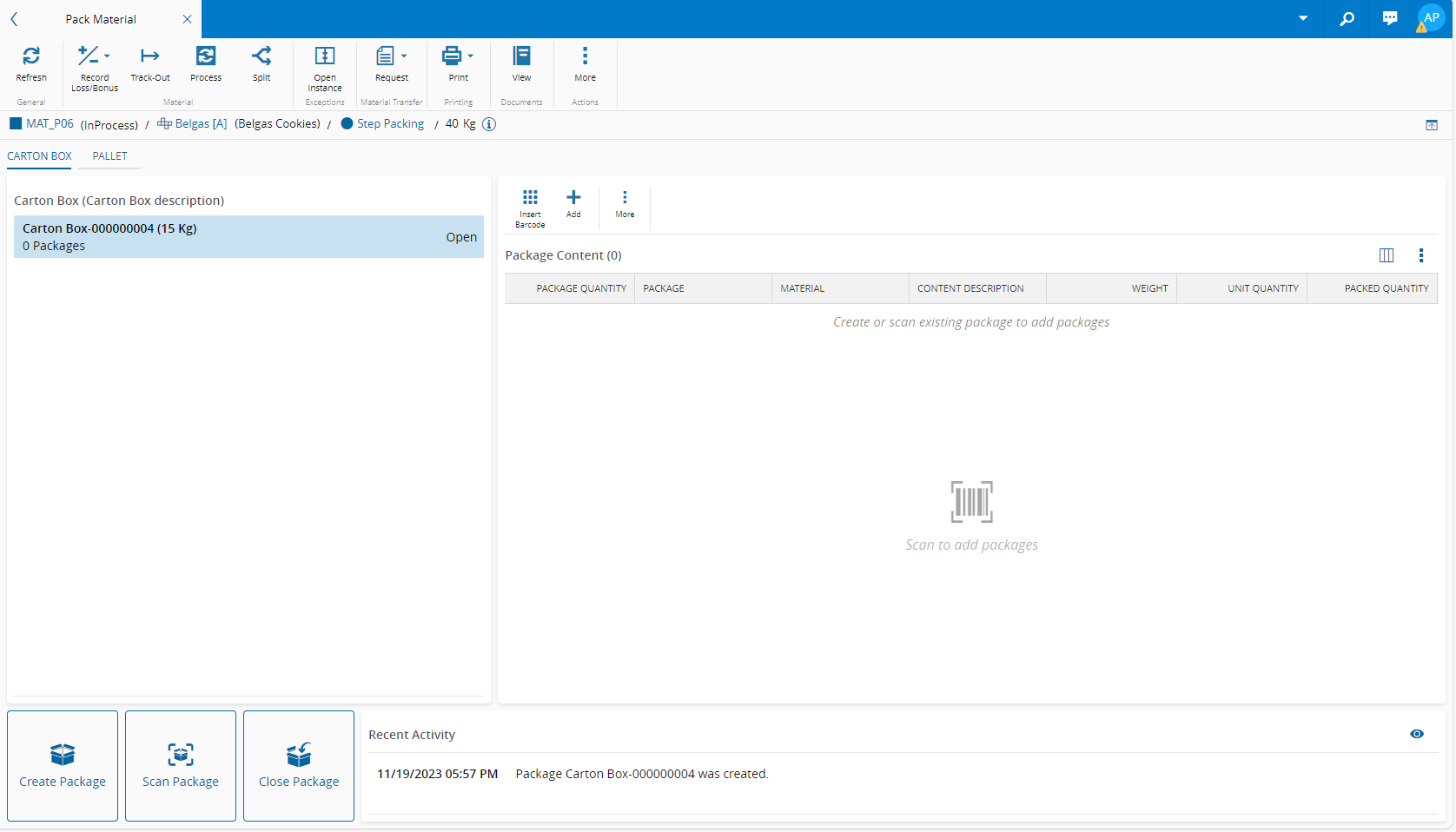
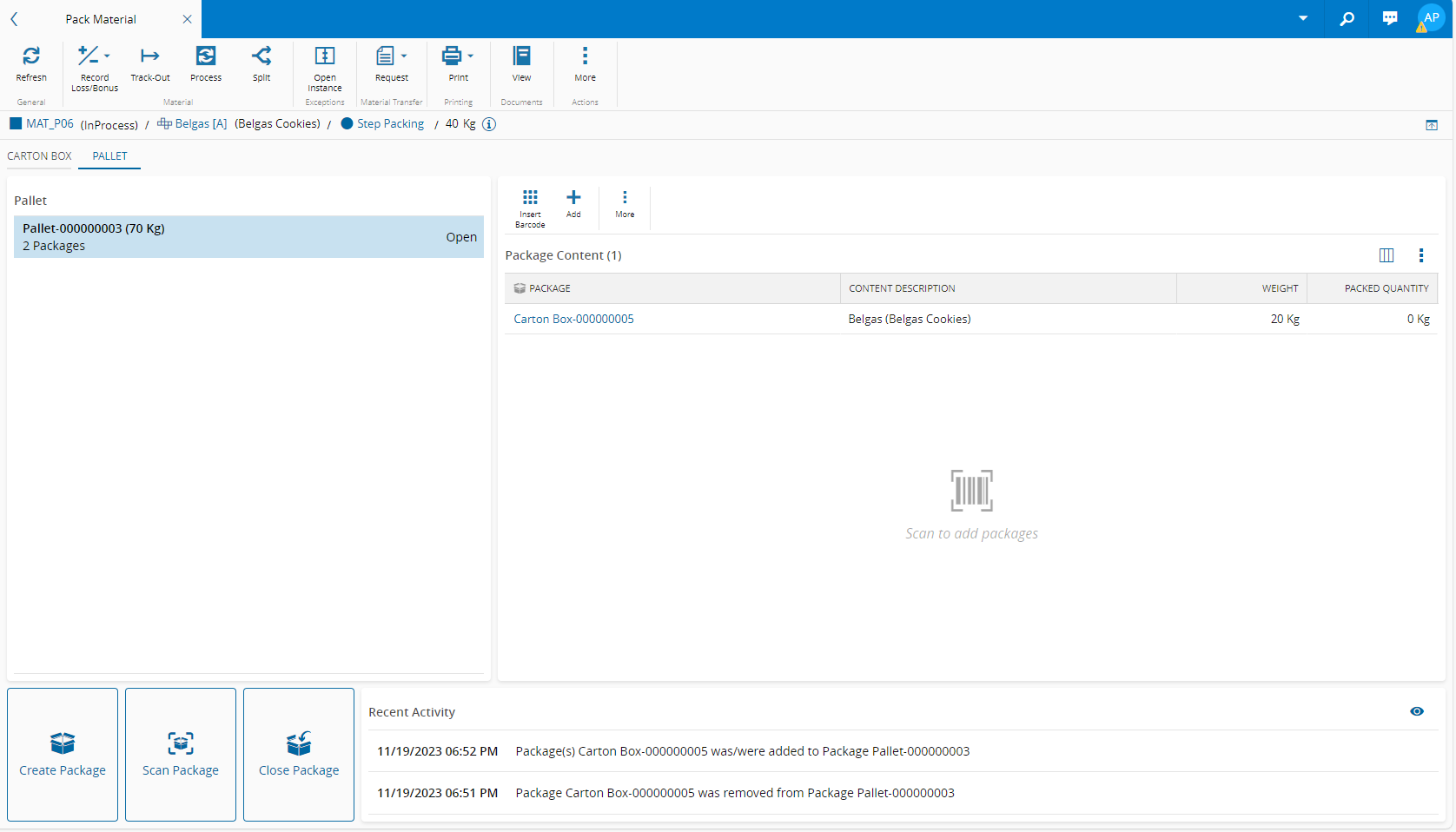
On the left panel you can create Carton Boxes (Level 2 packages), and on the right panel you can add Level 1 packages.
-
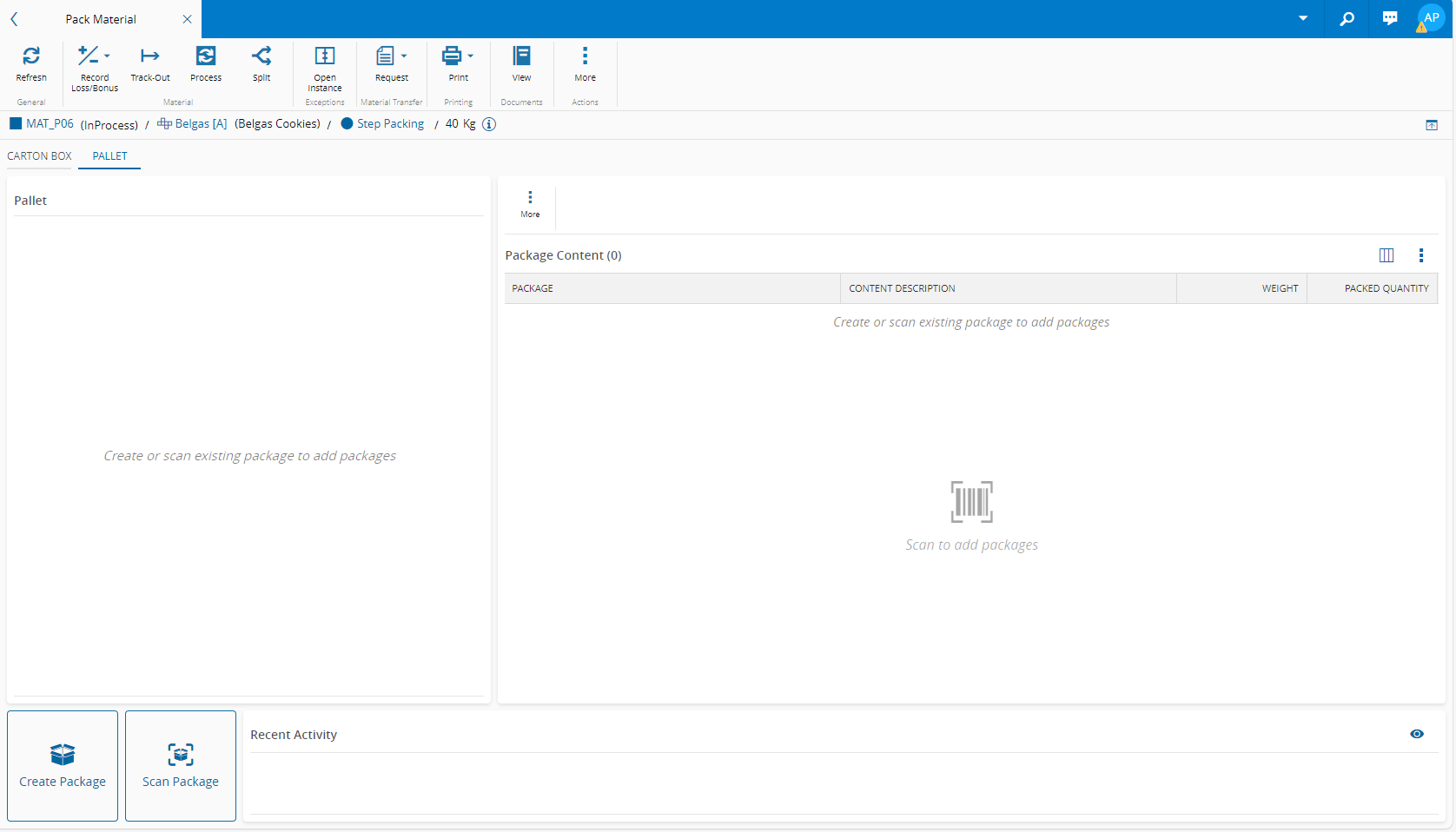
If you change tabs, on the left you can create Pallets (Level 3 packages), and on the right you can add Carton Boxes (Level 2 packages).
-
Select Create Package or Scan Package, to create a Carton Box (Level 2 package).
-
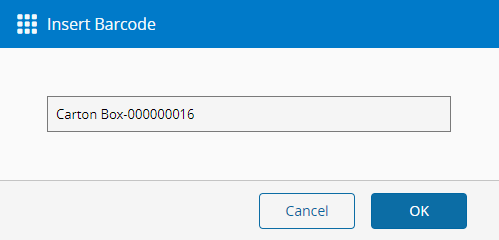
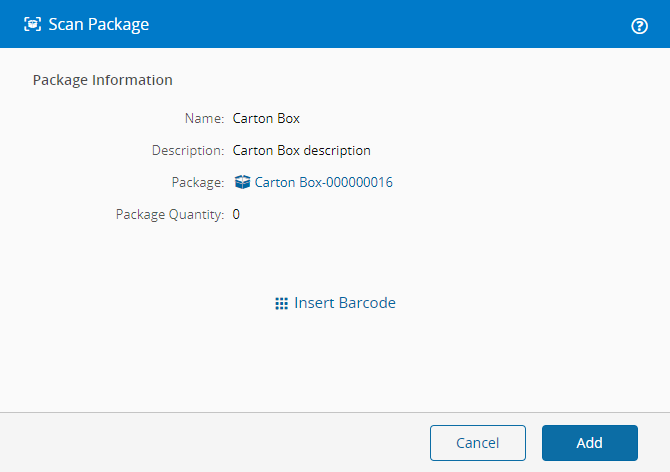
For an already existing package, you can use the Scan Package option, which also has the manual Insert Barcode possibility.
-
Select Add to create the scanned package.
- For the purpose of the example that follows, we will use the Create Package option.
-
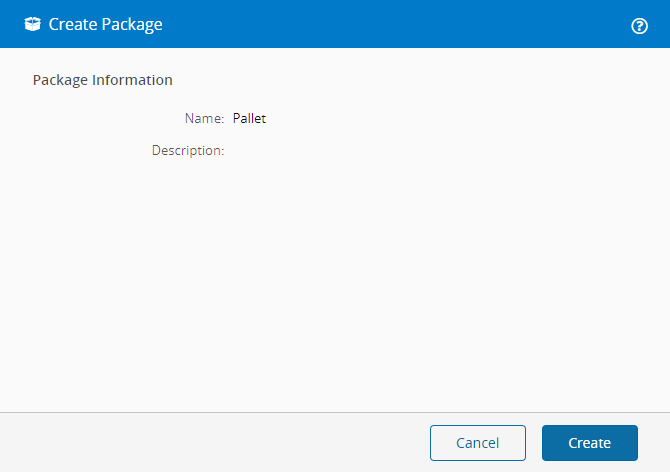
Select Create Package and then Create in the Create Package pop-up window.
-
A Package of Level 2 with a Product of Carton Box was created.
-
Use on the left panel to add as many Level 1 packages to the Carton Box as you want, and select Add.
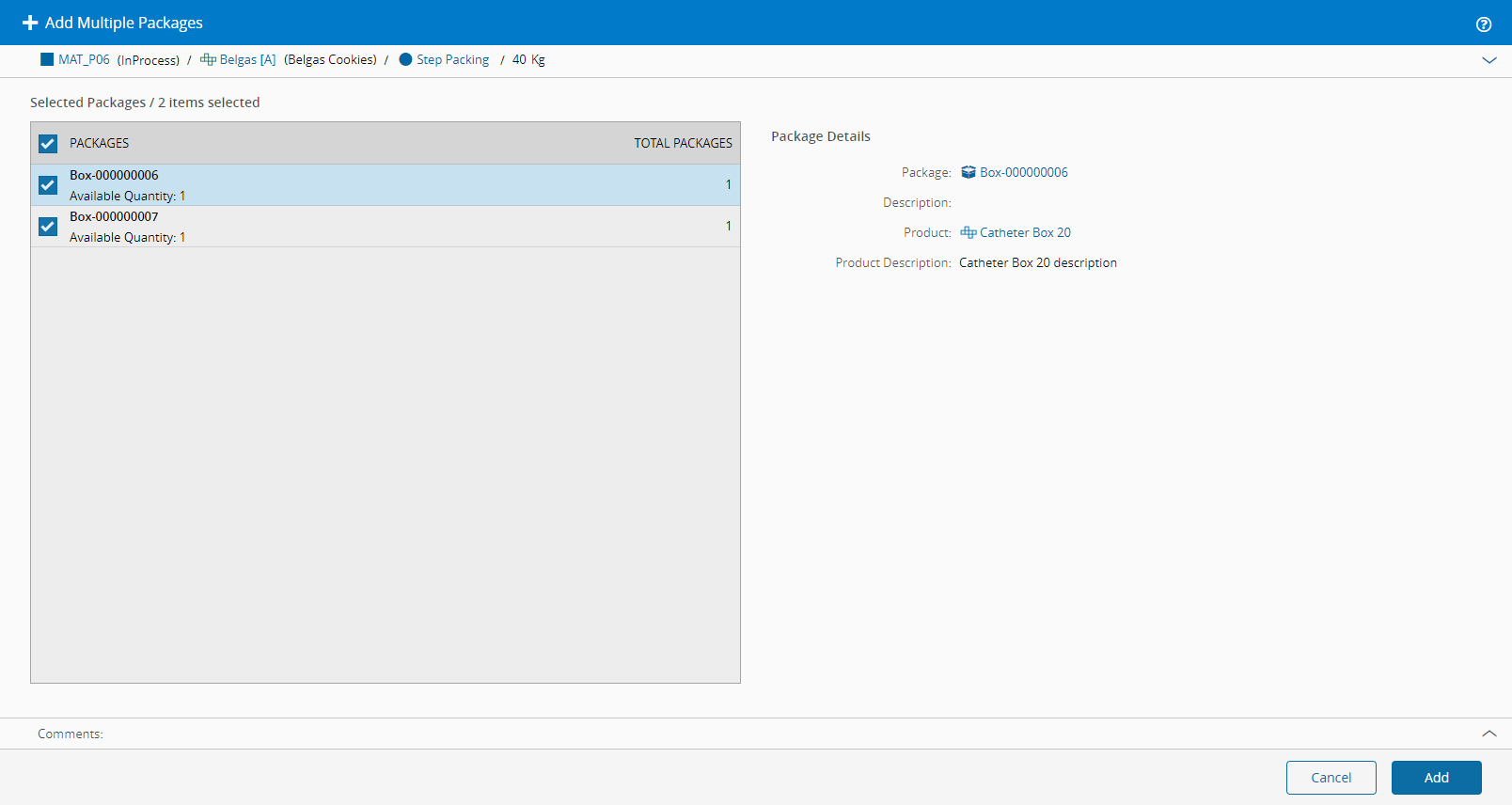
-
When adding multiple quantity packages, you can split them by adding the partial quantity that you need in the Package Quantity field. In this example, 2 were added and 1 is remaining.
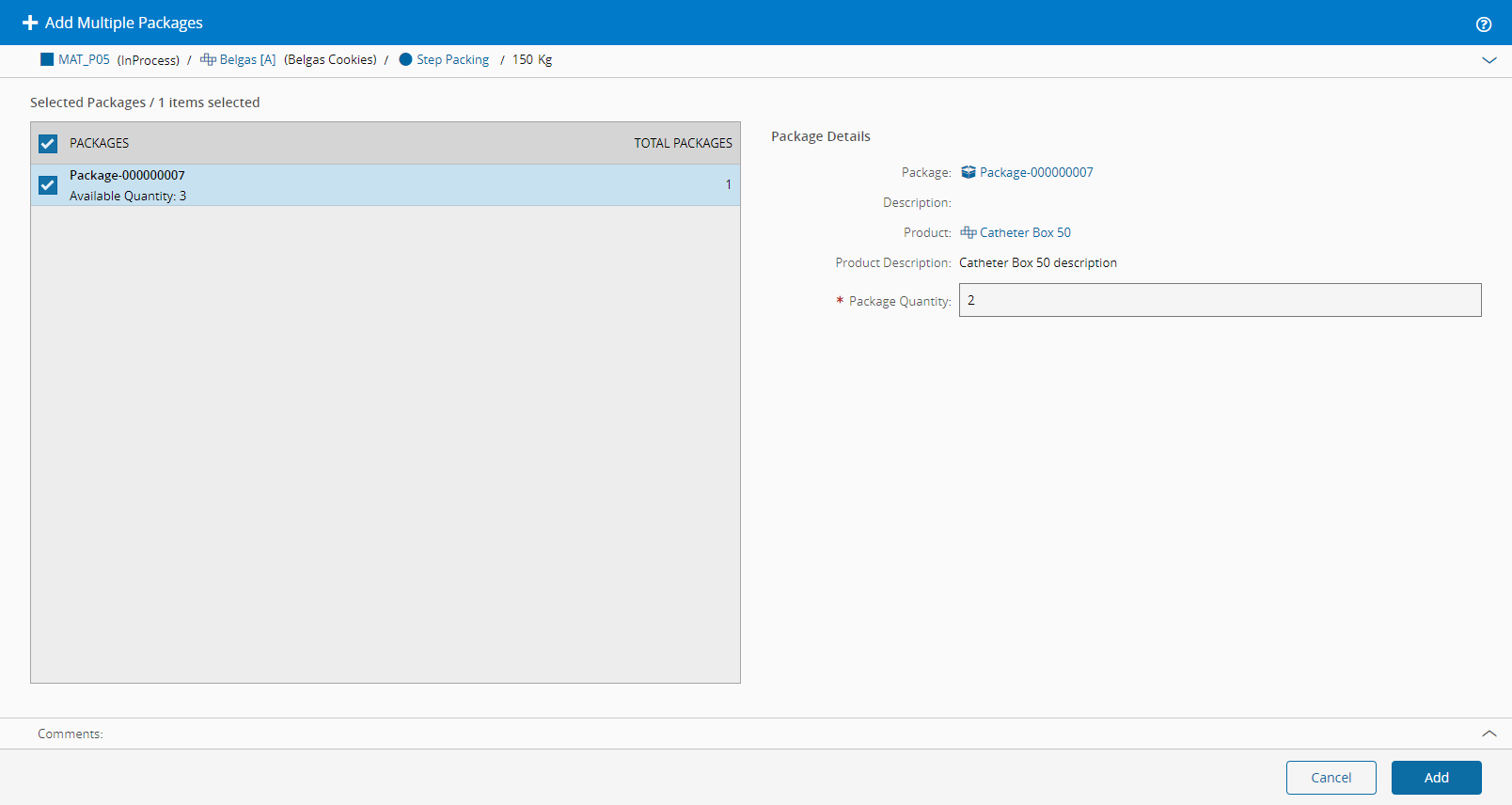
-
You can also add packages by scanning them or inserting their barcode, and if Level 1 packages are not trackable, the Label Specification for both Level 1 and Level 2 must coincide. Additionally, the following must be observed with the Label Specification Field:
- If set to Manufacturer Lot Number, the system searches first for a match of Material Manufacturer Lot Number and then by a match of the Material Name.
- If set to Manufacturer Part Number, the system searches first for a match of the Material Manufacturer Part Number and then by a match of the Material Product Name
- If set to Purchase Order Number, the system searches first for a match of the Material Purchase Order Number and then by a match of the Material Production Order Name.
Info
See the LabelSpecification or LabelSpecificationField generic tables for more information on these values.
-
It is possible to remove Package Contents by selecting the content followed by the icon. If the quantity is 1, it is a simple remove operation.
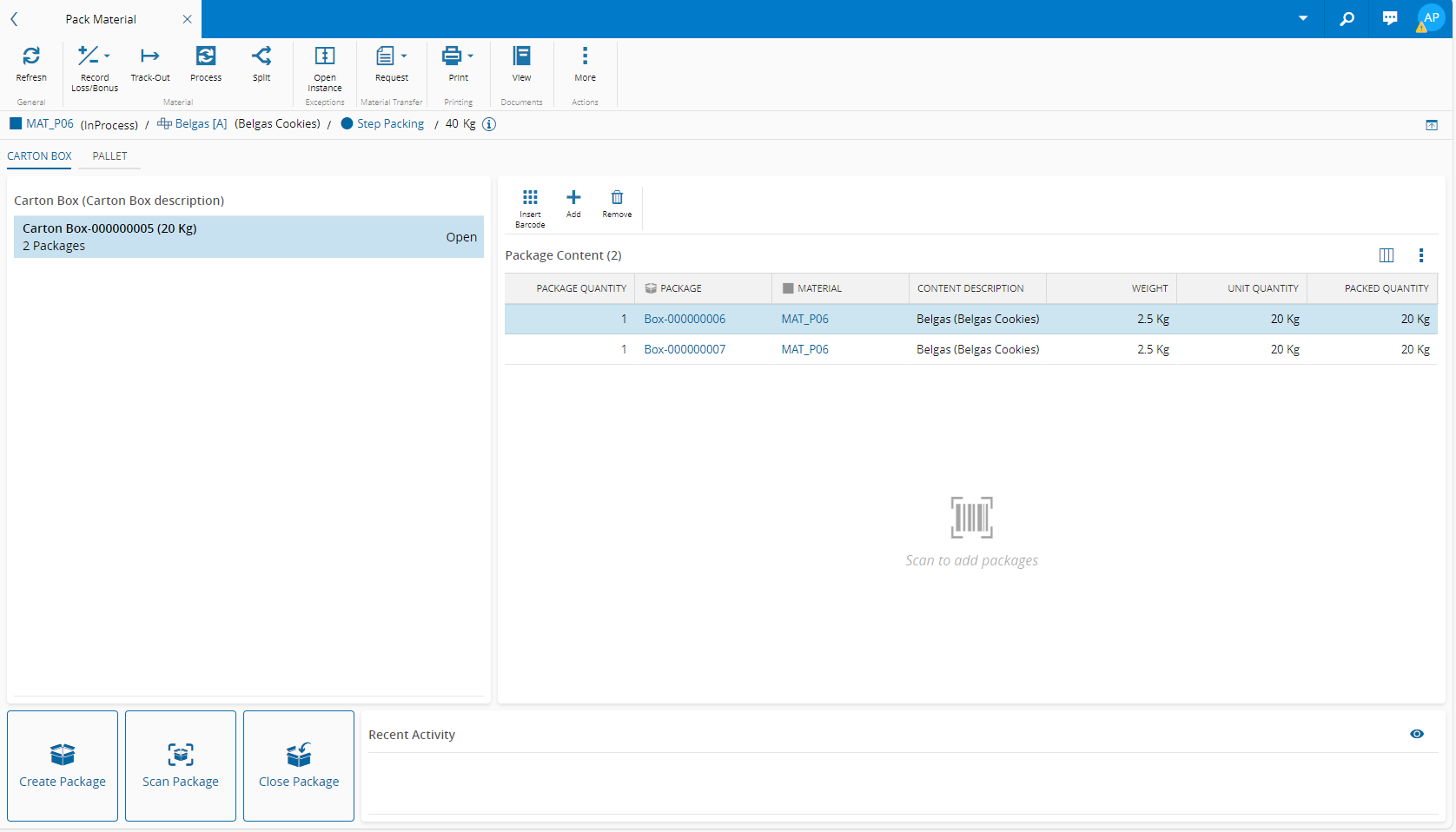
-
When removing from multiple quantity packages, you can split them by removing the partial quantity that you need. Indicate that quantity in the Package Quantity to Remove field.
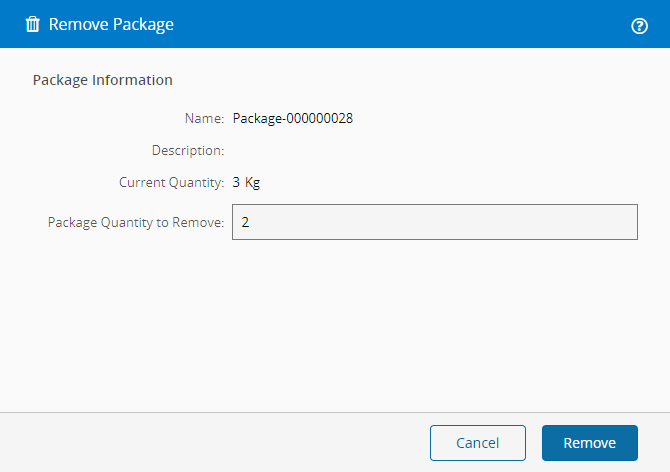
-
Close Package to move to Level 3, which is the Pallet.
Info
To Close Package, the package must be Active and Open, and the close operation is used when you want to move to the next level.
To Reopen Package, the package must be Active and Closed, and you may want to do this to change the contents of the package.
-
Select Create Package and to add the Carton Boxes.
Note
It is also possible to add Level 2 content to Level 3 by using the Insert Barcode option.
-
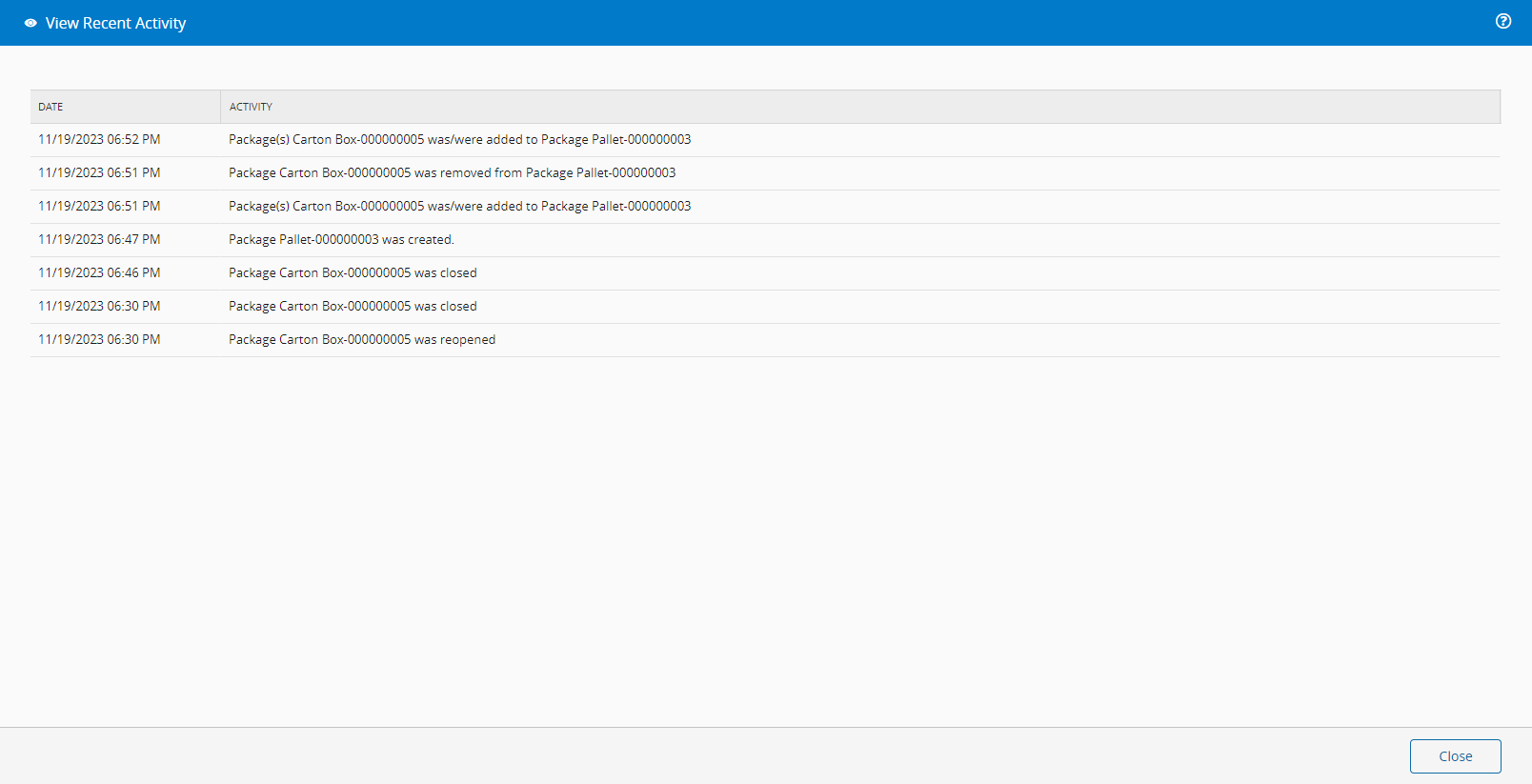
At any time during this operation, it is possible to View Recent Activity by selecting the icon.
-
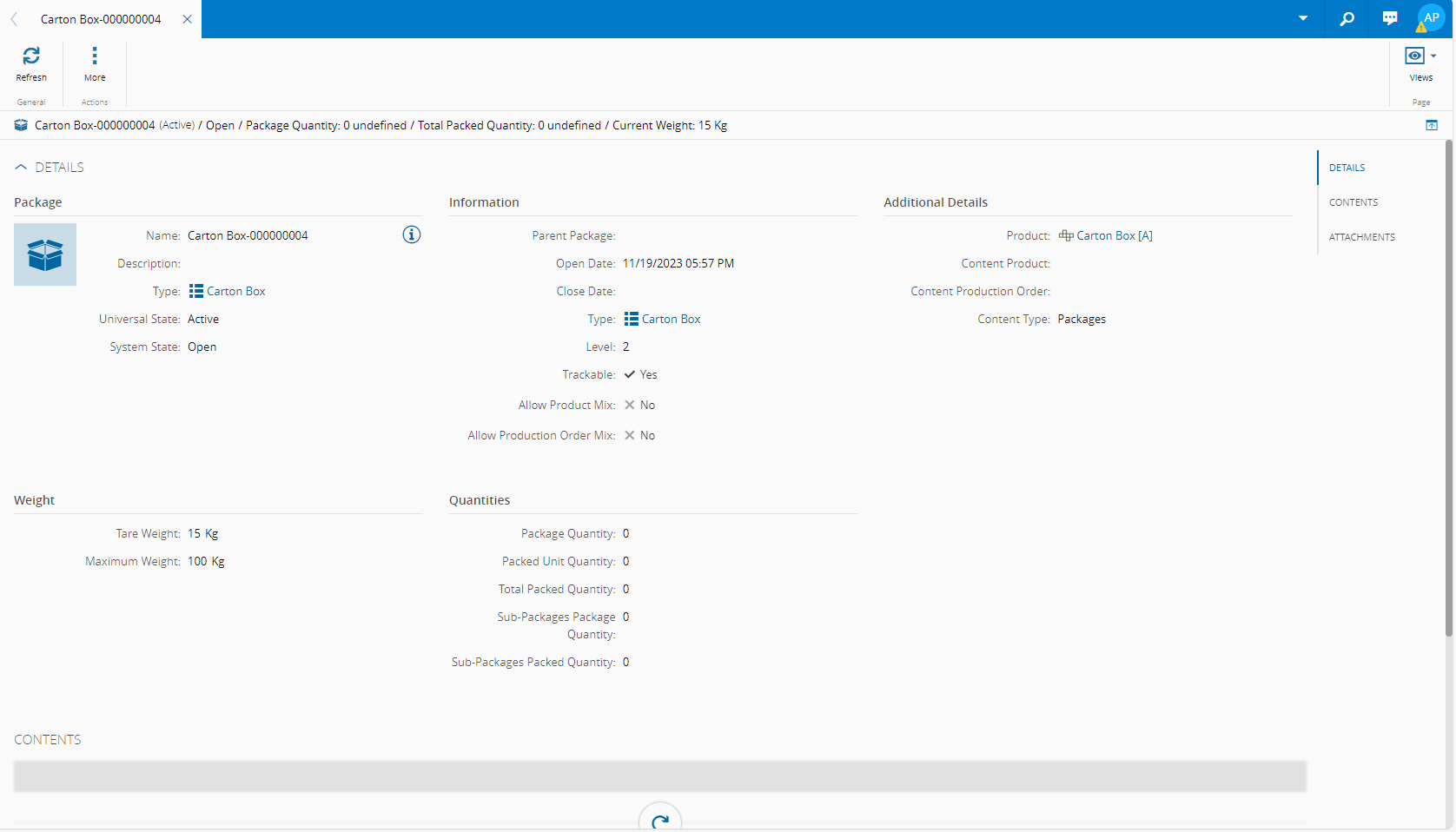
Additionally, when the package is created, you can see its details by searching and opening it in the Package entity of the Business Data menu.
-
Proceed with Track-Out, which will only be possible if you have closed the package.