Rework Material#
 Material.Rework
Overview#
This transaction is used to send Material to Rework. When a Material is send to Rework, once the Rework is complete, it returns to a pre-defined processing point in the Material current Flow. The decision to rework a Material is normally the result of an inspection in metrology steps, test results or quality gates.
Setup#
No special setup is required other than to meet the transaction's. Note that there must be at least one Off-Flow Reason applicable to Rework for the Current Material Step and a Rework path defined for the Material Flow Path. For more information on how to create a Flow, please refer to the section Flow.
Preconditions#
- Material is Active, is not InTransit and not OnHold.
- Material State is Queued or Processed.
- Material is topmost Material (it has no Parent Material)
- There are Rework Paths defined for the Material current processing point (immediate parent Flow and Step)
- Selected Rework Flow (GoTo Flow) exists, is Active and Enabled.
- Selected Rework Flow is composed of Steps, not other Flows.
- Selected Rework Reason exists, is active and is currently assigned to the current Material Step and classified as applicable to Rework
- If the next Step has different Primary or Secondary Units, there must be Product Units Conversion Factors defined for the current Material Product (and all SubMaterial Products)
- There must not be any Material Time Constraint violated for the Material at the current context and transaction.
- There must not be any required Future Action for the Material.
Sequence Of Steps#
Step 1#
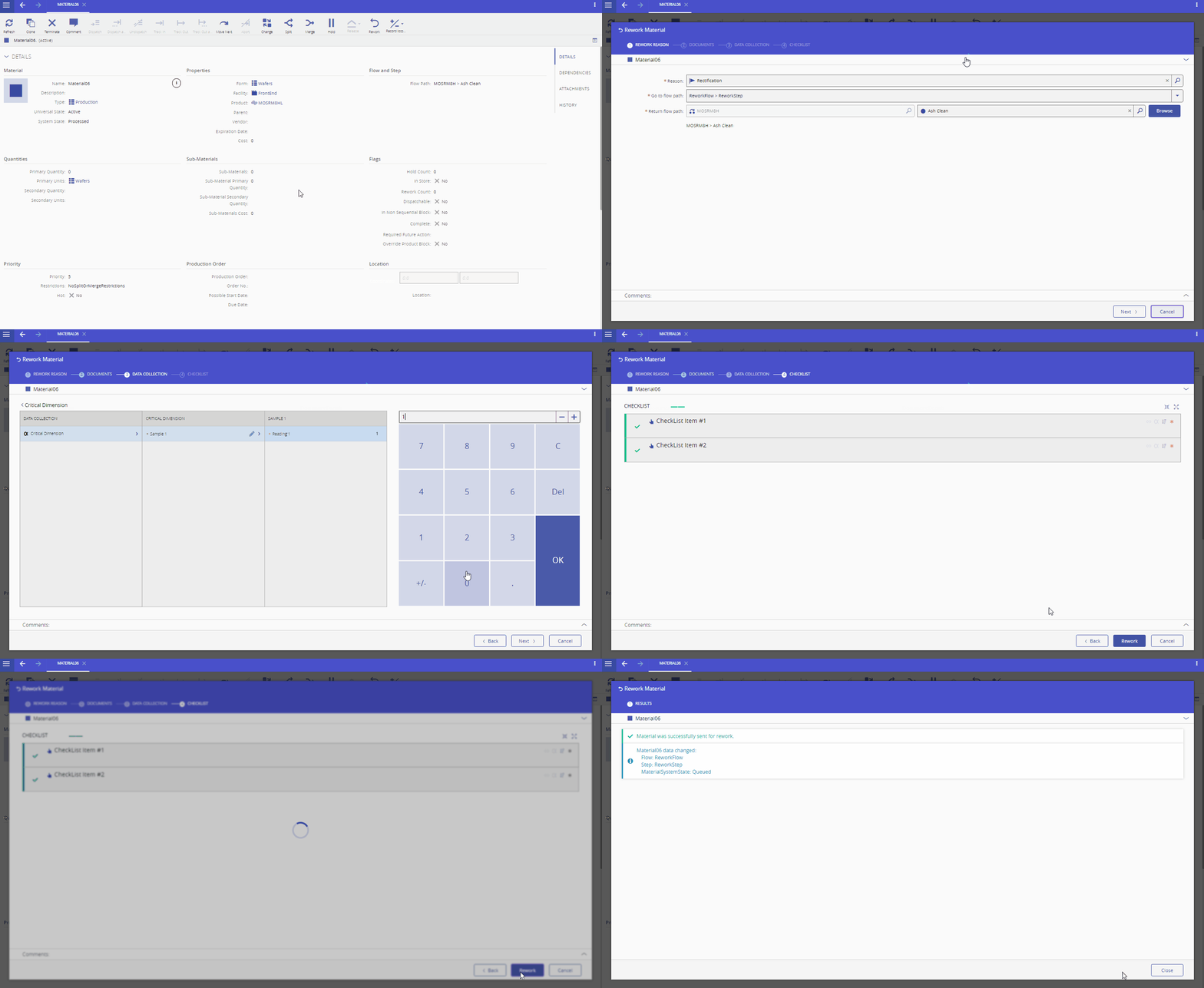
This screen contains all the information necessary to complete the transaction.
- Select an Off-Flow Reason which is applicable to Rework.
- If a Goto and Return Flow Paths are associated with that Reason, they are automatically pre-selected, otherwise the system will pre-select the Step where the Material is currently located. In any case, the Return Flow Path can be overriden. The Material will be sent to the GoTo Flow Path and, once it reaches the last Step in that Flow, it will return to the Return Flow Path.
- Optionally, enter a Comment.
- Press Rework to continue.
Step 2: Documents#
This step is used to display Documents which are associated with the transaction context. To open any Document it is only necessary to select a Document and click View.
Info
Documents are configured in the Document Material Context.
Warning
Step is only valid if there are Documents associated with the Material and Transaction Context
Step 3: Data Collection#
This screen is used to collect data from a pre-defined Data Collection.
- If the Material has a Long Running or Immediate Data Collection configured, a screen will be displayed where it is possible to fill-in the Data Collection data. If the Data Collection is Long Running, data can be filled later (partially or completely). If the Data Collection is Immediate, it must be filled completely.
Info
Data Collections are configured in the Step Data Collection Context.
Info
A Data Collection may be configured to send data to SPC, in which case one or more SPC Charts will appear.
Warning
Step is only valid if there is a Data Collection associated with the current Material Context and only if Material is TopMost.
Step 4: Checklist#
This screen is used to complete a pre-defined Checklist associated with the Track-In.
- The Checklist is Immediate and must be filled completely.
Info
Checklists are configured in the Step Checklist Context.
Note
It is possible to link an Immediate Checklist to a Data Collection. This means that when filling the Checklist, you can also fill the Data Collection, and the following is observed:
- If all the parameters of the Data Collection belong to the Checklist, the Data Collection step will not be shown.
- If only some parameters of the Data Collection belong to the Checklist, both steps must be shown so you can fill every item you need.
Warning
Step is only valid if there is a Checklist associated with the current Material Context.
Info
It is possible to perform Reworks inside Reworks.
Info
Depending on the Future Hold configuration, the Material may be put on hold.
Warning
When a Rework operation is performed while the Material is in a non-sequential block, the system will discard the information about which of the steps have already been performed in that same non-sequential block. Upon returning to the non-sequential block, those steps must be repeated or alternatively marked as optional and skipped.