Product Page#
 Product.Show
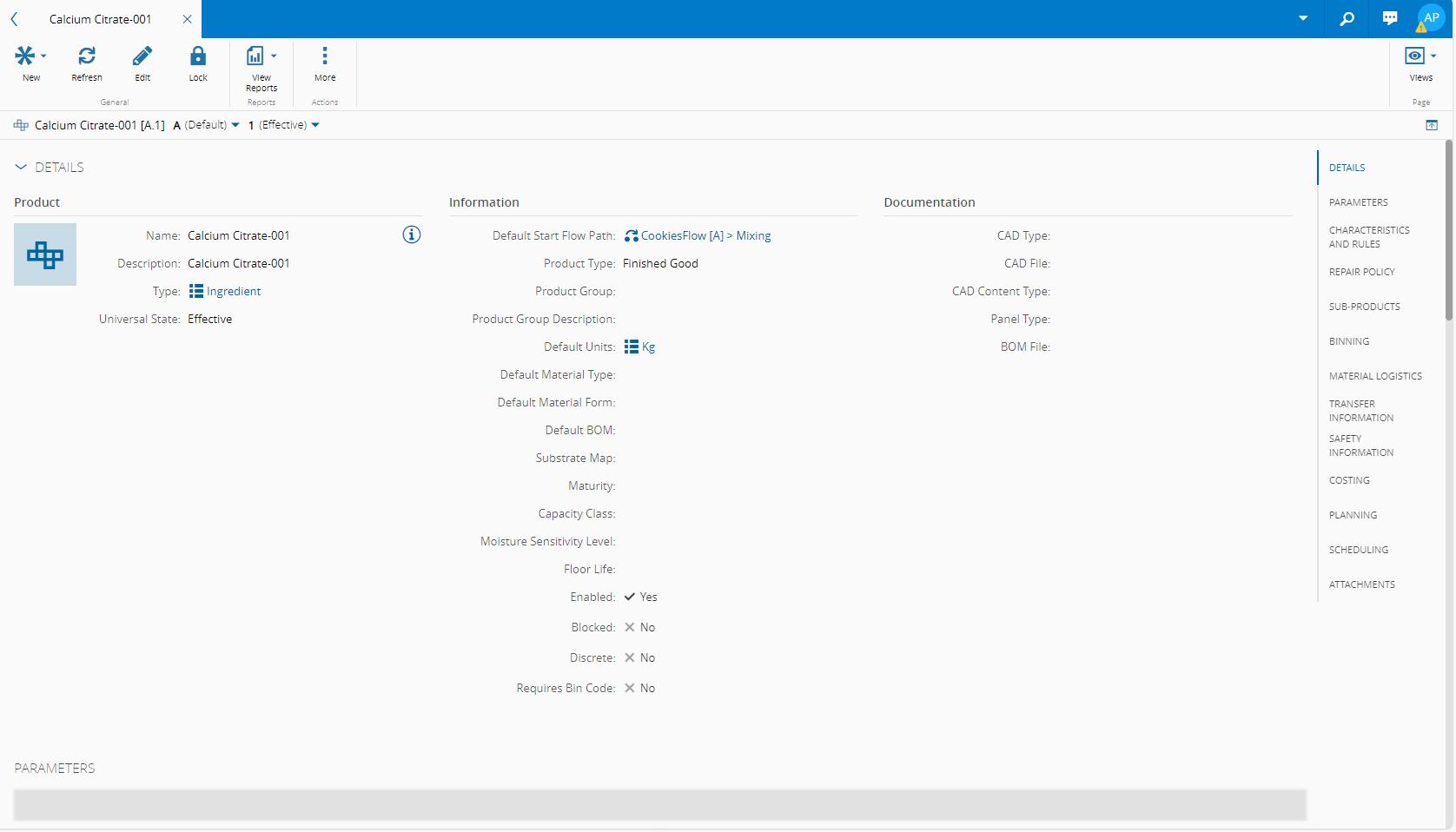
The Product page displays general information on the specific Product. In addition, it enables you to perform all the operations that can be performed on a specific Product.
Details View#
Depending on the optional modules that are licensed in the system, the Details view will display some or all of the following page sections:
- Details - displays general information on the Product.
- Parameters - section to define and manage the defined Parameters that are part of the Product. Parameter attributes can also be seen by pressing the arrow on the right-most side of the row.
- Characteristics and Rules - section to define and manage products as Configurable, which means that they have a set of configurable characteristics and rules.
- Components - section to define and manage the BOM Components currently associated to the Product.
- Repair Policy - section to define and manage the Repair Policy of the Product.
- Sub-Products - section to define and manage the Sub-Products currently associated to the Product.
- Product Manufacturer - section to define and manage the details related to the Product Manufacturer. Visible only for the following Product Types: Raw Material, Part, Durable.
- Binning - section to define and manage the Product Bin details.
- Safety Information - section to define and manage on the defined hazard classifications of the Product.
- Transfer Information - section to define and manage the defined transfer configurations of the Product.
- Costing - section to define and manage the defined Costing configurations of the Product.
- Maintenance Management - section to define and manage the defined maintenance configurations of the Product.
- Material Logistics - section to define and manage the configurations for Material Logistics of the Product.
- Planning - section to define and manage the defined planning configurations of the Product.
- Scheduling - section to define and manage the Product Scheduling details.
- Attributes - enables the visualization of existing Attributes and the possibility to create new ones. For more information on Attributes, visit the section Attributes.
- Attachments - shows the documents that are attached to the Product and enables you to attach additional documentation to the Product.
BOM Structure View#
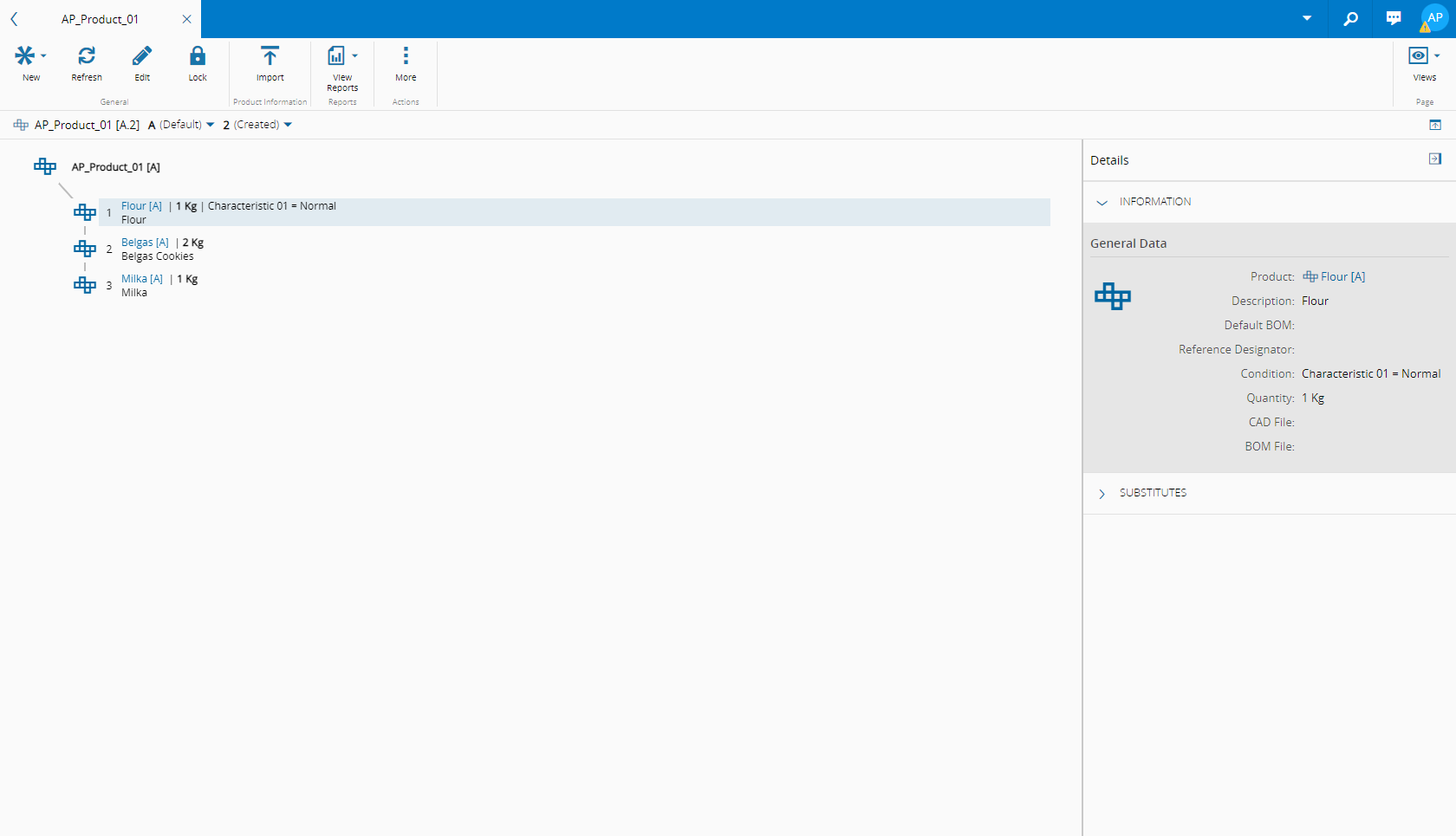
This view shows information concerning the BOM Structure associated with the Product. Information on the BOM Products, substitutes, and characteristics, if available, are displayed.
Info
For this view to be made available for display, the Product must have a Default BOM defined.
CAD View#
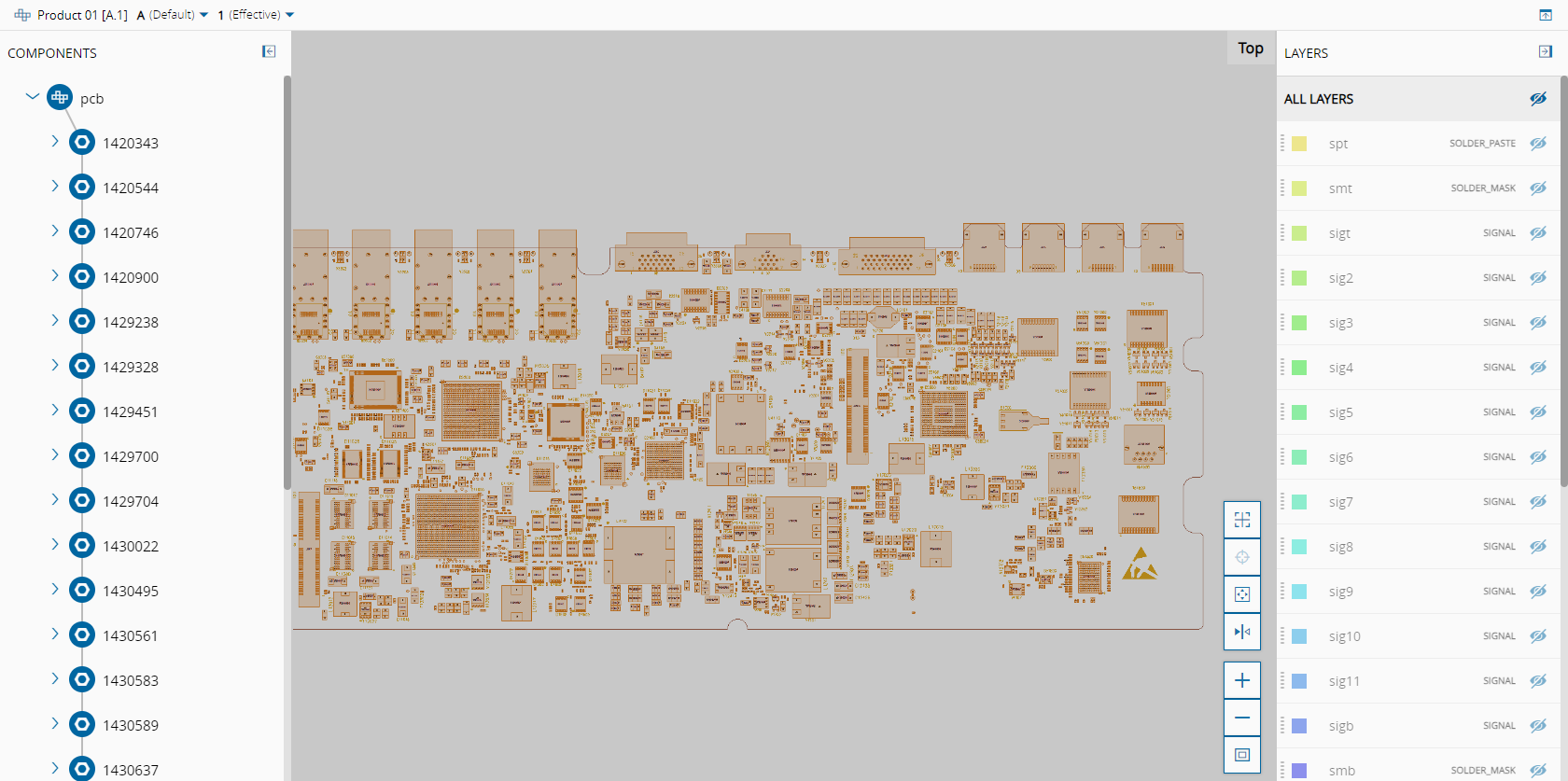
This view shows information concerning all the CAD diagrams contexts currently associated with the Product.
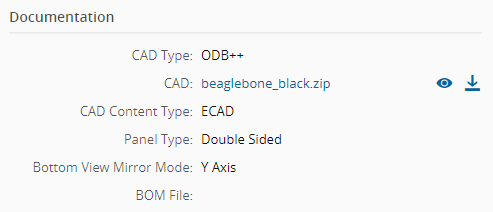
The CAD is based on a diagram that must have been previously uploaded and associated to the Product. Information on the diagram can be accessed from the main Product details page:
Note
If the Panel Type is Double Sided and the Bottom View Mirror Mode is different from None, it is possible to Flip the file to access Top or Bottom layers.
The two available buttons will allow you to view the current diagram in a modal dialog within the browser () or download the same diagram ():
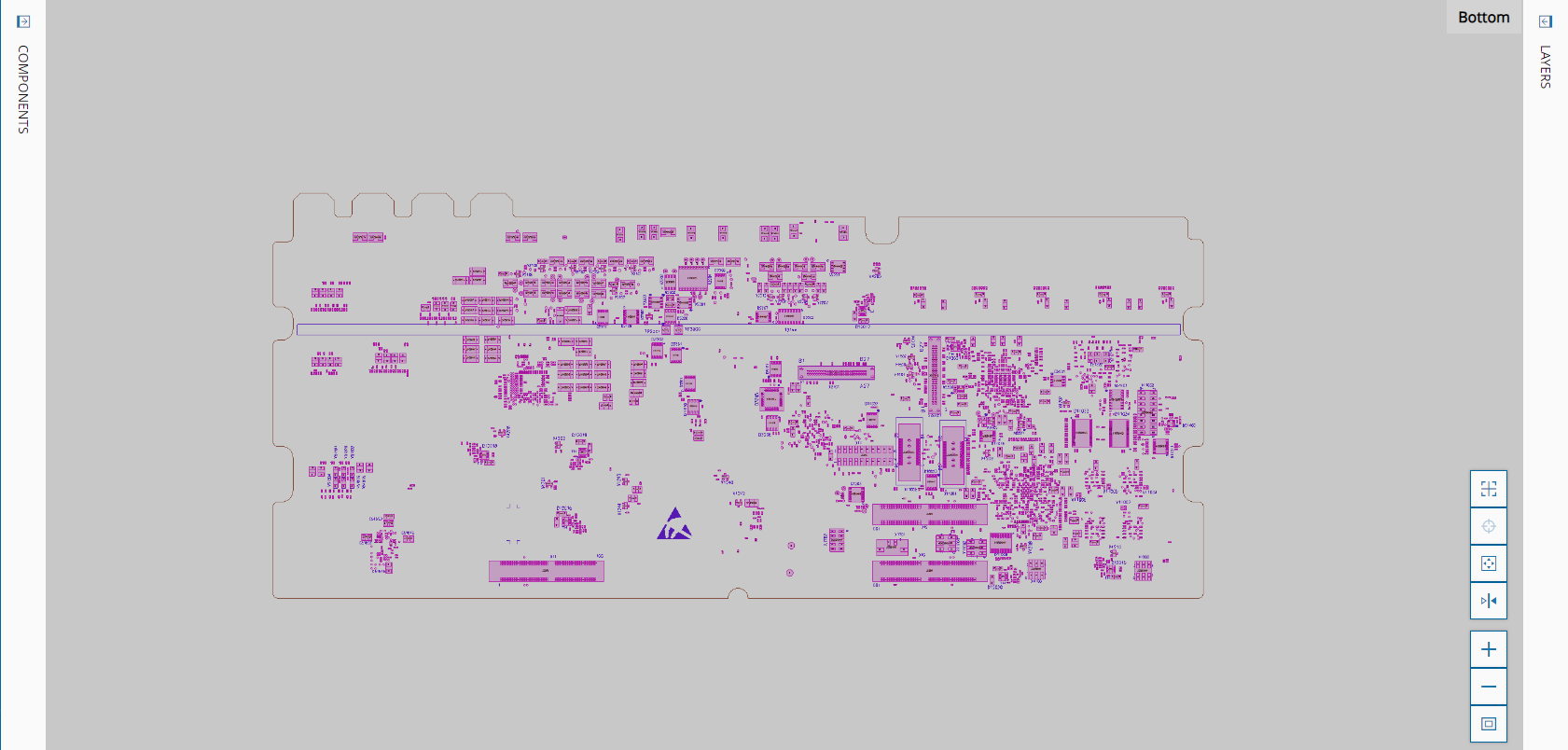
The CAD view is divided into three separate sections:
BOM Product structure#
On the left panel, the entire BOM is displayed in a tree structure that allows you to see the relations between the different BOM Items and how they are interconnected with the main Product. The tree can be expanded and collapsed to show the complete structure of the BOM Items:
Info
If the BOM Items of the main Product also have a Default BOM defined, their BOM Items will also be displayed.
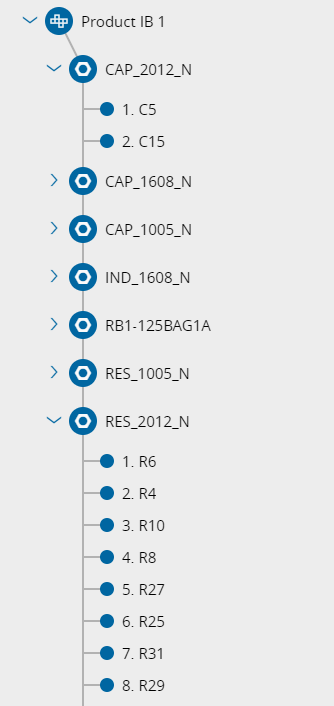
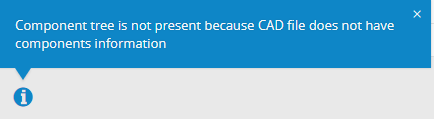
If the CAD file does not contain component information on the BOM Structure, the system will not display the tree and will show an information marker:
CAD diagram visualization#
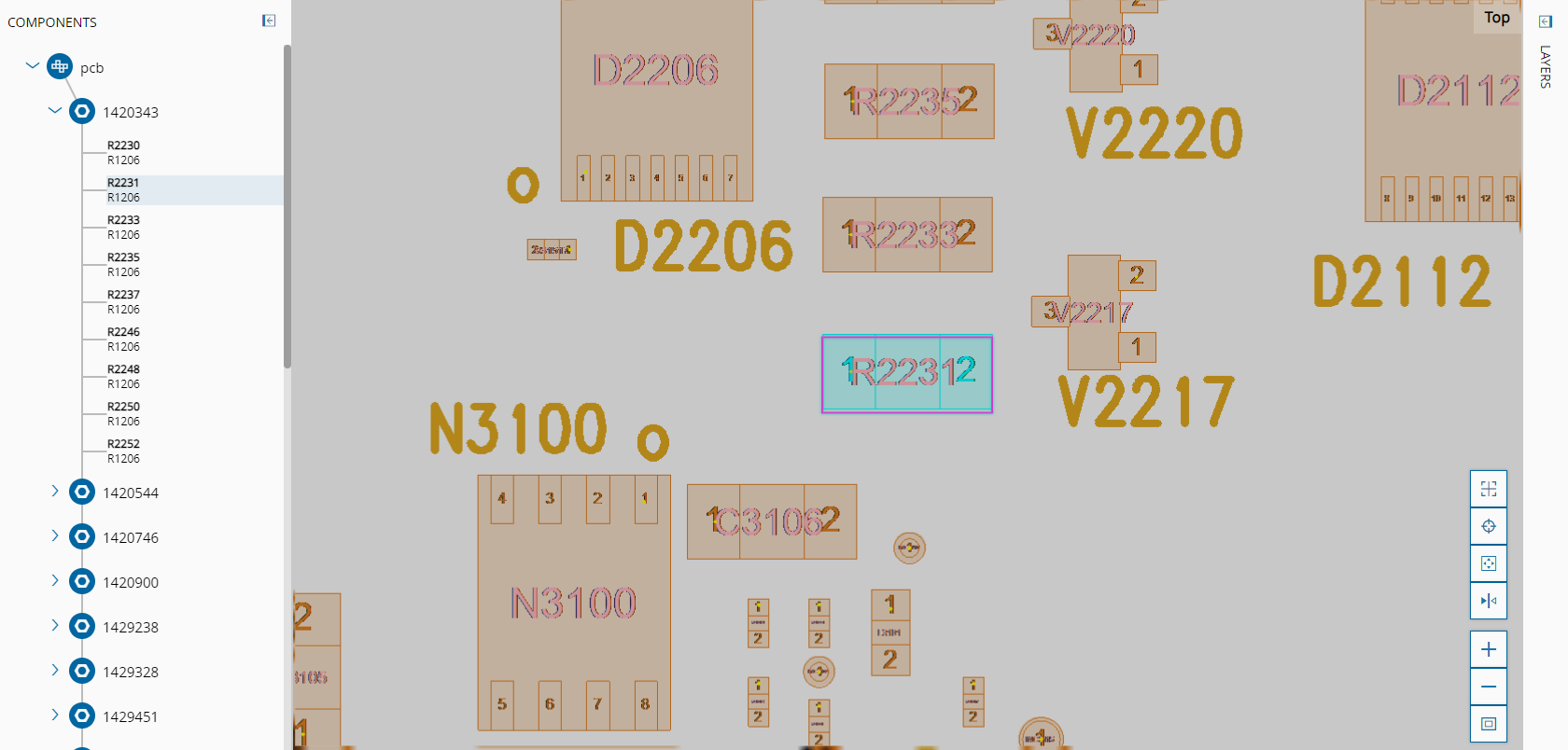
You can drag and zoom on the main diagram, using the buttons on the bottom left or through the mouse or pointing device. The components will be automatically color-coded and listed on the right-hand Layers panel.
Selecting each of the components listed will perform a similar selection of the appropriate layer segment in the diagram, as shown below:
Layers#
The layers that compose the diagram are displayed on the right side of the diagram and allow you to filter which ones are displayed at any given time.
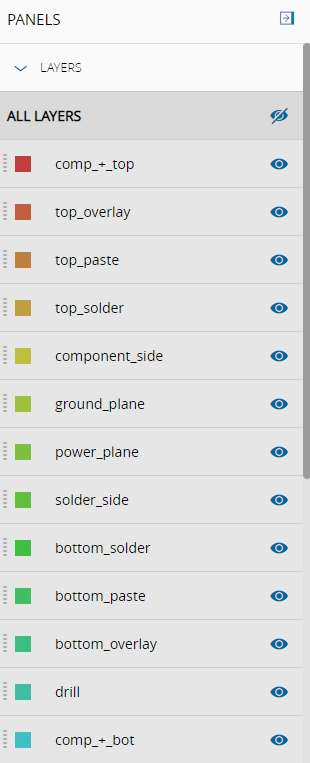
Selecting the icon on the right-hand side of each layer will show or hide it, changing the entry to reflect this decision:
| Layer | |
|---|---|
| Show |  |
| Hide |  |
Table: Layer visibility definition
Info
At any time, selecting the button on the top ribbon will download a .JPG file of the diagram at the current zoom level.
Contexts View#
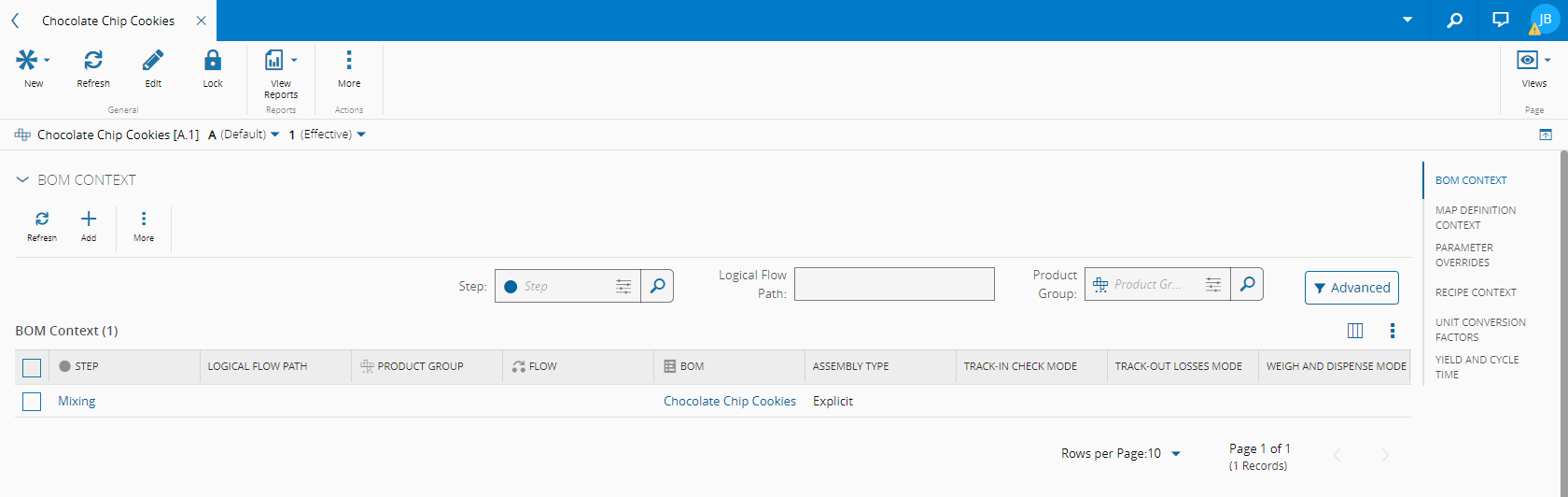
This view shows information concerning all the contexts currently connecting the Product to other objects in the system:
- BOM Context - displays the existing Relations between the Product and any BOM existing in the system.
- Map Definition Context - displays the existing Relations between the Product and any Map definition existing in the system.
- Parameter Overrides - displays the existing configuration used to override particular parameters for a Product for a given context.
- Recipe Context - displays the existing Relations between the Product and any Recipe definition existing in the system
- Unit Conversion Factor - displays the existing Unit Conversion Factors associated to the Product.
- Yield and Cycle Time - displays the existing configurations for Yield and Cycle Time calculations for the Product.
Note
To be able to edit the data contained in the Context tables, you will need the ContextResolution.EditData security feature.
Compare View#
Product.Compare
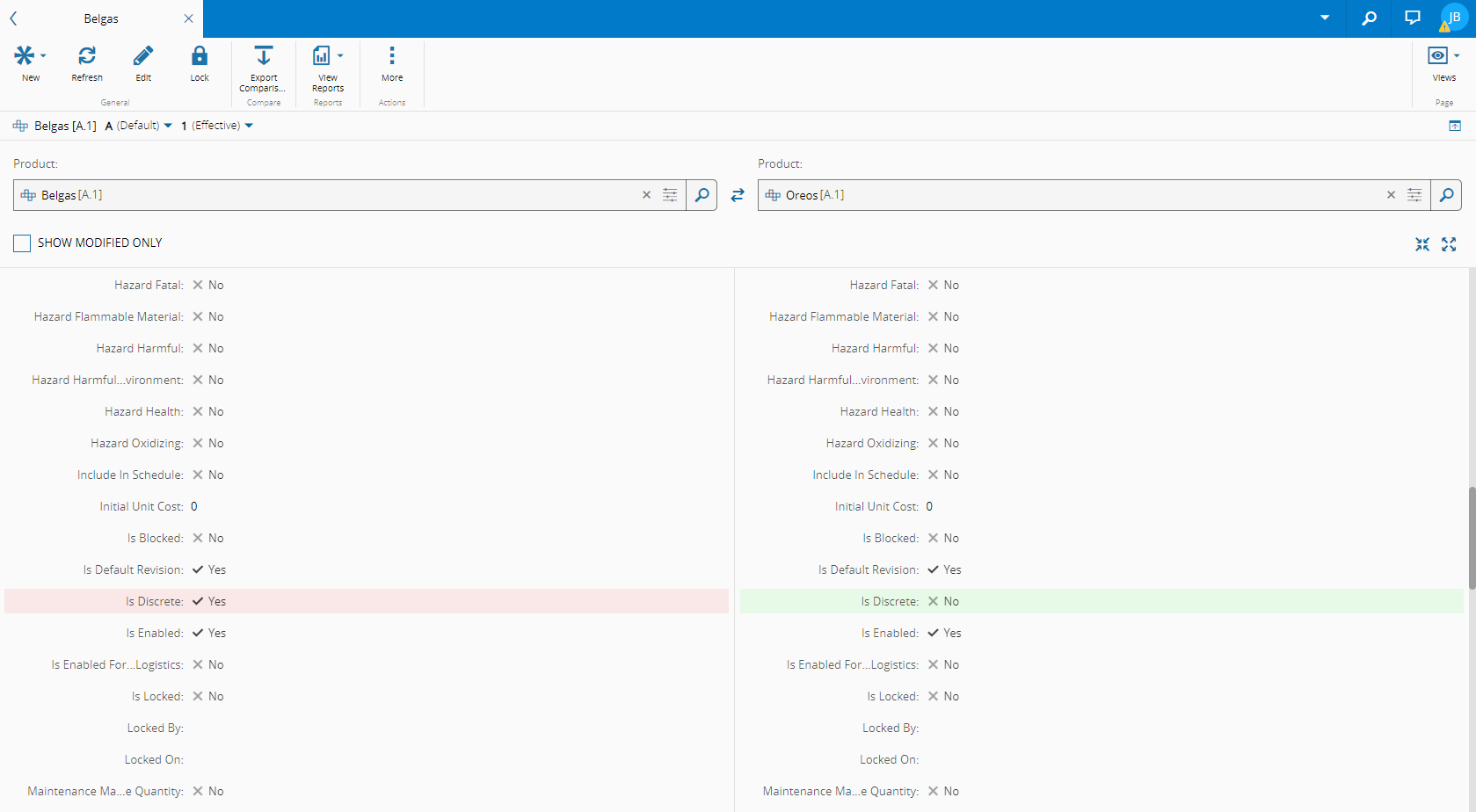
This view provides a quick visual comparison between the selected entity version and any other version that can be selected through it. You can also export the comparison results to a PDF file through the Export Comparison button on the top ribbon. For more information, see Compare Entity Versions.
References View#
This view combines information concerning other objects that have references to the current object:
- Relations - displays the existing Relations between the Product and other entities and enables you to edit them. For more information on Relations, visit the section Relations.
- Where Used - displays the set of relationships between the Product and the other objects used throughout the system.
History View#
This view combines information concerning other objects that have references to the current Product object:
- Change Set History - displays the history of the change sets associated to the object. For more information on Change Set history, visit the Change Set History page.
- History - displays the history of the operations, associated information, user(s) performing the changes and date and time of the changes.