Create Data Set#
 Dataset.Create
Dataset.CreateTemplate
Dataset.CreateFromTemplate
Overview#
This Business Data entity is used to create an Data Set. You can also create a template using a similar procedure and use a template to create a new object. This selection is done in the main entity menu.
Setup#
No specific setup is required other than to meet the preconditions of the transaction.
Preconditions#
- The Data Set name must be unique.
Step 1: General Data#
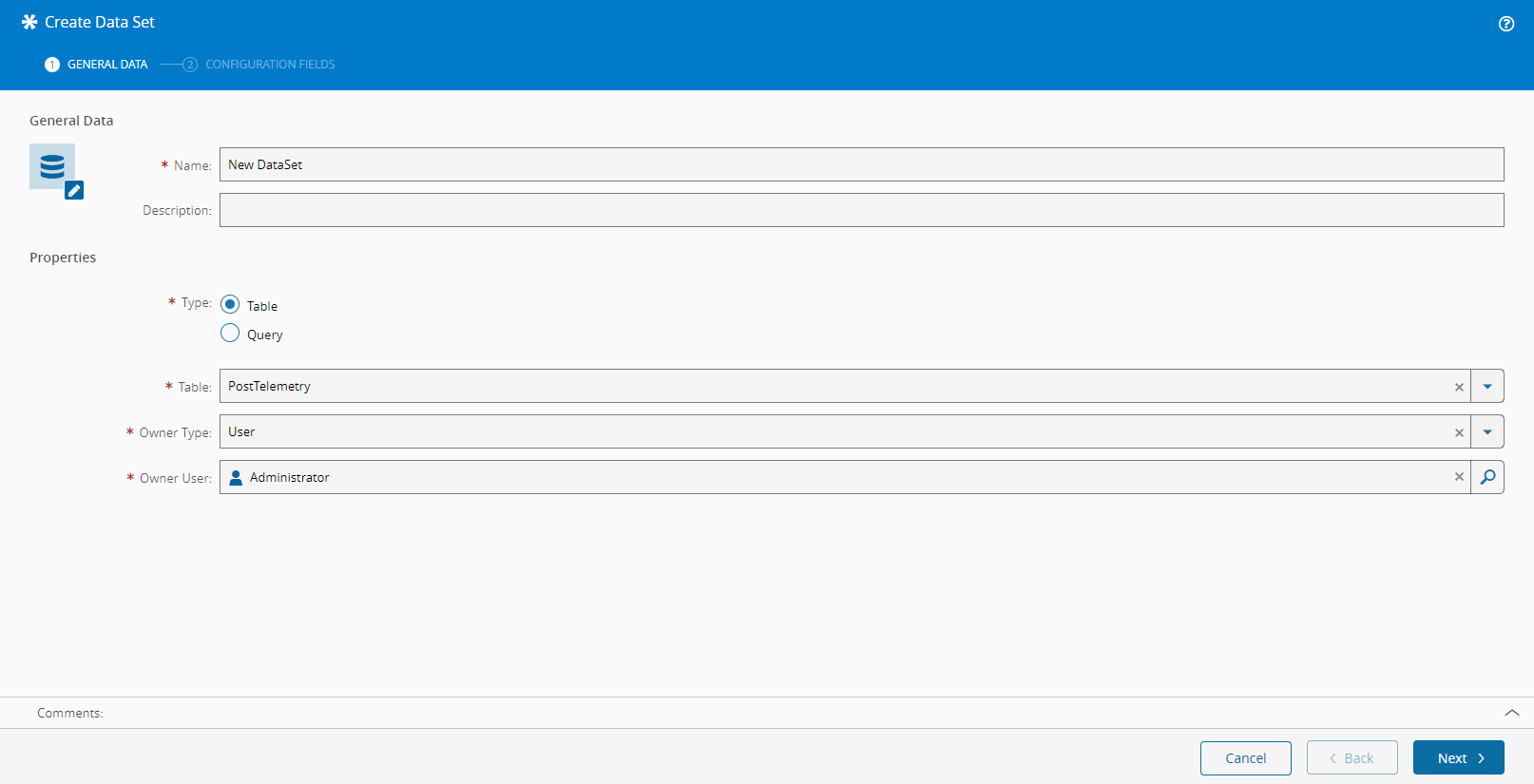
- Enter the Name of the Data Set (must be unique).
- Enter the Description.
- Define the type of the Data Set that will determine the way data will be retrieved. Options are
TableandQueryand each option will determine the next set of configurations. - If the type of the Data Set was set to
Table, select: - The Table to which the Data Set is bound.
-
The Owner Type, depending on which you will need to set additional configurations:
App- when available, select the App that will be using this Data SetRole- select the Owner Role for this Data SetUser- select the Owner User for this Data Set
-
Select Next to continue.
Step 2: Configuration Fields#
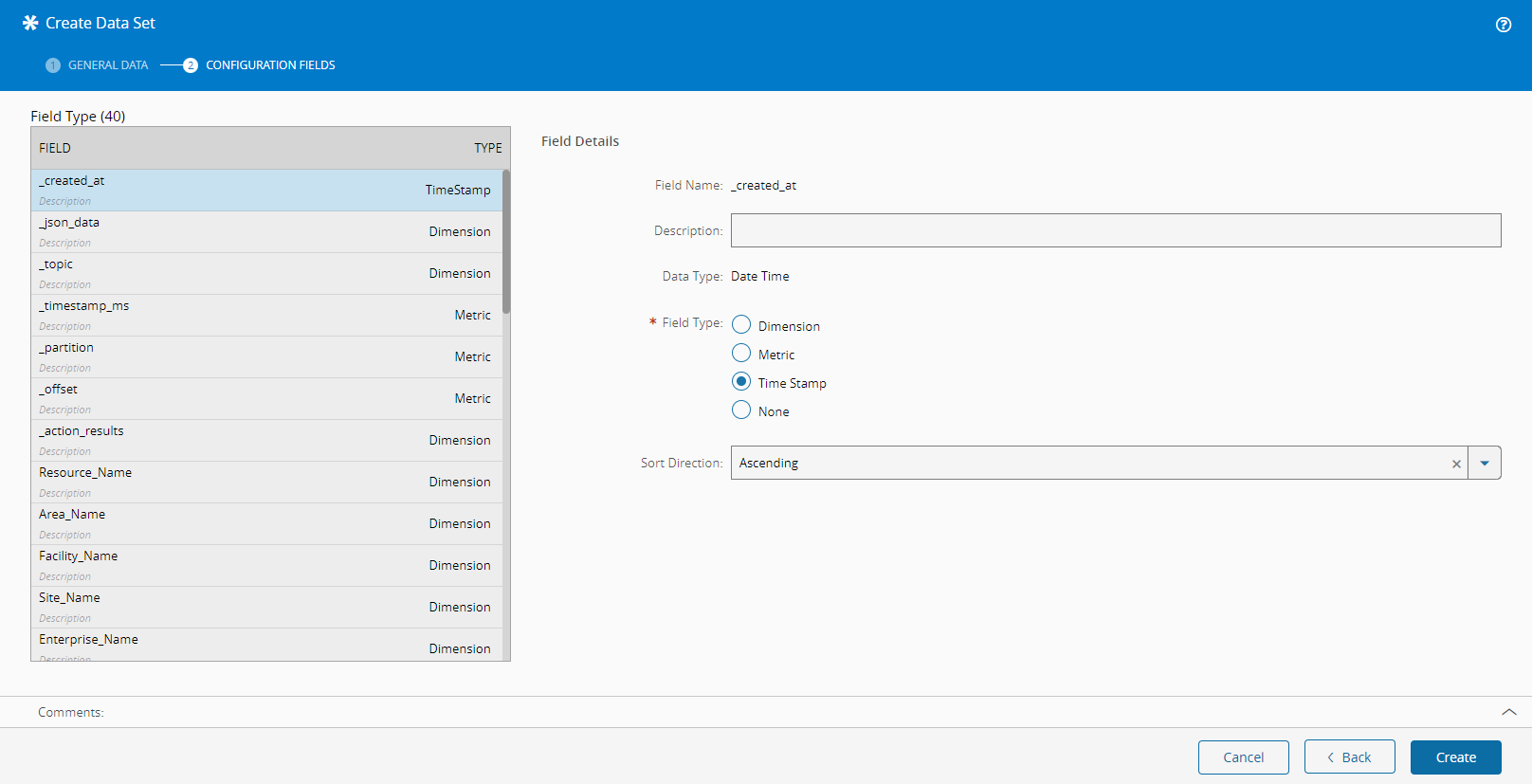
If the type of the Data Set was set to Table on the previous step, whereas if the type of the Data Set was set to Query, you will be presented with an empty text field on which you must specify a query to retrieve the fields.
When selecting the Validate button on the top left, you will populate the grid in the Fields tab, located on the top right. After the fields are filled-in, you can edit the following properties:
- Description
- Field Type
- Dimension
- Metric
- Timestamp
- None
- Sort Direction
- Ascending
- Descending
- Low Cardinality (only for Data Sets of type
Query)
After you have finished the configuration, select Create to complete the operation.