Perform Material Checklist - New#
 Material.PerformChecklist
Overview#
This transaction is used to perform a long running Checklist for a Material that has been opened during the Track-In. Because the Checklist is long running, it may be performed over a long period of time.
Setup#
- It is necessary to create a Checklist with execution mode Long Running and scope Material Tracking and then associate it to the Step using the Step Checklist Context.
- If the Checklist has a Data Collection you need to associate it to the Step in the
Material Data Collection Contextsmart table. - If the Checklist has a BOM you need to associate it to the Step in the
BOM Contextsmart table. - At Track-In, the Checklist Instance will be created, and only after the Checklist has been completed, it will be possible to Track-Out the Material.
Preconditions#
The Material has a Long Running Checklist in state Open.
Sequence of Steps#
Step 1#
-
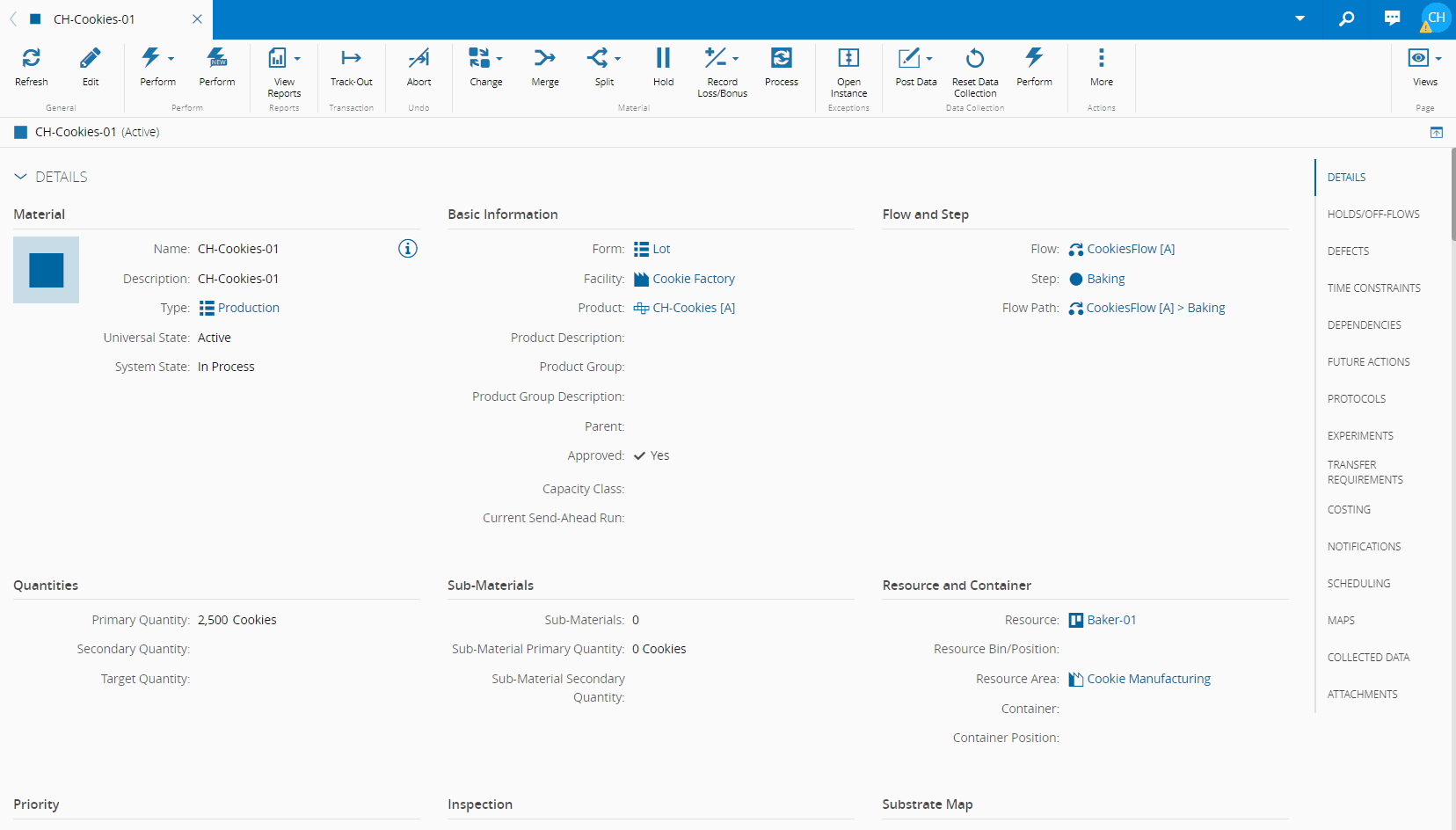
Select Perform New on the top ribbon.
-
Complete the checklist item by item, and remember that:
- Some checklist items are optional.
- Some checklist items may be floating, which means that they can be executed at any time.
- Some checklist items may have parameters.
- Some checklist items may require an electronic signature.
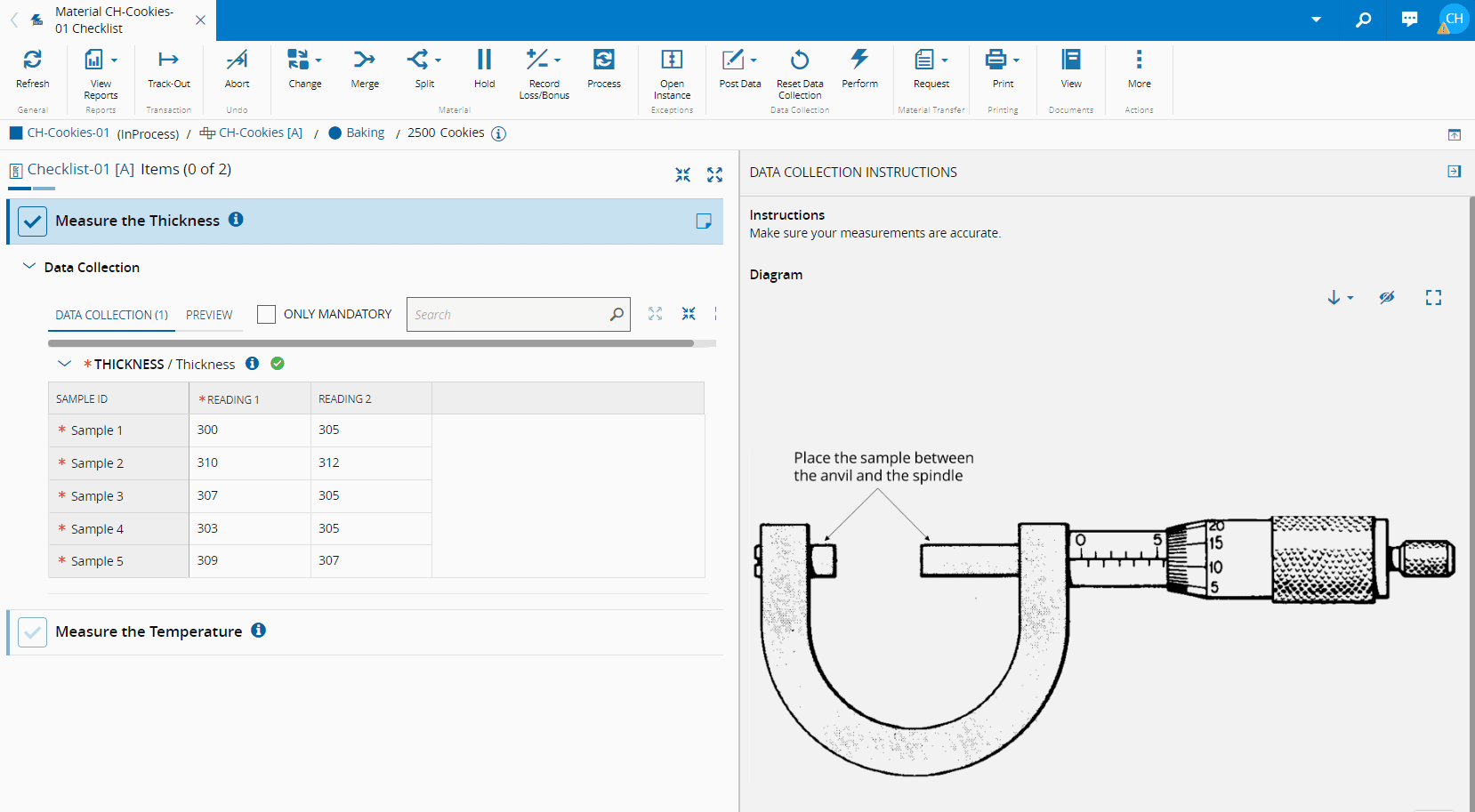
- Some checklist items may have data collection parameters, and you can post the data directly on the wizard below when using the Modern interface.
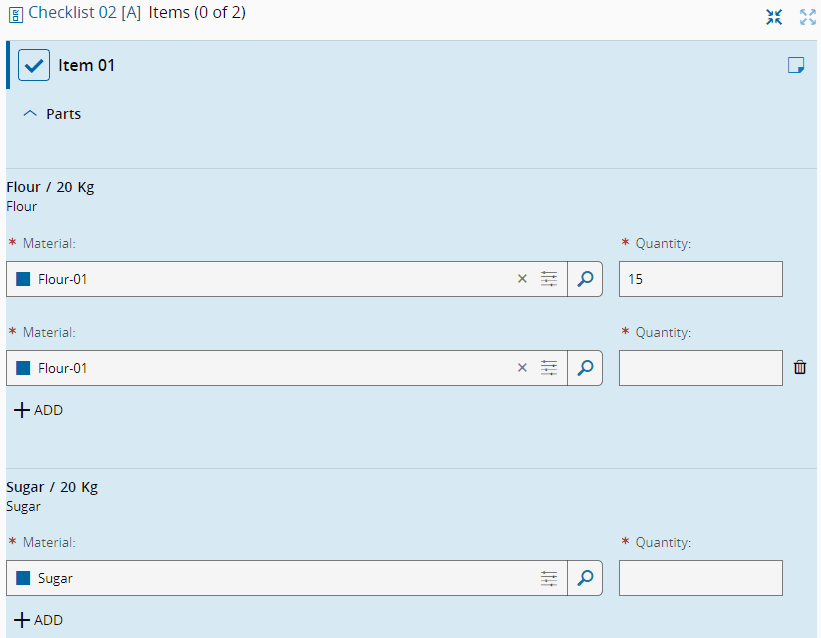
- Some checklist items may have BOM products.
- Some checklist items may have a documentation URL.
- Some checklist items may have a note, which can be edited.
Info
Instructions for the Checklist/Data Collection can be toggled on and off by clicking the information icon next to the respective item/Parameter. Once all mandatory fields are filled, a check icon will appear alongside the Parameter. If you choose the Modern interface when creating the Data Collection, you will have the option to input data directly on the page below. To find out more, please see Create Data Collection.
Note
In terms of the BOM Products, the behavior is defined by the scope of the BOM associated with the Checklist. Also, more than one Material can be added to fulfill the required quantity. You can add new Materials by selecting ADD button and remove them by selecting the button after each Material. All Materials must be valid and meet the criteria for assembly as stated in Assemble Material.
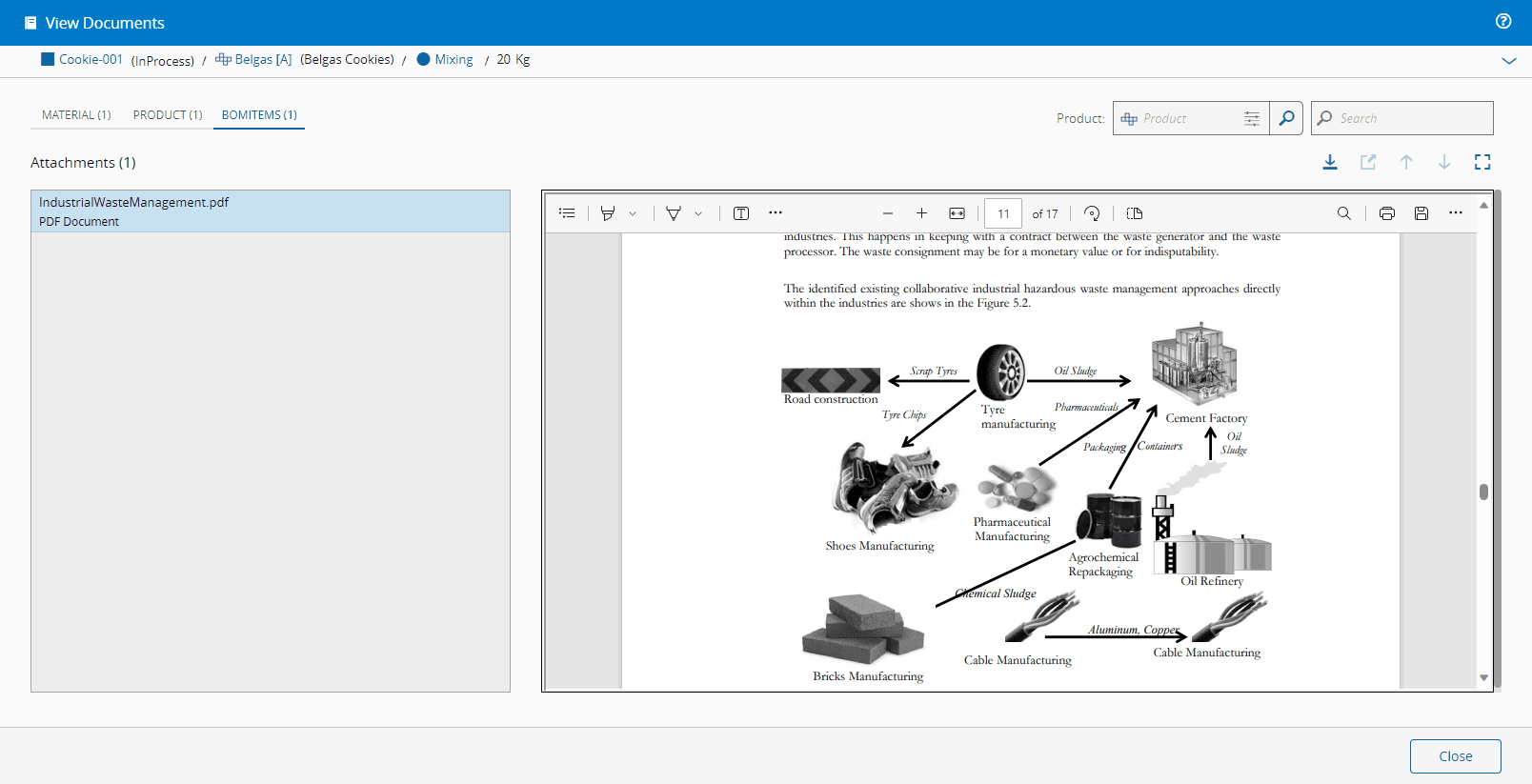
In addition, some Checklist instances may have documents attached to the Main Material, Product of the Main Material, and the Product of the BOM items.