Business Workflow Task#
A task is a visual block that performs a specific function. In programming language terms, it can be described as a function or a method, because it has a name, input and output values and performs an action. The block can be duplicated, collapsed, deleted and disabled.
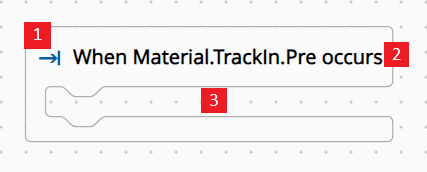
- Task Icon
- Task Caption
- Task Branch
Behavior#
As a rule of thumb, if the task is executed successfully, other tasks within the task branch will be executed. If it fails for some reason, an error will be thrown.
Task Caption#
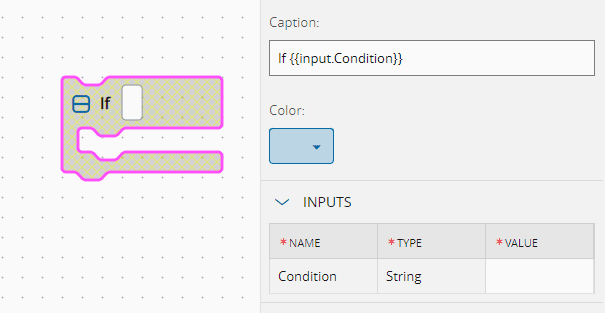
Represents the block text and associated fields, which can include special tokens to display inputs or outputs within the block. For example, {{input.Condition}} will show the Task Input as an editable block field. The prefix input. or output. is required to display inputs or outputs, respectively.
Task Branch#
Some tasks may have branches, allowing other tasks to be added as children. These child tasks will be executed only after the successful completion of the parent task.
Task Options#
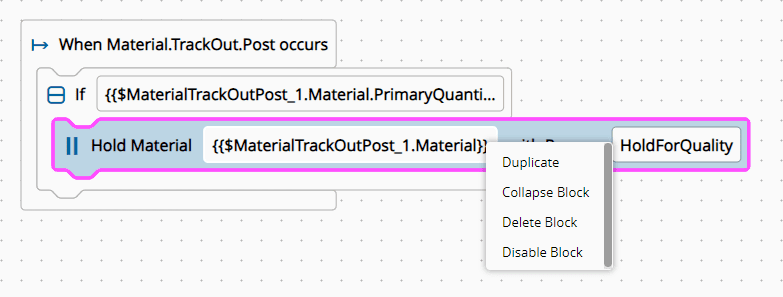
When you right-click on a task, several options become available to help you manage and organize your workflow more effectively. These options include:
-
Duplicate: Create an exact copy of the selected task. This is useful for tasks that are recurring or similar, allowing you to save time by not having to recreate them from scratch.
-
Collapse: Minimize the task to hide its details, helping you to declutter your workspace and focus on the most critical tasks. You can expand the task again whenever you need to access its details.
-
Delete: Remove the task from your workspace. It's ideal for tasks that are no longer relevant or needed.
-
Disable: Deactivate the task without deleting it. While the task will not be executed, it remains accessible for future use, allowing you to easily reactivate it when needed.
These options provide flexibility and control, allowing you to tailor your task management system to better suit your needs and preferences.
Inputs and Outputs#
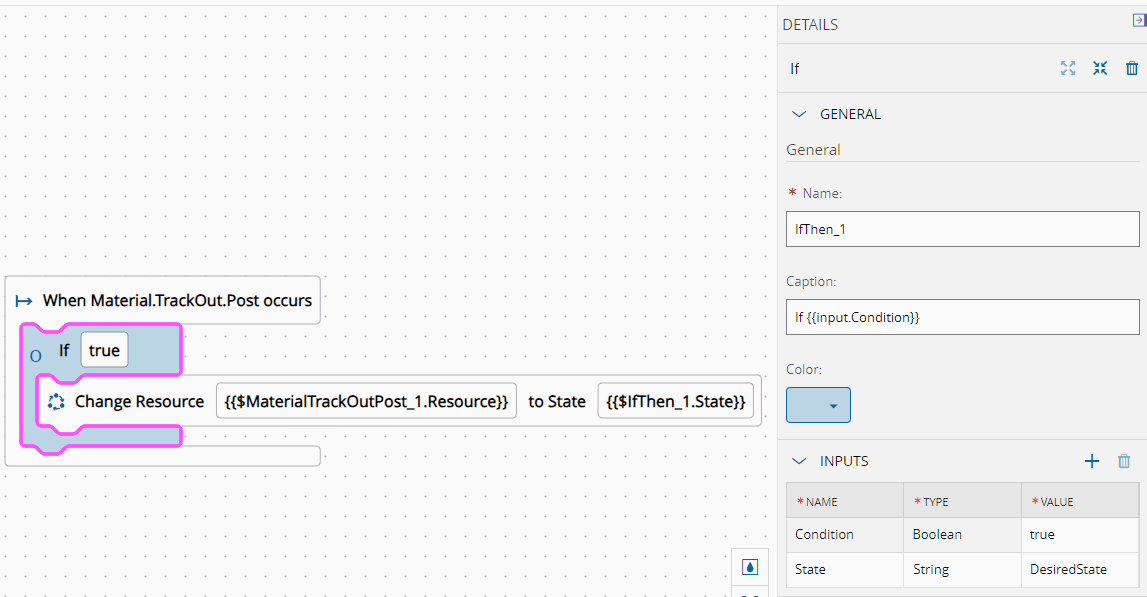
Inputs can be used by the task that defines them and referenced inside that task's branch. To do so, use the syntax {{$task_name.input_name}}. For example, if you have an If task called IfThen_1, you can define an input named State and then reference it in a child task with {{$IfThen_1.State}}.
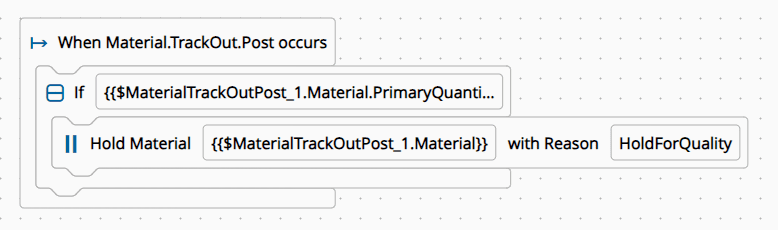
A business event task, such as Material.TrackOut.Post, is a special case. As its branch contains all other tasks as children, its inputs can be referenced by all tasks. For example, {{$MaterialTrackOutPost_1.Material}}.
To reference outputs from other tasks, use the syntax {{$task_name.output_name}}. When using this syntax outside the branch of task_name, you will always be referencing an output.
Settings#
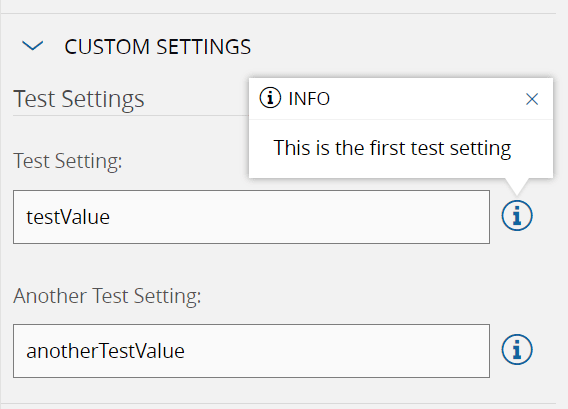
Settings can be used by the task that defines them and referenced inside that task's branch. To do so, use the syntax {{$task_name.setting_name}}. You can override the value of a task setting by defining an input with the same name and type.
Scoped Variables#
Scoped variables exist only within a scope. In a business workflow, this usually means that the variable is accessible only in the branch of the task that declares it, including its children.
There are two types of scoped variables: user-defined and task-defined.
User-defined#
You can create or re-assign scoped variables by creating a task input or output with the name $scope.name:
-
Input: The scoped variable is only available in that task's branch and its children.
-
Output: The scoped variable is only available after the task ends. It's then available for subsequent tasks in the same branch as the task where it was defined.
For example, you can define a scoped variable as an input of Task1 called $scope.MyState, which is a String with value Test. You can then access it in child tasks with {{$scope.MyState}}.
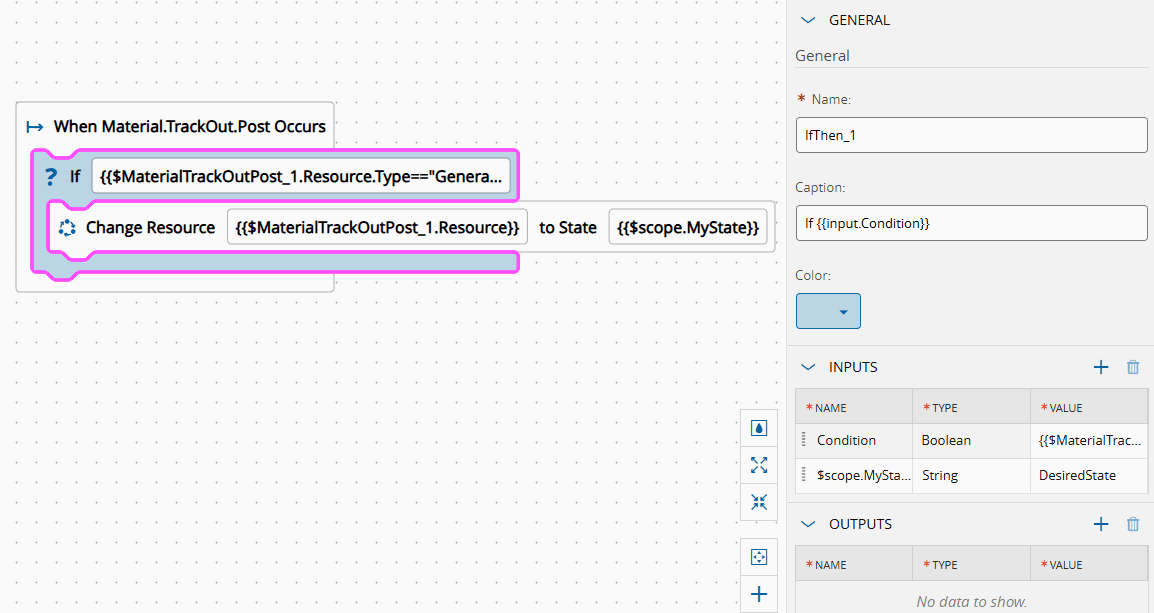
This scoped variable will contain the value Test until the end of the scope is reached or until the variable is re-assigned. You can re-assign it as a new input or output in a child task. If you re-assign it, you will be changing the value for all usages of that variable on subsequent tasks.
However, please note that you cannot change the type of the variable after the initial creation. If you re-assign a scoped variable with a different type, an error will be thrown.
An error will also be thrown if you try to use the scoped variable outside of its scope. In this example, this would be outside of Task1's branch, as it was defined as an input.
Task-defined#
Some tasks require you to define a variable name. When that happens, a scoped variable will be automatically created in that scope, with the provided name.
For example, the TryCatch task requires you to define a name for the variable that represents the exception.

As such, if an error occurs, in the catch branch (on Error), you can access the exception data with the syntax {{$scope.user_defined_name}}. In the above example, the actual expression would be {{$scope.ex}}. That automatically defined scoped variable is also available with the syntax {{$task_name.user_defined_name}}. If that task already has an input with the same name, an error will be thrown.
In the case of task-defined scoped variables, if you are still within the same scope, you cannot use the same name for another scoped variable, as shown in the following example:

In this case, the business workflow is invalid, as the parent TryCatch task already contains a task-defined scoped variable called ex. You must choose a different name in the child TryCatch task.
Experimental Tasks#
Some tasks may be marked as experimental when their availability is uncertain, depending on user acceptance and widespread use, or if a new and improved solution is discovered.
This state will be visually signaled and color-coded within the Workflow Designer, as shown in the example below: