Record Assembled Material Loss/Bonus#
 Material.RecordAssembledLossBonus
Overview#
The user accesses the system in order to record an assembled quantity loss or bonus for the Material.
Setup#
No special setup is required other than to meet the preconditions of the transaction. Note that the Loss and Bonus Reasons for Assemble must be associated with the current Material Step and that the Material must have been previously assembled.
Preconditions#
- Material exists, is Active and is not InTransit.
- The Loss/Bonus Reasons used are defined for the current Material Step and are applicable to Record Loss.
- If the Material Step has the property
Decimal Quantity Allowedenabled, the user can enter decimal quantity losses; otherwise, quantities must be integers. - When recording a Bonus:
- The Assembly Type for the current BOM in the topmost Material is not
AutomaticAtTrackInorExplicitAdd. - Since the bonus quantity is assumed to reside at the same Container/Position as the Material
- If the Material is associated with a Container with Capacity Validation Mode set to
Units, the Capacity Per Position of the Container can hold the Material plus the additional bonus quantity (Primary or Secondary, as defined by the Container Capacity Units).
- If the Material is associated with a Container with Capacity Validation Mode set to
- The Assembly Type for the current BOM in the topmost Material is not
- When reporting a Loss:
- The Material has a Primary Quantity or Secondary Quantity greater than zero.
- The Material has an Assembled Quantity greater than zero.
- If the Material has any Packages, this operation can only be called from Terminate Package.
- When reporting a Loss or Bonus, there is a BOM defined for the topmost of the Material on which losses or bonuses are to be recorded.
- For each selected Loss/Bonus Reason, the PrimaryQuantityLoss(Bonus) or SecondaryQuantityLoss(Bonus) are greater or equal to zero.
Sequence of Steps#
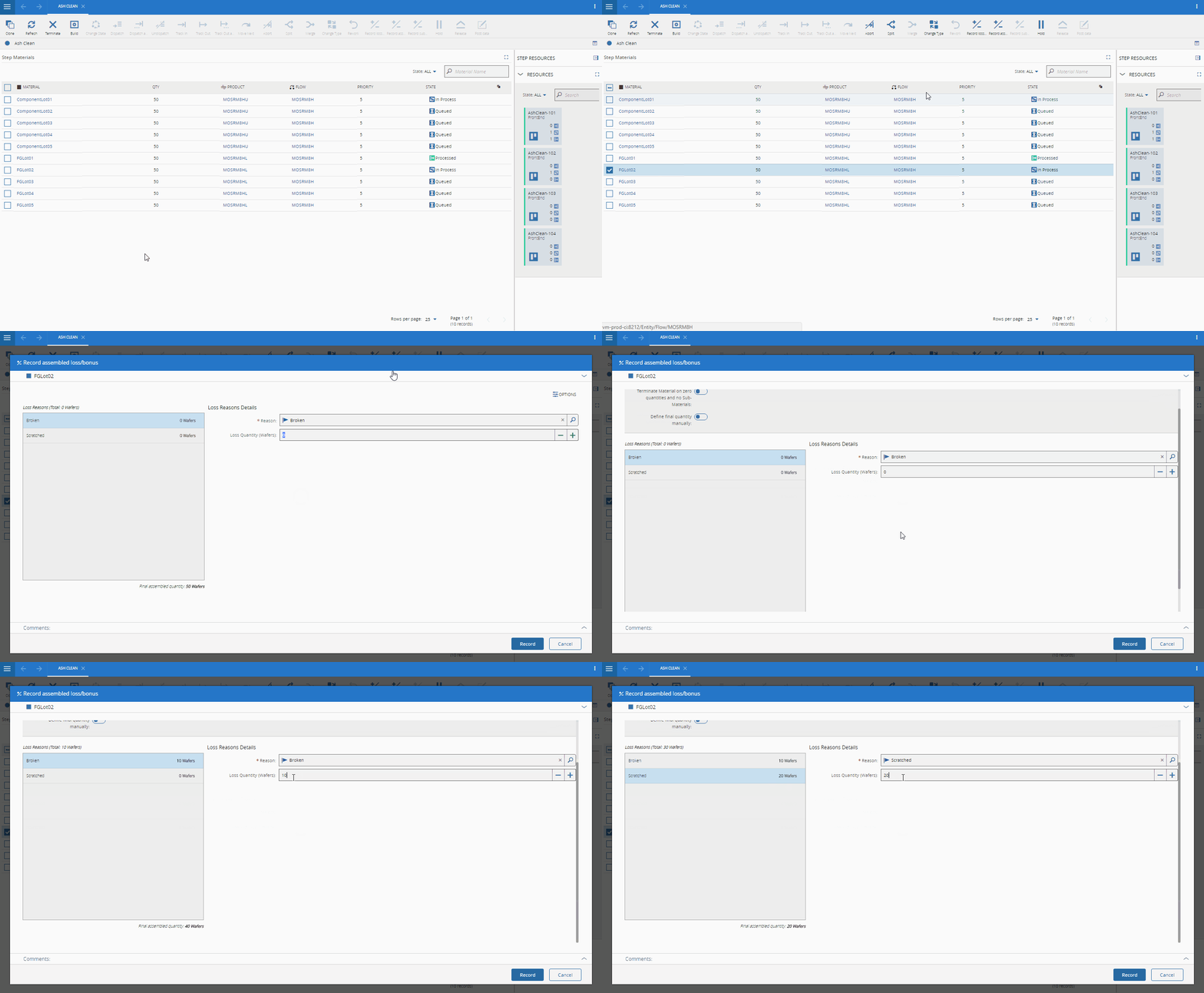
- Verify the Material information.
- Optionally, expanding the Options section two properties can be changed:
- Terminate Material on zero quantities and no Sub-Materials - if checked, will terminate the Material under those circumstances.
- Define final quantity manually - if checked, allows the user to define the final quantity and the delta will be automatically calculated and shown.
- Using the Losses and Bonuses tabs, enter the primary and secondary (if defined) quantities, for each Loss and Bonus Reason.
- If a Multimedia object is associated with a Loss or Bonus Reason, selecting the Multimedia button opens a visual catalogue to choose the appropriate Reason; selecting OK adds it to the list.
- Optionally, enter a comment.
- Select Record to complete the operation.
Info
- If Loss Classifications are defined, loss reason rows have to be added manually and all loss classifications must be provided by the user.
- In this transaction is not possible to change the secondary quantities - if defined.
- The losses grid only displays losses qualified to apply to Record Loss.