Open Material Deviation#
 ChecklistInstance.OpenMaterialDeviation
Overview#
This operation is used to create and open a Material Deviation for an item of a Checklist Instance. This is usually integrated into other functionality such as Maintenance Management and Exceptions Management.
Setup#
No special setup is required other than to meet the preconditions of the transaction.
Preconditions#
-
The Checklist Instance Item belongs to a Checklist Instance that:
- Is Active, Open, and Long Running.
- Has a Material associated to it.
- Has a Material Deviation Protocol associated to it.
-
The Checklist Instance Item:
- Exists, is Active (not Terminated), and the Is Active is
true. - The Activity Type is Manual Task, and its State is not Skipped or Completed.
- If the Deviation Type is Change Checklist Item or Remove Checklist Item, the state must not be Started. Additionally, there must be no Data Collection posted or BOM Part consumed for that Checklist Instance Item.
- Exists, is Active (not Terminated), and the Is Active is
Sequence of Steps#
Matching the conditions above, from your Checklist, create/open a Checklist Instance for a Material. Go to your Checklist Instance and:
- Select the item you want to open a deviation for.
-
If the conditions are met, the Open Deviation button becomes available on the top ribbon:
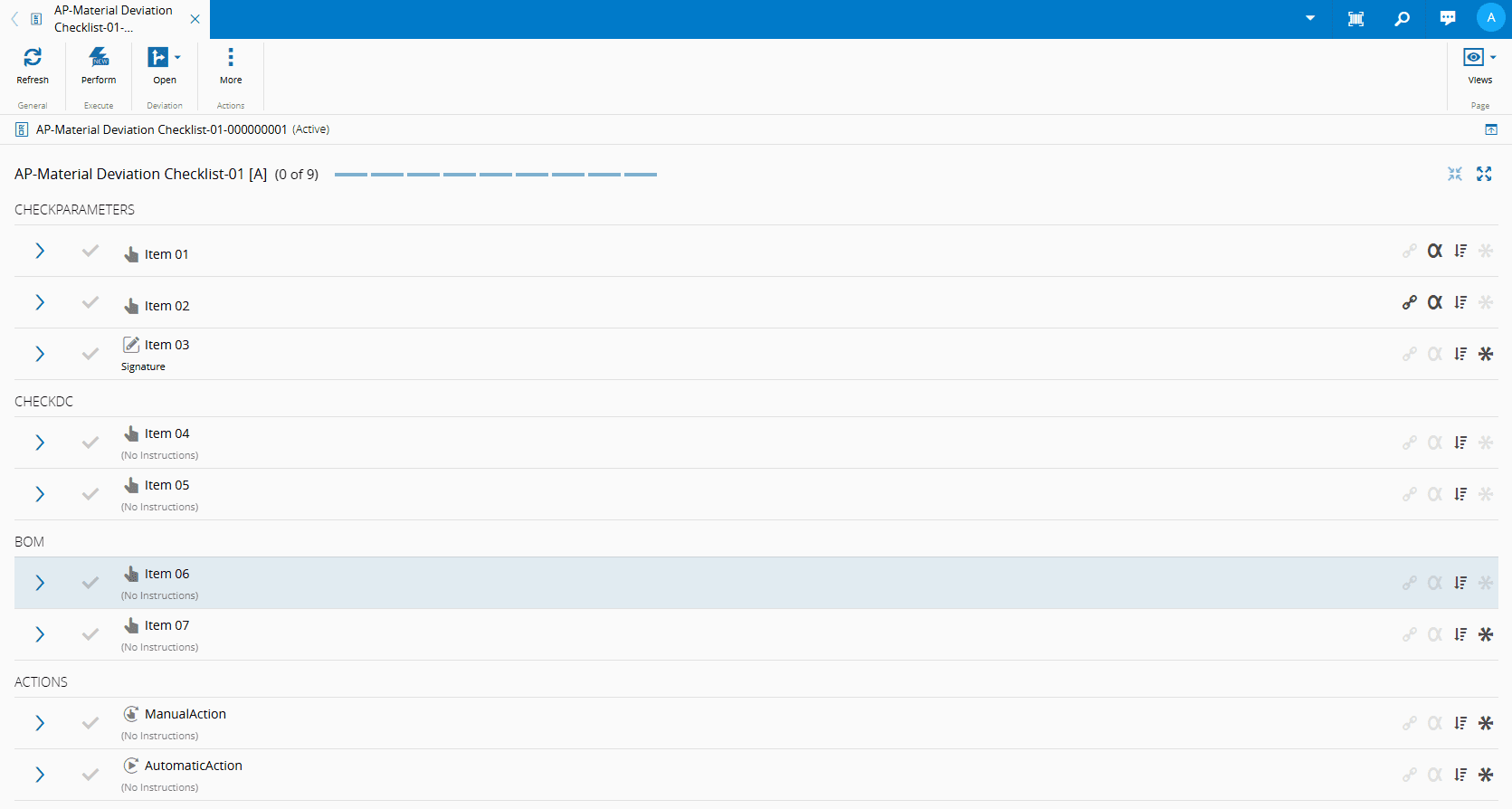
-
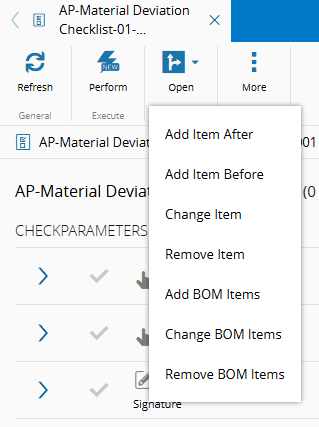
You can select one of the following Material deviations:
- Add Item After
- Add Item Before
- Change Item
- Remove Item
-
If you add a Checklist Item before (Add Item Before) or after (Add Item After) the selected Checklist Instance Item, you must create a new Checklist Item that meets the conditions above.
-
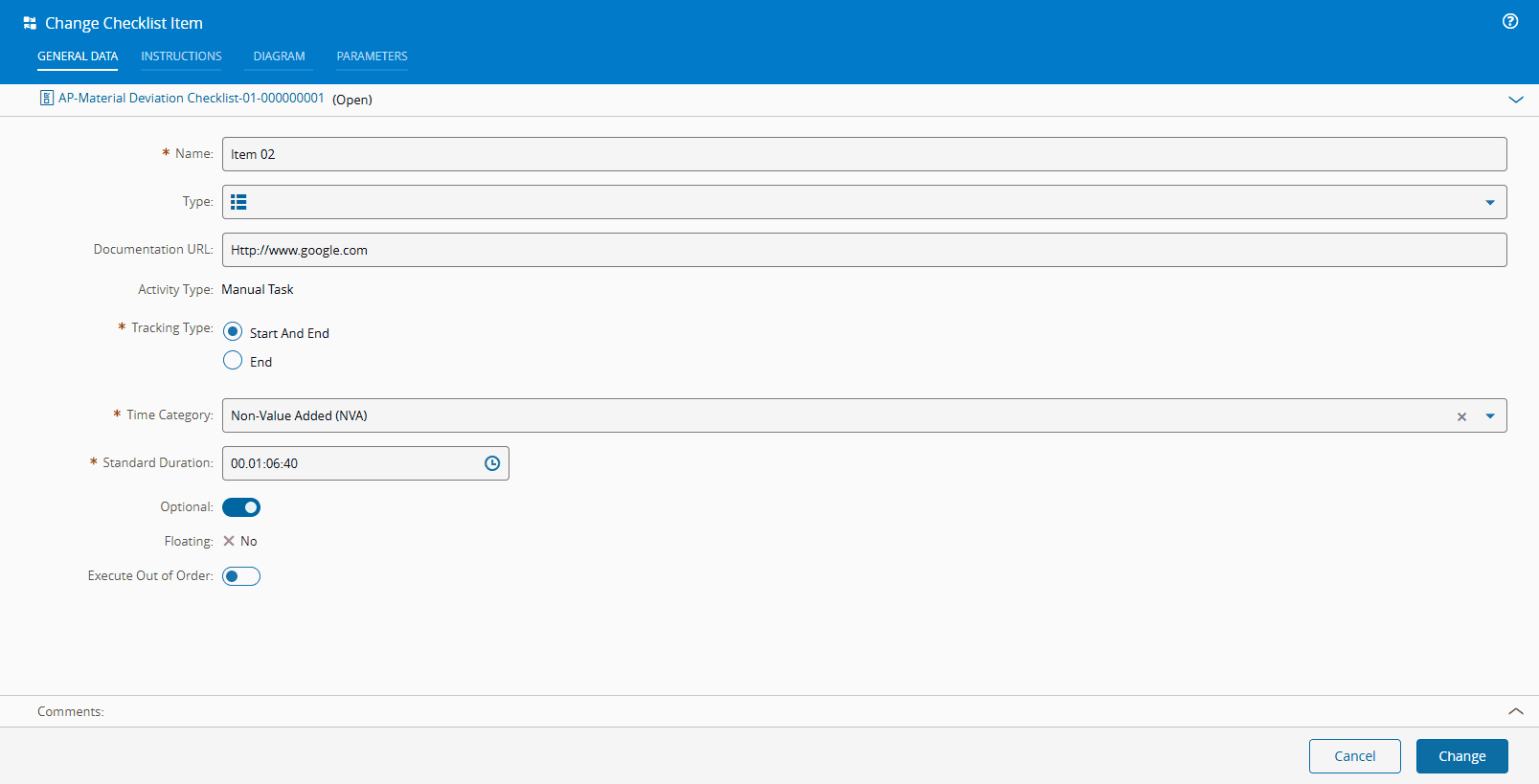
If you change (Change Item) the selected Checklist Instance Item, a new Checklist Instance Item is created based on the selected one. This option is similar to Add Item Before/Add Item After operation, except that it starts with a pre-filled Checklist Item:
-
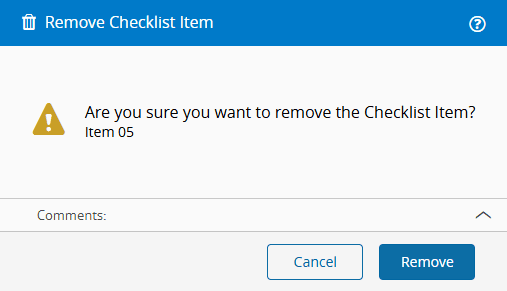
If you remove (Remove Item) the selected Checklist Instance Item, check the information, and select Remove:
For any item, you can view its details (read only) by selecting the icon:
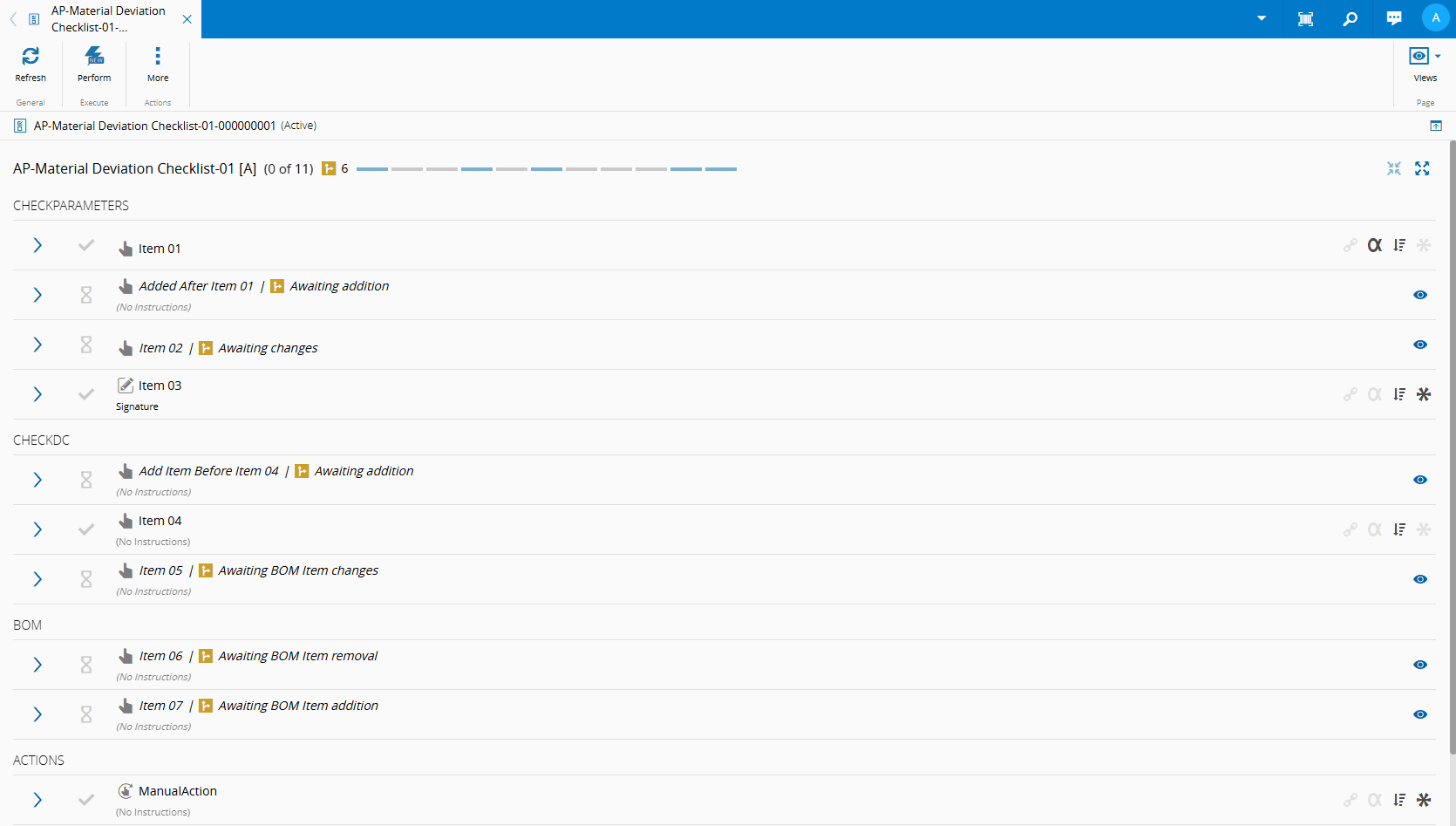
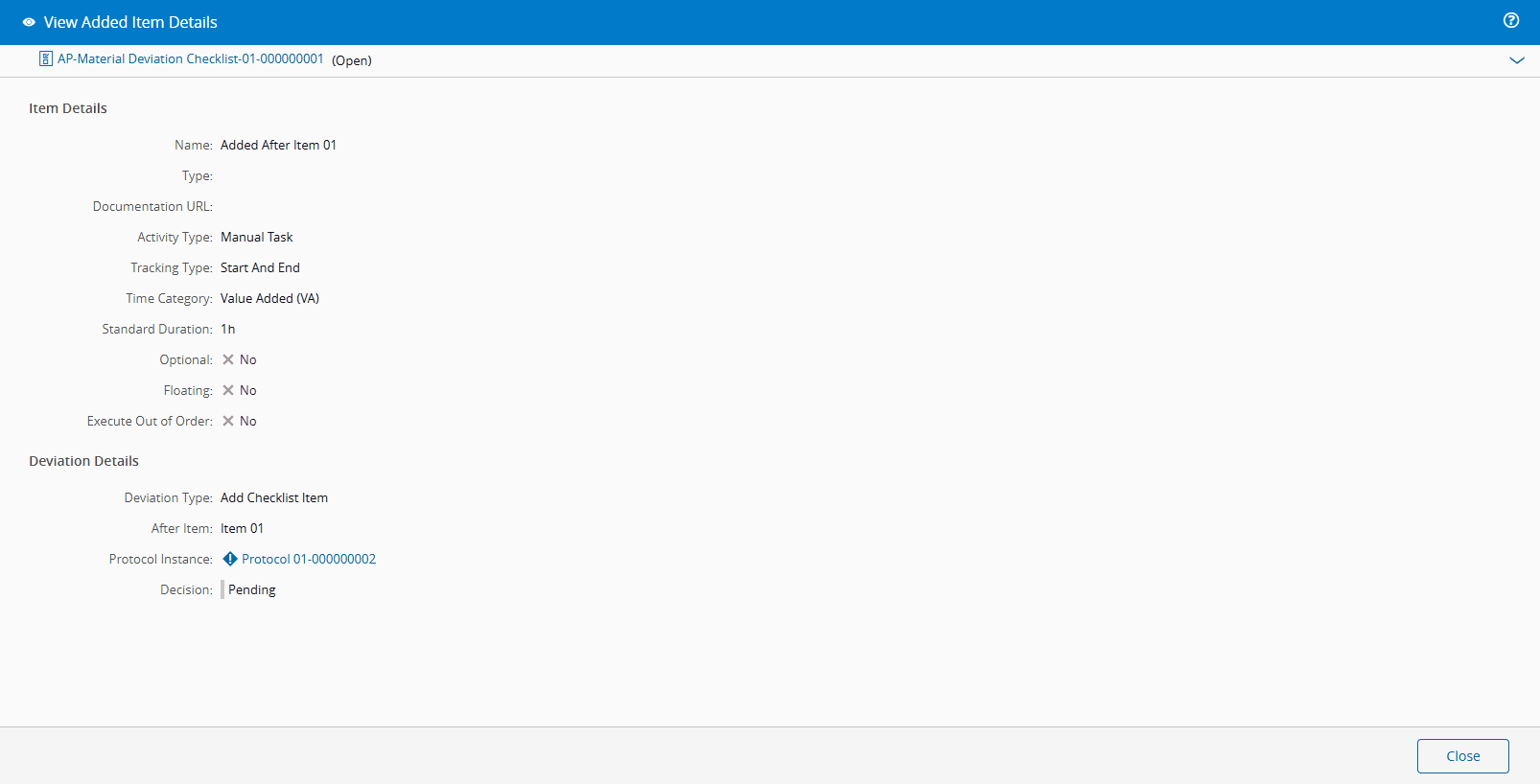
Here are some examples:
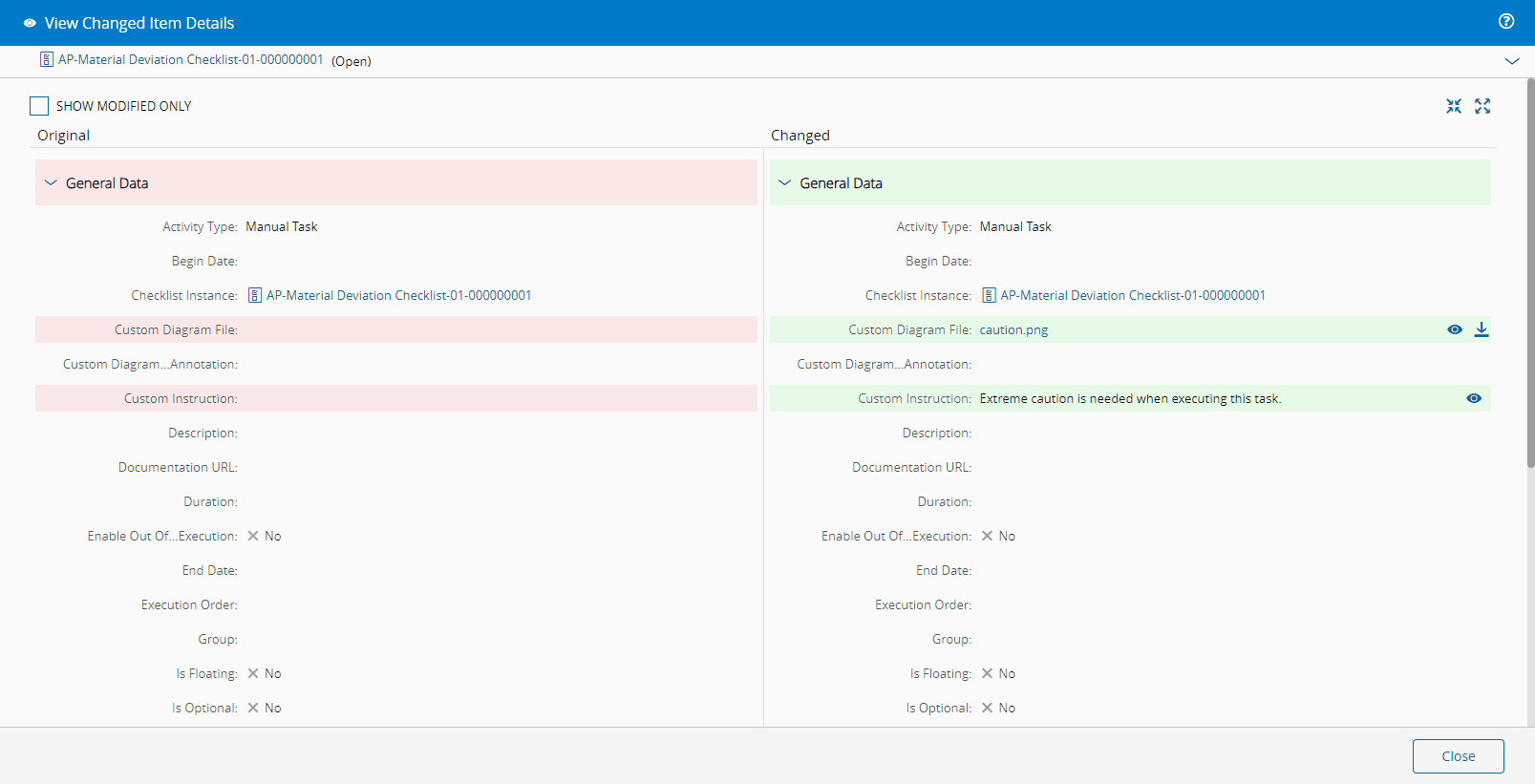
Info
In this view, you can choose to see only the modified items by selecting the SHOW MODIFIED ONLY box at the top of the page.
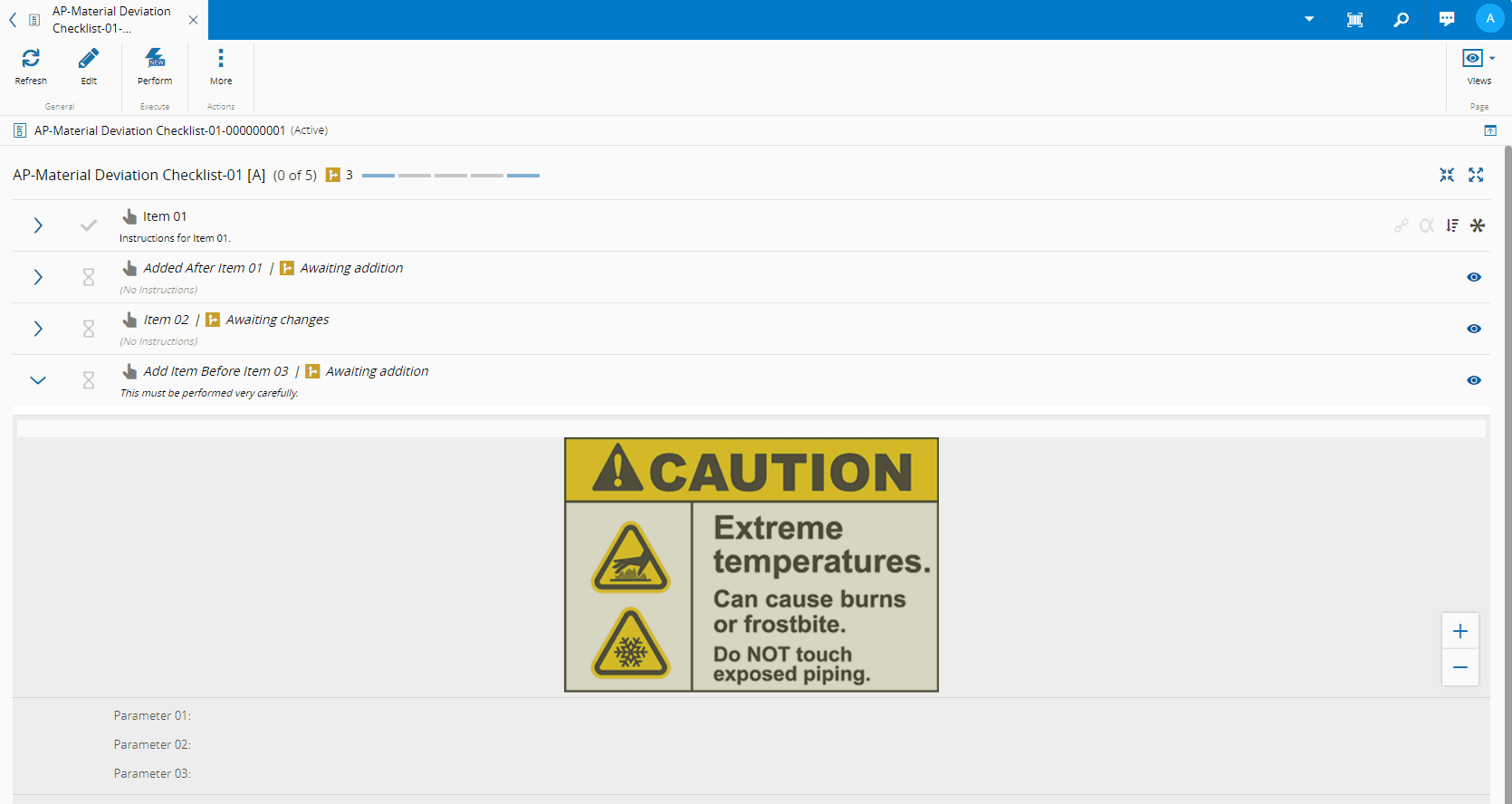
And you can also expand items to see their details:
Note
The initially set Group property cannot be modified.
Furthermore, if any Checklist Instance Item Parameter has a value already, that Checklist Instance Item Parameter cannot be changed in any way.