Compose Material (Sub-Materials)#
 Material.Compose
Overview#
This operation is similar to Compose Material (Quantities), but it allows you to transfer Sub-Materials instead of Quantities. Simply, this means that you can attach the Sub-Materials you select into the Target Material.
Setup#
No special setup is required other than to meet the preconditions of the transaction.
Preconditions#
- Source and Target Materials are Active.
- Source and Target Materials, and their respective Top-Most Materials, are not On Hold and are not In Transit.
- Source and Target Materials, as well as the Target Container, must belong to the same Facility.
- Source Parent Materials and Top-Most Materials must be different from the Target Materials.
- Source Materials and Source Parent Materials must not have expired or an Expiration Date has not been defined.
- Top-Most of Source and Target Materials must have different Top-Mosts.
- The Top-Most Source and the Top-Most Target Materials must have the Current Transfer Material property set to
null. - The Source Material Products must not be blocked, or if blocked, the Source Materials property Override Product Block must be
true. - The Source Materials must not have any open defects (Open Defect Count is
0). - The Target Container must be Active, Non-Template, the System State must be Available, and it must not be On Hold for Maintenance.
- The Target Container must have the Position Unit Type set to Material and the Target Container Units must match either the Material Primary or Secondary Units.
Info
This transaction is relevant for genealogy.
Sequence of Steps#
- Select a Material that complies with the preconditions.
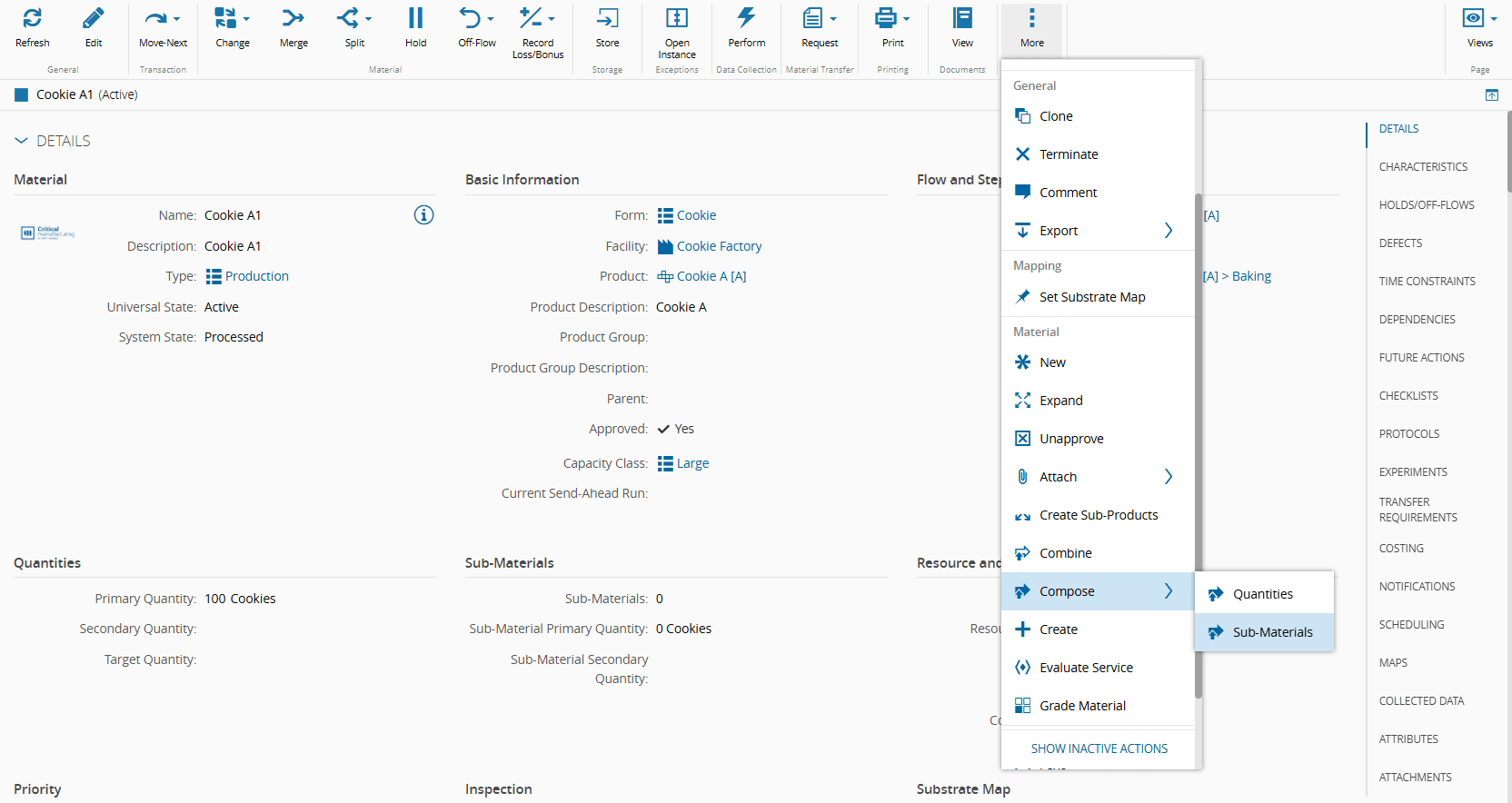
- Select the Sub-Materials button, accessible through the More button on the top ribbon.
Step 1: General Data#
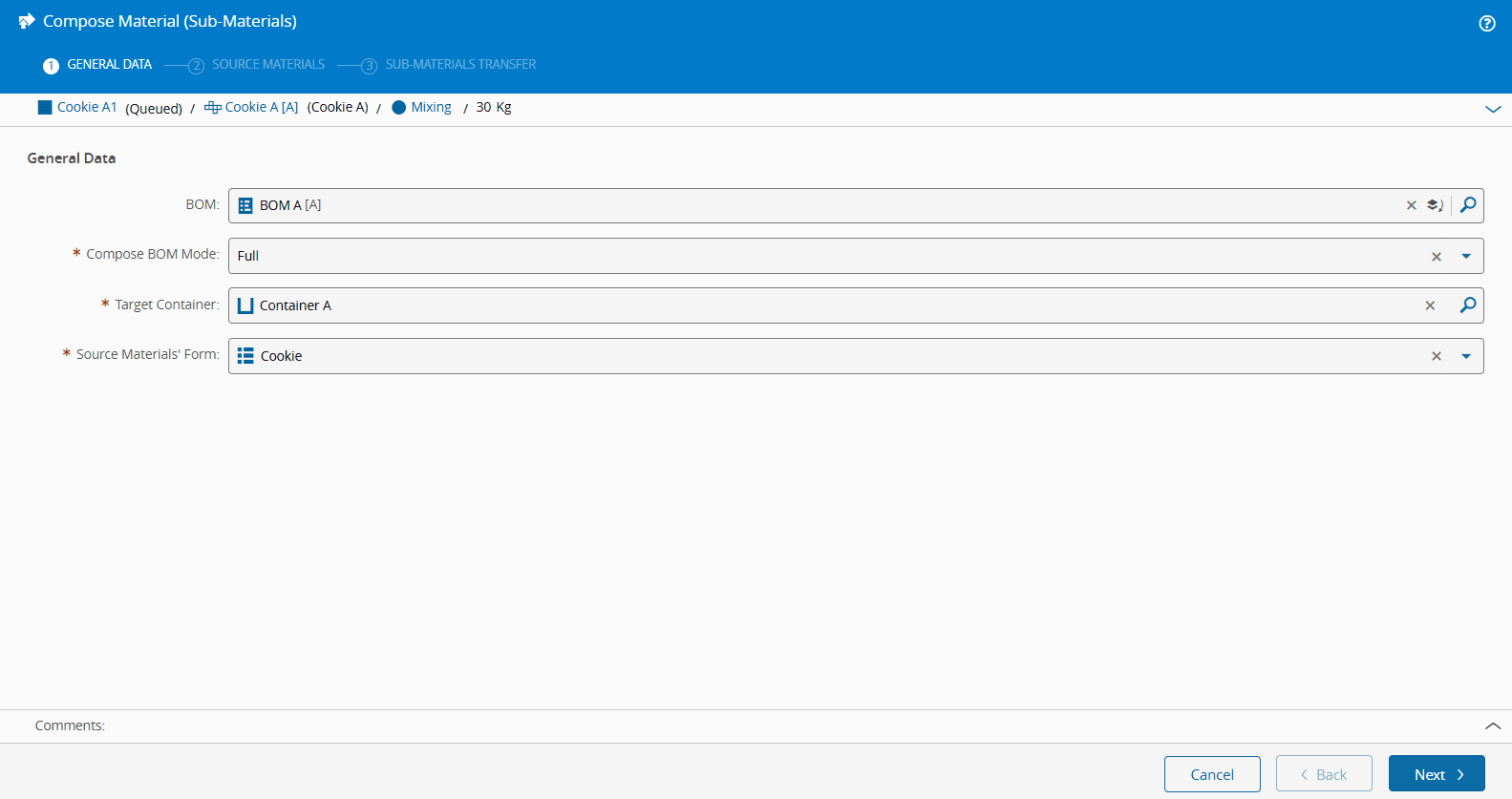
- Optionally, select a BOM of Compose Map scope.
-
When selecting a BOM, you must also specify the Compose BOM Mode and choose a target Container. The Compose BOM Mode offers two options:
- Full - all the required BOM items must be assigned in the Container.
- Partial - you can choose which BOM items will be assigned to the empty positions in the Container.
Info
It is possible to define the default value for the Compose BOM Mode by editing the entry Context =
Material.Composeand Element =ComposeBOMModein the GUIElementDefaultValue Generic Table. By default, the value is set toFull. -
Optionally, select a Target Container.
- Select Next to continue.
Step 2: Source Materials#
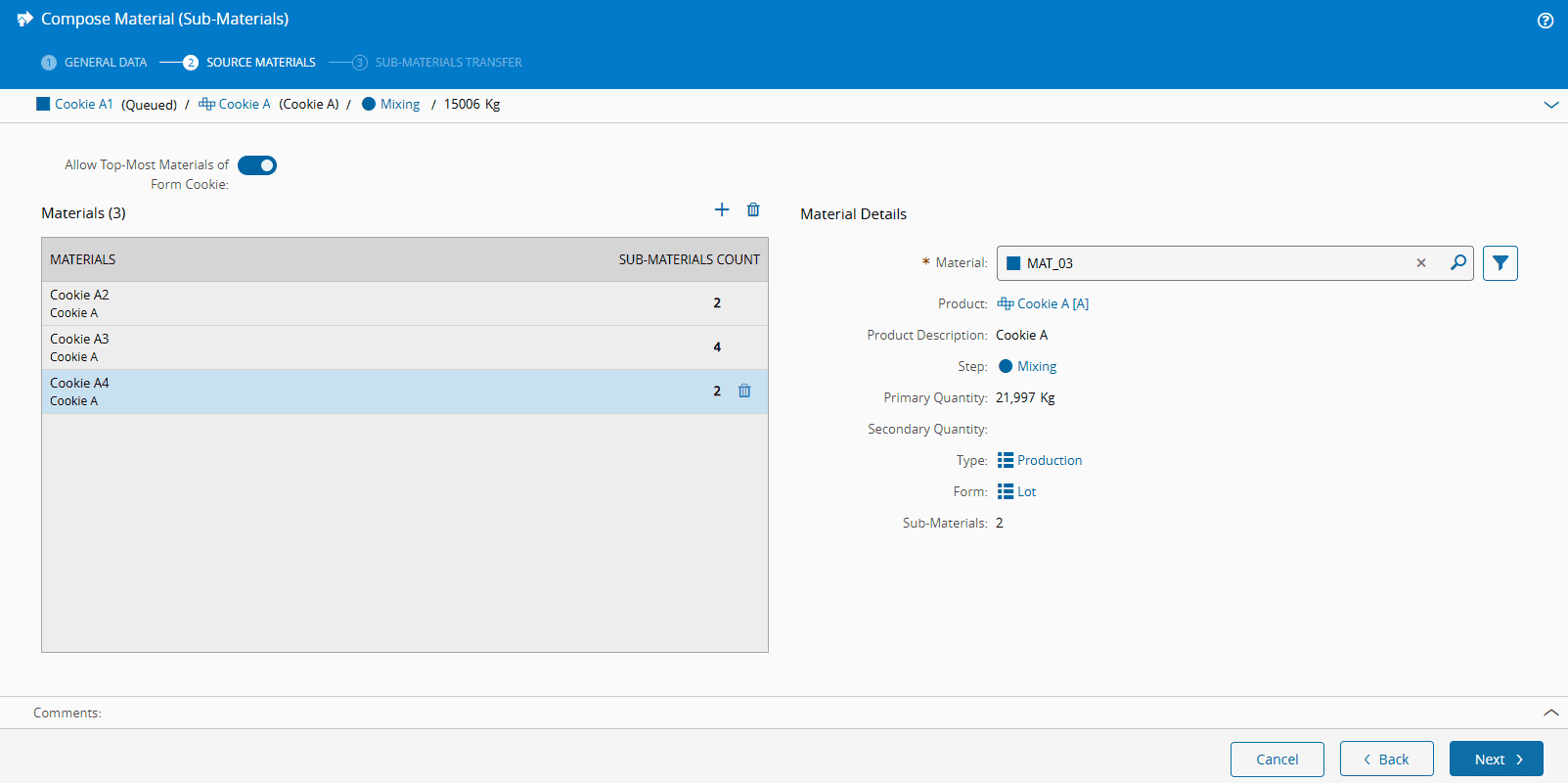
- Select the Source Parent Materials that will be transferred to the Target Container. You may select as many as you wish.
- Select Next to continue.
Step 3: Sub-Materials Transfer#
Depending on your selections in Step 1, there are three possible scenarios:
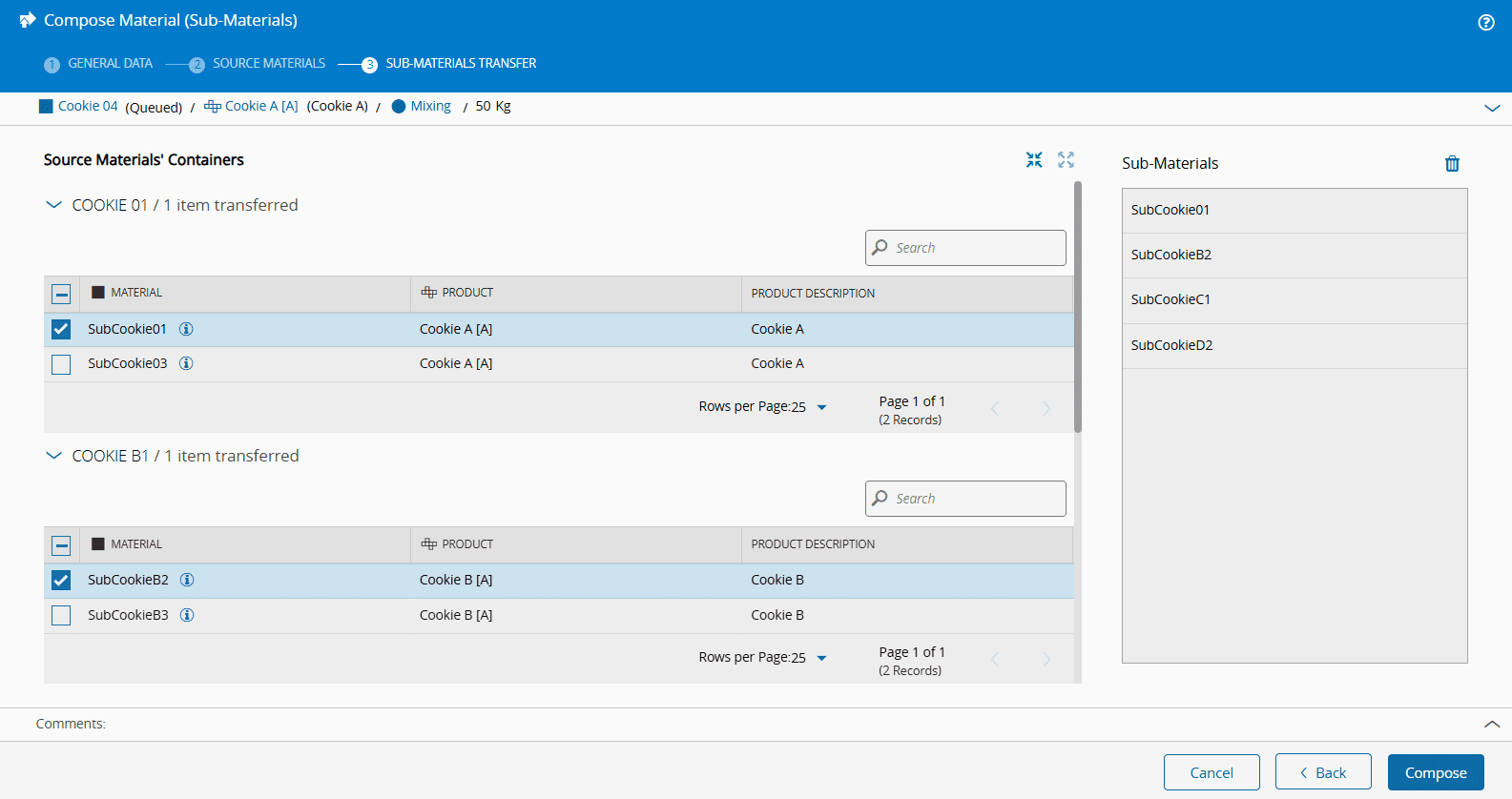
- No BOM or Target Container Selected - the positions each Sub-Materials occupies in the Target Container are irrelevant.
- Target Container Selected - you must insert the Sub-Material in a specific position within the Container by choosing a Sub-Material and selecting the desired position.
-
Both BOM and Target Container Selected - you must insert the Sub-Material in a designated position within the Container, as determined by the BOM Items Products. For highlighted positions in the Target Container, select compatible Materials based on the BOM-defined Products.
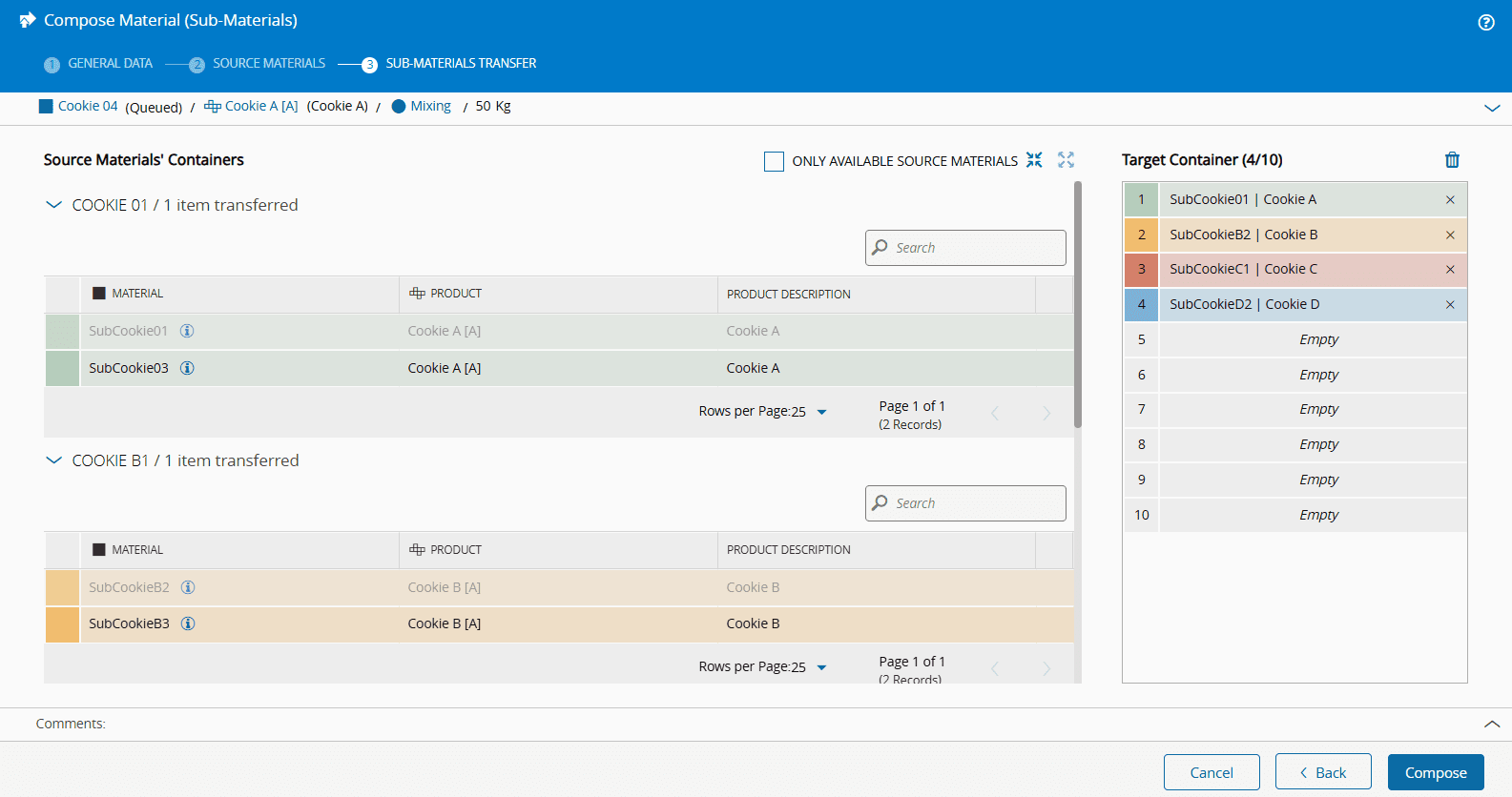
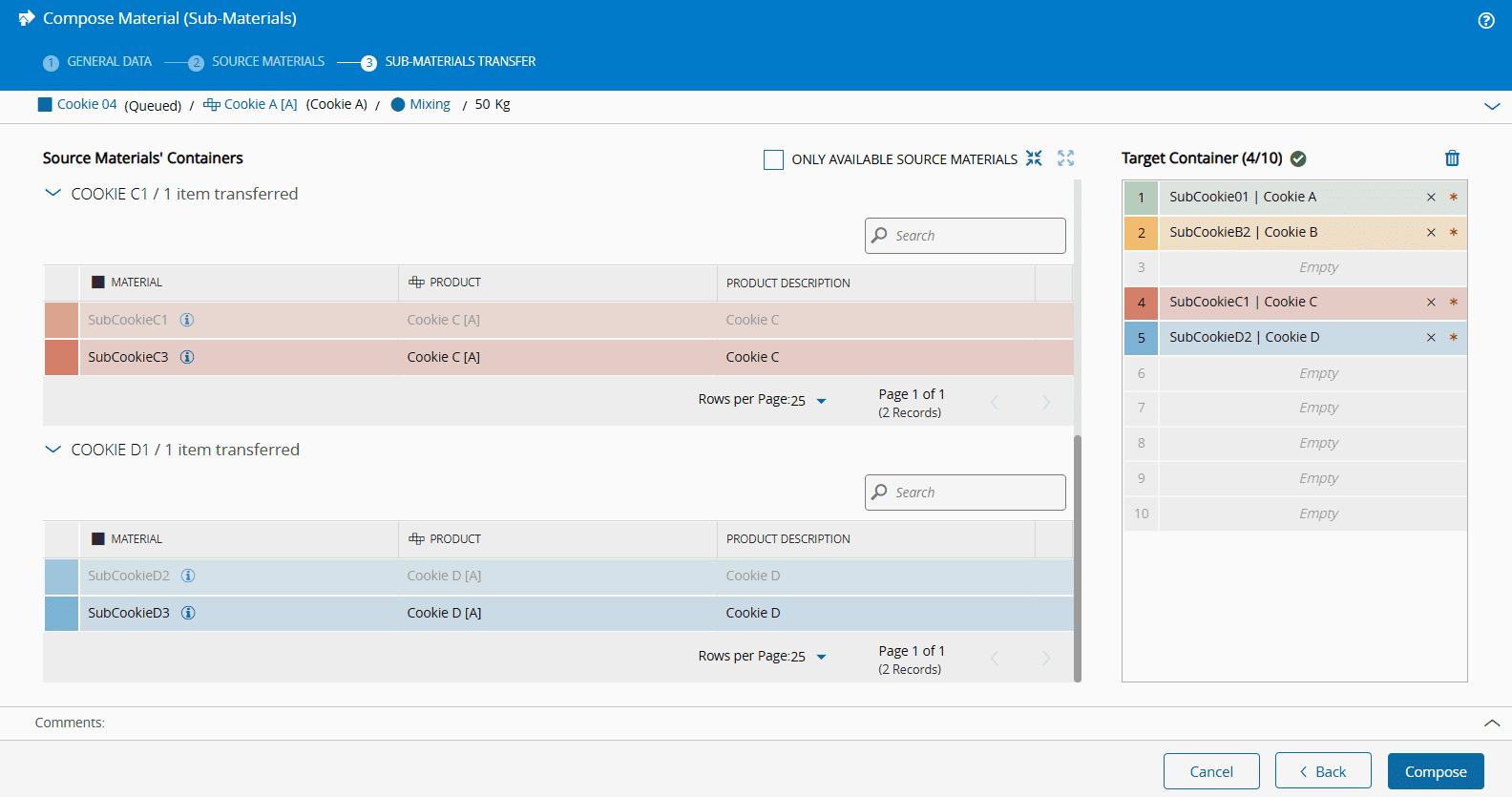
Info
When a Target Container or both BOM and Target Container are selected, the Source Materials have different colors depending on their respective Products.
You can drag and drop each Material or Sub-Material to the Target Container. Mandatory items are indicated by the icon. Once all required items are completed in the Target Container, a icon is shown.
-
Select Compose to complete the operation.
If the Source Materials selected in Step 2 do not have Sub-Materials:
-
Select the icon.

-
Choose a Material in the Assign Parentless Material wizard.

-
Select Save.
-
Repeat the process for as many positions of the Target Container as you desire.

-
Once you are finished, select Compose to complete the operation.