重新打印材料文档#
 PrintableDocument.Reprint
Overview#
This operation allows you to reprint printable documents configured for the Material.
Setup#
To be able to reprint a document for a Material it is necessary to:
- Have a Printable Document that is created and effective and that applies to Material. For more information on how to create a Printable Document, please refer to the section Printable Document.
- Define the necessary context in the smart table MaterialPrintableDocumentContext. To define a default document to generate a Lot Traveler or Label, it is necessary to edit the smart table AreaPrintableDocumentContext.
Preconditions#
- Material exists and it is not a Template.
- Material has a Printable Document associated to it.
- Material has a print history of Printable Documents.
- Details of the Printable Document must have Store Print History and Store Layout History set to
True. - If there are Data Contexts for the Printable Document they must have Store Print History set to
True.
Sequence of Steps#
Reprint Documents for Material#
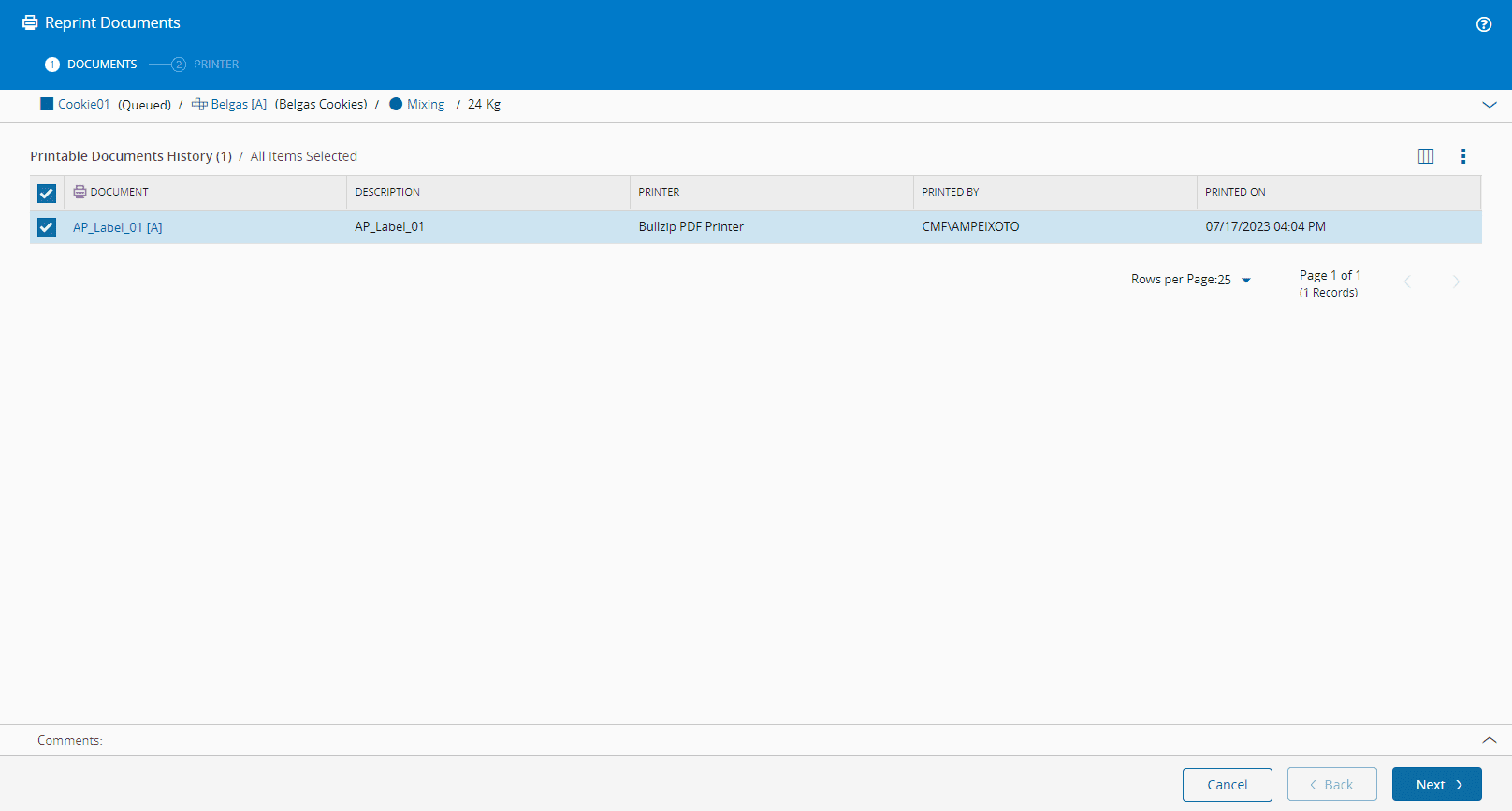
The Reprint Documents wizard will show a document or a list of documents that are associated to the Material and that are able to be reprinted.
Step 1: Documents#
- Select the document(s) to be reprinted by selecting the respective checkbox(es).
- Optionally, enter a comment.
-
Select Next to continue.
Step 2: Printer#
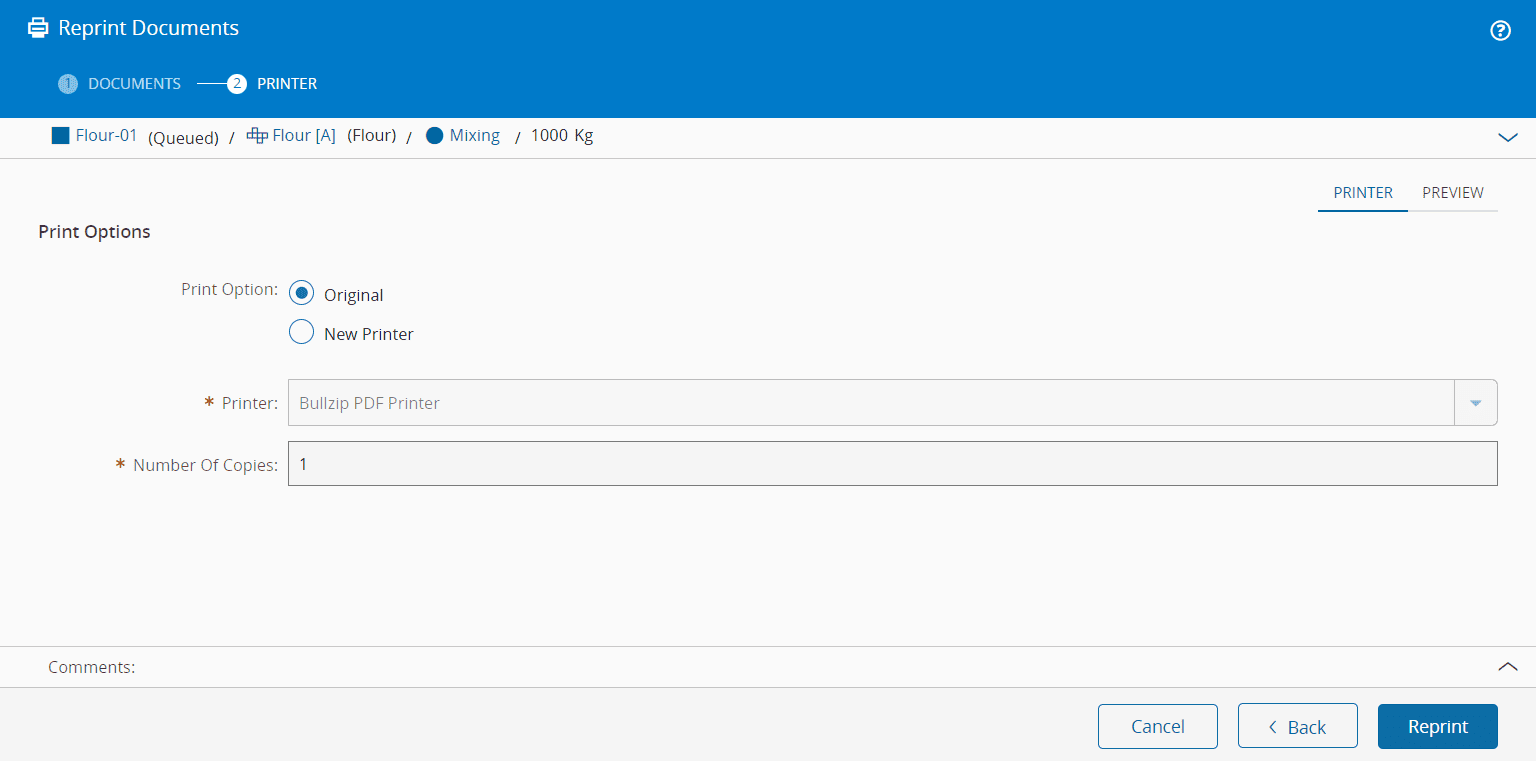
-
Select the print option:
- Original
- New Printer - you must configure the printer in the PrinterTypePrintersContext Smart Table.
Note
If multiple documents to reprint have been selected, a New Printer can only be set if the Printer Type of all the selected documents is the same.
-
Specify the number of copies (defaults to 1) to reprint.
-
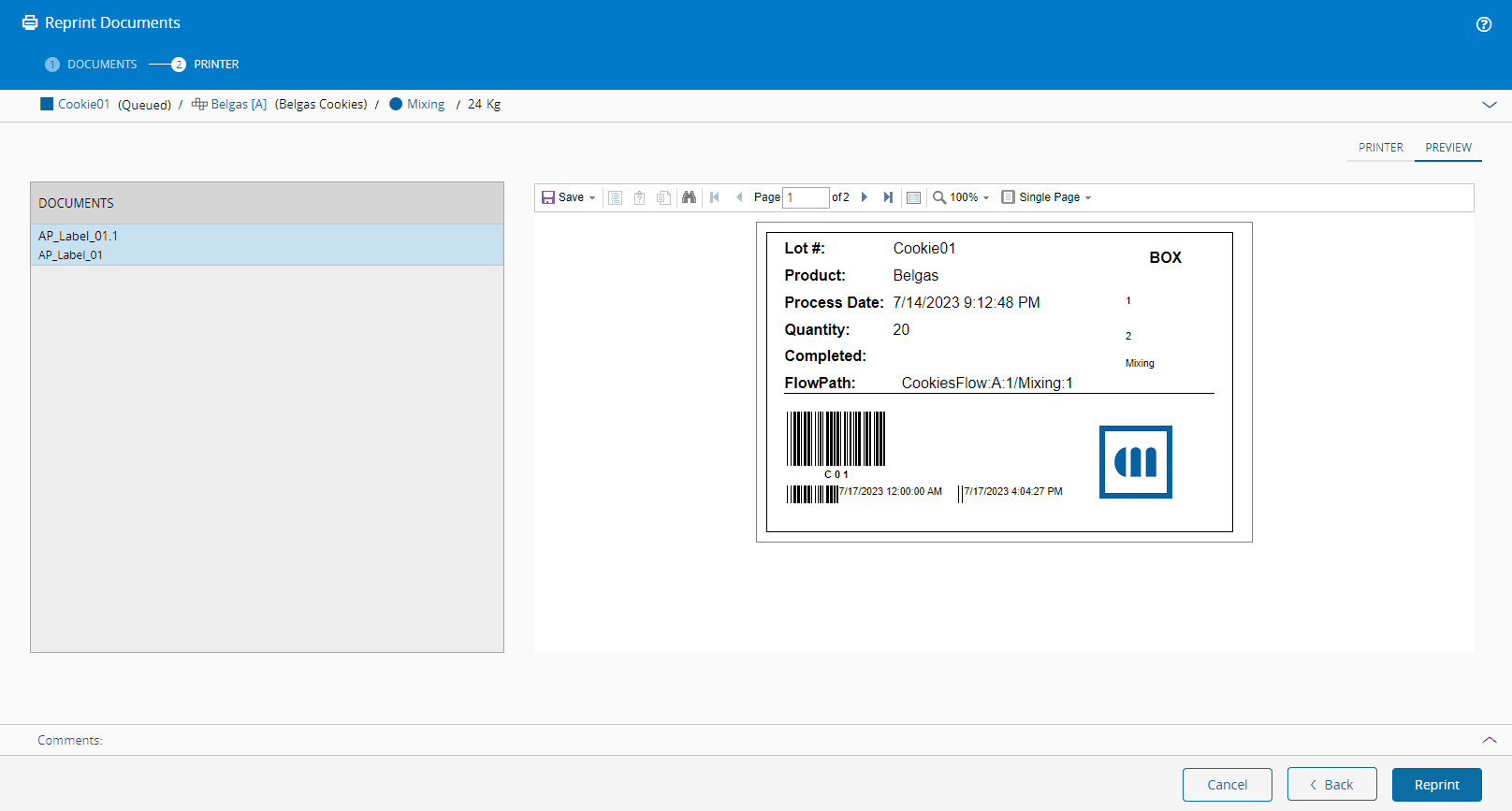
By selecting the Preview button, it is possible to visualize the document before it is reprinted.
-
Optionally, enter a comment.
-
Select Reprint to complete the operation.