Manage Rules#
 Product.Edit
Overview#
This operation is used to manage the Rules of the Characteristics of the Product.
Setup#
No specific setup is required other than to meet the precondition of the transaction.
Preconditions#
- Product exists in the system and it is Created.
Sequence of Steps#
The Manage Rules wizard can be called from the Product page by selecting Characteristics and Rules from the section menus on the right, and then selecting the Rules tab.
Step 1: Context#
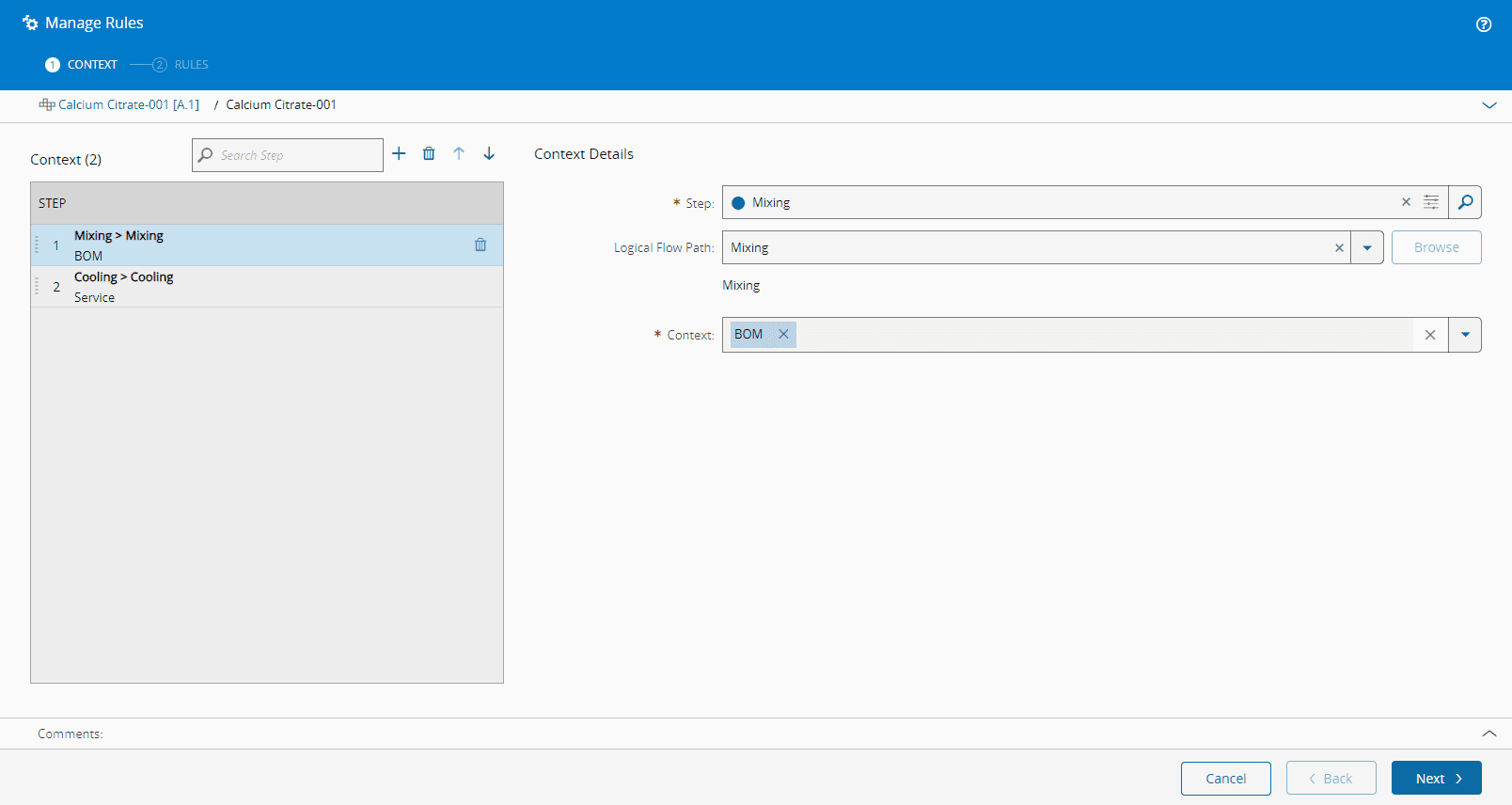
- Specify as many contexts as you need by using . You can also delete or order information, and use the Search to find a specific Step.
-
Specify the Context Details by providing the following for each:
- Step
- Logical Flow Path (optional)
- Context (BOM, Checklist, Data Collection, Document, Durables, Recipe, Recipe Parameter, Service, and Inspection Plan)
Info
For the same Step, there cannot be two Rules where one rule defines a Logical Flow Path and another does not. Hence, for the same Step, either all Rules define a Logical Flow Path or all Rules do not define one.
Info
The Step and Logical Flow Path Order is defined by you and you can choose to change the Step Order, which will affect all Rules of that Step and Logical Flow Path combination.
-
Select Next to continue.
Step 2: Rules#
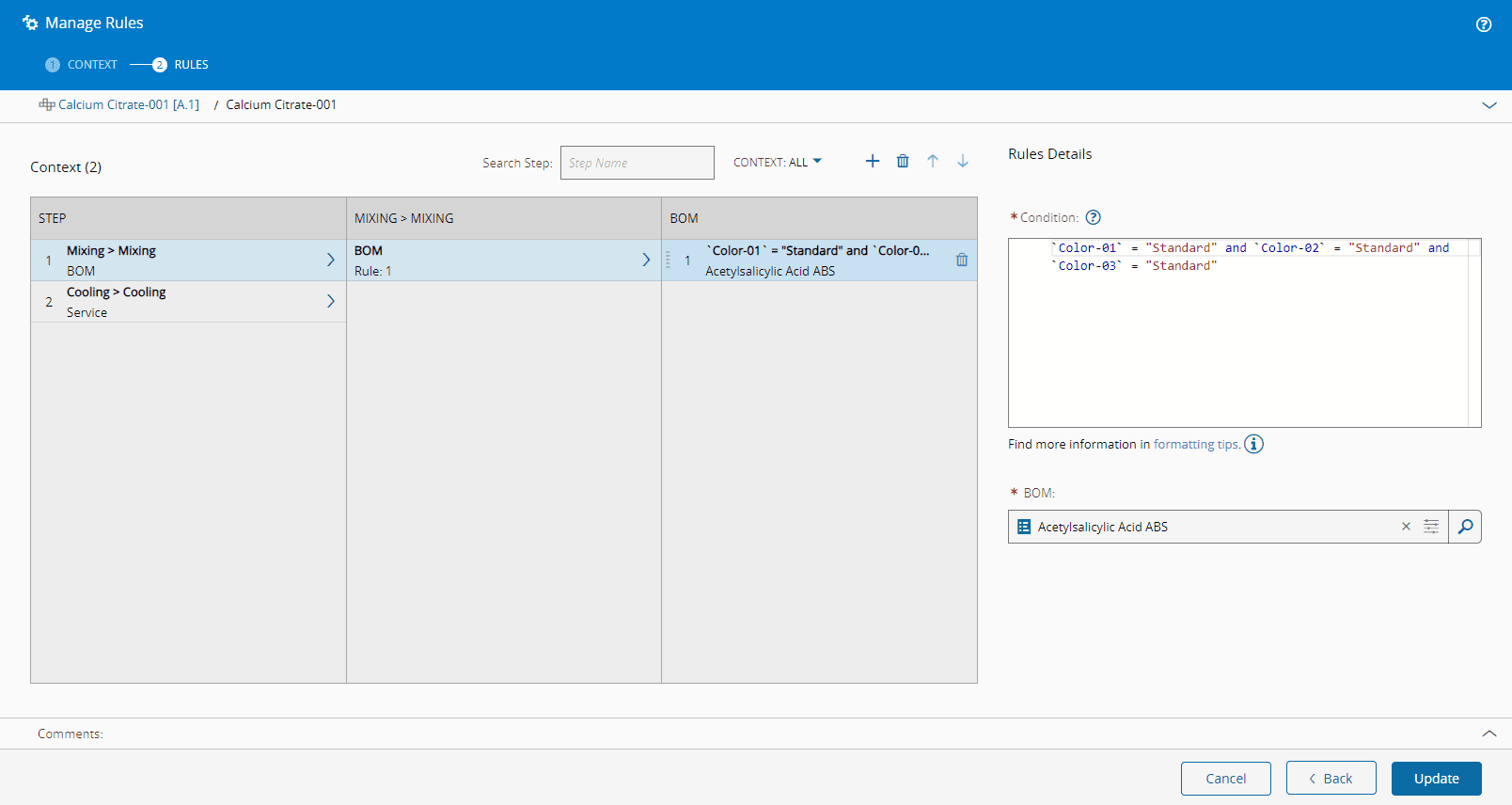
- Specify as many Rules as you need by using . You can also delete or order information, and use the Search to find a specific Step or Context.
-
Specify the Rules Details by providing the Condition:
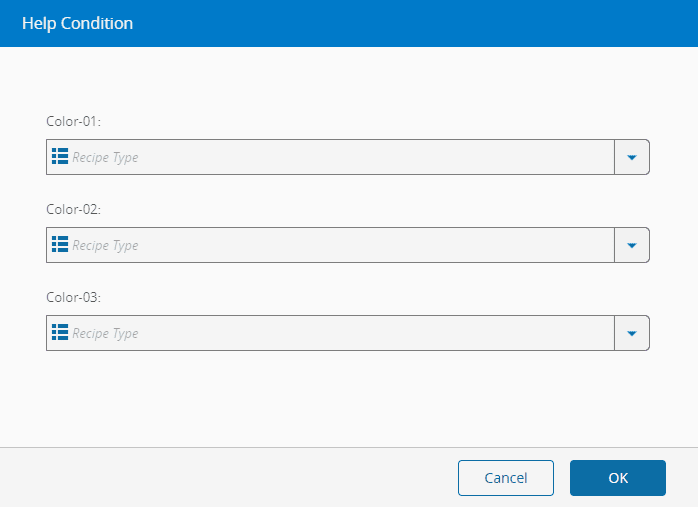
- If needed use the Help Condition
-
If needed use the INFO as the Product Characteristic Rule Condition supports a subset of the JSONata query syntax, as follows:
- Equal to/Not equal to comparison operators ('='/'!=').
- Less than/Less than or equal to comparison operators ('<'/'<=').
-
Greater than/Greater than or equal to comparison operators ('>'/'>=').
Info
These operators work with strings and numbers, so on writing the conditions, you must ensure you understand when you want to compare strings and when you want to compare numbers (do not use inverted commas).
Additionally, if you intend to compare numbers, guarantee that the source Lookup Table only has numeric values. -
And/Or boolean operators ('and'/'or').
- Boolean values for ensuring a expression are always true or false ('true'/'false').
- Quotation marks to define Product Characteristic values (e.g. "Dark Blue" or 'Soft Blue').
- Reference to Product Characteristic without whitespaces (e.g. Color = 'Blue').
- Reference to Product Characteristic with whitespaces or special characters (e.g. `Wheel color` = 'Blue')
- Parentheses for precedence in compound expressions (e.g. Color = "Blue" and (Size = "Small" or Size = "Medium") ).
-
Specify other mandatory information depending on the selected contexts.
-
Select Update to complete the operation.