Apply Substrate Map Mask#
 SubstrateMap.ApplyMask
SubstrateMapMask.Apply
Overview#
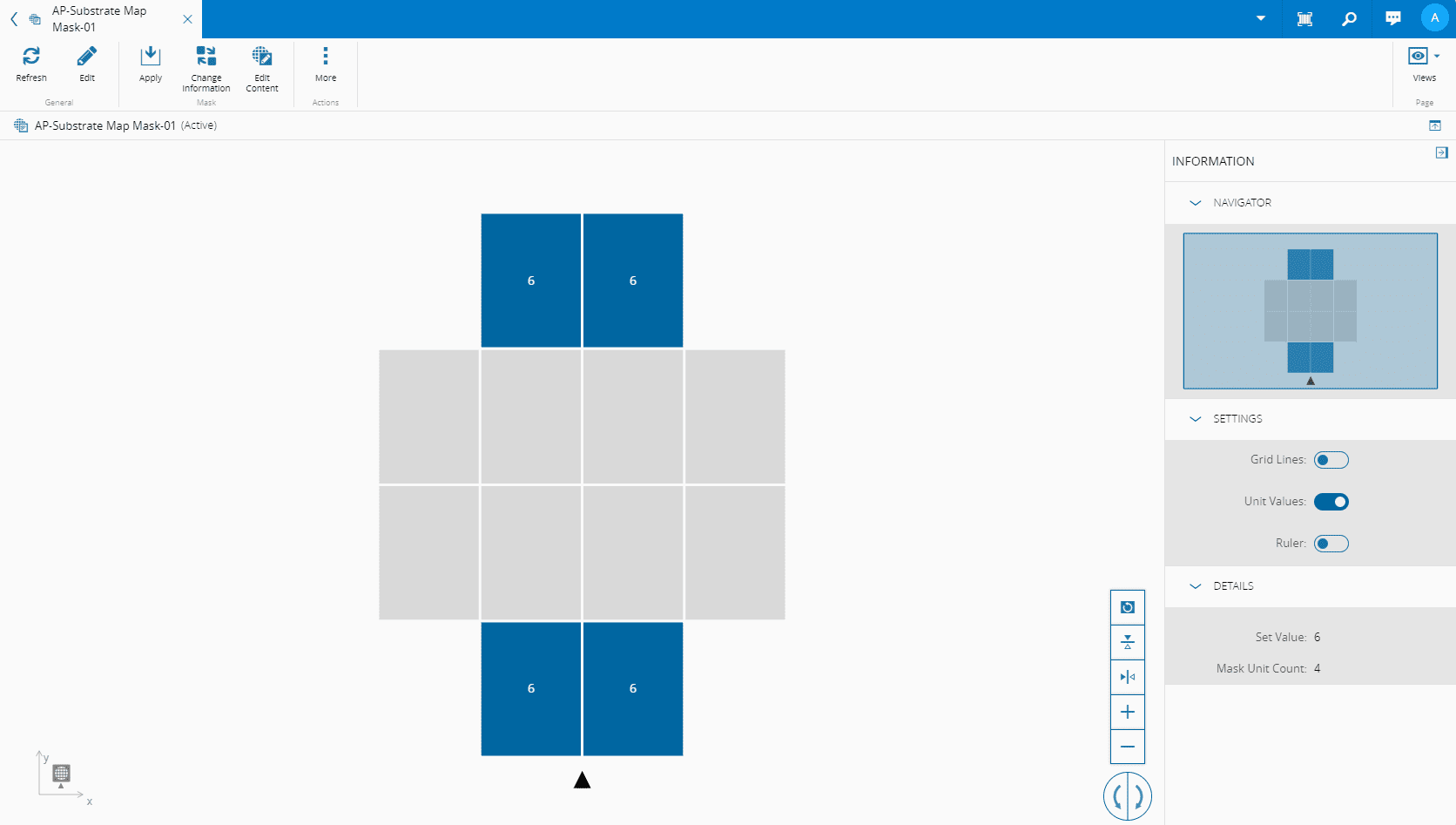
This operation is used to apply a Substrate Map Mask. When applying a Substrate Map, all the affected units in the designated region are changed to the Set Value as defined in the mask.
Setup#
No specific setup is required other than to meet the preconditions of the transaction.
Preconditions#
- The Substrate Map Mask exists and is Active.
- All the Substrate Maps to which the Substrate Map Mask will be applied exist, are Active, and non-template.
Sequence of Steps#
Apply Substrate Map Mask From a Substrate Map#
Raw (no Bin Converter is set)#
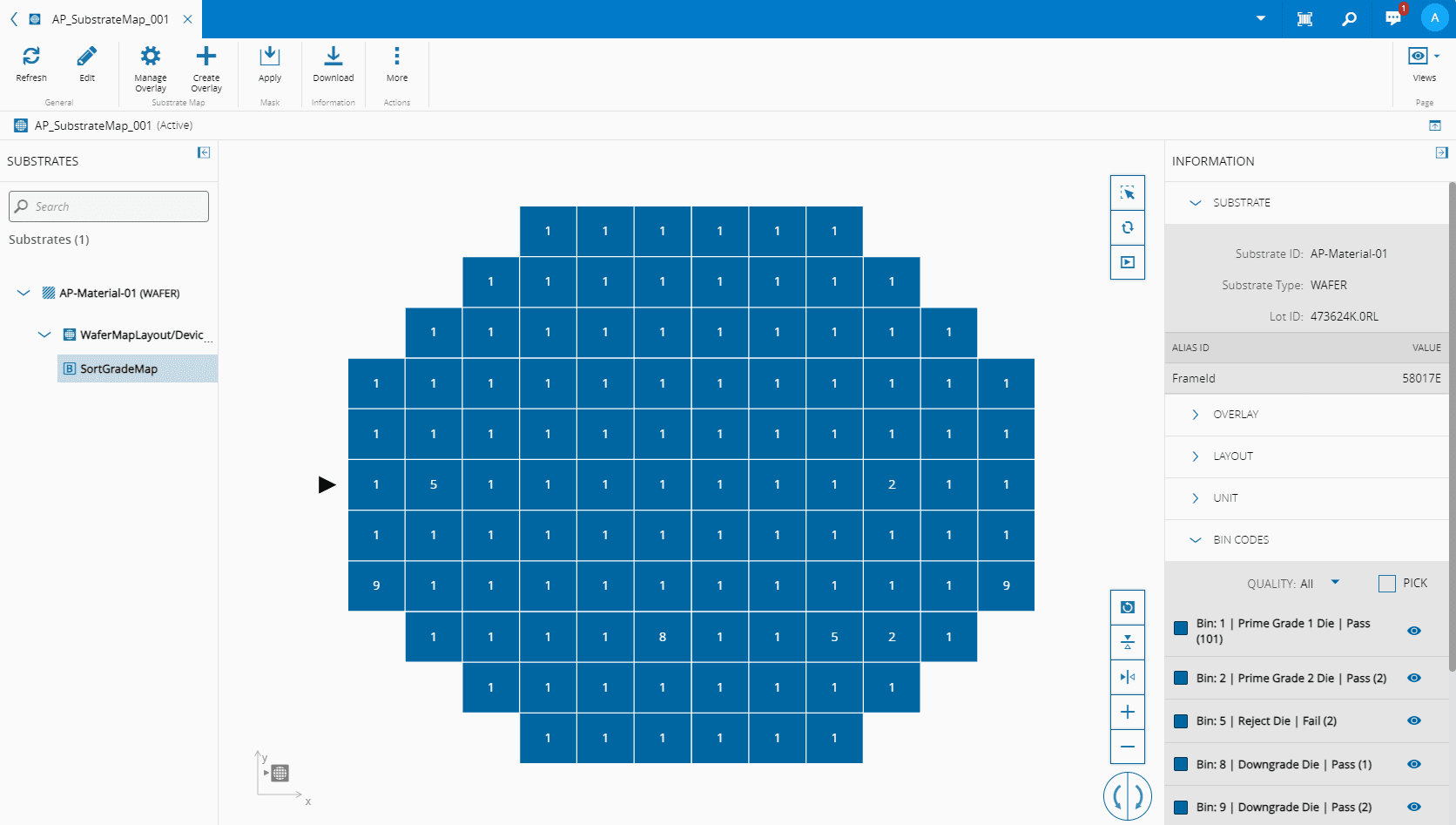
- In the Substrate Map, go to the Content View, and select the Bin Code Map Overlay.
-
Select Apply Mask on the top ribbon:
-
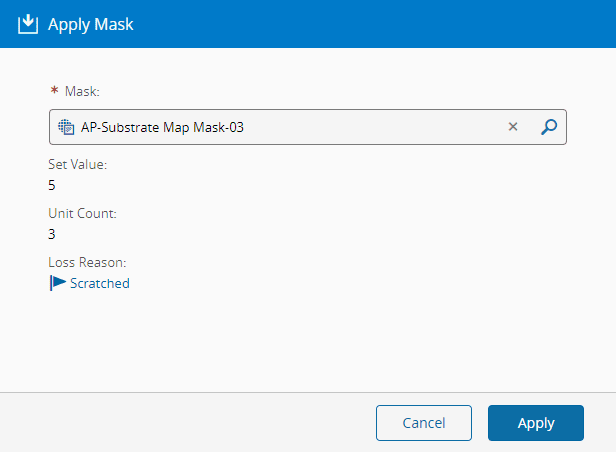
In the new window, select which Mask to apply:
Note
The selected Mask must have the same Layout Specifier, Substrate Type, Dimension X, Dimension Y, Orientation, Origin Location, and Axis Direction of the currently selected Overlay.
-
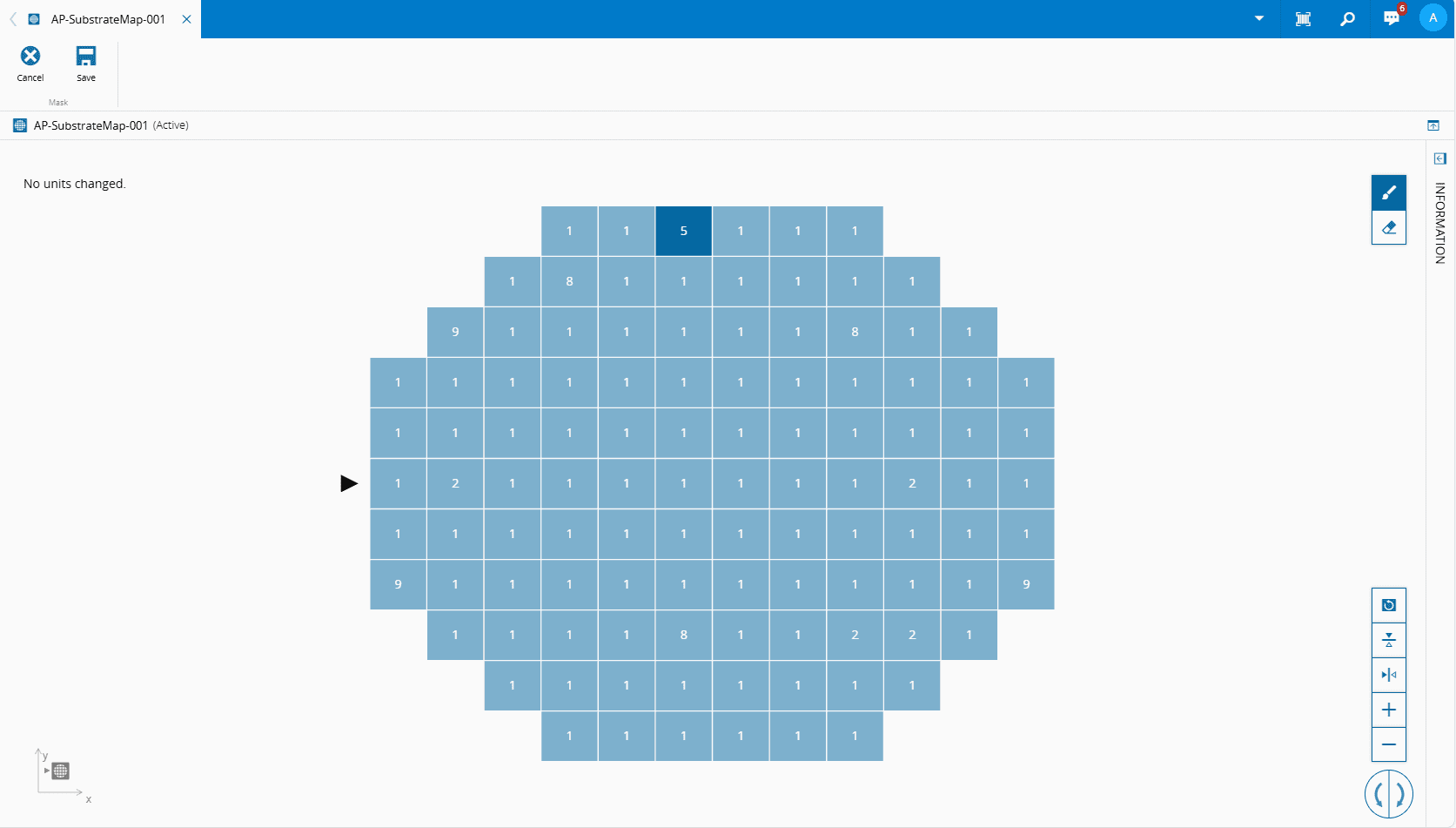
Select Apply to preview the Mask:
-
In the preview of the Mask, you can Add Units or Remove Units.
Info
If you make changes to the Mask in the preview, the changes will apply to the Map and the Mask.
-
Select Cancel to revert the changes or Save to commit the changes.
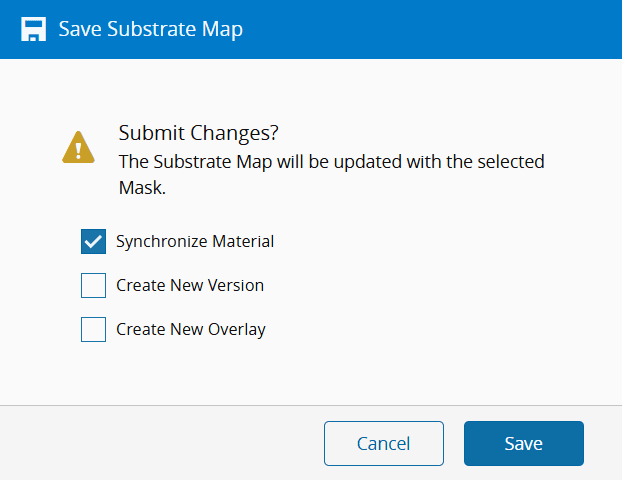
- If you select Save and the Substrate Map is synchronized with a Material, see Set Material Substrate Map, that information with be available.
-
At this point you can also select to Create New Version or Create New Overlay:
-
Select Save to complete the operation.
Converted (a Bin Converter is set)#
-
In the Substrate Map, go to the Content View, and select the Bin Code Map Overlay:
-
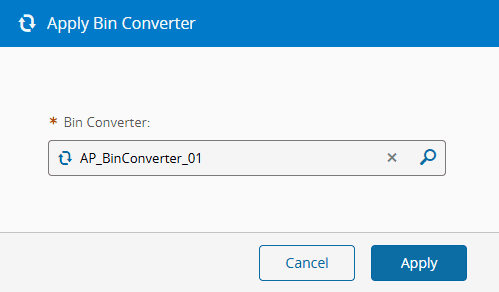
If you select Apply Bin Converter on the right, a new window will open for you to select the Bin Converter:
-
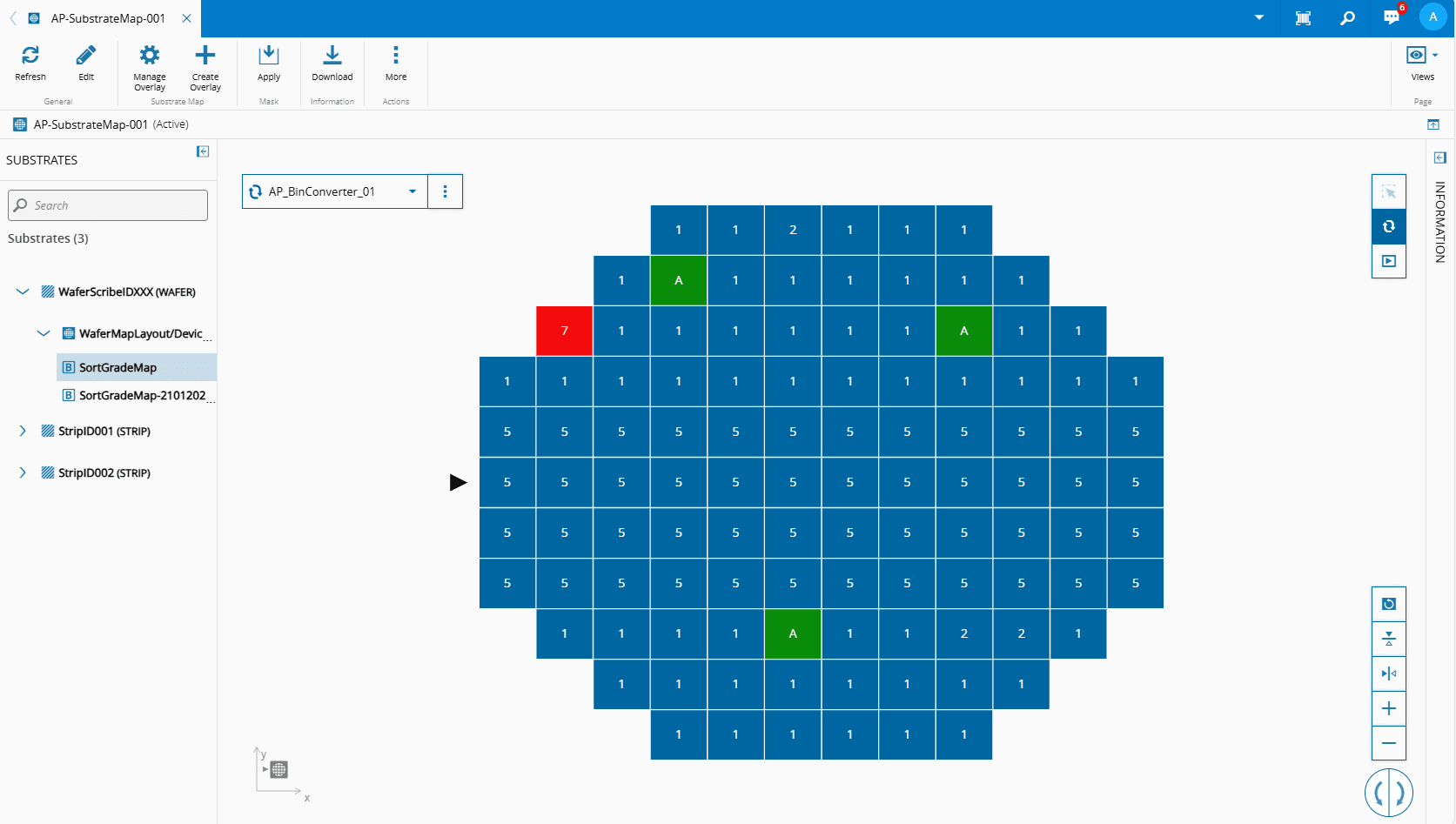
Select the Bin Converter followed by Apply to access the converted Substrate Map:
-
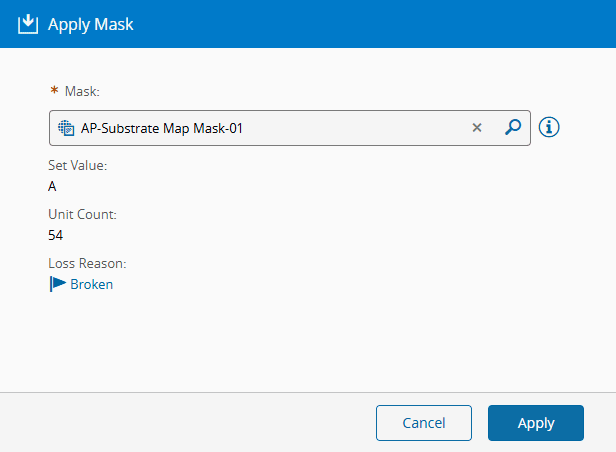
Select Apply Mask on the top ribbon, and select which Mask to apply:
-
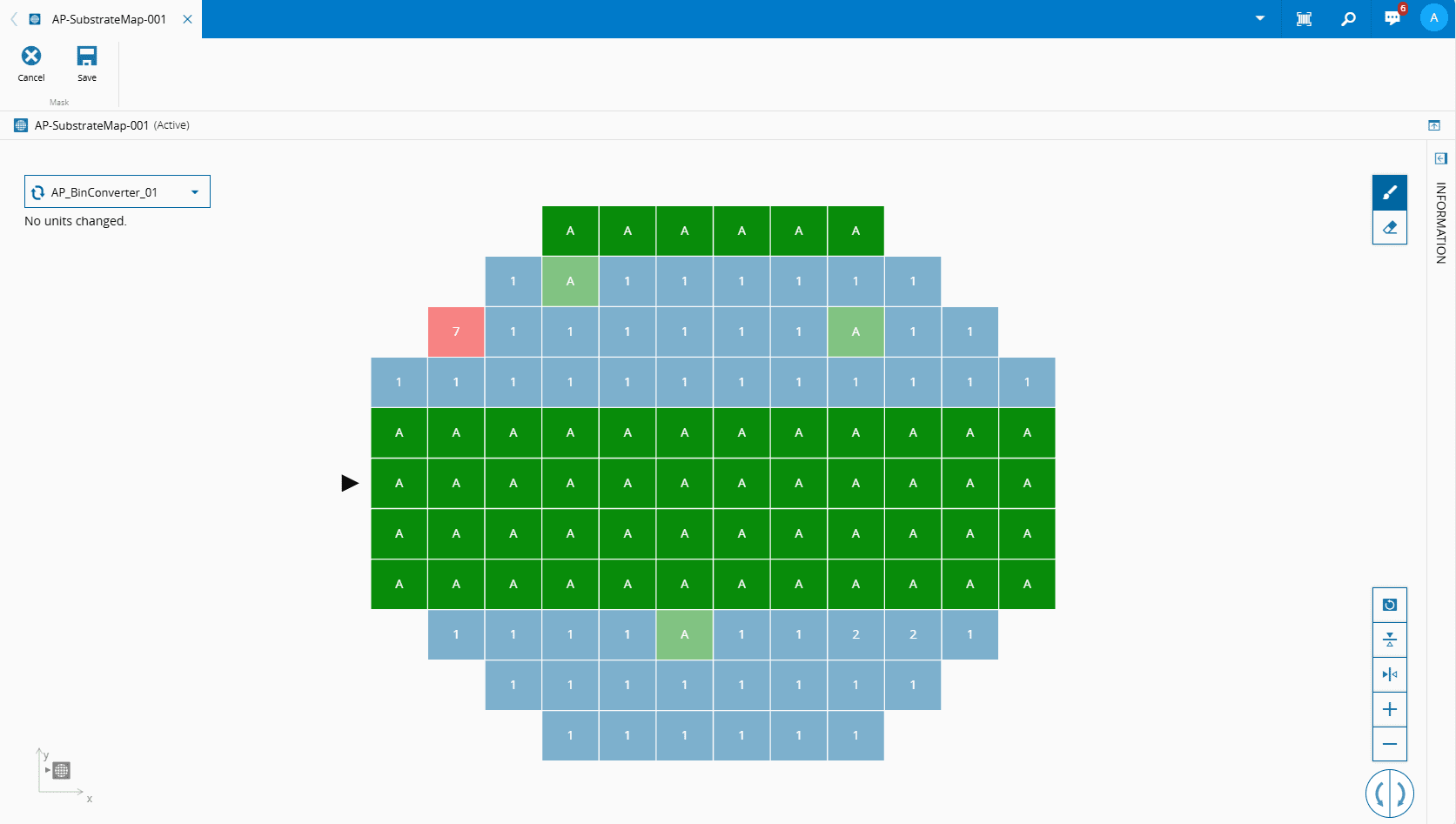
Select Apply to preview the Mask with the selected Bin Converter:
-
In the preview of the Mask, you can Add Units or Remove Units.
Info
If you make changes to the Mask in the preview, the changes will apply to the Map and the Mask.
-
Select Cancel to revert the changes or Save to commit the changes.
- If you select Save and the Substrate Map is synchronized with a Material, see Set Material Substrate Map, that information with be available.
-
At this point you can also select to Create New Version or Create New Overlay:
-
Select Save to complete the operation.
Apply Substrate Map Mask From a Substrate Map Mask (Bulk)#
-
In the chosen Substrate Map Mask, select Apply on the top ribbon:
Step 1: General Data#
-
Enable the Select Mode option:
-
Substrate Map - select Substrate Maps directly (see Step 2: Substrate Maps below)

-
Materials - select Substrate Maps indirectly (see Step 2: Materials below)

Note
The Advanced Options for the Select Modes vary. If you select Materials, you can also choose to apply the Substrate Map Mask to Sub-Materials.
-
-
In the Apply To Values, you can select Raw or Converted (default).
- You can also use the Map Name Filter to specify where the Substrate Map Mask should be applied.
- Select Next to continue.
Step 2: Substrate Maps#
-
Use to add as many Substrate Maps as needed:
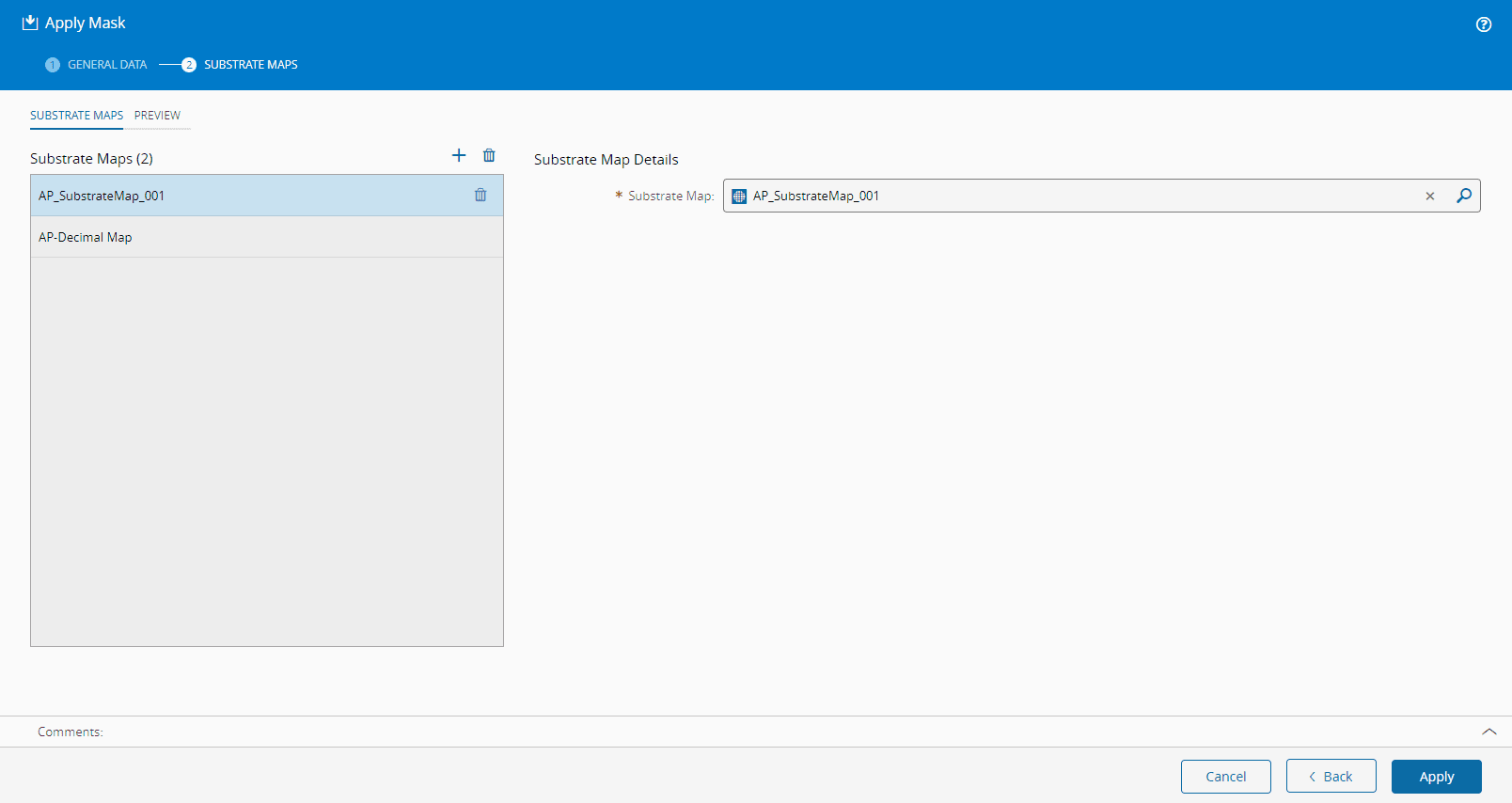
-
Select Apply to complete the operation.
Step 2: Materials#
-
Use to add as many Materials as needed:
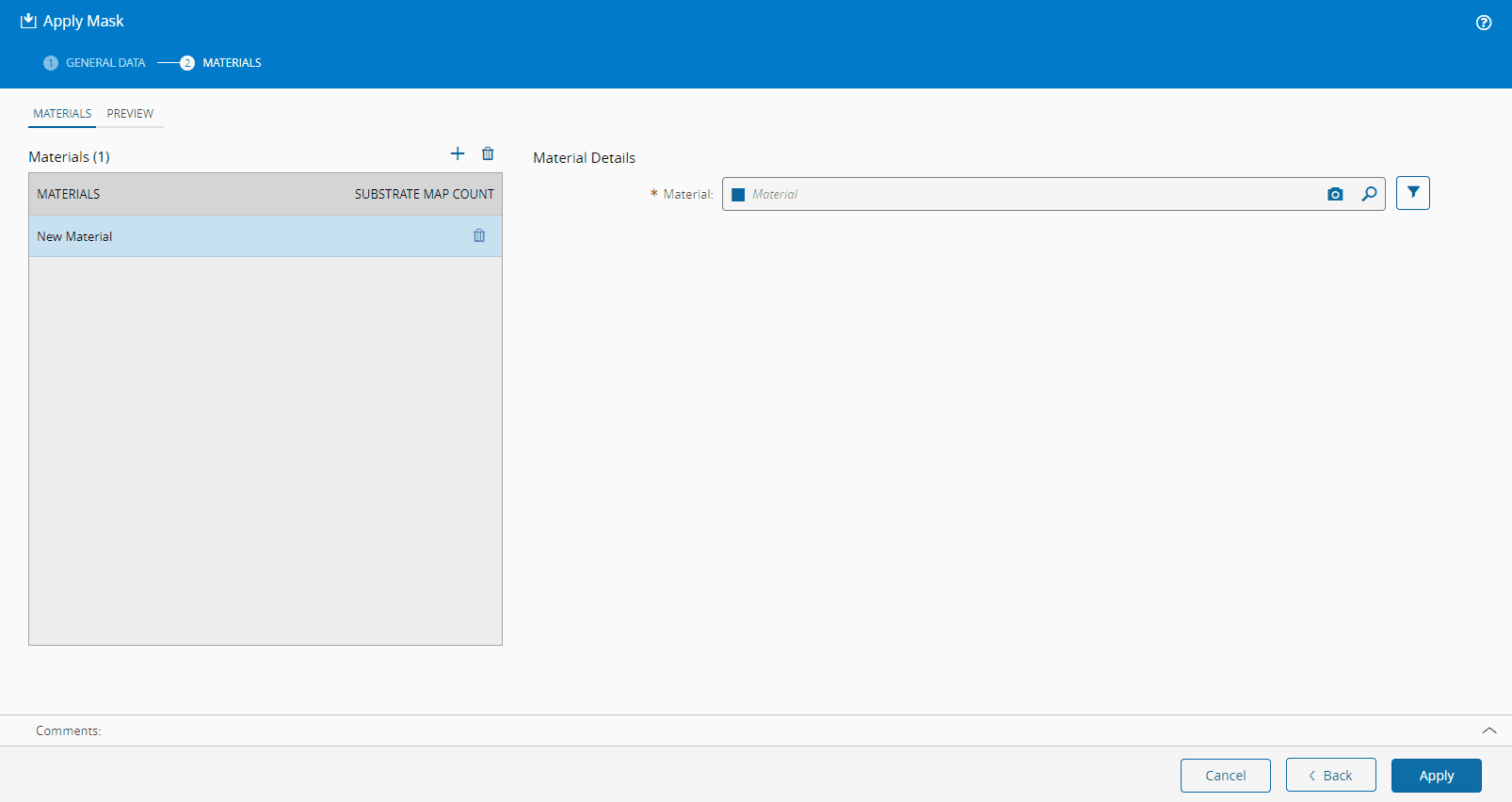
-
You can chose to filter the Materials:
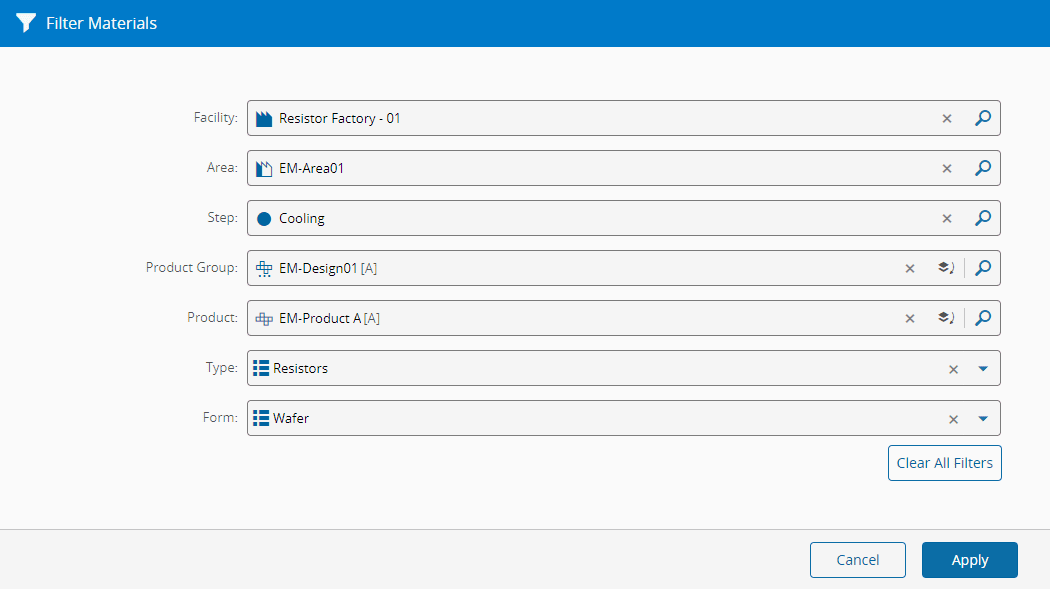
-
Select Apply to complete the operation.