Edit Substrate Map Mask#
 SubstrateMapMask.Edit
Overview#
This operation is used to edit a Substrate Map Mask object.
Setup#
No specific setup is required other than to meet the preconditions of the transaction.
Preconditions#
- The Mapping module (if part of CM MES) or App license (if part of an Application) must be properly licensed.
- The Substrate Map Mask must be Active.
Sequence of Steps#
Edit Substrate Map Mask From a Substrate Map Mask#
Step 1: General Data#
-
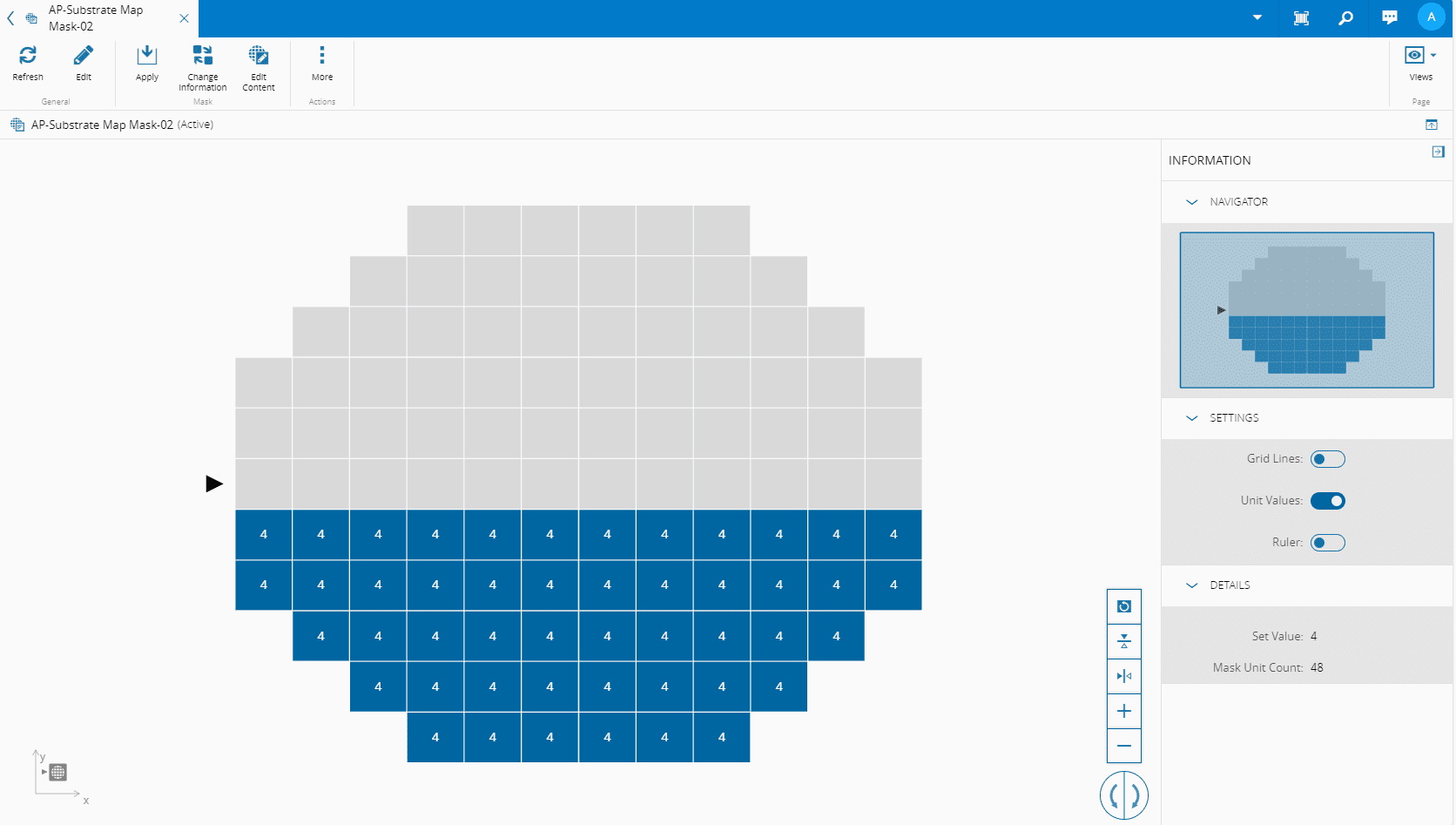
In the chosen Substrate Map Mask, select Edit Content on the top ribbon:
-
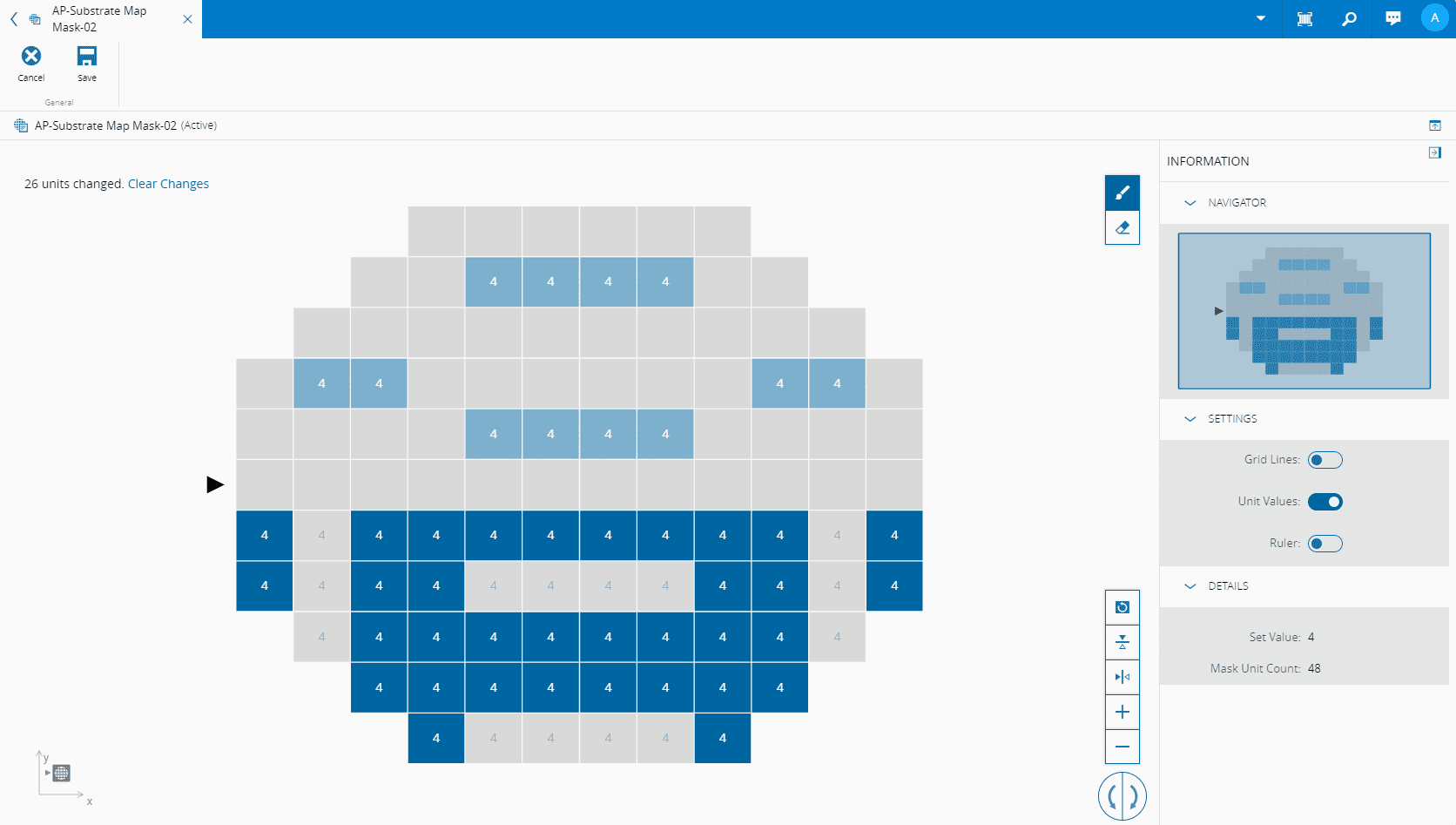
Use the Add Units (default) and Remove Units buttons on the right to include or exclude units from the mask:
Info
The Add Units sets the
SetValueto the selected unit, and Remove Unit sets theEmptyValueto the selected unit. -
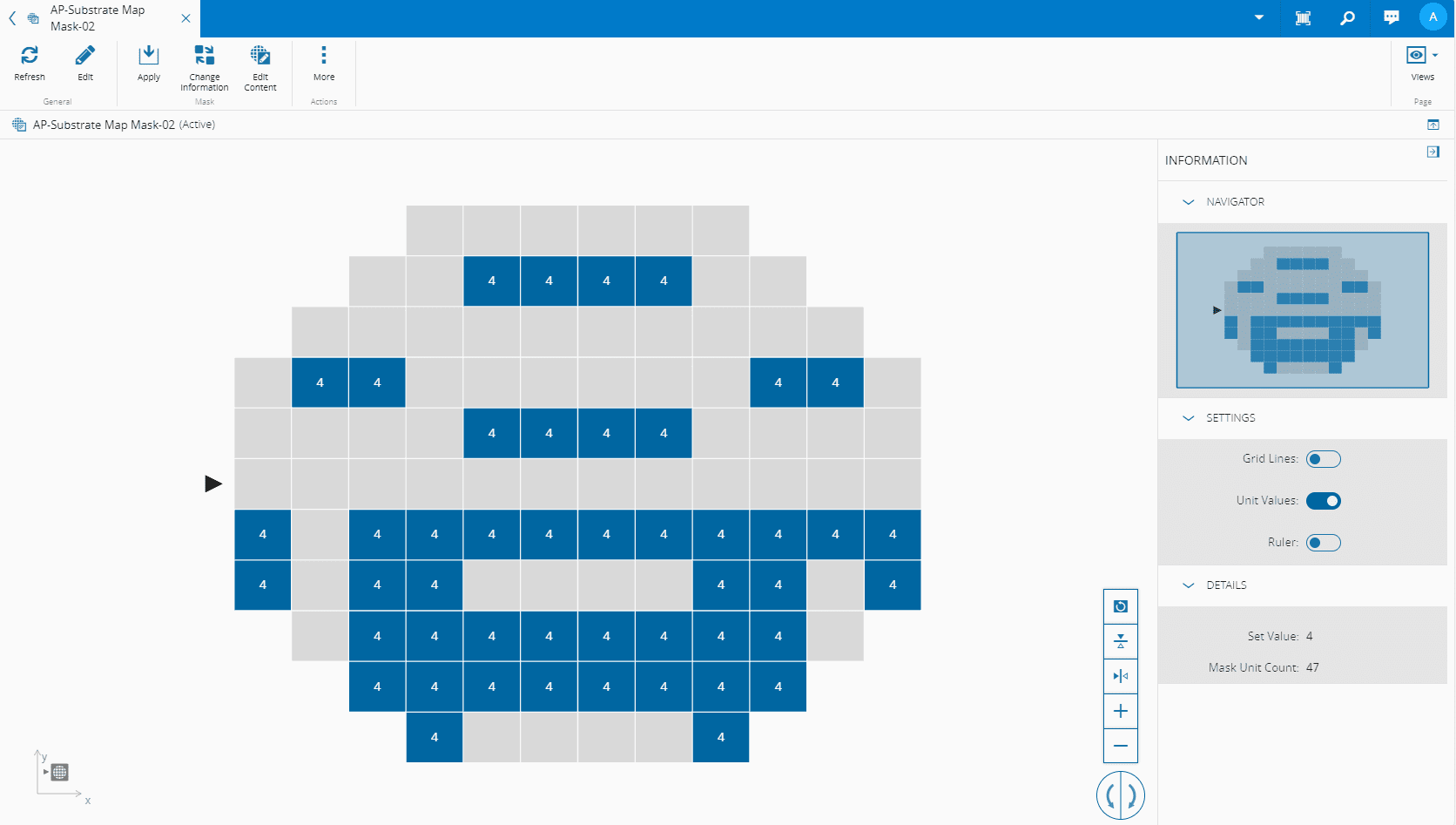
Select Save to complete the operation and save changes permanently:
Edit Substrate Map Mask Using a File#
Step 1: General Data#
-
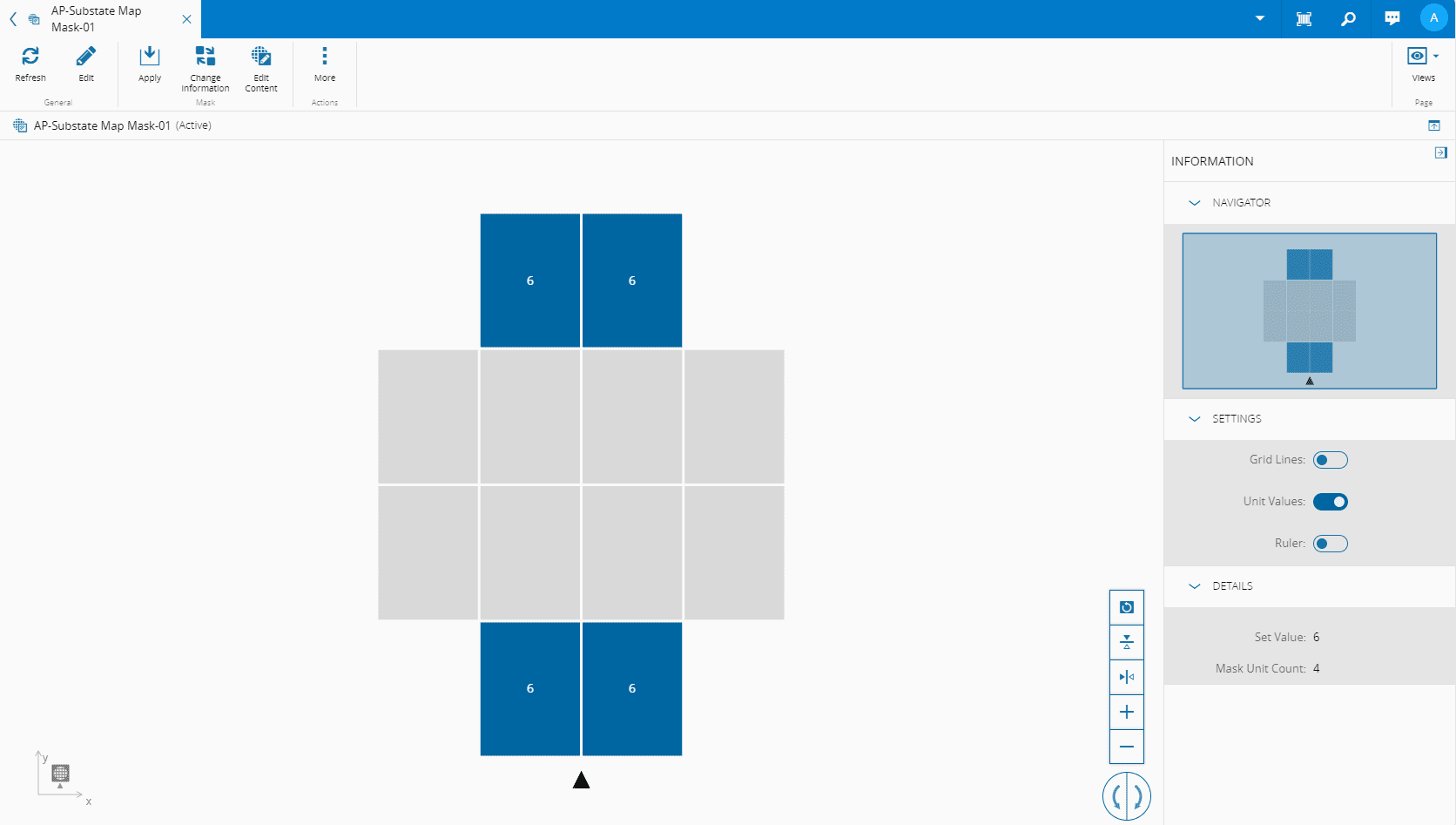
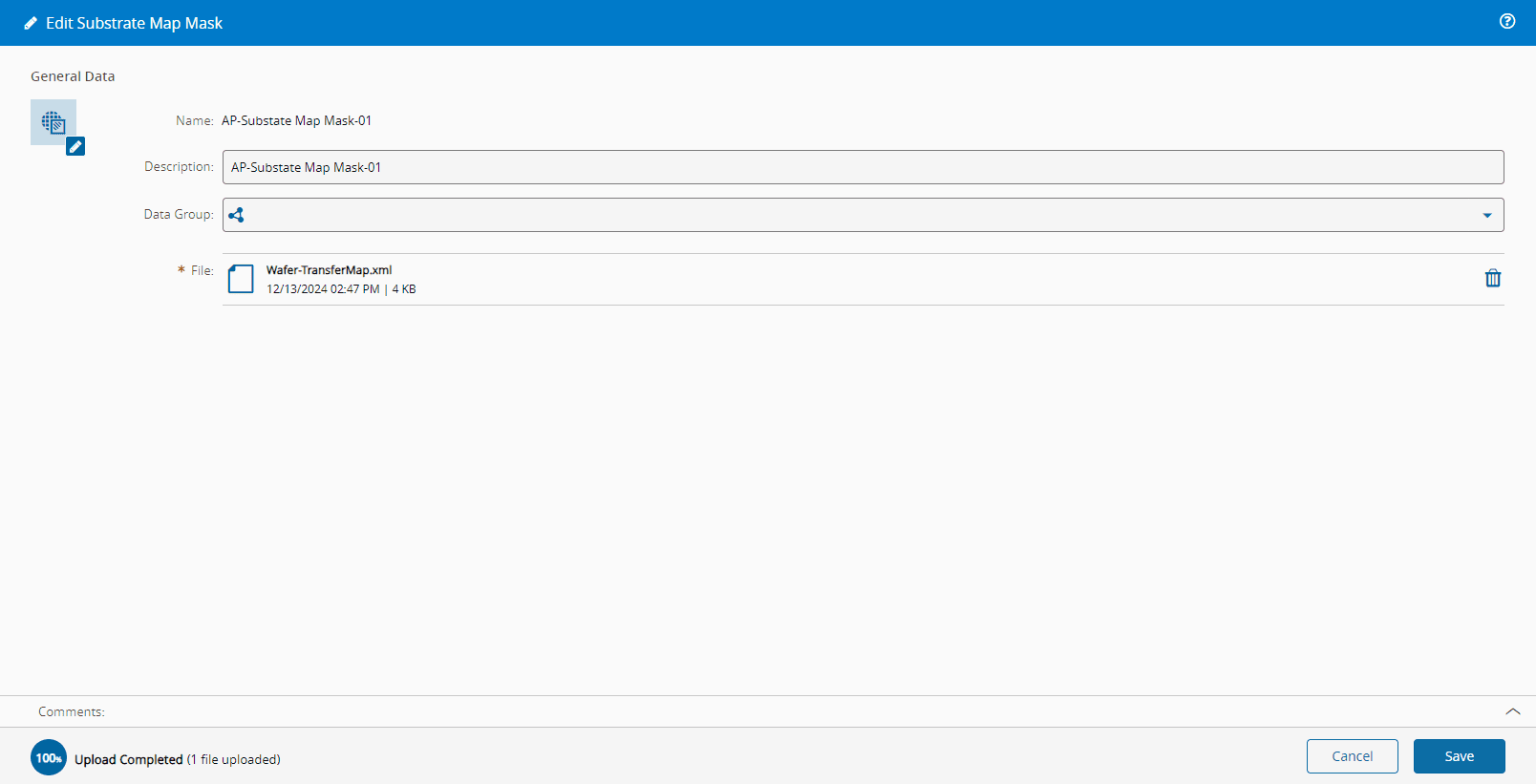
In the chosen Substrate Map Mask, select Edit on the top ribbon:
-
Update the Substrate Map Mask by replacing the E142 XML file:
Note
The Name of the Substrate Map Mask cannot be altered.