Create Substrate Map Overlay#
 SubstrateMap.Create Overlay
Overview#
This operation is used to create a new Substrate Map Overlay version by selecting an Overlay base and it also has the option of applying a Bin Converter.
Preconditions#
- The Substrate Map to be updated is Active in the system.
- The Overlay within the Substrate Map to be used as a base is of type
BinCodeMap.
Setup#
No specific setup is required other than to meet the preconditions of the transaction.
Sequence of Steps#
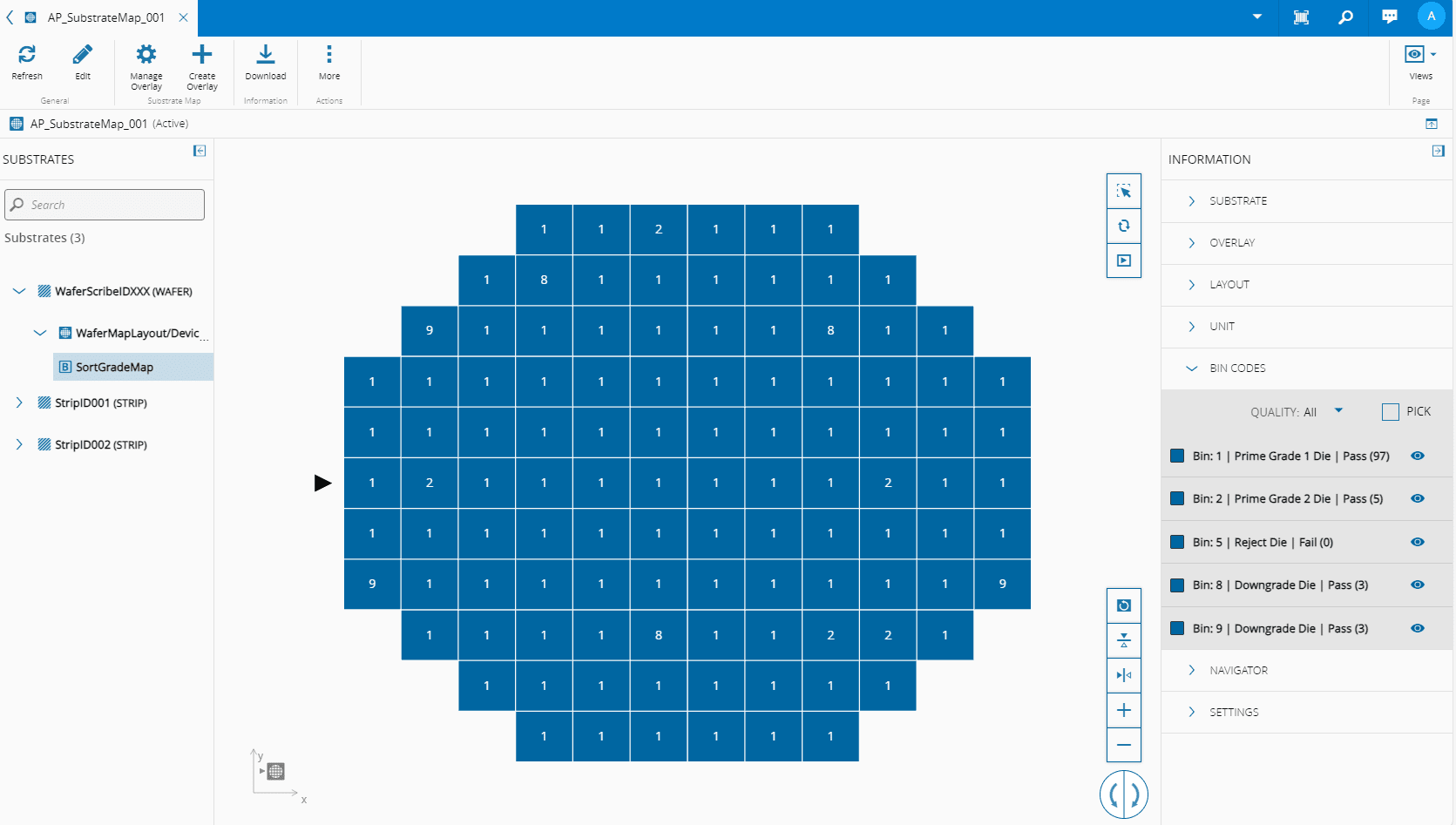
The Create Overlay wizard can be called from the Substrate Map page within the Business Data Group. In Views, select Content, select an Overlay of type BinCodeMap, and then select the Create Overlay button on the top ribbon:
Step 1: General Data#
-
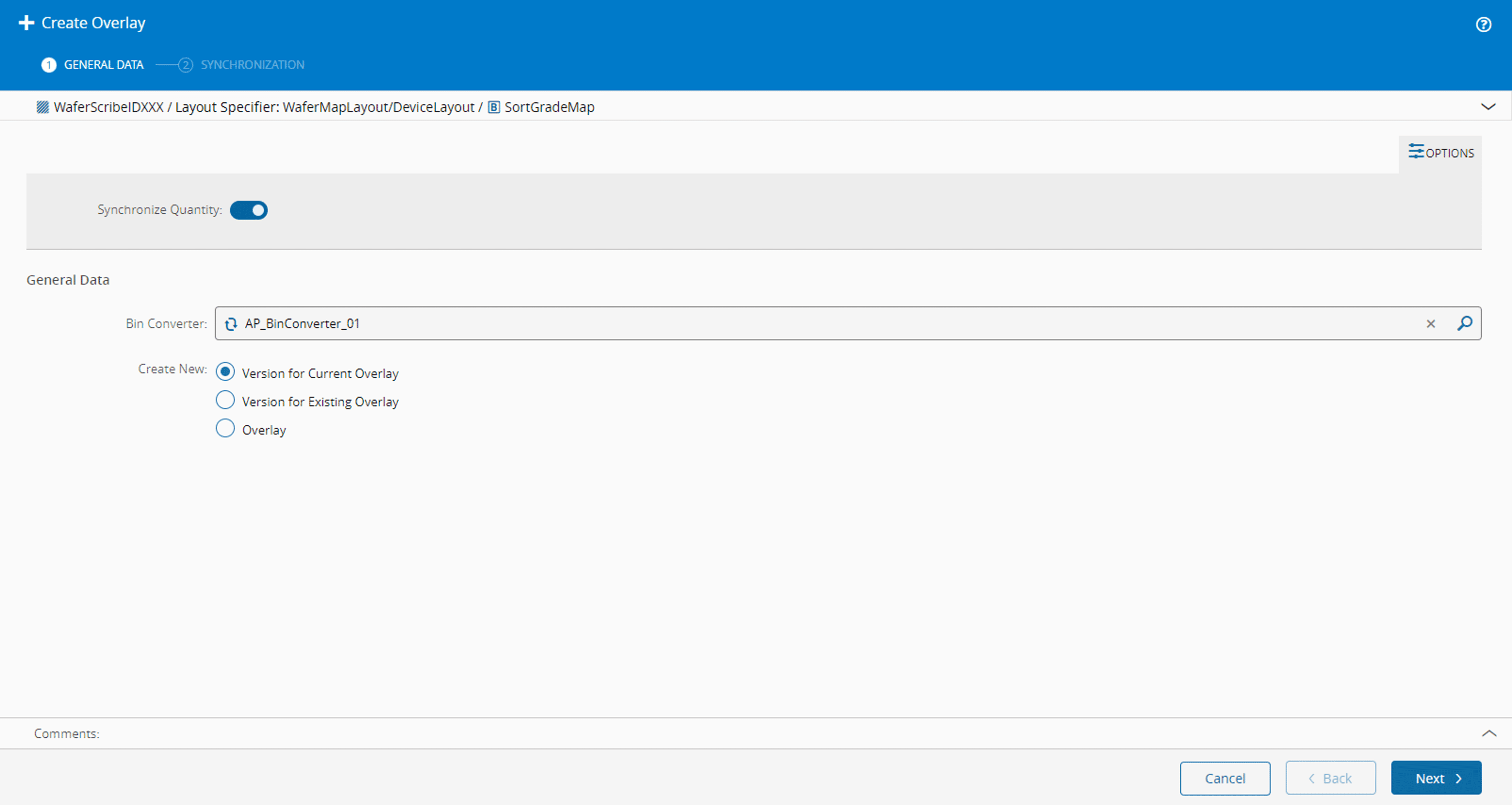
Select a Bin Converter to be applied. You can select:
- The Substrate Map default Bin Converter (if any).
- Any of the Substrate Map Overlay Bin Converters.
- Any Bin Converter.
-
You can create a new:
- Version for the Current Overlay
- Version for Existing Overlay (only available if you have other overlays of type
BinCodeMap) - Overlay (in this case a new Map Name with version 1 will be created)

Note
The Overlay will always be created under the Base Substrate Map.
-
Select Create to complete the operation.
Step 2: Synchronization#
-
If you want to synchronize the Substrate Map with the Material, enable Synchronize Quantity:
-
Select Next.
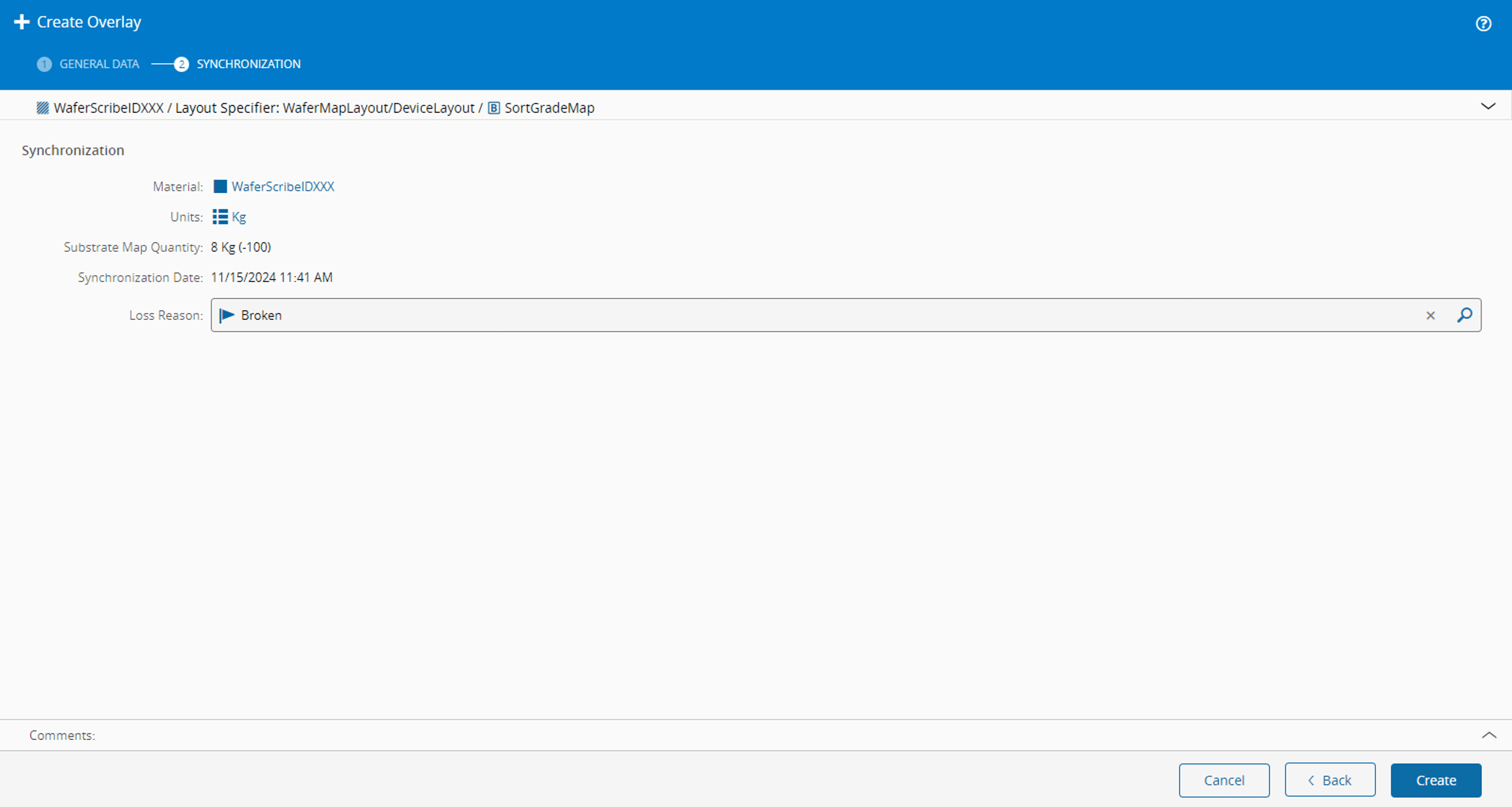
- Confirm the information on the screen.
-
Optionally, enter a reason:
-
Select Create to complete the operation.
Info
For more information, see Set Material Substrate Map and Synchronize Material with Substrate Map.