Update Substrate Map#
 SubstrateMap.Update
SubstrateMap.UpdateNewBins
Overview#
This operation is used to update the Bin Code values of a Substrate Map. Therefore, it is only valid for Substrate Maps of type Bin Code Map.
Setup#
No specific setup is required other than to meet the preconditions of the transaction.
Preconditions#
- The Substrate Map exists and is Active.
- The Overlay within the Substrate Map is of type Bin Code Map.
Sequence of Steps#
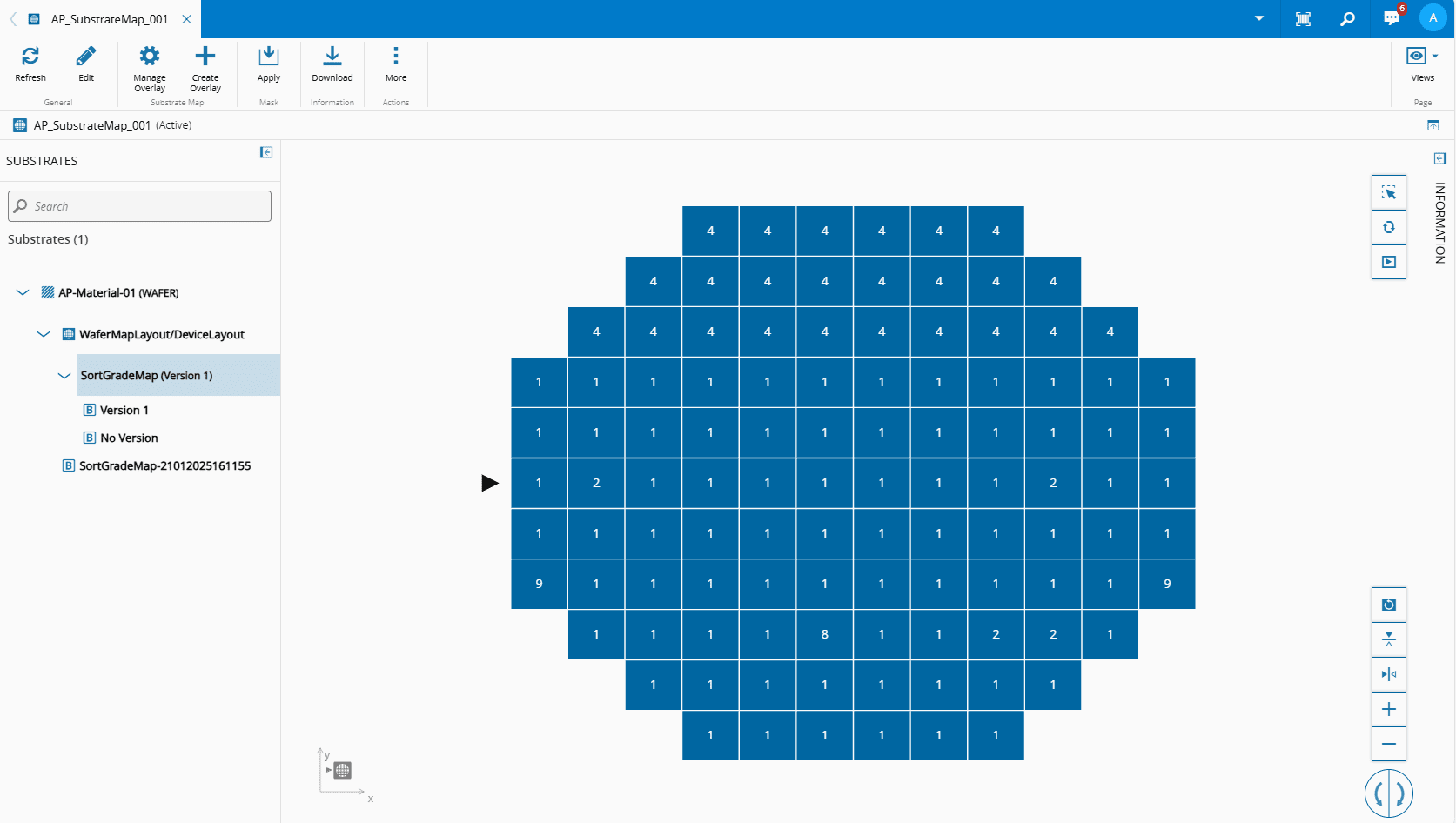
The Change Bin Values wizard can be called from the Substrate Map page within the Business Data Group.
Info
The Substrate Map is in the Content view and units must be selected to have the Change Bin Values button available on the top ribbon.
Change Bin Values#
-
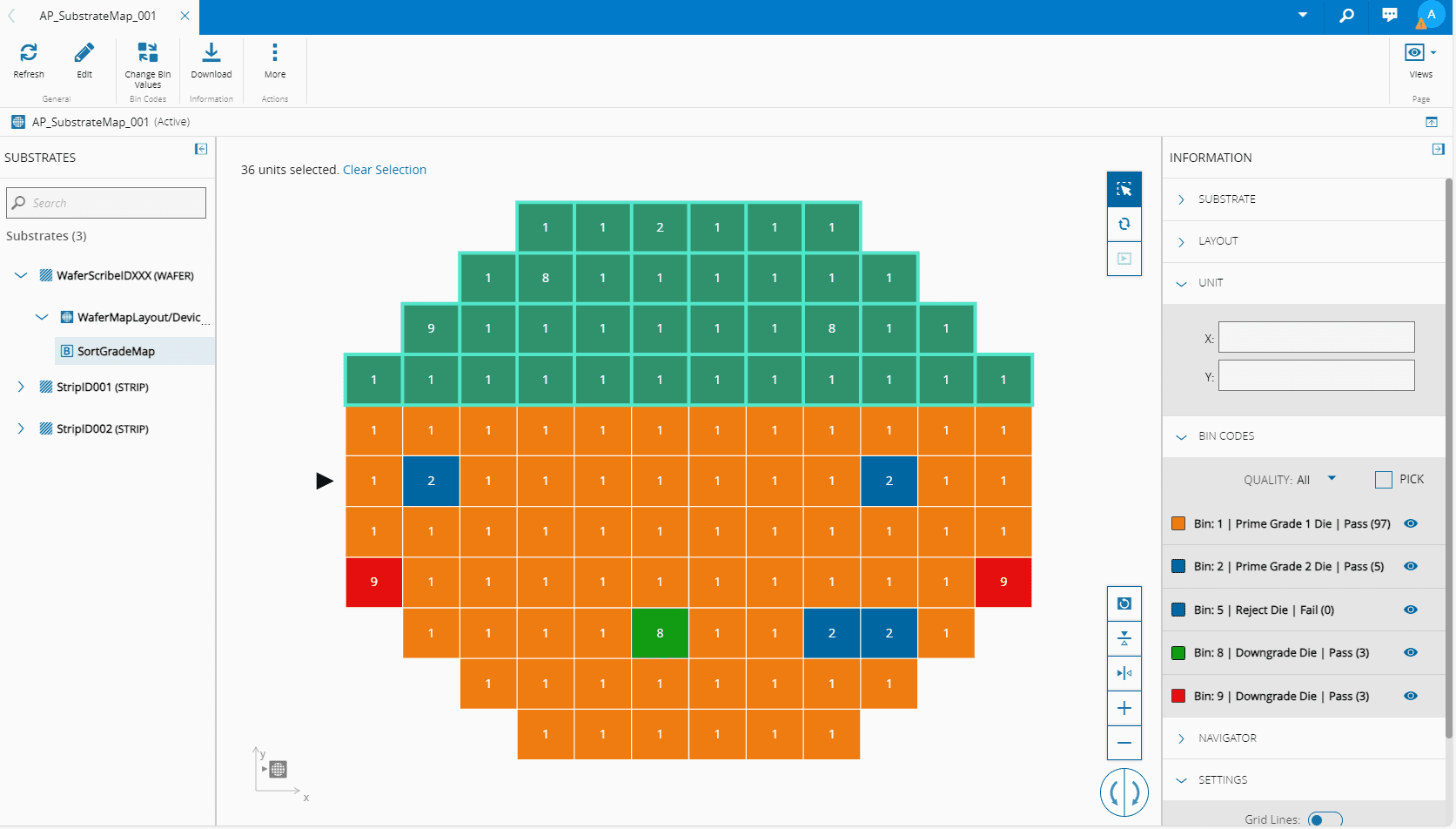
Enable the Select Mode and select the individual dies or regions.
Note
There must be a clear selection, which can be cleared, and when the Select Mode is enabled, the original values are shown and any Bin Converter colors are kept.
-
On the right panel, you are presented with information of the bins for the Bin Code Map.
- Select the Change Bin Values button on the top ribbon to access the wizard.
-
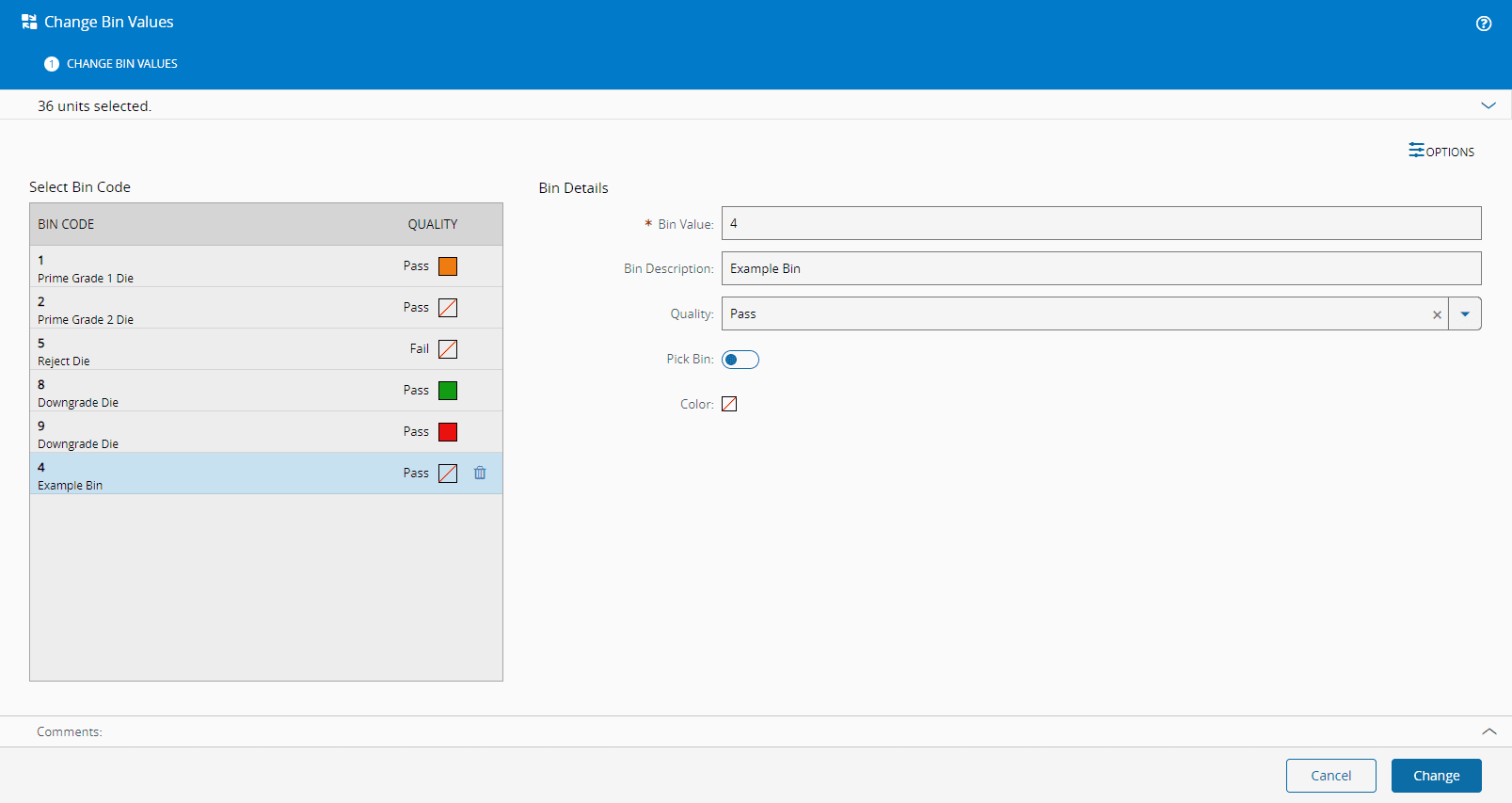
Add new non-existing/non-duplicate bins, and provide the following information for each bin:
- Bin Value - must be compatible with the Bin Type of the Bin Code Map
- Bin Description (optional)
- Quality (optional) - Pass, Fail, Null, Unknown or Picked
- Pick Bin -
trueorfalse
Note
It is not possible to change the original Bin Converter values.
-
If there is at least one unit selected, you can choose to change the value of all the selected units to a defined value, which must be compatible with the Bin Type:
-
Optionally, enter a comment.
- Select Change to complete the operation.
Synchronize Quantity#
-
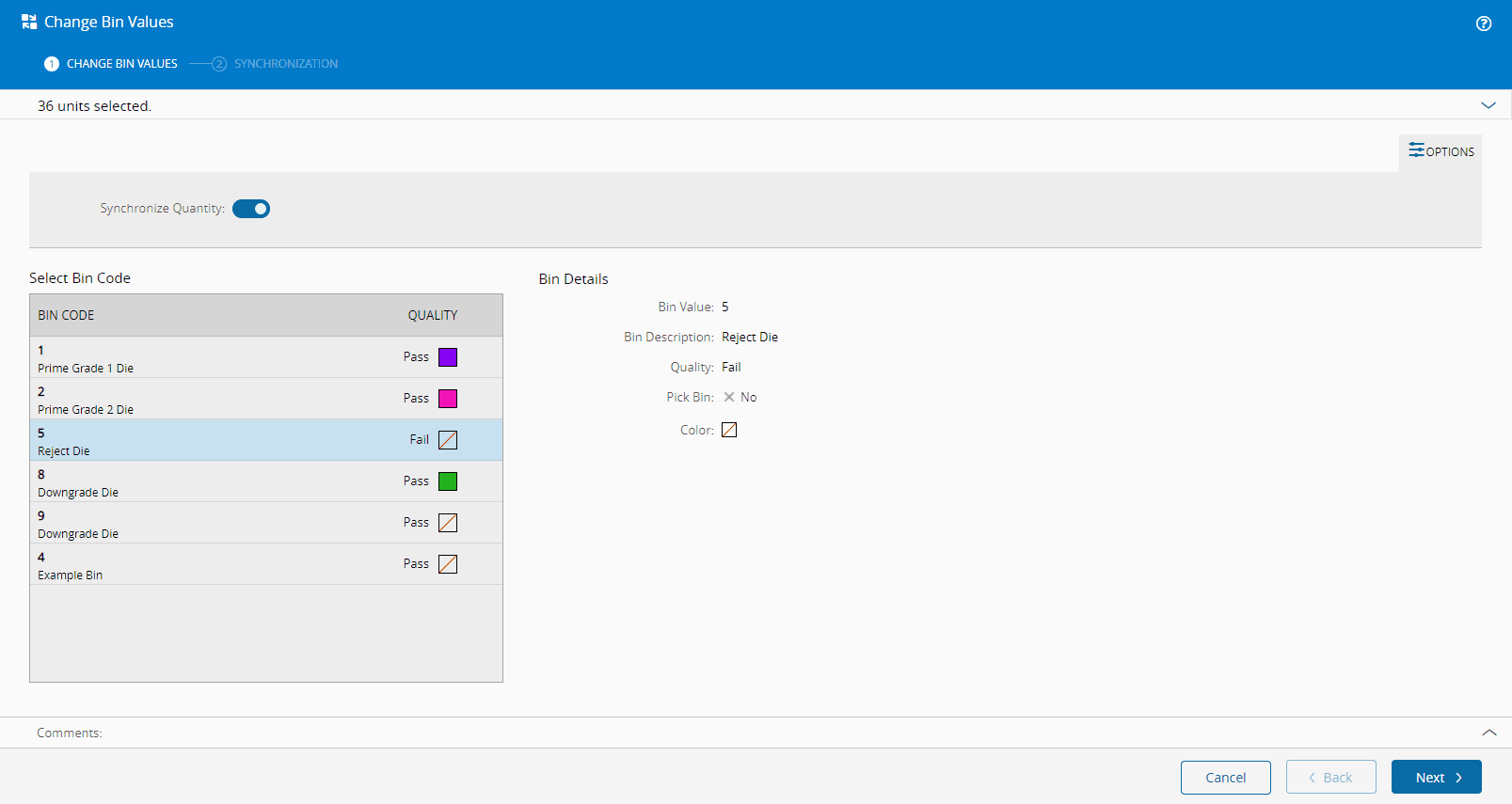
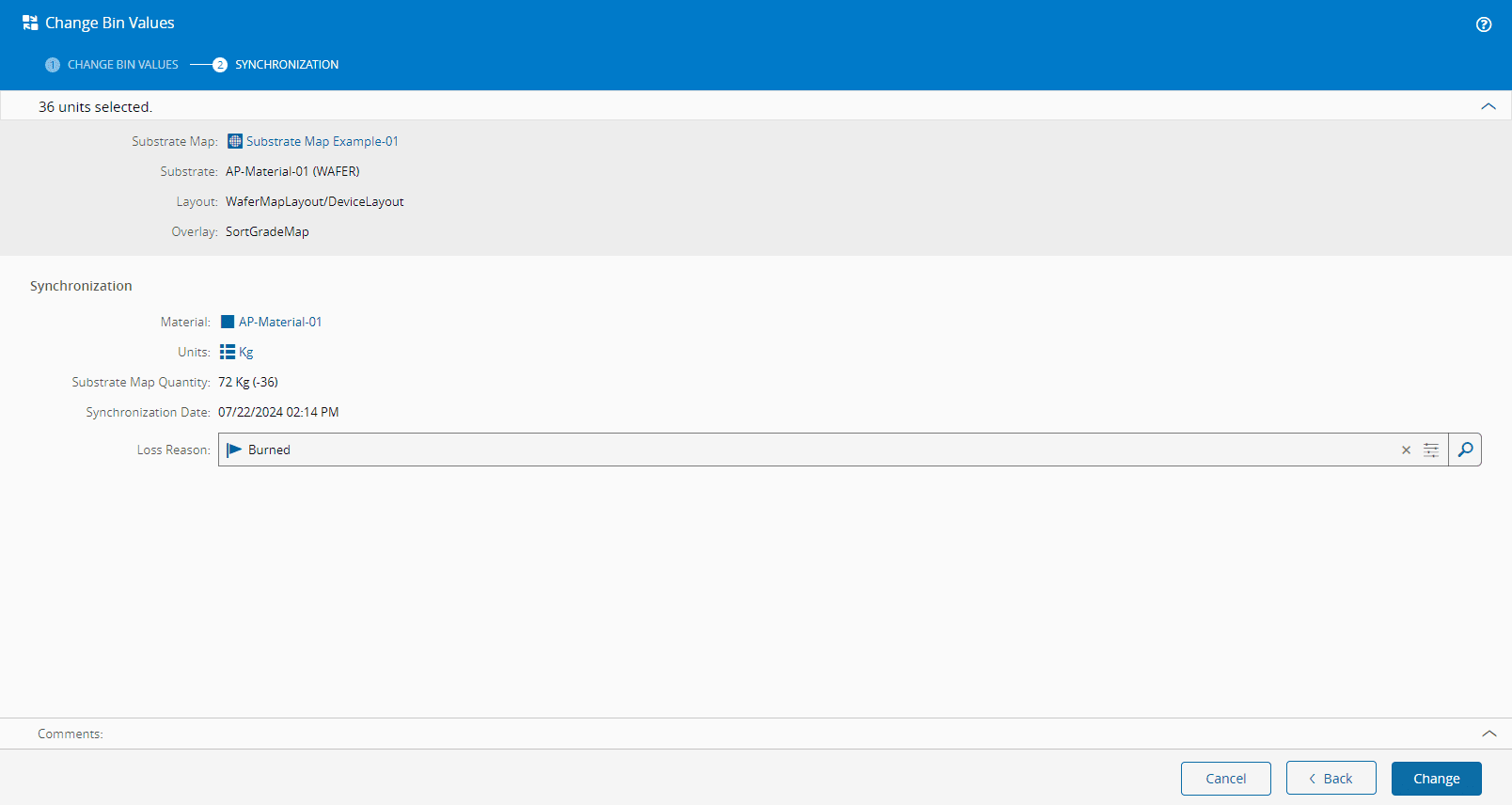
On changing bin values, you can also choose to synchronize the Substrate Map with an Active Material:
Note
For this operation to be available the same conditions as in the Set Material Substrate Map and Synchronize Material with Substrate Map must be met.
-
Optionally, enter a comment.
-
Select Change to complete the operation:
Warning
Only a net positive change in bin values (this is, either all changed to Pass or all changed to Fail) will allow you to synchronize the linked Material with the Substrate Map after updating the Substrate Map. For more information, see Synchronize Material with Substrate Map.
Create New Version/New Overlay#
-
On changing bin values, you can choose to:
-
Create New Version - the new version will be the highest numeric version plus 1. If no numeric version exists, the version will be version 1:

-
Create New Overlay - the new overlay will take the name of the base overlay with timestamp information:

-
-
Optionally, enter a comment.
-
Select Change to complete the operation: