Smart Barcode Scanning Configuration#
To enable Smart Barcode Scanning in Critical Manufacturing MES, a few key configurations must be set. This step is essential to ensure that barcode data is correctly interpreted and mapped to the corresponding fields in the user interface.
The configuration process begins by defining how the system should interpret the contents of a barcode. This involves defining a label specification format that the system can recognize and parse - most commonly, the GS1 standard, which uses identifiable prefixes to encode multiple data points within a single barcode string.
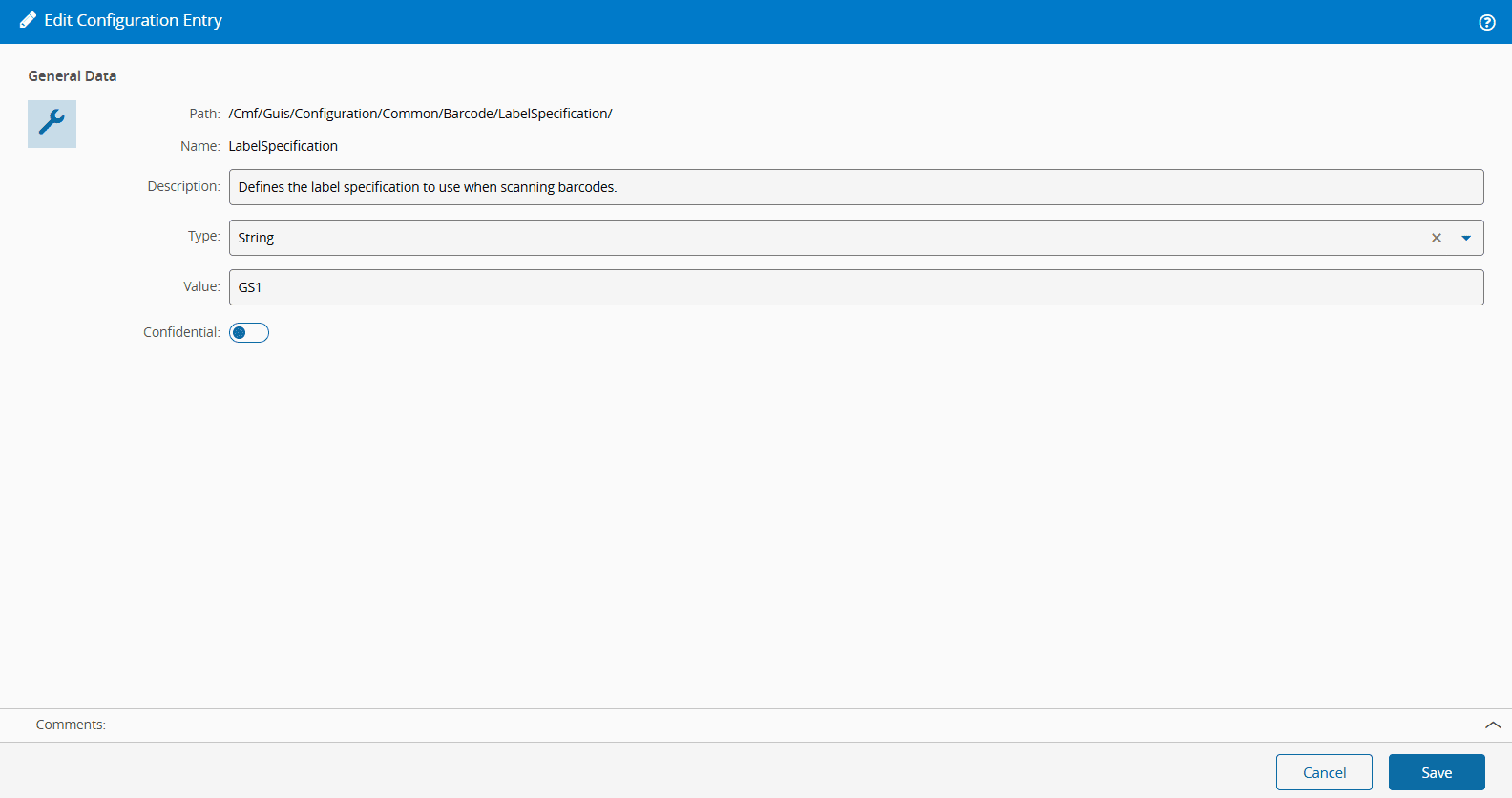
To begin, navigate to the Administration menu of the MES and locate the Configuration entity. Under the entry /Cmf/Guis/Configuration/Common/Barcode/LabelSpecification/, set the value to GS1. This value must match one of the defined entries in the LabelSpecification Lookup Table. By setting this configuration entry, you are instructing the system to expect and process barcodes using the GS1 parsing rules.
Once the system is aware of the barcode format, you must define which fields should be extracted when a barcode is scanned. This is done using the LabelSpecificationField Generic Table. Each record in this table describes a specific field prefix (for example, purchase order, lot number, expiration date) and how it should be mapped to a target field in the MES interface.
Tip
To speed up configuration, you can import all barcode properties at once using the Master Data Packages tile to upload the Label Specification Field Template. For more information, see Loading a Master Data Package.
The exact configuration depends on the context where barcode scanning is used. For instance, enabling barcode input for material creation requires different target fields than configuring scanning for dispatch operations or custom UI pages. When a user scans a barcode, the system splits the string into segments using defined prefixes, matches them with the entries in the Generic Table, and automatically populates the matching fields on-screen.
When you start generating barcodes, you must ensure that each segment includes the correct prefix and corresponding value. The example below illustrates a sample barcode string:
Each segment in the string (for example, 1ACookie01, 2AProduction, 3ALot) represents a specific field, as defined by your label specification. The % symbol is used as a delimiter between segments. The diagram below breaks down this barcode structure and shows how each value maps to a configured field:

The key takeaway from this structure is that the barcode segments do not need to follow the same order as the fields in the application. The MES relies solely on the prefix of each segment to match it with the corresponding target field defined in the configuration.
To better understand how these configurations apply in practice, this tutorial provides five example scenarios:
Each of these examples walks you through the necessary LabelSpecificationField entries and illustrates how barcode data flows into the MES. If you are unsure which fields or prefixes are required for a specific use case, see the Smart Barcode Scanning section.
Once these configurations are in place, the system will be able to interpret barcodes intelligently - extracting values on scan and eliminating the need for manual entry. This setup not only reduces the risk of human error but also significantly accelerates the pace of on-the-floor operations.
Info
Continue to Use Cases.