Checklist Items#
For each Checklist item, you may define:
- General Data - define the item's name, activity type, tracking type, and other key settings that determine how the item will be executed.
- Instructions - provide detailed instructions or guidance for completing the item.
- Diagram - attach a supporting diagram to aid in the performance of the Checklist item.
- Parameters - for activities categorized as manual tasks or requiring signatures, you may specify measurable parameters for evaluation.
- Signatures - for items requiring a signature, configure the specific signature criteria to validate the item.
- Document - if you include a valid Documentation URL in the General Data, it will be accessible in the Document tab.
- Data Collection Parameters - if a Data Collection is linked to the Checklist, specify which parameters should be measured.
- BOM Products - if a BOM is linked to a Checklist, define a list of BOM Products relevant to the item.
Let's take a closer look at each.
General Data#
The first step in configuring a Checklist item is to define its General Data, which includes essential details about its purpose and behavior. Here are the key properties:
- Name of the Checklist item.
- Type (optional) - the values are taken from the lookup table ChecklistType.
- Documentation URL (optional) - a valid URL will be displayed in a separate tab named Document and can also be opened in a new tab for an easier viewing experience.
Activity Type#
- Manual Task - a manual procedure from which additional parameters can be collected.
- Manual Action - a Rule that is triggered manually.
Note
Manual Actions cannot be applied to a Checklist that is in the Immediate mode.
The Checklist item with this Activity Type must be the last one.
- Automatic Action - a Rule that is triggered automatically.
Note
Automatic Actions cannot be applied to a Checklist that is in the Immediate mode.
If the Checklist item with this Activity Type is not the first item to be performed, you must save the Checklist instance before the system can automatically execute the associated Rule.
-
For Manual and Automatic Actions, specify the corresponding Rule.
Warning
The selected Rule must return a dictionary with a key named
Result. -
Signature - an item that needs to be signed with a username and password.


Tracking Type#
- Start And End - the start and the end need to be captured.
- End - captures only the completion of the task.
Floating, Optional, and Execute Out of Order#
- Floating - these items can be performed at any time, while non-floating items must follow a specific sequence. They appear under the tab in the Perform wizard shown below.
- Optional - these items can be skipped if needed. They are easily identified by the icons to the left of the Checklist item.
- Executed Out of Order (available for Manual Tasks only) - if set to
true, these items can be performed in any order.


The key distinction between Execute Out of Order and Floating Checklist items lies in how they are displayed and managed during execution.
Execute Out of Order items still appear within the sequential flow of the overall Checklist. While they are part of the sequence, you have the flexibility to choose when to perform them, allowing for non-linear execution. However, they remain visible alongside the other Checklist items in the sequential view, as displayed in the images above.
Floating Checklist items, on the other hand, are completely separated from the sequential flow. They are displayed in a distinct, dedicated view, separate from the rest of the Checklist, as seen in the images above.
When performing a Checklist instance, only one item can be executed at a time. This applies to both Sequential and Execute Out of Order items. If multiple items are selectable, it indicates the presence of Execute Out of Order Checklist items. In the image below, the third item is the Execute Out of Order one. Regardless, once you begin executing an item, you must complete and finalize it before moving on to the next.


Instructions#
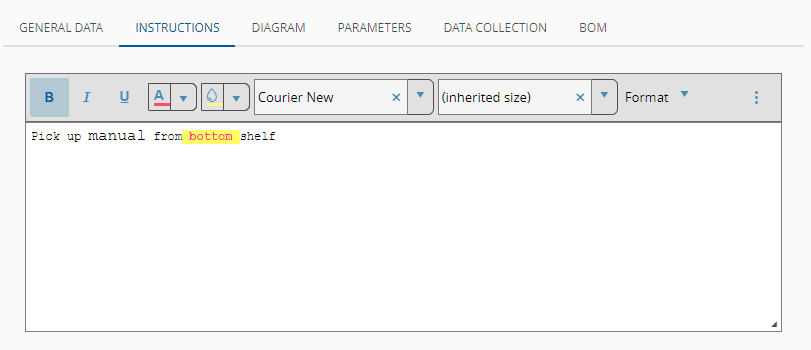
You can add rich-text formatted instructions for each Checklist item. These instructions will guide users through the process.
Info
The maximum instruction size (in Megabytes) is defined in the configuration entry: /Cmf/System/Configuration/Checklist/MaxInstructionSize.
Diagram#
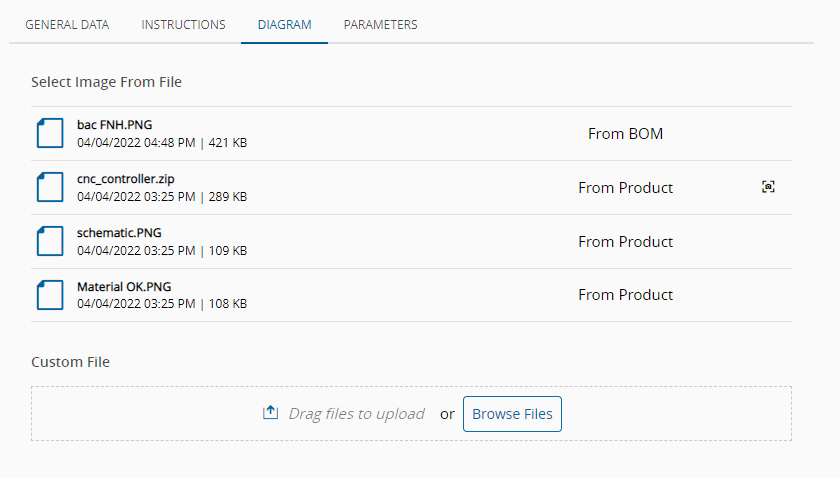
You can add a diagram to illustrate specific procedures associated with a Checklist item. In the Diagram tab, you can upload an image and annotate it using the built-in tools. In this tab, you also have direct access to images, diagrams, and documents associated with the Product and BOM linked to the Checklist.
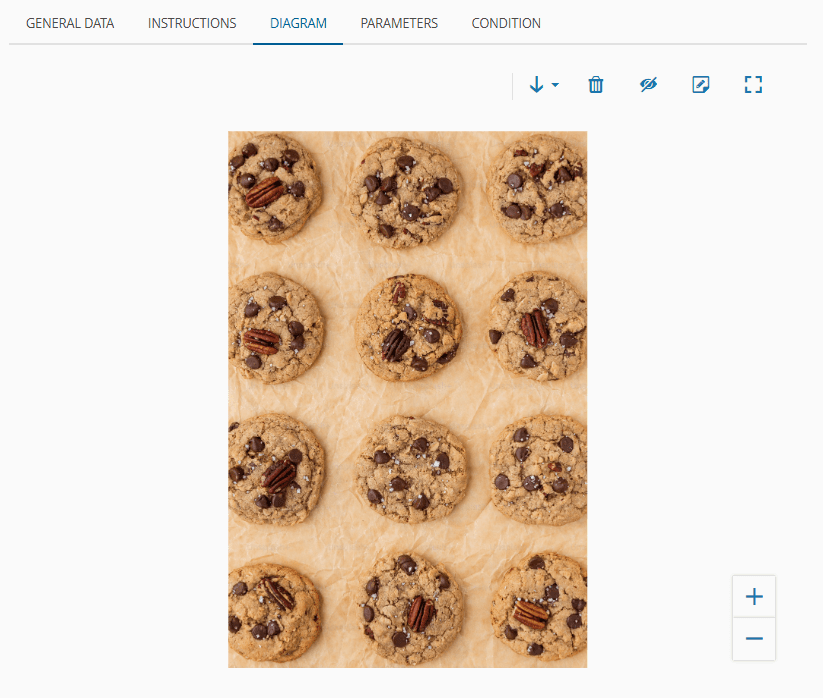
After uploading a file, you can annotate the diagram directly over it, using the Add Annotations within the same tab.
At the bottom right corner you have controls that add different types of annotations to the image:
- Text boxes - allows you to add text and an arrow indicating a specific point in the drawing. To edit the text, simply double-click on the shape.
- Polygons - used for outlining specific areas in the diagram. Select the icon and select each point you want to join until the line is closed by selecting the original point.
- Images - upload additional images and position them within the diagram. To add an image, select the appropriate icon and use the file upload control accordingly (upload from a local file or from a web URL). Place the image where desired and select Add to save.
Note
The image can be resized and placed anywhere over the existing diagram.
On top of the image you have several controls that provide easy tools for annotation and editing.

To change the font, background or line colors and border widths for any annotation, select the desired effect using the tools on top of the image and then select the annotation you want to edit.
If you want to remove any annotation, select it and select :
In the main Diagram tab, select to toggle the visibility of the annotations:
If you want to download the diagram, select . You can also decide to download the diagram with the annotations. In this case, a new image file will be created by flattening the layers of the main image with the annotations created on top. To remove the diagram, select .
Info
You must save the Checklist in order to keep all the changes made to the diagram.
Parameters#
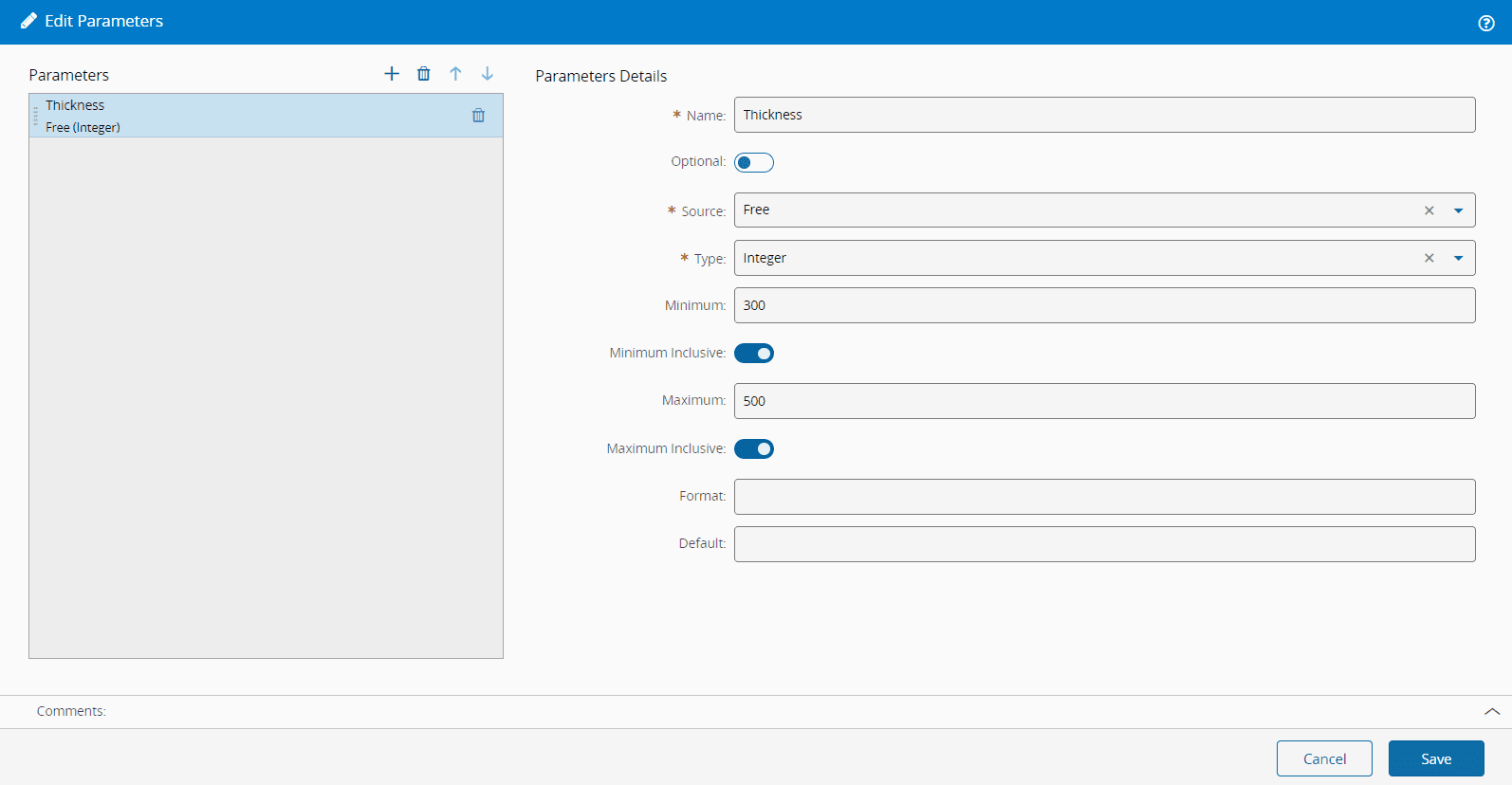
For Manual Tasks and Signatures, specify the desired Parameters and provide:
- The Name.
- Whether it is Optional or not.
- The Source, which can be Free, from a Lookup Table or from a Query. For more information, see Create Checklist.
Condition#
For each Checklist item you may define a Condition, which could be:
-
None - no restrictions will be added that will condition the execution of the Checklist item.

-
Date Interval - if defined, you must enter the Valid From or Valid To date and time. If both are defined, the Valid To must be greater than the Valid From. In this case, the Checklist item will only be performed if the current date and time fall within this defined range.

-
BOM Items - this option can only be selected if the scope is Material Tracking and it requires at least one BOM item to be associated with the Checklist item. If selected you must add at least one BOM item (see BOM Products). In this case, the Checklist item will only be performed if it matches with the characteristics of the chosen Material or Product. For more information, see Checklist With Conditions.

-
Expression (Simple) - this option can only be selected if the scope is Material Tracking and it should reference a valid JSONata expression. This expression can reference Product Characteristics. You can select a Product or, if a Product is already associated with the Checklist, it will be pre-selected, and you will only be able to access characteristics defined for that Product. For more information, see Product Characteristics.
Note
The system validates only characteristic values defined in Lookup Tables, and autocomplete suggestions during condition editing are available only for characteristics linked to those Lookup Tables.

-
Expression (Advanced) - this option can only be selected if the scope is Material Tracking and it should reference a valid JSONata expression. This expression can reference direct properties, attributes, and characteristics of the Material, as well as Product characteristics.

Info
Both Expression editors include an autocomplete feature that will suggest the characteristics available for the selected Product. In any case, the Checklist item will only be performed if it matches with the expression defined. You can preview the results by using the Preview Checklist functionality.
Here are some examples on how to use direct properties, attributes, and characteristics of the Material, as well as Product Characteristics:
- Material Primary Quantity is greater than 100 -
PrimaryQuantity > 100 - Material name contains the value "Material A" -
$contains(Name, 'Material A') - Material Is Hot set to true or false -
IsHot = trueorIsHot = false - Product default units are "Kg" -
Product.DefaultUnits = 'Kg' - Attribute 'RetailPrice' is greater than 100 -
Attributes.RetailPrice > 100 - Material Characteristics 'Color' is equal to "Red" -
MaterialCharacteristics.Color = 'Red'
Signatures#
The Signature Activity Type will display a new tab called Signatures so that you can add the signatures that are allowed to sign the Checklist item.
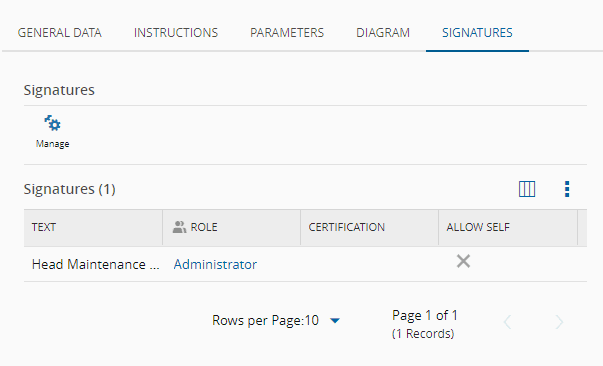
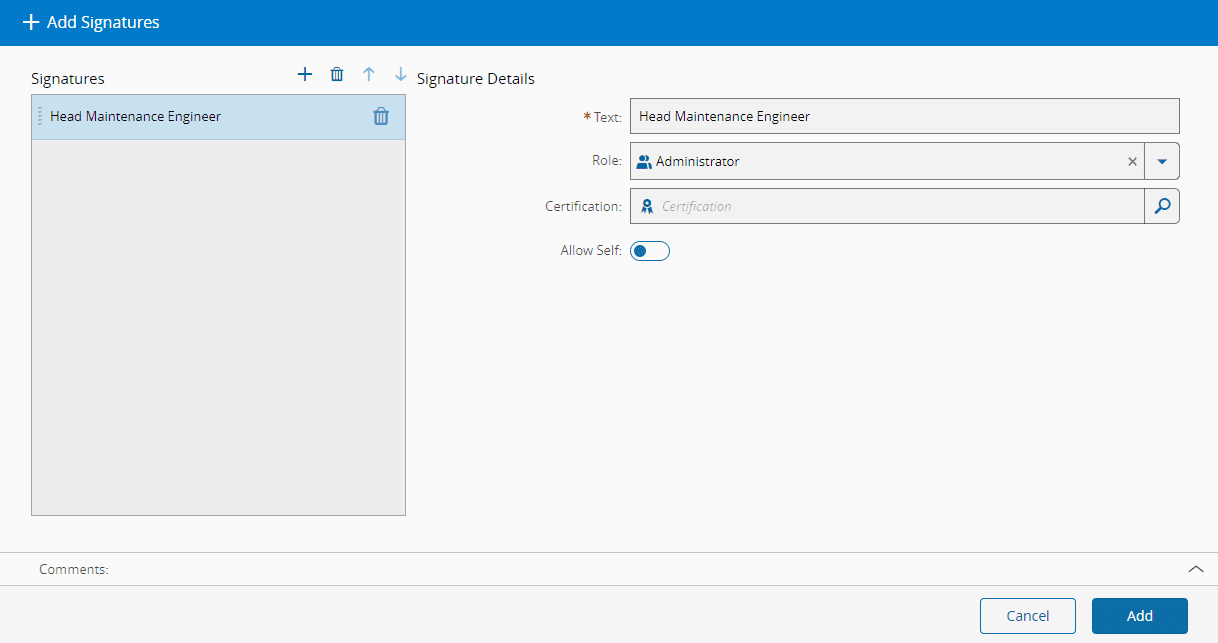
When adding a Signature you should provide the following information for each item:
- The Text to display as name for the signature.
- The Role associated with the signature (only users with this role will be able to sign the Checklist item).
- An optional Certification associated with the signature.
- Whether or not you can sign the Checklist item, Allow Self.
Warning
If the Security Portal is enabled for the instance of the Critical Manufacturing MES where Signature Activity Type Checklist items are created, the person who will sign the Checklist item must have a PIN.
Document#
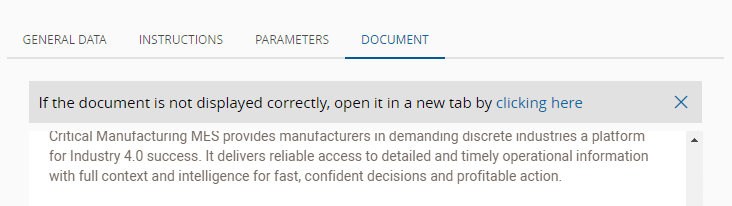
A valid Documentation URL will be displayed in a separate tab named Document and can also be opened in a new tab to enable an easier viewing experience:
Data Collection Parameters#
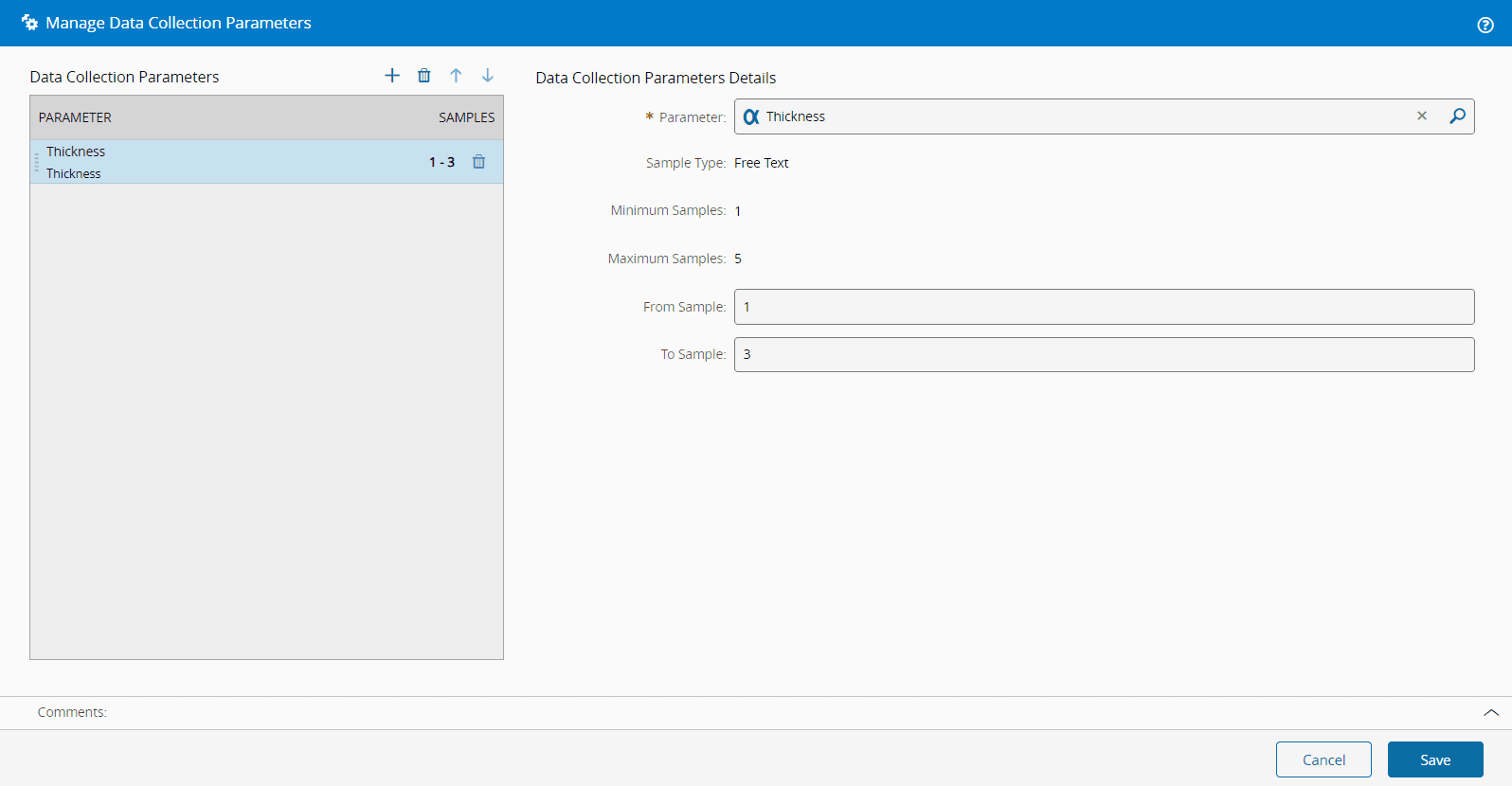
If you assign a Data Collection to a Checklist, you can also define that some or all of the Data Collection parameters must be filled in when the Checklist is performed. You can edit the Data Collection parameters by selecting the Manage button in Data Collection tab. However, there are some restrictions to the parameters, as described in the Restrictions section of this tutorial.
Info
Data Collection parameters with calculation defined as Rule or Expression cannot be used in Checklists.
BOM Products#
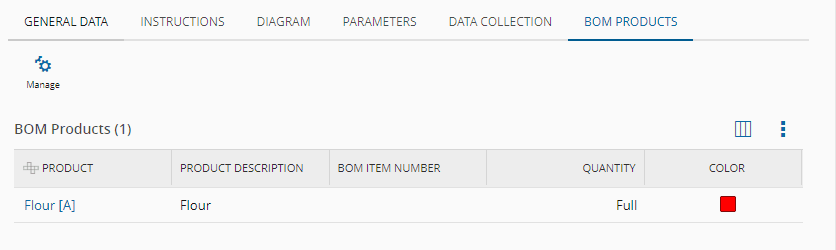
If a BOM was defined, you can specify a list of BOM Products for the Checklist item and provide the following for each item:
- The BOM Product - from which the Product is retrieved.
- If the Product appears various times in the BOM, the BOM Item Number is also needed, and it must be unique for the same Checklist item.
-
Optionally, a Quantity – if defined, it must be below or equal to the respective BOM item.
Note
If a quantity is not defined, it is assumed that the full quantity will be consumed.
-
Optionally, a color to cross-check the Product in the diagram.
Note
The system indicates which BOM Products have already been used and in which quantities.
BOM Products for which the Product Type is Part and Part Type is Repairable must have the BOM Item Quantity equal to
1.
Once the Checklist items have been created, you can proceed with one of the following options:
- Save and Request Approval - save the Checklist and submit it for approval to make it effective. For guidance on what to do next, see Open a Checklist.
- Preview the Checklist - verify how the Checklist will appear during execution. This option is available only for the Material Tracking and Maintenance Management scopes. For more information, see Preview a Checklist.
Info
For further guidance on the next steps, see Create a Checklist.