Create File#

When activated, the create file task creates a new file or update the content of an existing one. The file path can be provided either by the input port or in the task settings.
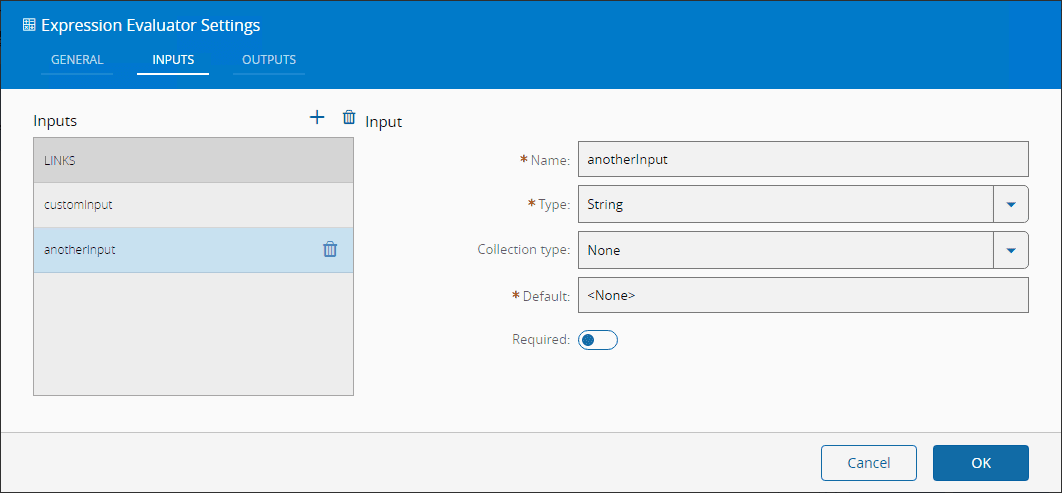
Inputs#
| Name | Data Type | Description |
|---|---|---|
| path | String | File path |
| content | String | File content to be written |
| encoding | String | File content encoding |
| mode | Integer | File system permissions mode |
| flag | String | File System Flags |
| attempts | Integer | Number of attempts to perform this operation. Default is 1 attempt |
| sleepBetweenAttempts | Integer | Interval of time between the attempts. Default is 1000ms |
| Activate | any | Activate the task |
Outputs#
| Name | Data Type | Description |
|---|---|---|
| Success | Boolean | Triggered when the task is executed with success |
| Error | Error | Triggered when the task failed for some reason |
Settings#
On the General tab, you have the usual settings and the following settings:
| Name | Data Type | Values | Default | Description |
|---|---|---|---|---|
| Path | String | File path | ||
| Content | String | File content to be written | ||
| Encoding | Enum | utf8ucs2utf16lelatin1binarybase64asciihex | utf8 | File content encoding |
| Mode | Integer | 0o666 | File system permissions mode | |
| Flag | String | w | File System Flags | |
| Number of attempts | Integer | 1 | Number of attempts to perform this operation. | |
| Sleep Between Attempts | Integer | 1000 | Interval of time between the attempts. |
For the Path file you can use tokens as represented below:
Available tokens:
  ${path} - Watched path
  ${archive} - Archive path
  ${temp} - Temporary directory of the user
  ${id} - DriverId ("\" chars replaced with "_")

Examples:
  ${path}\subdir\newFile.txt
  ${temp}\files\${id}\Recipe\File.csv
  c:\source\Result\OK.bin

File system permissions mode#
The task setting mode controls the ability of the users to view, change, navigate, and execute the contents of the file system.
Each of the three rightmost digits represents a different component of the permissions: owner, group, and others. These are the examples from the symbolic notation section given in octal notation:
| Symbolic Notation | Octal Notation | Integer Notation | Description |
|---|---|---|---|
---------- | 0o000 | 000 | No permissions |
-rwx------ | 0o700 | 448 | Read, write & execute only for owner |
-rwxrwx--- | 0o770 | 504 | Read, write & execute for owner and group |
-rwxrwxrwx | 0o777 | 511 | Read, write & execute for owner, group and others |
---x--x--x | 0o111 | 73 | Execute |
--w--w--w- | 0o222 | 146 | Write |
--wx-wx-wx | 0o333 | 219 | Write & execute |
-r--r--r-- | 0o444 | 292 | Read |
-r-xr-xr-x | 0o555 | 365 | Read & execute |
-rw-rw-rw- | 0o666 | 438 | Read & write |
-rwxr----- | 0o740 | 480 | Owner can read, write & execute Group can only read Others have no permissions |
File System Flags#
The following flags are available :
| Flags | Description |
|---|---|
a | Open file for appending. The file is created if it does not exist. |
ax | Like 'a' but fails if the path exists. |
a+ | Open file for reading and appending. The file is created if it does not exist. |
ax+ | Like 'a+' but fails if the path exists. |
as | Open file for appending in synchronous mode. The file is created if it does not exist. |
as+ | Open file for reading and appending in synchronous mode. The file is created if it does not exist. |
r | Open file for reading. An exception occurs if the file does not exist. |
r+ | Open file for reading and writing. An exception occurs if the file does not exist. |
rs+ | Open file for reading and writing in synchronous mode. Instructs the operating system to bypass the local file system cache. |
w | Open file for writing. The file is created (if it does not exist) or truncated (if it exists). |
wx | Like 'w' but fails if the path exists. |
w+ | Open file for reading and writing. The file is created (if it does not exist) or truncated (if it exists). |
wx+ | Like 'w+' but fails if the path exists. |
Behavior#
In this task you choose a driver when dropping it into the workflow (if you have more than one driver associated with the controller).
Upon activation, will send a CreateFile command to the driver where it will try to write into a file located in the path location. If it fails, will retry attempts times, waiting sleepBetweenAttemptsmilliseconds each time.
If the operation is executed with success, a value true is emitted on the Success output. In case of the task , for some reason, is not able perform the copy operation, an Error is emitted.
Remarks#
There is no particular remark to be made.