---
pdfexport: true
alias: tutorials-experiment-management-configuring-experiment-definition
timetoread: true
tutorial: full
description: "Manage experiments within the Critical Manufacturing MES for optimized production runs"
---
# Configuring an Experiment Definition
## Modeling Basis
When handling experiments, it is possible to assign sub-materials to Material Groups, and then define specific variations at different process Steps for those Material Groups. Because multiple Material Groups are supported, it is possible to carry out several Experiments in a single Material. When no sub-materials are available, all variations will be applied to the complete material, and this Experiment Definition mode is called **Full Material**.
In this section, we're going to explore the set of MES objects and system configurations that need to exist to allow Experiment Definition creation.
### Lookup Table Values
To create the **Experiment Definition**, configure the following items:





### Flow Path
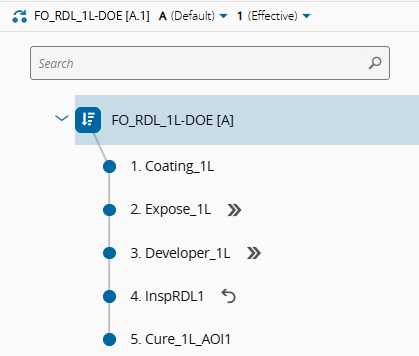
The Flow and corresponding Steps shown in the image below were configured in the MES to be used as the Experiment Flow Path.
### Split Types
Some actions require that a split takes place before the action is performed. All splits are defined per Experiment Definition Step Material Group and will be evaluated and performed when the Material arrives at the Experiment Definition Step.
| Split Type | Description |
| ------------ | ---------------------------------------------------------------------------------------------------------------------------------------------------------------------------------------------------------------------------------------------------------------------------------------------------------------------------------------------------------------------------------------------------------------------------------------------------------------------------------------------------------------------------------------------------------------------------------------------------------------------------------------------------------------- |
| **None** | No split is performed.|
| **Logical** | The Material Group is logically split in the system automatically, even though physically it will remain together. There are three types of logical splits:
- For Current Step - a temporary split where the Material Group is merged back at the end of the current Step (in state Processed).
- For Multiple Steps - a temporary split where the Material Group is merged back at another Step further ahead in the Flow. In this case, it is necessary to provide a merge point, that is, the merge Flow Path. And also the merge state.
- Permanent - in this case, the Material Group is split permanently and will not be merged back again. |
| **Physical** | The Material Group is split logically and physically. There are three types of physical splits:
- For Current Step - a temporary split where the Material Group is merged back at the end of the current Step (in state Processed).
- For Multiple Steps - a temporary split where the Material Group is merged back at another Step further ahead in the Flow. In this case, it is necessary to provide a merge point, that is, the merge Flow Path. And also the merge state.
- Permanent - in this case, the Material Group is split permanently and will not be merged back again. |
Table: Experiment Material Group split types
!!! note "Modeling Notes"
- At every Experiment Definition Step, there must be one Material Group that is not Split, that is, its Split Type must be None.
- When configuring a Skip Step action in the Experiment Definition, the experiment step where this action is being set shall be configured as skippable in the flow. Otherwise, the system won't allow the user to define that action.
- If a Hold action is being defined in the Experiment Definition, the experiment step must have at least one hold reason.
- The Flow Paths selected can be different from the one defined in the Experiment Definition, as there can be operations in other steps that trigger actions on the experiment.
- If MaterialGroup Mode = Sub-Material, the user can configure on each experiment action how different Material Groups are defined upon entering and leaving the Step. The available options are:
- Enter - Material Groups are defined when entering the Step.
- Enter and Exit - Material Groups can be defined on entering and leaving the Step.
!!! info
An Experiment Definition can be configured to automatically close the Experiment after the last Experiment Step.
## Create the Experiment Definition
An Experiment Definition can be created as any versioned object in the system. The next sub-sections will cover the Experiment Definition creation steps in more detail.
### General Data
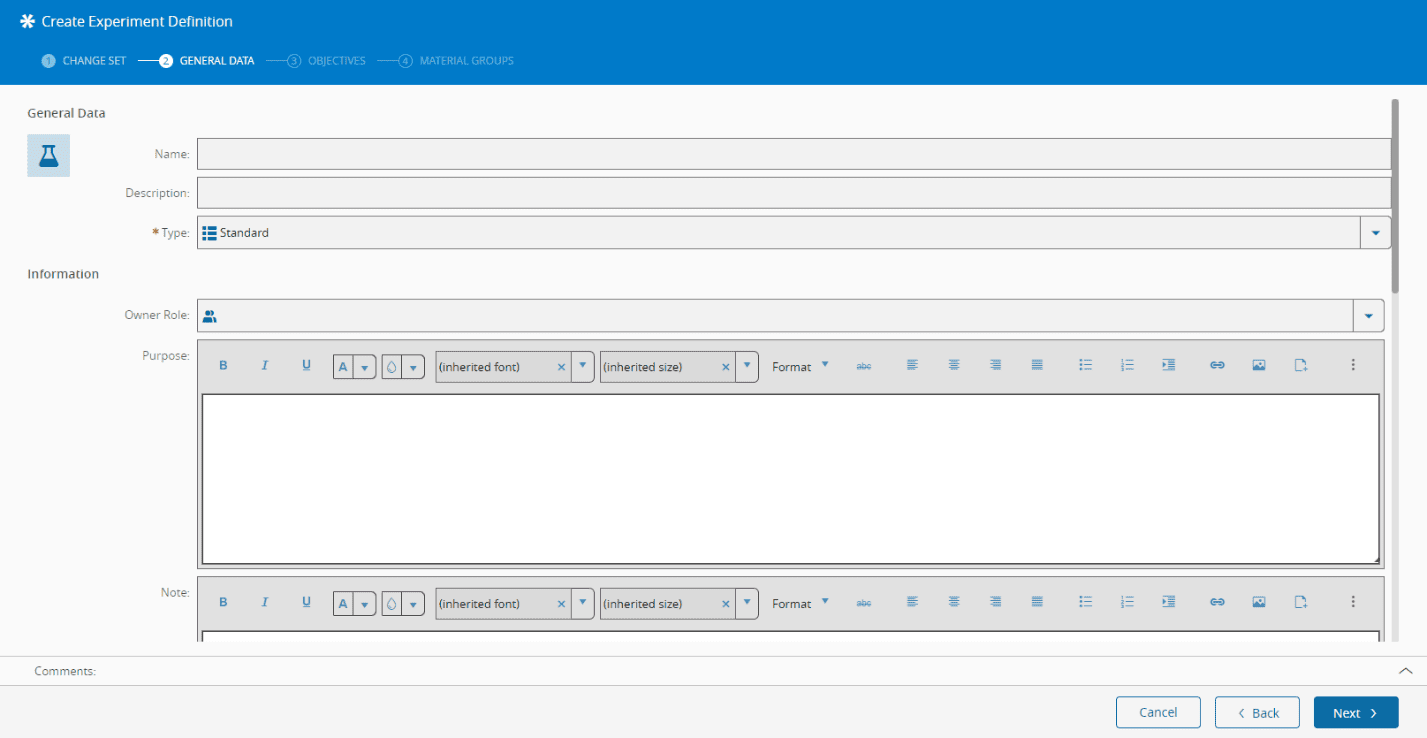
The table that follows describes the properties to consider when creating an Experiment Definition in the first step of the Experiment Definition creation wizard, as shown in the image below.
| Field | Description |
| ---------------------------------- | ----------------------------------------------------------------------------------------------------------------------------------------------------------------------------------------------------------------------------------------------------------------------------------------------------------------------------------------------------------------------------------------------------------------------------------------------------------------------- |
| **Owner Role** | If defined, it restricts the modifications of this Experiment Definition to this role.|
| **Applicable To** | To restrict the material to be selected on an Experiment, there are two options available: Product or Product Group. Depending on the selection, it will only be possible to select a material which fits that option. Neither of the two are mandatory and only the Flow can be defined. |
| **Flow** | The Flow in which the Experiment will be executed. If Product or Product Group is not defined, any material running in this flow (and that matches the other conditions below) can be selected for the Experiment. If the selected product has a default Flow, it will be automatically filled out. |
| **Maximum Number of Materials** | The maximum number of materials which can be used in an Experiment. |
| **Mode** | The Mode selected determines if the Experiment uses Sub-materials or Full Material. If the selected mode is Full Material, only Materials without Sub-Materials can be used; if the selected mode is Sub-Materials, the field **Required Sub-Materials Count** must be greater than zero.
:material-tooltip-text-outline: If zero is indicated, the experiment will be carried out in the entire material.
**Required Sub-Materials Form** can also be indicated. |
| **Ignore Sampling Plans** | This option determines if, during the execution of the Experiment, Sampling Plans are ignored. |
| **Ignore SPC Charts** | This option determines if, during the execution of the Experiment, the Data Collection Parameters values from the Experiment action `SetDataCollection` are ignored and not sent to the SPC Chart. |
| **Close Experiment Automatically** | This option determines if, when completed the last step of the experiment, it will be closed automatically. After completed, it will still be shown in the experiment's list. |
Table: General Data tab steps
### Objectives
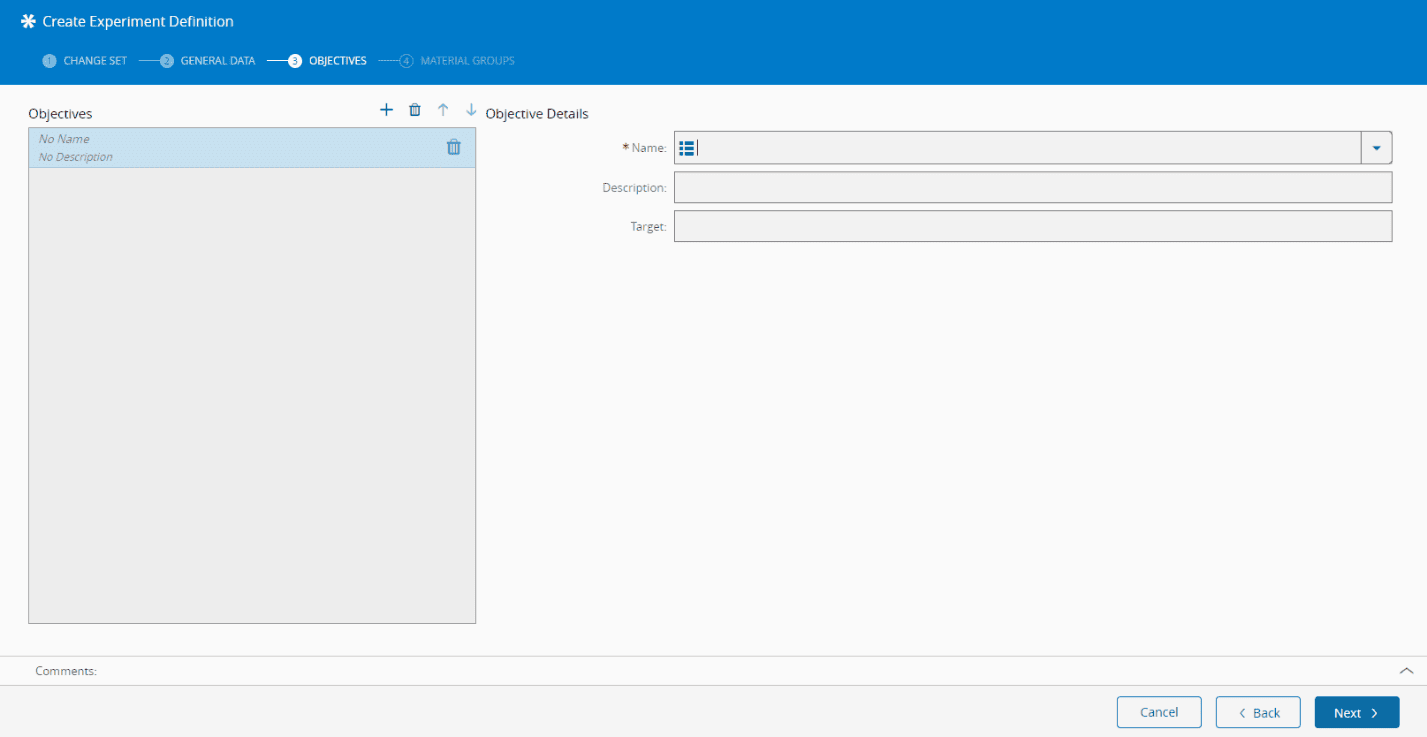
The Objectives wizard step is used to capture the objectives of the Experiment, as shown in the table and image below:
| Field | Description |
| --------------- | ------------------------------------------------------------------------------------------------------------------------------------------------------------------------------------------------------------ |
| **Name** | Each objective's name must be unique. However, it can be re-used across different Experiment Definitions. The available objectives must be listed in the [[experimentdefinitionobjective-lt]] Lookup table. |
| **Description** | An optional field, only used for informative purposes. |
| **Target** | An optional field, only used for informative purposes. |
Table: Objectives tab steps
### Material Groups
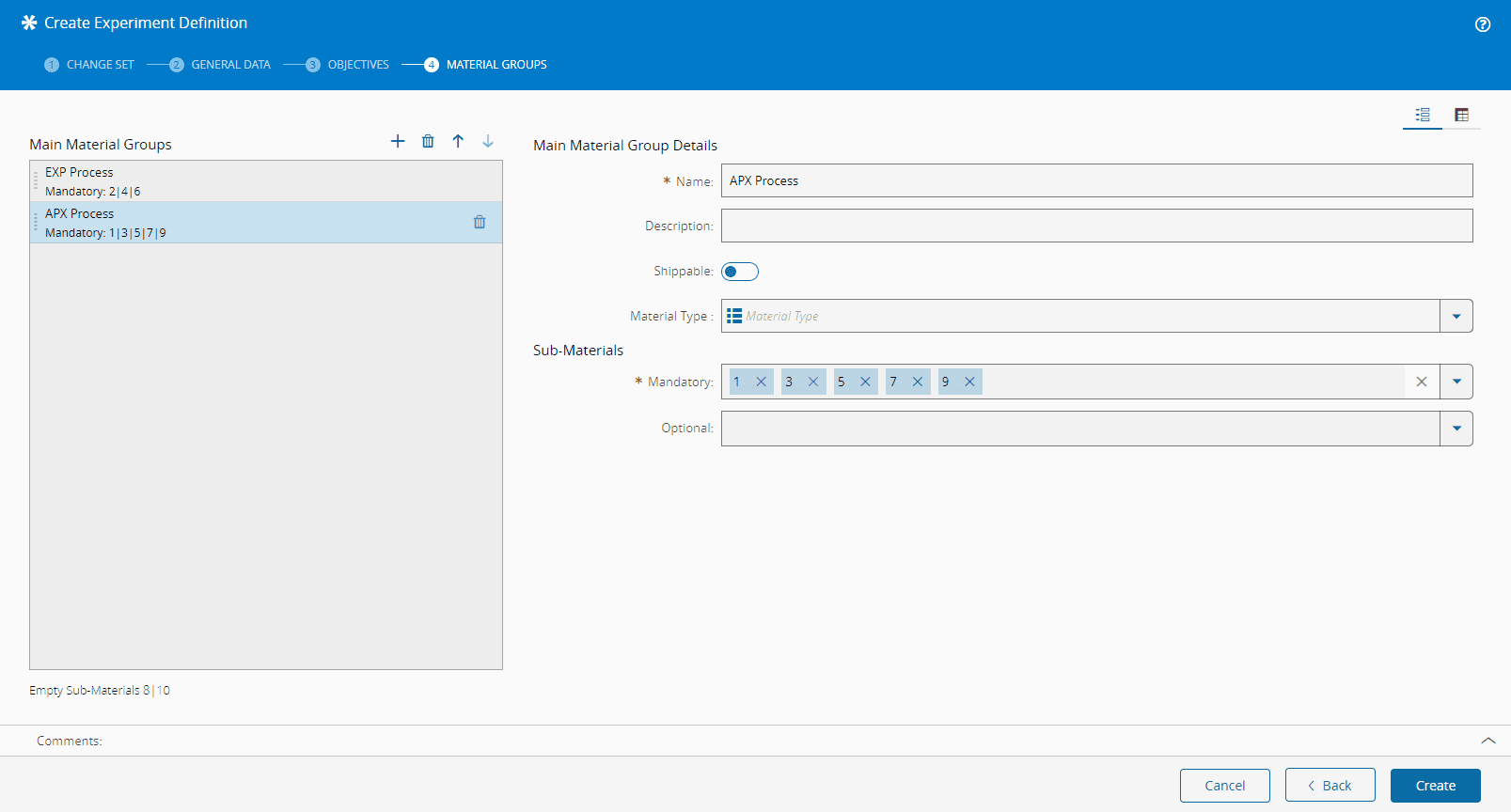
Define Material Groups when the selected **Mode** in the **General Data** tab is **Sub-Materials**. These groups are used to assign variations (actions) during the Experiment.
!!! note
These are the primary (main) groups and it is possible to define other groups for a particular Experiment Definition Step.
The first image below displays the Material Groups definition page. Besides this view, a matrix view is also available, as shown in the image below. The matrix view is accessed by selecting the corresponding icon on the top right-hand corner of the screen. The matrix view provides a general overview of the assignment and enables the association and disassociation of a material number to a group, by selecting the corresponding area.
- Each Material Group can define a Material Type. If set, all Sub-Materials assigned to this group are automatically changed to this Material Type when the Experiment is created.
- For information purposes, each Material Group can be marked as **shippable** or not to indicate whether a certain Material Group can be shipped. Remember that this option is for information only and doesn't have any functional effect, meaning that the material can still be shipped.
- The number of Sub-Materials available for assignment to Material Groups is defined by **Required Sub-Materials Count**.
- Each Sub-Material number must be associated with one and only one Material Group.
- The mapping between the sub-material slot ID and sub-material is performed when it is first assigned to the Experiment.
- Select the mandatory Sub-Materials and optional Sub-Materials. If any Sub-Material is left unselected for any Material Group, a visual indication will be displayed below the Material Groups panel.
When viewing the Material Groups as a matrix, you can choose a specific Sub-Material as mandatory or optional by selecting the appropriate option at the top right of the matrix and selecting the appropriate cell.

## Define Experiment Definition Steps and Actions
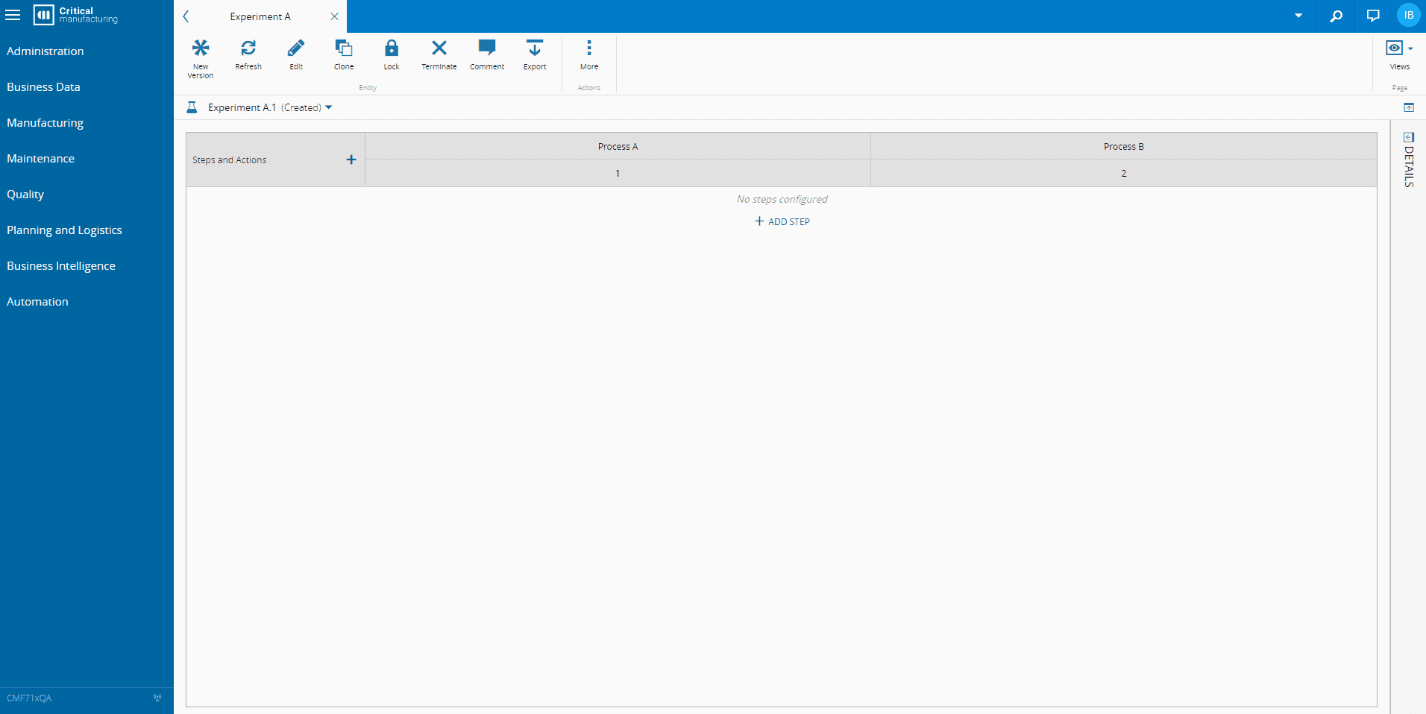
After creating the basic Experiment Definition object, you need to define the actions to be performed at each Step for each Material Group. You can define this in the Experiment Definition Matrix view by selecting **Add Step**, as shown in the image below:
### General Data
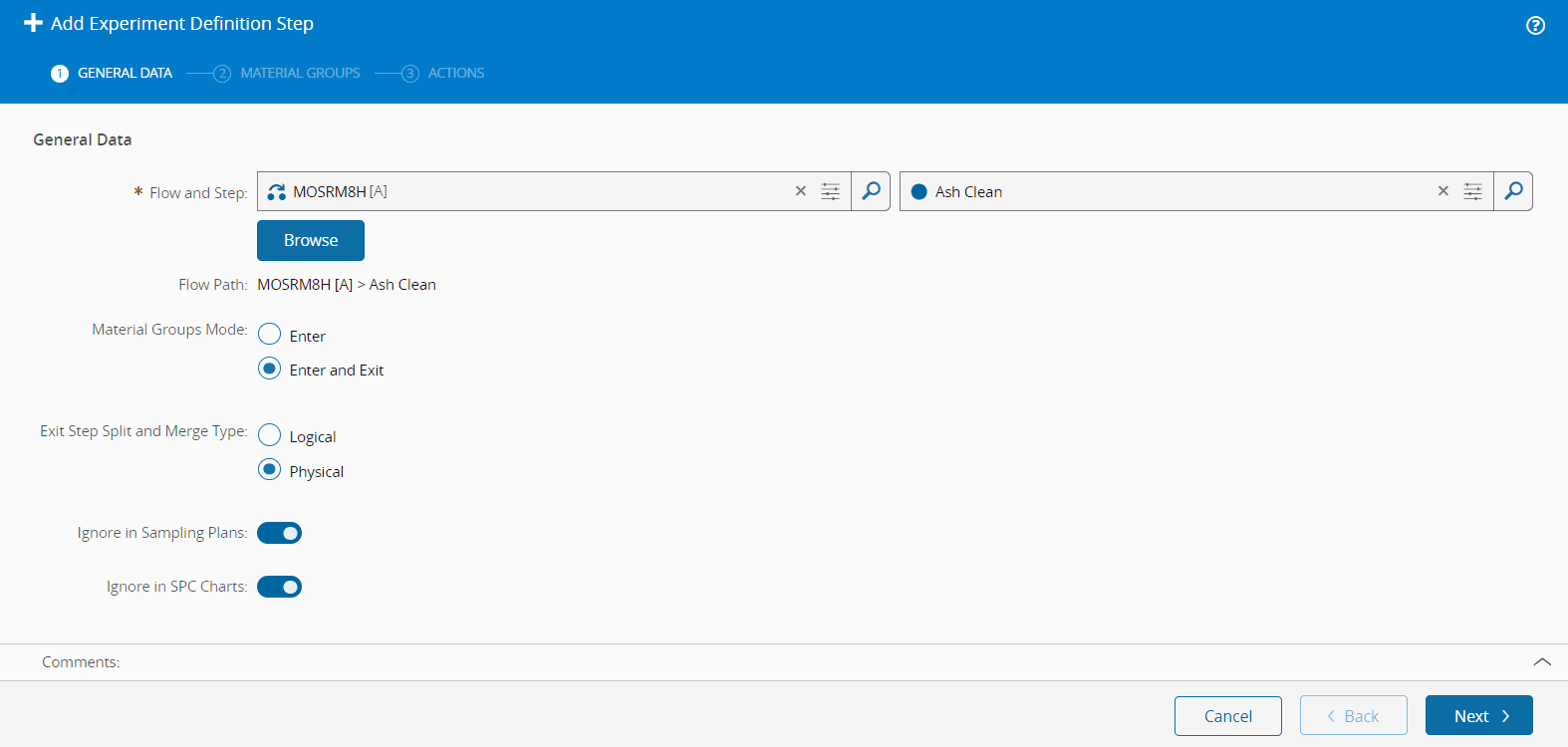
In this tab, you must select the Flow Path where an action will be performed on a Material Group. If **MaterialGroup Mode = Sub-Material**, define how different Material Groups are handled when entering and leaving the Step. The available options are:
- Enter - Material Groups are defined when entering the Step.
- Enter and Exit - Material Groups can be defined on entering and leaving the Step.
The available options are shown in the image below:
!!! info
If option Enter and Exit is selected:
- At Enter - the Split Type must be permanent to create a new Material Group at Exit.
- At Exit - only Hold, Change Flow And Step, Temporary Off Flow, Terminate And Send Mail can be selected because only these actions can be set once the Material is Processed.
The Flow Paths selected can be different from the one defined in the Experiment Definition, as there can be operations in other steps that trigger actions on the experiment.
It is possible to mark the Experiment Definition Step to ignore any Sampling Plans so that it does not affect the normal production sampling strategy. It is also possible to mark the Experiment Definition Step to ignore any SPC Charts so that it does not affect the normal production SPC strategy.
### Material Groups
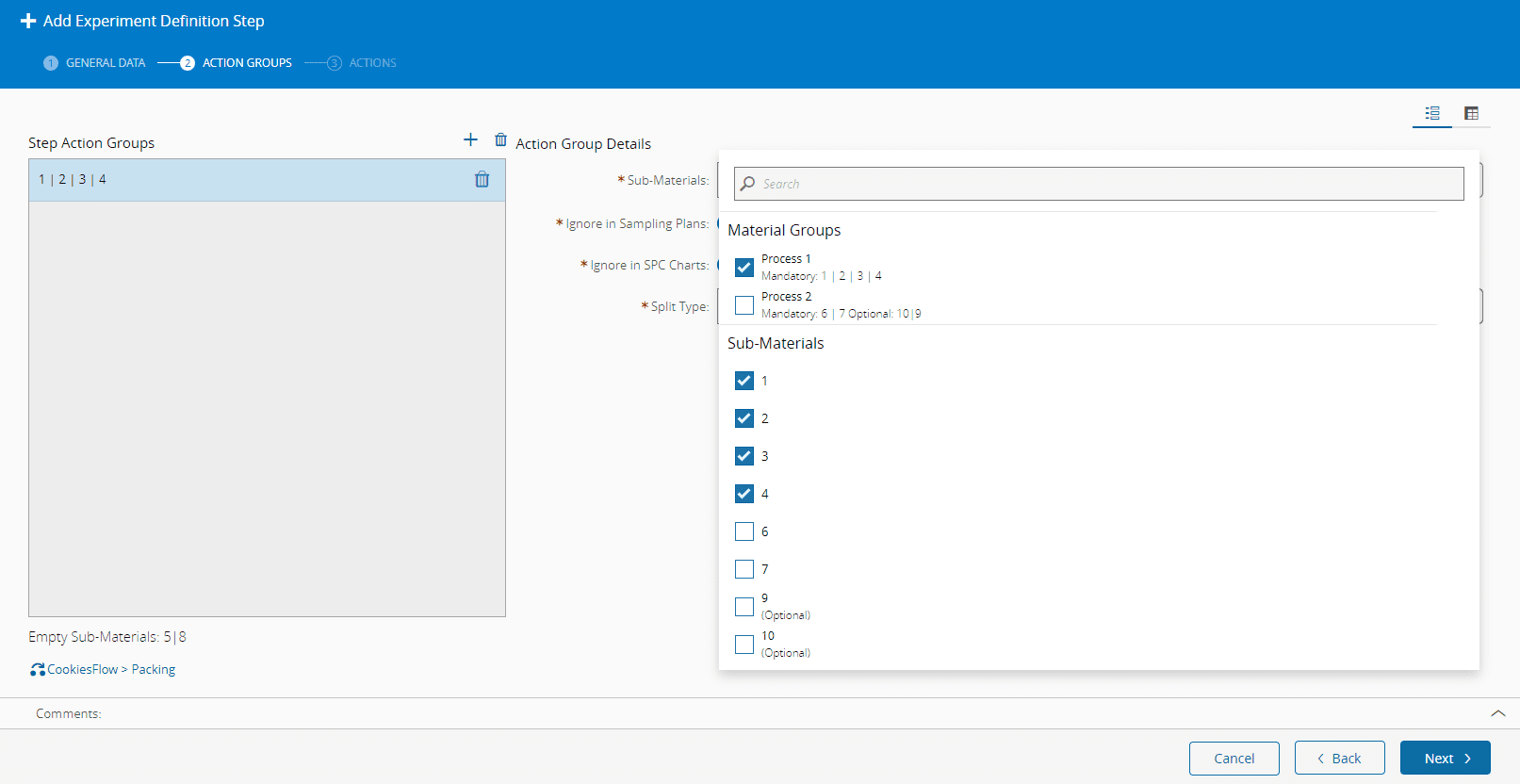
For an Experiment with Sub-Materials, you need to specify the Sub-Material Groups. You can use the predefined Experiment Definition Groups or specify new ones, as shown in the image below. A matrix view is also available by selecting the respective icon at the top right-hand corner of the screen.
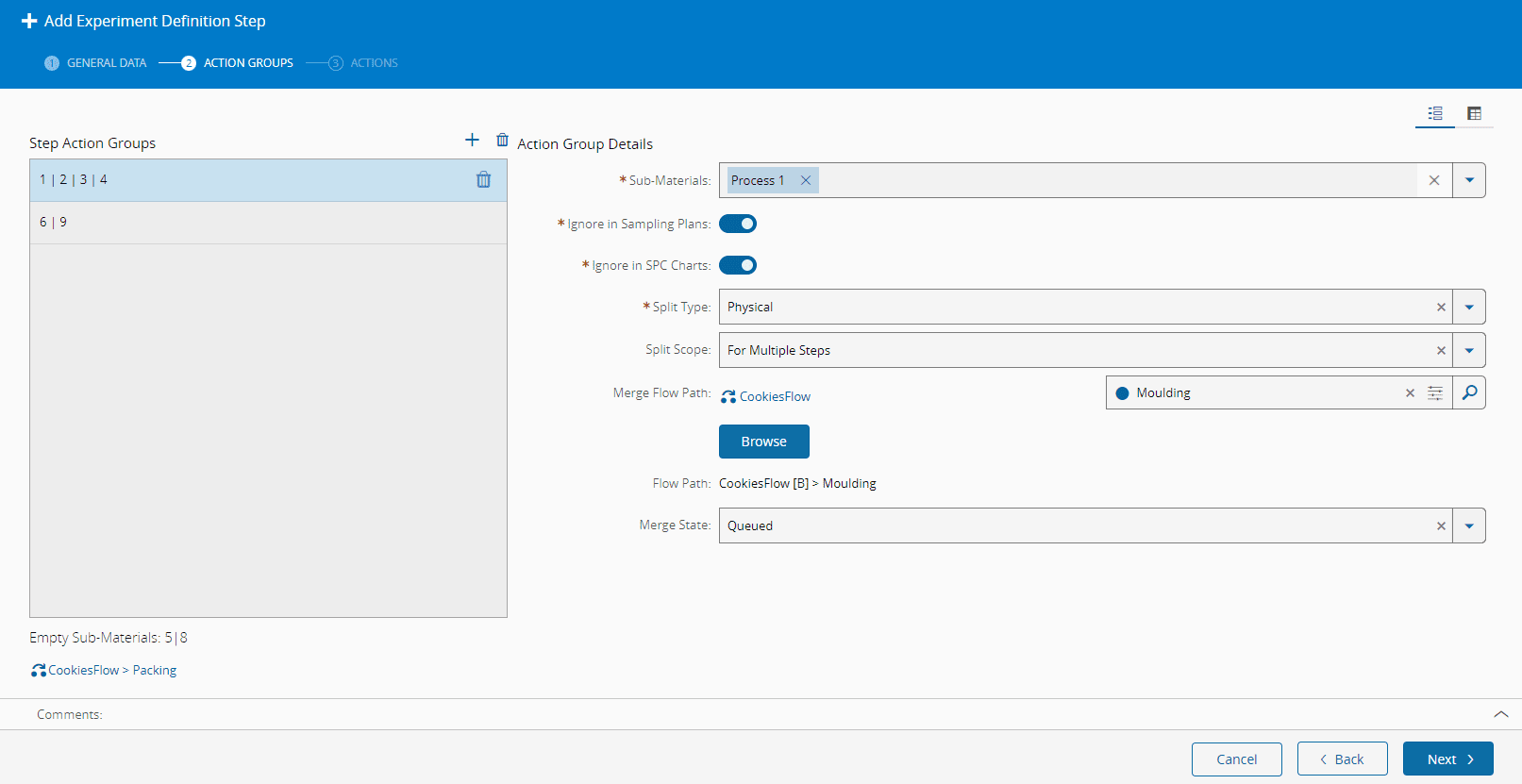
For the Material Group of each Step, you need to define the **Split Type**, that is, how the Material will be split during the Experiment. The options are **None**, **Physical**, and **Logical**, as shown in the image below. For the **None** **Split Type**, no further configuration is required. For the **Physical** or **Logical** **Split Type**, you need to define the **Split Scope** and, when applicable, the **Merge Flow Path**.
!!! info
The Split Type is only defined if the selected Experiment Definition Mode is Sub-Materials.
### Actions
In the Actions tab, you can define which actions will be performed for each Material Group, as shown in the image below. Each action must define the event when the action will be triggered: **Queued**, **Track-In**, **Track-Out** or **Processed**.
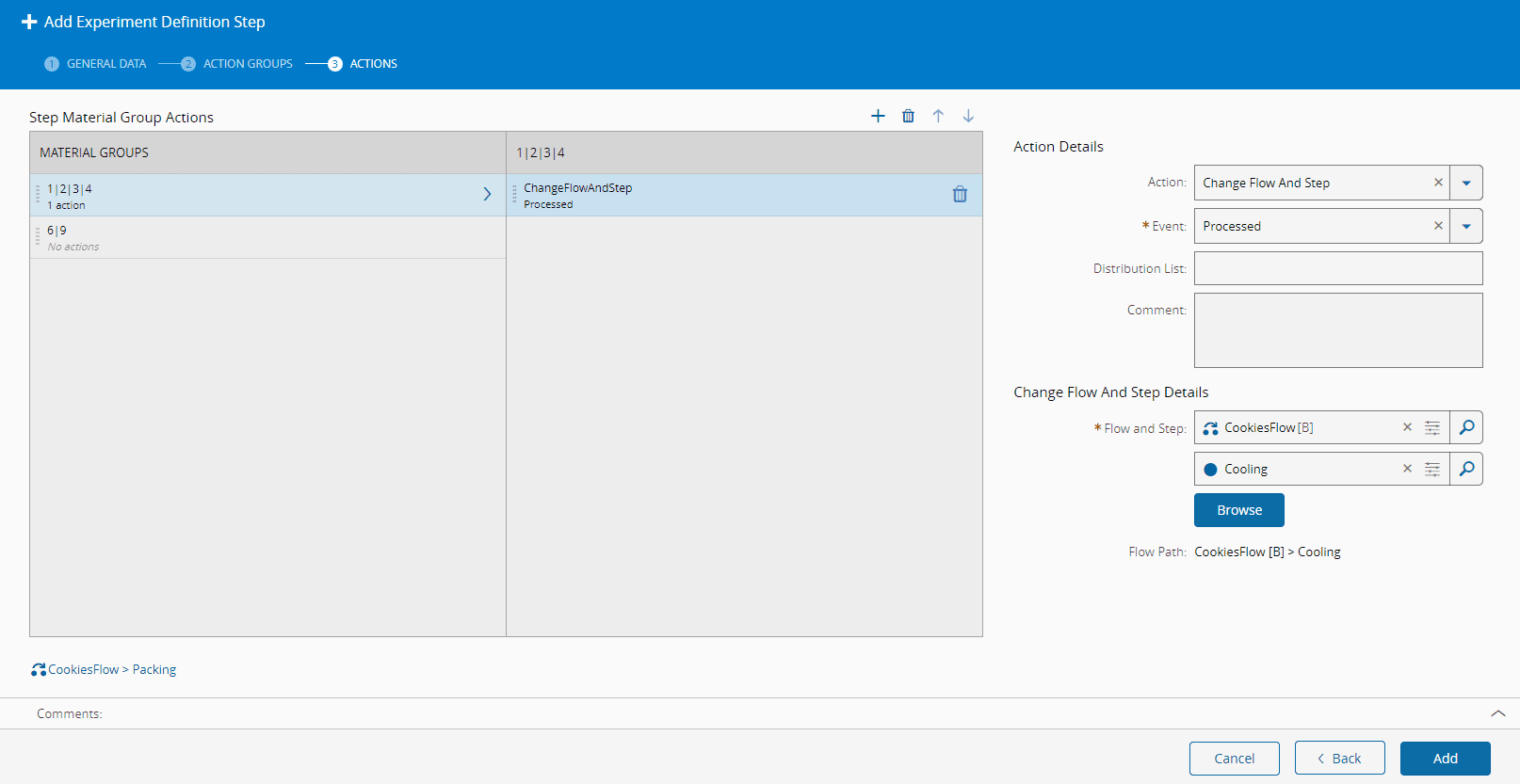
!!! info
You do not need to define actions for every Material Group. By default, all Material Groups follow the standard process unless an explicit action is defined.
The available events depend on the selected action. For a detailed list of possible combinations between **Experiment Actions** and **Events**, see [[experiment-actions-restrictions]].
Depending on the action, additional information may need to be provided. For more information, see [[experiment-actions-restrictions#experiment-actions-required-information|Required Information for Experiment Actions]].
To learn more about existing experiment actions and their preconditions, see [[experiment-actions]].
!!! note
There is the special security feature `ExperimentDefinition.AllActions` that provides access to all the available Actions. You can read more about Feature Level Security on the [[security-admin]] page of the User Guide.
## Demo Scenarios
### Simple Scenario: Coating Recipe Test Exploring Containment Actions
The following demonstration covers the creation of the **Experiment Definition** for the scenario described in [[tutorials-experiment-management-introduction#simple-scenario-coating-recipe-test-exploring-containment-actions]].
{% set video_id = '8f987212ff0e02d22daadcf24f0e325c' %}
{% include-markdown 'includes/cloudflare_stream.md' %}
### Advanced Scenario: Developer Recipe Test Exploring Mixed Control Groups
The following video showcases how to create the **Experiment Definition** for the scenario that was shared in the [[tutorials-experiment-management-introduction#advanced-scenario-developer-recipe-test-exploring-mixed-control-groups]].
{% set video_id = '9bc34e3c4a2ed9aec82db4067631b5b4' %}
{% include-markdown 'includes/cloudflare_stream.md' %}
!!! note "Execution Notes"
- All mandatory fields marked with a red asterisk must be completed.
- The experiment action must be added following the experiment flow path execution logic.
- The action is set in a specific flow and step.
- All system objects required by an experiment must be created beforehand. Otherwise, they will not be available for selection during experiment configuration.
## Master Data
This [Master Data file](../masterdata/experimentmodulemodel.xlsx) was used to create this model, using in version 11.3.4.
!!! tip
To continue learning, see [[tutorials-experiment-management-using-experiment-management]].