---
pdfexport: true
alias: tutorials-partialtrackout
timetoread: true
tutorial: full
description: "Partial Track-Out allows splitting large production orders into smaller quantities for continuous processing"
---
# Partial Track-Out
**Partial Track-Out** is an operation that relates to **Material**, which is one of the most important objects in the system as it represents any raw material, inventory or work-in-progress (wafers, dies, modules, printed circuit boards, capacitors, etc.).
A **Material** is partially tracked out when only a certain amount of the original **Material** is required to be processed. This is quite common with large production orders that need to be broken down into smaller quantities and use the **Partial Track-Out** operation to split and track out materials for a more continuous processing.
This document will guide you through the setup of a **Partial Track-Out** scenario.
## Overview
A **Partial Track-Out** happens when a **Material** is tracked in at a **Resource** in a **Step** and only a fraction of the quantity should be tracked out to a new **Material**.
!!! info
The original Material stays tracked in at the same Resource with the remaining quantity, and the Step must be configured to allow partial track-outs.
## Scenario Setup
To enable partial track-outs, follow the steps described in the table below:
| **Step Number** | **Step** | **Description** |
| --------------- | ------------------------------------- | ------------------------------------------------------------------------------------------------------------------------------------------------------------------------- |
| **1** | **Create context resolution entry** | Create the entry in the [[stepsplittrackoutcontext-st]] Smart Table for context definition.
This step is not mandatory if you have the Enable Step for Partial Track-Out option set, because you can use the Split and Track-Out operation without any default value in the mentioned Smart Table. |
| **2** | **Enable Step for Partial Track-Out** | Set the **Use Split and Track-Out** property in the **Step** to allow partial track-outs. |
Table: Steps to setup the Partial Track-Out related entities
After the setup of these entities is performed, you can process a **Material** and perform a **Partial Track-Out** at the configured **Step**. The steps below will help you to create the adequate scenario:
## Step 1: Create context resolution entry
You have to configure the system to allow partial track-outs at a specific context. The [[stepsplittrackoutcontext-st]] Smart Table provides a wide range of possibilities, and these allow you to define a different set of contexts to perform partial track-outs (depending on the needs of your process). You can define the following different contexts:
| Field | Description |
| ----------------- | -------------------------------------------------------------------------------------------------------------------------------------------------------------------------------------- |
| **Step** | On which **Step** will partial track-out be enabled. |
| **Product** | On which **Product** will partial track-out be enabled. |
| **Product Group** | On which **Product Group** will partial track-out be enabled. |
| **Flow** | On which **Flow** will partial track-out be enabled (applies to the immediate parent **Flow** of the **Step** where the **Material** is currently, and not to the Top Level **Flow**). |
| **Resource** | On which **Resource** will partial track-out be enabled. |
| Resource type | On which **Resource** Type will partial track-out be enabled. |
| Model | On which **Resource** Model will partial track-out be enabled. |
Table: StepSplitTrackOutContext Smart Table keys
This means you can define that partial track-outs can take place for a specific **Step** in a variety of possible combined contexts, depending on the resolution, and precedence key, which you define in the Smart Table. For more information on context resolution, see [[user-guide-smart-tables-index]].
For each of these possible context definitions, you have to define three values that will be applied if the context is resolved:
| Field | Description |
| ---------------------------- | ------------------------------------------------------------------------------------------------------------------------------------------------------------------------------------------------------------------------------------------------------------------------------------------------------------------------------------------------------------------- |
| **Enable Quantity Override** | Whether the default quantity can be overridden. If set as `false`, you can still override the quantity unless the feature`Material.TrackOutQuantityManual` is disable for your user's role. |
| **Track-Out Material Mode** | Whether the **Material** to be tracked-out is the Parent Material or the Child. Possible options:
- `Child` - the Child is tracked-out and a split is required for the last **Material**. The Parent **Material** is terminated.
- `ChildExceptLast` - The Child **Material** is tracked-out except for the last **Material**, where no split is required and the Parent **Material** will be tracked-out instead. |
| **Material Losses Mode** | Whether losses are incurred on the **Material** that is tracked-out or the one that stays; the Track-Out Losses Mode property of the **Step** must be different to None. Possible options:
- `InProcessMaterialExceptLast`
- `TrackedOutMaterial` |
Table: StepSplitTrackOutContext Smart Table values
As a quick example, the configuration below defines that a Split and Track-Out operation can happen at the `Mixing` **Step** and the `Mixer-05` **Resource**, with the following characteristics:
* A Child **Material** will be created with Primary Quantity = `10` units. This value can be overriden due to the Enable Quantity Override property being set to `true`.
* The original **Material**, now Parent to the split Child **Material**, will remain in state In Process, with `10` units removed from the original Primary Quantity.
* The **Material** that will be tracked-out will be the Child **Material** of the main **Material**, and any losses will be incurred by the original **Material**.

## Step 2: Enable Step for Partial Track-Out
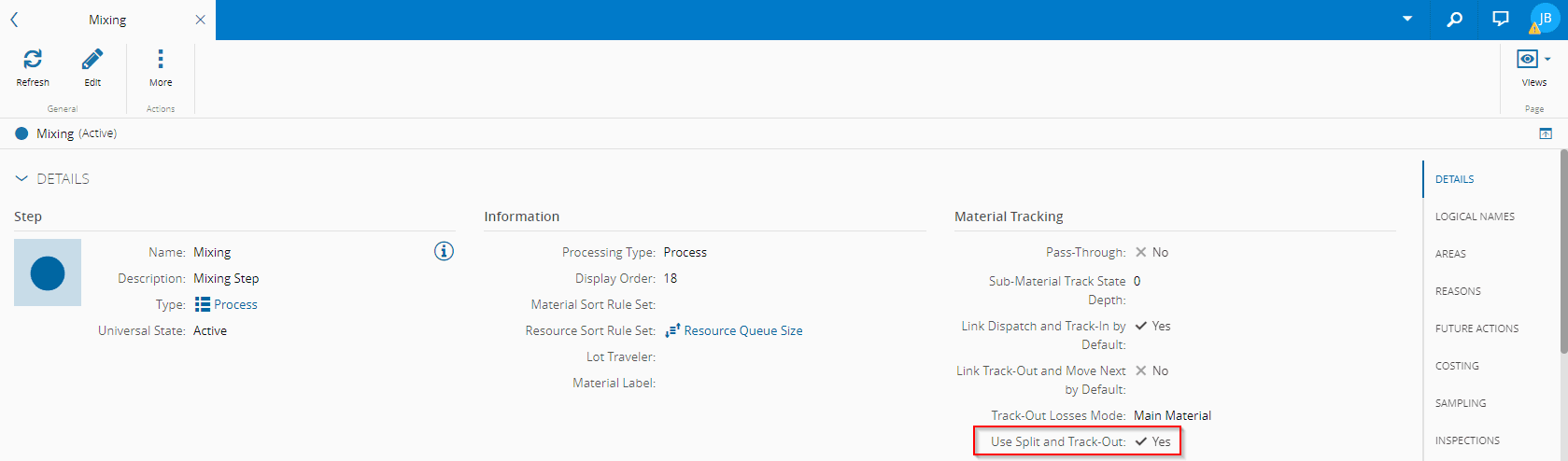
A vital property must be enabled in the **Step** to allow partial track-outs:
| Property | Description |
| --------------------------- | --------------------------------------------------------------------------------------------------------------------------------- |
| **Use Split and Track-Out** | Whether partial track-outs (also known as Split and Track-Out in Critical Manufacturing MES) will be used at the **Step**. |
Table: Step relevant property
## Scenario example
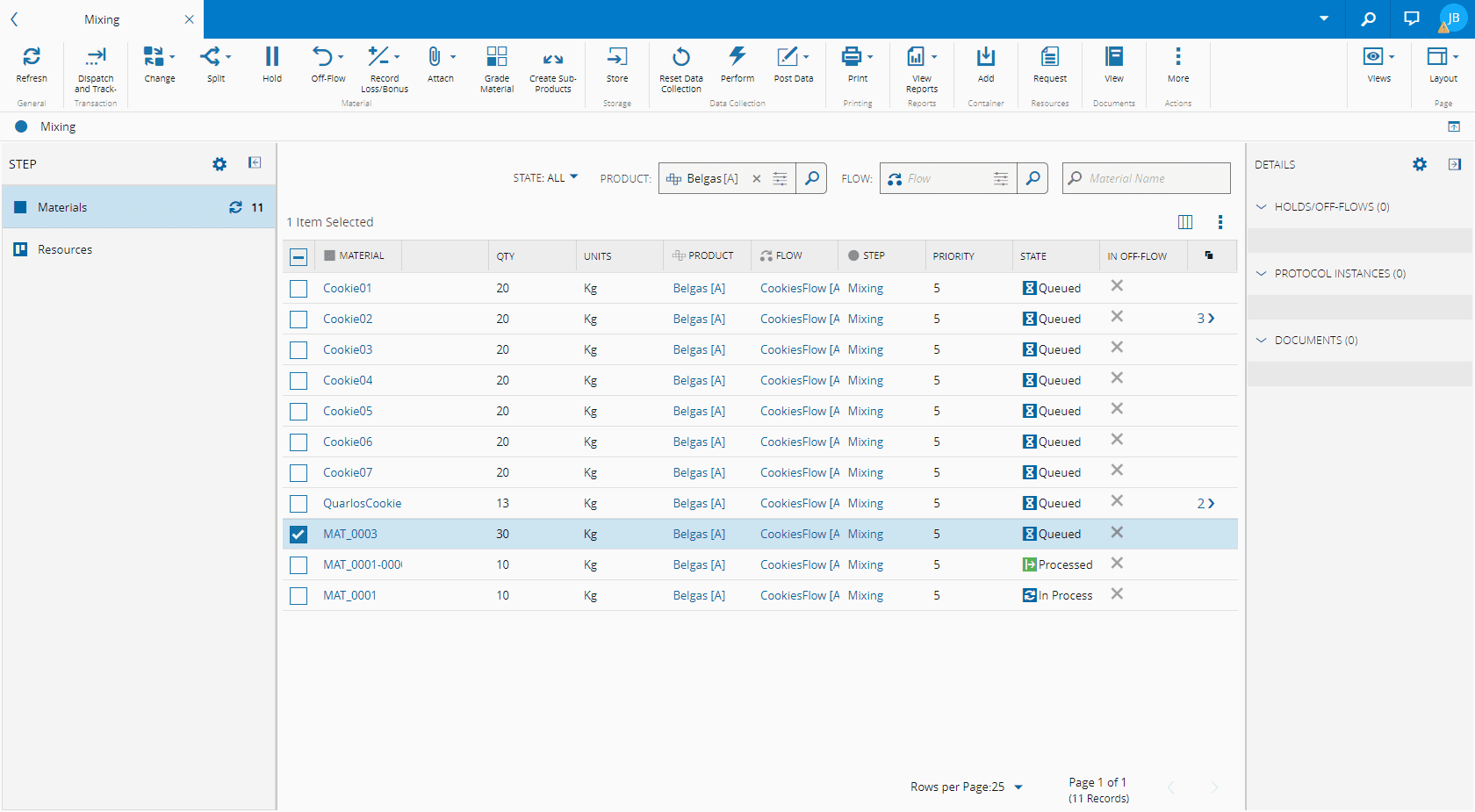
Consider a **Material** `MAT_0003` currently queued at the `Mixing` **Step**:
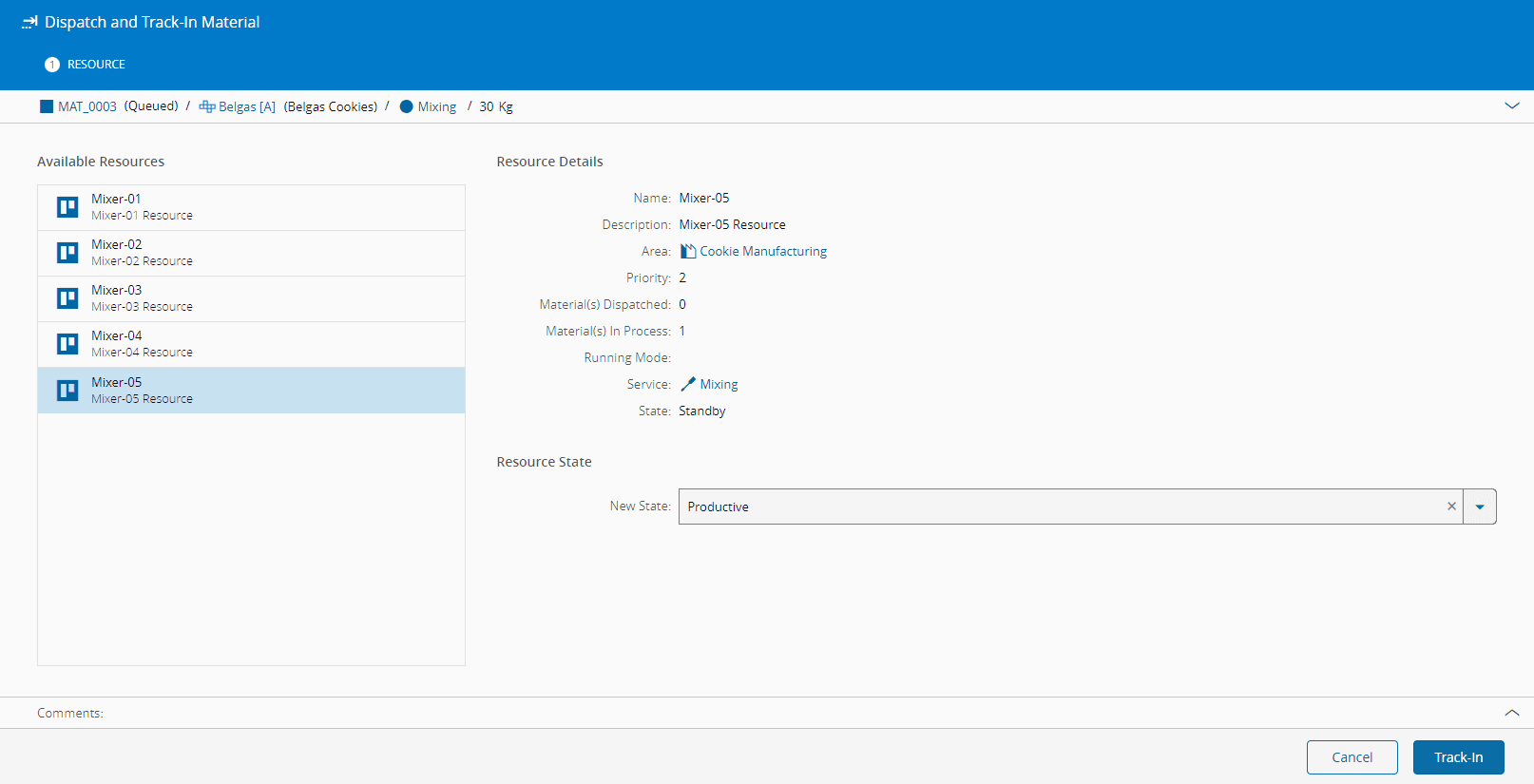
Dispatch the **Material** to a **Resource** configured to allow partial track-outs. In this case, Dispatch and Track-In are linked, so both will be performed at once:
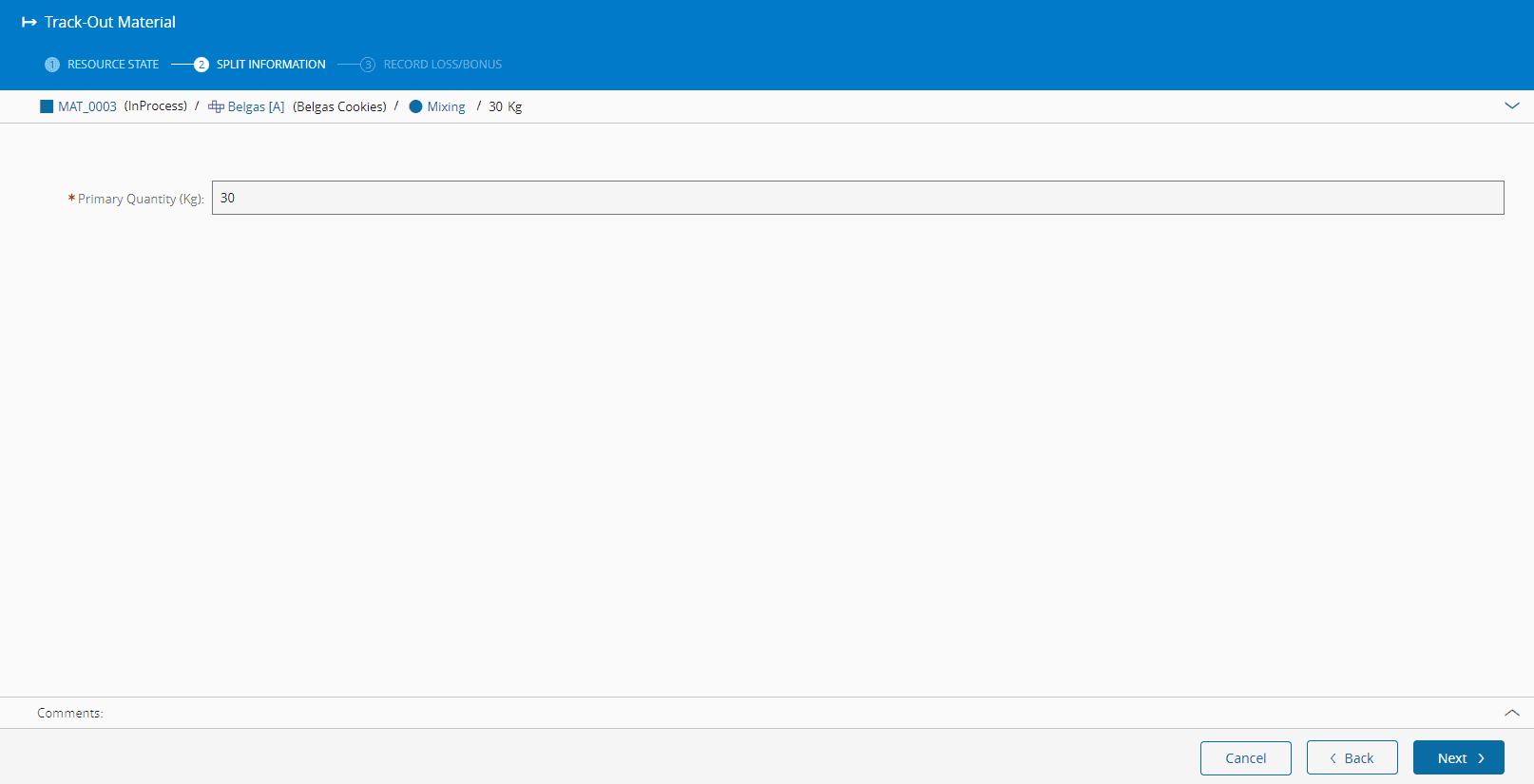
After the **Material** is Processed, end processing by performing **Track-Out**. The wizard then opens a new page called **Split Information**, and the default value for quantity configured in the smart table is automatically filled-in:
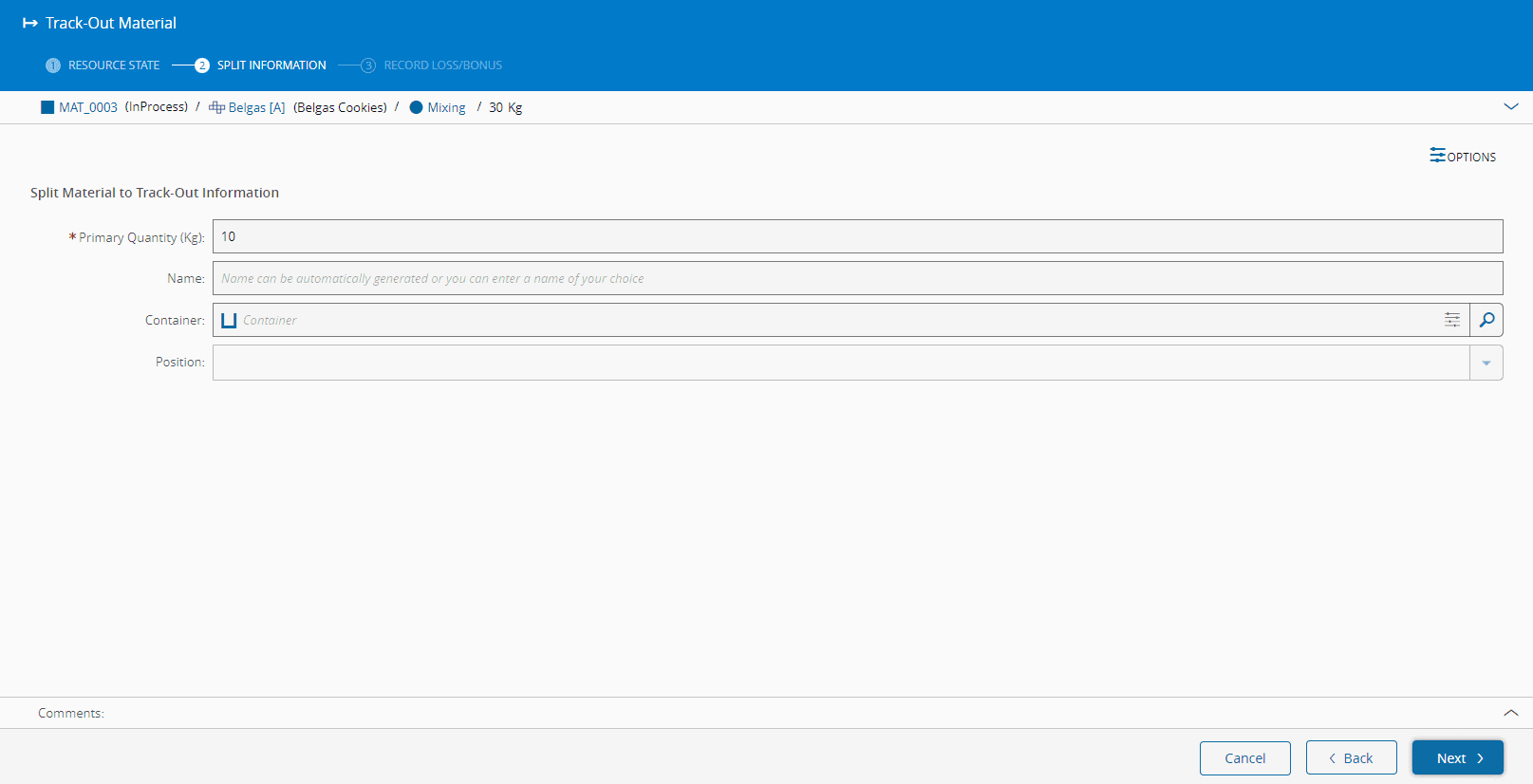
As seen in the image above, the name of the Split Material to Track-Out can be automatically generated according to the Name Generated defined in this configuration `/Cmf/System/Configuration/Business/NameGenerators/SplitAndTrackOut/`. However, you can override it by entering a name of your choice in the Name field.
!!! note
If a BOM is configured for any scenario and the Assembly Type is set to Explicit or Explicit Add, there are two additional preconditions to allow Partial Track-Out:
- Assembled Units must be the same as the Primary Units (example: both Assembled and Primary Units must be Cookies).
- Assembled Quantity is higher than zero or Sub-Material Count is higher than zero.
In this case, since the smart table definition allows you to change the primary quantity to track out, you can change the default value. You can also define whether the Child **Material** is put in a specific **Container** and position, provided the **Container** allows it.
!!! note
You can even decide that you want to perform a complete Track-Out instead of a partial one. Just choose the total quantity of the Material and a "normal" Track-Out will take place with no Material split. In this situation, the rest of the configuration possibilities are hidden.
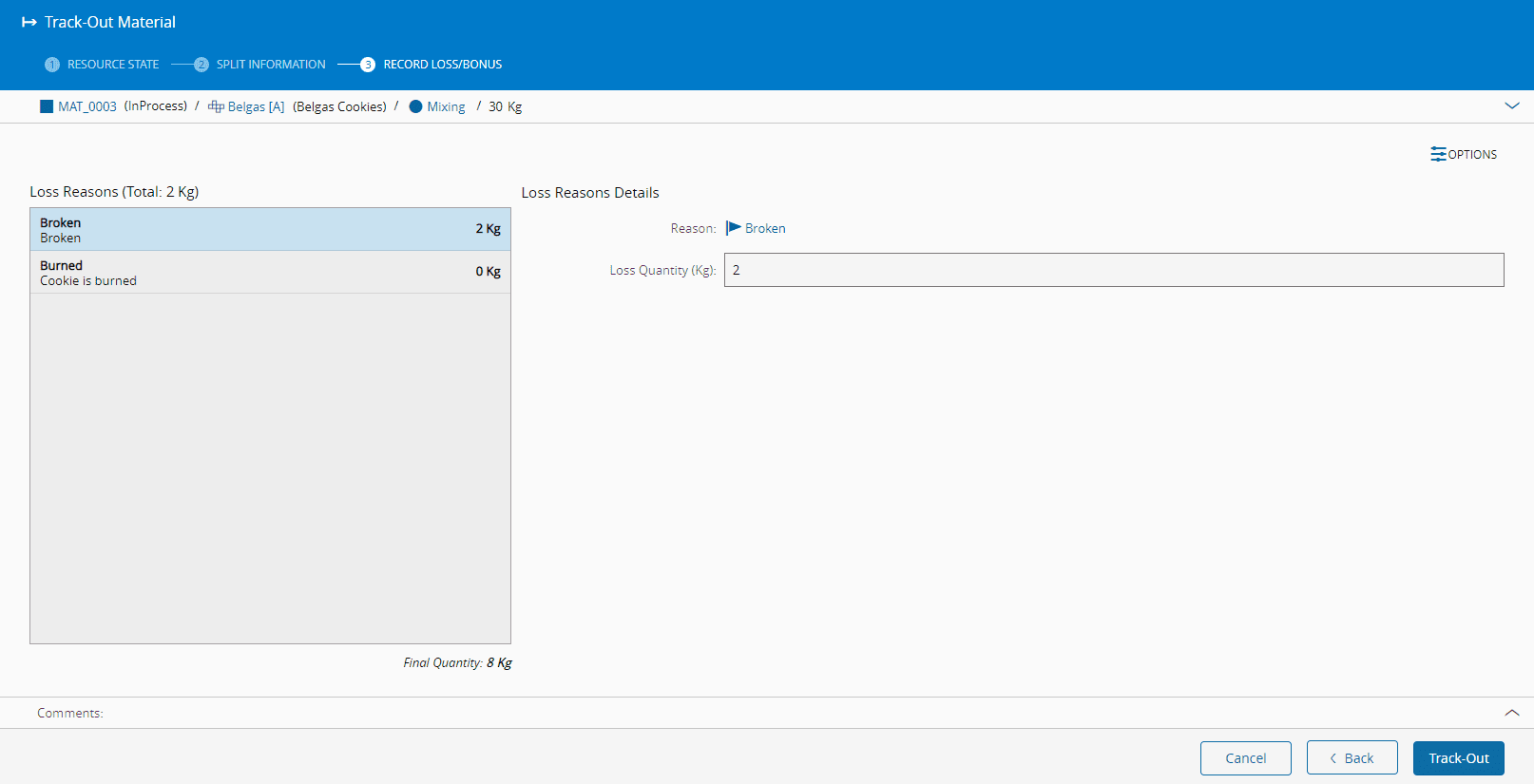
Regarding losses, the definition of the smart table was to have the Parent (or In Process) **Material** incur the losses. Hence, apply a loss and check the result after the operation concludes.
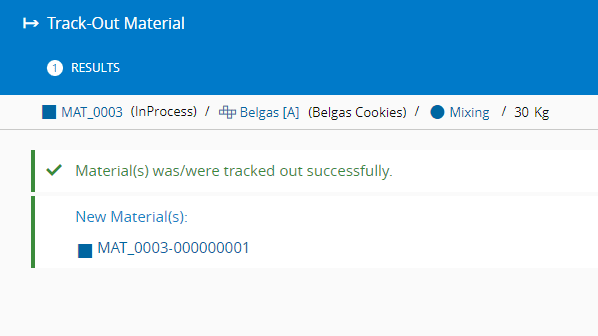
After the operation is completed, the information for the split (Child) **Material** is displayed.
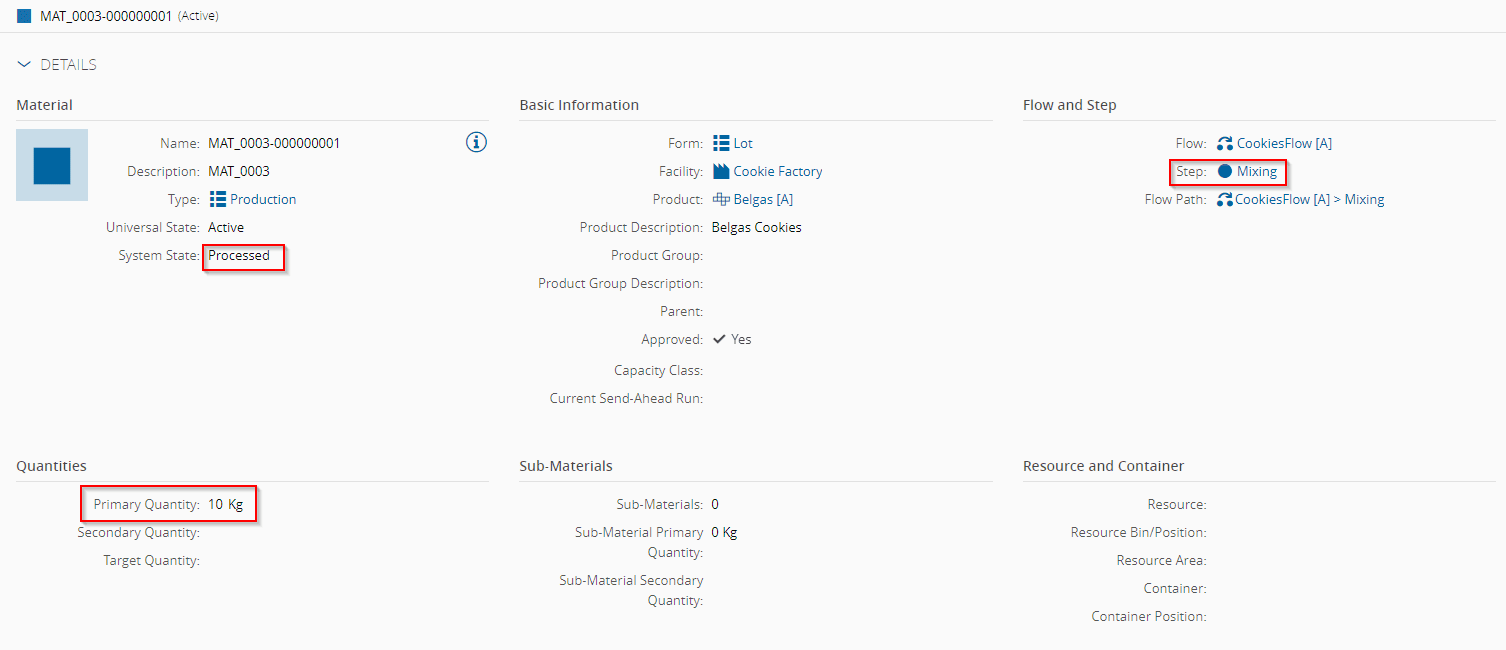
You can see that the Child **Material** is in the Processed state, in the same **Step** with a Primary Quantity equal to the value defined in the wizard:
Now you should check the main **Material**, which has the Primary Quantity calculated as follows:
`New Primary Quantity` = `Original Primary Quantity` - (`Partial Track-Out Quantity` + `Loss Quantity`)
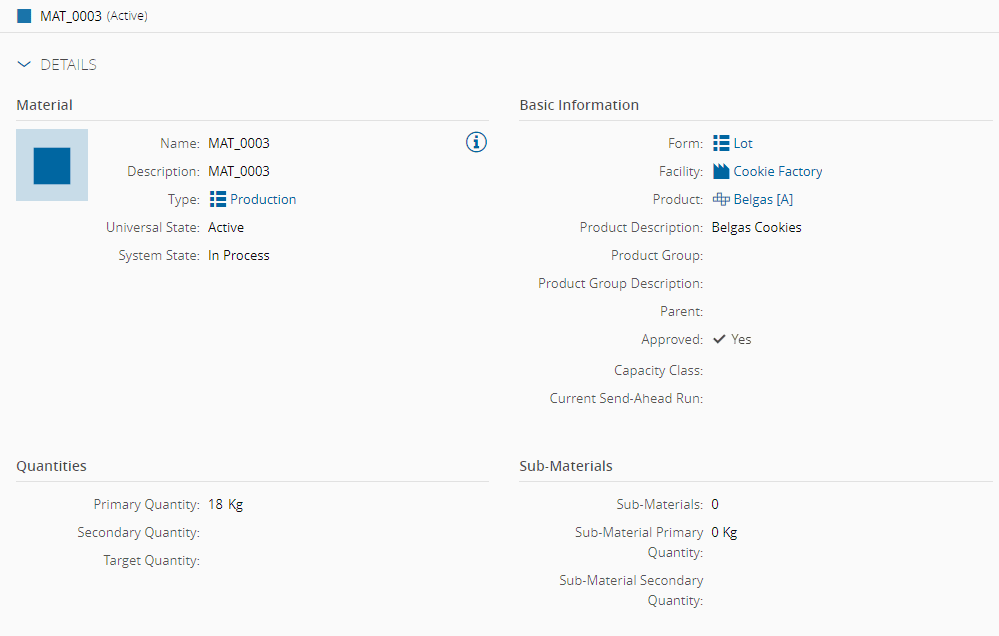
You can finally confirm the genealogy of both **Materials**:
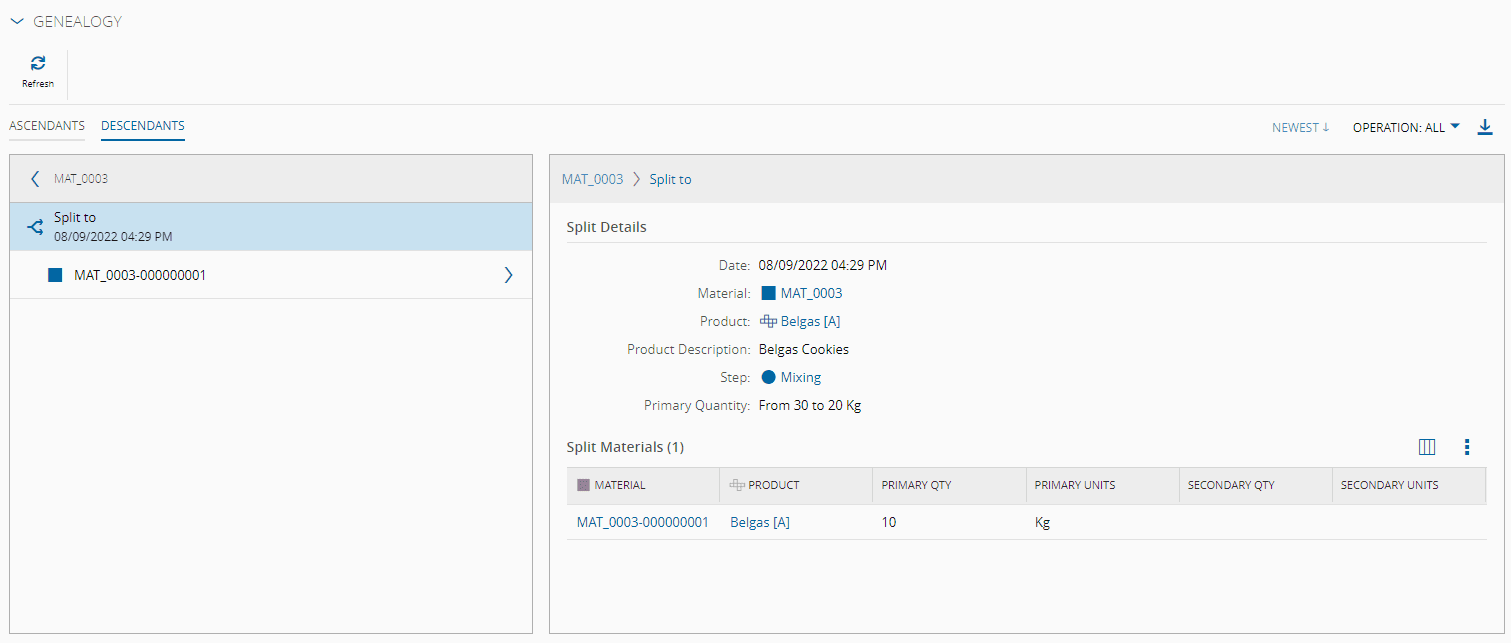
!!! info
It is also possible to use this Partial Track-Out operation with Materials that have Sub-Materials.
In short, this diagram represents the flow of a traditional Partial Track-Out operation:
```mermaid
graph TD
A[MAT_0003, Queued, 30 units] -->|Dispatch and Track-In| B[MAT_0003, InProcess, 30 units]
B -->|Track-Out| C{SPLIT AND TRACK-OUT}
C -->|Main| D[MAT_0003, InProcess, 20 units]
D -->|Loss| F[MAT_0003, InProcess, 18 units]
C --->|Split| E[MAT_0003-000000001, Processed, 10 units]
classDef mermaid_title color:#000, fill:#fafafa, stroke:#fafafa, stroke-width:0x, font-size:100%, font-weight:200;
classDef mermaid_start color:#000, fill:#fafafa, stroke:#fafafa, color:#fafafa, stroke-width:0x, font-size:100%, visibility: hidden;
classDef mermaid_businessdata color:#000, fill:#65CDE8, stroke:#65CDE8, stroke-width:0px, font-size:100%;
classDef mermaid_nonbusinessdata color:#000, fill:#B7DEE8, stroke:#B7DEE8, stroke-width:0px, font-size:100%;
classDef mermaid_entity color:#000, fill:#FB9F53, stroke:#FB9F53, stroke-width:0px, font-size:100%;
classDef mermaid_entitylinked color:#000, fill:#FCD5B5, stroke:#FCD5B5, stroke-width:0px, font-size:100%;
classDef mermaid_context color:#000, fill:#B9CDE5, stroke:#B9CDE5, stroke-width:0px, font-size:100%;
classDef mermaid_optional color:#000, fill:#B7DEE8, stroke:#65CDE8, stroke-width:1px, font-size:100%, stroke-dasharray: 5 5;
classDef mermaid_state color:#000, fill:#d7e4bd, stroke:#000, stroke-width:1px, font-size:100%, font-weight:300;
class A,B,D,F mermaid_entity
class E mermaid_entitylinked
class C mermaid_nonbusinessdata
```