---
pdfexport: true
alias: tutorials-recipemanagement
timetoread: true
tutorial: full
description: "The Recipe Management module allows manufacturers to centrally manage, download, and upload equipment recipes for consistent process execution, ensuring optimal"
---
# Recipe Management
As manufacturing relies on increasingly complex equipment, the management of the recipes that the equipment will use for a certain process becomes increasingly important. Not only is this type of management a basic requirement to ensure that the correct recipe with the right parameters is used for the right process, but the recipe information also plays a crucial role in enhancing performance and efficiency.
A **Recipe** can be defined as a program and/or a set of parameters that contains the necessary information for a particular equipment to execute a certain process. Manufacturers today need to cope with a big diversity of equipment (different generations, different suppliers, different automation capabilities) and a huge variety of processes that can run on the same equipment.
The **Recipe Management** module provides capabilities to manage, download, upload, resolve and instantiate **Recipes**.
!!! info
**Recipe Management** is a separately licensed module.
This document will guide you through the setup and usage of the **Recipe Management** module functionalities.
## Overview
A **Recipe** is the necessary information that a specific **Resource** requires to perform a Service on a given **Material**. It consists of an executable body which may or may not be human readable and it may contain several parameters. As more sophisticated and complex the industry becomes, the more critical this functionality becomes to ensure that each material is processed correctly at each equipment.
Recipe Management involves an external system which is the equipment controller as shown in the next figure:
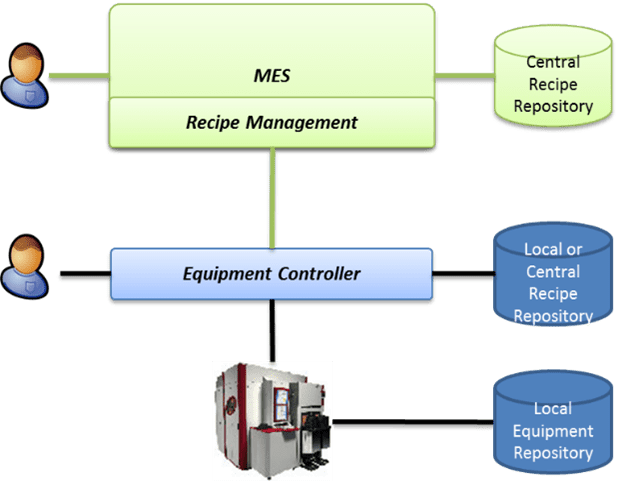
**Recipes** can be stored and edited centrally in the MES, but often it's the case that they can be edited only in the equipment or equipment controller. The system must therefore support the download and upload of **Recipes** from/to equipment.
The **Recipe** content is often in a binary form, understandable only by the equipment. Additionally, **Recipes** are frequently modified locally at the equipment, so a checksum (CRC) must be used to ensure their integrity.
In order to allow for **Recipes** to be re-used across multiple contexts, and also to support the dynamic resolution of parameters, each **Recipe** can have a collection of Parameters which can be overridden during runtime, for instance for Run-To-Run (R2R) purposes.
### Concepts
The table below describes the main concepts related to **Recipe Management**.
| Concept | Description |
|-----|-------|
|**Parameter** | An equipment variable to be controlled. |
|**Recipe Parameter** | A **Recipe Parameter** qualifies the value of the parameter in the **Recipe**. |
|**Sub-Recipe** | A **Sub-Recipe** provides a hierarchical structure to assemble recipes to any depth in order to promote re-usability of **Recipes**. |
|**Recipe Body** | A **Recipe** Body refers to the detailed instructions and data necessary for specific equipment to execute a particular process. A **Recipes** Body can be human readable or not. It is often in a binary form, only understandable by the equipment. |
Table: Recipe Management main concepts
!!! info
**Sub-Recipes** are not **Recipes** that are intended to be used in sub-resources.
The Recipe Management object model is shown in the figure below.
```mermaid
graph LR
C1[Recipe Parameter Overrides Context] --- Main[Recipe]
L1[Recipe Body] --- Main
C2[Recipe Context] --- Main
L2[Recipe Parameter] --- Main
C1 --- L2
A1[Parameter] --- L2
Main --- L3[Recipe Instance]
L3 --- L4[Recipe Instance Parameter]
Main ---- L5[SubRecipe]
L5 ----|SubRecipe| Main
Main --- L6[SubRecipe Parameter]
L6 --- A1
classDef mermaid_title color:#000, fill:#fafafa, stroke:#fafafa, stroke-width:0x, font-size:100%, font-weight:200;
classDef mermaid_start color:#000, fill:#fafafa, stroke:#fafafa, color:#fafafa, stroke-width:0x, font-size:100%, visibility: hidden;
classDef mermaid_businessdata color:#000, fill:#65CDE8, stroke:#65CDE8, stroke-width:0px, font-size:100%;
classDef mermaid_nonbusinessdata color:#000, fill:#B7DEE8, stroke:#B7DEE8, stroke-width:0px, font-size:100%;
classDef mermaid_entity color:#000, fill:#FB9F53, stroke:#FB9F53, stroke-width:0px, font-size:100%;
classDef mermaid_entitylinked color:#000, fill:#FCD5B5, stroke:#FCD5B5, stroke-width:0px, font-size:100%;
classDef mermaid_context color:#000, fill:#B9CDE5, stroke:#B9CDE5, stroke-width:0px, font-size:100%;
classDef mermaid_optional color:#000, fill:#B7DEE8, stroke:#65CDE8, stroke-width:1px, font-size:100%, stroke-dasharray: 5 5;
class Main mermaid_entity
class A1,A2,A3,A4,A5,A6,A7,A8,A9,A10 mermaid_businessdata
class L1,L2,L3,L4,L5,L6 mermaid_entitylinked
class C1,C2,C3,C4,C5,C6 mermaid_context
class N1,N2,N3,N4,N5,N6 mermaid_nonbusinessdata
click Main "../../userguide/business-data/recipe"
click A1 "../../userguide/business-data/parameter"
click C1 "../../userguide/administration/tables/smart-tables/recipeparameteroverridecontext"
click C2 "../../userguide/administration/tables/smart-tables/recipecontext"
click L5 "../../userguide/business-data/recipe"
```
The MES **Recipe** object model is based on SEMI E139, as shown in the table below. The SEMI E139 Recipe and Parameter Management is a standard developed to specify the cooperative interaction between the factory information and control system (*FICS*) and the equipment in order to manage the specifications of equipment processing (for instance, equipment recipes).
The PDE (Process Definition Element) translates from the SEMI E139 into a **Recipe** in Critical Manufacturing, with the following element matching:
| SEMI E139 | Critical Manufacturing | Description |
|-----------------------------|-----------------------------|----------------------------------|
| uid - universally unique identifier | `Id` | Recipe Id |
| Name | `Name` | Recipe Name |
| Description | `Description` | Recipe Description |
| type | `Type` | Recipe Type |
| executable | `IsExecutable` | Defines if a Recipe is executable or not. |
| userInfo | `UserInfo` | Recipe User Information |
| supplierInfo | `SupplierInfo` | Recipe Supplier Information |
| author | `CreatedBy` | The User who created the Recipe. |
| Specification (PDEBody or PDEBodyReference) | `Body` | Recipe Body |
| specificationChecksum | `Checksum` | Recipe Body Checksum |
| {PDEHeader/PDEParameter} | {`RecipeParameter`} | Recipe Parameters |
| {PDEHeader/PDEParameter/ relatedParameters} | {`SubRecipeParameter`} | Recipe Sub-Recipe Parameters |
Table: SEMI E139 and Critical Manufacturing MES concepts
!!! info
Checksum is a single unique value calculated from a sequence of data (a file, a string, etc.) that uniquely identifies that data. It is sometimes called a “digital fingerprint” or a “message digest”.
## Setting Up a Recipe
The necessary steps to set up a **Recipe** shall be explained over the next sections.
### Create a Parameter
A **Parameter** provides an abstraction to Resource specific variable names which have the same meaning at the MES/human level. A **Recipe** can contain static or dynamic Parameters.
To create a **Parameter** to be used in a **Recipe**, the properties listed in the table below need to be defined.
| Property | Description |
|----|--------|
|**Scope** | It needs to be defined as `Recipe` or `EDC_SPC_Recipe`. If the parameter scope is `Recipe`, it can only be used on the **Recipe** entity. For more information about **Parameters**, please check the [[user-guide-parameter-index]] section. |
|**Data Type** | The **Parameter** Data Type. |
|**Format** | The defined Format will influence the value input and display.
For more information about the **Parameter** Formats, please refer to the [[user-guide-create-parameter]] section. |
|**Units** | The Units of the **Parameter** to be displayed. |
|**Minimum Value** | A minimum value for the **Parameter**, only for numeric Parameters. |
|**Maximum Value** | A maximum value for the **Parameter**, only for numeric Parameters. |
|**Lookup Table** | A Lookup Table to be used as a source of values for the **Parameter**. The Lookup Table values must match the Data Type of the **Parameter**. |
Table: Parameter creation wizard properties
### Create a Recipe
To create a **Recipe** there are configurations regarding its **Parameters**, **Sub-Recipes** and Body that need to be defined in advance.
The next table describes the properties that need to be taken into consideration when creating a **Recipe**, the first step of **Recipe** creation.
| Property | Description |
|----|--------|
|**IsEnabled** | Defines if a **Recipe** is enabled or not. A disabled **Recipe** cannot be used to create a **Recipe** instance.|
|**IsExecutable** | Defines if a **Recipe** is executable or not. An Executable **Recipe** can be used as the **Recipe** for a Material, whereas a non-Executable **Recipe** can only be used as a **Sub-Recipe**. |
|**Resource Recipe Name** | The Resource Recipe Name should match the local **Recipe** name in the equipment. The Resource Recipe Name and the **Recipe** name can have the same name. |
Table: Recipe creation wizard properties
!!! info
The `IsEnabled` and `IsExecutable` properties are contained in the global data components of the **Recipe** (i.e., without Change Control required). For more information, see [[user-guide-recipe-index]].
![Recipe creation wizard][RM_image2]
To manage the **Recipe Parameters**, the User must access the *Manage Parameters* wizard in the **Recipe** page, as shown in the table and figure below.
| Property | Description |
|----|--------|
|**Parameter Group** | Defines the Parameter Group name for display purposes.|
|**Type** | The following options are available:
- **Constant**: a constant value
- **Expression**: an Expression that calculates the **Parameter** value based on other **Parameters**. **Parameters** referred by the Expression must be defined before adding the Expression Parameter
- **Input**: a value provided by the User or supplied by the parent **Recipe**
- **Rule**: a Rule to be used to evaluate the **Parameter** value |
|**Value** | The value of the **Parameter** if the Type is **Constant** or **Input**.|
|**Expression** | The Expression to be used to calculate the **Parameter** if the type is Expression. For more information about the Expression syntax, please refer to the [[user-guide-expression-evaluator]] section. |
|**Rule** | The Rule to be used to evaluate the **Parameter** value. The Rule must have the scope defined as *Recipe Management*.
|**Overridable** | Defines if a **Parameter** is Overridable. An Overridable **Parameter** may have its value changed depending on the [[recipeparameteroverridecontext-st]] Smart Table configuration. |
Table: Parameter management wizard properties
!!! info
If a **Parameter** has Minimum or Maximum values defined, values outside this interval cannot be defined on the Value property.
![Parameter management wizard][RM_image3]
To manage the Recipe Body, the User must access the *Manage Recipe Body* wizard in the Recipe page, as shown in the table and figure below.
| Property | Description |
|----|--------|
|**Source** | The Source of the **Recipe**. The following options are available:
- **DownloadedFromEquipment**: MES will retrieve the **Recipes** from a **Resource** whose RecipeManagement property is enabled and whose automation mode is online and that supports recipe download. These settings are defined in the resource and can be edited in the additional information tab. For more information, please check the Resource section.
- **EquipmentSupplier**: MES will send the Recipe body to the **Resource**. Recipe provided by the equipment supplier.
- **HumanEdited**: MES will send the Recipe body to the **Resource**. Recipe created by the user.
- **None**: Recipe body is not validated. |
|**Format** | The **Recipe** Format. The following options are available:
- **Binary**: always set when the **Recipe** is *DownloadedFromEquipment* and available for selection for the *EquipmentSupplier* and *HumanEdited* Sources
- **Text**: available for selection for the *EquipmentSupplier* and *HumanEdited* Sources
- **URL**: available for selection for the *EquipmentSupplier* and *HumanEdited* Sources |
|**Download From:** | Selection of a Resource, if the selected Source is *DownloadedFromEquipment*. |
|**Resource Recipe:** | Selection of a Resource **Recipe**, if the selected Source is *DownloadedFromEquipment*. |
|**Recipe Checksum:** | It is used to ensure **Recipe** integrity since **Recipes** are often locally modified at the equipment.|
|**File Name:** | If the selected Format was *URL*, then the User must provide a *URL*. If the selected Format was *Binary*, then the User must provide a file. If the selected Format was a *Text* then the User can choose to load a file and edit the contents manually. |
Table: Manage Recipe Body wizard properties
![Recipe Body management wizard][RM_image4]
!!! info
There are no setup differences between the **Recipe** Body Source `EquipmentSupplier` and `HumanEdited`.
To manage the **Sub-Recipes**, the User must access the [[user-guide-manage-recipe-subrecipes]] wizard in the **Recipe** page, as shown in the table and figure below.
| Property | Description |
|----|--------|
|**Recipe** | The **Recipe** to be defined as a **Sub-Recipe**. |
|**Display Name** | The **Recipe** display Name. |
|**Parameter Mapping** | For each Sub-Recipe, it is mandatory to define the Parameter mapping for the Sub-Recipe Parameters which are of type Input and have no default value. For the Sub-Recipe Parameters which are Overridable, it is possible (but not mandatory) that the Sub-Recipe Parameters mappings are defined as well. A Parameter mapping is based on an expression that refers to the Parent Recipe Parameters. |
Table: Manage Sub-Recipes wizard properties
![Manage Sub-Recipes wizard][RM_image5]
### Compare Recipes
The Compare Recipes page provides the functionality to verify not only changes in **Recipe** Versions, but also to compare different **Recipes**, as shown on the figure below.
![Compare Recipes page][RM_image6]
### Recipe Context Resolution and Recipe Instance Creation
A **Material** requires a **Service** at a **Step**, as defined in the [[servicecontext-st]] Smart Table, and this **Service** is provided by a **Resource**. For this Service, in order to provide the necessary setup and configuration information to process a Material in a Resource, the *Recipe Context* is defined.
For a particular **Material** Context, the MES creates a **Recipe** Instance when performing a Material track-in. The **Recipe** Instance stores the used **Recipe** Version and Parameter information for traceability and analysis purposes.
The relationship between the above presented concepts can be found in the figure below.
![Recipe Schema][RM_image17]
### Manage Recipe Context
A **Recipe** is configured for processing a **Material** in a **Step** and **Resource** through the Service defined in the [[resourcerunningmode-st]] table, as detailed in the table and figure below.
!!! info
A Recipe needs to be marked as *Executable* to be referenced on the [[recipecontext-st]] table.
| Property | Description |
|----|--------|
|**Service** | The **Service** which requires the **Recipe**. |
|**Running Mode** | The Running Mode provides an additional flexibility degree in maintaining and resolving Recipes in the case that the Recipe to be used depends on a particular Resource configuration. The Running Mode can be defined on the [[resourcerunningmode-st]] Smart Table. |
Table: Add Recipe Context Record
!!! warning
The [[resourcerunningmode-st]] Smart Table is deprecated and will be removed starting with version 12.
![Add Recipe Context Record][RM_image7]
### Manage Parameter Overrides Context
To promote **Recipe** reusability and to support a dynamic resolution of Parameters during runtime, a **Parameter** can be marked as overridable.
!!! info
A **Parameter** needs to be marked as overridable on the Recipe Parameters to be referenced on the *Recipe Parameter Override Context* table.
| Property | Description |
|----|--------|
|**Parameter** | The Parameter to be overridden. |
|**Value** | The Value to be considered for the Parameter on the defined context. |
Table: Add Parameter Overrides Context Record
![Add Parameter Overrides Context Record][RM_image8]
### Experiment Definition
An **Experiment Definition** allows the User to carry out controlled variations of the production process. A typical use case for this situation is the creation of an **Experiment Definition** in order to test a new **Recipe**. This can be configured by defining the Action *SetRecipe* at the Track-in Event for an **Experiment Definition** Material Group, as shown in the figure below.
![SetRecipe Action for an Experiment Definition][RM_image9]
For more information about the **Experiment Definition**, see the [[user-guide-create-experiment-definition]] section.
## Using a Recipe
Over the next sections it is detailed how a Recipe can be used in MES.
### Resource Configuration
In order to use Recipe Management for a particular Resource, it is necessary to set the property *Recipe Management Enabled* to true, as shown in the figure below.
![Resource Details][RM_image16]
### Set Resource Recipe
When the setup is performed manually, the User can access the *Set Recipe* wizard in order to select the **Recipe** to be set on the Resource, as shown in the figure below.
If the option *Validate Recipe Context* is set to True, then only **Recipes** that are defined on the **Recipe** Context are displayed.
After selecting the **Recipe**, it is set as the Current **Recipe** and the Current **Recipe** Source is set as User.
In this wizard it is also possible to clear the Resource Current Recipe, by selecting *Clear* and then *Set*.
!!! info
When a **Recipe** is set manually, it can only be reset manually as well.
!!! info
The Resource must have the property *Recipe Management Enabled* set to True.
![Set Recipe wizard][RM_image10]
If the **Resource** has lanes configured and Is Multilane Active enabled, you will have to select a valid Lane of the **Resource** for your **Recipe**.
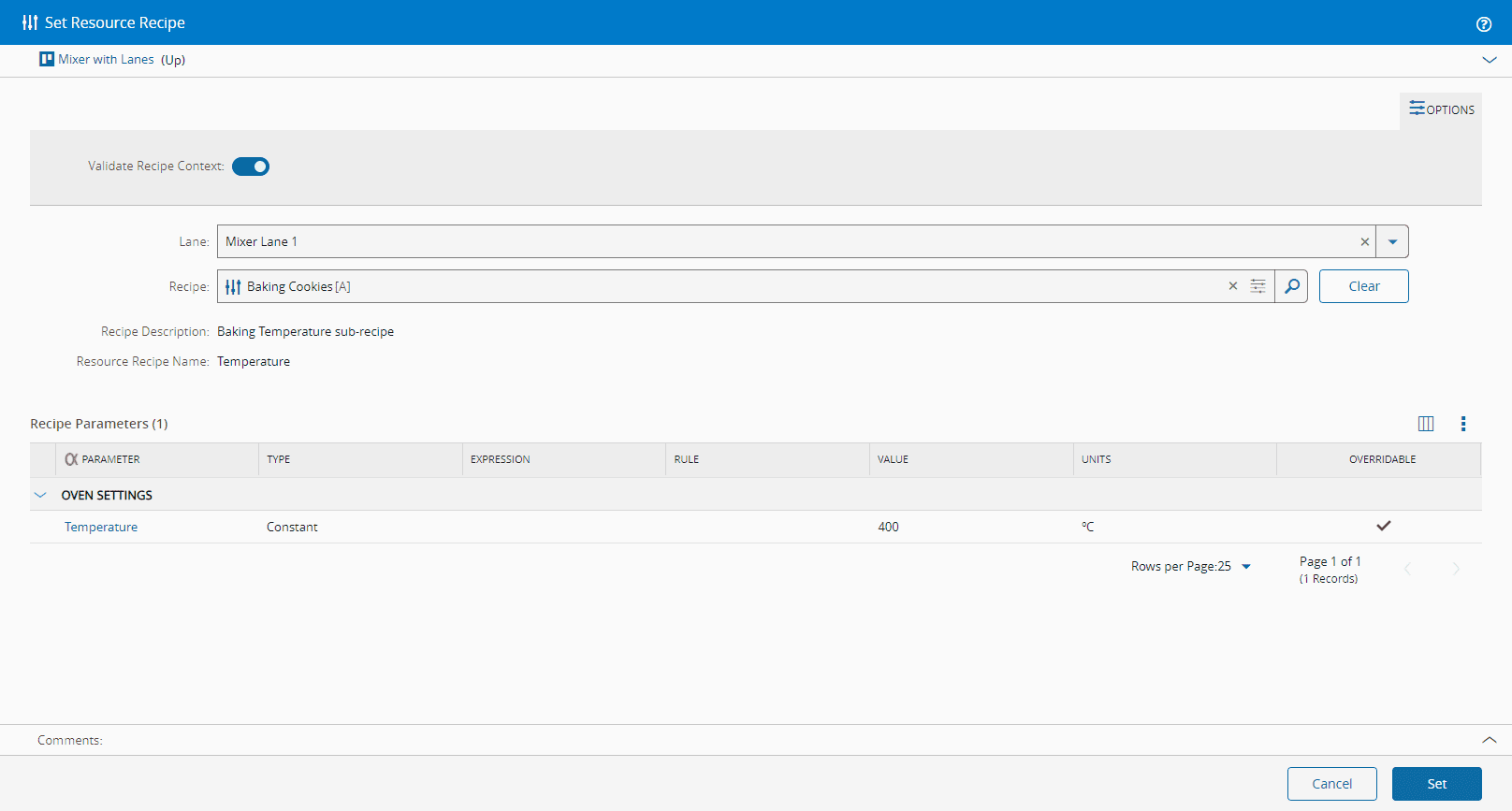
For more information, see [Set Resource Recipe](../../../userguide/business-data/resource/set_resource_recipe.md).
### Perform Resource Setup
Before tracking-in a Material in a Resource it is possible to perform the Resource setup. The *Perform Setup For Material at Resource* wizard is available on the Resource view after selecting a Material, as shown in the figure below.
!!! info
Only **Recipes** that are defined on the Recipe Context are displayed.
If the option *Set Selected Recipe* is set to True, then the User has the option to set it manually at the Resource. The selected **Recipe** is set as the Resource Current Recipe and Current Recipe Source is set as User.
![Perform Setup wizard][RM_image11]
### Material Track-in
When a Material is tracked-in, the **Recipe** defined in the [[recipecontext-st]] is displayed, as shown in the figure below.
For the **Recipe** Input Parameters, it is possible to specify their values.
!!! info
A Parameter needs to be marked as Overridable on the Recipe Parameters to be referenced on the Recipe Parameter Override Context table. If the automation mode from the resource is `Online`, track in will be done automatically. The recipe is validated if the recipe management and `Verify Material Recipe at Track-In` are enabled.
![Track-in Material wizard][RM_image12]
!!! info
The Resource property `Verify Material Recipe at Track-In` defines whether the System will validate if the Resource Current Recipe matches the defined [[recipecontext-st]] when tracking-in material. If the `Verify Material Recipe at Track-In` is set to `False` and the Current Recipe Source is System, then it is possible to track-in the Material even if the Resource Current Recipe does not match the defined [[recipecontext-st]].
After performing the track-in, the resolved **Recipe** is set as the Resource Current Recipe, if not already, in which case the Current Recipe Source is set as System, and a Recipe Instance is created, as shown in the figure below.
![Recipe Instance creation][RM_image13]
!!! info
If the track-in is performed in a Line **Resource**, then the **Recipe** Instances are also created for the **Resources** of the Line Flow which provide the Services resolved, using the Service Context, and for which the Recipe Management is enabled.
The **Recipe** set for the Resource can be viewed on the Resource View Recipe tab, as shown in the figure below.
![Resource view Recipe tab][RM_image15]
### Multiple Recipe Track-In
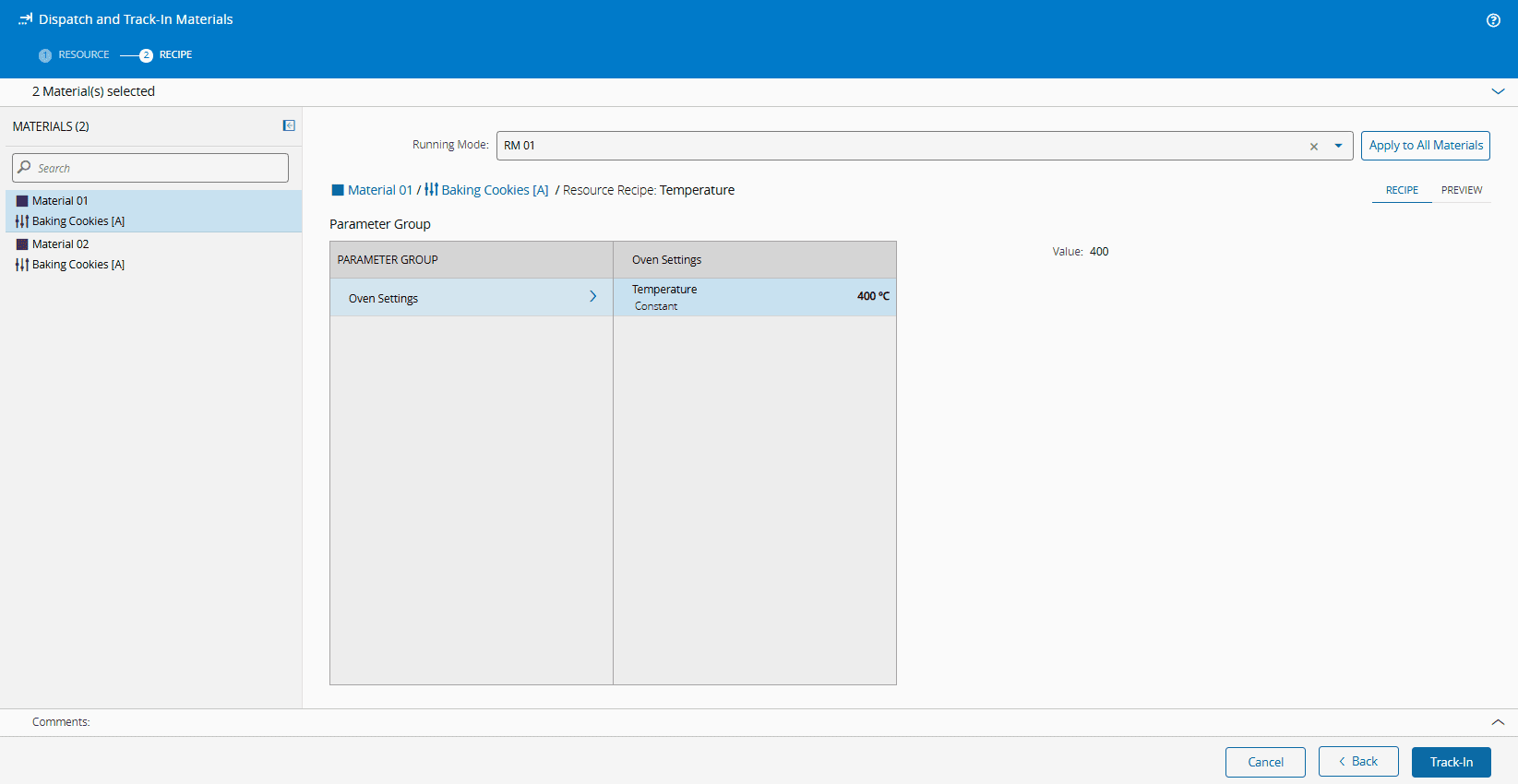
The system allows you to track in multiple **Materials** with different **Recipes** at the same time.
The following is an example of a Multiple Recipe Track-In view. The panel on the left displays the **Material** and associated **Recipe**:
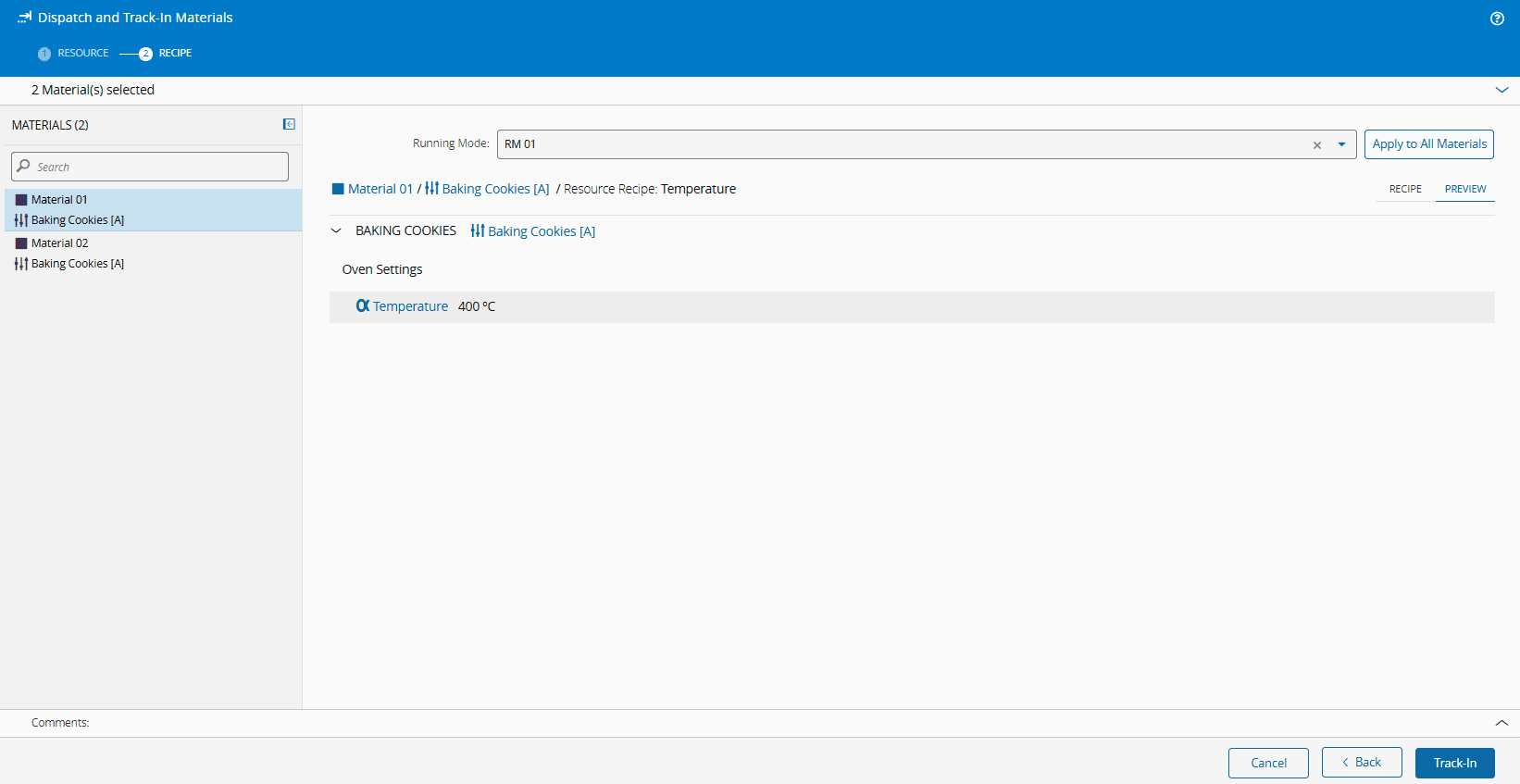
You can also select to **Preview** the **Material**, and the information displayed will correspond to the **Material** selected in the left panel:
### Recipe Active Instances
All active instances of the **Recipe** can be found on the *Active Instances* section of the **Recipe** page, as shown in the figure below.
![Active Recipe Instance][RM_image14]
[RM_image2]: ../../images/RM_image2.png
[RM_image3]: ../../images/RM_image3.png
[RM_image4]: ../../images/RM_image4.png
[RM_image5]: ../../images/RM_image5.png
[RM_image6]: ../../images/RM_image6.png
[RM_image7]: ../../images/RM_image7.png
[RM_image8]: ../../images/RM_image8.png
[RM_image9]: ../../images/RM_image9.png
[RM_image10]: ../../images/RM_image10.png
[RM_image11]: ../../images/RM_image11.png
[RM_image12]: ../../images/RM_image12.png
[RM_image13]: ../../images/RM_image13.png
[RM_image14]: ../../images/RM_image14.png
[RM_image15]: ../../images/RM_image15.png
[RM_image16]: ../../images/RM_Image16.png
[RM_image17]: ../../images/RM_Image17.png