Weigh and Dispense in a Single Step#
In this scenario, you will learn how to:
- Weigh and dispense all the ingredients of a BOM in a single Step.
- Require a second person to verify each dispense.
- Attach the dispensed ingredients to the target Material as Sub-Materials.
Info
Complete Configure Weigh and Dispense first. This scenario uses BOM W&D Compound B with the Attach mode. For more information, see:
Sequence of Steps#
1. Set the Configuration Entries#
- In the left side menu, select Administration.
- From the Administration panel, select Configuration.
- Set the entries in the following table. They are under
/Cmf/System/Configuration/WeighAndDispense/.
| Entry | Value |
|---|---|
PrecisionQuantum | 2 |
ForceVerification | true |
DefaultPartialDispenseButton | DispenseAndContinue |
AccuracyQuantum | 1 |
HideContainerFields | true |
Table: Configuration entries of the scenario
The master data file provides the remaining configuration.
2. Track-In the Material#
- Open the
Chemicals PreparationStep. - In Materials, select
Blue Compound#01. - Track-In the Material.
3. Open Weigh and Dispense#
-
Select
Blue Compound#01, and then select Weigh & Dispense on the top ribbon.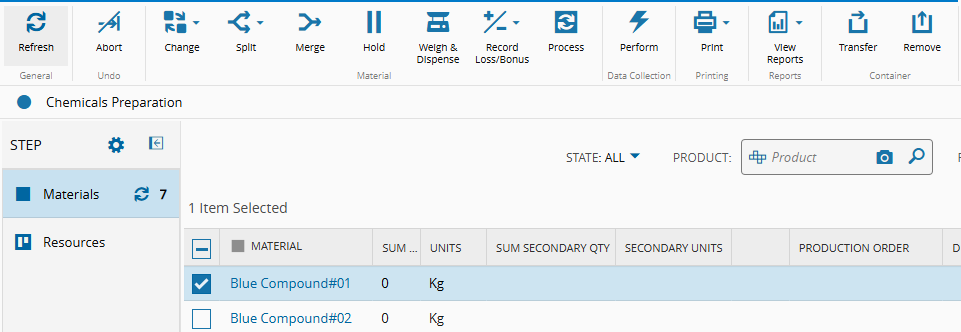
-
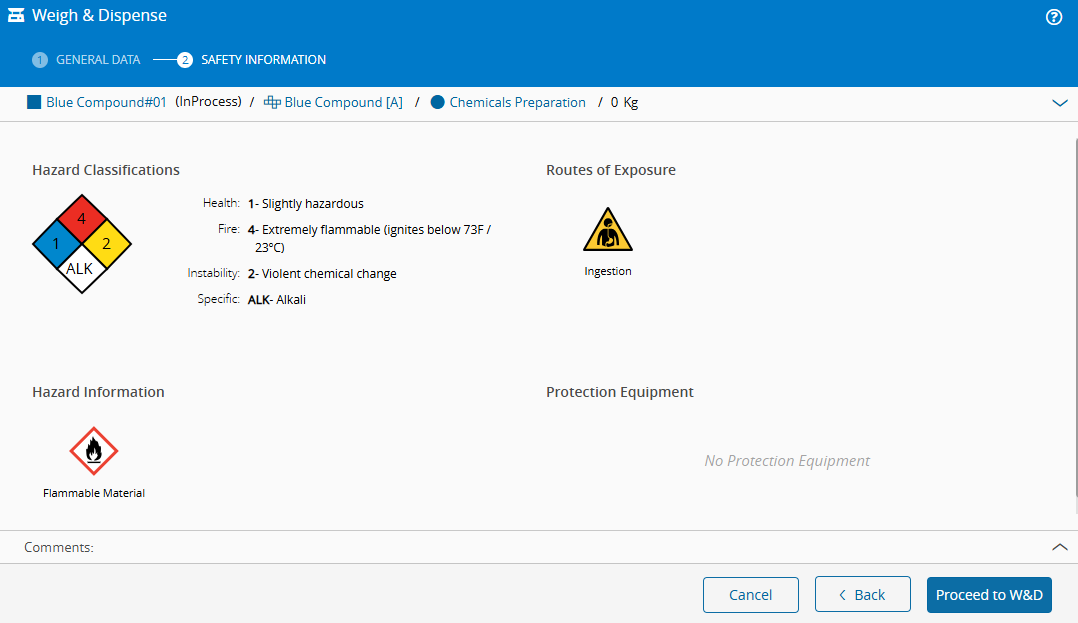
If the wizard shows the Printer field, select the printer. For example,
General. Select Next. - Review the safety information that the Product defines.
-
Select Proceed to W&D.
4. Dispense the First Ingredient#
- Select the scale. The
Powdered chemical Blueitem requires a scale of the Instrument TypeScale High Precision. For example, selectMDLSCL#10. -
In Source, select the source Material. For example,
Powdered chemical Blue#04.The page shows the Required Quantity of the ingredient,
5.0000 Kg (4.9950 - 5.0005), and the Note of the BOM item.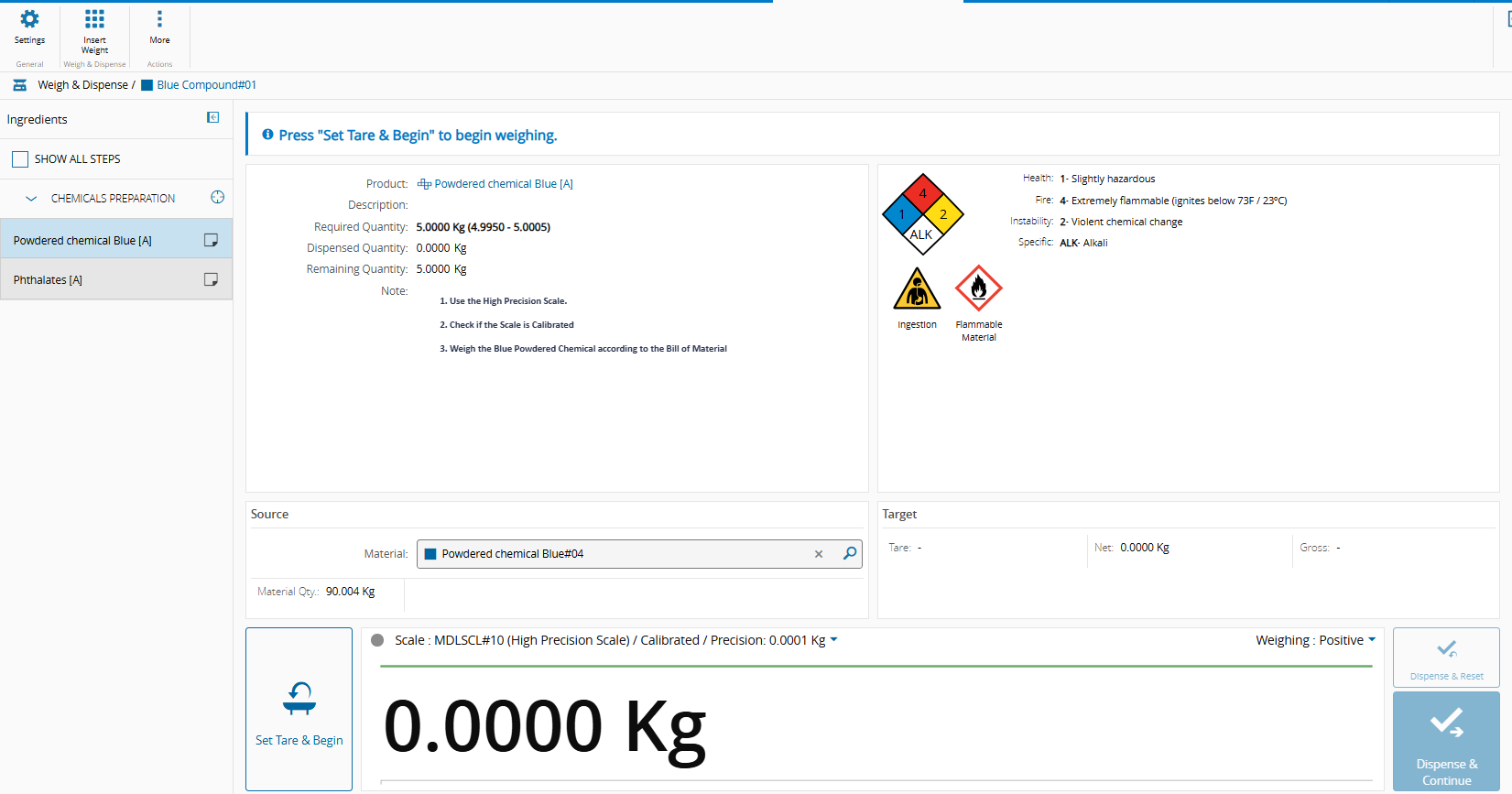
-
Weigh the ingredient on the scale.
To enter the weight manually, select Insert Weight on the top ribbon, enter
4.996, and select OK. This option requires theMaterial.WeighAndDispenseManualfeature.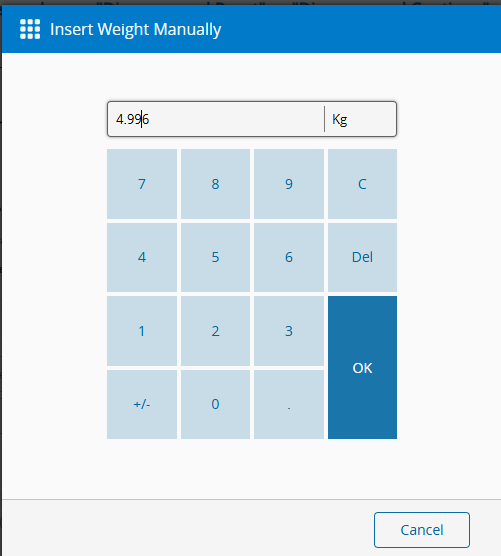
-
Select Dispense.
-
In the Sign dialog, the system requires two signatures, because
ForceVerificationistrue. Complete Performed By and Verified By with the credentials of two different users, and select Save.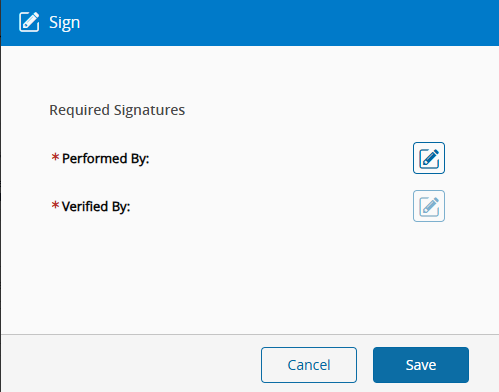
The system attaches the dispensed quantity to Blue Compound#01 as a Sub-Material, because the BOM Context defines the Attach mode.

5. Dispense the Second Ingredient#
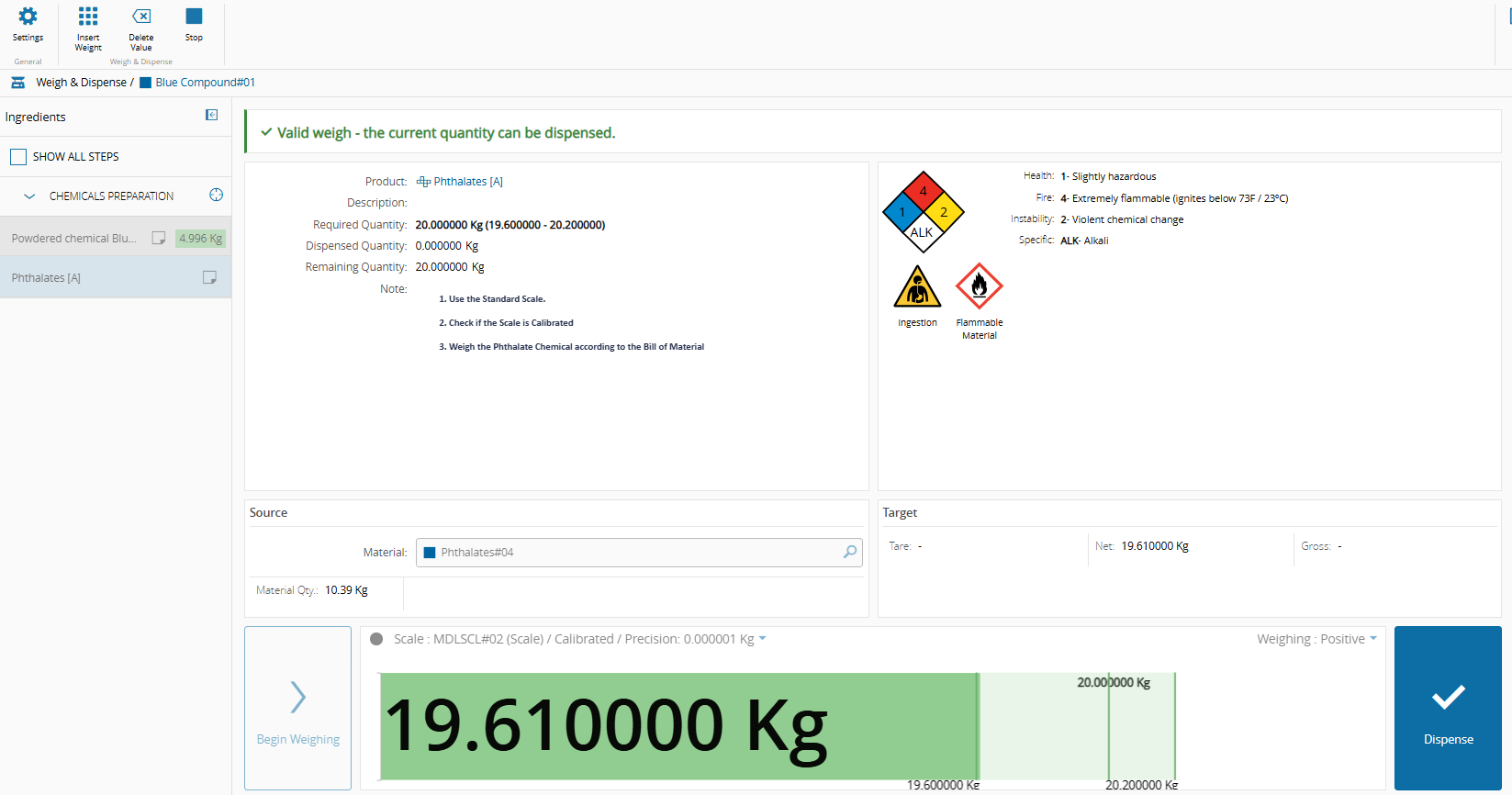
- Select the next ingredient,
Phthalates. - Select the scale. The
Phthalatesitem requires a scale of the Instrument TypeStandard Scale. - Select the source Material. For example,
Phthalates#04. -
Weigh the ingredient, or insert the weight
19.61. The Required Quantity is20.0000 Kg (19.6000 - 20.2000).The page confirms that the weight is valid and that you can dispense the quantity.
-
Select Dispense, and sign as in the previous ingredient.
6. Complete Weigh and Dispense#
- Select Complete W&D.
-
Verify that
Blue Compound#01has two Sub-Materials, one for each ingredient.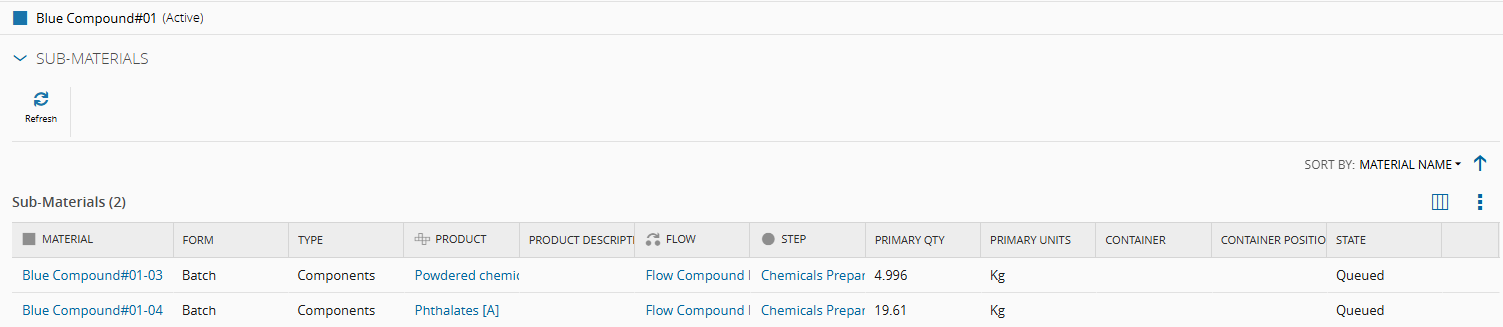
7. Track-Out and Check the Traceability#
- Track-Out
Blue Compound#01. - Check the information on the following pages:
- Material History
- Traceability view
- Genealogy
Expected Result#
The two ingredients appear as Sub-Materials of Blue Compound#01, each with the dispensed quantity. In Attach mode, the quantity of the target Material stays at zero, because the Sub-Materials hold the whole quantity. The Material History, the Traceability view, and the Genealogy show the source Materials and the dispensed quantities.
Next Scenario#
Continue with Weigh and Dispense Across Multiple Steps.