Master Data Packages#
 Administration.MasterDataPackages
Master Data Packages are used to load data into a Critical Manufacturing MES environment through the use of packages, allowing any authorized user to bulk load data into the system.
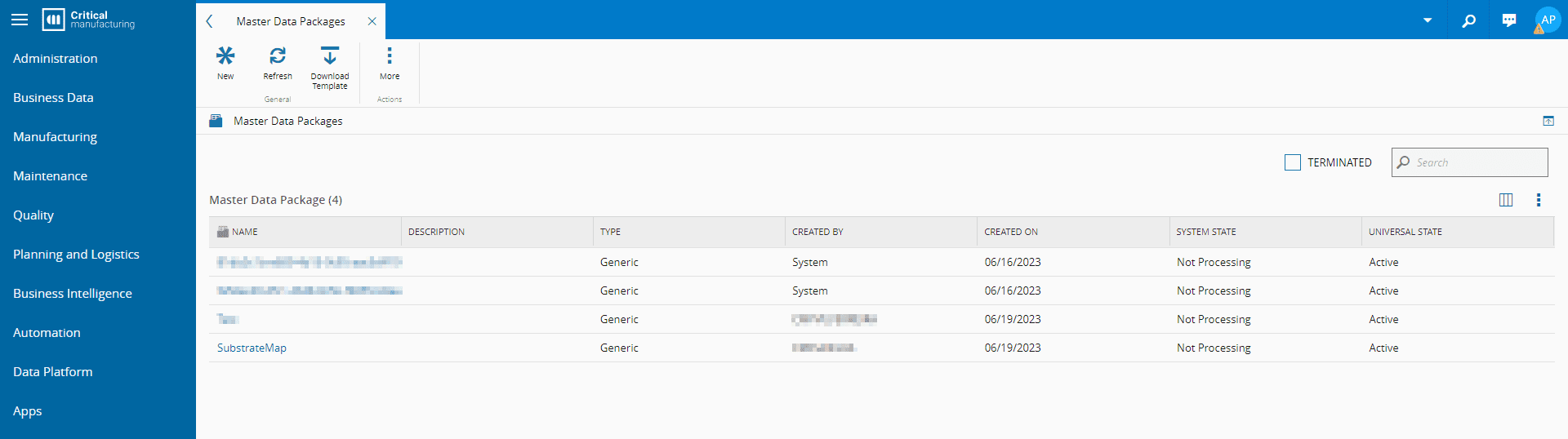
The Master Data Packages page is available in the Administration page group.
Note
Download Template on the top ribbon provides direct access to an empty Master Data Template.
Info
You can find specific features, formats, and configurations of the packages that can be used in this section in Master Data Packages.
Details view#
Opening a specific Master Data Package will display information relevant to the entity. Selecting in the Master Data section will allow you to download the actual package and edit it before loading it into the system.
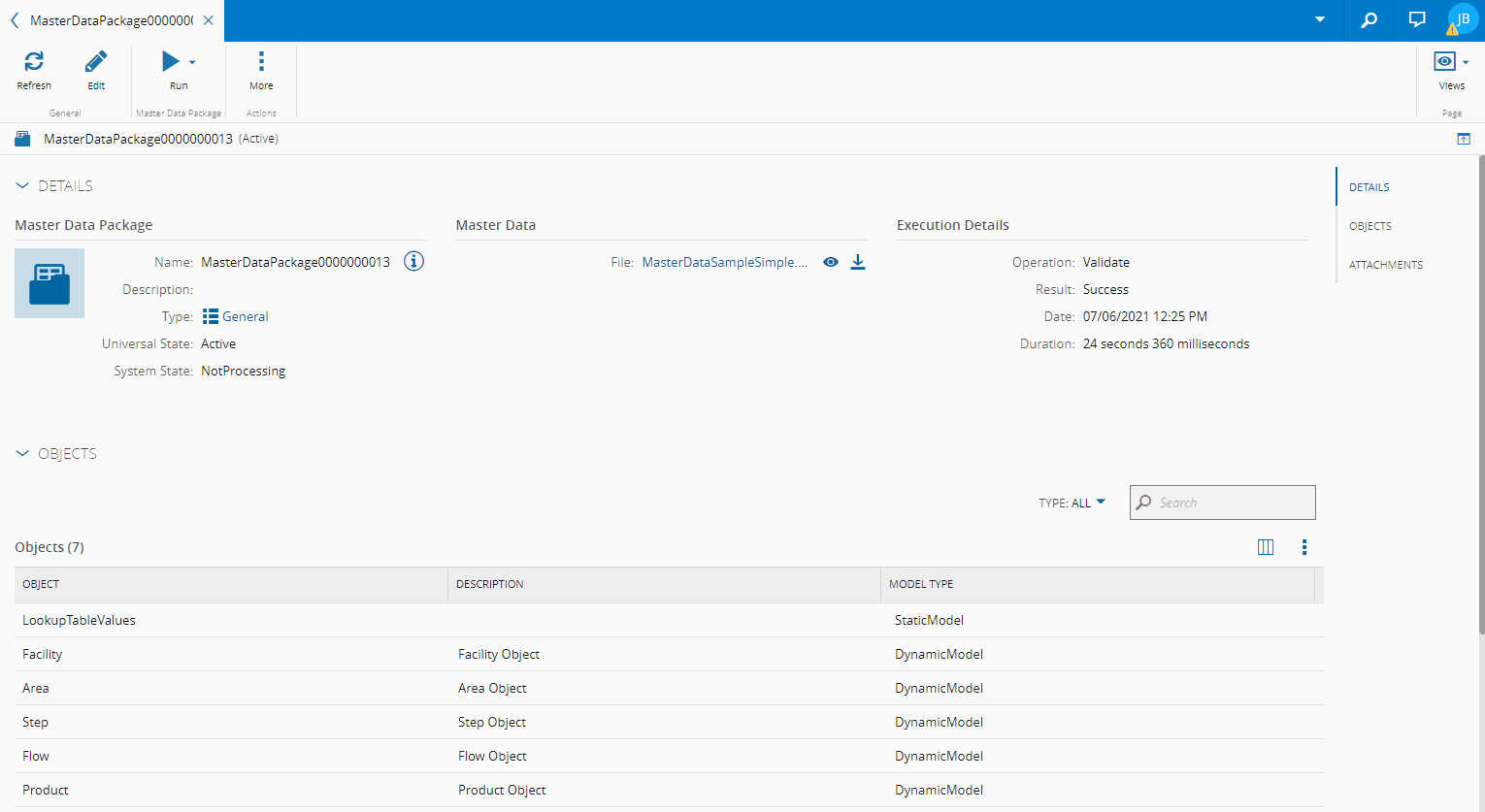
The Details view will display some or all of the following page sections:
- Details - displays general information on the Master Data Package.
- Objects - displays the list of objects loaded from the package file uploaded into the system and that have undergone at least one procedure of Load or Validate performed on the Master Data Package.
- Attachments - shows the documents that are attached to the Master Data Package and enables you to attach additional documentation to it.
Execution view#
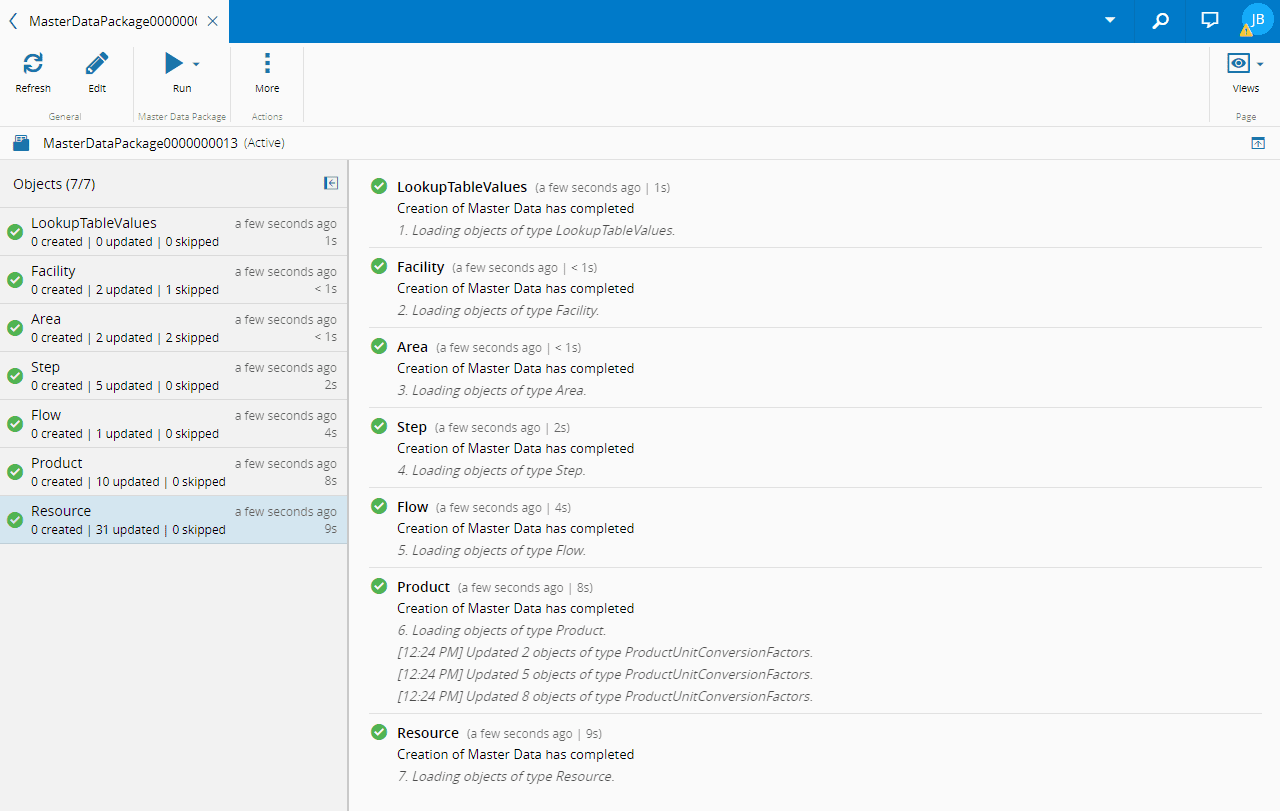
This view shows the results of the previous execution, regardless of whether the data was loaded or validated. It displays the list of Entity Types of the last execution of the specific Master Data Package and it is only available when there has been at least one procedure of Load or Validate performed on the Master Data Package.
Package format#
File formats accepted are: .zip, .xlsx, .xml, .json.
The base path for the location of the entities to be loaded is considered as the root folder of the .zip file. As a quick example, consider the following entry of a Master Data Package Excel file:
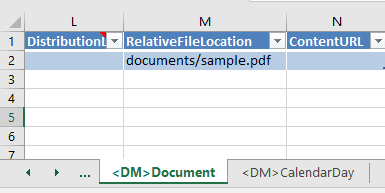
For the system to be able to access and process the sample.pdf file, it must be placed inside a documents folder, which will have to be located in the root of the .zip file or at the same level as the .xlsx file:

Additionally, it is not possible to upload multiple Master Data files through a single .zip folder. If your root folder, which represents the Master Data Package, has multiple valid files, only one will be processed as Master Data and its selection is random (the first valid file). This means that you have no way of selecting which file will be loaded as the Master Data file. Therefore, any extra files that are to be used in the Master Data file itself must be contained in sub-folders and be duly referenced in the Master Data file:
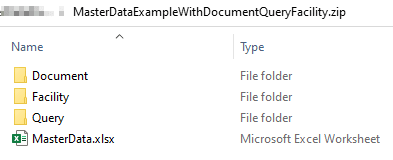
In the eventuality that all .xlsx and .json files are tried and there is no valid file, the system will return and error with the last attempted file.
More information on Master Data Packages, where you can also find a sample of the Master Data File.
Creating a Master Data Package#
MasterDataPackage.Create
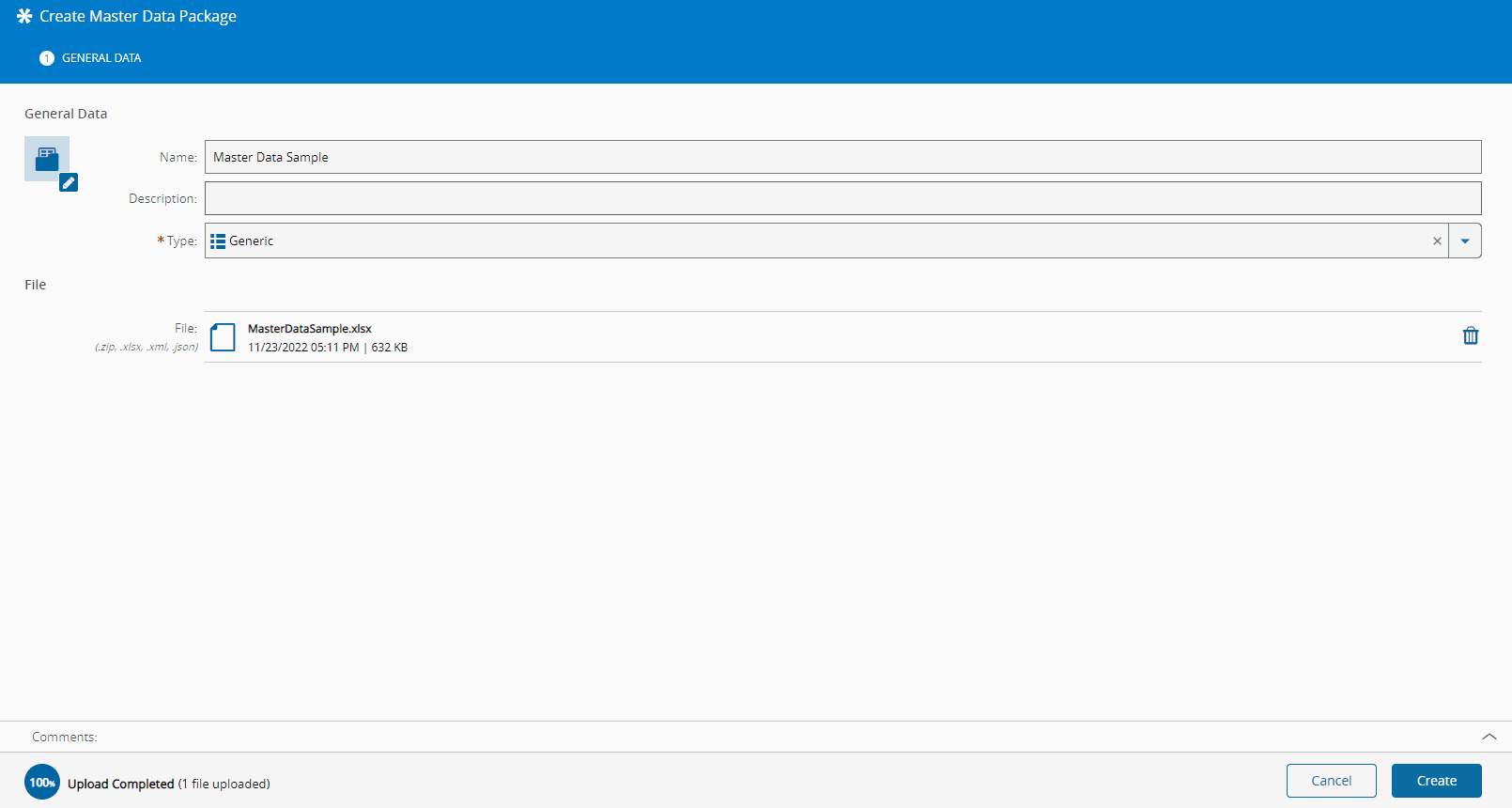
To create a Master Data Package in the application you need to open the Master Data Packages page and select New in the ribbon:
Step 1: General Data#
- Provide the name for the Master Data Package.
- Optionally, provide a description.
- Select the Master Data Package type. The list of possible values is taken from the lookup table
MasterDataPackageType. -
Select the file to upload by dragging it from the file explorer or by using Browse Files and selecting a file manually. Your file can be:
- A duly populated MasterData.xlsx template:
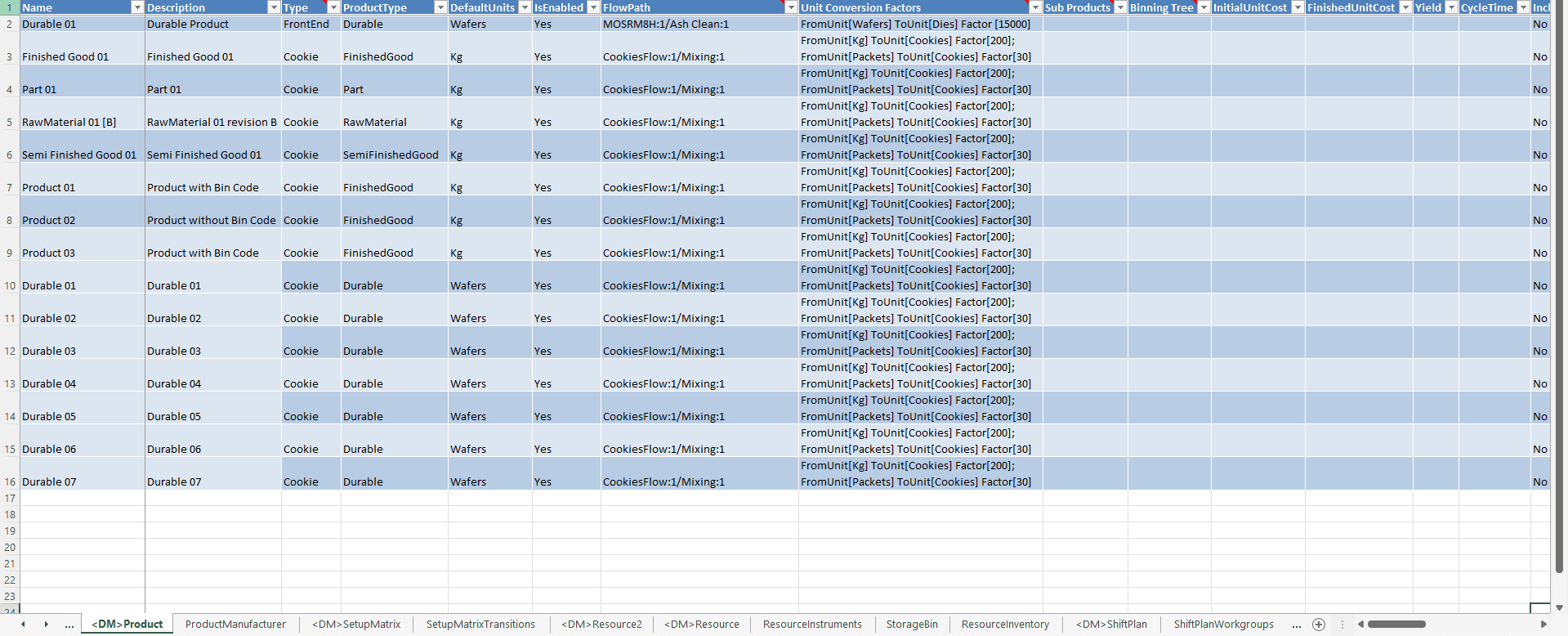
- A
.zipfolder if you want to load objects such as documents, queries and other:
Note
When using
.zipfolders you must reference objects correctly in the RelativeFileLocation column of your MasterData.xlsx: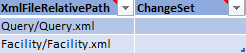

-
File information will be displayed on screen after the file is loaded and analyzed by the system. Selecting on the right hand side of the entry will remove the file from the import queue.
- Select Create to save the new Master Data Package.
Editing a Master Data Package#
MasterDataPackage.Edit
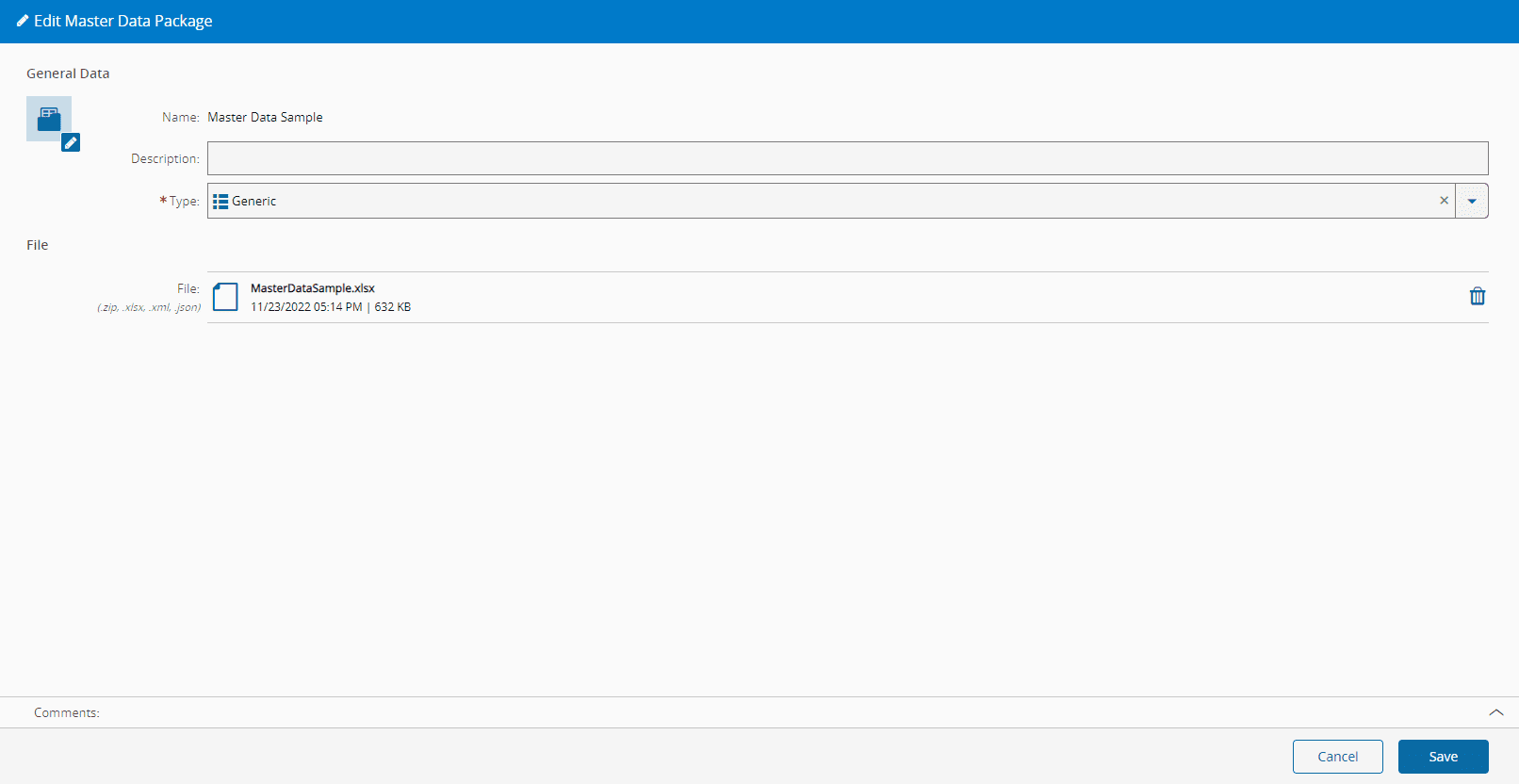
To edit a Master Data Package, you need to:
- Open the Master Data Package page.
- Open the wizard by selecting Edit on the top ribbon.
- Make the necessary changes and save them by selecting Edit.
Terminating a Master Data Package#
MasterDataPackage.Terminate
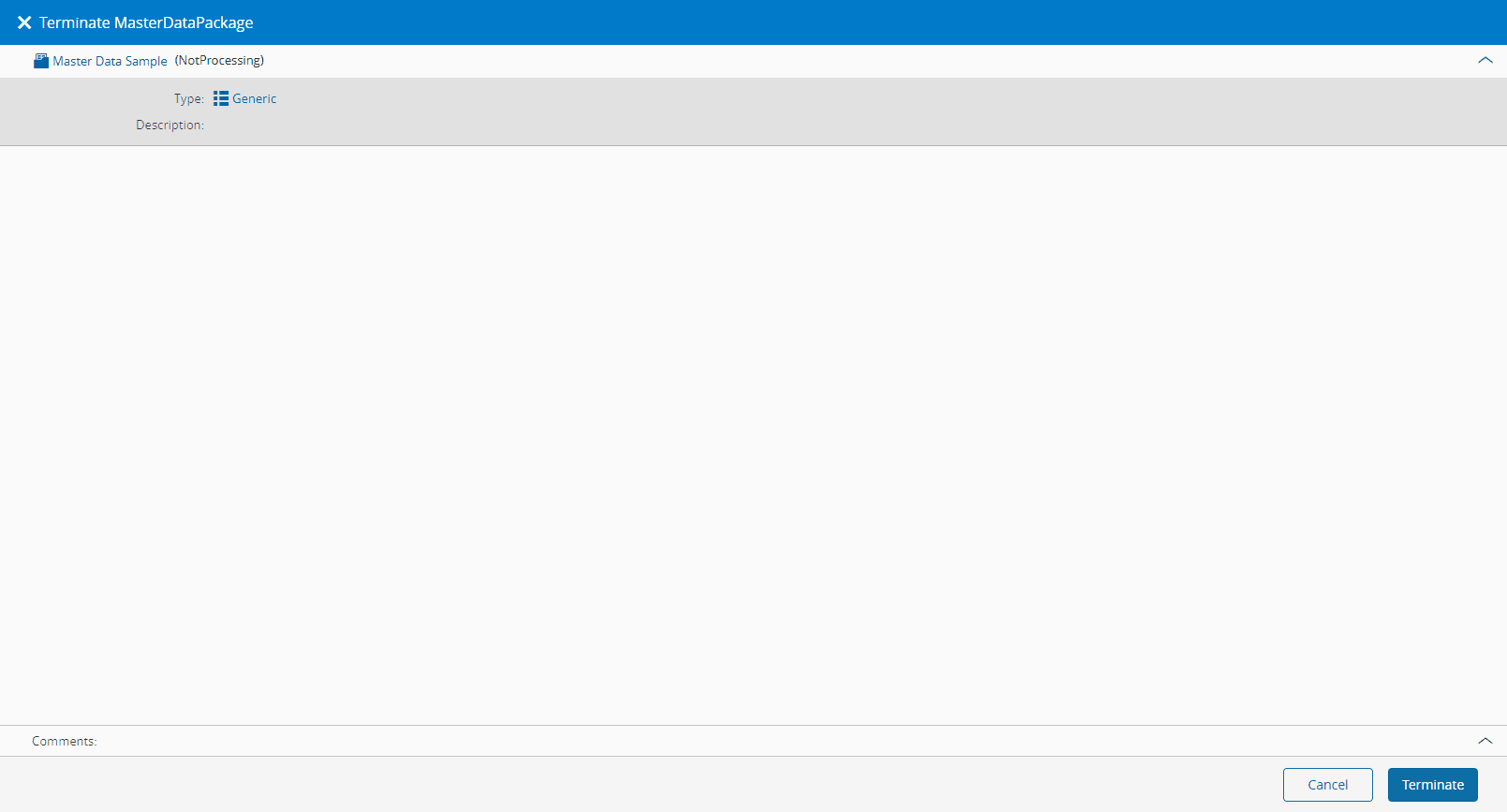
To terminate a Master Data Package, you need to:
- Open the Master Data Package page.
- Select Terminate in the top ribbon.
- Confirm the details and select Terminate to remove the Master Data Package.
Loading a Master Data Package#
MasterDataPackage.Load
To Load a Master Data Package, the Master Data Package exists, it is Active and the System State is Not Processing. The steps to load the package are described below:
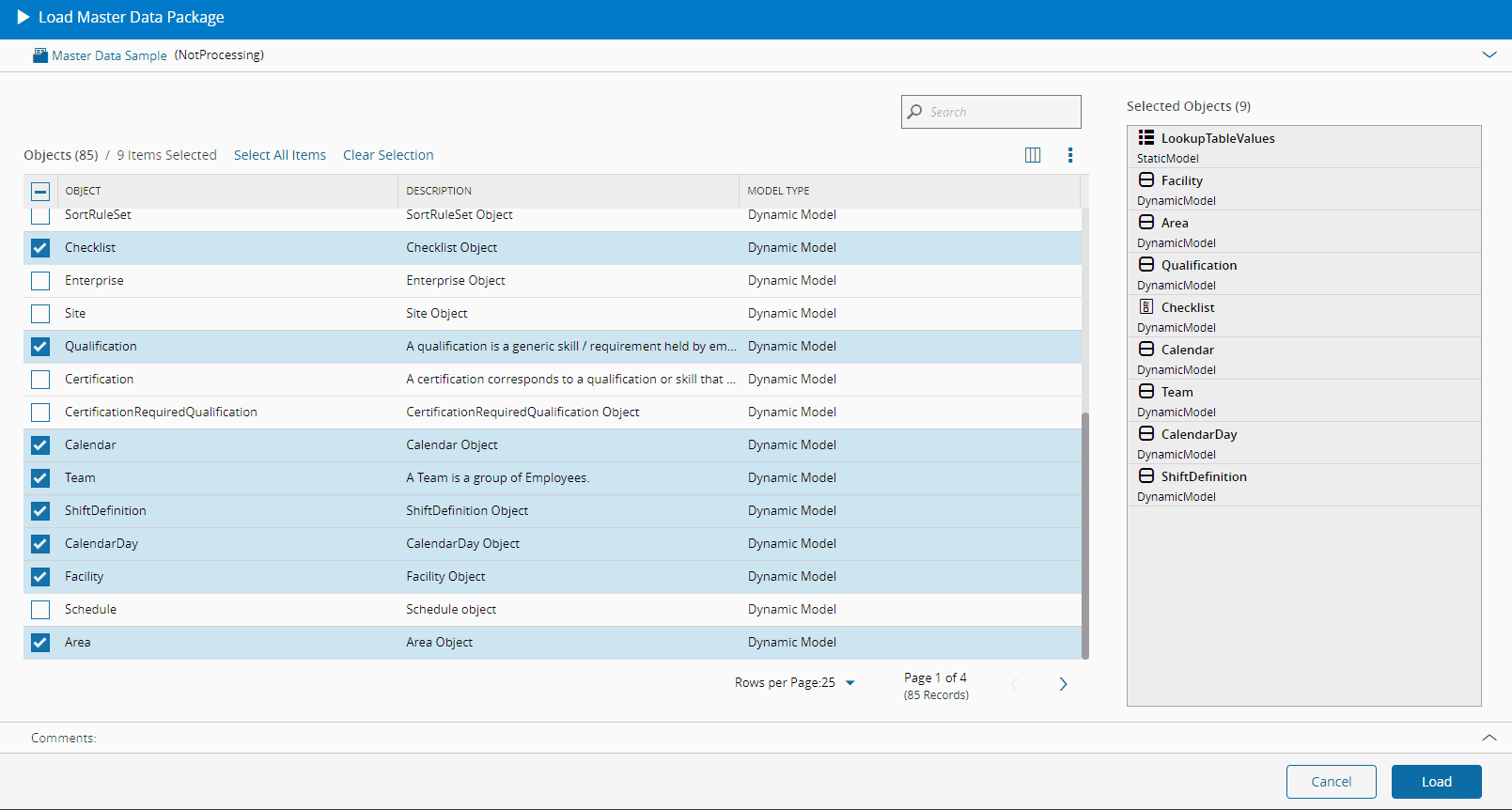
- From the main details page of the Master Data Package, select the Run drop down on the top ribbon and select Load.
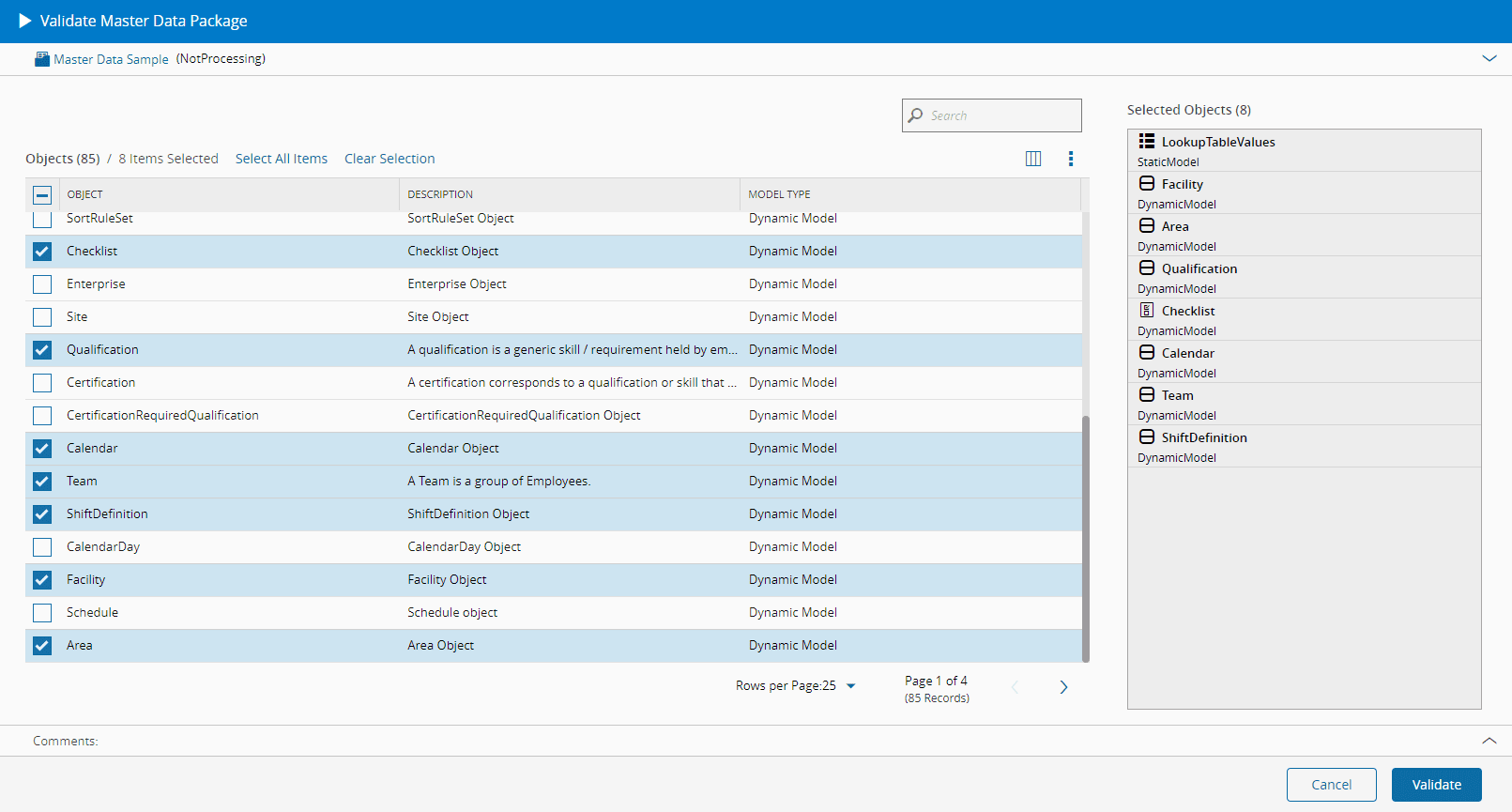
- The system will open a dialog where you can see the Entity Types available from the loaded package file. Select which of the entity types should be loaded into the Critical Manufacturing MES system and select Load to start the process.
Info
The System State of the Master Data Package will be set to Processing during loading, and will move back to Not Processing after completing the process.
The status of the execution can be seen in real time on the main screen (and on the left sidebar) when the package is loading:
| Operation result | Visual example |
|---|---|
| Waiting to run |  |
| Running | 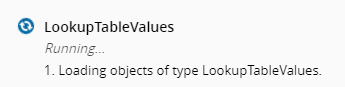 |
| Finished successfully |  |
| Error | 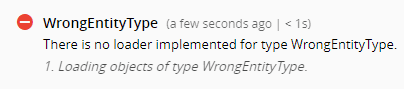 |
Table: Execution status for Master Data Package Load
Note
When using Load, the execution will stop if any error is raised throughout the procedure, resulting in the following possible scenarios:
| Procedure result | Data loading |
|---|---|
| No error raised | All data loaded into the system |
| At least one error raised | No data loaded into the system |
Table: Execution results for Master Data Package Load
Validating a Master Data Package#
MasterDataPackage.Validate
To validate a Master Data Package and assert the correctness of the values, the Master Data Package exists, it is Active and the System State is Not Processing. The steps to load the package are described below:
- From the main details page of the Master Data Package, select the Run drop down on the top ribbon and select Validate.
- The system will open a dialog where you can see the Entity Types available from the loaded package file. Select which of the entity types should be loaded into the Critical Manufacturing MES system and select Validate to start the process.