---
alias: user-guide-automation-task-core-setequipmentproperties
tags:
- automation tasks
description: "This task modifies equipment properties via a driver, triggering a value update"
---
# Set Equipment Properties
:iot-set-equipment-property-value-lg:{style="font-size: 100px"}
This task is used to change a property value in the equipment, therefore it's associated to a particular driver.
## Details
| Fields | Details |
| ----------------- | ---------------------------------------------------------------------------------- |
| Scope | Connect IoT |
| Workflow | Data flow
Control flow |
| `IsProtocol` flag | :material-check:{style="color:#4DB6AC"} |
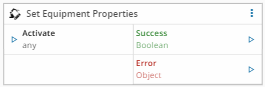
## Inputs
| Name | Data Type | Description |
| --------------- | --------- | ----------- |
| `` | `` | Input properties |
| Activate | `any` | Request the equipment to set new values to the configured properties |
## Outputs
| Name | Data Type | Description |
| ------ | ---------| --------- |
| Success | `Boolean` | If there was no problem emits a true |
| Error | `Error` | Error that occurred during the processing of this task |
## Settings
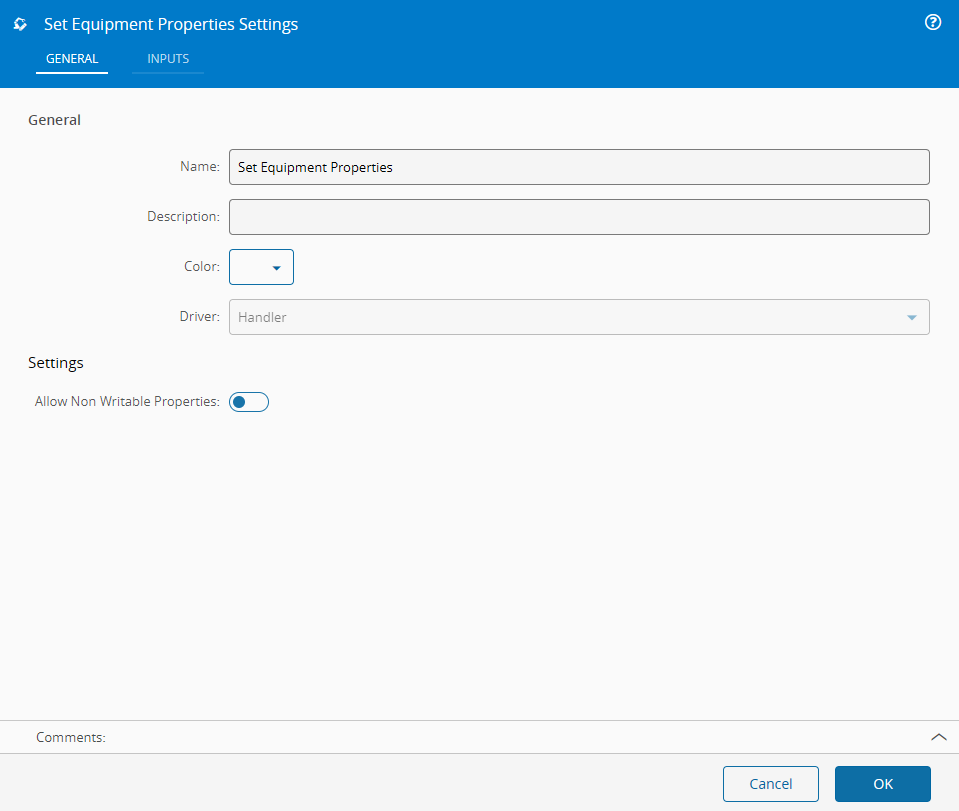
On the `General Tab`, you have the usual settings and the following settings:
| Name | Data Type | Default | Description |
| ------ | ---------| --------- | --------- |
| Driver | `String` | Chosen Driver | It shows the chosen driver (cannot be changed) |
!!! note "Extended Data"
This task shows extended data in the `Inputs` tab. The extended data shown depends on the driver in use.
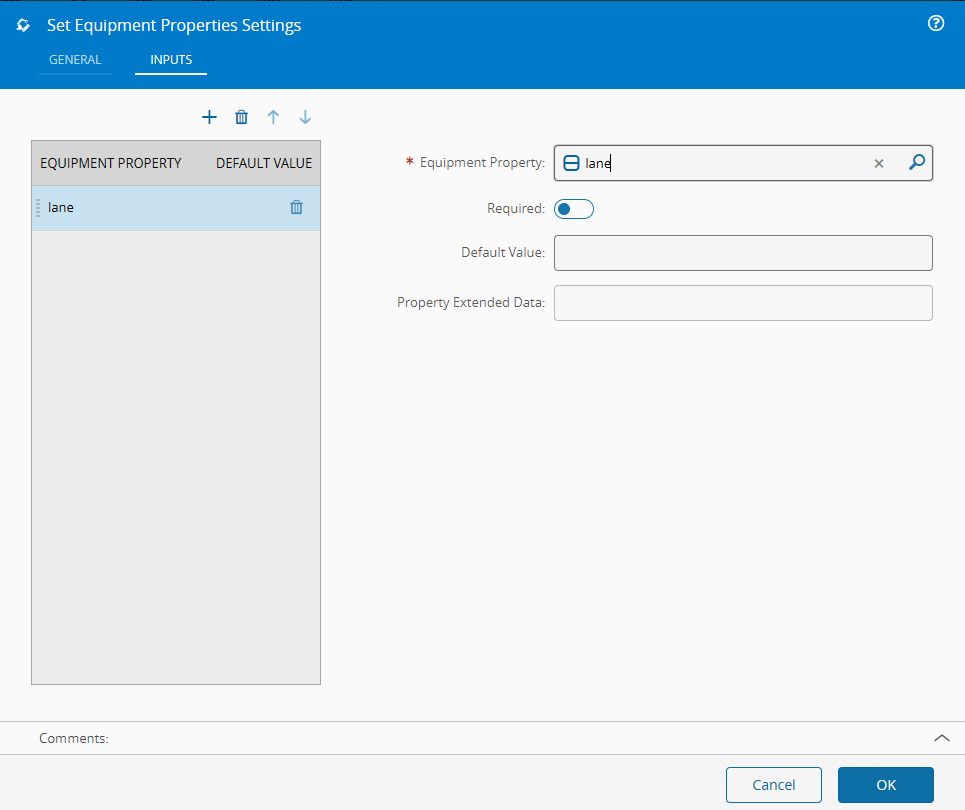
On the `Inputs Tab`, you have the following settings:
| Name | Data Type | Default | Description |
| ------ | --------- | --------- | --------- |
| Equipment Property | `` | | A driver definition property |
| Required | `Boolean` | false | If required to activate the task |
## Behavior
In this task you choose a driver when dropping it into the workflow (if you have more than one driver associated with the controller). When the task is `activated` the given input values are sent to the equipment.
## Remarks
All the communication with the equipment is handled by the driver in the backend.