---
alias: user-guide-automation-task-core-executeservicecall
tags:
- automation tasks
description: "This task executes MES service calls, managing inputs, outputs, and service configurations for interaction"
---
# Execute Service Call
:iot-apicall-lg:{style="font-size:100px"}
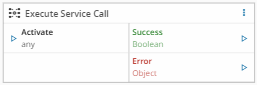
This task executes a MES service call. It enables the connect IoT module to interact with MES Services.
!!! note
The image of the task is an example using the MES `DeleteLicense` service. If no service is selected the task will have no inputs or outputs, except for `Activate`, `Success` and `Error`.
## Details
| Fields | Details |
| ----------------- | ---------------------------------------------------------------------------------- |
| Scope | Connect IoT
Data Platform
Enterprise Integration
Factory Automation |
| Workflow | Data flow
Control flow |
| `IsProtocol` flag | :material-close:{style="color:#EF5350"} |
## Inputs
| Name | Data Type | Description |
|-----------------|------------|-------------------------------------|
| `` | `` | Inputs for the service |
| Activate | `any` | Executes the configured MES service |
## Outputs
| Name | Data Type | Description |
|-----------------|------------|--------------------------------------------------------|
| `` | `` | Outputs of the service |
| Success | `Boolean` | If there was no problem emits a `true` |
| Error | `Error` | Error that occurred during the processing of this task |
## Settings
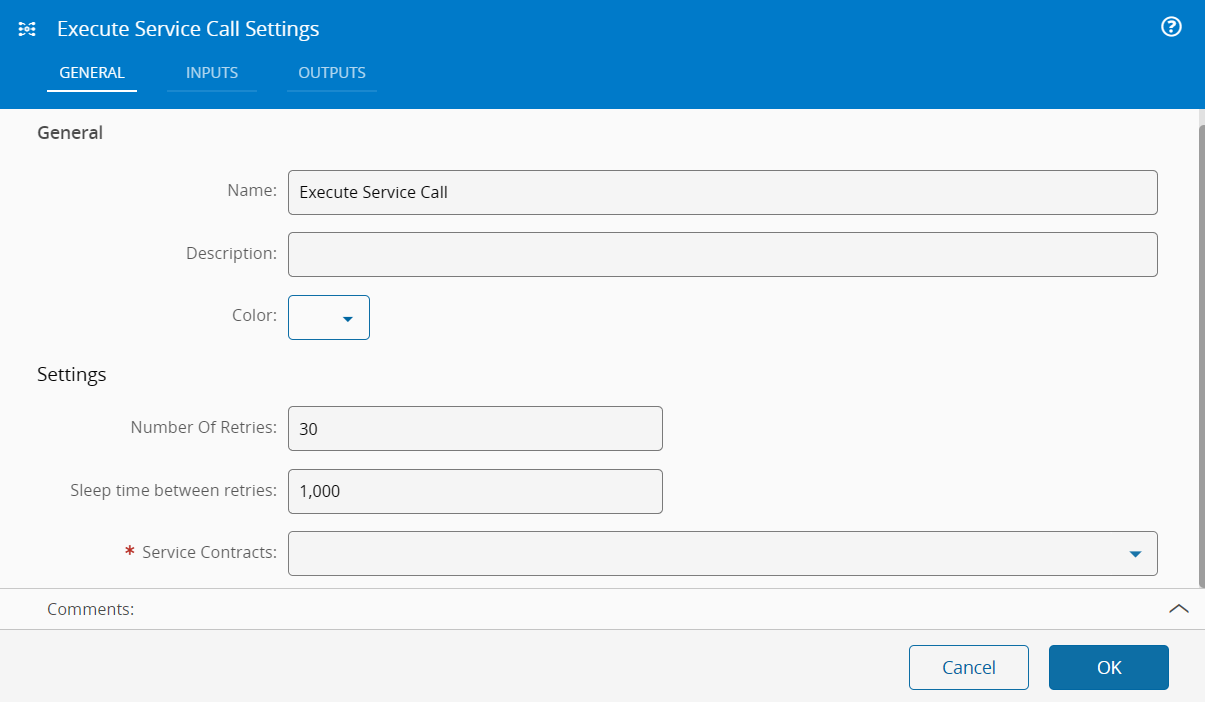
On the `General` Tab, the usual settings such as Name, description and color.
{% include-markdown 'includes/pages/iot_tasks_retries_settings.md' %}
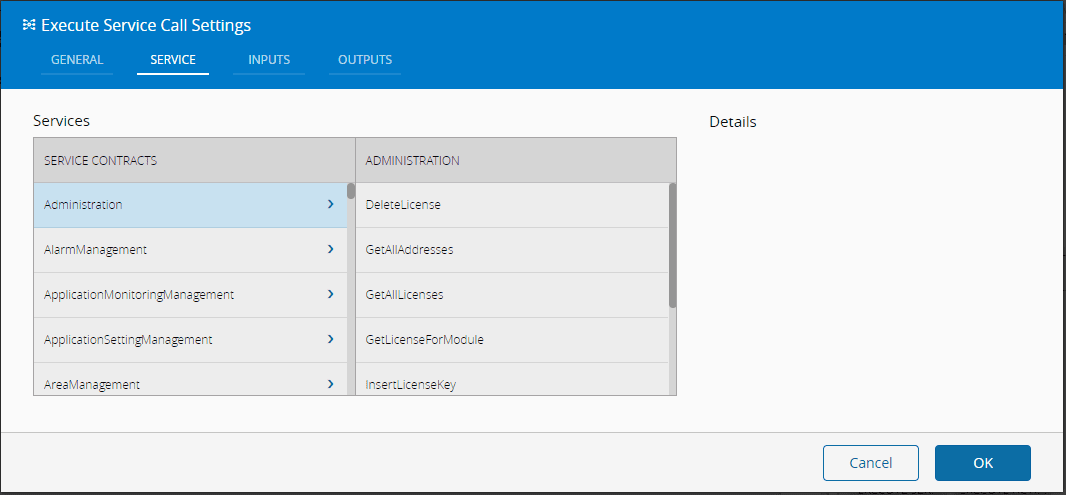
On the `Service Tab`, you have a listing of all the available MES services.
On the `Inputs Tab`, you have the inputs referring to the selected service (automatically loaded):
| Name | Data Type | Default | Description |
| ------ | -------- | --------- | --------- |
| Name | `String` | `` | Name of MES service input. |
| Friendly Name | `String` | `` | Name to be displayed. |
| Type | `Long`
`Decimal`
`DateTime`
`Boolean`
`String`
`Integer` | `` | Type of the MES service input. |
| Collection Type | `None`
`Array`
`Map` | `` | |
| Default | `` | | Default Value for the MES service input |
On the `Outputs Tab`, you have the outputs referring to the selected service:
| Name | Data Type | Default | Description |
| --------------- | ------------------ | ---------------- | ---------------------- |
| Name | `String` | `` | Name of MES service output. |
| Friendly Name | ``String | `` | Name to be displayed. ||
| Type | `Long`
`Decimal`
`DateTime`
`Boolean`
`String`
`Integer` | `` | The type of the output |
| Collection Type | `None`
`Array`
`Map` | `` | |
## Behavior
The task executes a MES service given a set of input values. It instantiates a MES input object, calls the service, and transforms the MES output objects into individual output variables.
## Remarks
Make sure the MES objects linked with the inputs are fully loaded, otherwise, the Service call may fail. If the objects are not loaded and to avoid making multiple calls to MES to get the objects fully loaded, you can add `Pre` actions to the service and load them inside MES system and therefor, make the calls much more efficient.