---
alias: user-guide-printable-document-layout-creation
description: "Modify printable document layouts after creation through a dedicated editor for design adjustments"
---
# Printable Document Layout Creation
:lock: PrintableDocument.**Edit**
It is not possible to design the layout of a **Printable Document** in the creation wizard. Once created, a default layout will be provided. To modify this layout, you will need to edit the **Printable Document** layout after the document has been created.
!!! info
When creating a new version of an existing Printable Document, it is created with the same layout as the version from which the new version was created.
To Create/Edit the **Printable Document** layout, select the **Edit Layout** button:

By selecting the **Edit Layout** button, you will open the layout editor as shown in the next image:
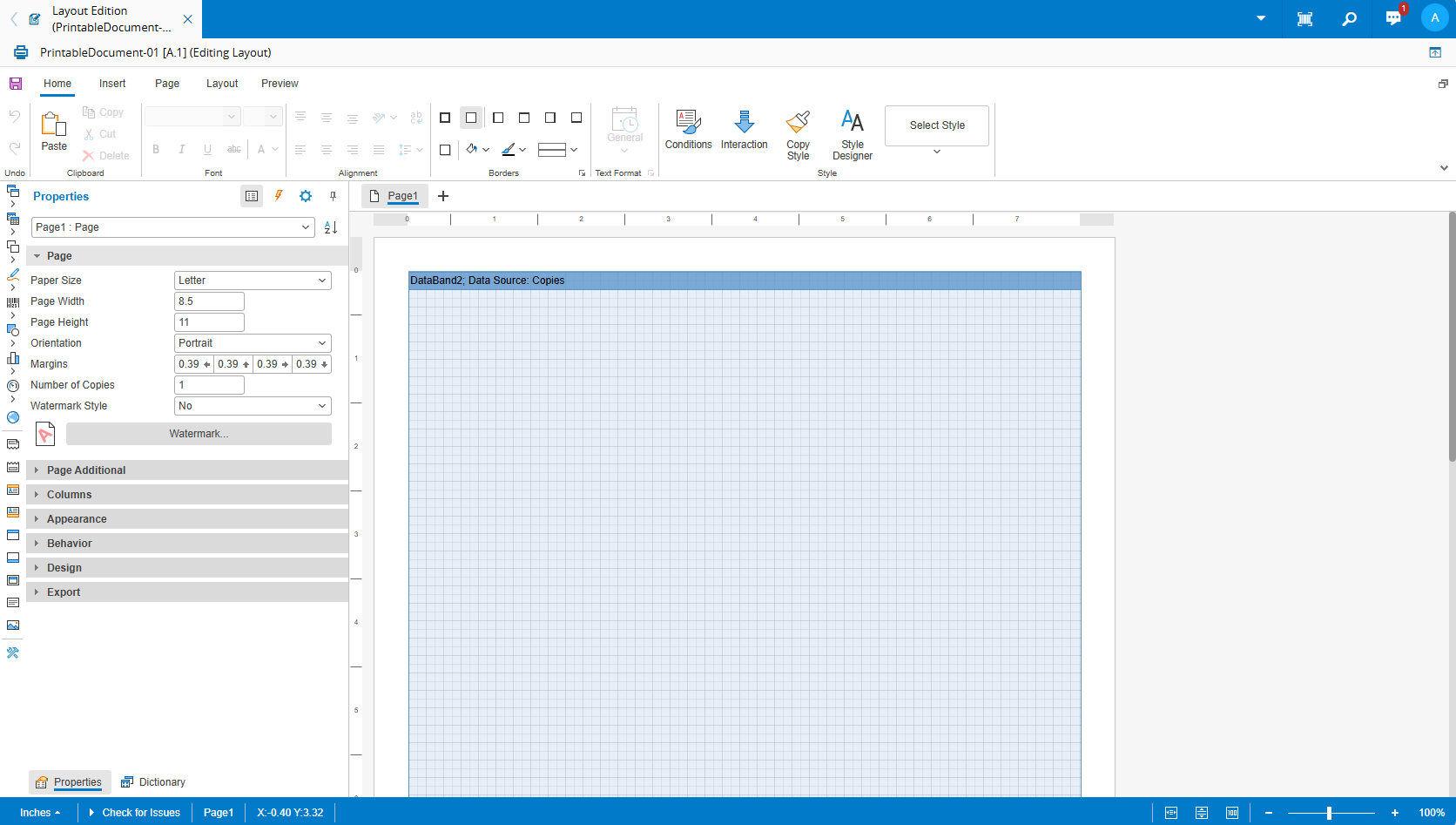
For more information on how to edit the layout, see the sections below.
!!! info
Due to technical limitations, it's not possible to access the Data Source object directly in the designer and the expression needs to be written manually (for example, `{AppliesToValue.Name}`).
!!! warning
Do not forget to save the changes before exiting the layout editor.
Due to some caching issues related to the editor, it is strongly recommended to use a single session and to edit one printable document at a time.
## Default Printable Document Layout
The default layout (used when a new **Printable Document** is created), is composed of a single page containing a single Data Band with a few properties set, such as:
+ **Height**, set to the page weight (extends the full page).
+ **Width**, set to the page width.
+ **DataSourceName**, set to the name of the first Serial Number context item, or to `Copies` if no Serial Number item exists.
+ **NewPageAfter**, set to `true`, which means that a new page will be created for each value in the Collection pointed by the DataSourceName (see above), that is, it will create as many copies of the page as the number entered in the Number of Copies field.
## Editing Document and Page Properties
Apart from the default properties mentioned above, the properties editor allows you to edit the properties of any layout element, including the page object and the Report (Document).
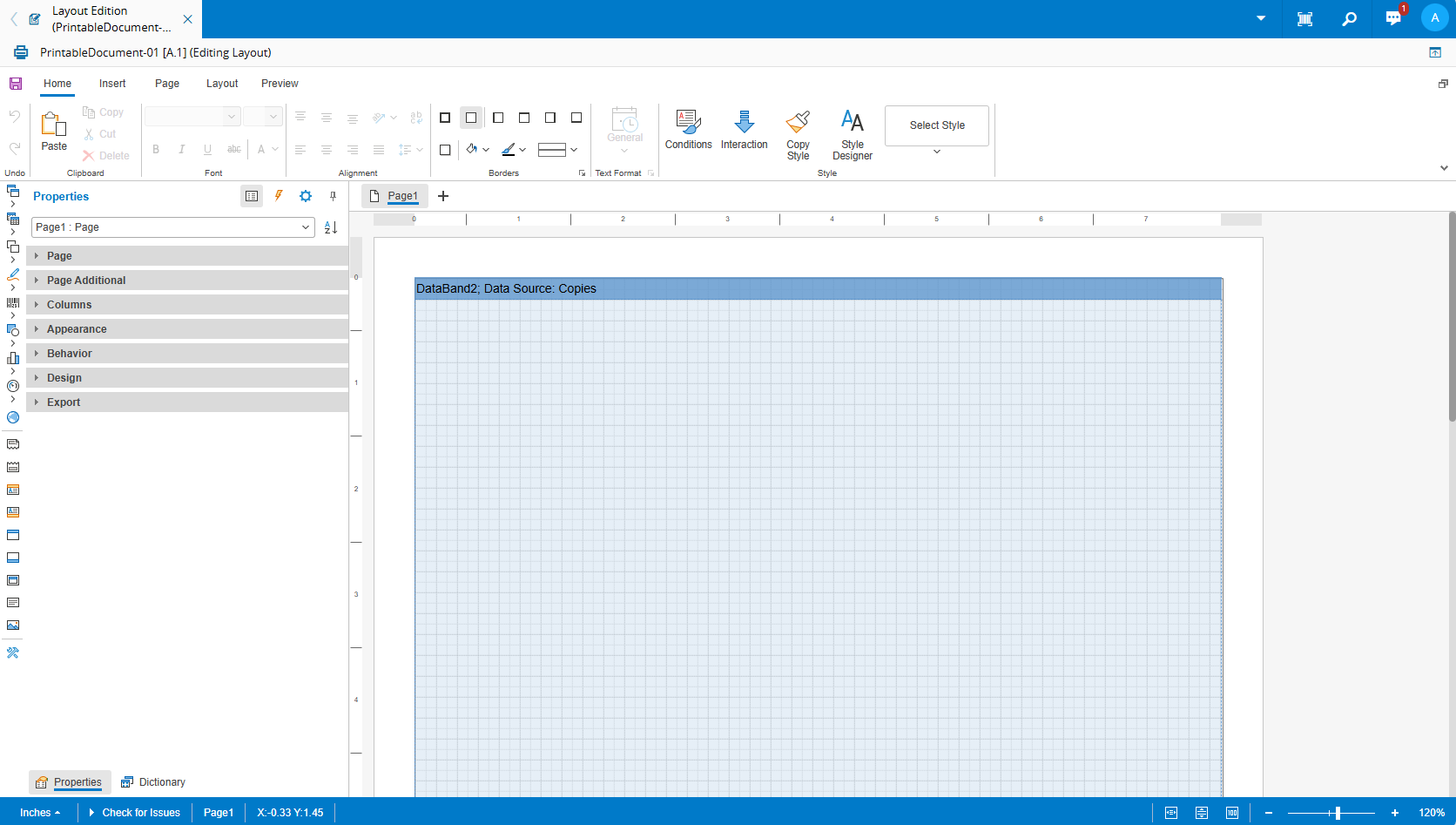
For example, to set the paper size to a size different from the default select the page, and then on the page properties change the Page Width or Page Height as desired:
## Layout Design
### Context Items
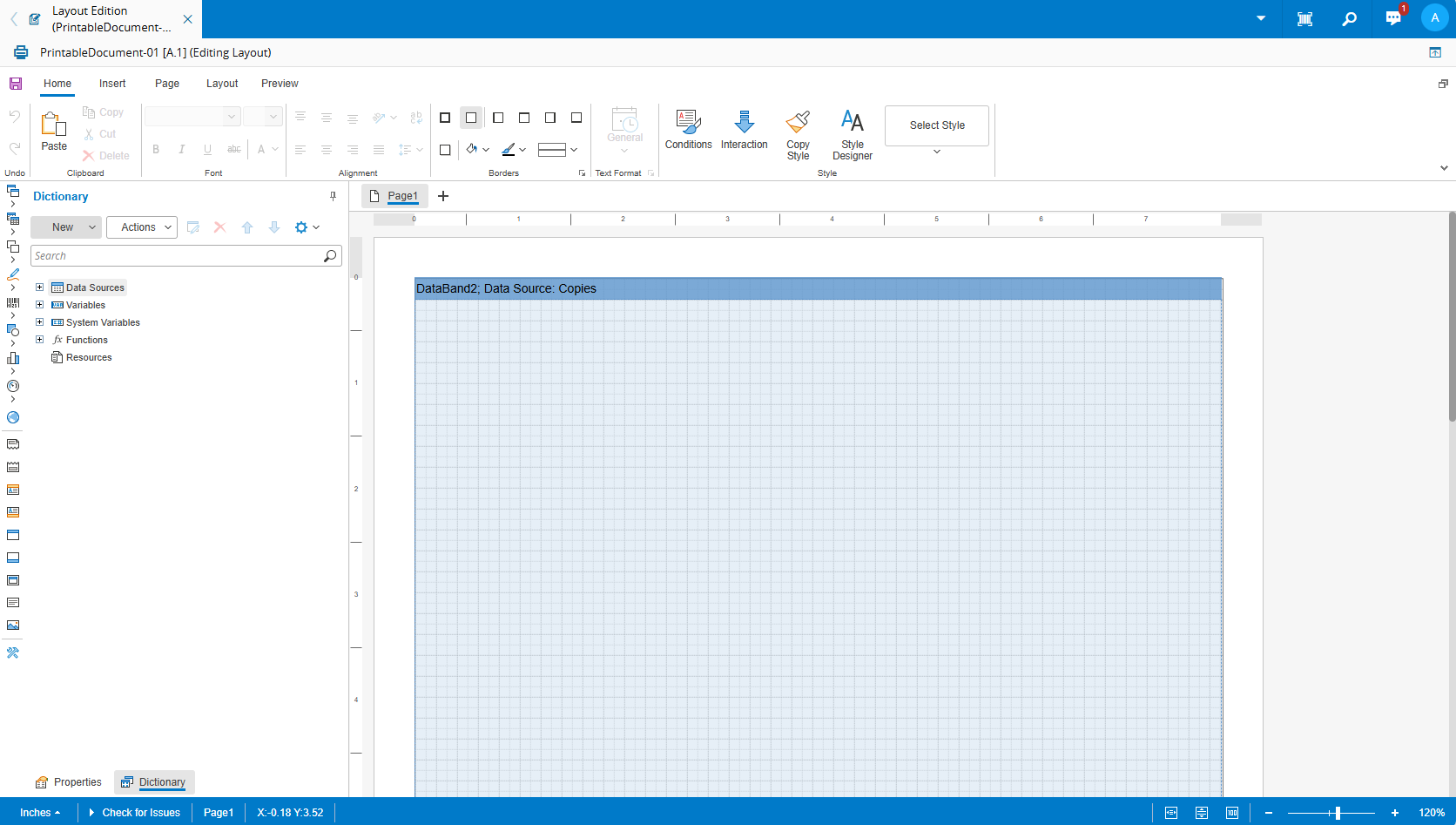
All values of the Printable Document Context Items plus the system data items, are available on the layout designer **Dictionary** page, meaning that they can be used on any expression in the layout elements (for example, to calculate their contents, visibility and the style).
Scalar type items will be part of the Variables group and object type or collection type items will be part of the Data Sources group:
### Custom Fonts
To add Custom Fonts, select the **Dictionary** tab, right click on **Resources** and select **New Resource**:
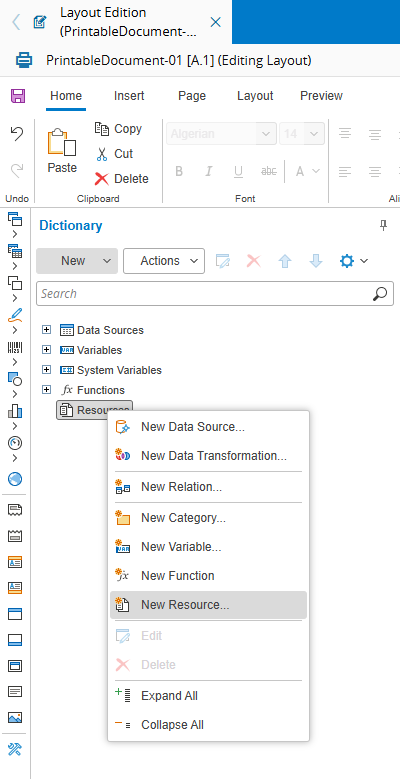
This will open a window where you place the desired font file (use the open file or drag and drop feature). Select **OK** to save and close the window:
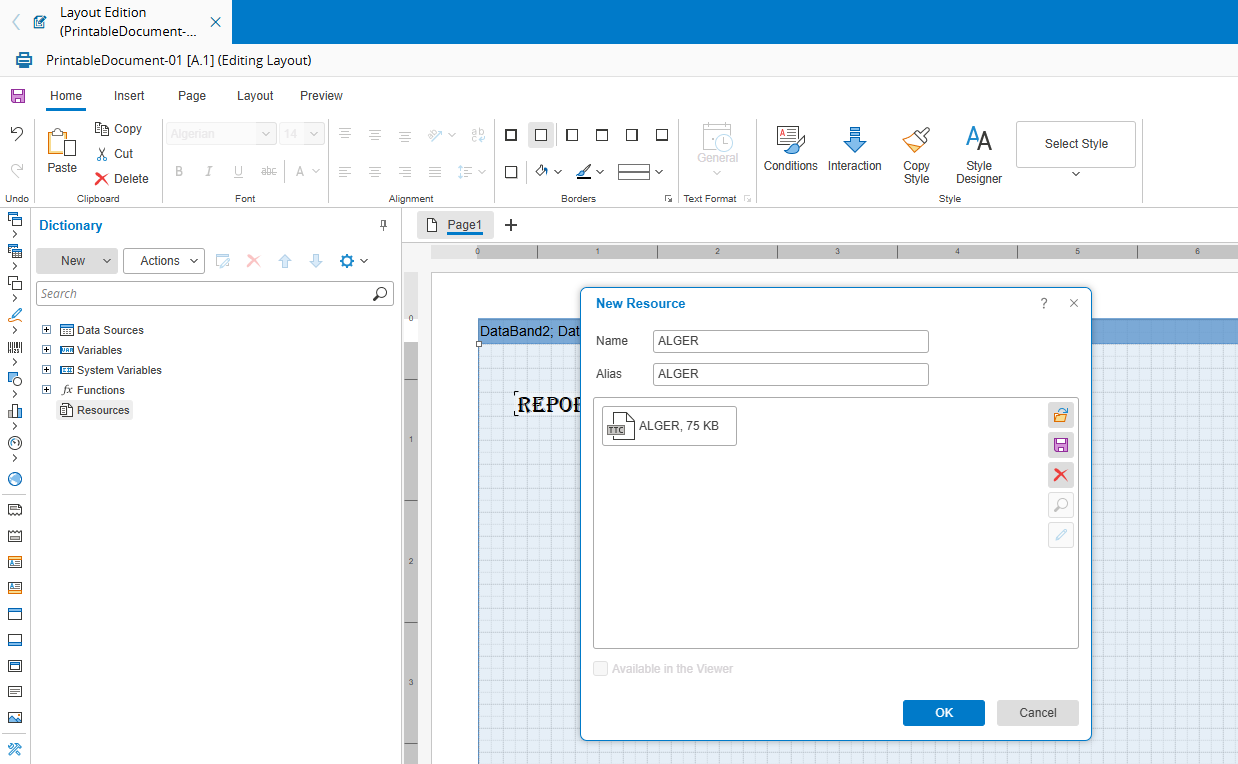
Alternatively, you can drag and drop the font file straight under the **Resources** section.
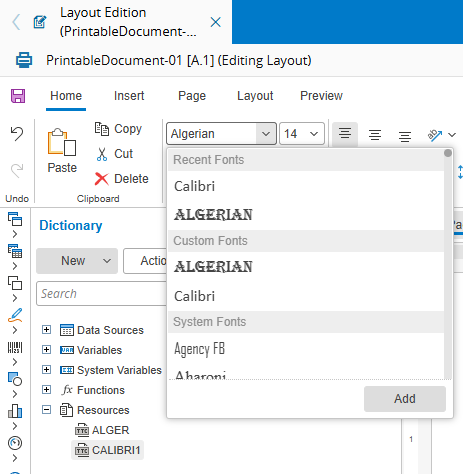
When the Custom Fonts are available, they will be displayed under the **Resources** section and in the Fonts dropdown:
!!! note
The fonts that are available by default are DejaVu Sans, Open Sans, and Roboto.
### Additional Information
The layout designer is an integral part of the third-party software used for document printing in Critical Manufacturing (Stimulsoft Reports.Web). It is a rich designer with many available options. This manual does not cover every feature of this designer; only the basic features. More detailed information on all features can be found on the [Stimulsoft website](https://www.stimulsoft.com).
These links are of special interest:
+ Documentation:
+ Articles:
+ Videos: